How to manage orders in easySales: the orders list, filters, bulk actions and the order page
Find any order, read its status, work on many orders at once and edit an order in easySales: search, filters, saved views, bulk actions, the order page and exports.
What the Orders screen does
Orders collects the orders from every marketplace and online shop you connected, in one list. From here you find an order, check where it stands, create invoices and AWBs for many orders at once, and open an order to see or change its details.
Three things to know before you start:
- The list remembers your last filters. When you come back to Orders, the filters you used last time are still on. If an order seems to be missing, look under the search box first: every active filter is shown there, and Clear filters removes them.
- Orders are sorted by the date the buyer placed them. An order that reaches easySales hours later, for example after the payment is confirmed, lands lower in the list, among the orders of that date. The Added to easySales column shows when it arrived.
- What you edit on an order stays as you set it. Once you change the customer, an address or the products on the order page, later syncs from the channel no longer overwrite that part.
The orders list
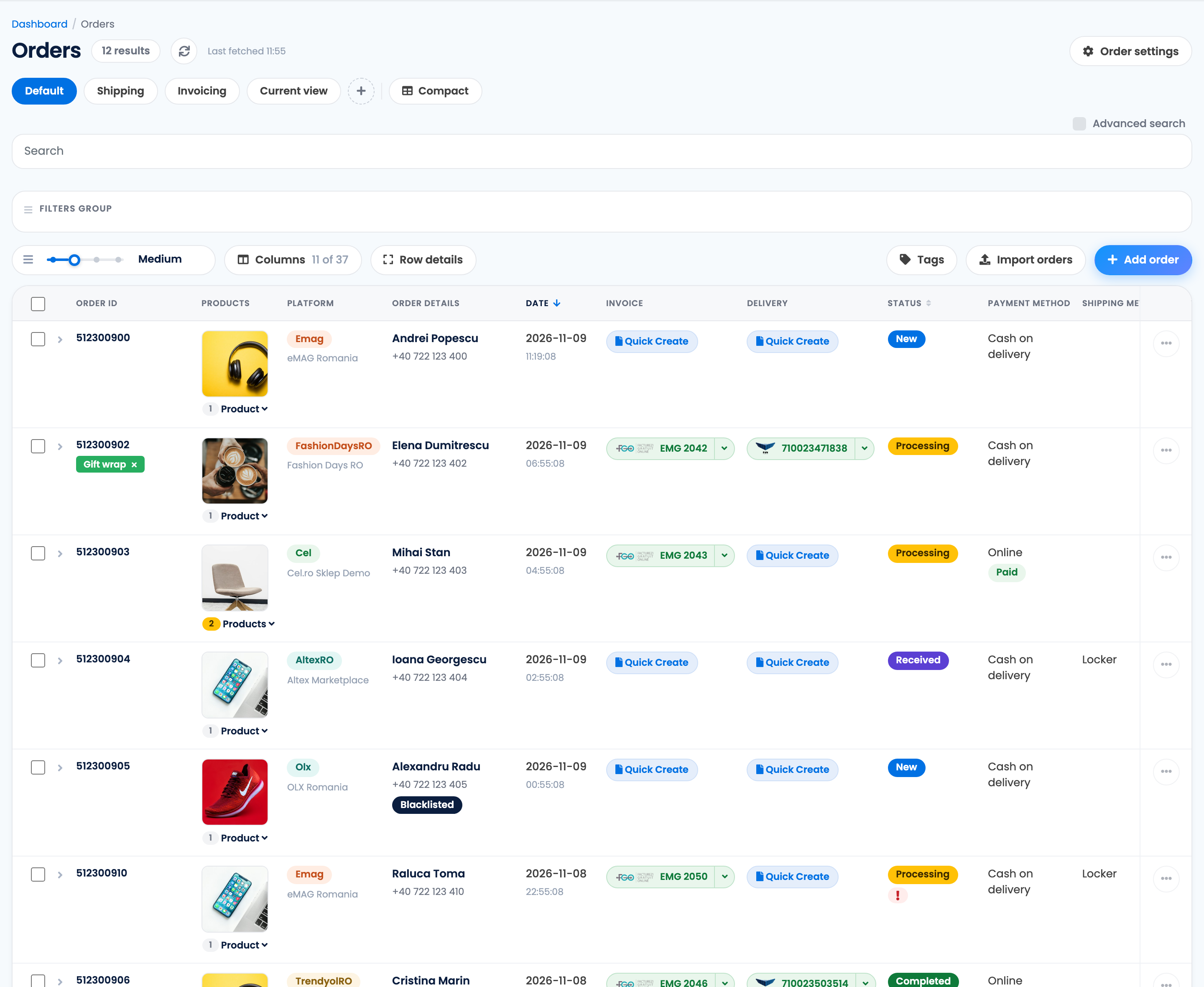
| Part | What it does |
|---|---|
| Default, Shipping, Invoicing and your own views | Saved layouts of the list: which columns are shown, the row size and the sort order. + adds a view. |
| Search | Finds an order by number, customer or company name, phone or VAT ID. |
| Filter chips, Clear filters, Save filters | The filters that are on right now, and the button that removes them all. |
| Filters group | Your saved sets of filters, ready to apply again. |
| Columns, Row details and the row-size slider | Choose the columns and how much each row shows. |
| Tags | Add or remove tags on the selected orders. |
| Import orders, Add order | Bring in orders from a file, or create one by hand. |
| Order settings | Your order preferences, such as custom statuses, stock reservation and what the order page shows. |
Find an order
Search finds an order by its order number, the customer's or company's name, a phone number or the VAT ID. It does not look in e-mail addresses, SKUs, AWB numbers or invoice numbers: for those, use a filter.
Filters narrow the list by almost anything on the order: status, channel, date, payment, customer, products, invoice, AWB, address, tags and more. Click in the box, pick a field, then a condition and a value. Each filter appears as a chip under the box; the × on a chip removes it, and Clear filters removes them all. With more than one filter, choose whether an order must match all of them (And) or any of them (Or).
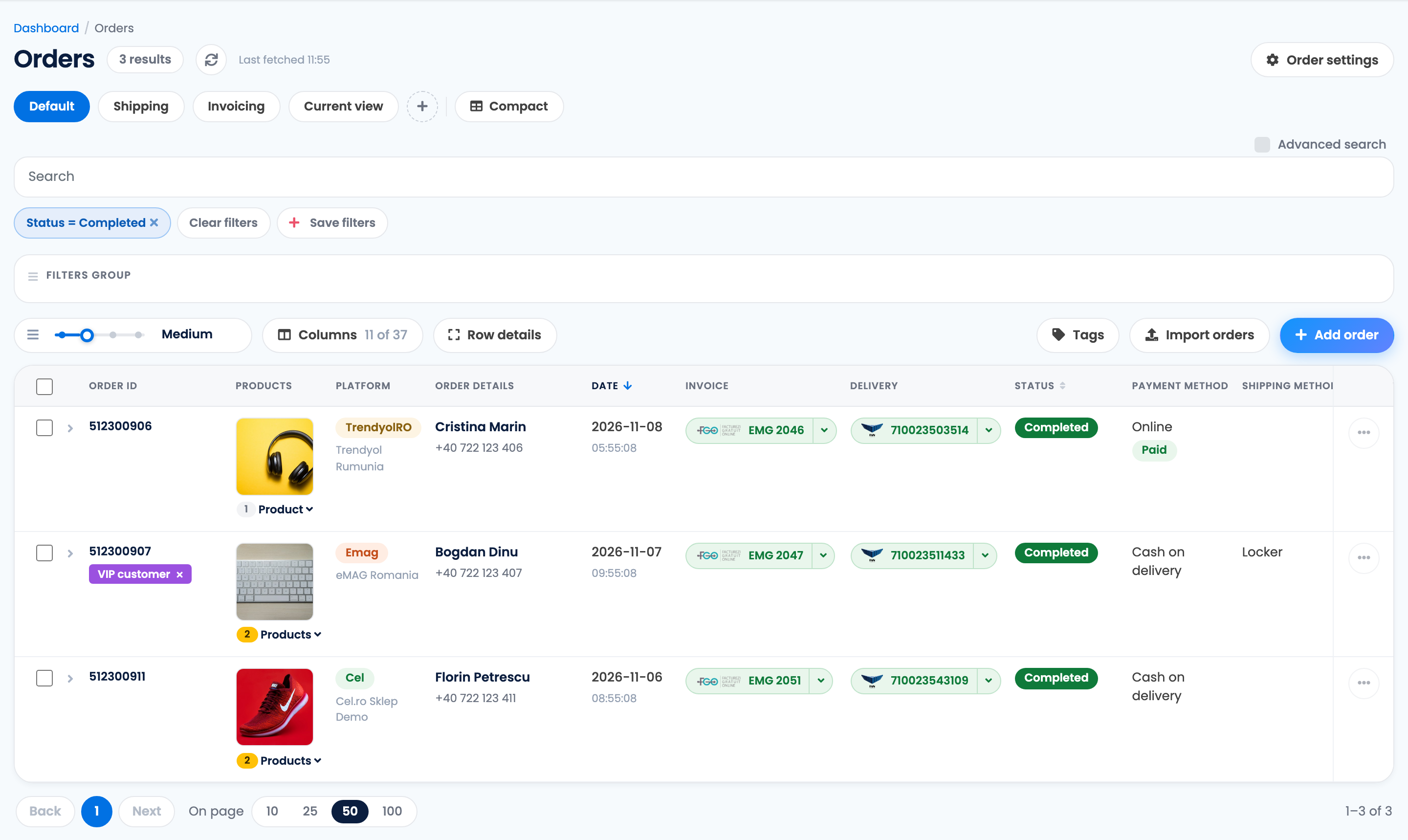
To keep a set of filters you use often, press Save filters and give it a name. Saved filters are listed under Filters group, where one click applies them again.
An order arrived late
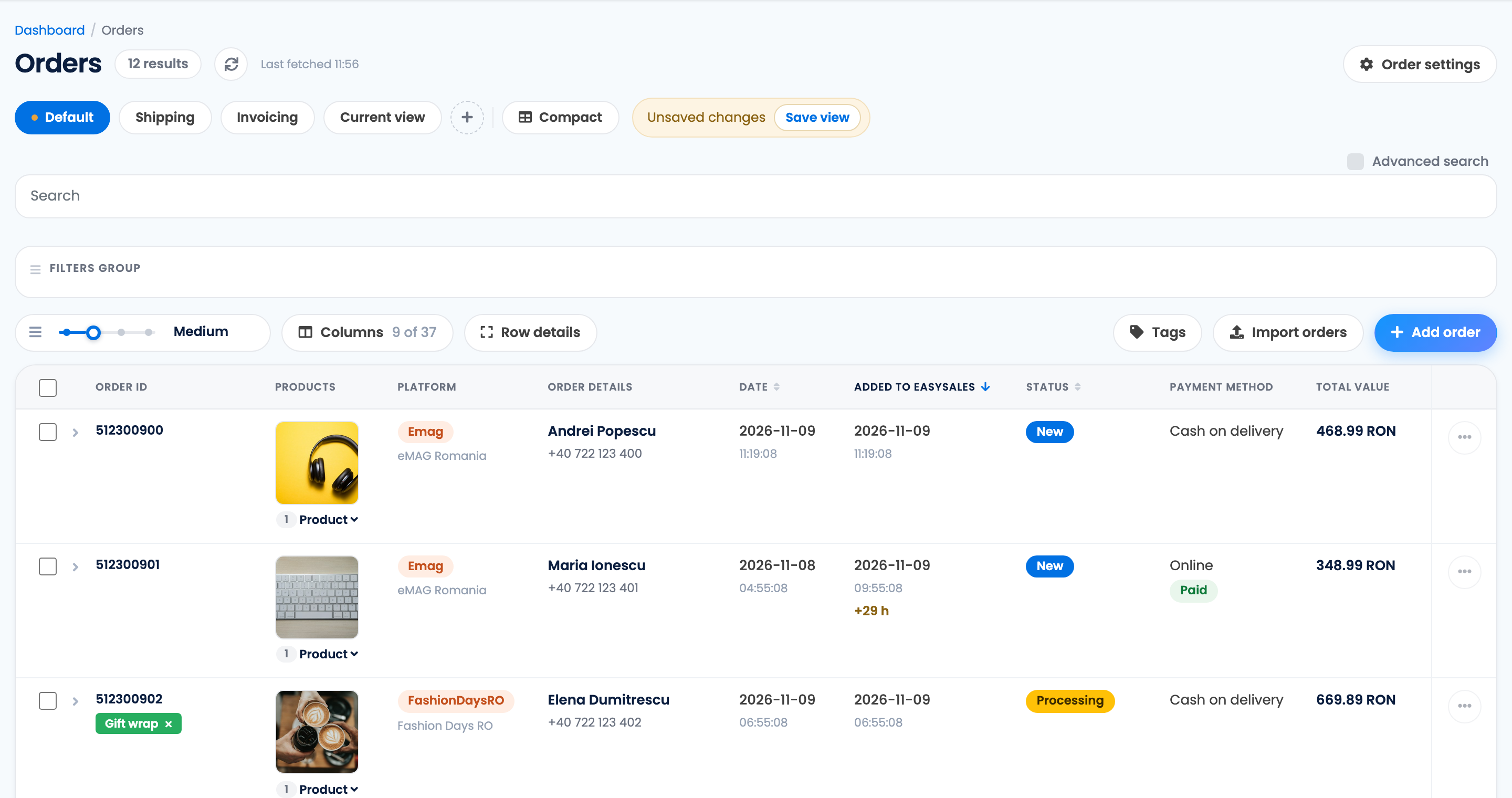
Some channels send an order only after a step on their side, such as the payment being confirmed. The order keeps the date the buyer placed it, so it can appear a page or more down the list. To see the newest arrivals first, show the Added to easySales column (Columns) and click its header to sort by it. An order that arrived more than six hours after it was placed shows how late it came, for example +29 h.
Still not there
If the order is not in the list with every filter cleared:
- Look at the Orders counter at the top of the page. When it reaches your plan's monthly limit, new orders are not added until you upgrade or the next billing period starts.
- Check that the connection to the channel is active and shows no error.
- Run Sync orders on the connection to fetch the channel's recent orders again.
Order statuses
Every order has one of seven statuses. Most of them come from the channel, which sends each change to easySales:
| Status | What it means |
|---|---|
| New | The order has just arrived and nothing has been done with it yet. |
| Received | The order was accepted and is in progress: the channel reports it as being prepared. |
| Processing | The order is in a processing group, being picked and packed. |
| Completed | The order is finished. |
| Canceled | The order was cancelled by the buyer, the channel or you. |
| Incomplete | A processing group was closed while some of the order's products were still not picked. |
| Returned | The order was returned. |
You change the status yourself in two ways: Cancel order and Complete order on the order page, and Complete orders for several orders at once. Both are sent to the channel, and only channels that accept status changes from easySales show them.
Custom statuses are your own labels for your own workflow, such as "To pack" or "Waiting for stock". Set one with Change status on selected orders or on the order page. A custom status stays in easySales: it does not change the order's status and is not sent to the channel.
Columns, density and saved views
- Columns chooses which columns the list shows and in which order. Row details expands every row, and the slider next to it sets how much space each row takes.
- Compact is a fixed layout that fits the screen without scrolling sideways.
- The list keeps your layout in this browser. To keep it everywhere, and to switch between layouts in one click, save it as a view: change the columns, then press Save view next to Unsaved changes. A view keeps the columns, the row size and the sort order; filters are saved separately, with Save filters.
Work on many orders at once
Tick the orders you want, or tick the first one and press Select all to take every order that matches your filters. A bar opens at the bottom of the screen:

| Action | What it does |
|---|---|
| Create AWB | Creates the AWBs with the courier account you choose. Up to 50 orders at a time. |
| Print label | Prints the AWBs of the selected orders. |
| Create Invoice | Creates the invoices with the invoicing connection you choose. Up to 50 orders at a time. |
| Print invoice | Prints the invoices of the selected orders. |
| Packages | Sets the packaging box on the selected orders. |
| Change status | Sets a custom status. |
| Add to group | Adds the orders to a processing group. |
| More → Complete orders | Completes the selected orders and sends the status to the channel. Orders that cannot be completed, such as orders already completed, cancelled or returned, are skipped, and easySales tells you how many. |
| More → Download AWBs, Download Invoices | Downloads the documents in one file. Up to 50 orders at a time. |
| More → Download Order(s) details, Export as PDF | Exports the selected orders. The file is sent to your e-mail. |
To invoice and ship a whole batch in one pass, with picking and packing, use a processing group.
The row menu
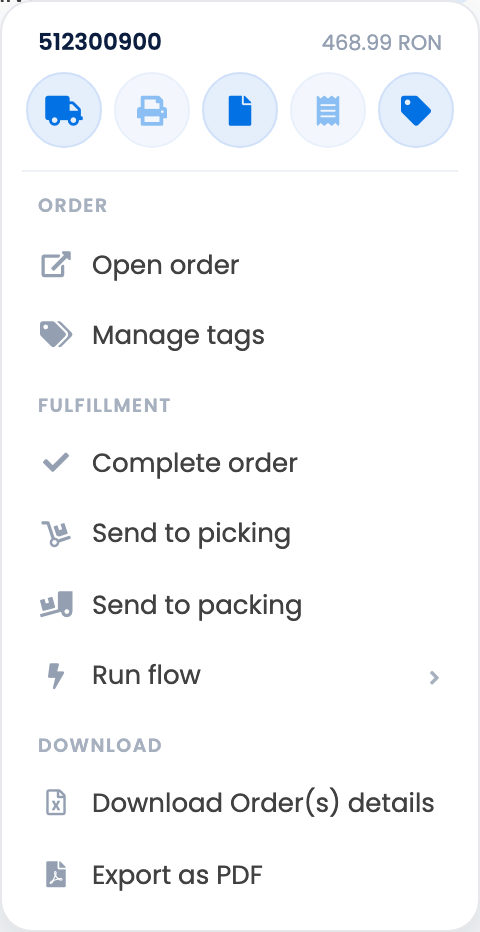
The … button at the end of each row opens the actions for that one order: create or print the AWB and invoice, open the order, manage its tags, complete it, send it to picking or packing, run a flow on it, or download its details.
The order page
Click an order number or the customer's name to open the order. The page shows the order's details, the customer and both addresses, the invoices and AWBs, the products and their prices, and the history of everything done to the order.
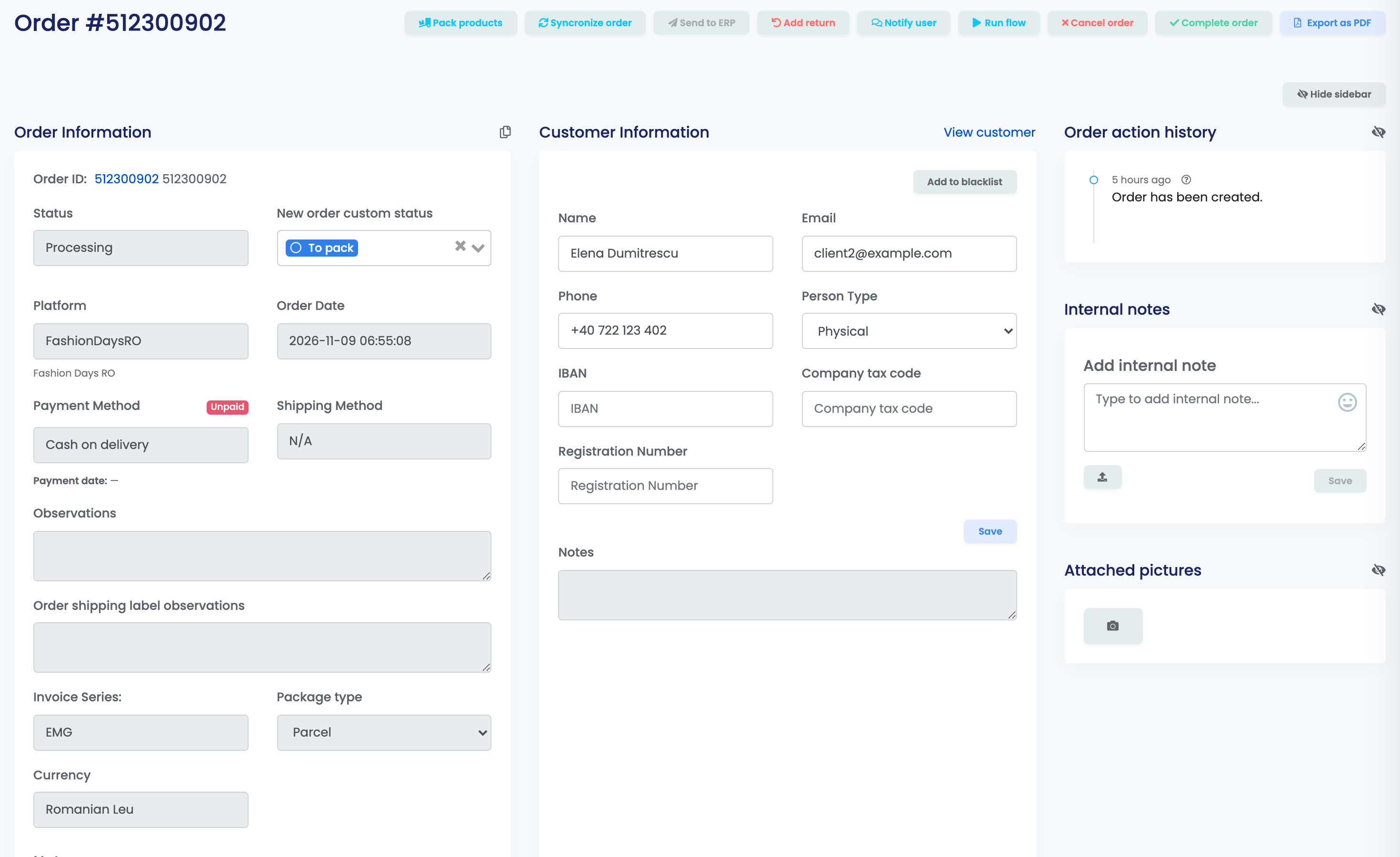
- Order information: the status, channel, dates, payment and shipping method. You can set a custom status, mark the order paid or unpaid, and add notes, metadata and tags.
- Customer and the billing and delivery addresses can be corrected here, before you create the invoice or the AWB. Once saved, they are no longer updated from the channel for this order.
- Products: the pencil opens the product editor, where you add, remove or change lines, shipping and vouchers. The change stays in easySales and is not sent to the channel; from then on, syncs no longer update this order's products. Split order moves some of the products into a new order.
- The buttons at the top run the actions for this order: Syncronize order fetches it again from the channel, Add return starts a return, Run flow, Export as PDF, and Cancel order or Complete order.
Invoices and AWBs on the order page are covered in their own guides:
Export orders
Select the orders, then choose Download Order(s) details in the row menu or under More in the bar. Choose Detailed (one row per product) or Simple (one row per order), tick the columns you want, and press Download. easySales prepares an Excel file and sends the link to the e-mail address you confirm; the link also appears in your notifications. Only the selected orders are exported.
When something does not look right
| Symptom | What to do |
|---|---|
| An order is not in the list | Press Clear filters. Then show Added to easySales and sort by it, in case it arrived late. |
| The list shows fewer orders than yesterday | A filter from your last visit is still on. Remove the chips under the search box. |
| Search finds nothing for an e-mail, SKU, AWB or invoice number | Search does not look in those fields. Add a filter for them instead. |
| "You can only create AWBs for a maximum of 50 orders at once." | Select at most 50 orders, or put the orders into a processing group. |
| An action ran on more orders than you expected | The selection is kept across pages and filters. Open the selected count on the bar before the next action, or press Clear. |
| My columns changed back | The layout is kept in this browser only. Save it as a view with Save view. |
| A change on the order page does not reach the channel | Product, customer and address edits stay in easySales. Only Cancel order and Complete order are sent to the channel. |