How to generate AWBs in easySales: quick create, advanced AWB and couriers
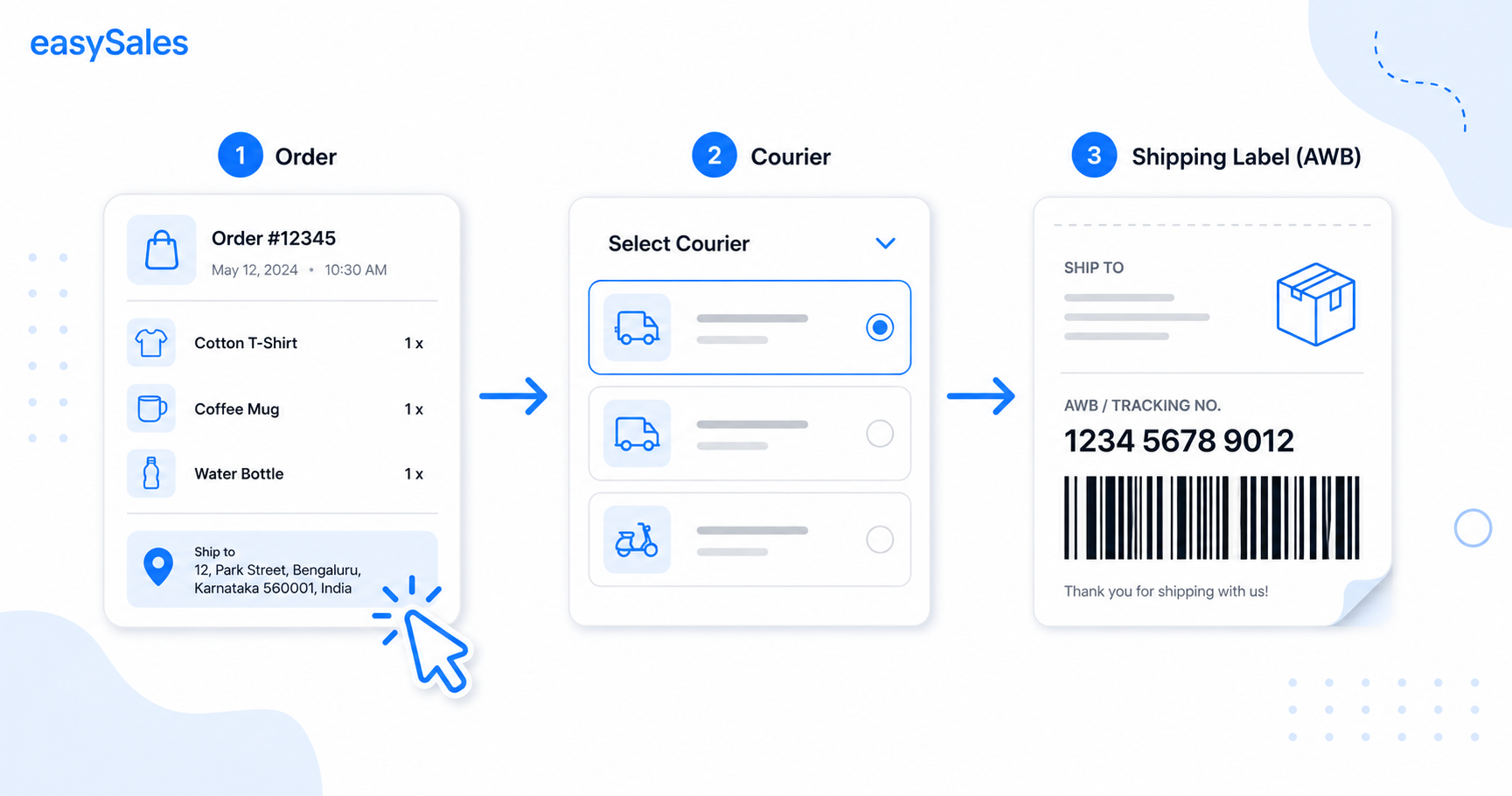
An AWB is the shipping label that gets an order to your customer. easySales generates them with one click across 60+ couriers — or in an advanced mode for multi-parcel shipments — and can even hold the label for a courier you do not integrate. This guide covers connecting a courier, quick create vs advanced AWB, what happens to the order on generation, and how to automate it.
The AWB — the air waybill, or shipping label — is what turns a confirmed order into a parcel on its way to your customer. Generate it by hand on the courier's own site and you re-type the address, weight and contents every time. In easySales the order data is already there, so an AWB is one click away, across every courier you've connected.
What an AWB is and what easySales does
An AWB carries the tracking number, the recipient and pickup details, and the parcel information the courier needs to collect and deliver the order. easySales builds it from the order you already have and sends it to the courier's system, then stores the label PDF and tracking number back on the order. It works across 60+ integrated couriers — FanCourier, Urgent Cargus, Sameday, DPD, GLS, Econt, Speedy, DHL, UPS, Packeta, InPost and many more.
Connect your courier first
Before you can generate anything, connect the courier account under Integrations → Couriers. Each courier has its own connection form for the API keys and pickup details that carrier needs.
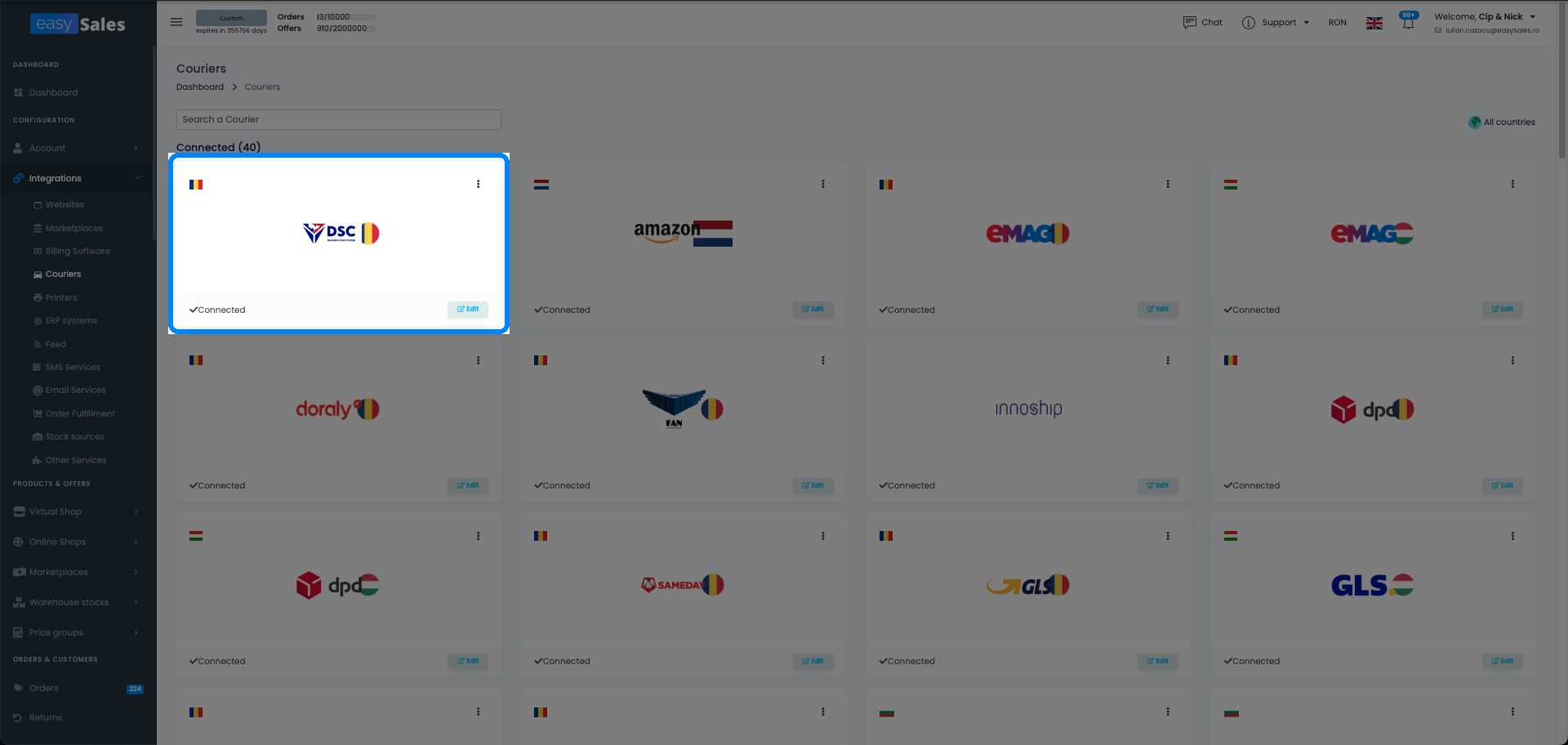
If you have more than one pickup address, or more than one account with the same courier, add each under its own alias. At generation time you pick the alias you want, so multi-warehouse and multi-account setups stay tidy.
The eMAG courier
For eMAG orders you can configure a dedicated eMAG courier and choose from the courier accounts already defined in your eMAG platform — handy when eMAG manages the carrier on its side. eMAG orders must be shipped with this eMAG courier; to use a different carrier on eMAG you first have to enable that option in your account settings.
Four ways to generate an AWB
Pick the method based on how many orders you're shipping and how much control the shipment needs:
Quick create
One click on an order in the Orders list generates the label with your default settings.
Advanced AWB
From the order, set multiple parcels, weight, cash on delivery and more.
Bulk create
Select up to 50 orders on the same courier account and generate every label at once.
Upload external AWB
Shipping with a non-integrated courier? Upload the label so tracking lives on the order.
Automatic via Flows
Let an Automation Flow create the AWB when an order reaches a chosen status.
Quick create — one click from the Orders list
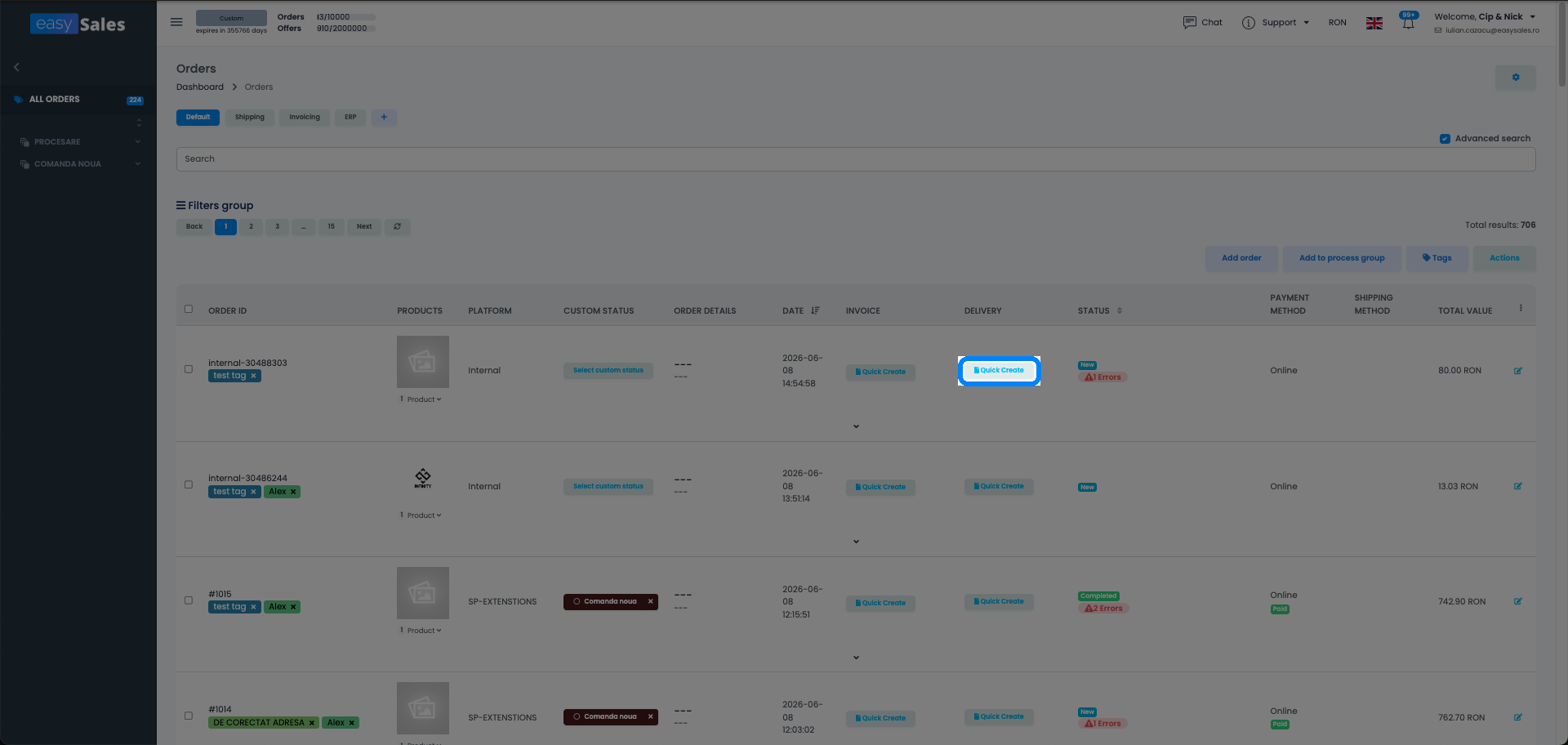
For most orders, quick create is all you need. In the Orders list, the AWB button on an order generates the label with your default settings — a single parcel, the order's own weight, and the courier account you pick. The label and tracking number are saved straight onto the order.
Advanced AWB — multiple parcels and extra options
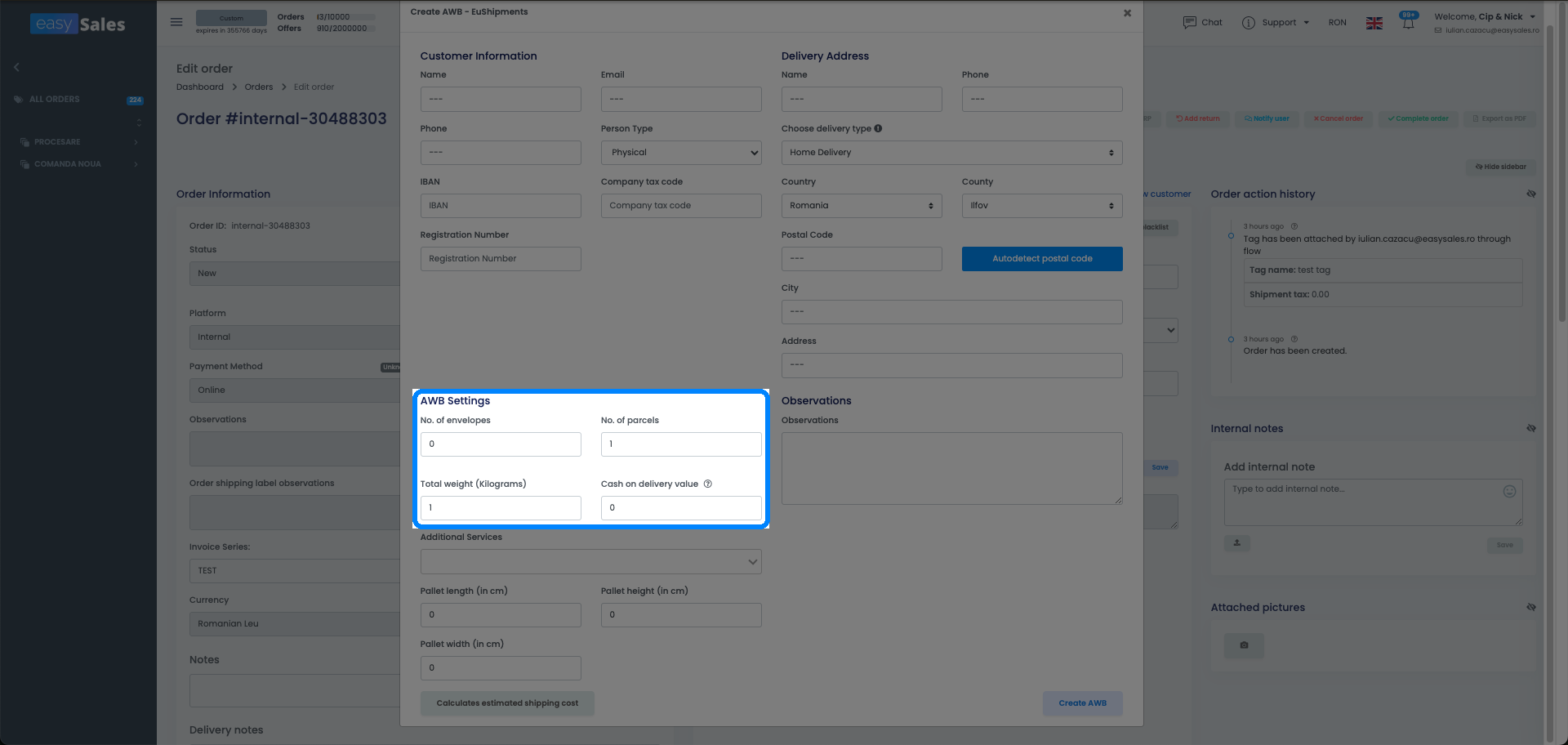
When a shipment needs more than the defaults, open the order and use the advanced AWB. It opens a form where you can review and adjust the shipment before it's sent to the courier:
- Recipient details — name (or company name for legal entities), email, phone, and, where the order needs it, IBAN, VAT ID and registration number.
- Delivery address — street, locality, county, country and postal code, with address autocomplete on couriers that support it.
- Envelopes and parcels — how many of each are in the shipment.
- Total weight — in kilograms, when you're not splitting it per parcel.
- Cash on delivery — the amount the courier should collect on delivery.
- Insured value — on couriers that offer insured shipping.
- Observations — free-text notes for the courier.
Quick create covers everyday orders; the advanced AWB is for bulky, multi-box, or detail-heavy shipments.
| Quick create | Advanced AWB | |
|---|---|---|
| Where | Orders list, one click | Inside the order |
| Parcels | Single parcel | Multiple envelopes and parcels |
| Detail | Default settings | Weight, cash on delivery, insurance, notes |
| Best for | Everyday orders | Bulky or multi-box shipments |
Generate in bulk
Shipping a batch? Select several orders in the Orders list and use the bulk Create AWBs action to generate labels for all of them at once. Two rules apply: every selected order must use the same courier account, and you can process up to 50 orders per run.
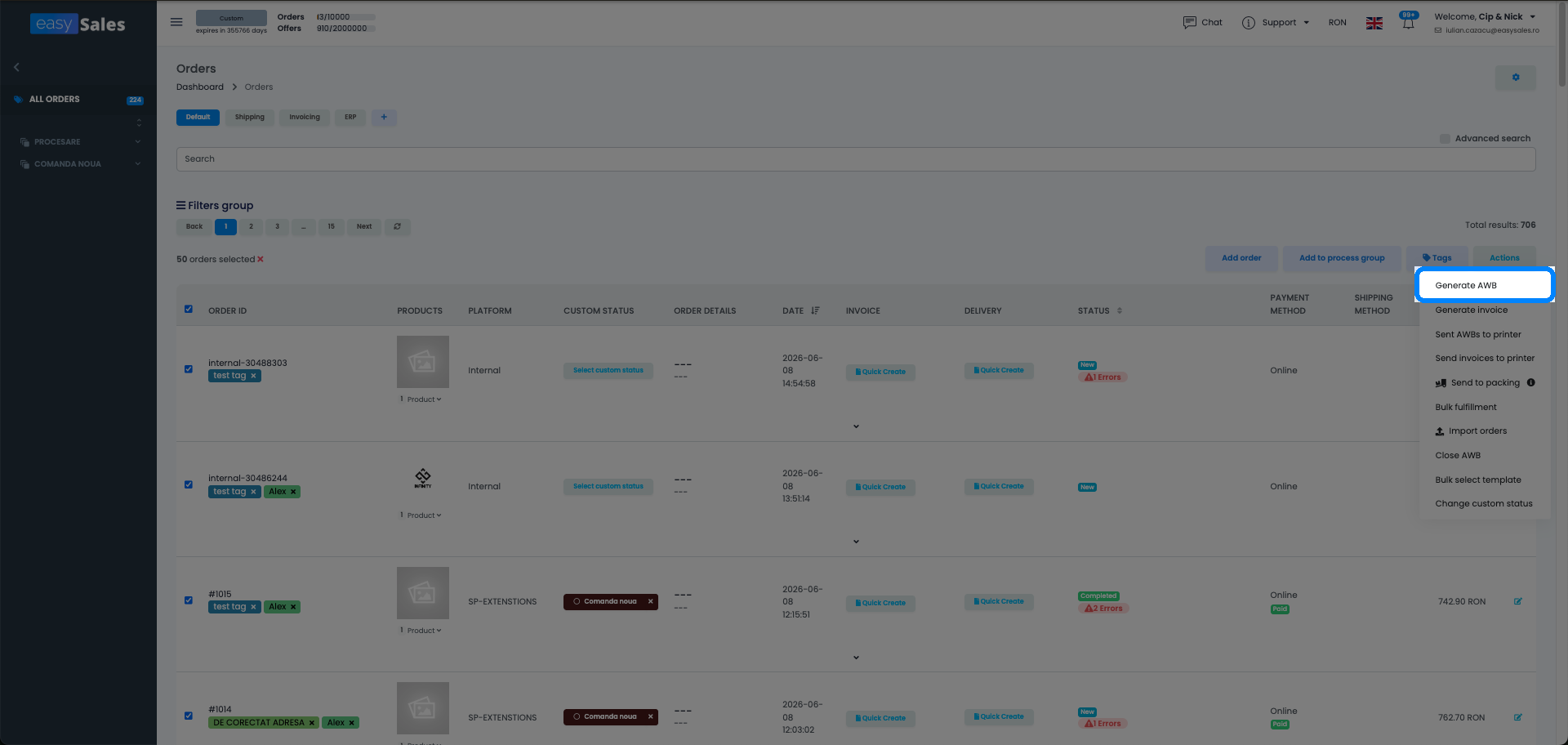
The same bulk menu also lets you send the generated AWBs to the printer and pack the selected orders into a packing group, so a whole batch goes from labels to packed in a couple of clicks.
Using a courier we don't integrate
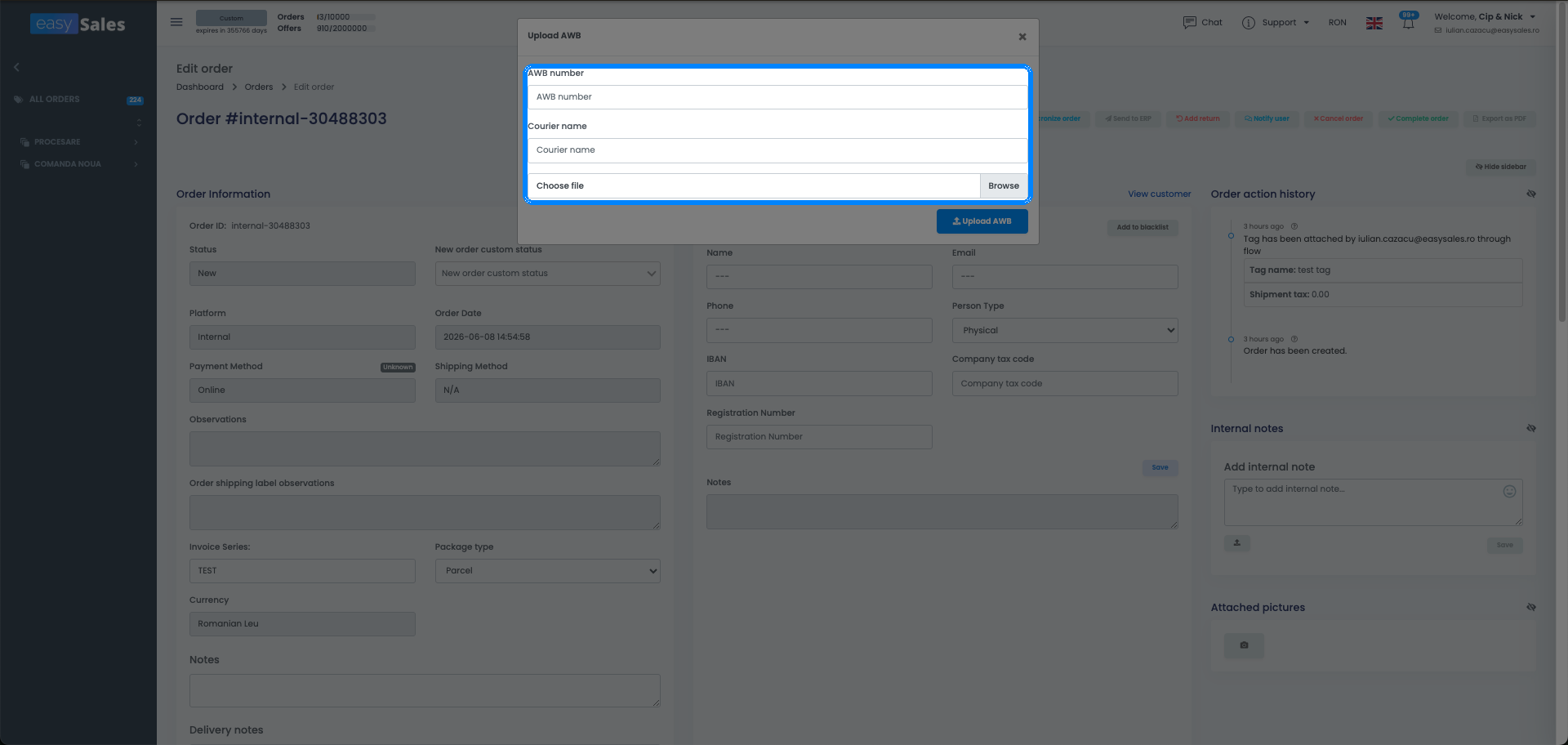
Want to ship with a carrier that isn't integrated — say, the national post? Generate the label on that carrier, then upload the AWB onto the order in easySales: enter the AWB number, the courier name, and attach the label file. The tracking lives on the order just like an integrated one, and the rest of your workflow continues as normal.
What happens when you generate an AWB
Generating the label does a few things beyond printing:
The generated AWB stays on the order. Need a second copy? Press the same AWB button again — once a label exists, that button downloads the stored PDF instead of creating a new one (a fresh generation is blocked while an AWB is already on the order).
When an AWB won't generate
A handful of orders refuse an AWB by design, and the message on screen tells you which case you've hit:
Marketplace-specific AWB rules
Some marketplaces handle the AWB in their own way — the order isn't blocked, you just need to follow the marketplace's rule:
- eMAG — eMAG orders must be generated with the eMAG courier, unless you've enabled shipping eMAG with another carrier in your settings.
- SHEIN — if SHEIN handles the shipping, generate with the Shein courier; if you ship the order yourself, use your own courier.
- Temu — Temu orders ship through Temu Buy Shipping; generate the AWB with the Temu courier. If you fulfil the order yourself, easySales sends your tracking number back to Temu.
- Pepita — Pepita is connected through a feed, so an AWB you generate in easySales isn't sent to Pepita.
Automate AWBs with Flows
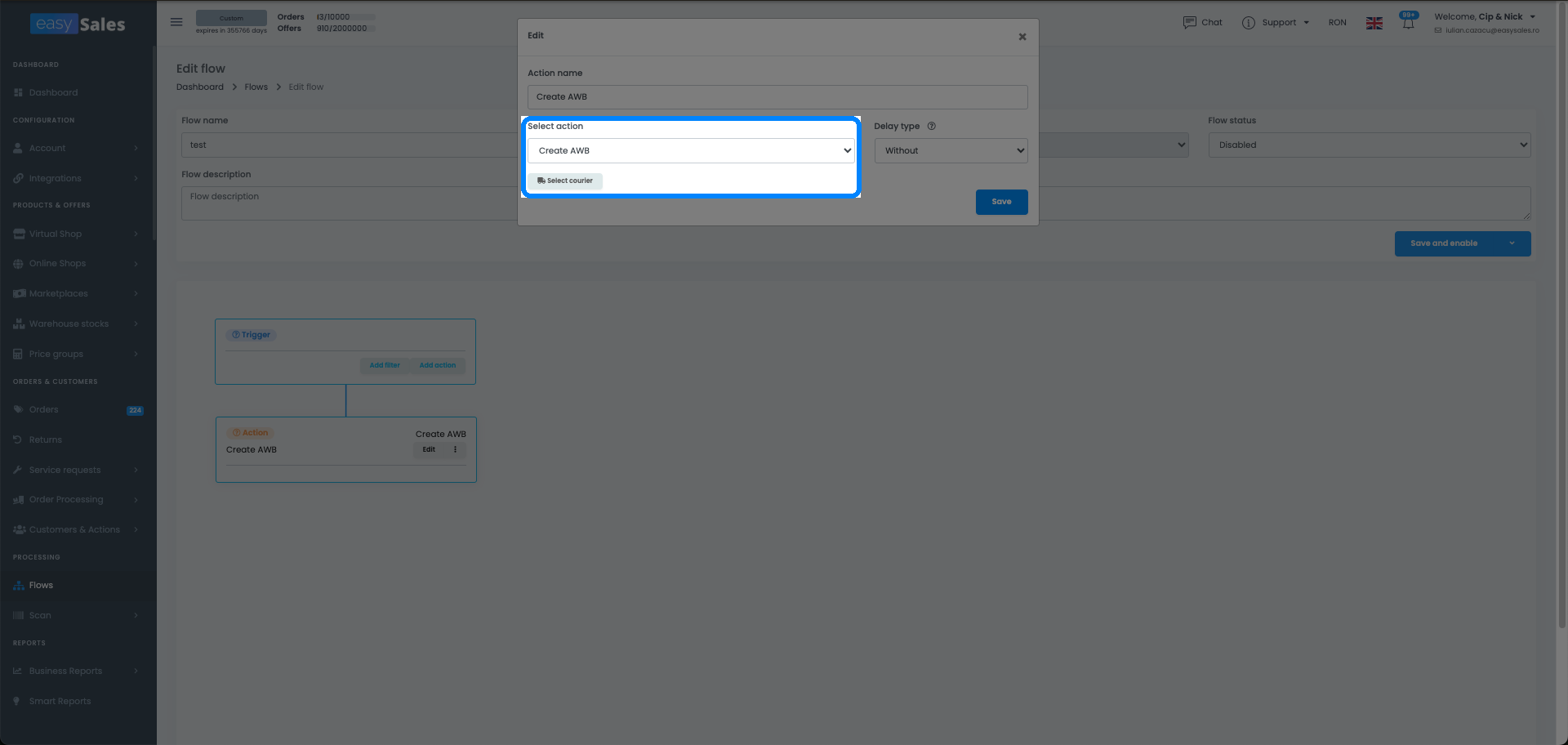
You don't have to click create on every order. With Automation Flows you can generate the AWB automatically — for example, when an order reaches a given status — by adding the Create order AWB action and choosing the courier and account it should use. Pair it with the print and packing actions to take an order from new to shipped without a manual step.
Ship every order in one click
Try easySales free for 14 days and generate AWBs across 60+ couriers from a single screen. No credit card required.