How Automation Flows work in easySales: triggers, filters and actions
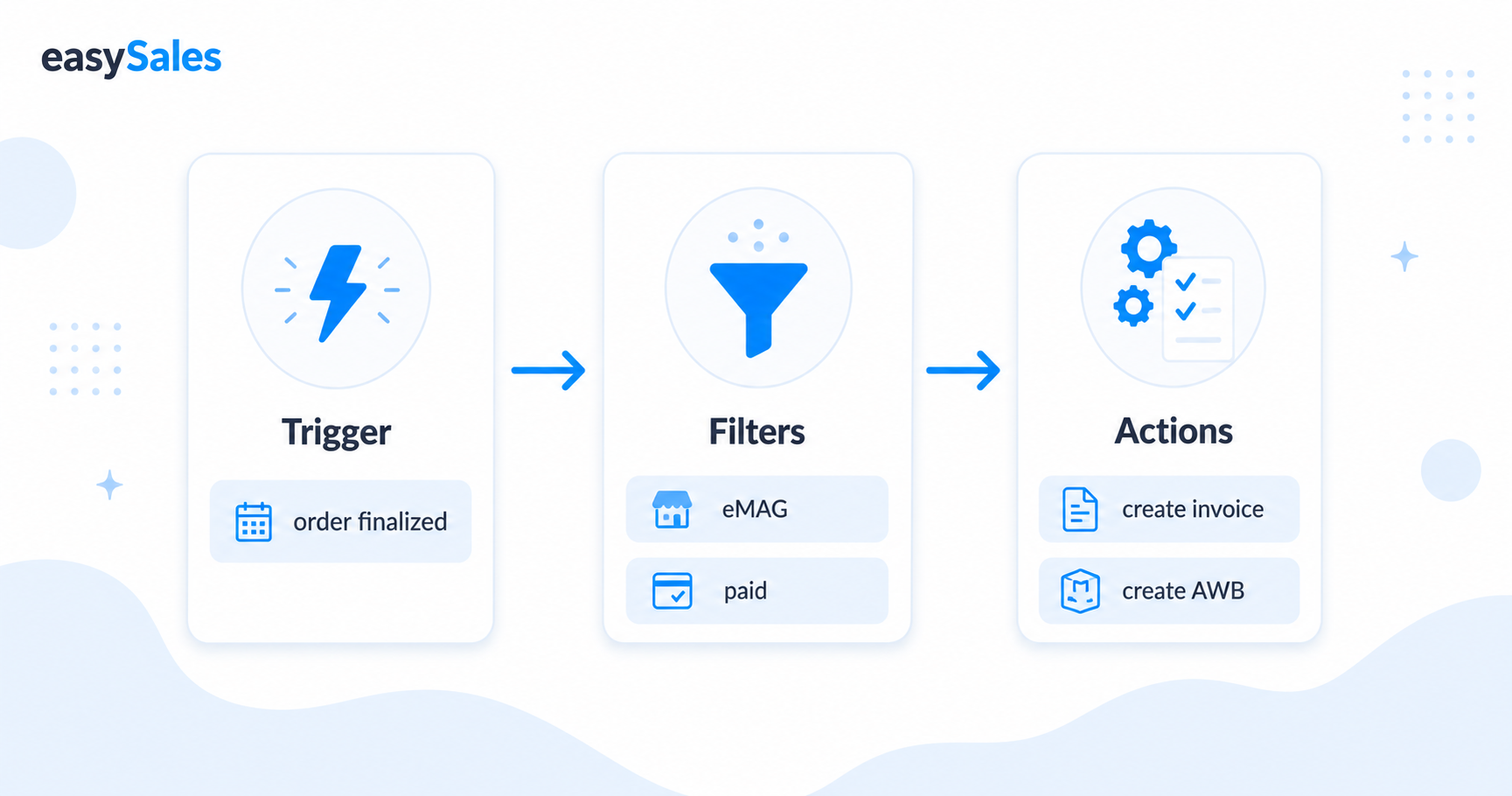
Automation Flows are the if-this-then-that engine inside easySales. A flow watches for an event (a trigger), checks optional conditions (filters), and runs one or more operations (actions) — automatically. This guide explains the three building blocks, what can start a flow, how to narrow it with filters, what a flow can do, how timing works, and how to build your first one.
Every online seller repeats the same handful of steps on every order: generate the invoice, create the AWB, send a confirmation, update a status. Done by hand across hundreds of orders a day, it eats the hours you should be spending on growing the business. Automation Flows do that repetitive work for you — reliably, in the background, exactly the way you set them up.
What is an Automation Flow
A flow is an "if this happens, then do that" rule. You pick the event that starts it (the trigger), optionally add conditions that have to be true (filters), and list the operations easySales should run automatically when both line up (actions).
The classic example: when an order status changes to finalized, if it comes from eMAG and payment is confirmed, then generate the invoice and create the AWB. You set it once; it runs on every matching order forever — whether you process ten orders a day or ten thousand.
You need a flow any time you find yourself doing the same manual steps on multiple orders: generating documents, updating statuses, sending notifications, tagging orders for your team, adjusting prices, passing data to an ERP or fulfillment partner. If the rule can be stated as "when X happens and Y is true, do Z", a flow can handle it.
Flows run in the background. They do not interrupt your work. Each time a matching event fires — an order is created, an invoice is generated, a return is finished — easySales checks every active flow against it and runs the ones that match.
The three building blocks
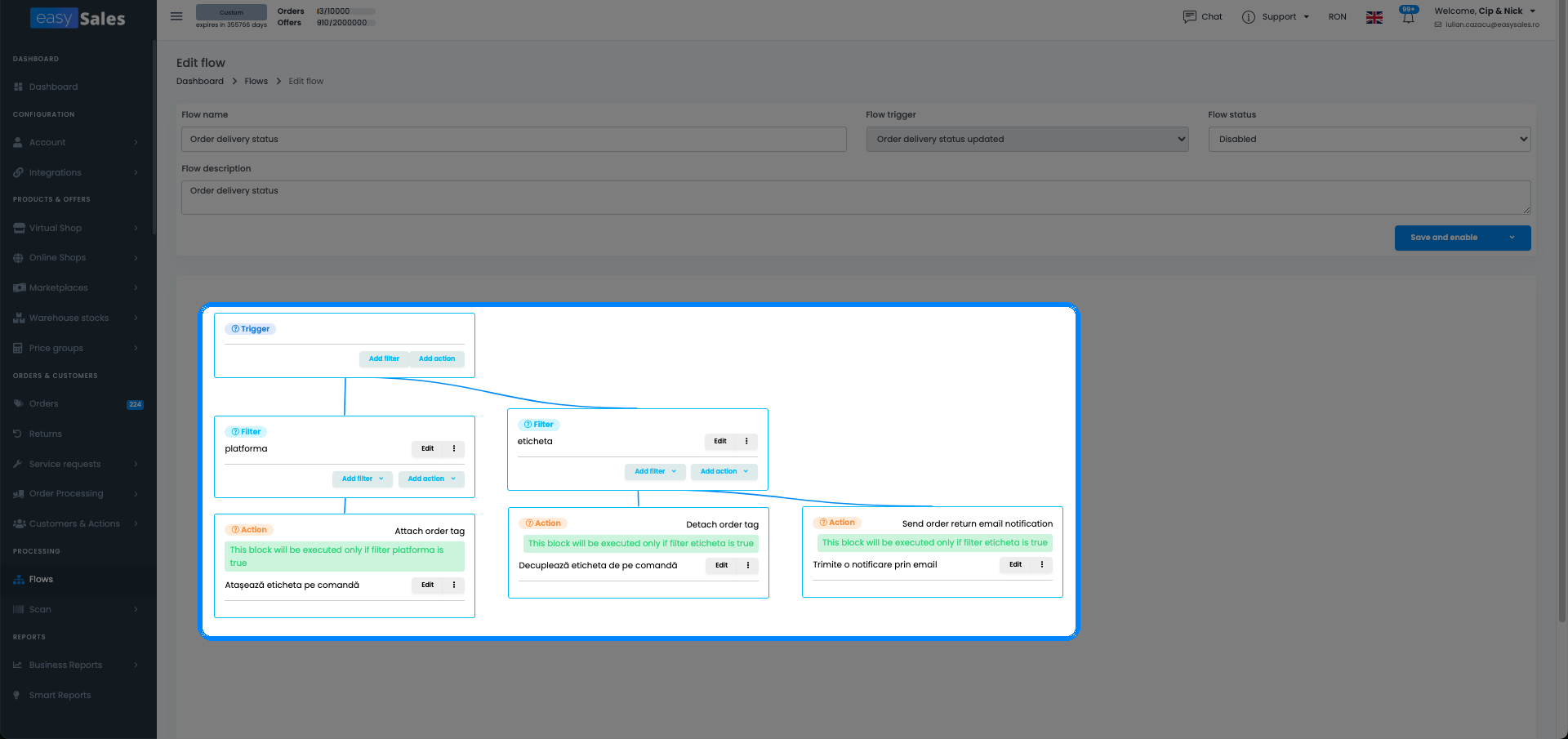
Every flow is made of the same three parts, always in this order:
- Trigger — the event that starts the flow. Exactly one per flow, and it is required. Nothing happens without a trigger.
- Filters — optional conditions that must be true for the actions to run. No filters means the flow acts on every record the trigger fires for. More on this below — adding at least one filter is almost always a good idea.
- Actions — one or more operations the flow performs. You can add several to a single flow, and they run from top to bottom in the order you define them.
Think of it as: trigger fires → filters checked → if all pass, actions execute.
Triggers — what can start a flow
A trigger is the event easySales listens for. There are 31 of them, covering the full lifecycle of an order, an offer, a product, a return, and a service request. They are grouped by the part of your operation they belong to.
Order lifecycle
The order lifecycle group covers everything that happens to an order from the moment it arrives to the moment it ships. Triggers include order created, order updated, order picked, order packed, order finalized, order added to a processing group, and custom order status changed. This is the most commonly used group — the majority of invoicing, AWB generation, tagging, and notification flows start here.
Order delivery
Delivery triggers fire when courier-related events happen: AWB created, AWB scanned in the pack-and-scan workflow, delivery status updated, and size template assigned to an order. Use these to automate post-shipment touchpoints — for example, sending a delivery confirmation SMS once the AWB is scanned.
Order invoicing
Invoicing triggers fire when invoice documents are generated: order invoice created, and reverse (storno) invoice created. Use these to chain document workflows — for instance, automatically creating the AWB the moment an invoice is generated, so both documents are always produced in sync.
Returns
Return triggers cover the full return lifecycle: return created, return finished, return tag attached, and return AWB created. Use them to notify your logistics team when a return is opened, or to automatically generate the return shipping label as soon as a return is approved.
Service requests
Service request triggers fire on the service request workflow: service request created, service request updated, service request status changed, service request documents created, and service request pickup or delivery AWB created. Use these to keep your support team informed and to automate document generation for warranty and repair flows.
Products
Product triggers fire after catalog changes: after product saved. This runs whenever a product record is updated in easySales — including bulk edits and imports. Use it to automate actions like attaching a product tag when a characteristic changes, or enabling offers after a product is updated.
Offers
The offer trigger fires after offer saved. This runs whenever an offer (the pricing and stock record tied to a product on a specific marketplace) is updated. The most common use is enabling product offers when stock becomes positive, or updating delivery times when a supplier lead time changes.
Each flow listens for exactly one trigger.
Order lifecycle
Order created, updated, picked, packed, finalized, added to a processing group, custom status changed.
Invoicing
Order invoice created, storno (reverse) invoice created.
Delivery & AWB
AWB created, AWB scanned, delivery status updated, size template assigned.
Offers & products
After an offer is saved, after a product is saved.
Returns
Return created, finished, return tag attached, return AWB created.
Service requests
Service request created, updated, status changed, documents or pickup/delivery AWBs created.
Filters — narrow down which records a flow touches
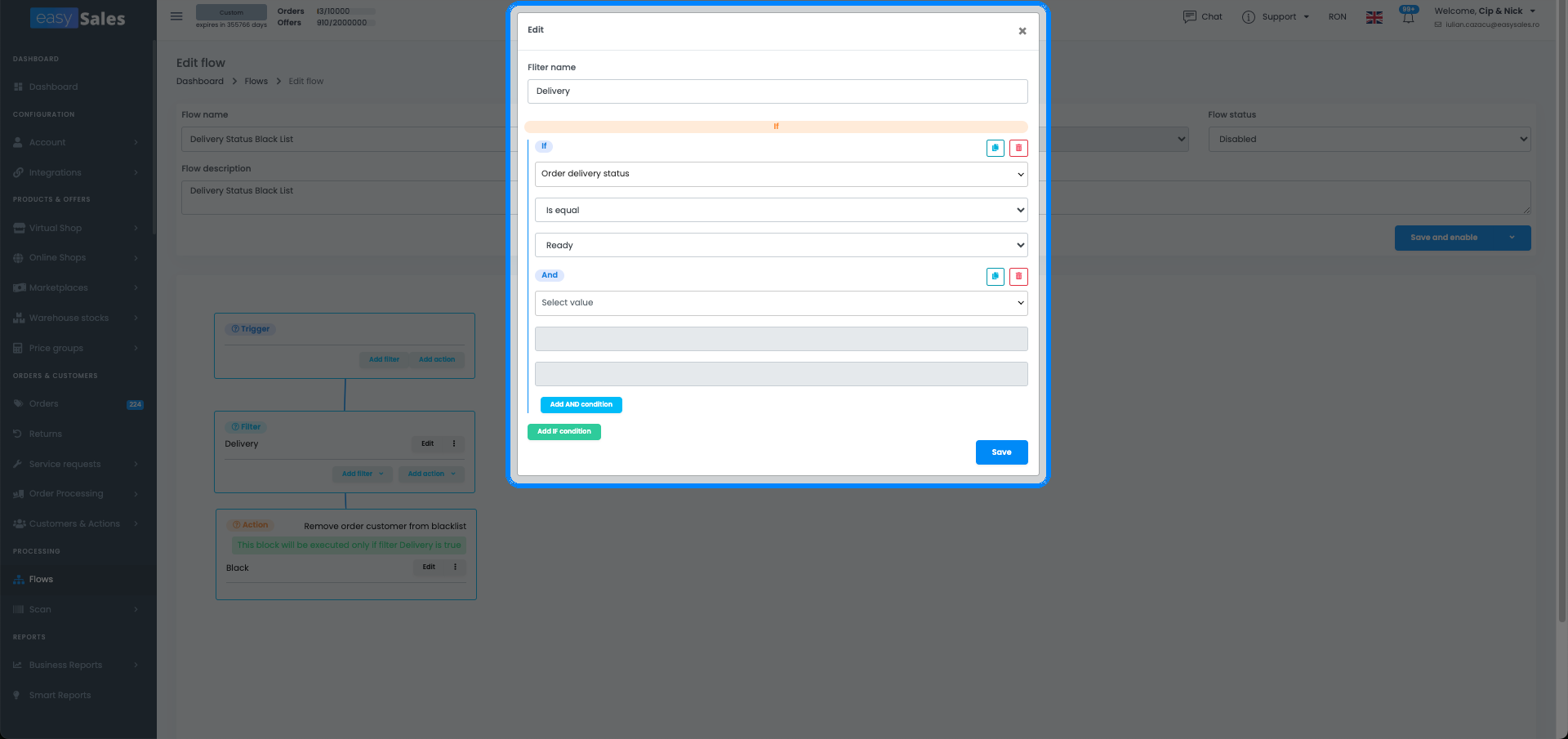
Filters are the conditions checked after the trigger fires. Every filter must pass before the actions run. A single non-matching filter silently stops the entire flow for that record — no partial execution.
There are 147 filter conditions in easySales, organized into groups:
- Order — platform (marketplace), order status, payment method, payment status, order value, order tags, whether an invoice or AWB already exists, courier, delivery country, and many more.
- Customer — customer type (individual or company), VIES registration, whether the customer is on the blacklist, and customer data fields.
- Addresses — billing and shipping address fields: city, country, postal code, region.
- Shipments — AWB number, courier name, shipping label status.
- Invoices — invoice series, invoice status, whether a reverse invoice exists.
- Order Products — product name, SKU, category, quantity, weight, tags, characteristics.
- Offer — offer price, stock, delivery time, platform-specific offer fields.
Each filter uses an operator. The available operators depend on the field type:
- Equals / Is not — exact match or exclusion. Example: "platform equals eMAG" or "payment method is not cash on delivery".
- Contains / Does not contain — substring match. Example: "customer name contains SRL" to catch companies.
- Is greater than / Is less than / Is between — numeric ranges. Example: "order value is greater than 500".
- Is one of — match any value in a list. Example: "platform is one of eMAG, Altex, Flip".
- Matches pattern — regular expression or wildcard. Useful for complex naming rules.
If you add no filters, the flow acts on every record the trigger fires for. That is rarely what you want for document-generating flows.
Actions — what a flow can do
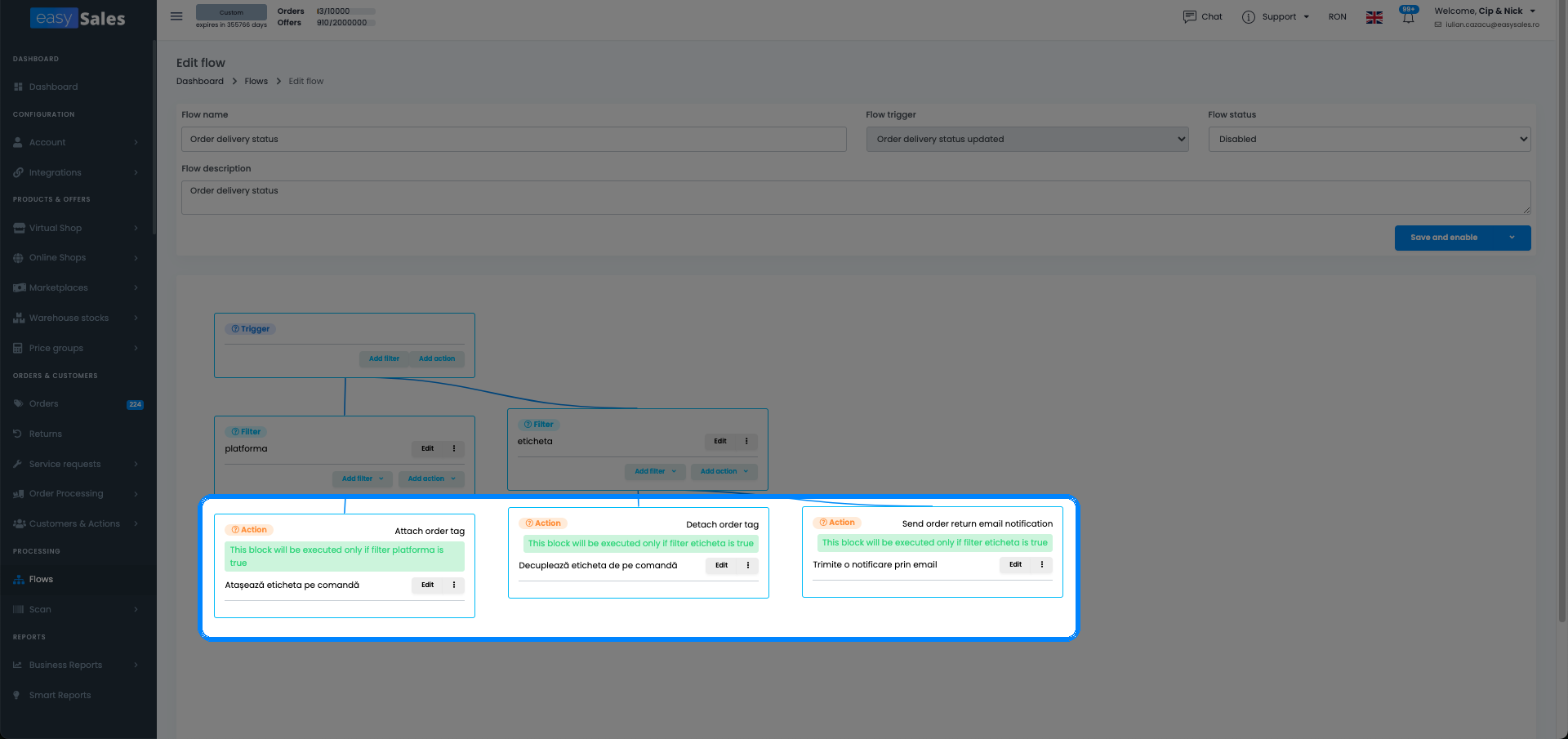
Actions are the operations a flow performs once the trigger fires and the filters pass. You can add as many as you need to a single flow — they run from top to bottom in the order you define them. Combined with per-action timing, a single flow can invoice immediately and notify the customer hours later.
Invoicing and AWB
The invoicing and shipping document actions cover the full document lifecycle:
- Create invoice — generates the invoice for the order using the configured invoice series. The most used action in the platform.
- Print invoice — sends the invoice to the configured printer immediately after it is generated.
- Cancel invoice — cancels the invoice on the order, used in return and error-correction flows.
- Create reverse invoice — generates a storno (credit note) against an existing invoice, typically triggered when a return is finalized.
- Change invoice series — switches the invoice series to a different one, useful when different marketplaces require different numbering sequences.
- Create AWB — generates the shipping label using the configured courier for the order.
- Print AWB — sends the AWB to the configured printer.
- Change AWB PDF format — switches the AWB label format (e.g. A4 vs A6) before printing, based on the order type.
Tags and metadata
Tags and metadata actions let you label and annotate orders and products programmatically:
- Attach tag — adds a predefined tag to the order. Use it to mark COD orders, flag high-value orders, or indicate a warehouse zone.
- Detach tag — removes a specific tag from the order.
- Detach all tags — removes all tags from the order at once, useful for resetting labels before re-processing.
- Attach metadata — adds a key-value pair to the order. Metadata is visible to your team and can be referenced in other flows.
- Detach metadata — removes a specific metadata key.
- Attach product tag — adds a tag to a product, not to the order.
- Save product fields as internal characteristic — copies product field values into an internal characteristic for later reference or export.
Notifications: email and SMS
Notification actions send messages to your team or your customers:
- Send email notification — sends a configurable email using a stored template. You can address it to the customer, a fixed internal email (e.g. warehouse@yourcompany.com), or a dynamic recipient derived from the order data.
- Send SMS notification — sends a configurable SMS to the customer's phone number. Requires an SMS provider configured in your account.
Common patterns: notify the warehouse team the moment an order is finalized, send the customer a delivery SMS after the AWB is scanned, or alert your procurement team when a return is opened.
Pricing and offers
Pricing and offer actions let you change what is visible and priced on your connected marketplaces:
- Update offer prices — recalculates and updates the offer price on one or more platforms, typically using a price group or formula as the source.
- Update offer delivery time — changes the estimated delivery time shown on the marketplace listing.
- Update offer description — pushes a new description to the marketplace offer.
- Edit offer field — updates a specific field on the offer record (stock, price, status, or any offer attribute).
- Enable product offers — activates the offer on the marketplace, making the product available for purchase. Typically used when stock arrives: filter on stock > 0, action: enable product offers.
Fulfillment and packaging
Fulfillment and packaging actions bridge the gap between order management and physical picking and packing:
- Send to fulfillment — dispatches the order to the connected fulfillment provider.
- Assign size template — assigns a packaging size template to the order, so the pack-and-scan workflow knows which box to use.
- Attach boxes — attaches specific box dimensions to the order.
- Add product to order — inserts an additional product line into the order (e.g. adding a gift card or a free sample based on order value).
- Add products to supplier order — adds the order's products to an open supplier purchase order.
- Print order PDF — generates and sends the order pick list to a printer.
- Send order (re-dispatch) — re-sends the order to the marketplace or fulfillment system, useful for recovering from sync failures.
- Update shipping label observations — updates the notes printed on the shipping label.
- Update max delivery date — adjusts the maximum delivery date on the order.
Customer management
Customer management actions clean up customer data and enforce business rules:
- Normalize phone number — formats the phone number to the standard international format (e.g. +40721000000). Run this on every new order — it makes SMS delivery and search significantly more reliable.
- Normalize VAT number — formats the company VAT ID to the standard format, removing spaces and country prefixes that sometimes come in from marketplace APIs.
- Autofill company details — looks up the VAT number in the national registry and fills in the company name, address, and registration number automatically.
- Add to blacklist — adds the customer to your blacklist so future orders from them can be filtered or flagged.
- Remove from blacklist — removes the customer from the blacklist.
- Set tax rate — sets the VAT rate on the order to a specific value.
- Set charge tax rate — sets the charged tax rate separately from the display rate.
- Set taxes to country tax — applies the standard VAT rate for the order's destination country.
- Change zero value products to gift discount — converts free line items to a gift discount line, which some invoicing systems require.
- Remove tax or discount — strips the tax or discount line from the order.
- Finalize order — moves the order to finalized status.
- Cancel order — cancels the order.
- Change custom status — sets a custom order status label.
- Mark invoice as paid — marks the invoice as paid without a payment transaction.
- Set payment status — updates the payment status on the order.
- Update payment method — changes the payment method recorded on the order.
- Send to ERP — pushes the order data to the connected ERP system.
Invoicing & payment
Create invoice or storno, print it, mark as paid, cancel, change series, set payment status.
Shipping & packing
Create or delete AWB, print AWB, attach packing boxes, assign size templates.
Tags & metadata
Attach or detach order, product and return tags; add or remove metadata.
Notifications
Send email or SMS notifications for orders, returns and service requests.
Order data & status
Normalize phone or VAT number, auto-fill company details, set tax rate, finalize or cancel, change custom status.
Integrations & catalog
Send to ERP or fulfillment, add to a supplier order, update offer prices and fields, enable product offers.
Timing: run now, delay, or schedule
Every action in a flow has a timing setting. You set it independently for each action in the flow, which means a single flow can do some work immediately and defer other work for later.
The three timing modes are:
- Immediately — the action runs as soon as the trigger fires and all filters pass. This is the default and covers most use cases: create the invoice the moment an order is finalized, generate the AWB the moment an invoice is created.
- Delay — the action runs after a fixed number of minutes. Use this for time-sensitive but not instant notifications: send the customer a delivery confirmation SMS 30 minutes after the AWB is scanned, or follow up with a review request 3 days after delivery. You set the delay in minutes — convert hours and days manually (e.g. 3 hours = 180 minutes, 3 days = 4320 minutes).
- Schedule — the action runs at a specific time on a specific day, or on a repeating cron schedule. Use this for batch operations: generate AWBs for all finalized orders every morning at 07:00, or update offer prices across all your listings every night at 23:00.
Timing is set per action, so one flow can invoice immediately, print the AWB immediately, and then send a customer notification email 3 hours later — all from a single flow, with no separate scheduling needed.
| Timing | When it runs | Example |
|---|---|---|
| None | Immediately after the trigger | Invoice the moment an order is finalized |
| Simple delay | After a set interval | Send the review SMS 3 hours after delivery |
| Scheduled delay | At a specific day and time | Generate AWBs every Monday at 8:00 |
Flow Folders — keep your workspace organized
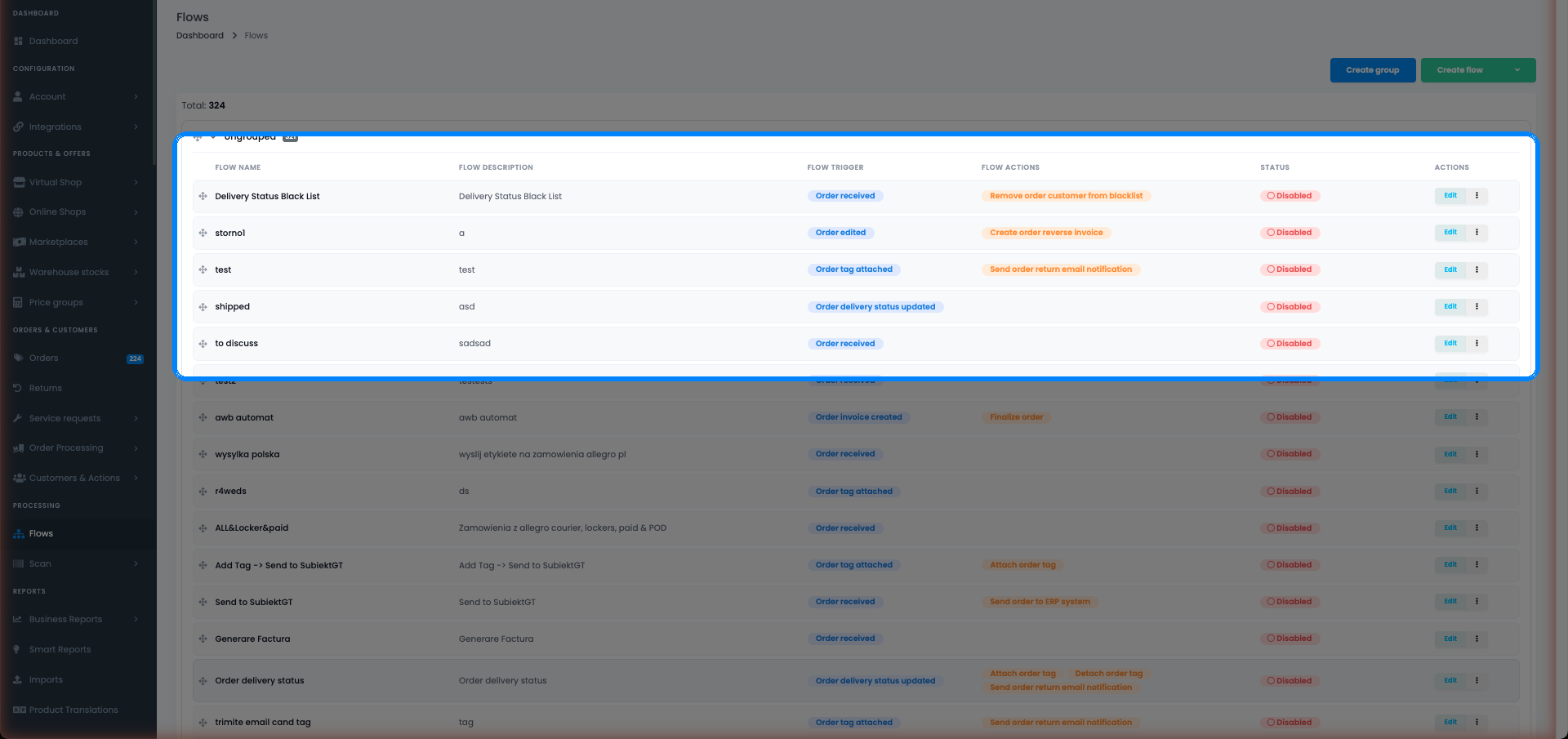
As your automation library grows, a flat list of flows becomes hard to navigate. Flow Folders let you group related flows together — for example, one folder for invoicing flows, one for AWB flows, one for customer data cleanup, and one for each marketplace integration.
To create a folder, go to Automations → Flows and use the folder management options in the sidebar. You can drag flows between folders at any time.
The most useful feature of folders is bulk enable/disable: you can turn an entire folder on or off with one click. This is invaluable during testing (disable the whole "Production" folder while you test a new flow) and during maintenance windows (disable all AWB flows before a courier API migration, then re-enable them once it is complete).
Folders are display-only — they have no effect on flow execution order or priority. All active flows run independently in parallel as their triggers fire.
A naming convention that works well: prefix folder names with the domain (Invoicing /, AWB /, Tags /, Notifications /, Pricing /) and keep flow names as "trigger → what it does" — for example, "Order finalized → Invoice + AWB (eMAG)" or "AWB scanned → Delivery SMS".
Build your first flow — step by step
Here is the full process from a blank screen to a running flow.
1. Go to Automations → Flows and click Create flow.
You will see the flow editor with three sections: trigger, filters, and actions. The flow is in draft mode until you explicitly enable it — so you can configure and save without it running.
2. Give the flow a clear name.
Include the trigger and the main action in the name so you can identify it at a glance. Good examples: "Order finalized → Invoice + AWB (eMAG)", "Invoice created → Create AWB", "Order created → Normalize phone", "Scheduled → Nightly price update". Avoid generic names like "Flow 1" or "Invoice flow" — once you have 20 flows, you will not remember what any of them do.
3. Pick the trigger.
Select the trigger from the dropdown. Read the trigger description carefully — some triggers that look similar behave differently. For example, "order created" fires once when the order first arrives; "order updated" fires every time the order record changes. If you pick the wrong trigger, the flow either never fires or fires too often.
4. Add filters.
Always start with an order-status filter for any flow that generates documents or changes order data. Without it, the flow acts on every record the trigger catches — including orders in states you did not intend. Add a platform filter next if the flow is specific to one marketplace.
Layer filters from broadest to most specific: status first, then platform, then any additional conditions like payment method or order value.
5. Add actions.
Click Add action and pick the action type from the list. Configure its parameters — most actions have at least one required field (e.g. the invoice series to use for "create invoice", the tag name for "attach tag"). Set the timing for each action.
If you are adding multiple actions, order them logically: "create invoice" before "print invoice", "create AWB" after "create invoice" if the AWB depends on the invoice being present.
6. Save and enable.
Click Save. The flow is saved in draft mode. Review it once more, then toggle it to enabled. From the next matching event onward, easySales runs the flow automatically.
Ten flows to set up on day one
These are the flows that consistently appear in accounts processing high order volumes. Set them up in order — each one solves a common problem and several of them depend on or complement each other.
1. Auto-invoice on finalize
- Trigger: order updated
- Filters: order status equals finalized; invoice does not exist
- Actions: create invoice → print invoice (optional)
- Why it matters: once an order reaches finalized, the invoice should go out without anyone touching it. Without this flow, your accounting team generates invoices manually for hundreds of orders a day. The "invoice does not exist" filter prevents a duplicate invoice if the flow fires more than once on the same order. Add a platform filter if you want to scope it to a specific channel.
2. Auto-AWB after invoice
- Trigger: order invoice created
- Filters: order status equals finalized; AWB does not exist
- Actions: create AWB
- Why it matters: chains document generation — the AWB is always created immediately after the invoice, so both documents are available before the order goes to the warehouse. Using "invoice created" as the trigger (rather than "order updated") means the AWB only generates when the invoice is confirmed to exist. The "AWB does not exist" filter is essential: without it, re-generating an invoice triggers a second AWB.
3. Tag COD orders on arrival
- Trigger: order created
- Filters: payment method equals cash on delivery
- Actions: attach tag "COD"
- Why it matters: COD orders require different handling at the warehouse — they need a cash collection note printed on the label. Tagging them on arrival means your team can filter the COD queue instantly without looking up payment methods manually.
4. Zero VAT for VIES companies
- Trigger: after order save (or order created)
- Filters: customer type equals company; customer is VIES registered; order country is not [your country]
- Actions: set tax rate to 0
- Why it matters: intra-community B2B transactions between EU member states are zero-rated for VAT. If you sell to companies in other EU countries and do not zero-rate the VAT automatically, your invoices are wrong — potentially triggering a compliance issue. This flow handles it without any manual intervention.
5. Auto-blacklist risky customers
- Trigger: order created
- Filters: your risk criteria (e.g. customer has more than 3 canceled orders, or order country is a high-fraud market, or order value exceeds a threshold with cash on delivery payment)
- Actions: add to blacklist
- Why it matters: repeat fraudulent customers cost time to process and money in uncollected COD. Automating the blacklist flag means your team sees the warning immediately and can decide whether to cancel or proceed — rather than discovering the problem after the order ships.
6. Notify warehouse on finalize
- Trigger: order updated
- Filters: order status equals finalized
- Actions: send email notification (to warehouse@yourcompany.com)
- Why it matters: gives your warehouse team real-time visibility into which orders need to be picked and packed, without them having to refresh the easySales interface all day. Pair this with a print order PDF action if your warehouse works from paper pick lists.
7. Auto-enable offers when stock arrives
- Trigger: after offer saved
- Filters: offer stock is greater than 0; offer is not enabled
- Actions: enable product offers
- Why it matters: when you receive a replenishment and update stock in easySales, the offers on all your connected marketplaces are re-enabled automatically. No manual "go through each marketplace and re-activate" step. The "stock > 0" filter ensures you never enable an offer with zero stock, and the "offer is not enabled" filter prevents redundant API calls.
8. Normalize phone numbers
- Trigger: order created
- Filters: none (intentionally — run on every order)
- Actions: normalize phone number
- Why it matters: phone numbers come in from marketplace APIs in every possible format — local format without country code, with spaces, with dashes, missing the leading zero. SMS delivery failures are almost always caused by malformed numbers. Running this on every new order costs nothing and makes every downstream SMS notification reliable.
9. Auto-pack with size template
- Trigger: order added to packing group
- Filters: total order weight is between [range A] and [range B] (add one flow per weight class)
- Actions: assign size template [corresponding box]
- Why it matters: in the pack-and-scan workflow, the system needs to know which box to use before printing the AWB. Instead of operators selecting a size manually for each order, this flow assigns the right template automatically based on weight. Set up one flow per size tier: lightweight (envelope), small box, medium box, large box.
10. Nightly price update from price group
- Trigger: scheduled (every day at 23:00)
- Filters: none (or scope to specific platforms)
- Actions: update offer prices (using price group variable)
- Why it matters: if your prices change daily based on a competitor feed, a supplier price update, or a margin calculation, this flow ensures all offers are repriced consistently every night before the next business day. Schedule it at 23:00 to avoid competing with peak-traffic marketplace indexing windows.
Check what a flow did: Order action history
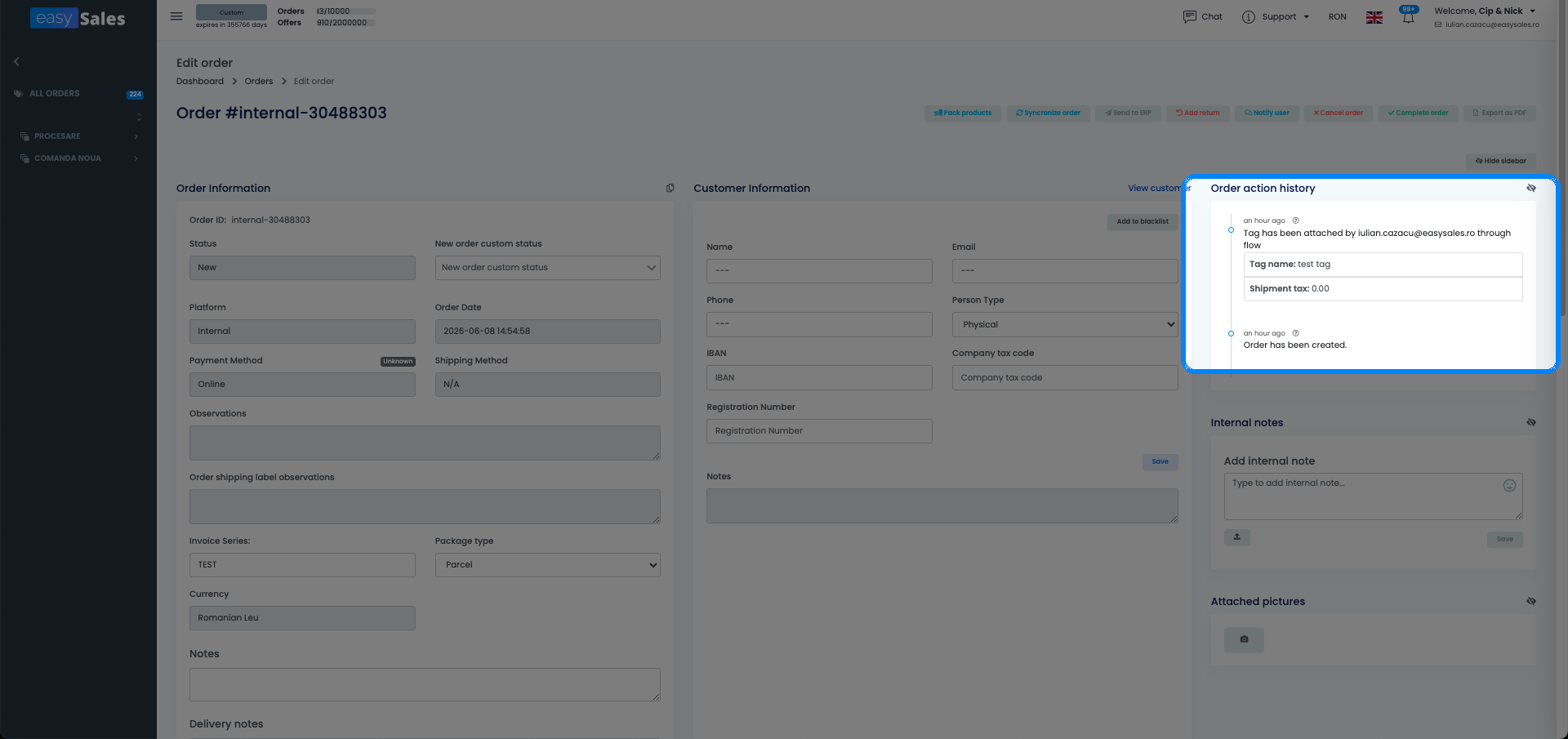
Every action a flow performs on an order is logged in the order's Order action history — the panel in the order's sidebar. It is the first place to look when you want to confirm a flow actually did its work.
Where to find it: Open any order; the Order action history panel is in the sidebar. Use its source filter to show only Flow actions (the other sources are manual web actions, the API, and code), so you see exactly what your automations did to this order.
What the history shows:
- Each action a flow performed on the order — for example a tag attached through a flow, an invoice created, or an AWB created — with the timestamp and the source.
- The result of an action, including the error message when one failed (e.g. "Invoice could not be created: invoice series not configured").
The history records what flows did. It does not list flows that were evaluated and skipped, and there is no per-filter pass/fail view — easySales does not surface which specific filter stopped a flow.
How to use it for debugging:
If a flow's action is missing from an order's history, the flow either never triggered for this event, a filter did not match, or the action errored. Work through it in that order: confirm the flow is enabled, that its trigger matches the event that occurred, and that the order actually meets every filter on the flow. When an action did run but failed, the history shows the error message so you can fix the cause — a missing invoice series, an unconfigured courier, and so on.
When a flow doesn't fire — troubleshooting
These are the most common issues reported in support tickets, in rough order of frequency.
Flow not triggered at all
First check: is the flow enabled? Draft flows never run. A flow with the green "enabled" toggle is the only one that evaluates against incoming events. If the flow is enabled, check whether the trigger matches the actual event. The most common mistake is using "order updated" when the event is "order created", or vice versa. Open the order's Order action history (filtered to the Flow source) — if no action from the flow appears, the trigger did not fire for this event type or a filter did not match.
AWB or invoice created twice
This is almost always caused by two flows with the same trigger (or a flow that fires multiple times on the same order update event). The fix: add a guard filter. For invoicing flows, add the filter "invoice does not exist". For AWB flows, add "AWB does not exist". These guard filters make the action idempotent — it only runs when the document has not already been created.
Delayed actions never fire
Delayed and scheduled actions are processed by the background queue. If the queue is backed up or paused, delayed actions will sit in "scheduled" state. Check the Horizon dashboard (if your account has access) or contact support with the order ID. Note that scheduled actions set to run at a specific time on the next occurrence will not run if they were created after that time on the current day — they wait for the next scheduled window.
Email notification not sent
Two things to check: first, is the email template configured in the action? A "send email notification" action with no template saved will silently do nothing. Second, verify the recipient address is correct — a hard-coded address that has a typo, or a dynamic field that resolves to empty for this order, both result in no delivery.
Flow fires on wrong orders
Usually caused by a missing platform filter. If you built a flow for eMAG orders but did not add a "platform equals eMAG" filter, it fires on every order from every marketplace that matches the other conditions. Add the platform filter, save, and the next matching event will scope correctly.
Filters not applying correctly on Skroutz or Trendyol
There is a known edge case with the after offer saved trigger on Skroutz and Trendyol: certain offer field updates from these marketplaces do not fire the trigger in the expected way due to how their APIs push stock and price changes. If you have offer-based flows on these platforms that are not running, test the trigger by manually editing and saving an offer in easySales — if the flow runs then but not on the marketplace-pushed update, this is the edge case. As a workaround, use the scheduled trigger for nightly price and stock sync flows on these platforms.
Put your order processing on autopilot
Try easySales free for 14 days and automate invoicing, AWBs and notifications with Flows. No credit card required.