How to sync orders and resend information in easySales
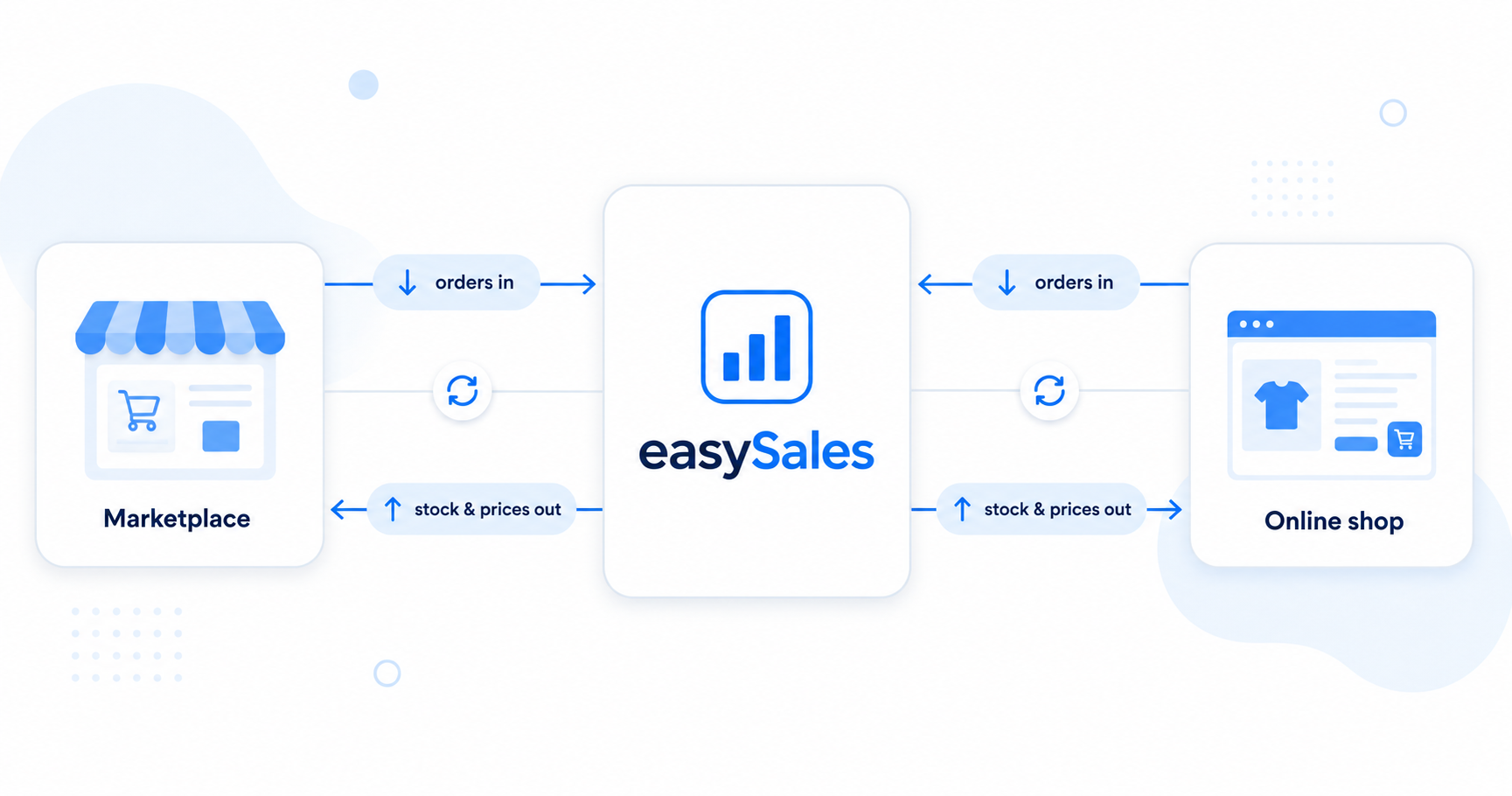
easySales keeps orders, stock and prices in sync with your channels automatically — but sometimes you need to force a refresh. This guide shows how to force-sync a single order, re-import a marketplace's recent orders, resend offers (stock, prices, full documentation) to a marketplace, and push stock to your online shop.
Most of the time you never think about syncing — easySales pulls in new orders and pushes stock and prices to your channels on its own, every minute. But every so often something looks out of date: an order hasn't appeared yet, or a marketplace is still showing an old price. For those moments, easySales gives you manual controls to force a refresh.
When to sync or resend manually
Reach for the manual actions below when an order is missing, or when a channel is showing stock, prices or product data that no longer match what's in easySales.
Sync one order
Re-fetch a single order from its source channel.
Import marketplace orders
Import a date range of recent orders from a marketplace (up to a 30-day span).
Resend offers
Force-push all linked active offers — stock, prices and documentation — to a marketplace.
Push stock to your shop
Resend stock held in easySales to your online shop.
Force-sync a single order
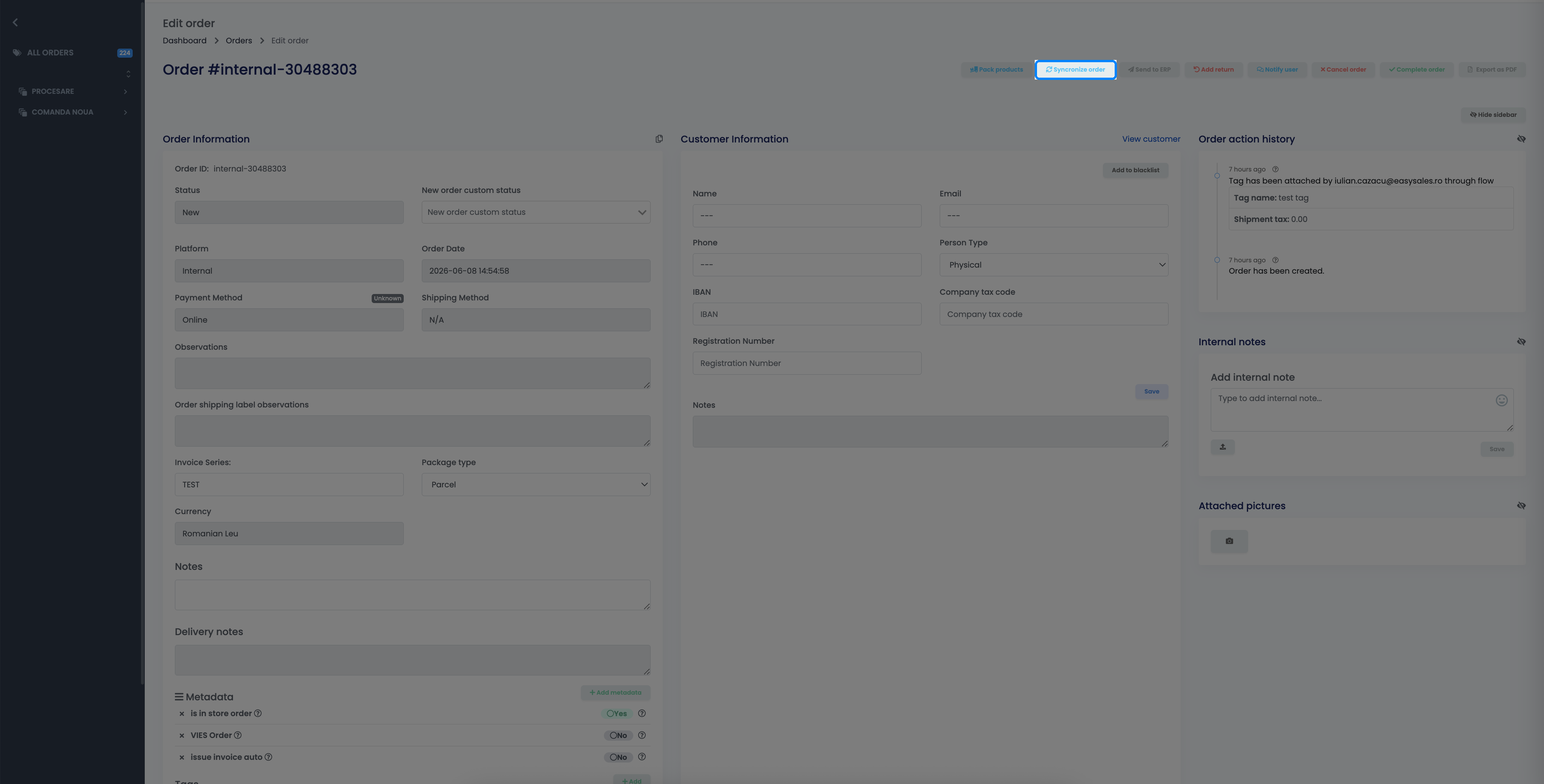
If one specific order looks wrong or out of date, refresh just that order:
- Open Orders and click the Edit order button (the blue pencil) on the order's row.
- In the top-right of the order, click Syncronize order.
easySales clears the order's cached data and re-fetches it from the source channel, so the order reflects the latest from the marketplace or shop.
Import orders from a marketplace
To pull in recent orders from a whole marketplace at once:
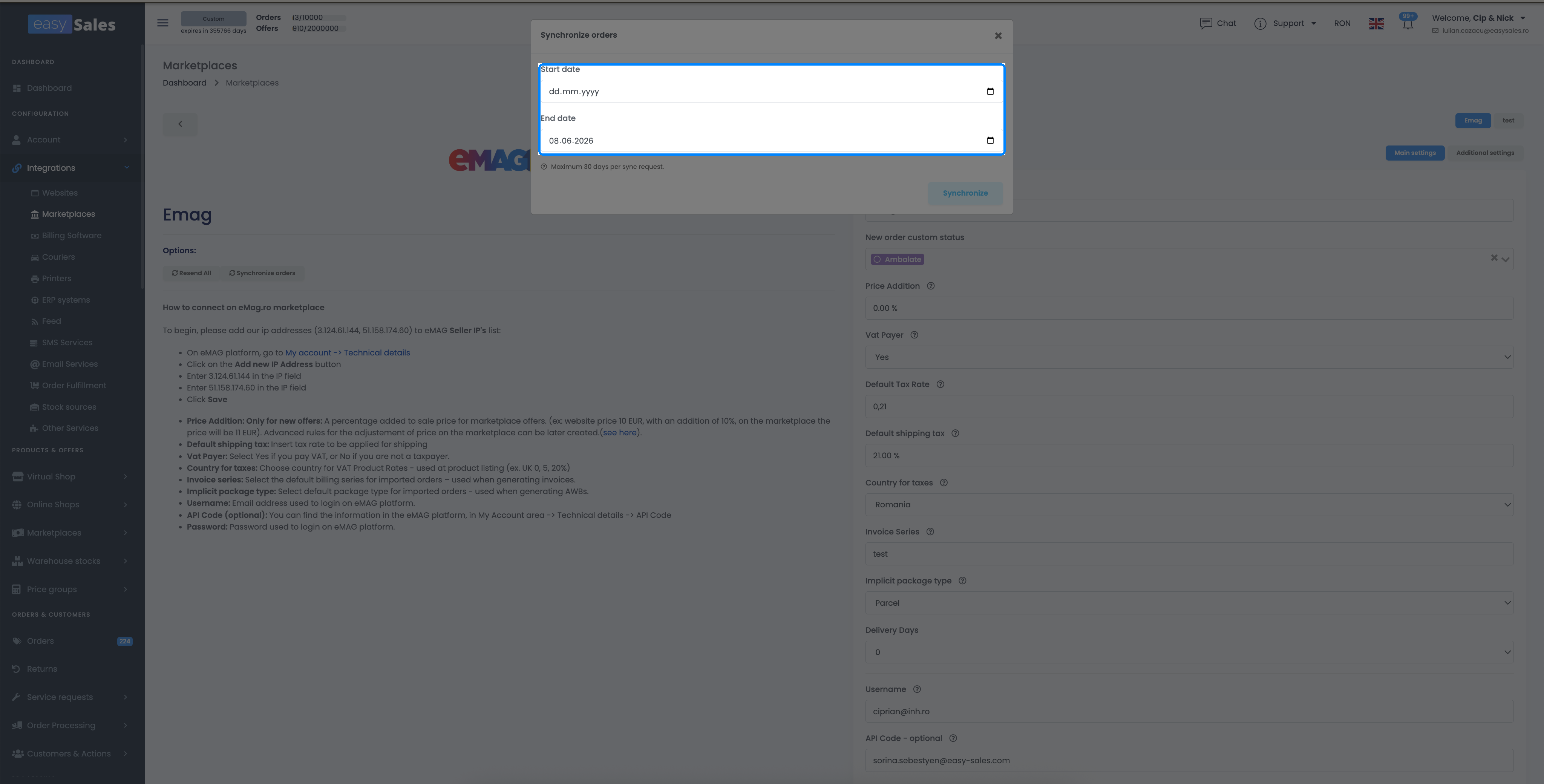
- Go to Integrations → Marketplace and edit the platform you want.
- Click Synchronize orders and choose a start and end date for the orders to import (max 30 days apart).
Resend offers to a marketplace
When a marketplace is showing stale stock, prices or product data, force-push your offers back to it:
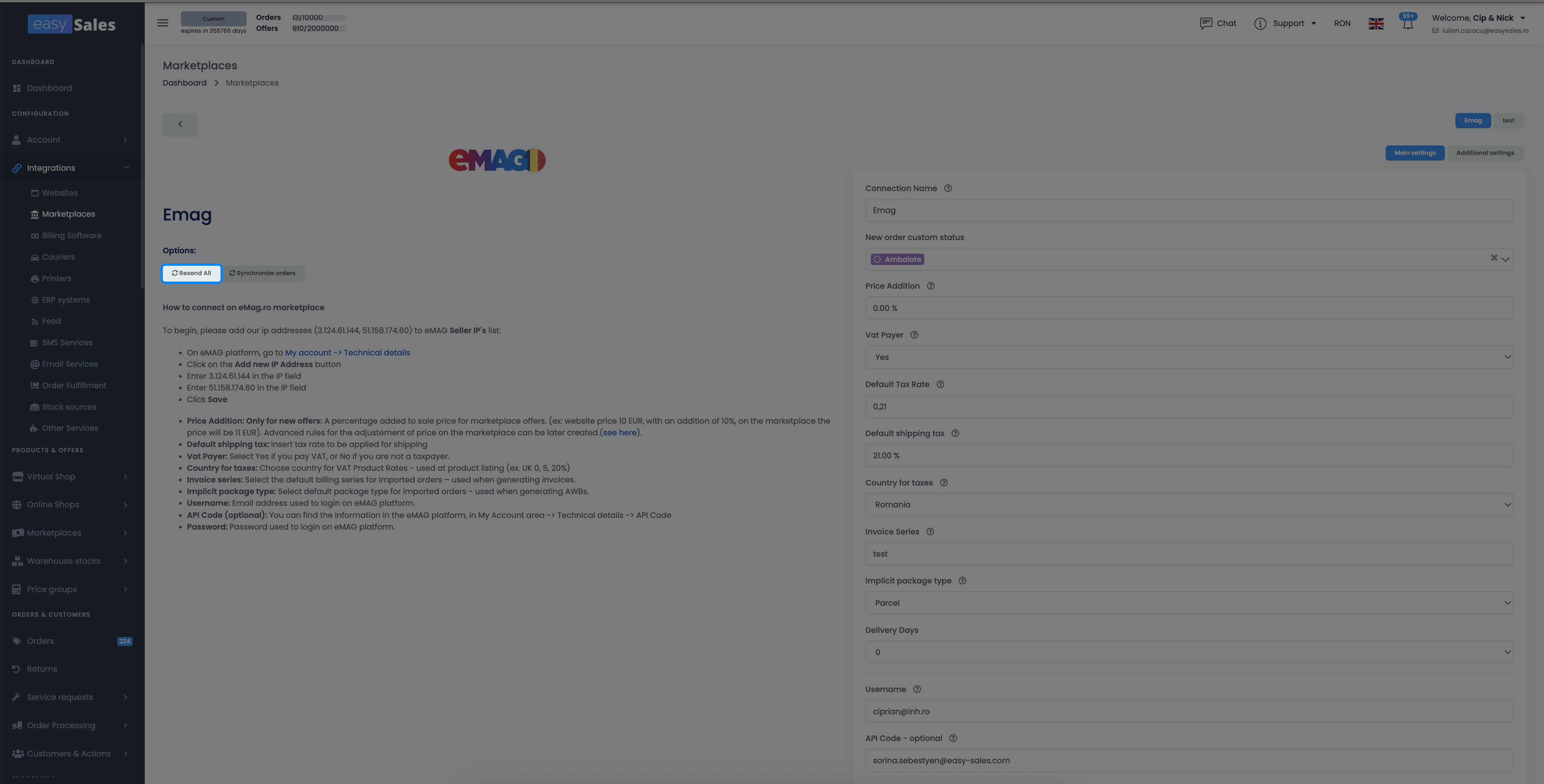
- Go to Integrations → Marketplace and edit the platform.
- Click Resend All.
This re-sends every linked, active offer to that marketplace with the current data from easySales — stock, prices and full offer documentation together. It's one action that overwrites what the marketplace is showing; it isn't split into stock-only or price-only.
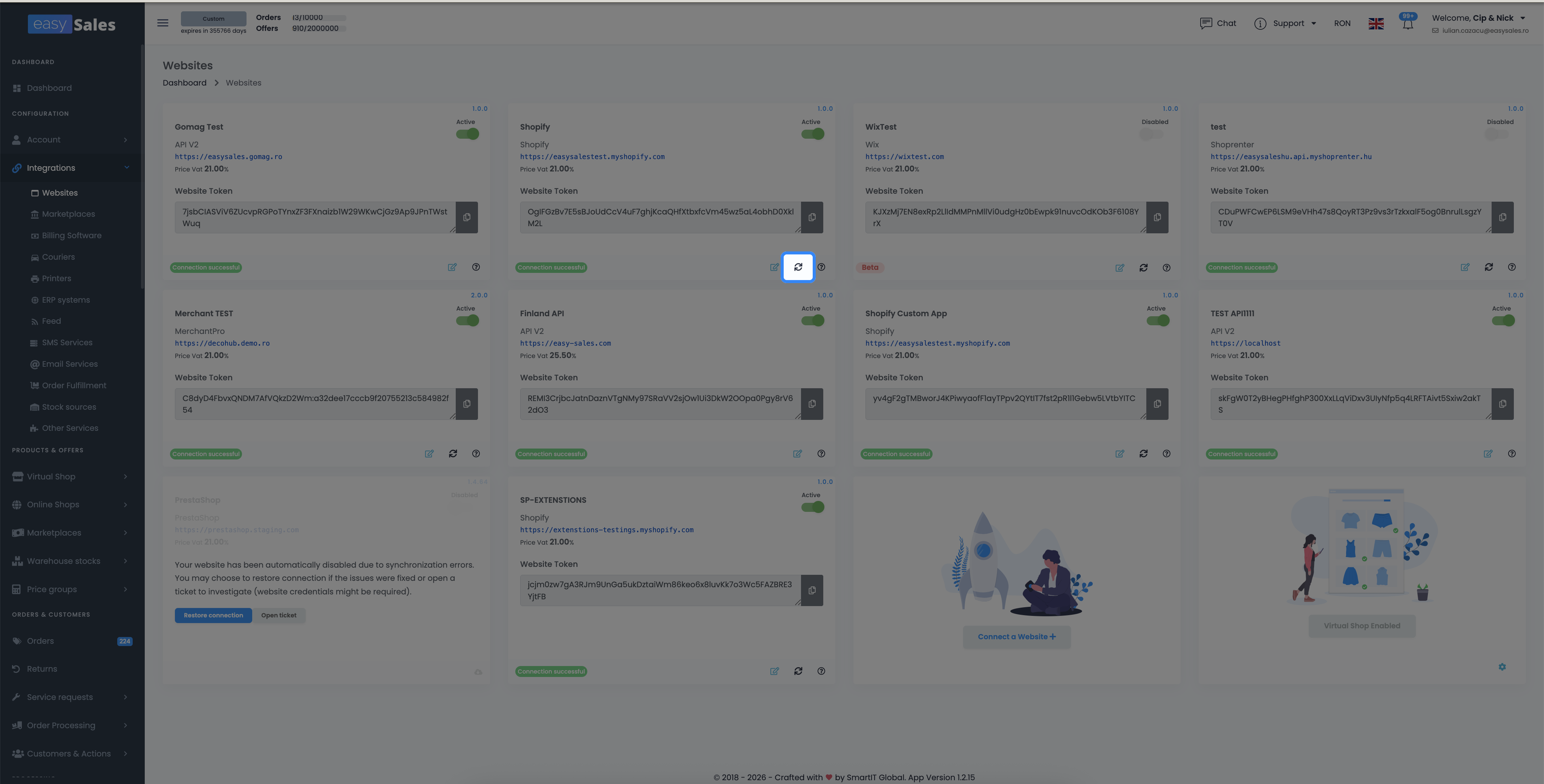
Push stock to your online shop
When your stock is held in easySales (for example the easySales stock source, SmartBill, FGO, and so on), you can force-resend it to your online shop:
- Go to Integrations → Shops.
- Click the sync icon next to the shop.
This pushes the current stock to the shop. It's rate-limited to once every few hours per shop, so if the icon doesn't react, a recent resend is still cooling down.
Keep every channel in sync
Try easySales free for 14 days — orders, stock and prices stay aligned across all your channels automatically. No credit card required.