How to generate invoices in easySales: billing software, series, storno and e-invoicing
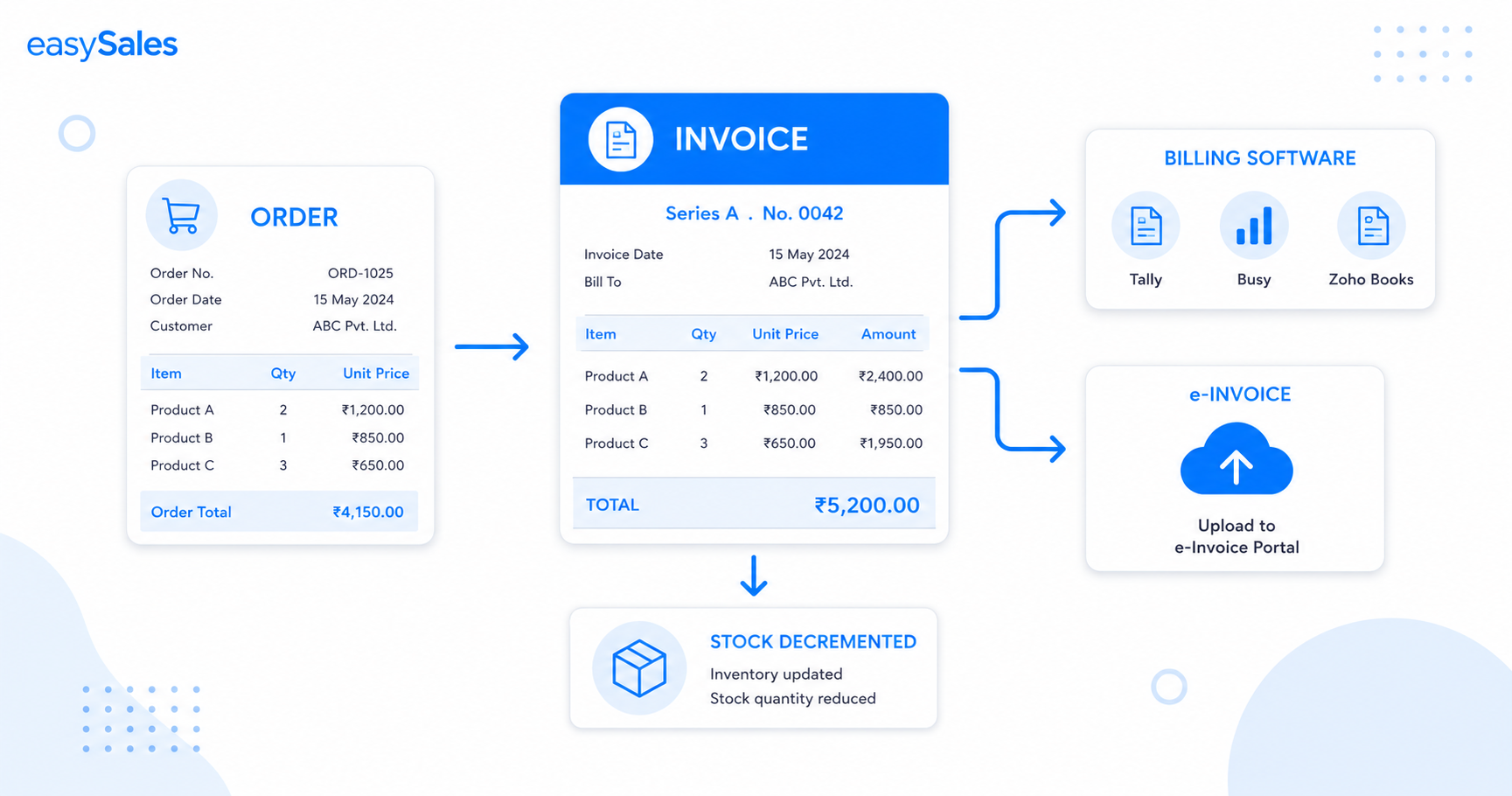
easySales issues invoices straight from your orders — through your billing software, its own built-in billing, or by uploading one from an ERP. Set a different series per channel, generate with one click or in bulk, issue storno invoices, and stay compliant with e-invoicing (e-Factura ANAF, KSeF, easyfiscal). This guide covers connecting a billing software, series, generation, bulk, storno, e-invoicing, and automation.
Invoicing is the step between a confirmed order and a closed sale — and the one most likely to eat your evenings at month-end. easySales issues the invoice straight from the order you already have, through the billing software you already use, with the right series and the document stored back on the order.
What invoicing in easySales does
easySales turns an order into an invoice without re-keying anything. It can issue the document through your connected billing software, through its own built-in billing, or simply hold an invoice you generated elsewhere. It manages the series, stores the PDF on the order, can move stock for you, and — where it applies — sends the invoice to the national e-invoicing system.
Connect a billing software first
Before you can generate anything, connect your billing software under Integrations → Invoicing. Each software has its own connection form for the API keys and account details it needs.
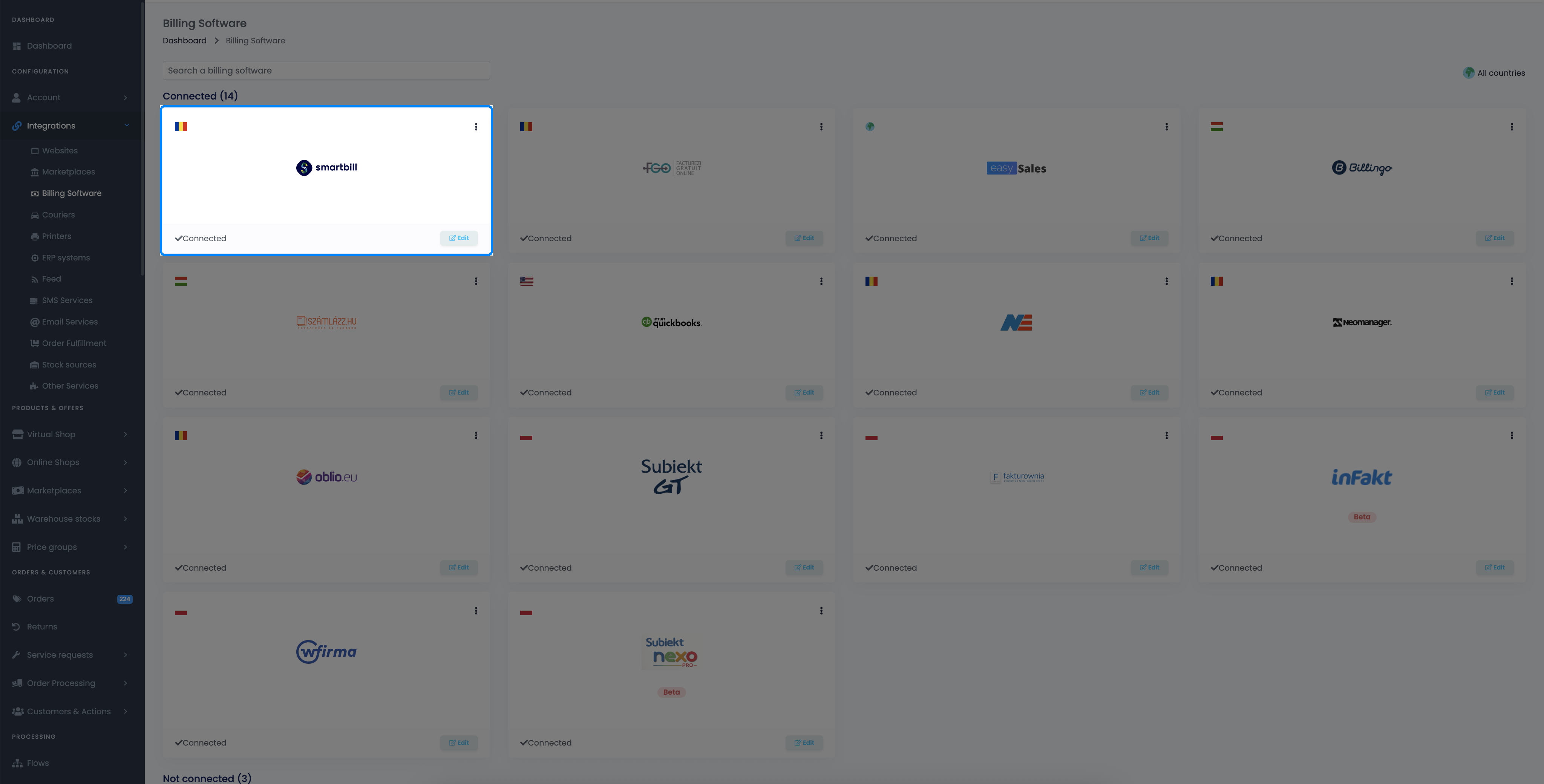
easySales integrates with a range of billing softwares across markets — plus its own built-in billing if you don't use an external one.
Romania
SmartBill, Oblio, FGO, Facturis Online, NeoManager, Nexus ERP, NeoSys.
Hungary
Számlázz.hu and Billingo.
Poland
Fakturownia, iFirma, inFakt, wFirma, Subiekt GT, Subiekt nexo PRO.
International
QuickBooks for cross-border invoicing.
Built-in billing
Issue invoices directly from easySales without an external tool.
e-Invoicing
e-Factura (ANAF) in Romania; KSeF and easyfiscal in Poland, handled on submission.
Four ways to issue an invoice
Pick the method based on how many orders you're invoicing and where the document comes from:
Quick create
One click on an order in the Orders list issues the invoice through your billing account.
From the order
Use Create Invoice on the order to choose the software, account and series.
Bulk generate
Select up to 50 orders on the same billing account and invoice them all at once.
Upload external
Invoiced in an ERP we don't integrate? Upload the PDF so it lives on the order.
Set your invoice series
You can define a different series for each marketplace or online shop, so every channel keeps its own numbering. If a series wasn't set up front, you can also change it per order from the order edit screen before generating — and a Flow can set the series automatically.
Quick create — one click from the Orders list
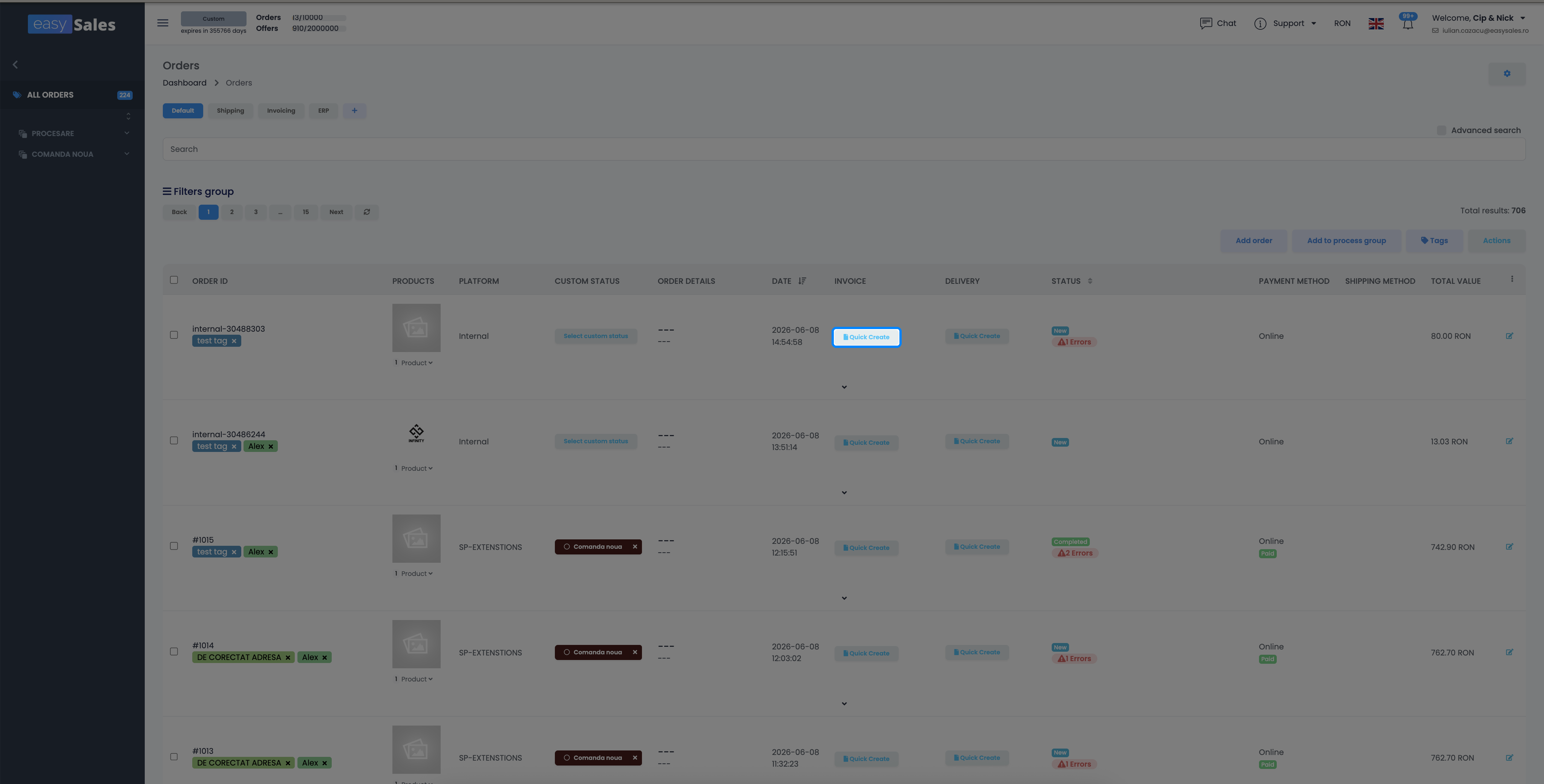
For most orders, quick create is all you need. In the Orders list, the invoice button on an order issues the document through the billing account you pick, with that channel's series. The invoice PDF is stored straight onto the order.
Issue from the order details
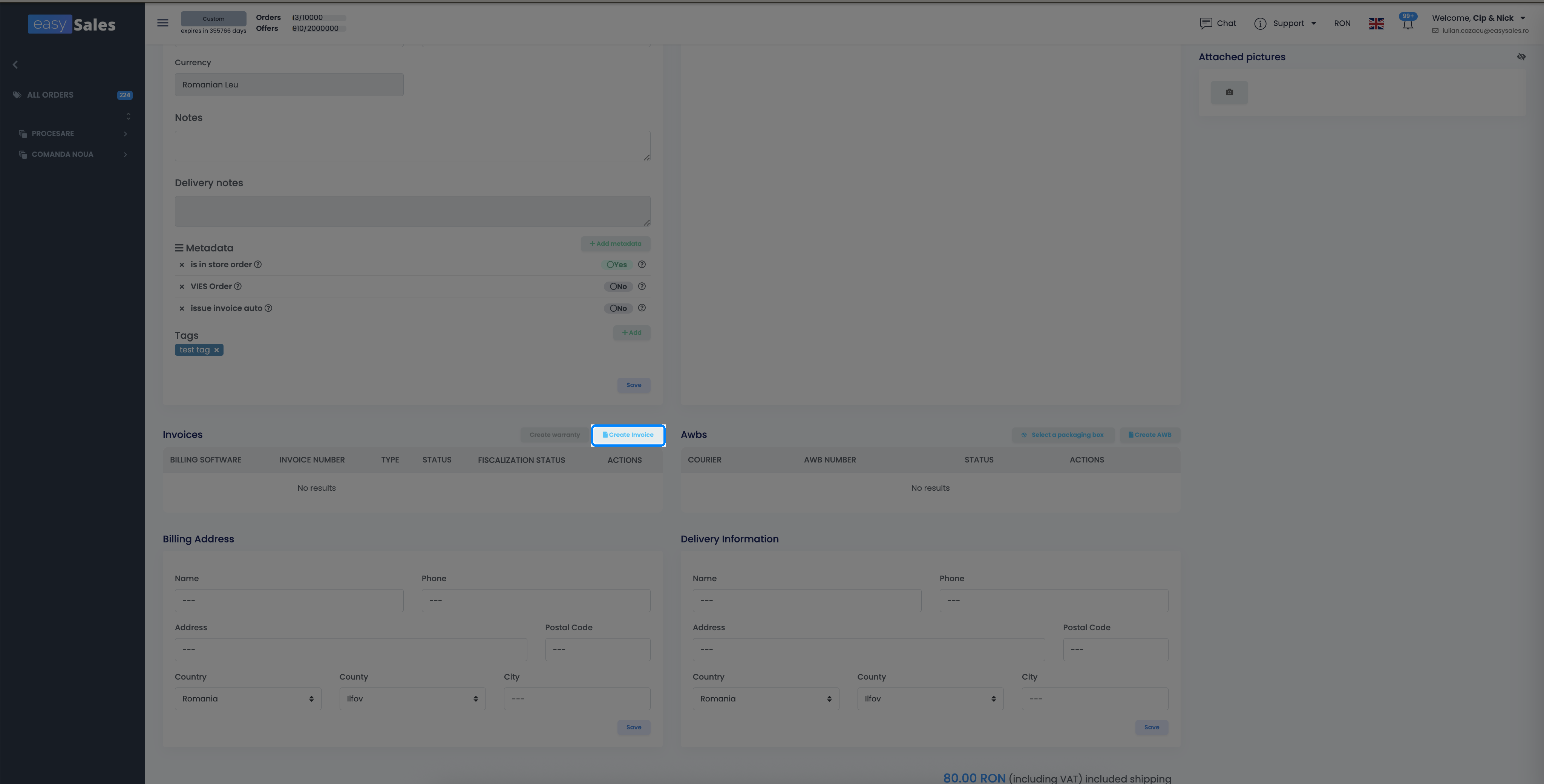
Open an order and use the Create Invoice button in its Invoices panel to issue through a connected billing software — choosing the software and account. The order's line items are billed as they are; the series comes from the order (set per channel, or changed here before you issue).
| Quick create | From the order | |
|---|---|---|
| Where | Orders list, one click | Inside the order, Invoices panel |
| Software / account | Pick from the button | Choose software and account |
| Series | Channel's default series | Order series (set per channel or changed first) |
| Best for | Everyday orders | When you need to pick the account or check details |
Issue in bulk
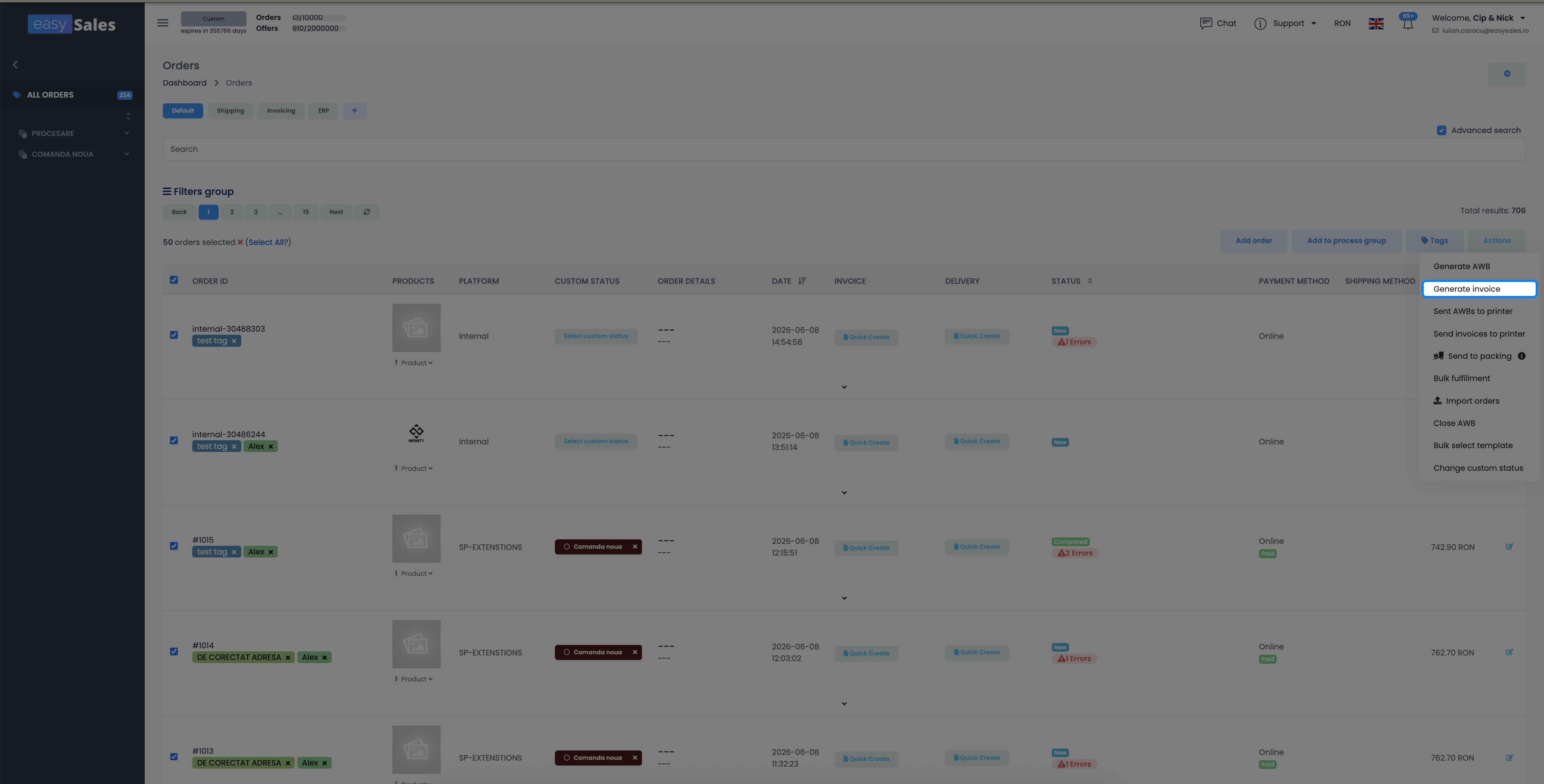
Invoicing a batch? Select several orders in the Orders list and use the bulk Generate invoice action to issue documents for all of them at once. Two rules apply: every selected order must use the same billing software and account, and you can process up to 50 orders per run.
Use your own software or ERP
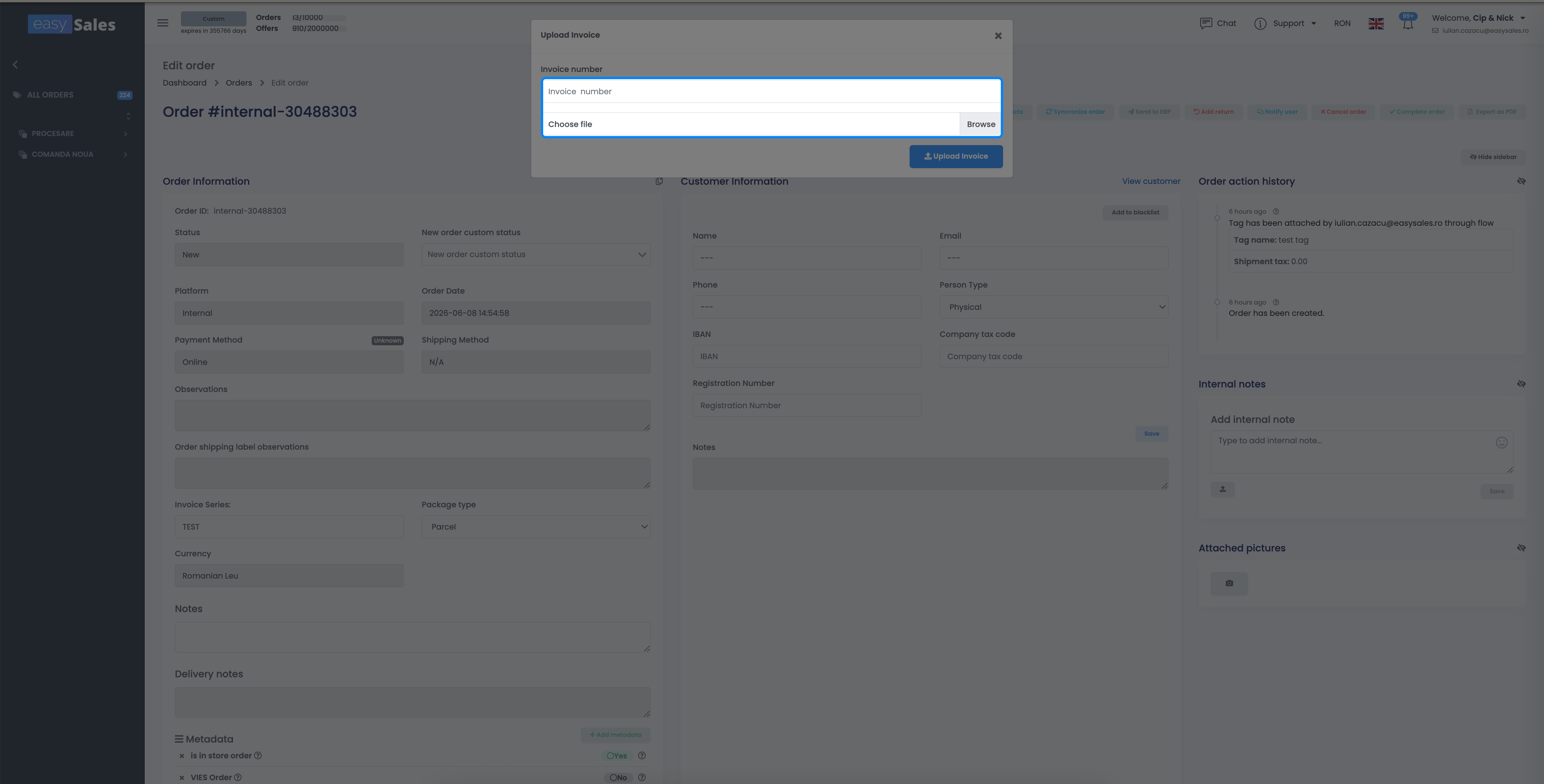
Prefer to invoice in an external tool, such as an ERP, that you don't connect directly? Generate the invoice there, then upload it onto the order in easySales — enter the invoice number and attach the PDF. The document lives on the order and the rest of your workflow continues normally.
What happens to your stock
Generating an invoice can also move stock — but only when you've turned that on:
Storno (reverse) invoices
If an order is returned or, for any reason, wasn't delivered, you can issue a storno (reverse) invoice from the order edit screen. To void or delete an invoice entirely, use the same screen. If you've enabled stock restore on cancel, a storno or deletion puts the invoiced quantities back.
e-invoicing compliance
Where the law requires it, easySales sends the invoice to the national e-invoicing system — e-Factura (ANAF) in Romania, and KSeF or easyfiscal in Poland — so the electronic submission happens as part of issuing the invoice, not as a separate manual chore.
Automate invoicing with Flows
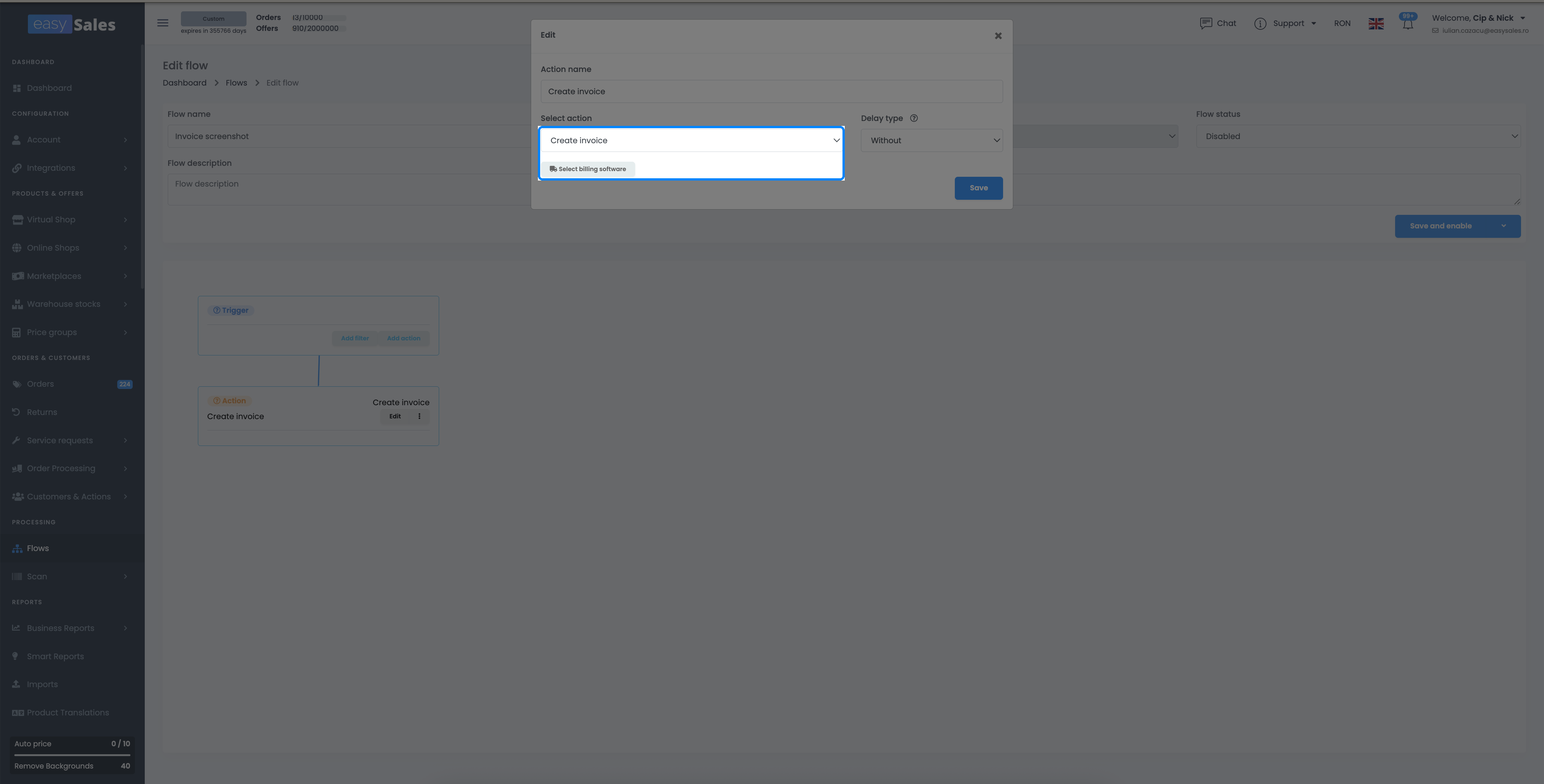
You don't have to issue each invoice by hand. With Automation Flows, easySales can generate the invoice when an order reaches a chosen status, set its series, mark it as paid, print it, or even issue a reverse invoice — all without a click.
Invoice every order automatically
Try easySales free for 14 days and issue invoices through your billing software — or built-in billing — without re-keying a thing. No credit card required.