How to create an order manually in easySales
Add phone, showroom and social media orders by hand: fill in the customer and products, see what happens to stock, and reuse orders with templates.
When to add an order by hand
Use Add order for sales that do not come from a marketplace or your online shop: phone orders, showroom sales, orders from social media or from a regular customer. The order is created in easySales, and you process it like any other order: invoice, AWB, statuses and flows.
Three things to know first:
- A manual order stays in easySales. It is not sent to any marketplace or online shop. They only see the stock change.
- Only products from your catalog move stock. A line added with Create product is free text and has no stock.
- The order number is set by easySales. It starts with internal-, and you cannot type your own.
Add the order
Open Orders and press + Add order at the top right of the orders list. The form has four parts: order information, customer, addresses and products. Press Save order at the bottom when you are done; easySales opens the new order.
Order information
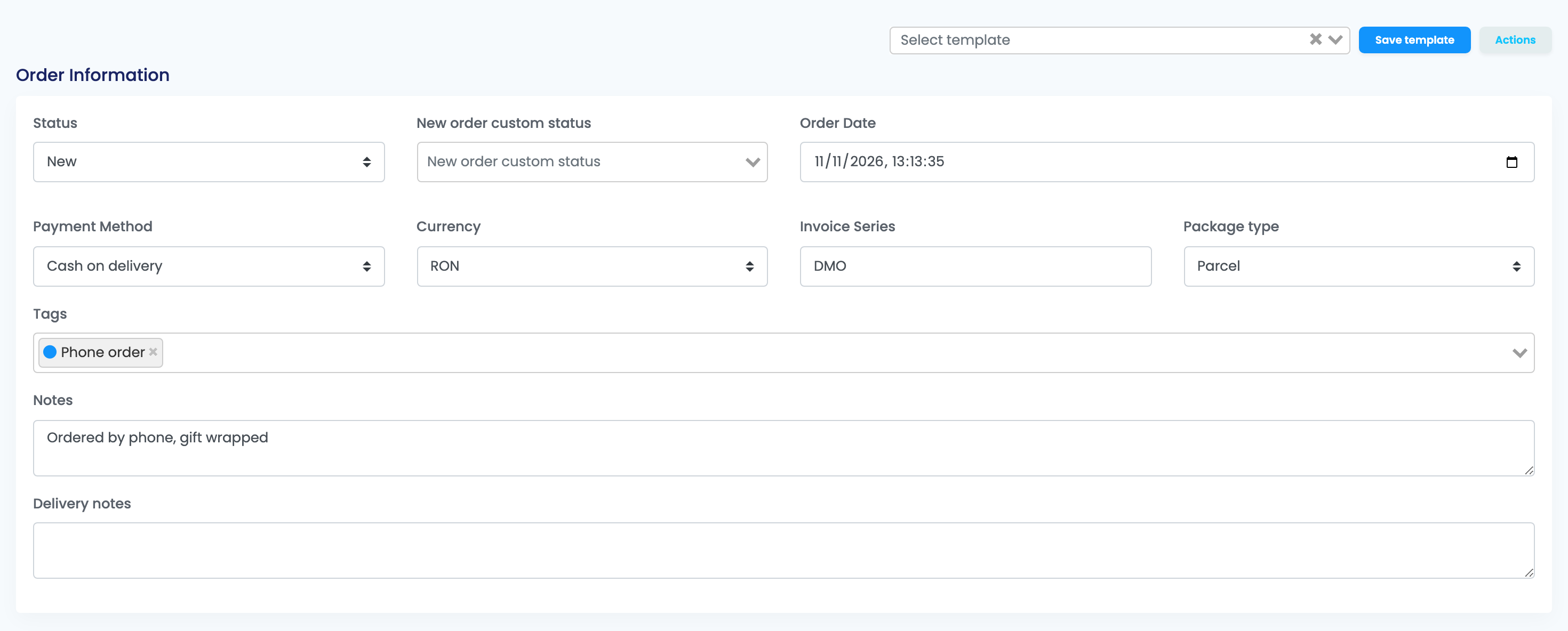
| Field | What to fill in |
|---|---|
| Status | Required. Usually New, so the order goes through your normal processing. |
| New order custom status | Optional. The custom status the order starts with. |
| Order Date | Filled in with the current date and time. Change it for an order taken earlier. |
| Payment Method | Required: Online, Cash on delivery, Bank transfer or Unknown. |
| Currency | The currency of the order. Your account's currency is selected. |
| Invoice Series | Required. The invoice for this order is issued on this series, so type a series that exists in your invoicing program. |
| Package type | Required: Envelope or Parcel. |
| Tags, Notes, Delivery notes | Optional. Tags can start flows that use them. |
Customer and addresses
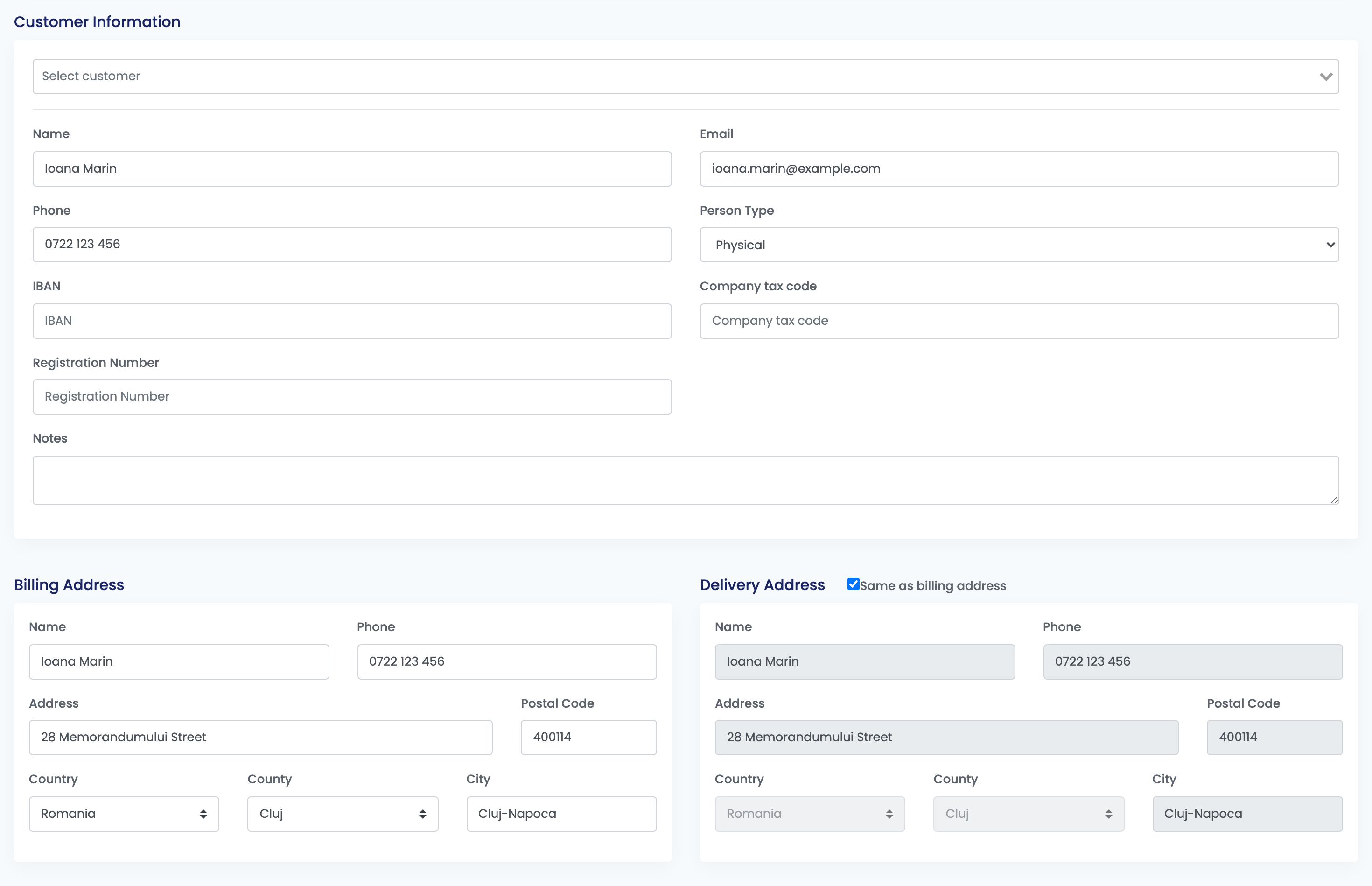
- Search for a saved customer in the box at the top: by name, company, e-mail, phone or tax code. easySales fills in the customer's details and their last billing and delivery address.
- Or type a new customer. A customer typed without being picked from the search is saved as a new customer.
- Choose Person Type: Physical for a person, Juridical for a company, with Company tax code and Registration Number.
- In Billing Address, the name, phone, address, country, county and city are required. Delivery Address copies the billing address while Same as billing address is ticked; untick it to type a different delivery address.
Products
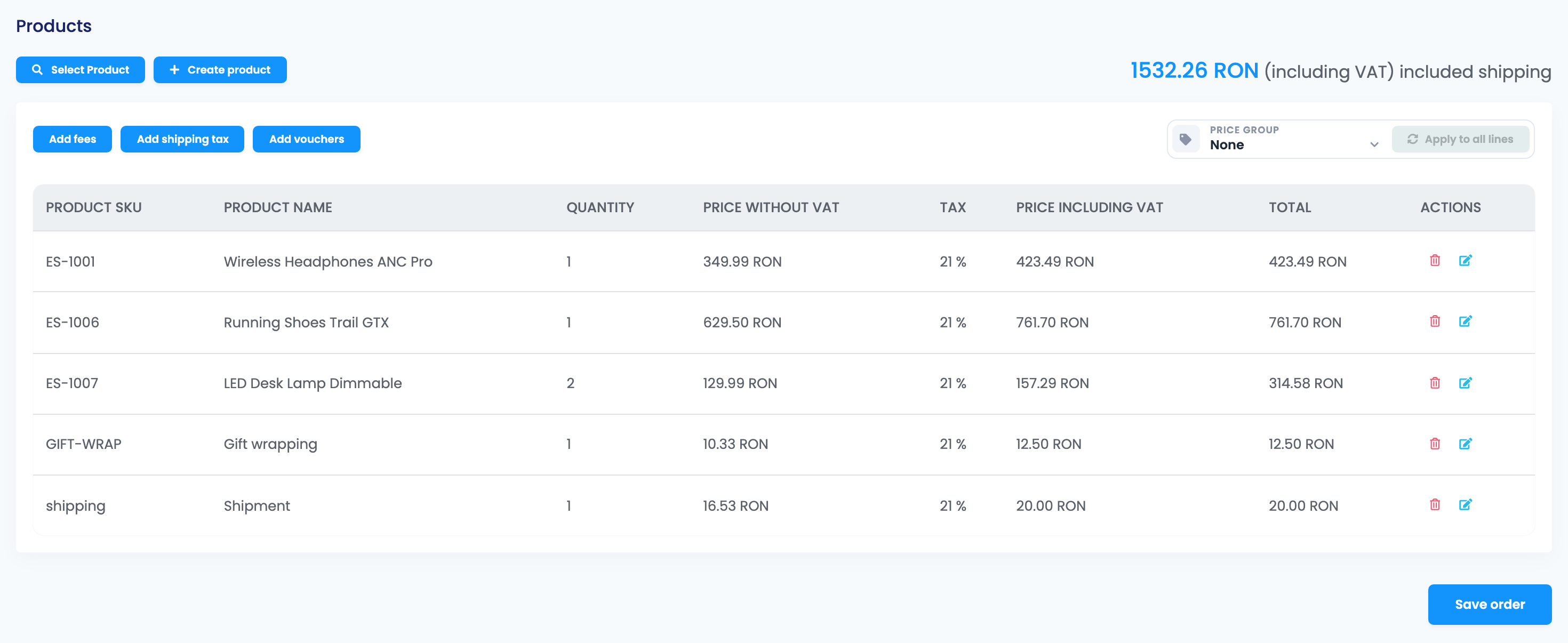
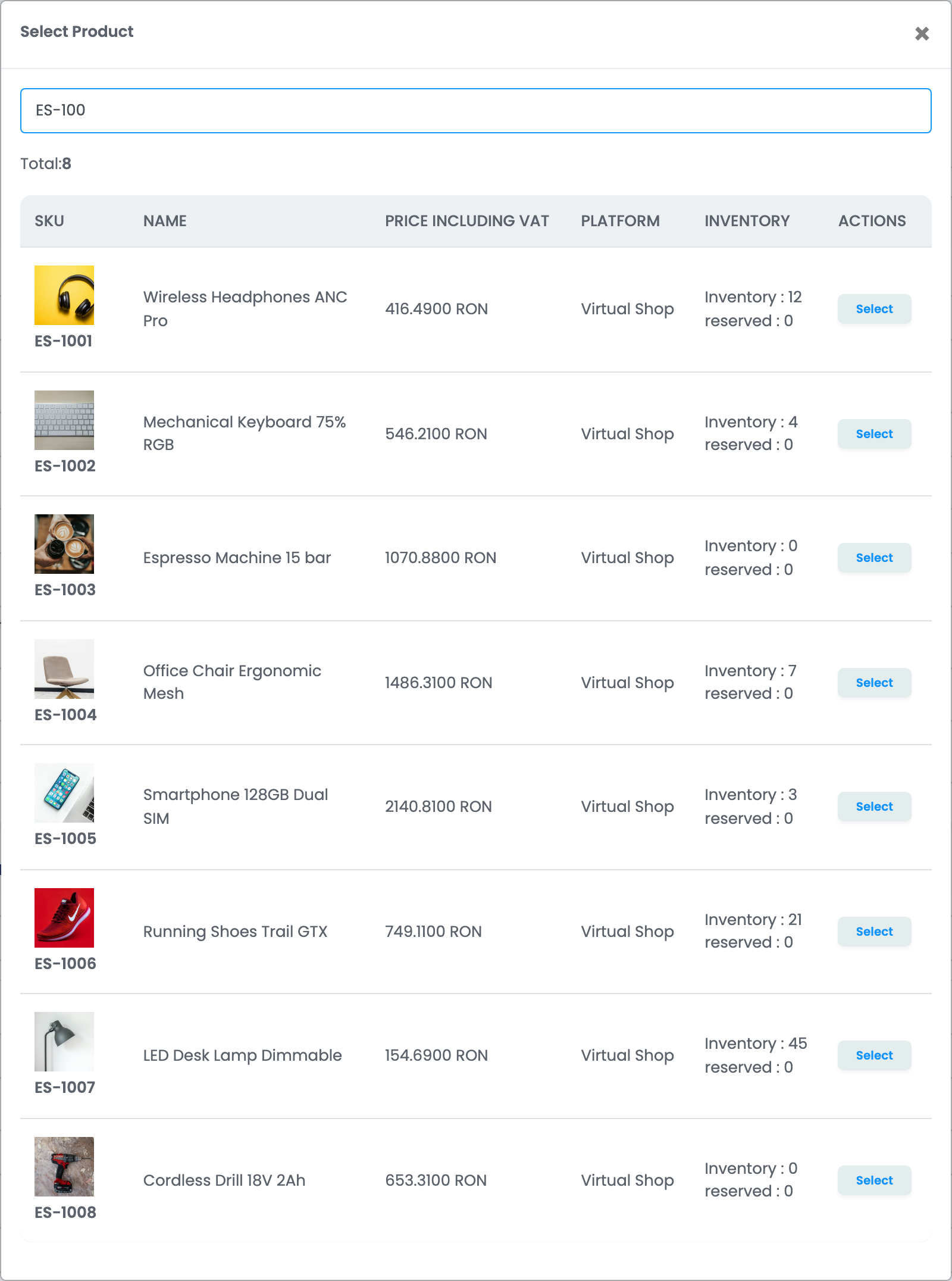
- Press Select Product, search by name, SKU or EAN and press Select. Selecting the same product again adds one more to its quantity. A bundle is added as the products it contains.
- Press Create product for something that is not in your catalog, such as gift wrapping or a service: type the SKU, name, price without VAT and VAT rate.
- Add the delivery cost with Add shipping tax, extra charges with Add fees and discounts with Add vouchers.
- To change a line, press the pencil, edit the quantity or the price and confirm. The bin removes the line.
If you use price groups, choose one in Price group; a customer's own price group is filled in when you pick the customer. Apply to all lines updates the prices of the lines already added.
| Line | Added with | Moves stock |
|---|---|---|
| A product from your catalog | Select Product | Yes |
| A product or service not in your catalog | Create product | No, and it is not added to your catalog |
| Delivery cost | Add shipping tax | No |
| Other charges | Add fees | No |
| Discount | Add vouchers | No, it is subtracted from the total |
Stock and what happens after you save
| What happens | |
|---|---|
| Stock | The products from your catalog are reserved as soon as the order is saved, and they leave stock according to your stock options in Order settings. |
| Marketplaces and online shops | Nothing is sent to them. They see only the stock change. |
| Flows | Flows with the new order trigger start, as for any other order, and so do flows on the tags you added. |
| Customer messages | Your automatic customer notifications are sent, if you set them up for new orders. |
| Invoice and AWB | Not created on their own. Issue them from the order page, a processing group or a flow. |
| Your plan | The order counts towards your plan's monthly orders. |
Save time with templates
If you often add similar orders, fill in the form once and press Save template, then give it a name. Next time, choose it in Select template: the status, payment, currency, series, tags, notes, customer, addresses, products and charges are filled in, and the order date is set to now. Change what you need and press Save order.
- Save template updates the template you have selected.
- Actions → Save as... saves the form as a new template.
- Actions → Delete deletes the selected template.
easySales has no button to copy an existing order; a template is the quick way to repeat one.
After the order is saved
The order opens on its page, where you work with it like with any other order: issue the invoice, generate the AWB, change its status or add tags.
When something does not look right
| Symptom | What to do |
|---|---|
| The order did not reserve any stock | Check that the lines were added with Select Product, not Create product, and that the order was not saved as Completed, Canceled or Return. |
| The customer is not found in the search | Search by another detail, such as the phone number or e-mail, or type the customer as a new one. |
| The form does not save and fields are outlined in red | Fill in the required fields: Status, Payment Method, Invoice Series, Package type, the billing address and at least one product. |
| The invoice was issued on another series | Check the Invoice Series on the order. It must be a series that exists in your invoicing program. |
| The customer's details changed after the order | You edited a saved customer on the form. Correct the customer's card in Customers. |