How to manage customers in easySales: the customer list, customer details and the blacklist
How easySales recognises returning buyers, where to correct a customer's details, what the blacklist does, and how to find and export your customers.
What the Customers screen does
Customers lists everyone who has ordered from you, on every marketplace and online shop, with how many orders they placed and how much they spent. Open it from Customers → People → Customers. From the list you open a customer's page, with their orders, returns, addresses and your notes about them.
Three things to know first:
- One buyer is one customer, on every channel. easySales recognises a returning buyer by the company's VAT ID or, for a private person, by the phone number, and adds the new order to the same customer.
- The newest order updates the customer. When a returning buyer orders again, the name, company, VAT ID and e-mail of that order replace what the customer had. A new delivery or billing address is added next to the old ones.
- Customer details are corrected on an order. The Customers screen shows the data; to change a name, a VAT ID, a phone number or an address, open one of the customer's orders and edit it there, before you create the invoice.
The customer list
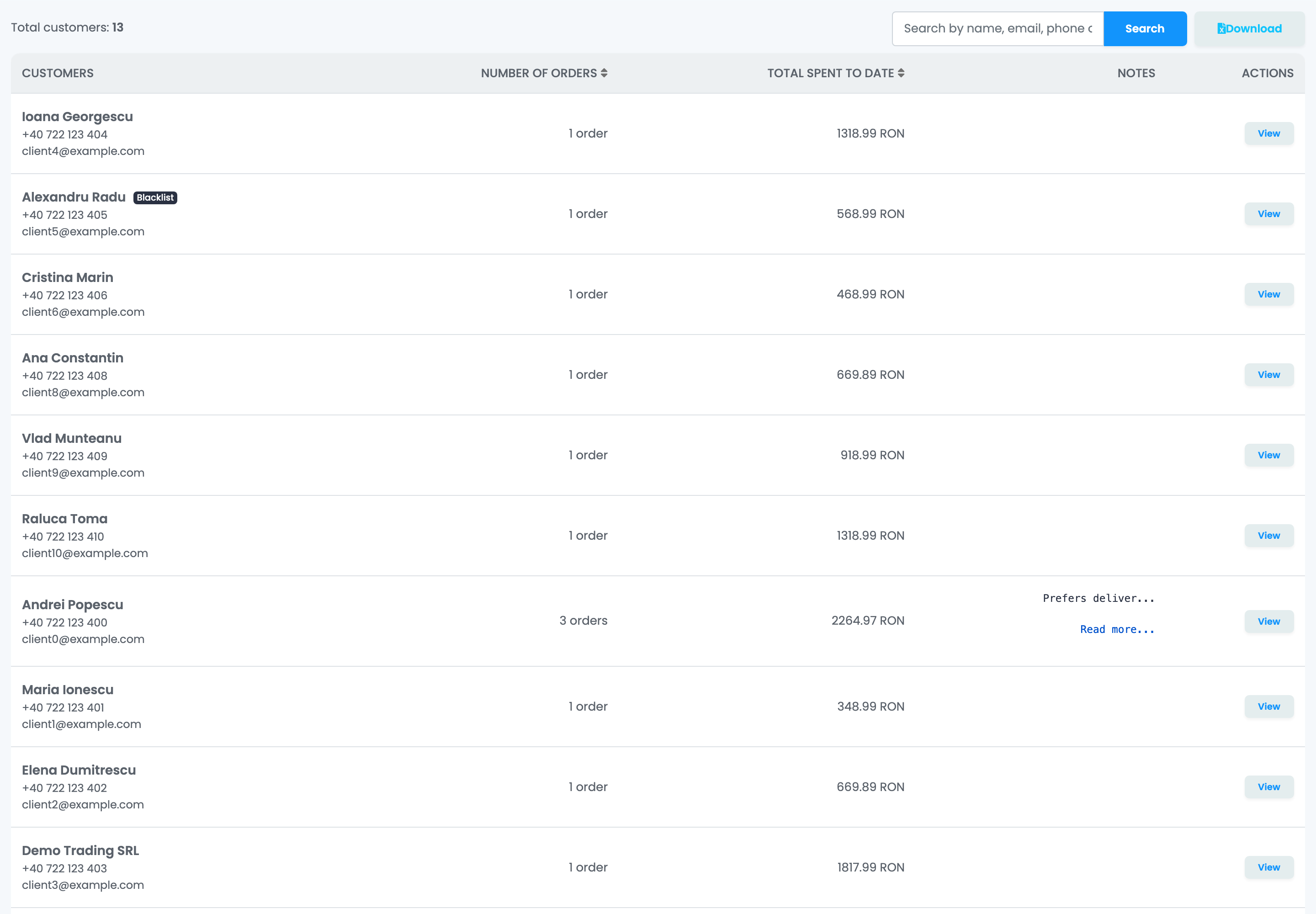
- Search looks for a name, company name, e-mail address, phone number or VAT ID. Type the text and press Search; Reset shows the whole list again.
- Click Number of orders or Total spent to date to sort by it, for example to find your best customers.
- A Blacklist badge marks customers you added to the blacklist.
- View opens the customer's page.
Total spent to date adds up all the customer's orders, including cancelled and returned ones, converted to your currency at today's rate. It is updated a few moments after an order changes.
The customer's page
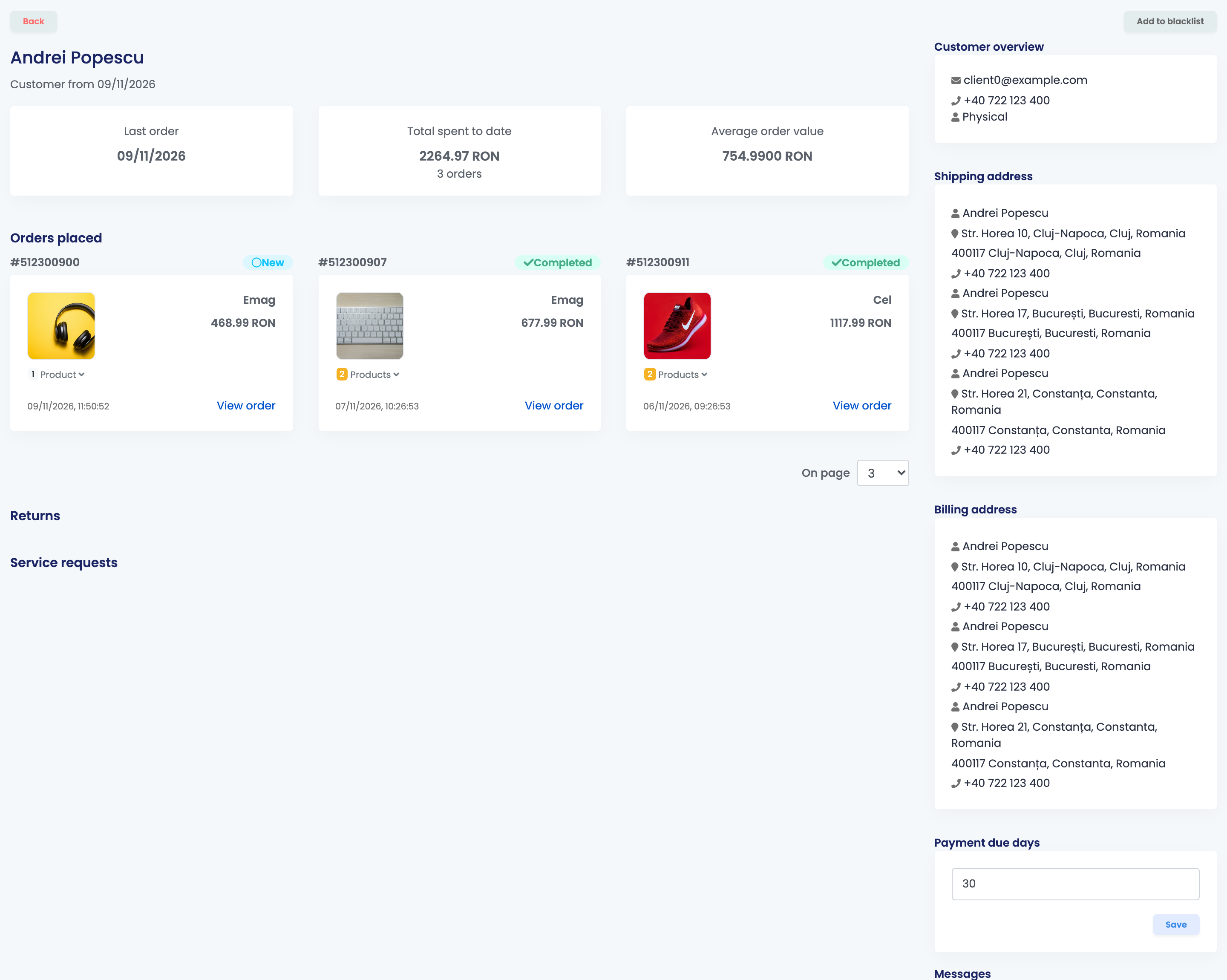
| Part | What it shows |
|---|---|
| Last order, Total spent to date, Average order value | When the customer last ordered, how much they spent in total and per order. |
| Orders placed, Returns, Service requests | The customer's orders, returns and service requests, each with a link to open it. |
| Customer overview | E-mail, phone and whether the customer is a person or a company, with the VAT ID and registration number for companies. |
| Shipping address, Billing address | Every address the customer has used. |
| Payment due days | The payment term for this customer's invoices, used by the invoicing connections that support it. |
| Messages | Receives SMS messages and Receives WhatsApp messages: untick them to stop sending these messages to the customer. |
| Price group | Filled in for you when you pick this customer in Add order. |
| Notes | Your own notes about the customer, also shown in the list. |
| Add to blacklist | Marks the customer. See The blacklist below. |
The settings on the right — Payment due days, Messages, Price group and Notes — belong to easySales only. Saving them does not change anything on the customer's orders.
Correct a customer's details
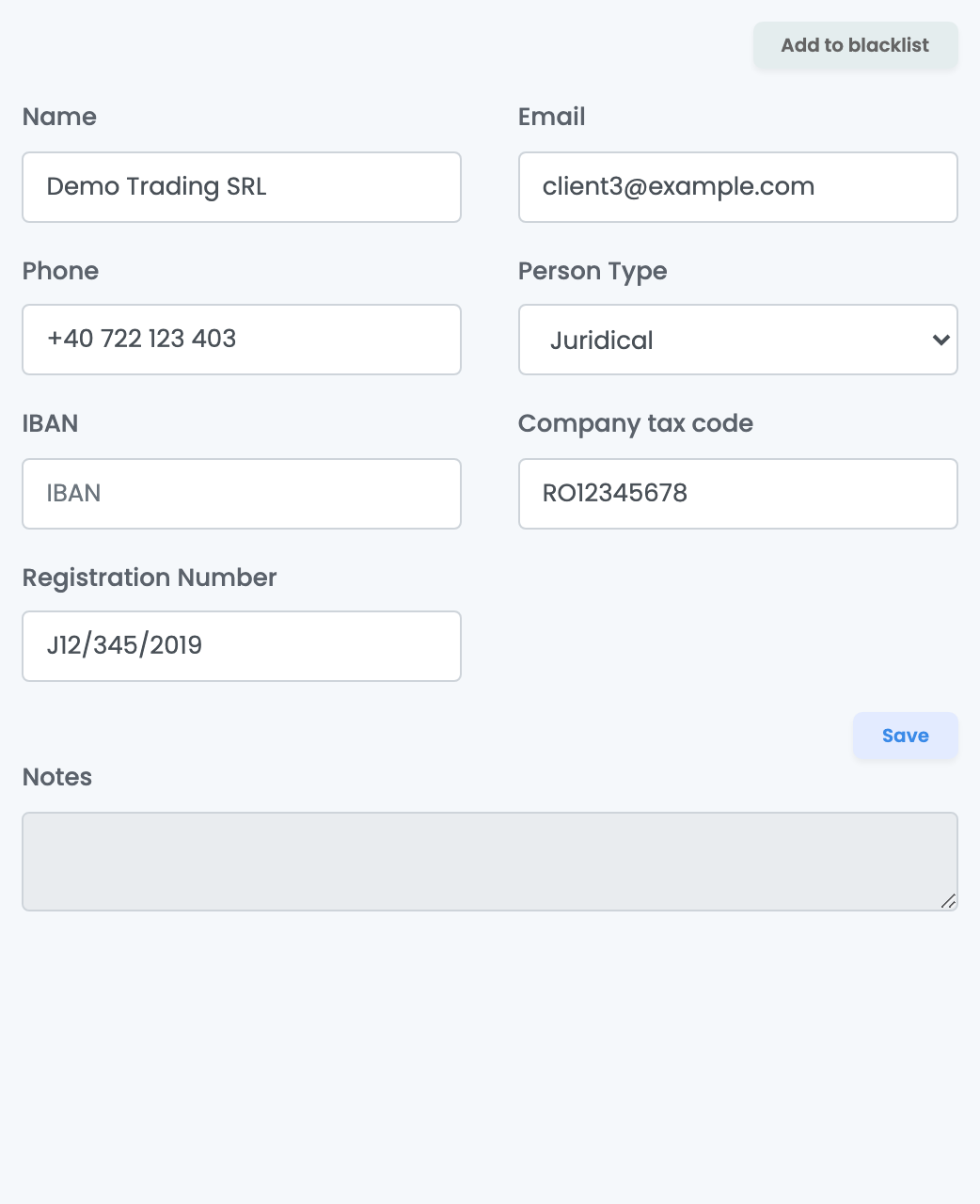
Open one of the customer's orders. Under Customer Information, correct the name, phone, e-mail, Person Type, Company tax code or Registration Number and press Save. Each address has its own Save under Billing Address and Delivery Information.
What happens when you save:
- The change is made on the customer, so every order of this buyer shows the new details, not only the one you opened.
- Syncs of the orders you already have no longer overwrite what you saved.
- A new order from the same buyer brings the buyer's details from that channel again.
Switching Person Type to a company clears the person's name, and switching it back clears the company name: fill in the one you need before saving.
How returning buyers are recognised
Two switches in Settings → Orders Settings decide how new orders are added to existing customers. Both are on by default.
| Switch | What it does |
|---|---|
| Group legal entity clients by company code | An order from a company goes to the customer with the same VAT ID. |
| Group residential clients by phone | An order from a private person goes to the customer with the same phone number. |
When a switch is off, every order of that kind creates a new customer. A buyer who orders with a different phone number, or with none, also becomes a new customer: there is no way to merge two customers by hand.
The blacklist
Add to blacklist on the customer's page or on any of their orders marks the buyer. It does not stop their orders from coming in: they are imported as usual, and the buyer still receives your messages unless you untick them under Messages.
What the blacklist does:
- Orders of a blacklisted customer show a Blacklisted badge in the orders list, and you can filter the orders list by it.
- A processing group refuses to create AWBs, invoices or warranty certificates while one of its orders belongs to a blacklisted customer. Take the order out of the group, or remove the customer from the blacklist.
- In automation flows, the filter Order customer is blacklisted lets a flow act on these orders, and the actions Add client to blacklist and Remove order customer from blacklist change the mark for you.
The mark belongs to the customer, so it reaches a new order only when easySales recognises the buyer, by VAT ID or phone, not by name.
Romanian company details from ANAF
For Romanian companies, a flow can fill in the company name, registration number and VAT payer status from ANAF. Create a flow with the trigger Modify order at save and the action Autofill company details. The lookup needs the VAT ID on the order, and it works for Romanian companies only, so add a filter for orders with a billing address in Romania.
Export customers
Download opens the list of columns: customer details, plus one shipping and one billing address. Tick the columns you need, rename them if you want, and confirm. easySales prepares an Excel file with all your customers, and you get a notification when it is ready.
When something does not look right
| Symptom | What to do |
|---|---|
| The invoice shows an old name or company | Correct the customer on the order before you create the invoice. Invoices already issued keep the old details. |
| My correction disappeared after a new order | A new order from the same buyer brings the buyer's details from the channel again. Correct them on the new order too. |
| Two people share one customer | They ordered with the same phone number. Correct the details on each order before invoicing. |
| The same buyer appears twice | The orders came with different phone numbers or VAT IDs, or one switch in Orders Settings is off. Customers cannot be merged by hand. |
| Search does not find a customer | Try another detail: the phone number, the e-mail or the VAT ID. You can also filter the orders list by the customer's name or phone. |
| Orders of a blacklisted buyer still arrive | The blacklist marks the buyer; it does not block their orders. Use a flow if you want to act on them. |