How to set up order settings in easySales: stock, custom statuses, alerts and the order page
Choose when orders take and give back stock, create custom statuses and alerts, set up the page your buyers see and the PDF of your orders.
What Order settings are for
Order settings decide how easySales treats every order in your account: when stock is taken and given back, which custom statuses your team works with, which warnings appear before an action, what the buyer sees on the order page, and how the orders screens look. Open them with the Order settings button on the orders list, or from Settings → Page settings → Orders.
Three things to know first:
- The Stocks tab works for the whole account. It applies to the orders of every shop and marketplace, so one wrong tick changes the stock of all your products.
- Two options that do the same thing count twice. If two options take stock for the same order, the stock goes down twice. The screen shows a warning when you tick such a pair.
- Most of the Interface tab is saved in your browser. A colleague, or you on another computer, sees the default layout.
| Tab | What it sets |
|---|---|
| Alerts | Confirmation windows before actions such as creating the AWB or the invoice. |
| Interface | The layout of the orders list. |
| General Settings | Returns, document downloads and label printing. |
| Stocks | When orders reserve, take and give back stock. |
| Custom Statuses | Your own order steps, in groups. |
| External order page | The order page your buyers see. |
| Orders | The order page in easySales. |
| Order PDF | The templates for the PDF of your orders. |
Stocks: when orders take and give back stock
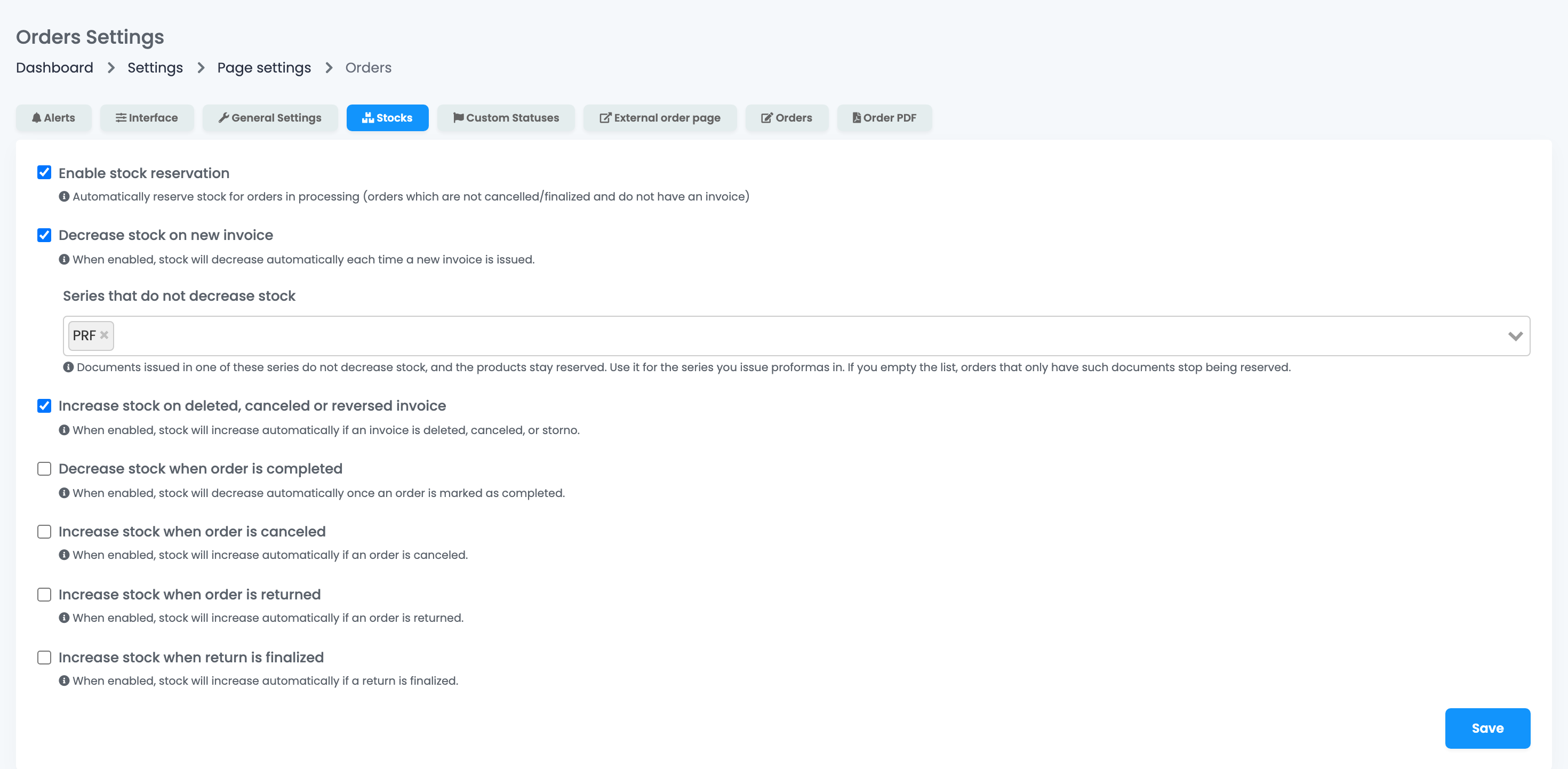
These are the options that matter most. When you have never changed them, easySales works like this:
- Enable stock reservation is on: an order that is not cancelled, not completed and has no invoice keeps its products reserved, so the stock you send to your channels is lowered by them.
- Decrease stock on new invoice is on: issuing the invoice takes the products out of stock and ends the reservation.
- Increase stock on deleted, canceled or reversed invoice is on: deleting or cancelling the invoice, or issuing a storno, puts the products back.
- The four options about orders and returns are off.
| Option | Default | What it does |
|---|---|---|
| Enable stock reservation | On | Reserves the products of open orders without an invoice. |
| Decrease stock on new invoice | On | Takes the products out of stock when the invoice is issued. |
| Increase stock on deleted, canceled or reversed invoice | On | Puts them back when the invoice is deleted or cancelled, or a storno is issued. |
| Decrease stock when order is completed | Off | Takes the products out of stock when the order is completed. |
| Increase stock when order is canceled | Off | Puts them back when the order is cancelled. |
| Increase stock when order is returned | Off | Puts them back when the order moves to Return. |
| Increase stock when return is finalized | Off | Puts them back when you complete a return with Restore stock ticked. |
Avoid counting twice
Choose one moment for taking stock and one for giving it back:
- Take stock either when the invoice is issued or when the order is completed, not both.
- Give stock back either through the invoice options or through the order options. With both on, the same products can come back twice.
- For returns, choose Increase stock when order is returned or Increase stock when return is finalized, not both. The first puts the products back as soon as the order moves to Return; the second only when you complete the return with Restore stock ticked.
Series that do not decrease stock
If you issue proformas from easySales, add their series to Series that do not decrease stock: type the series and press Enter. A document in one of these series does not take stock, and the order stays reserved until the final invoice. If you empty the list later, the orders that only have such documents stop being reserved.
Turning reservation off
When you untick Enable stock reservation and save, easySales clears the reserved stock of all your products and sends the new stock to your channels. Ticking it again reserves stock for the open orders again.
General Settings
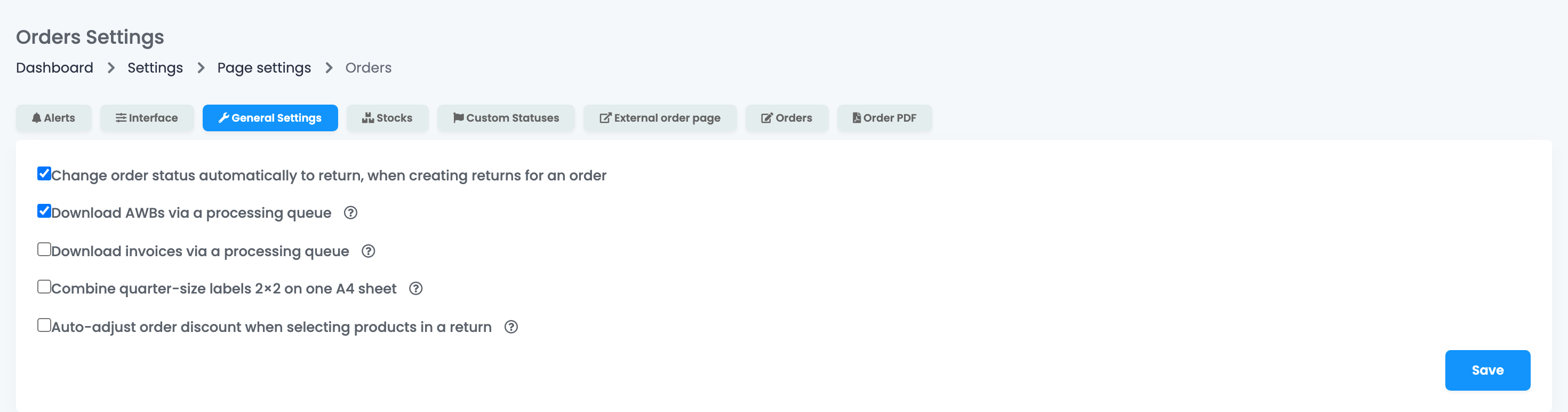
- Change order status automatically to return, when creating returns for an order (on): a new return moves its order to the Return status.
- Download AWBs via a processing queue and Download invoices via a processing queue (off): when you download the documents of several orders at once, easySales prepares one file and e-mails it to you instead of downloading it in the browser. Useful for many or large documents.
- Combine quarter-size labels 2×2 on one A4 sheet (off): when you download AWBs for several orders, quarter-size labels are placed four on an A4 page. Full-page and thermal labels stay one per page.
- Auto-adjust order discount when selecting products in a return (off): when you create a return for some of the products, the order's discount is split in proportion to their value. Leave it off if your discounts are fixed vouchers or apply to one product only.
Press Save after changing them.
Custom Statuses
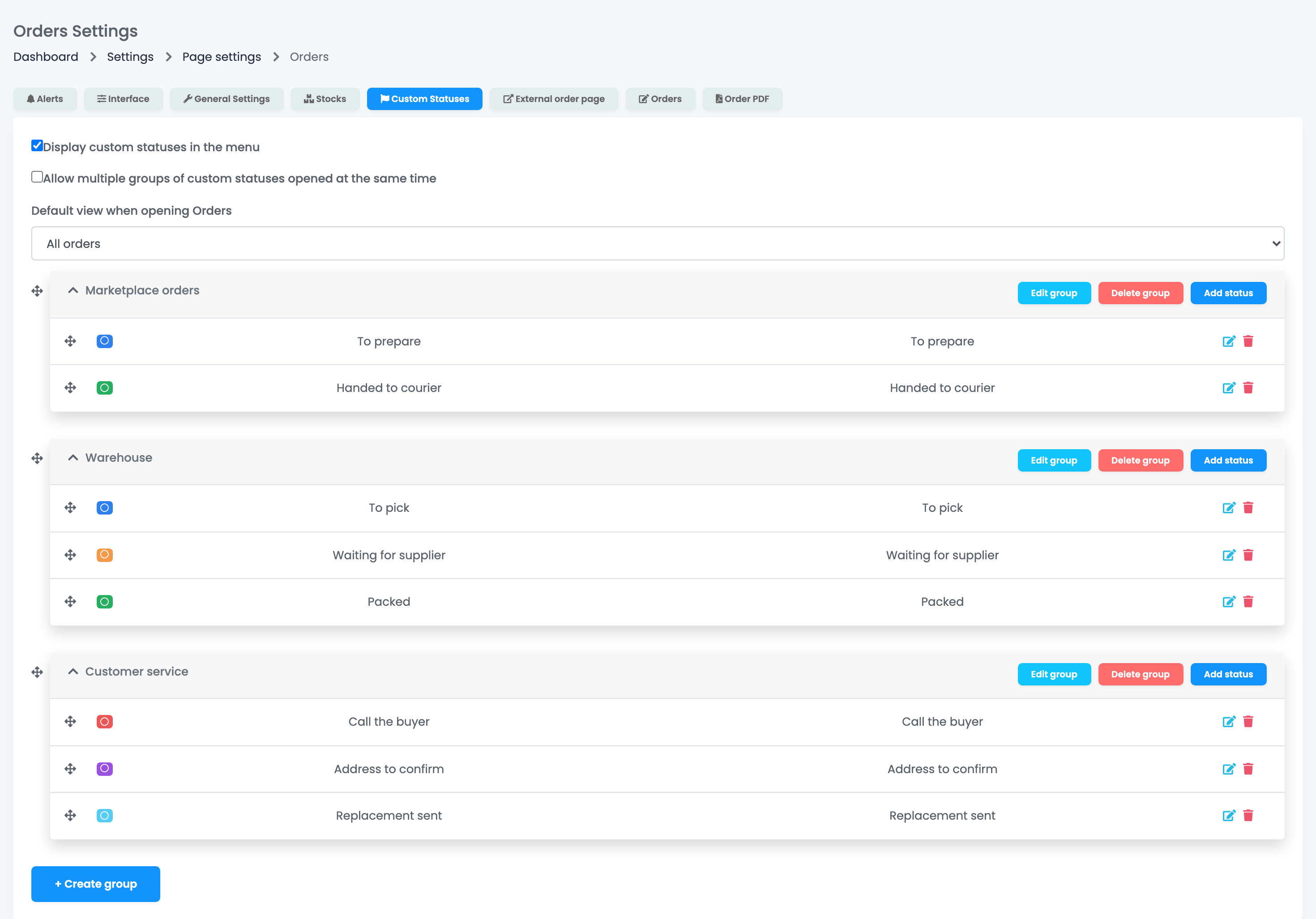
Custom statuses are your own steps inside an order, such as To pick, Waiting for supplier or Call the buyer, grouped the way your team works. They do not replace the order status.
- Press Create group and name the group.
- In the group, press Add status, give the status a name and a colour.
- Drag the groups and statuses to order them.
Display custom statuses in the menu lists them in the Orders menu, with the number of orders in each, and Default view when opening Orders opens Orders straight on one of them. Allow multiple groups of custom statuses opened at the same time keeps several groups open in the menu. These options save as soon as you change them. When you delete a status, easySales asks which status its orders move to.
Alerts
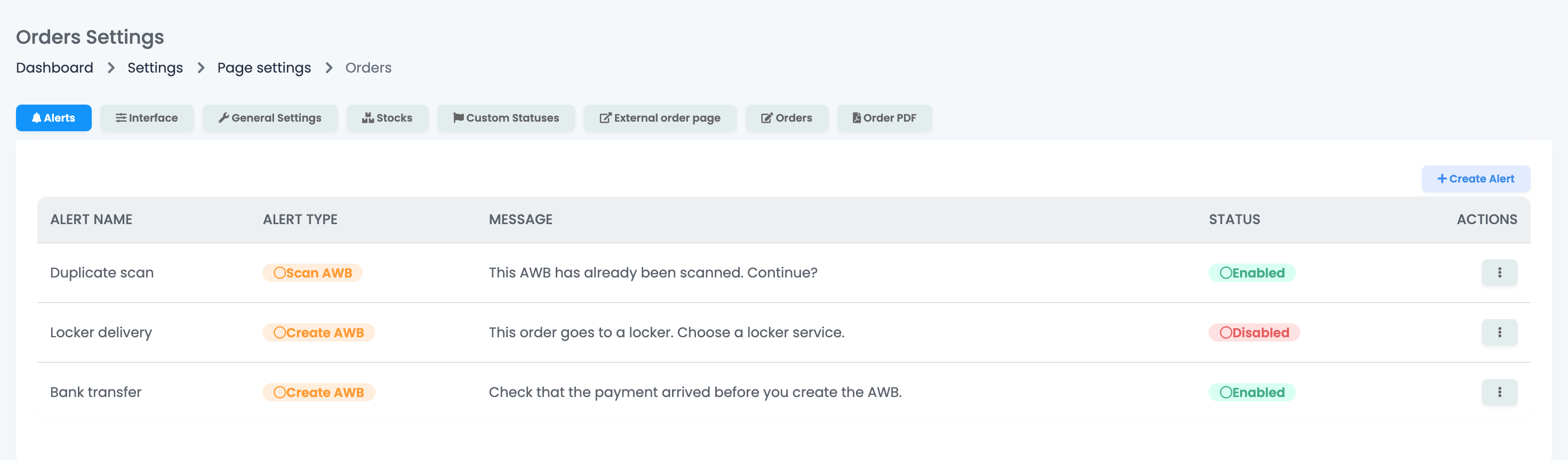
An alert is a confirmation window that appears before an action, for the orders that match its filters. For example: before you create the AWB of an order paid by bank transfer, check that the money arrived. The alert never sends anything: it asks you to confirm before the action goes ahead.
- Press Create Alert.
- Give it a name, choose the Alert Type: the action it appears before, such as Create AWB, Create Invoice, Scan AWB or Cancel Invoice.
- Write the Message your team will read.
- Add the Filters: the orders it applies to, such as payment method, shipping method, order status or customer blacklisted.
- Press Save and Enable.
Use the menu in the Actions column to edit, disable, clone or delete an alert.
External order page
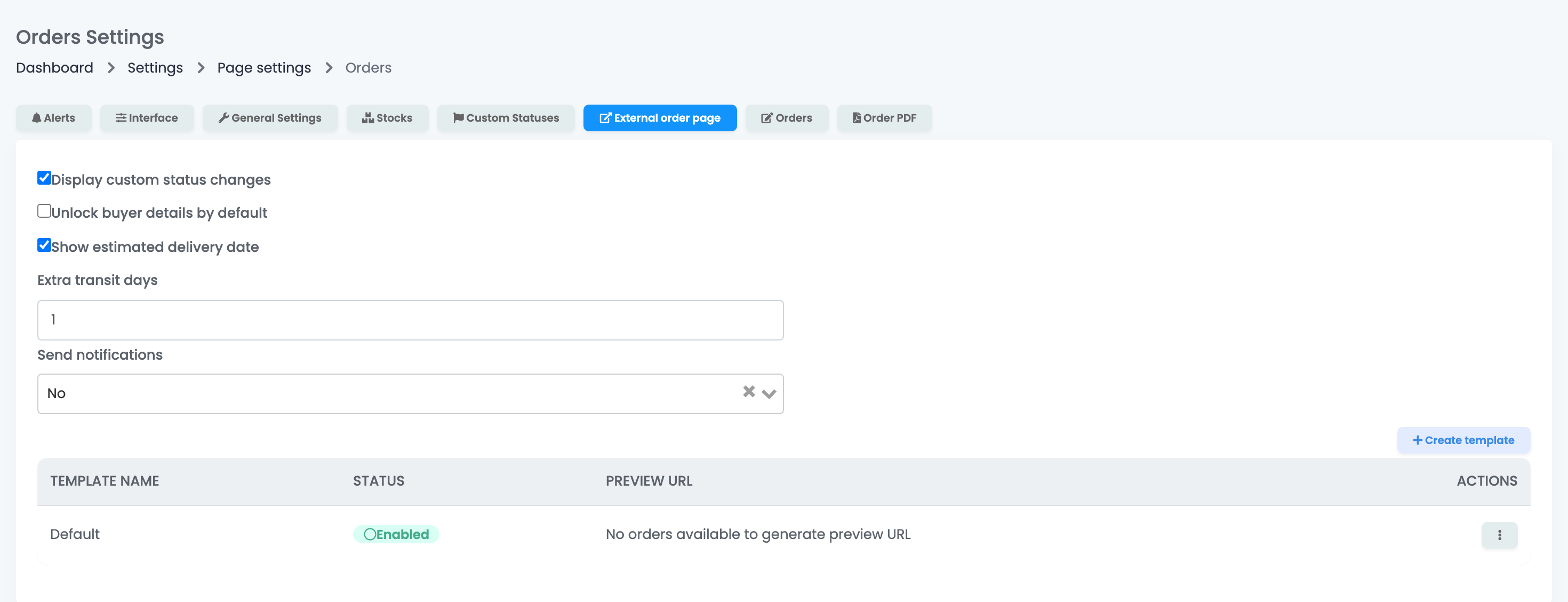
The external order page is a page your buyer opens from a link, without an account: it shows the order, its delivery progress and lets the buyer send you messages. You send the link in your customer notifications, with the external order page link variable.
- Display custom status changes shows your custom statuses in the order history the buyer sees.
- Unlock buyer details by default shows the addresses without asking the buyer for the order's phone number.
- Show estimated delivery date shows the order's latest delivery date, plus the Extra transit days you enter.
- Send notifications: e-mails you when the buyer writes, and the buyer when you reply or change a custom status, through the e-mail connection you choose.
The templates below set the look of the page: store name, logo, contact details, language, currency, colours and sections. Only one template is active. These options save as soon as you change them.
Orders and Interface
The Orders tab sets the order page: which actions appear in the order history, the order of the side panels, and four options saved for the whole account: Show stock on the order edit page, Show the original currency on the order edit page, Show the link to the marketplace page on the order edit page and Allow adding and editing the invoice recipient.
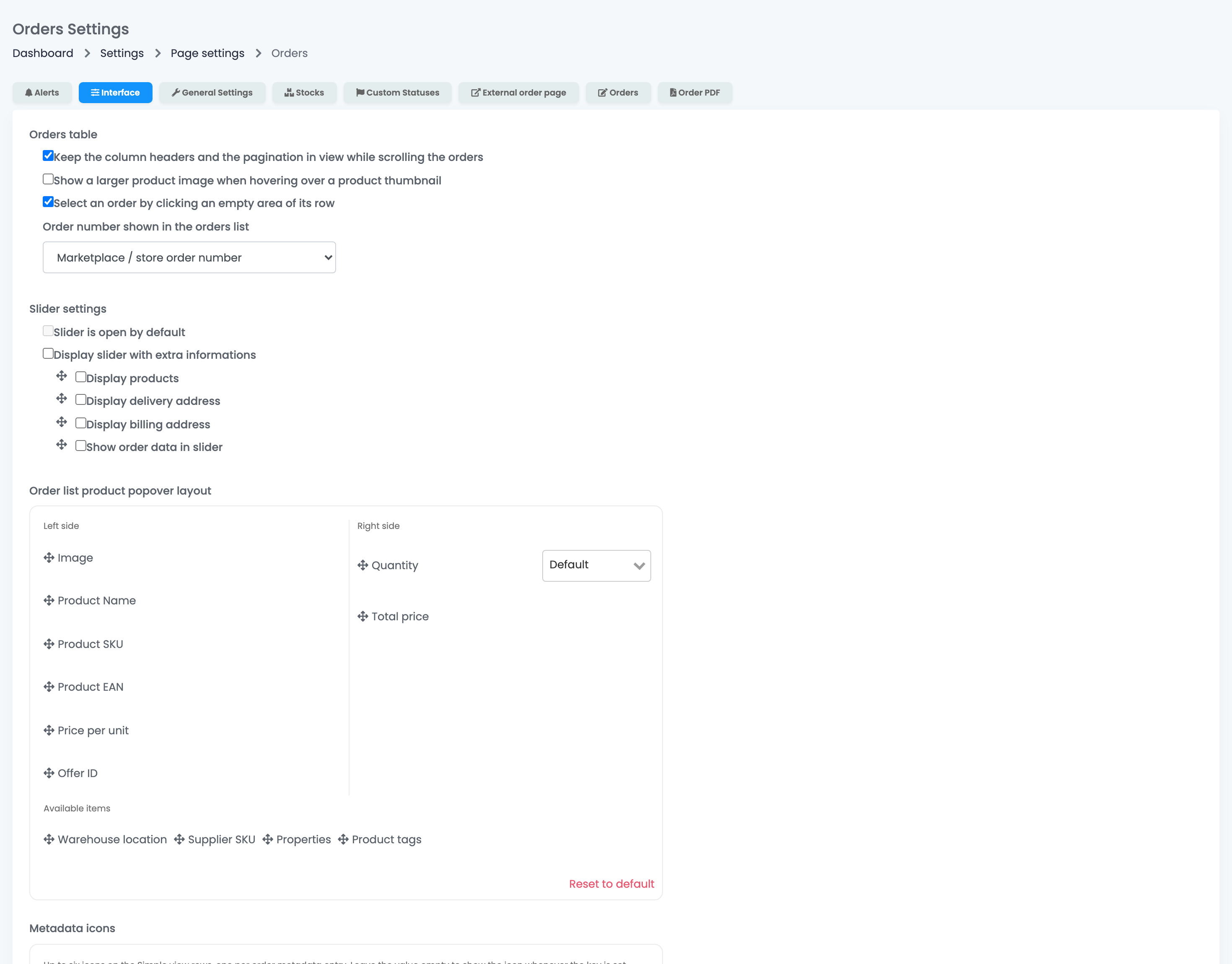
The Interface tab sets the orders list: the sticky table, the product preview, the side panel with the order details and the product window. Two options apply to the whole account: Order number shown in the orders list and Select an order by clicking an empty area of its row. The rest is saved in your browser only.
Order PDF
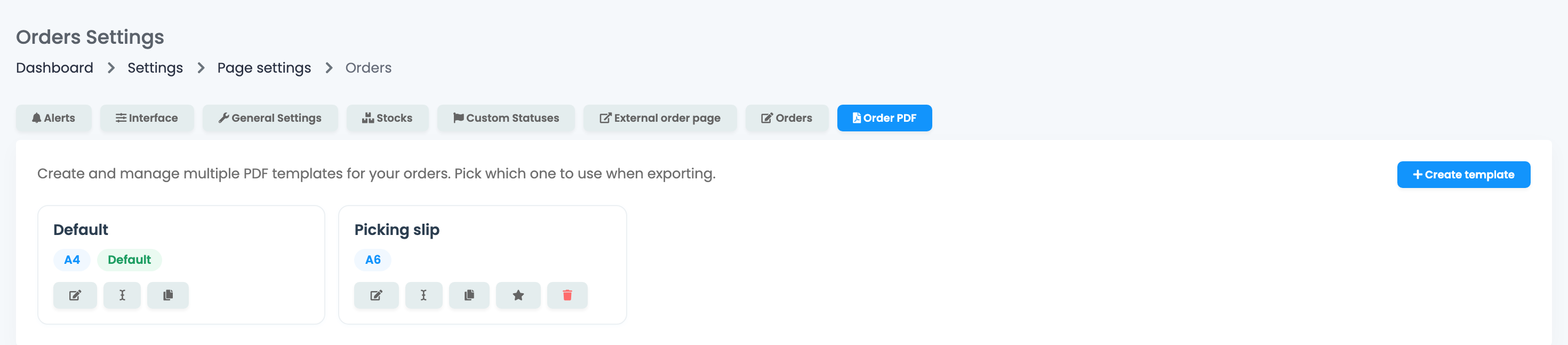
Order PDF templates decide what the PDF of your orders contains when you export it from the orders list, for example a picking slip on A6. Press Create template, choose the paper format, the layout and the fields, then use the buttons on each template to edit, rename, duplicate or make it the default. The default template cannot be deleted.
Your team and Order settings
Settings changed here apply to the whole account. Team members need the View settings permission to save General Settings, Custom Statuses and Order PDF; the Stocks tab and the four options of the Orders tab can be changed only from the main account.
When something does not look right
| Symptom | What to do |
|---|---|
| Stock went down twice for one order | Both Decrease stock on new invoice and Decrease stock when order is completed are on. Keep only one. |
| A cancelled order did not give its stock back | Increase stock when order is canceled is off. Turn it on, or reverse the invoice if one was issued. |
| A proforma took my stock | Add the proforma series to Series that do not decrease stock. |
| A colleague does not see my orders list layout | The Interface layout is saved in each browser. Set it on their computer too. |
| A team member cannot save the Stocks tab | Stock options can be changed only from the main account. |
| The buyer does not see the address on the order page | The buyer has to confirm the order's phone number, or turn on Unlock buyer details by default. |