How to send automatic messages to your customers in easySales: e-mail, SMS and WhatsApp notifications
Set up automatic e-mails, SMS and WhatsApp messages to your buyers for each order event, choose the channels they apply to, and fix messages that do not arrive.
What customer notifications do
Customer notifications send your buyers an e-mail, an SMS or a WhatsApp message automatically when something happens to their order: the order is received, the AWB is created, the invoice is ready, the parcel is delivered. Open them from Customers → Communication → Notifications.
Each notification is a rule: an event, the service that sends the message, a template, and the sales channels it applies to. These are messages to your customers; the notifications easySales sends you are under the bell at the top of the page.
Three things to know first:
- A rule sends only for the sales channels ticked on it. A new rule starts with none ticked, and a rule saved that way never sends anything. Apply to all ticks the shops and marketplaces you have now; one you connect later must be ticked on each rule.
- You need a service and a template first. Connect the service that sends the messages (the easySales e-mail, your own e-mail server, an SMS provider or WhatsApp Business), and write the messages in Customers → Communication → Templates.
- Not every buyer can be reached on every channel. A message needs the buyer's e-mail address or phone number, and some marketplaces do not share them. Allegro accepts messages to its buyers only from an e-mail address you registered with Allegro, so for Allegro use your own e-mail server.
The notifications page
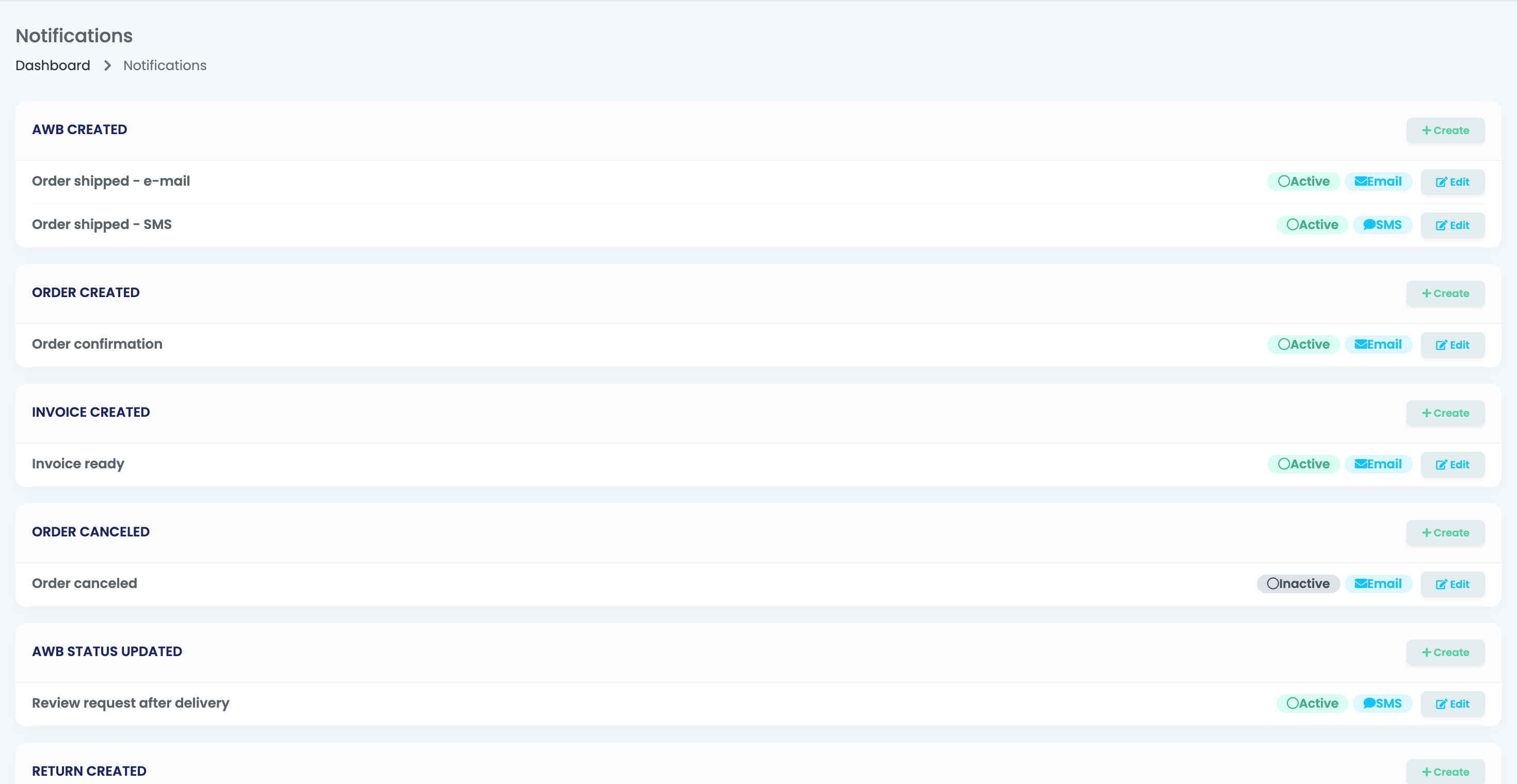
There is a card for each event. Create on a card adds a rule for that event; each rule shows whether it is Active or Inactive, the kind of message it sends, and Edit. One event can have several rules, for example an e-mail and an SMS.
Create a rule
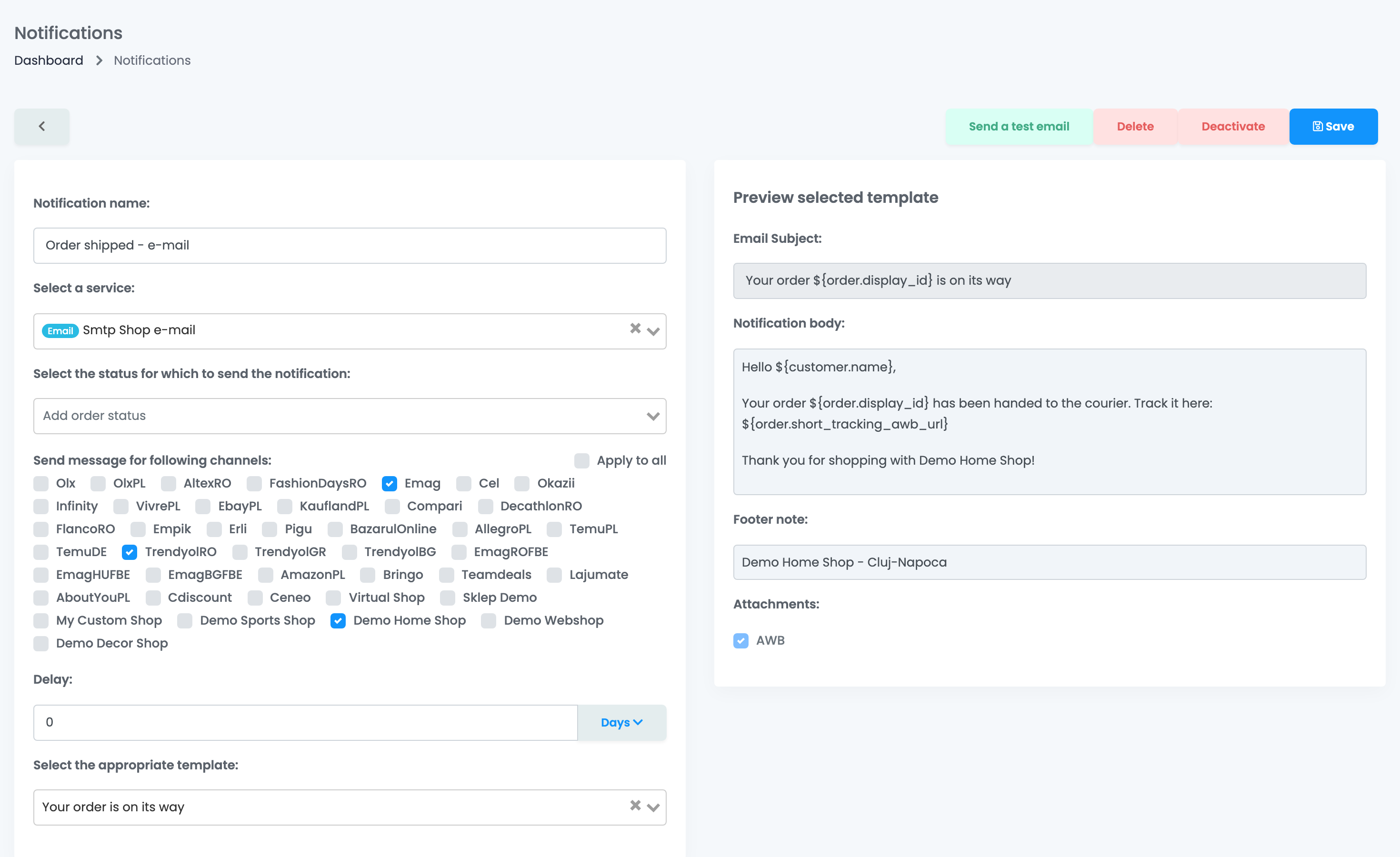
- Press Create on the card of the event.
- Fill in Notification name, and choose the service in Select a service.
- Optionally, in Select the status for which to send the notification, choose a status: the message then goes out only if the order has that status.
- Under Send message for following channels, tick the shops and marketplaces the rule is for, or press Apply to all.
- For AWB Status Updated, also tick the delivery statuses under Send message for delivery statuses, for example Delivered.
- Set a Delay if the message should go out later, in minutes, hours or days, up to 30 days.
- Choose the message in Select the appropriate template. Its preview appears on the right. If the template uses details this event does not have, easySales lists the ones that will stay empty.
- Press Create.
A saved rule has Save, Deactivate / Activate and Delete. E-mail rules also have Send a test email, which sends the template to your own address, without filling in the order details.
When each event sends
| Event | Sends when |
|---|---|
| Order Created | An order is created in easySales, from any channel: also orders you add by hand and the orders brought in when you first connect a channel. |
| AWB Created | The AWB of the order is created. |
| AWB Status Updated | The parcel's delivery status changes to one of the statuses ticked on the rule. |
| Invoice Created, Storno Invoice Created, Proforma Invoice Created | The document is created for the order. |
| Order Canceled | The order is canceled. |
| Order Finished | The order is completed, also when the marketplace completes it. |
| Return Created | A return is recorded, or the order moves to the Return status, which also happens after a storno invoice. |
| Return AWB Created, Return Finished | The return's AWB is created, or the return is finished. |
| Service request events | A service request is created, gets a document, changes status, or its pickup or delivery AWB is created or changes status. |
SMS and WhatsApp
- Write SMS templates without diacritics, emoji or special characters. They turn the message into a 70-character SMS, so a longer text is split into more messages.
- The phone number is put in international format from the country of the delivery address.
- SMS and WhatsApp messages are billed by your provider, not by easySales.
- WhatsApp sends only templates that WhatsApp has approved.
A buyer who does not want SMS or WhatsApp messages can be switched off on their customer page: untick Receives SMS messages or Receives WhatsApp messages under Messages. Rules and automation flows then skip that buyer, and the history shows the message as not sent. E-mails are not affected.
Rules or automation flows?
| You want to | Use |
|---|---|
| Send the same message every time an event happens | A notification rule. |
| Send a message only when conditions are met, or check them again after a delay | An automation flow with the action Send order email notification or Send order sms notification. |
| Send one message to one buyer now | Notify user on the order. |
See what was sent
SMS History and Email History under Customers → Communication list every message, with its status and, for a message that was not delivered, the reason. The messages of one order are also shown on the order.
When something does not look right
| Symptom | What to do |
|---|---|
| The buyer received nothing | Check that the order's shop or marketplace is ticked on the rule, that the rule is Active, and that the order had the status set on the rule. SMS History and Email History show why a message was not sent. |
| Orders from a new shop get no messages | Tick the new shop or marketplace on each rule: Apply to all does not add channels connected later. |
| Some details in the message are empty | The template uses details this event does not have. Choose a template written for this event. |
| Messages go out in the wrong language | A rule sends one template. For buyers in another language, make a separate rule for their channels, with a template in their language. |
| Every imported order got a confirmation | Order Created also fires for the orders brought in when a channel is first connected. Deactivate the rule before connecting a new channel if you do not want that. |
| A storno invoice sent a return message | Return Created also fires when an order moves to Return. For real returns only, use an automation flow with the trigger Order return created. |