How to connect your e-mail server (SMTP) with easySales: a complete setup guide
Send your customers' order e-mails from your own address: connect SMTP to easySales, pick the right port and encryption, set up notification rules and read Email History.
What connecting your e-mail server gives you
easySales can e-mail your customers for you: an order confirmation, the AWB with a tracking link, the invoice, a cancellation, a return. With your own e-mail server connected over SMTP, those e-mails go out from your own address and under your shop's name, and your customers' replies reach your mailbox.
Two things to know before you begin:
- Saving sends a real e-mail. When you press Test connection or Save, easySales sends an e-mail through your server to the e-mail address of your easySales account. If your server does not accept it, nothing is saved and the reason is shown.
- Connecting sends nothing to customers yet. E-mails go out from a notification rule, an automation flow or the order page, and each of them names the e-mail service to use.
Before you start
A mailbox on your own domain
For example orders@yourshop.com, with sending (SMTP) allowed.
The SMTP details
Host, port and encryption, from your e-mail provider.
The mailbox password
Or, for Gmail and Google Workspace, an app password.
Step 1 — Get the SMTP details from your e-mail provider
Your e-mail provider — your hosting company, Google Workspace, Microsoft 365 — gives you the server, port and encryption for sending. The usual ones:
| Provider | Host | Port and encryption | Password |
|---|---|---|---|
| Your hosting company (cPanel, Plesk and similar) |
Usually mail. followed by your domain, for example mail.yourshop.com
|
465 with SSL | The mailbox password |
| Gmail and Google Workspace |
smtp.gmail.com
|
465 with SSL, or 587 with TLS | An app password — see below |
| Microsoft 365 and Outlook |
smtp.office365.com
|
587 with TLS | The mailbox password; SMTP sending (SMTP AUTH) must be turned on for the mailbox in Microsoft 365 |
Step 2 — Connect SMTP in easySales
Go to Integrations → Email Services and press Connect on the SMTP card — or Edit, if you have connected it before.
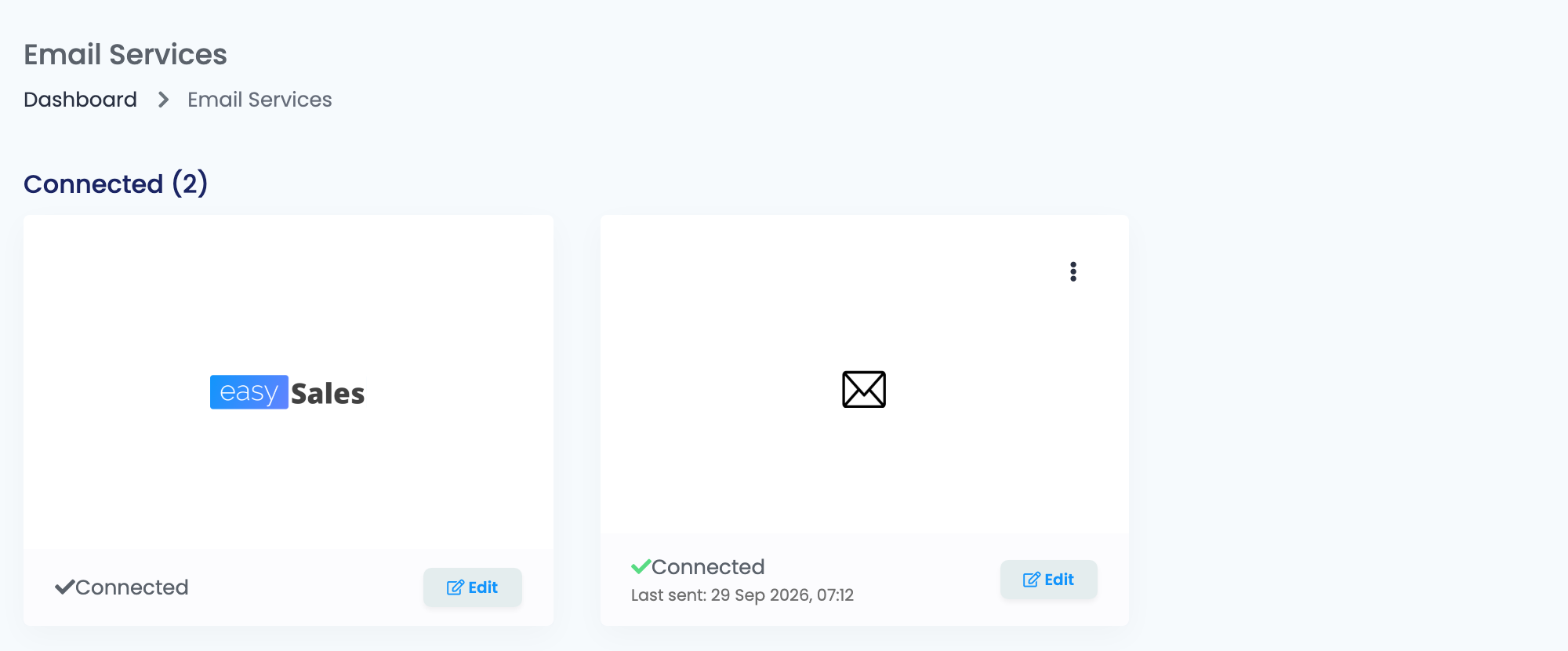
Fill in the form:
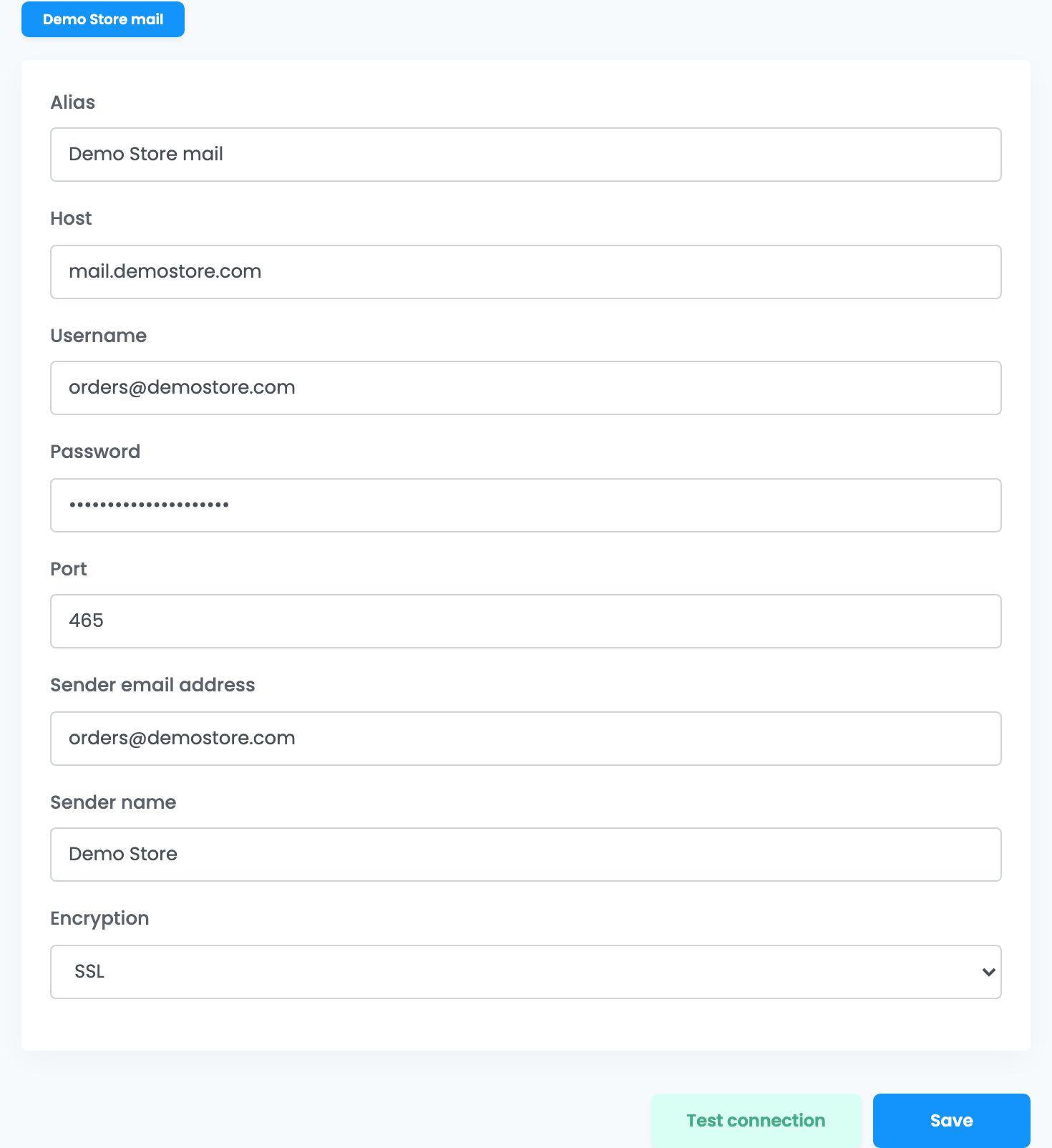
| Field | What goes in it |
|---|---|
| Alias |
A name you will recognise when choosing the service in a rule, for example Shop mail.
|
| Host | Your provider's SMTP server. |
| Username | Usually the full e-mail address of the mailbox. |
| Password | The password of that mailbox — not your easySales password. For Gmail, an app password. |
| Port | The SMTP port from your provider, usually 465 or 587. |
| Sender email address | The address your customers see the e-mail come from. Use the mailbox itself, or an address your provider lets that mailbox send as. |
| Sender name | The name your customers see, usually your shop's name. |
| Encryption | SSL, TLS or No Encryption — it must match the port, see below. |
The port and the encryption go together:
| Port | Encryption |
|---|---|
| 465 | SSL |
| 587 | TLS |
Press Test connection, check that the test e-mail reached your easySales account address, then press Save. The card then shows Connected and, once e-mails go out, Last sent: with the date of the last one.
To add another mailbox, choose Add service from the ⋮ menu on the SMTP card. Each mailbox gets its own tab, named after its Alias.
Step 3 — Choose which e-mails go out
Notification rules send an e-mail when something happens to an order: an AWB is created, the order is created, invoiced, cancelled or finished, the delivery status changes, a return is created. Create them in Customers → Notifications, under the event you want.
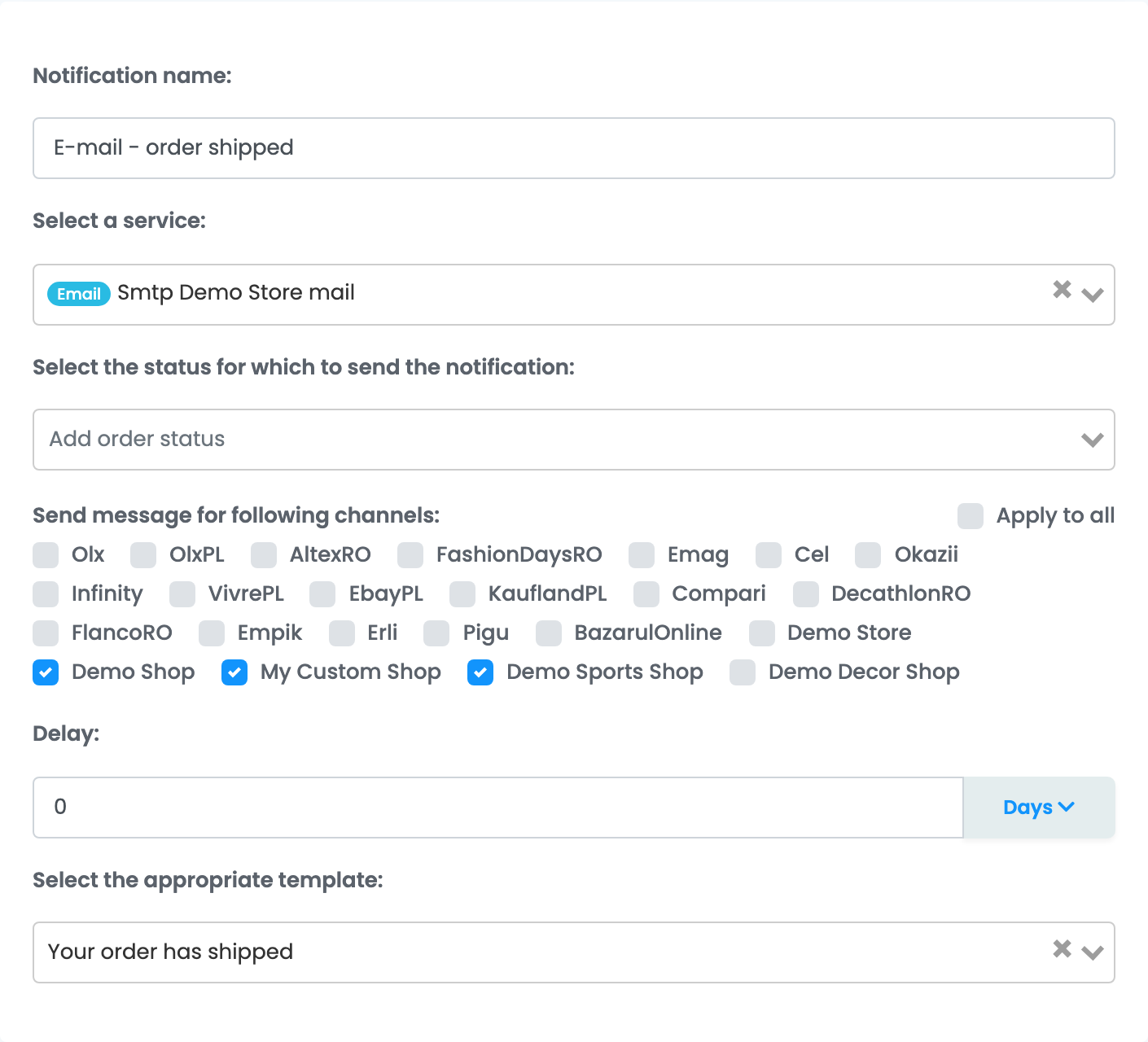
- Select a service — the e-mail service the rule sends through, shown as
Smtpfollowed by the connection's Alias. - Send message for following channels — tick every marketplace and shop whose orders should get the e-mail. Orders from a channel that is not ticked get nothing.
- Select the appropriate template — the e-mail's subject and text, written in Customers → Templates. The AWB, the invoice or other documents are attached in the template.
E-mails can also go out from an automation flow, with the action Send order email notification, where you choose the Email service and the recipient, or by hand from the order page, with Notify user.
Sending without your own server
The easySales card sends through easySales' own e-mail servers, with nothing to fill in: press Connect and Save. The e-mails then come from an easySales no-reply address, so your customers cannot reply to them. Connect SMTP when replies matter to you, or when you sell on Allegro.
Checking what was sent
Every e-mail is listed in Customers → Email History, with its subject, the order and the customer. Delivered means your e-mail server accepted the e-mail; whether it then lands in the inbox or in spam is up to the customer's provider. An Undelivered e-mail shows the reason next to its status.
When e-mails keep failing, the SMTP card shows Connection failing, and Show details gives the server's last answer. It clears with the next e-mail that goes out, or when you save the connection again.
When an e-mail is not sent
The messages you are most likely to see, on Test connection and Save or in Email History:
| Message | What to do |
|---|---|
| Your credentials did not match with SMTP server, check your credentials. | Your server refused the Username or Password. Check both; for Gmail, use an app password. |
| There is a SMTP server error, check your encryption and port field, also check your SMTP server settings. | easySales could not reach your server. Check the Host, and that the port and encryption match (465 with SSL, 587 with TLS). If they are right, your hosting company may be blocking easySales: ask it to allow easySales' sending servers — easySales support gives you their addresses. |
| Customer has no email address. Please add an email address on the customer and try again. | The order's customer has no e-mail address. Add one on the customer, or leave that channel unticked in the rule. |
| Allegro does not forward buyer emails sent from the default no-reply@easy-sales.com address. … | Send Allegro e-mails through SMTP, with an address registered in Allegro under My email addresses. |
| 535-5.7.8 Username and Password not accepted | Gmail refused the password. Create an app password and enter it in Password. |
| 550 4.7.1 User hourly limit exceeded | Your provider limits how many e-mails the mailbox sends per hour. Ask it to raise the limit, or send fewer e-mails at once. |