How to work on an order in easySales: edit, split and lock the order page
Correct the customer, the addresses and the products of an order, split it, and understand what stays locked against the channel.
The order page in short
The order page is where you look at one order and fix it: the customer, the addresses, the products and the price. From here you also issue the invoice and the AWB, add a return or run a flow.
Open it from the Orders list: click the order number or the customer's name, or use … → Open order.
Three things to know first:
- What you change stays in easySales. Corrections to the customer, the addresses or the products are not sent to the marketplace or the shop.
- What you change is no longer updated from the channel. A yellow Update locked badge marks each part you edited.
- Only Cancel order and Complete order are sent to the marketplace.
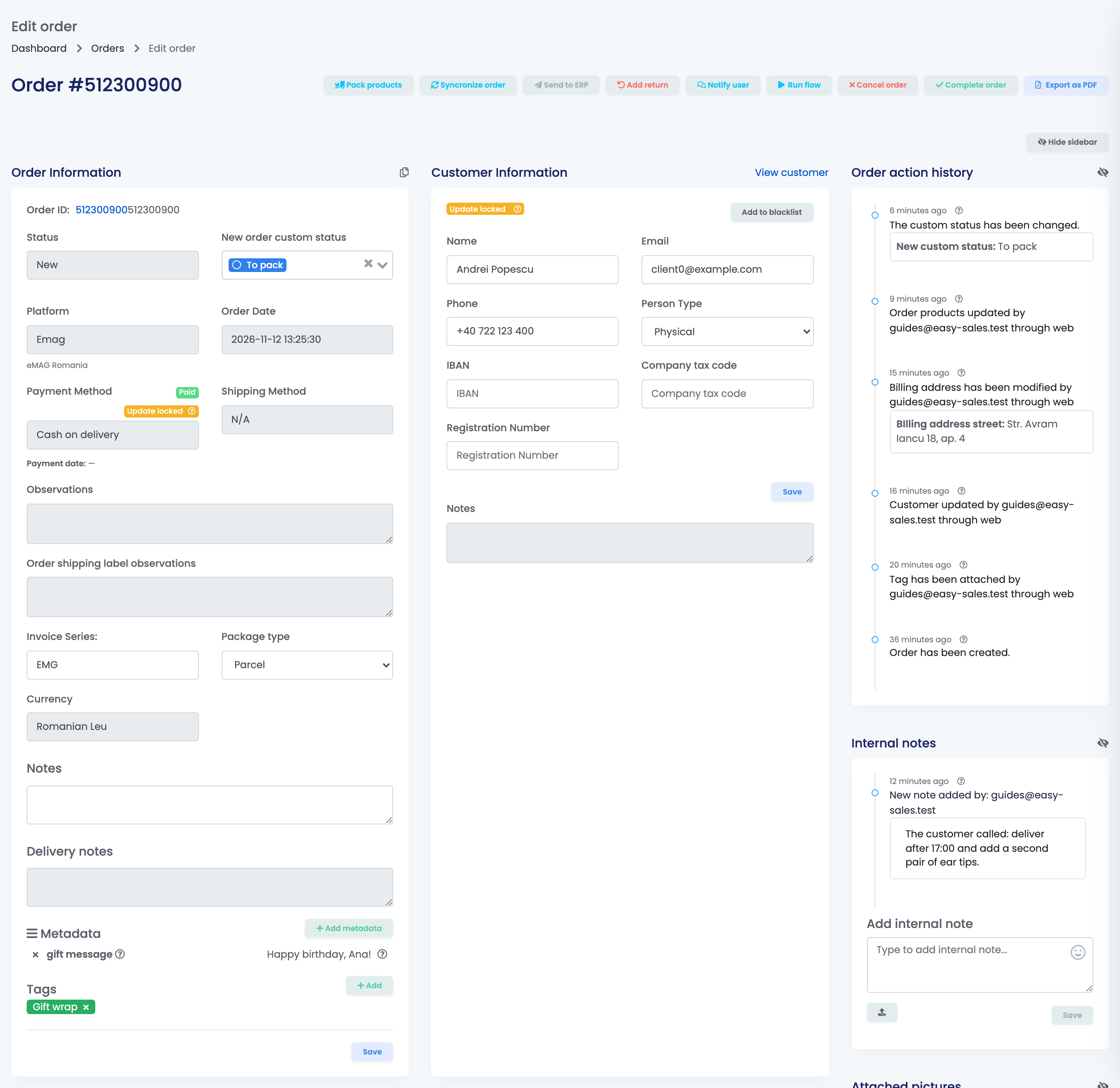
The buttons at the top
| Button | What it does |
|---|---|
| Pack products | Sends the order to packing and opens the packing screen. |
| Syncronize order | Fetches the order again from the marketplace or the shop. |
| Add return | Starts a return for this order. |
| Notify user | Sends the buyer an e-mail or an SMS from one of your templates. |
| Run flow | Runs one of your automatic flows on this order. |
| Cancel order / Complete order | Cancels or completes the order, on the marketplace too. Shown while the order is still open and the channel accepts it. |
| Export as PDF | Saves the order as a PDF document. |
Order information
The first card shows the status, the channel, the dates, the payment and the shipping method.
- Some changes are saved as soon as you make them: the custom status, Paid or Unpaid, the tags and the metadata.
- Notes, Invoice Series and Package type are saved with the card's Save button. The invoice series can be changed only until the invoice is issued, and the package type until the AWB is created.
- Changing Paid or Unpaid by hand stops the payment status from being updated by the channel.
Customer and addresses
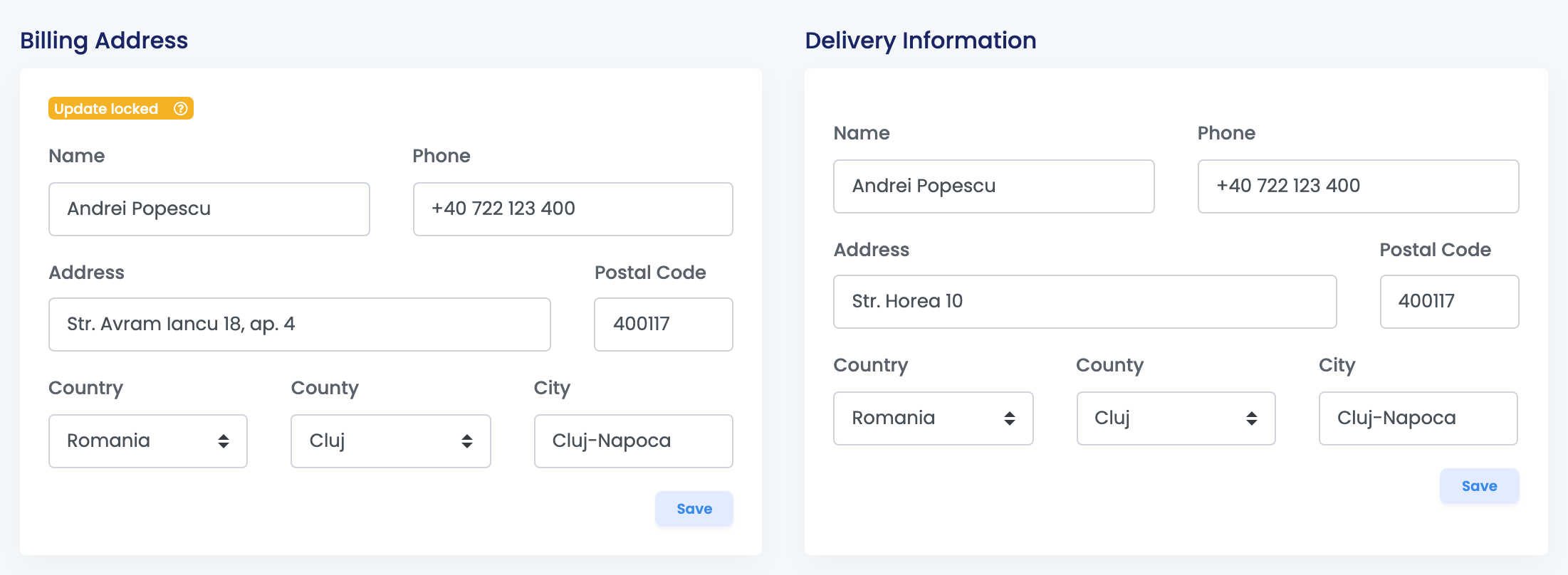
Customer Information, Billing Address and Delivery Information each have their own Save button. Correct them before you issue the invoice or the AWB: documents already issued are not changed.
- The customer is the same on all of this buyer's orders. A correction to the name, the VAT ID or the phone shows on their other orders too.
- An address you correct can also be used by the buyer's other orders, and changes there as well.
- After you save, the card shows Update locked: later updates from the channel no longer change it for this order.
Products and prices
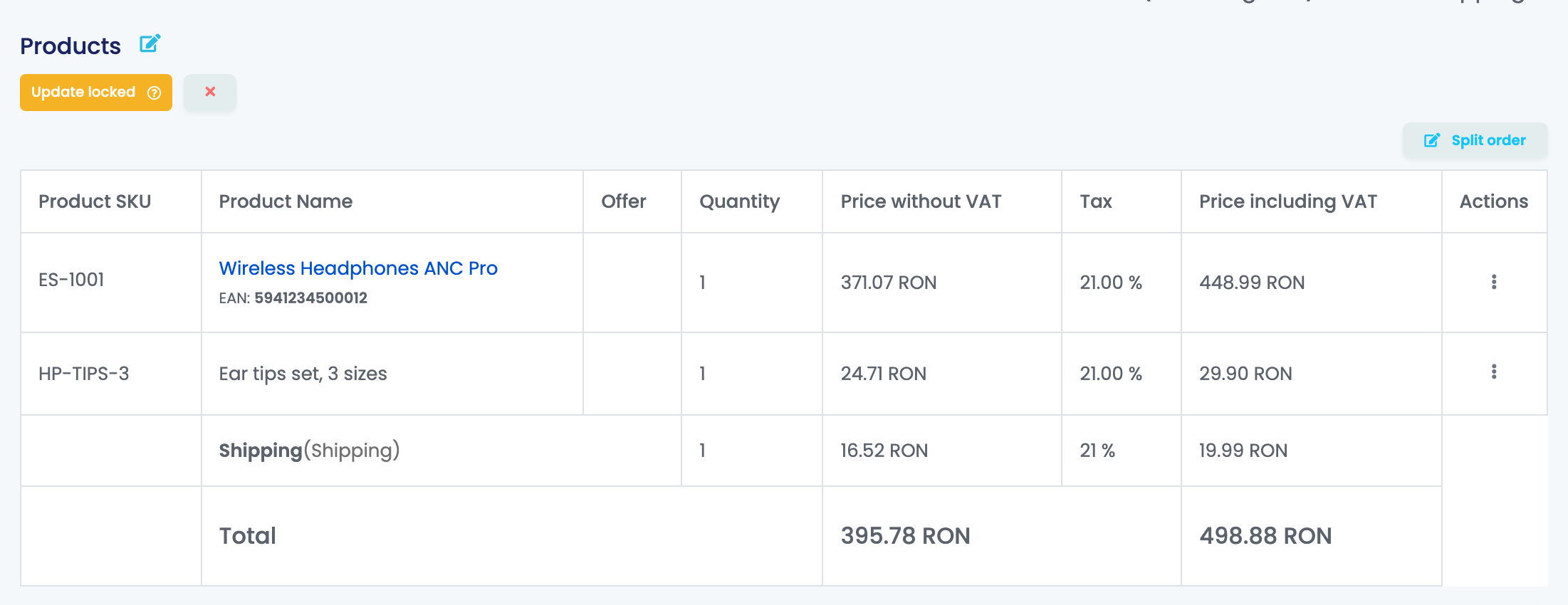
The Products card lists each product with its quantity, the price without VAT, the VAT and the price with VAT, then the shipping cost, the fees, the vouchers and the total.
Press the pencil to open Edit products:
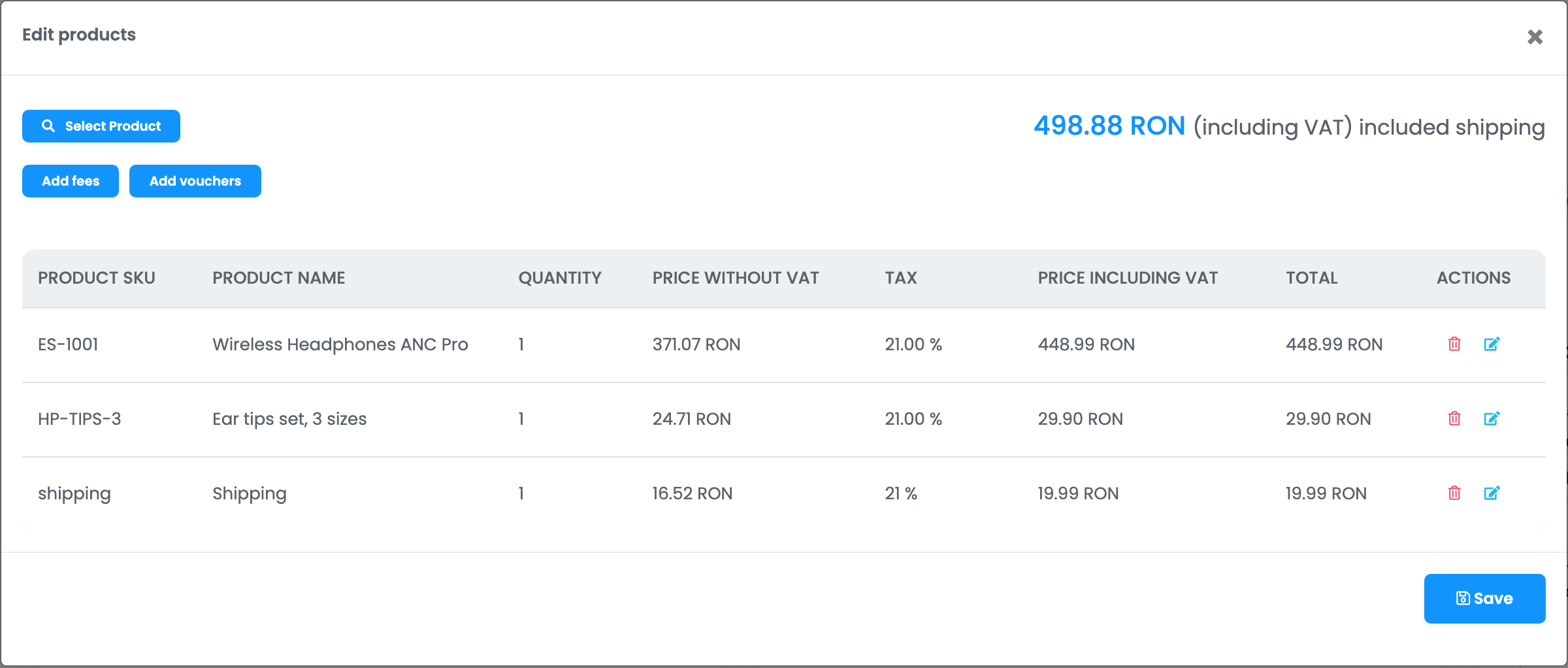
- Press Select Product to add a product, or use the pencil on a line to change its quantity and price.
- Use Add fees and Add vouchers for the other amounts. Add shipping tax appears when the order has no shipping cost.
- Press Save.
easySales recalculates the total and moves the reserved stock with the products. The change is not sent to the channel, and an invoice or an AWB already issued stays as it was.
Split an order
Use Split order in the Products card when part of the order ships later or from another warehouse.
- Press Split order and choose how many pieces of each product move to the new order.
- Press Split.
The new order gets the original number with a suffix, for example 1048-1, and opens in a new tab. The invoice, the AWB and the shipping cost stay on the original order, and at least one piece must stay on it. The marketplace or the shop keeps seeing a single order.
What is locked and how to undo it
| Part | Locked when | How to unlock |
|---|---|---|
| Customer | You save Customer Information. | It cannot be unlocked. |
| Billing and delivery address | You save Billing Address or Delivery Information. | It cannot be unlocked. |
| Payment status | You change Paid or Unpaid by hand. | It cannot be unlocked. |
| Products, shipping and vouchers | You save Edit products, change a product or split the order. | The x on the Update locked badge in the Products card. |
Syncronize order fetches the order again from the channel, but does not change the parts that are locked.
History, notes and pictures
The right-hand column keeps what happened to the order:
- Order action history: every change, who made it and when, including invoices, AWBs and status changes.
- Internal notes: notes for your team. The buyer never sees them.
- Attached pictures: photos of the package or the products, taken with the camera or uploaded, JPG or PNG up to 10 MB.
Hide sidebar gives the page more room. What the page shows, for example the stock of each product or the order of the right-hand cards, is set in Orders → Settings, tab Orders.
When something does not look right
| Symptom | What to do |
|---|---|
| The buyer changed the order on the marketplace and easySales did not update it | The products were edited in easySales. Click the x on Update locked in the Products card, then Syncronize order. |
| I corrected the address and the invoice still shows the old one | Documents already issued do not change. Cancel the invoice and issue it again. |
| The marketplace still shows the old products | Edits on the order page are not sent to the channel. |
| I cannot change the invoice series | The order already has an invoice. |
| Cancel order is missing | The order is already canceled, completed or returned, or the channel does not accept the change from easySales. |
| Syncronize order did not bring back the buyer's address | The address was corrected by hand and is locked. |