How to use the offers list in easySales: filter, link and fix your marketplace offers

Find your offers on each marketplace, link them to your products, fix their errors and act on many offers at once.
The offers list in short
The offers list shows your offers on each marketplace: the ones you created from easySales and the ones easySales imported from the marketplace. From here you find offers, check their status and errors, link them to your products, and send them again.
Open it from Marketplace → Marketplaces → Offers.
Find
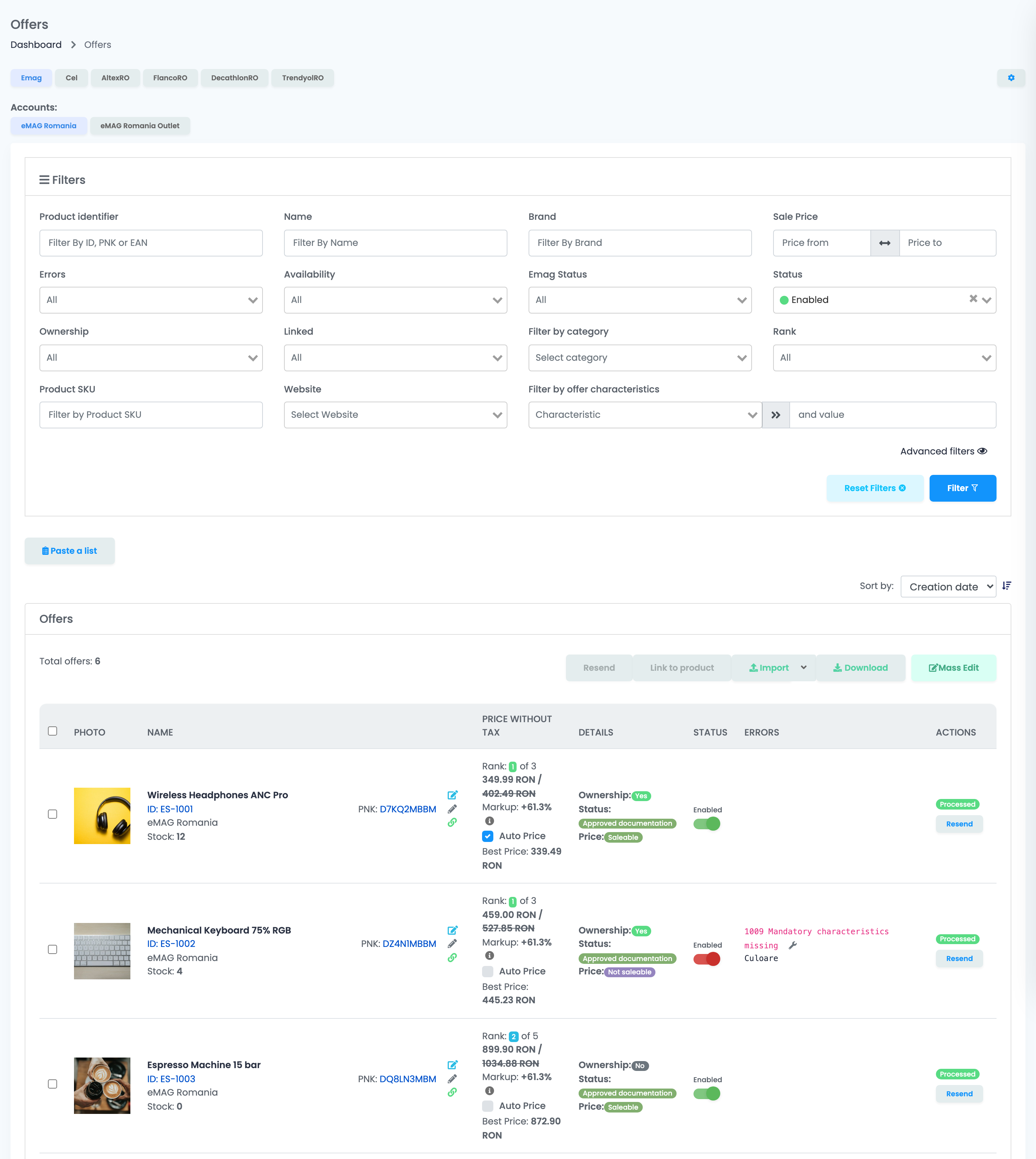
Filter by ID, name, brand, price, status, errors, link to a product, or paste a list of up to 500 SKUs or IDs.
Check
See each offer's price, stock, status on the marketplace, errors and, on eMAG, its rank and ownership.
Link
Link offers to your products, so they get stock and price from them.
Act
Turn offers on or off, send them again, or open them in Mass Edit.
One marketplace at a time
The buttons at the top are your marketplaces. The list shows the offers of the one you select. When you have more than one account on the same marketplace, an Accounts row appears under the buttons: choose the account there. The list remembers your last choice in this browser.
The list opens on enabled offers
Find offers
The Filters card narrows the list; press Filter to apply it and Reset Filters to start again.
| Filter | What it finds |
|---|---|
| Product identifier | An offer by its exact marketplace ID or EAN (on eMAG also the PNK). |
| Name, Brand | Offers whose name or brand contains the text. |
| Sale Price | Offers within a price range. |
| Errors | Offers with or without errors. |
| Availability | In stock, limited stock or out of stock, from the linked product's stock. |
| Status | Enabled or disabled offers. |
| Ownership (eMAG) | Offers on product pages you own, or attached to another seller's page. |
| Linked | Offers linked or not linked to one of your products. |
| Product SKU | Offers whose linked product has that SKU. |
| Website | Offers whose linked product comes from a given shop. |
Advanced filters opens more fields: dates, product category, tags, product stock and price ranges, coupled fields, warehouse location, and Error message, which finds the offers whose error text contains a word.
Paste a list finds up to 500 offers at once: paste product SKUs or offer IDs, one per line or separated by commas or spaces. easySales shows how many it found and which values matched nothing. The list works together with the other filters.
Read an offer row
| Column | What it shows |
|---|---|
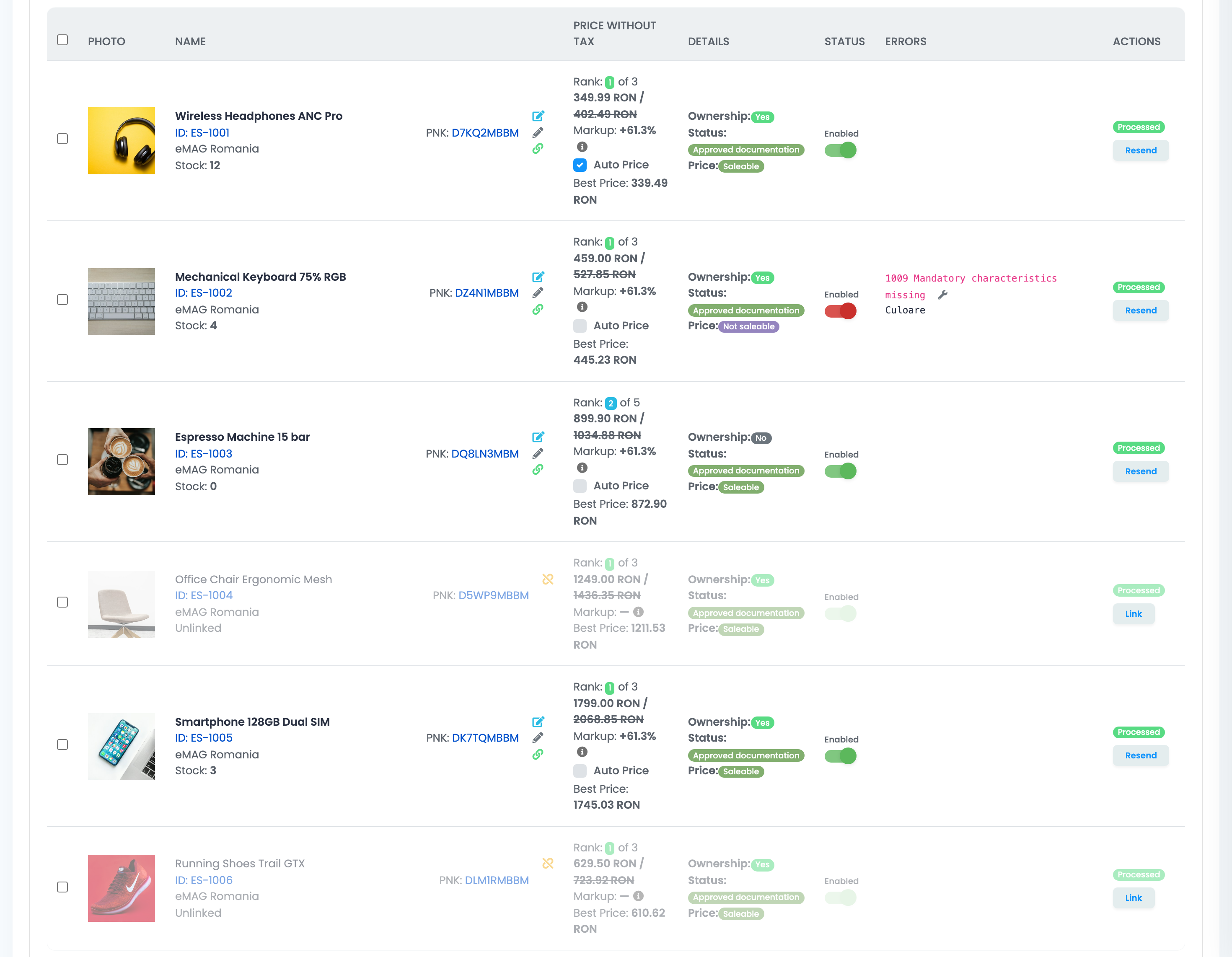
| Name | The offer's name, its marketplace ID, the account and the linked product's stock, with icons to edit the offer, edit it quickly and see whether it still takes its data from the product. |
| Price | Sale price and full price. On eMAG also the offer's rank among the sellers of the product, the automatic price and the best price. |
| Details | The offer's state on the marketplace, such as documentation status and whether it can be sold. On eMAG also ownership. |
| Status | The switch that turns the offer on or off on the marketplace. |
| Errors | The errors of the last send, with the marketplace's details. |
| Actions | Resend for linked offers, Link for unlinked ones. |
Linked and unlinked offers
An offer is linked when it belongs to one of your products. Linked offers get their stock and price from the product.
- An unlinked offer is greyed out and marked Unlinked. It has no status switch and no Resend, only Link.
- Link opens a page with Suggestions, products that match the offer's EAN, SKU or name, and a product search. Choose the product and link it.
- To link several offers to the same product, tick them and press Link to product at the top of the table.
- To link many offers to many products at once, use auto-link.
- The Product SKU filter finds only linked offers, because the SKU is the linked product's. To find an unlinked offer, use Product identifier, or paste offer IDs.
Turn offers on or off and send them again
- The switch in the Status column turns the offer on or off on the marketplace. Turning it on also sends the offer's current data; turning it off also turns off its automatic price.
- A red switch means the offer is on, but in error.
- Resend sends the offer's data to the marketplace again, for example after you fixed its product. To resend many offers, tick them and press Resend at the top of the table.
Fix offer errors
The Errors column shows each error's code and name; More Details... shows the marketplace's own text.
- For eMAG and Cel, a wrench next to the error opens the place to fix it: the category mapping window for a missing category mapping (1007) or missing mandatory characteristics (1009), or the offer's page for the other errors.
- A rejection by the marketplace has no wrench: read the details, fix the product or the offer, then Resend.
- An error stays until the offer is sent again successfully.
To fix the same error on many offers, filter by Errors or by Error message, fix the cause once (for example, map the category), then send the offers again.
Work on many offers
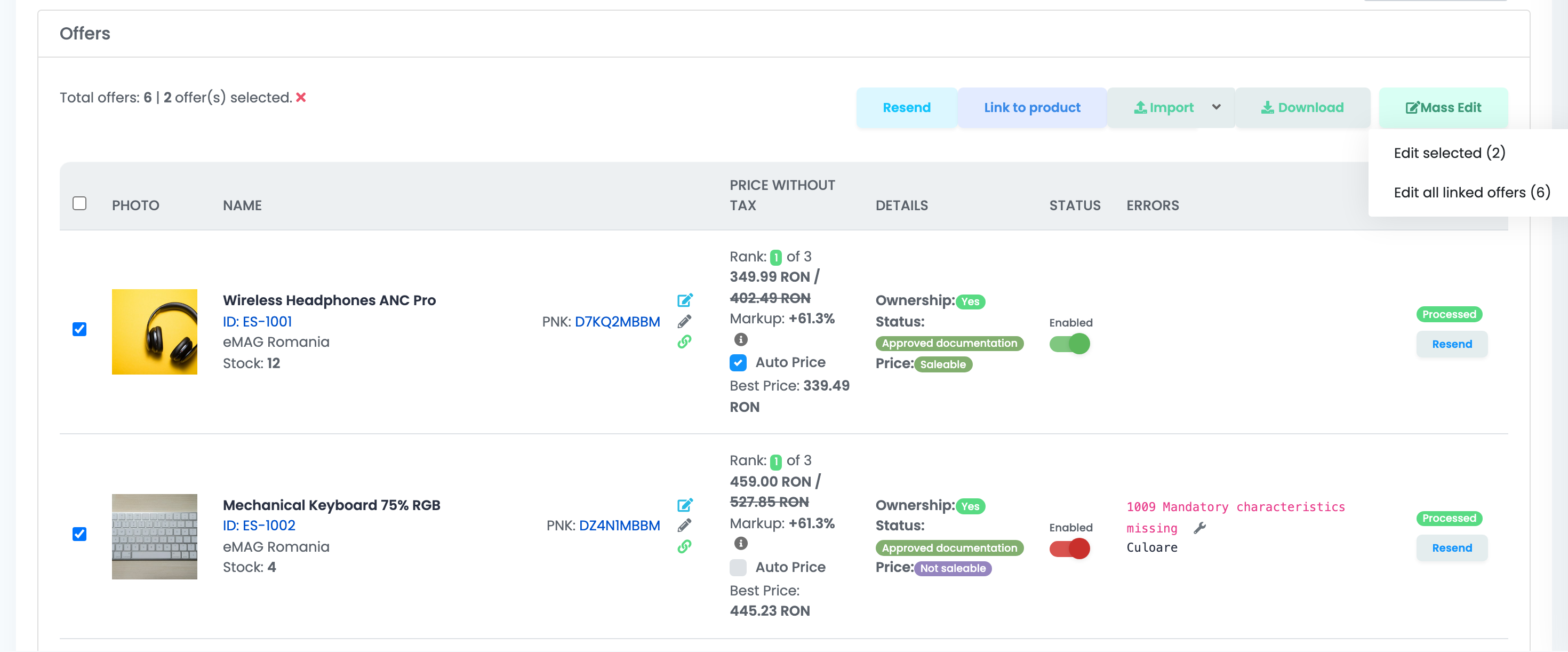
- Ticking selects offers on the current page only (up to 100 with the largest page size).
- Mass Edit → Edit selected edits the ticked offers. Mass Edit → Edit all linked offers edits every linked offer that matches the current filters, on all pages. Both open in a new tab.
- Import updates offers from an Excel file; its arrow holds Mass unlink offers.
- Download exports the selected offers or all of them to Excel.
Large lists
The list shows 50 offers per page by default (10, 25, 50 or 100). When counting all offers takes too long, the total reads "many" and you move with the page arrows; the filters still work.
When something does not look right
| Symptom | What to do |
|---|---|
| My disabled offers do not show | The list opens on enabled offers. Clear the Status filter or press Reset Filters. |
| The number of offers does not match the marketplace | Clear the Status filter, and check that the right account is selected in the Accounts row. |
| An offer is greyed out and has no switch | It is not linked to a product. Press Link and choose the product. |
| The switch is red | The offer is on but in error. Read the error in the Errors column, fix it, then Resend. |
| The error is still there after I fixed it | Errors clear only when the offer is sent again. Press Resend. |
| I want to change all offers, not only this page | Use Mass Edit → Edit all linked offers: it takes every linked offer that matches the filters. |
| The Product SKU filter finds nothing | It matches only linked offers. Use Product identifier or Paste a list with offer IDs. |