How to set up the products and offers lists in easySales: columns, markup and bundle prices
Choose what the products and offers lists show, read the markup, and let easySales calculate the prices of the products in a bundle.
What these settings are for
The Products and Offers page settings decide what the products list and the offers list show in their name and price columns: SKU, stock, brand, EAN, purchase price, markup and more. The products settings also hold one option for bundles. Open them from Settings → Page settings, then Products or Offers, or with the gear button on the products or offers list.
Three things to know first:
- The column layout is saved in your browser. It changes nothing in your products or offers, and nothing on your marketplaces. A colleague, another computer or a private window shows the default layout.
- One layout covers every list of its kind. The products layout applies to the online shop and the Virtual Shop product lists, the offers layout to the offers of every marketplace.
- The bundle option is the only setting saved on your account. It decides how the prices of a bundle's products are set.
Choose what the lists show
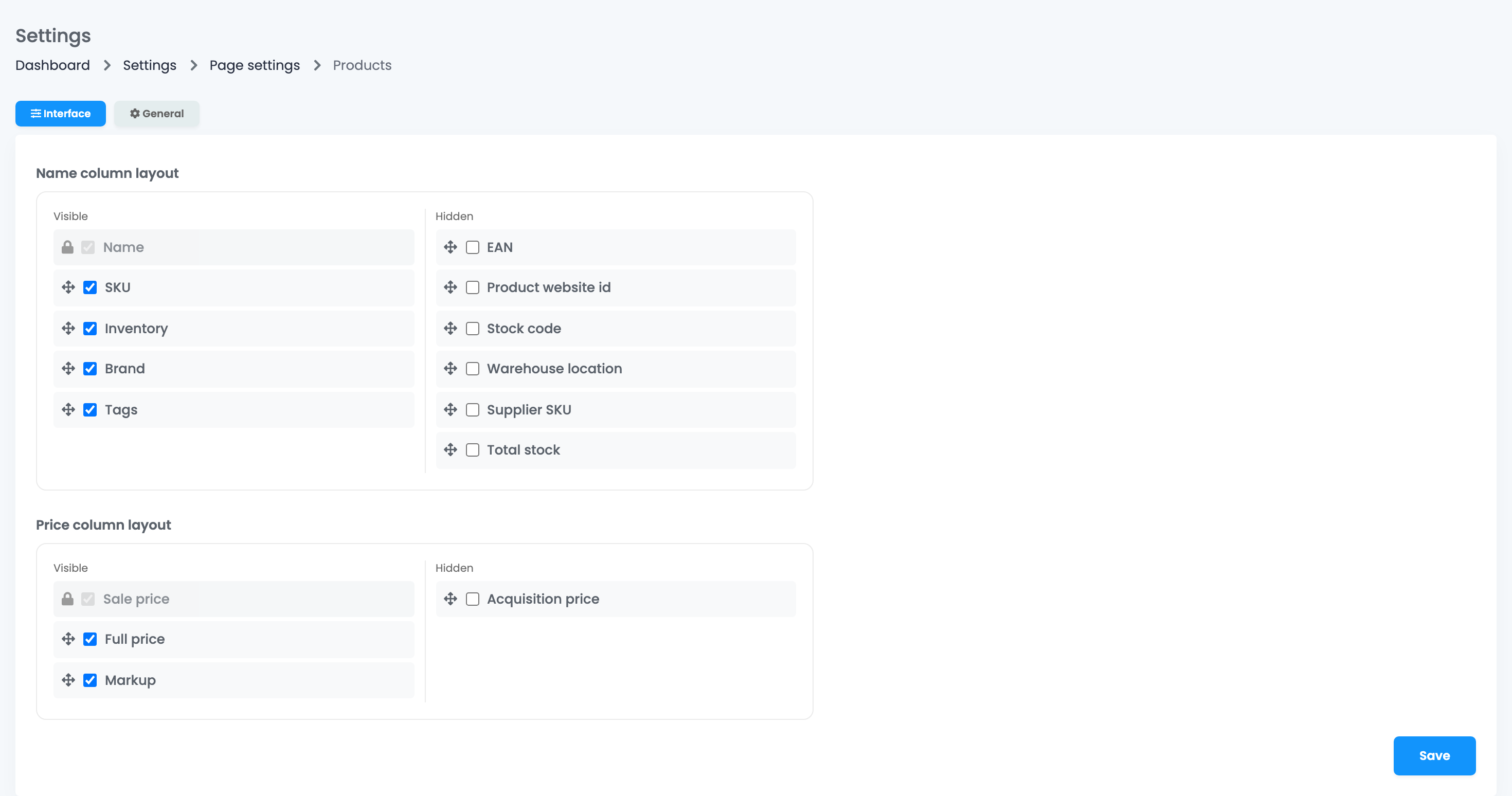
Each column has two lists: Visible and Hidden.
- Untick an item to hide it, tick it to show it again at the end of the list.
- Drag the items to change their order. Items with a padlock are always shown.
- Press Save.
| Column | Items | Shown by default |
|---|---|---|
| Name column layout | Name, SKU, Inventory (with the reserved quantity), Brand, Tags, EAN, Product website id, Stock code, Warehouse location, Supplier SKU, Total stock | Name, SKU, Inventory, Brand, Tags |
| Price column layout | Sale price, Full price, Acquisition price, Markup | Sale price, Full price, Markup |
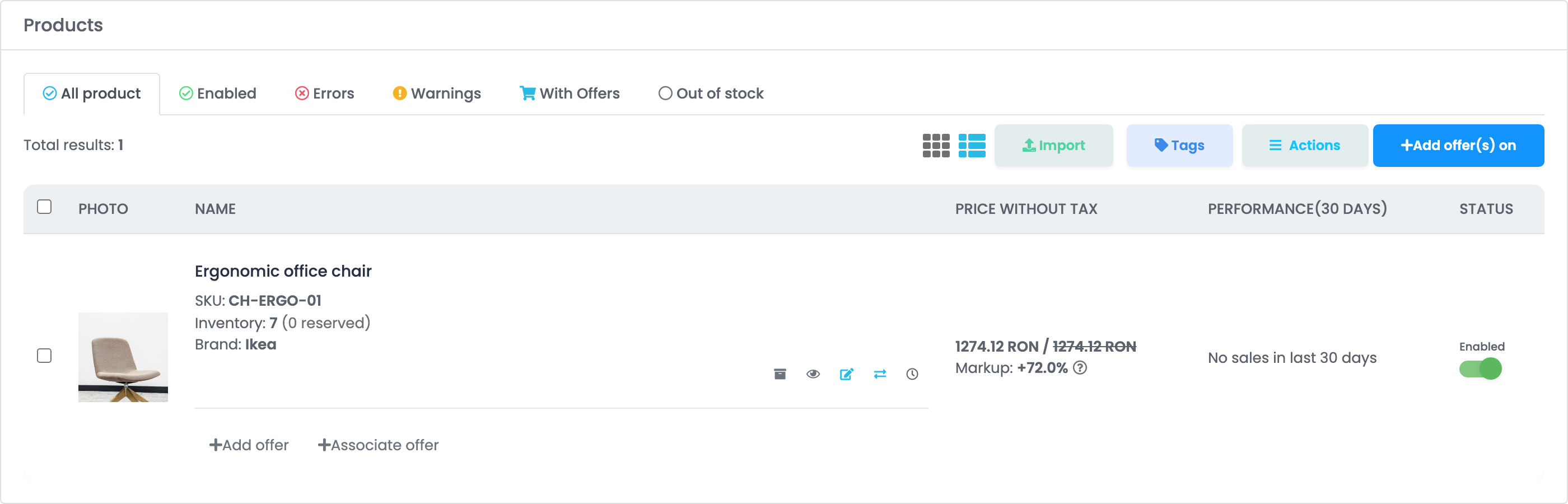
On the offers list, Stock is the stock of the product linked to the offer, minus the reserved stock: what easySales sends to the marketplace. An offer that is not linked to a product shows Unlinked and no product details.
| Column | Items | Shown by default |
|---|---|---|
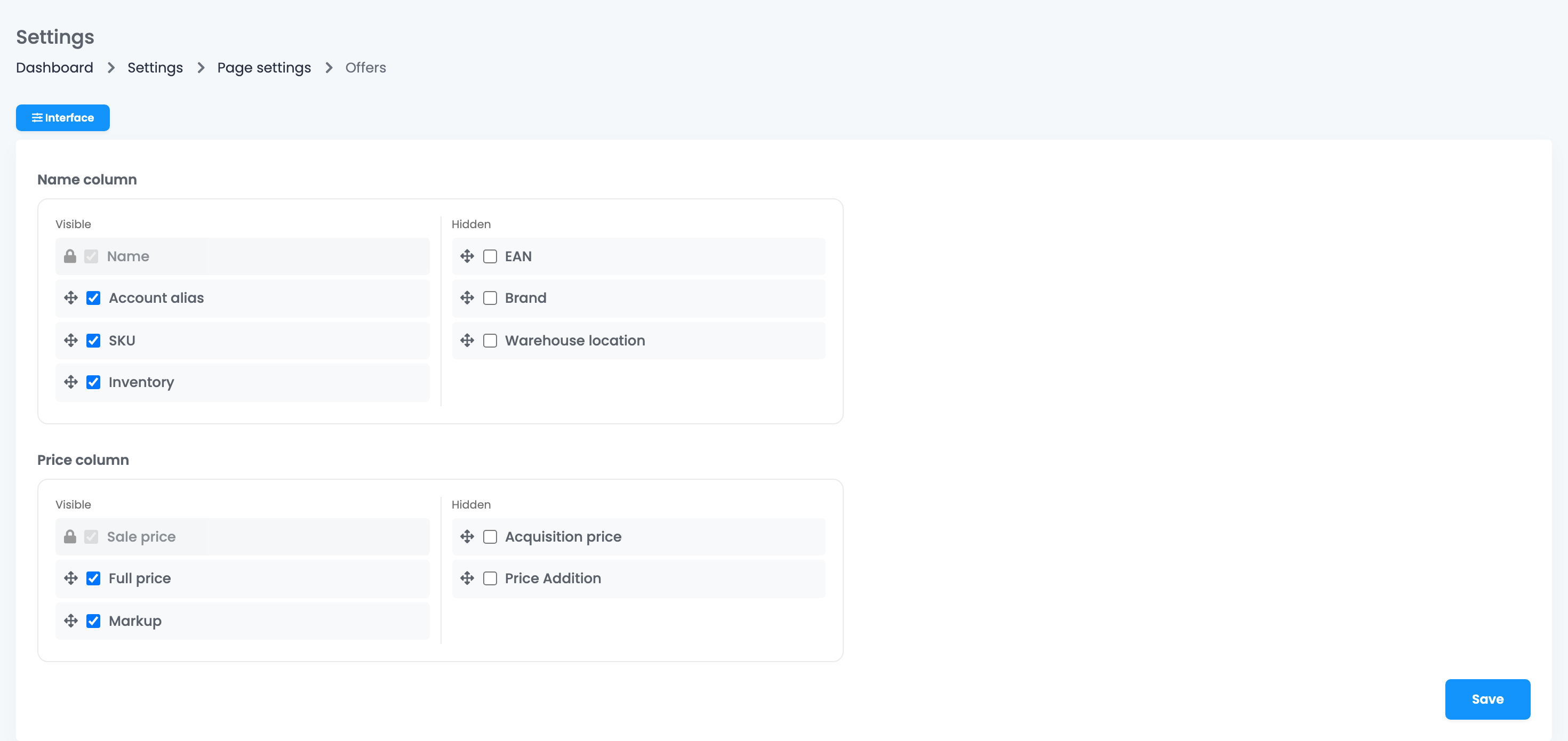
| Name column | Name, Account alias, SKU, Inventory, EAN, Brand, Warehouse location | Name, Account alias, SKU, Inventory |
| Price column | Sale price, Full price, Acquisition price, Markup, Price Addition | Sale price, Full price, Markup |
Markup
Markup shows how much the sale price adds over the acquisition price: (sale price − acquisition price) ÷ acquisition price, without VAT. Hover over it to see the profit per unit. It is red when you sell under the acquisition price, and shows a dash when the product has no acquisition price. Marketplace commissions and fees are not included.
Bundle component prices

When a bundle is ordered, easySales splits it into its products on the order and on the invoice, and each product's line price comes from the price set for it in the bundle. On the General tab of the products settings, Automatically calculate bundle component prices decides who sets those prices.
| Option off (default) | Option on | |
|---|---|---|
| Who sets the prices | You, for each product of the bundle | easySales, from the bundle's sale price |
| Rule | The prices without VAT must add up exactly to the bundle's sale price | The split always adds up |
| Bundle import | Uses the Price column | Ignores the Price column |
- With the option on, easySales splits the bundle's sale price without VAT over its products, in proportion to each product's own sale price. The price fields of the products are replaced by a Calculated price, and the Price column of the bundle import is not used.
- The split happens when you save a bundle or import bundles. Bundles saved before you turned the option on keep their prices until you save them again.
- When the bundle's sale price changes later, the prices of its products change in the same proportion, whichever way the option is set.
The option is off by default, it applies to the whole account, and only the main account can change it.
Your team and these settings
Every team member can set the columns in their own browser. The bundle option can be changed only from the main account.
When something does not look right
| Symptom | What to do |
|---|---|
| My layout is gone | It is saved in the browser. Another browser, another computer, a private window or cleared site data shows the default layout. Set it again and press Save. |
| Markup shows a dash | The product has no acquisition price, or the offer is not linked to a product. Set the acquisition price on the product. |
| "The bundle price is invalid" | The prices of the bundle's products do not add up to the bundle's sale price. Correct them, or turn on Automatically calculate bundle component prices. |
| The bundle option is greyed out | Only the main account can change it. |
| The bundle prices did not change after I turned the option on | Existing bundles keep their prices until you save them again. |