How auto-link works in easySales: connect marketplace offers to your catalog
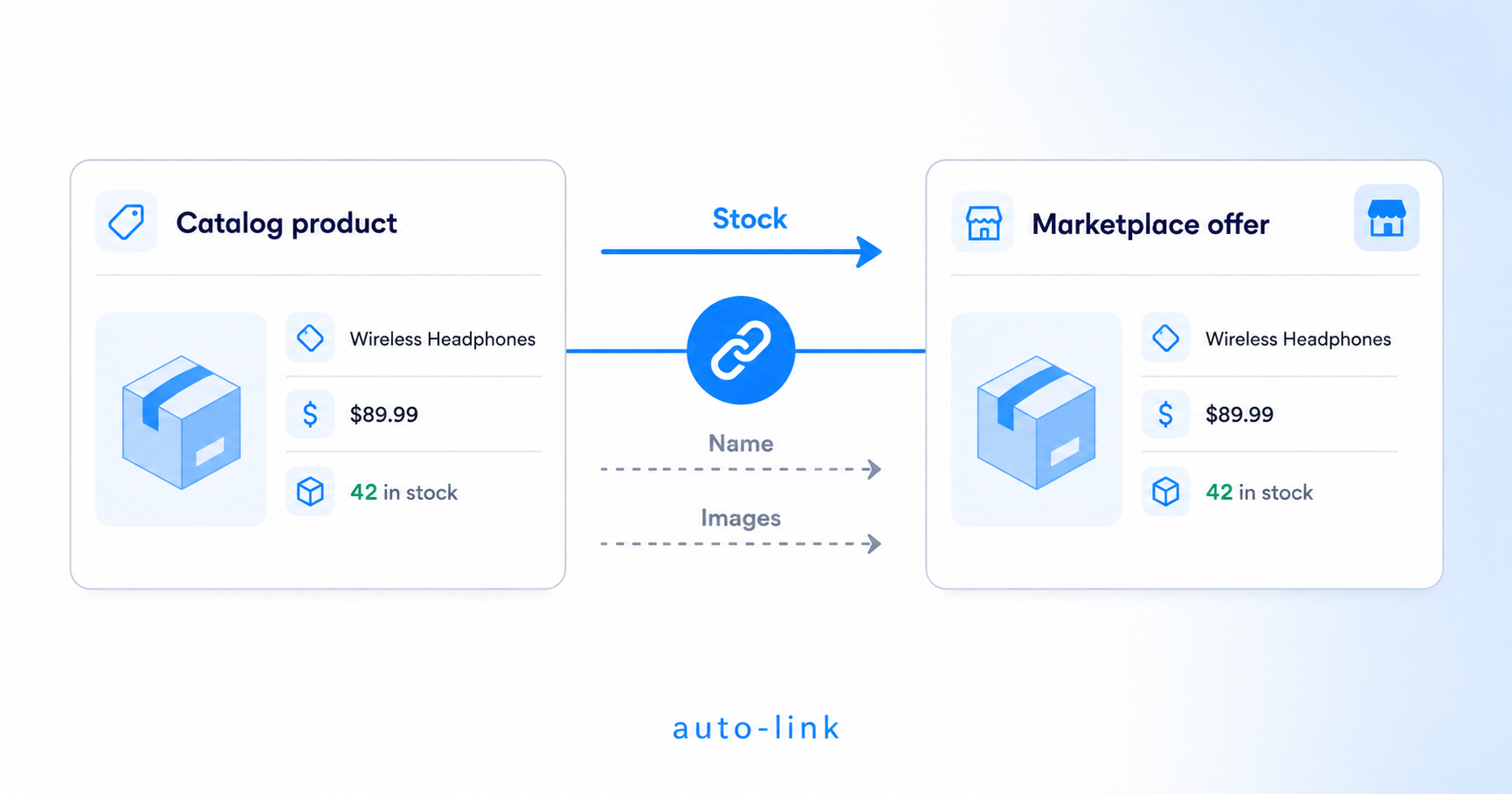
Auto-link binds your existing marketplace offers to the products in your easySales catalog. Learn when to run it, what gets synced by default, and how to control which fields easySales pushes back to the marketplace afterwards.
What auto-link does and why it matters
When you start using easySales, two things usually arrive separately: your product catalog (imported from your online shop, an Excel file, or built by hand) and your marketplace offers (pulled in from eMAG, Allegro, Amazon, Kaufland, and any other marketplaces you sell on). Until you tell easySales which catalog product corresponds to which marketplace offer, those two datasets sit side by side without knowing about each other.
Auto-link is what closes that gap. It scans your unsynced marketplace offers, looks for a match against your catalog using a field you choose, and creates the binding in one go. After a successful link, the offer is no longer an isolated listing — it follows the catalog product for stock updates and any other fields you choose to keep coupled.
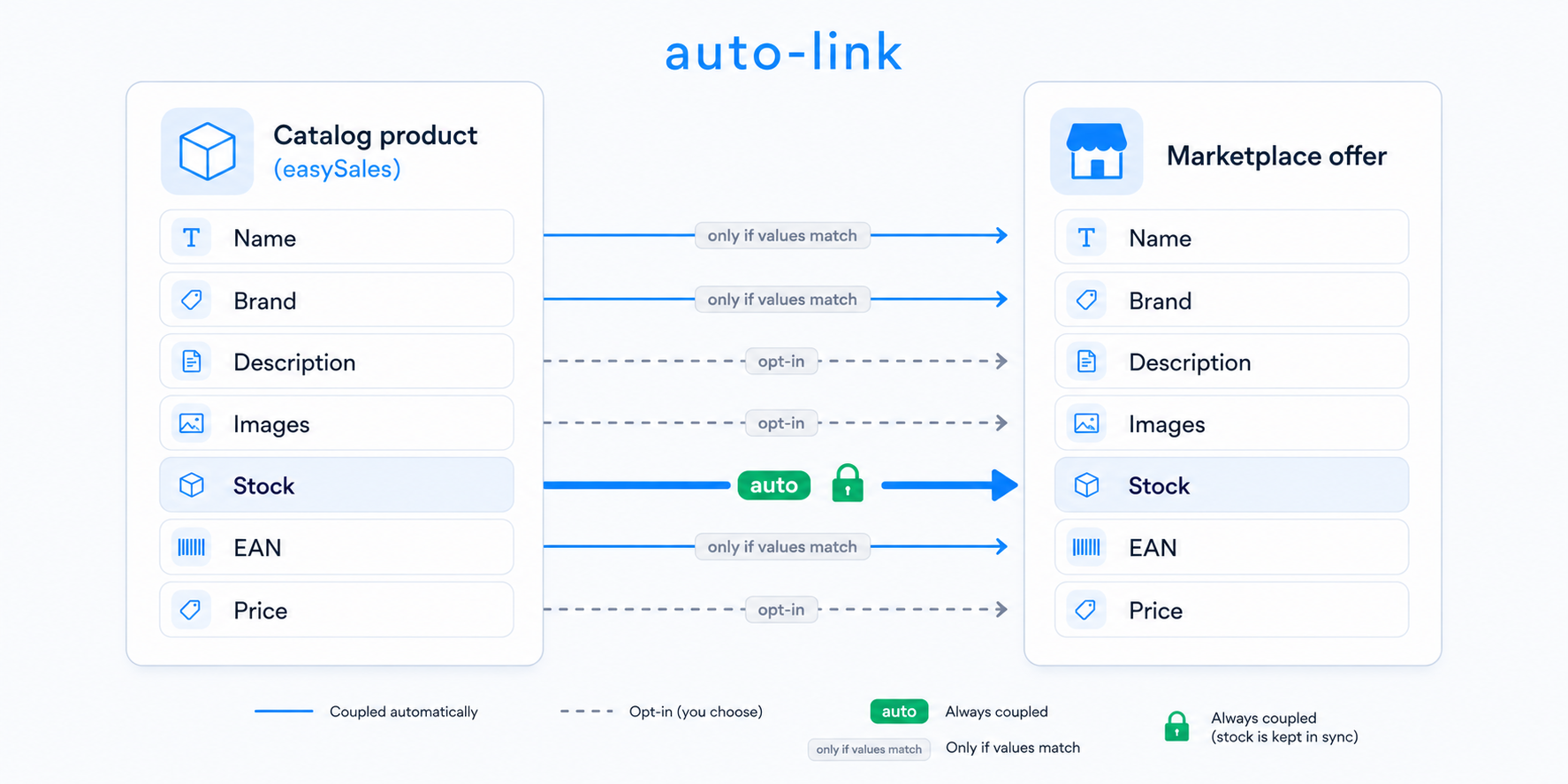
The guiding principle: when easySales creates a link between a marketplace offer and a catalog product, it syncs stock and couples only the fields whose values are already identical on both sides. Your existing, validated marketplace listing isn't disturbed.
Concretely, stock is the only field that syncs automatically after linking. Everything else stays as-is on the marketplace until you opt in. That's deliberate: you can run auto-link on thousands of offers without worrying that descriptions, images, or prices will be silently rewritten.
Two prerequisites before you run it
Auto-link only works when both of these are true:
- The product already exists in your easySales catalog. Auto-link binds existing offers to existing products; it doesn't create new catalog entries.
- The catalog product and the marketplace offer share at least one identical identifier — SKU, EAN, name, or product ID. If neither side has a value in common for any of those four fields, there's nothing for the matcher to compare. Fix the identifiers in your catalog or in the marketplace listing first, then re-run.
When to use auto-link
There are three typical moments when running auto-link makes sense:
- Right after the first marketplace connection. You've connected a new marketplace account, easySales has imported your existing offers, and your catalog already contains the matching products. Auto-link gives you the first wave of bindings in minutes instead of clicking through each offer.
- After a catalog import or refresh. You uploaded a new batch of products to your easySales catalog and want to bind them to offers that were previously unmatched. Re-running auto-link picks up only the offers that are still unsynced, so it's safe to repeat.
- After a bulk SKU or EAN cleanup. You corrected SKUs or filled in missing EANs across your catalog. Auto-link will now find matches that previously failed because of the missing identifier.
If your catalog and your marketplace offers are already fully bound — every offer has a green "synced" badge — there's nothing for auto-link to do. It only ever touches offers that are not yet synced.
The four ways to auto-link offers
easySales gives you four entry points. They all converge on the same underlying action, but they suit different scales of work.
Matcher dropdown
In-app, match a marketplace account's unsynced offers against your catalog by SKU, Name, EAN, or Product ID.
Excel / CSV bulk upload
Upload a two-column file (Offer ID, Product ID) when your own mapping is the source of truth.
Per-offer manual link
Bind one offer at a time from the offer edit screen. Useful for one-off corrections.
Admin command (escalation)
For very large catalogs, support can run a server-side bind. Open a support ticket if the in-app wizard isn't enough.
The auto-link wizard (most common)
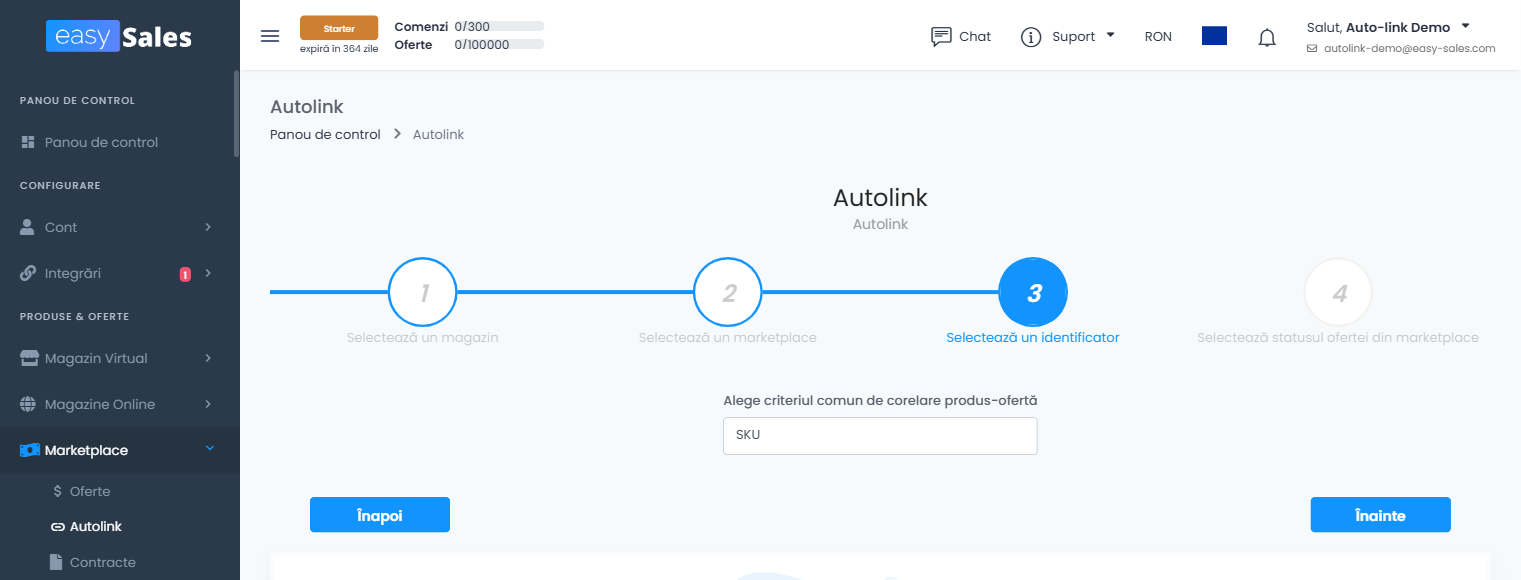
Go to Marketplaces → Auto-link in the left navigation. Choose the marketplace account whose offers you want to bind, then pick the match field — SKU, Name, EAN, or Product ID. easySales scans your unsynced offers for that account, looks each one up in your catalog by the field you picked, and presents the resulting matches for you to confirm before the link is created.
Pick the match field based on what's most reliable for your data:
- EAN — best when you trust your EAN values on both sides. Works across marketplaces that use a different SKU convention.
- SKU — best when your product codes are unique and consistent. Be aware that on eMAG the SKU is the part number; on Cel it's the Cel product ID; on OLX, Vivre, and a few others it's the marketplace-specific identifier. easySales picks the right column automatically based on the marketplace.
- Name — last resort. Match is exact (case- and whitespace-insensitive), so even tiny differences like an extra word at the end will prevent a match.
- Product ID — the product's website ID from your original online shop. Useful when both sides came from the same source feed and you have no other shared identifier.
Excel / CSV bulk upload
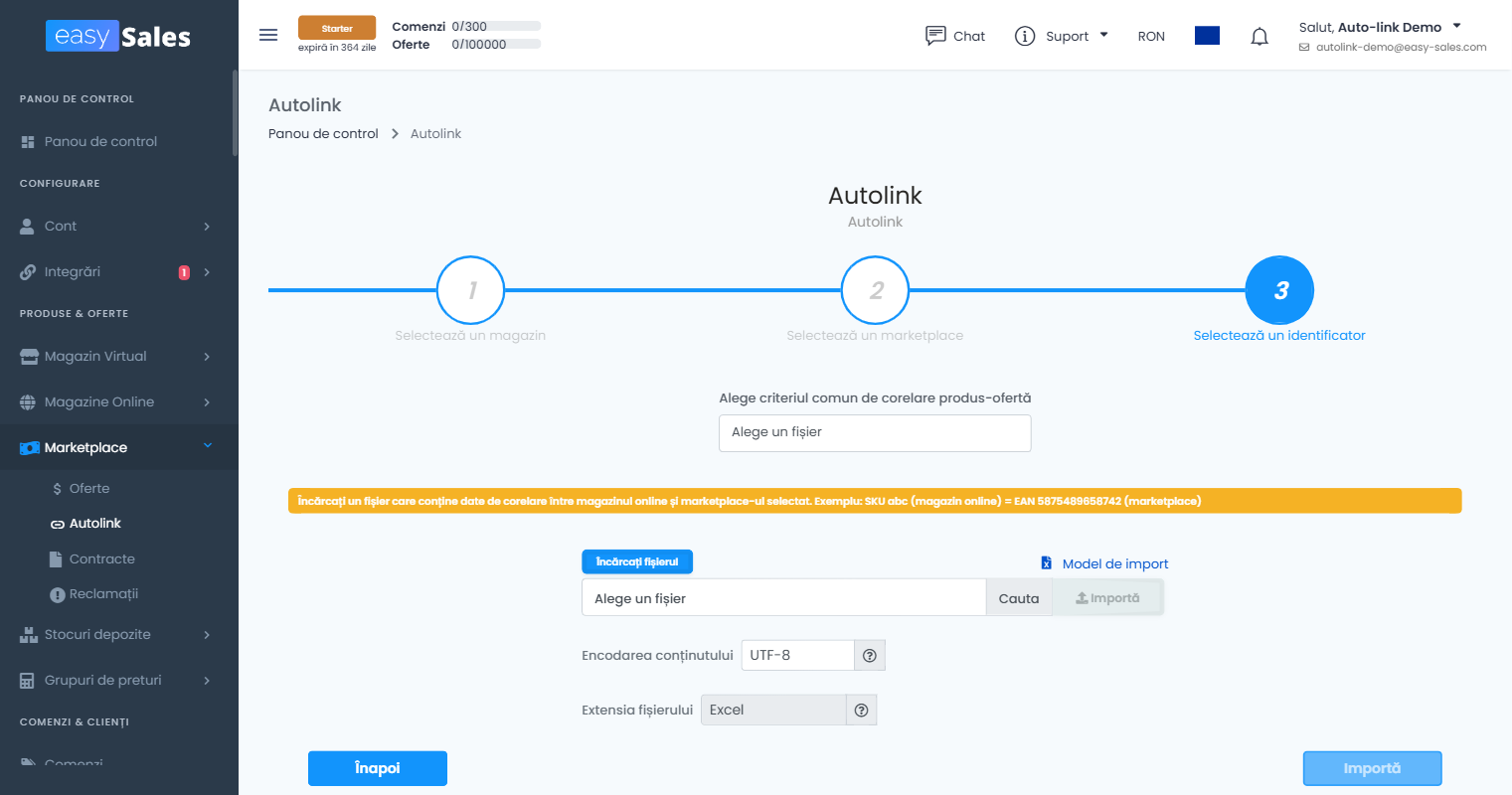
When the wizard's match field doesn't fit your data — for example, the SKUs differ between catalog and marketplace, but you have your own internal mapping — upload a file with the bindings you want.
The file must contain exactly two columns:
- Column 1: an offer identifier — Offer ID, EAN, Name, or SKU.
- Column 2: a product identifier — Product SKU, EAN, or Name.
During the upload wizard you tell easySales which column is which by mapping it to the matching identifier type. The wizard reads the file, validates row by row, and creates the bindings exactly as you specified.
A practical tip from support: test with a single-row file first. Confirm the mapping behaves the way you expect, then run the full file.
Per-offer manual linking
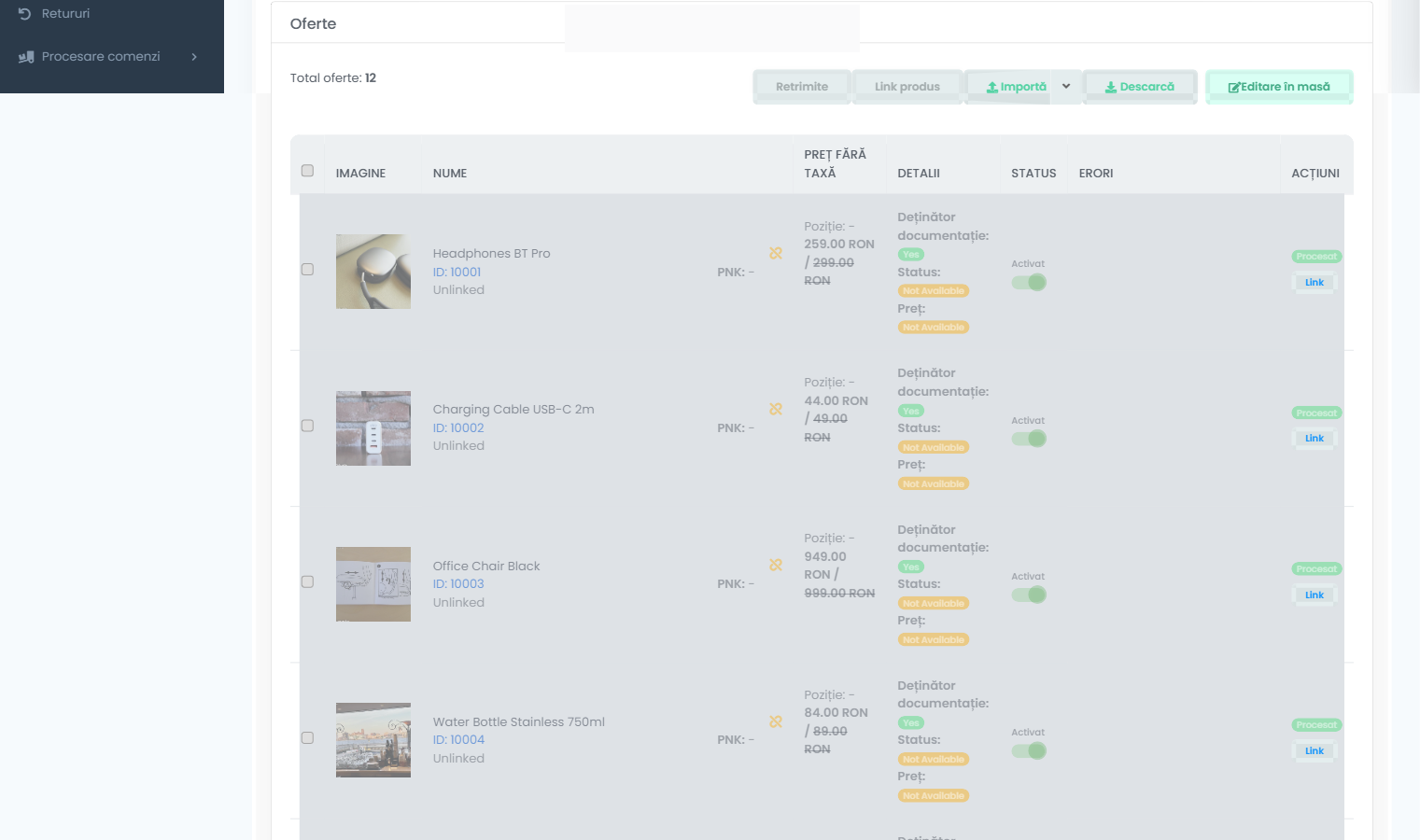
In Marketplaces → Offers, any offer that hasn't been bound to a catalog product appears with an Unlinked label. Until that offer is linked, no information flows from your easySales catalog to the marketplace listing — not even stock.
To bind one manually: click Link next to the unlinked offer, search for the matching catalog product, then click Link product to confirm. Repeat for each offer you need to bind. This is fine for one-off corrections; for anything more than a handful of offers, use the auto-link wizard or the Excel upload instead.
Admin command (rarely needed)
For very large catalogs where the in-app wizard would time out, the support team can run a console command on your account to bind by EAN or SKU at scale. This is an escalation path — open a support ticket if you think you need it.
What happens at the moment of linking — and what stays untouched
This is the most important section of the guide. Read it carefully if you've ever worried about auto-link overwriting your hand-tuned marketplace listings.
When auto-link confirms a match and creates the binding:
- The offer is flagged as synced. From this moment on, the offer's stock follows the catalog product's stock. If your warehouse stock drops to zero, the marketplace offer goes out of stock; if you restock, the offer becomes available again.
- The offer's
product_idis set to the catalog product. This is what gives you the rest of the workflow — orders that come in for that offer now resolve to a known product, invoices reference the right catalog entry, and bundles / variants behave correctly. - Nothing else is rewritten on the marketplace. Descriptions, images, prices, brand, category, and characteristics stay exactly as they were on the marketplace.
There are two narrow exceptions to that last point:
- Smart auto-couple of matching fields. When auto-link inspects a pair, if the product name in your catalog already equals the offer name on the marketplace, easySales notes that the names are in sync and starts treating that field as coupled. Same for brand and EAN. This isn't an overwrite — it's just a recording of "these were already equal, keep them that way going forward". But it does mean future edits to the catalog product's name will flow to the marketplace.
- Marketplaces with a fixed full couple. For a small number of marketplaces (currently Decathlon and Empik), linking automatically couples the full set of fields — name, description, images, brand, weight, warranty, category, characteristics, tax rate, EAN. This is required by how those marketplaces expect listings to be managed. If you're linking Decathlon or Empik offers, expect easySales to start managing the whole listing after the bind.
Coupled columns: the field-by-field guide
The list of fields that can be coupled depends on the marketplace, but for most channels it covers the same family of fields: name, description, brand, images, warranty, weight, sale price, full price, EAN, category, characteristics, URL, family name, family ID, delivery days, and tax rate.
A field being coupled means two things:
- Future updates to the catalog product (or to the offer in the easySales interface) will be pushed to the marketplace.
- The marketplace listing is no longer the source of truth for that field — your easySales catalog is.
A field being decoupled means the opposite: changes in easySales stay in easySales. The marketplace listing keeps whatever it already had.
| Field | Coupling behavior on link |
|---|---|
| Stock | Always coupled. The marketplace offer follows the catalog product's stock from the moment the link is created. |
| Name | Coupled only if the catalog and offer names already match. Otherwise opt-in after the link. |
| Brand | Coupled only if the catalog and offer brand values already match. Otherwise opt-in. |
| EAN | Coupled only if the catalog and offer EAN values already match. Otherwise opt-in. |
| Description | Opt-in. Toggle on per offer or in bulk after linking. |
| Images | Opt-in. Toggle on per offer or in bulk after linking. |
| Sale price and full price | Opt-in. Off by default since most merchants run different price strategies per marketplace at first. |
| Category and characteristics | Opt-in. Many merchants leave these decoupled on marketplaces with hand-tuned attributes. |
| Weight, warranty, delivery days, tax rate | Opt-in. Toggle on per offer or in bulk after linking. |
| All of the above (Decathlon and Empik) | Always coupled by design. The marketplace listing is fully managed by easySales after linking. |
Coupling is decided per offer, per field. You can have name coupled on one offer and decoupled on another. You can also have name coupled for your eMAG account but decoupled for your Allegro account on the same catalog product — they're independent bindings.
Adding more couples after linking (or removing the defaults)
Open any synced offer's edit screen. Next to each editable field you'll see a small lock / link indicator showing whether that field is currently coupled. Toggle it on to start pushing future catalog changes to that field; toggle it off to stop.
Three patterns merchants use most:
- Couple name + description + images once the listing looks right. A common workflow is to manually shape the first marketplace listing in the marketplace's own admin (because that's where you have the editing tools and previews you trust), then auto-link to your catalog, then toggle on name / description / images so future edits live in easySales.
- Couple price only when you're ready to centralize pricing. Price coupling is intentionally off by default because most merchants run different price strategies per marketplace at first. When you're ready to manage prices centrally — or run repricing automations — toggle price coupling on per offer or in bulk.
- Leave characteristics decoupled if your marketplace listings have hand-tuned attributes. Marketplace product attributes (especially on eMAG) can be hard to reconstruct exactly from a generic catalog. Many merchants keep characteristics decoupled long-term.
Heads-up: when linking can overwrite marketplace data
Linking by itself does not overwrite the marketplace. But linking combined with any of the following actions will push easySales data out to the marketplace on the next update cycle:
- Toggling a field from decoupled to coupled, after which the field's catalog value is sent to the marketplace.
- Editing a catalog product attribute that is coupled — the change flows downstream to every offer where that field is coupled.
- Linking on Decathlon or Empik, where the full set is force-coupled and the catalog values immediately become the source of truth.
- Running a bulk action (e.g. "send full update to marketplace") on a synced offer.
If you want to test the impact before committing, link one or two offers as a pilot, watch what changes on the marketplace over the next sync cycle, then run the full batch once you're confident.
Verifying the link worked
After auto-link finishes:
- Filter the offers list by synced = yes. The count should jump by approximately the number of matches you confirmed.
- Spot-check a few offers. Each should show the catalog product attached, a stock value that matches the catalog, and a list of coupled fields you can review.
- Wait for the next stock sync cycle and confirm the marketplace listing's stock value matches your catalog's stock. If it doesn't, the binding is in place but something else (a stock rule, a warehouse split) is intercepting the push.
If a binding is wrong — wrong product matched to an offer — open the offer and click Unlink. The offer goes back to unsynced; the marketplace listing keeps whatever it had at the moment of unlinking. From there you can run auto-link again with a different match field, or bind manually.