How to edit marketplace offers in easySales: single, mass edit, Excel import & Flows

Edit your marketplace offers in easySales four ways — one by one, in bulk with filters, via Excel import by Internal offer ID, or with automated Flows — plus how field coupling keeps offers in sync with your catalog.
Once a product is listed on a marketplace through easySales, its offer isn't frozen — you can change the title, description, price, stock, category, characteristics, and any marketplace-specific field at any time. easySales gives you four ways to do it, from editing one offer at a time, to updating thousands in a single Excel import, to automation rules that run on every save. One concept ties them all together: field coupling.
Before you edit: every offer is linked to a catalog product
In easySales, a marketplace offer is never standalone. It is always tied to a product in your catalog — either a Virtual Shop (an internal catalog you build inside easySales) or an Online Shop (a connected store, such as your website). The catalog product holds the master data; the offer is how that product appears on one specific marketplace.
That link is what makes editing possible: if an offer has no product behind it, easySales won't let you edit it or import changes.
You rarely create this link by hand. Offers you list from easySales are linked automatically to the catalog product they were sent from. Offers that already existed on the marketplace before you connected can be matched to your catalog with auto-link.
Four ways to edit your offers
Pick the method based on how many offers you're touching, how varied the changes are, and whether the edit is a one-time action or should repeat itself automatically:
- Single offer — full control over one offer's every field.
- Mass edit — apply the same change to many filtered offers at once.
- Excel import — export, edit in a spreadsheet, re-import. Best for large, varied changes.
- Flows — automation rules that edit matching offers every time they're saved.
The first three live under Marketplace → Offers; Flows have their own section in the menu.
Method 1 — Edit a single offer
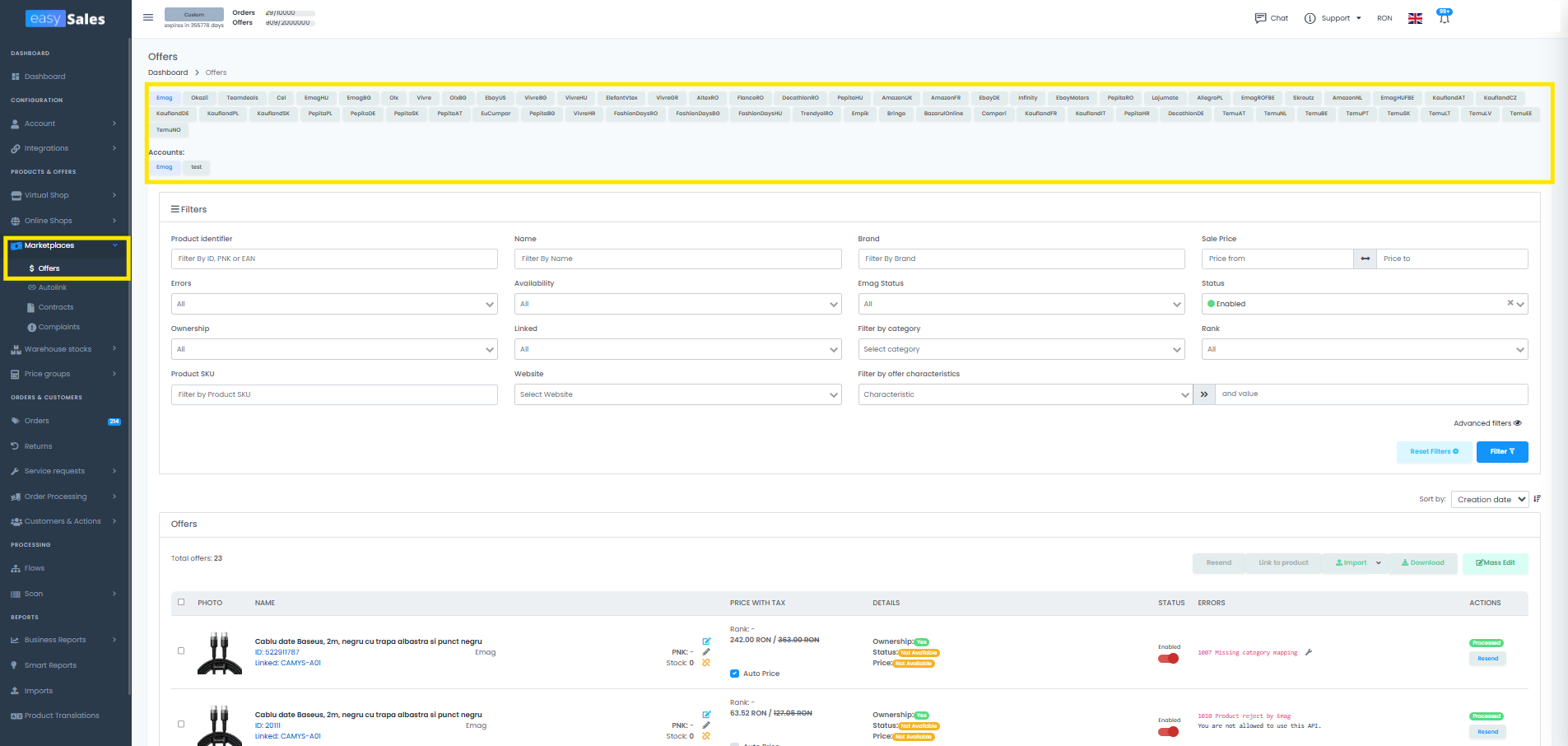
Go to Marketplace → Offers and select the tab for the marketplace you want to edit. Each marketplace has its own tab, because the editable fields differ by channel.
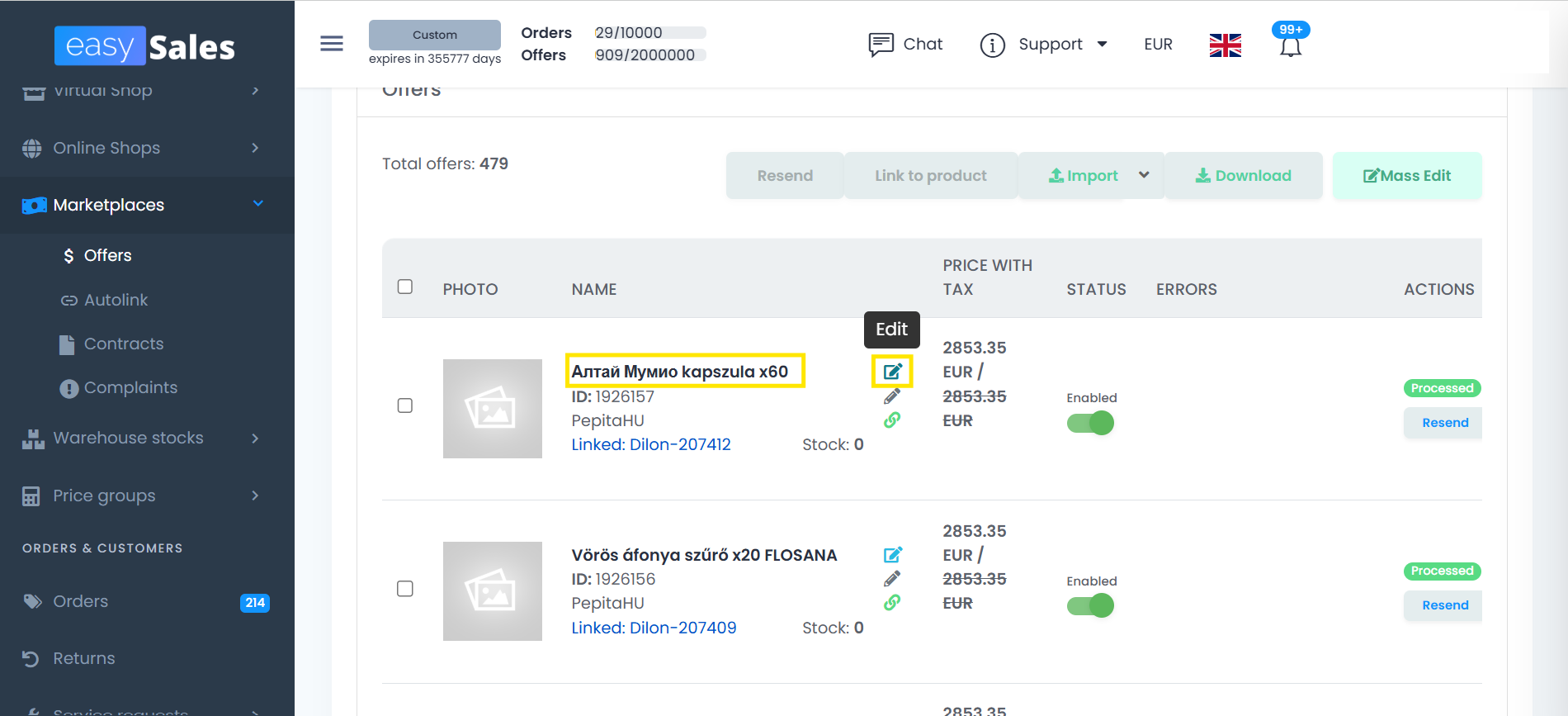
Once the offers load, open one — click its name or use the edit button on the right of the row.
A dedicated edit page opens with every field that channel accepts: name, description, price, stock, brand, category, characteristics, images, and any marketplace-specific fields.
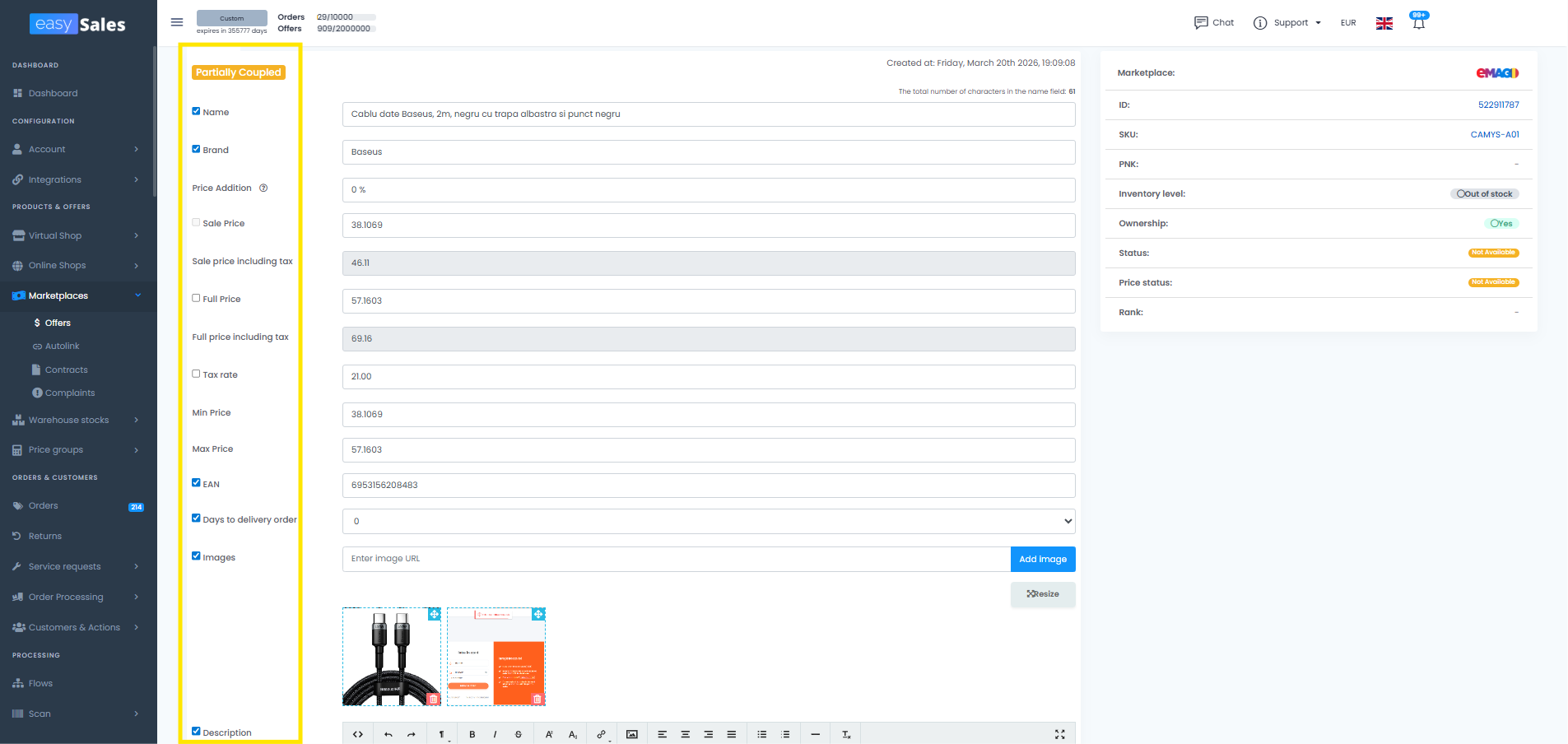
The coupled / decoupled mark, explained
Next to each field is a small mark (a checkbox) that controls coupling — whether the field is connected to the matching field in your catalog product.
- Coupled (mark filled): the value comes straight from the catalog product. Change it in the catalog and the offer updates automatically. This keeps your offers in sync with your master data.
- Decoupled (mark cleared): the value is set on the offer itself, and that is what gets sent to the marketplace — regardless of what's in the catalog.
The switch is automatic. Edit a coupled field and type a custom value, and easySales decouples it for that offer — your value sticks and the catalog no longer overwrites it. Fill the mark again to recouple, and the field pulls the current value back from the catalog.
That's what lets you run a different title or price on one marketplace without breaking the sync on every other field.
Method 2 — Mass edit filtered offers
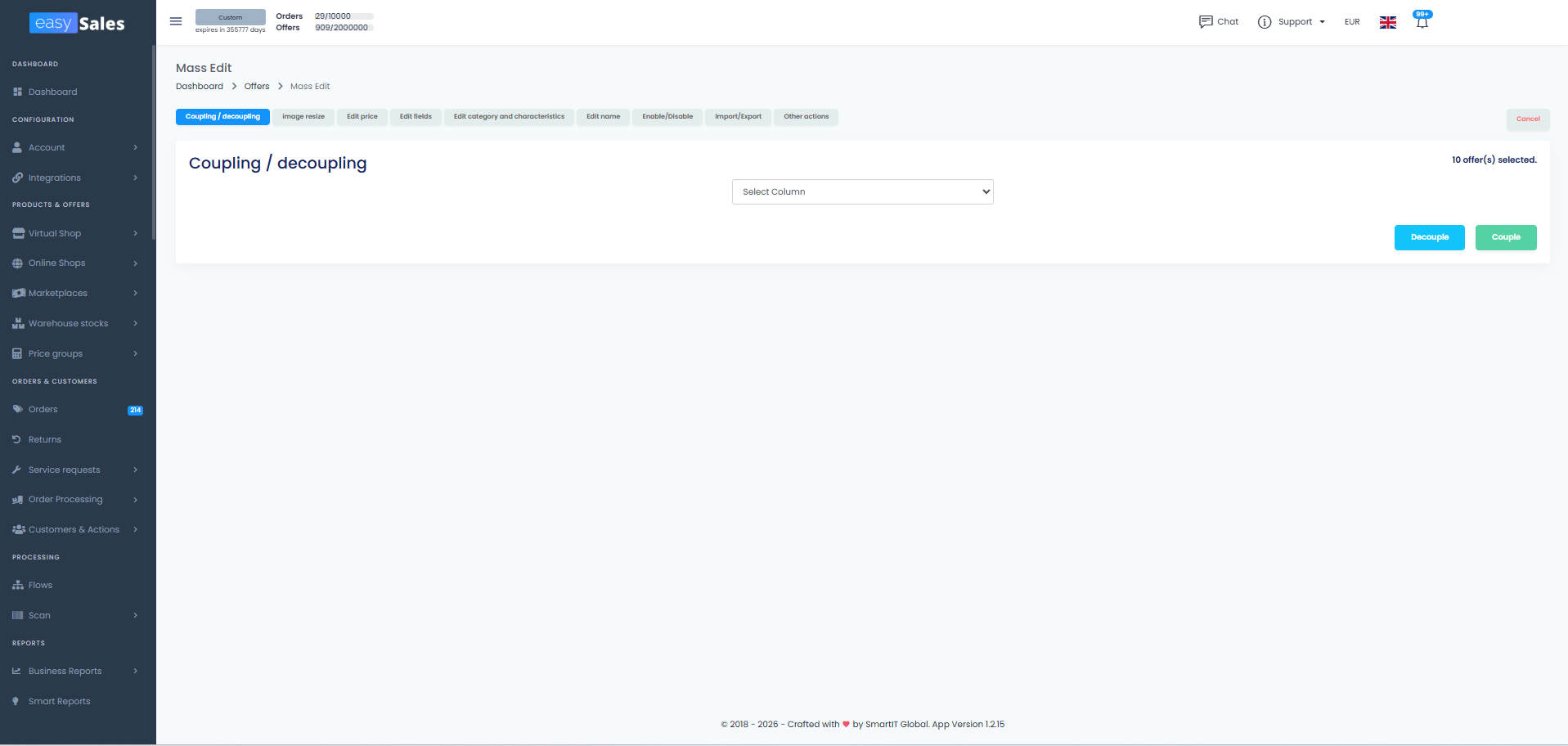
When the same change applies to many offers, edit them in bulk. Narrow the list with filters first — for example, only offers with the brand Apple — and stack as many filters as you need. Select the offers, then click Mass edit. A window opens where you apply one change to every selected offer at once.
What you can change in bulk
Each action below is its own tab in the Mass edit window. Pick the one that matches the change you want to make — they're independent; you can't combine two actions in one run.
Couple / decouple
Sync or detach any field from the catalog, in bulk.
Edit price
Set a flat value, or adjust by percent or fixed amount across selected offers.
Edit fields
Any marketplace field, with the right input type for each.
Edit name
Template-build offer titles from offer and catalog variables.
Edit category & characteristics
Change the category, or add and remove characteristics.
Enable / disable
Activate or deactivate listings on the marketplace.
Image resize
Square, vertical, or custom dimensions for product images.
Other actions
Diacritics, capitalisation, HTML cleanup, close Allegro listings.
Import / Export
Price-only Excel round-trip from inside the Mass edit window.
Couple / decouple fields
Pick one column from the dropdown — any field your marketplace exposes (sale price, name, description, brand, characteristics, and so on) — then run either Couple or Decouple across the selected offers.
- Couple binds the field to the linked catalog product: from then on, the value follows the catalog.
- Decouple detaches it: the value stays put on the offer and the catalog stops overwriting it.
This is the bulk cousin of the per-field coupling mark on the single-offer edit page. It runs through a queue, so you can keep working — progress streams back live.
Gotcha: coupling sale price fails on offers with auto-price enabled. Turn off auto-price first, or pick a different field.
Edit price
Apply one price change to every selected offer. Three modes:
- Set — write a flat value. easySales converts your local currency to the marketplace's currency automatically.
- Adjust by % — increase or decrease (for example
+10or-5). Pick a start column (which price to read from — offer or product, sale or full price) and a target column (which price to write to). - Adjust by value — same as percent, but a fixed amount in marketplace currency.
On eMAG (RO/HU/BG/PL) and Fashion Days (RO/HU/BG), the extra min price and max price fields are exposed too — useful when you run repricing rules and need to widen or tighten the band across a category.
Tip: the adjust modes read from one column and write to another, so you can use them to copy product_full_price into offer_sale_price, or push a flat percentage discount off the catalog price.
Edit fields
The catch-all editor for any marketplace-specific field. Click Add fields, pick the field from the dropdown (it lists every column the marketplace exposes), and you get the right input type — text, number, single or multi-select, rich-text editor, or specialised pickers for GPSR documents and Decathlon's logistic class.
Add as many fields as you need and run them in one go; only the fields you actually fill are sent — empty rows are ignored.
On some channels the dropdowns are filled live from the marketplace itself:
- Temu — Manufacturer, Responsible person, Country of origin (with a cascading Region of origin when you pick Mainland China), Shipping template, Fulfillment type.
- Allegro (PL/CZ/SK/HU) — shipping rates, return policies, complaint policies.
- Kaufland — shipping group, product-safety contact (when enabled).
- Decathlon / Empik — logistic class, GPSR responsible person / producer.
- Shein — manufacturers, responsible persons, UK / US agents.
Editing a field here decouples it from the catalog, the same way it would on the single-offer page.
Gotcha: on Trendyol, once an offer is approved you can no longer mass-edit variation_id or brand — those changes are dropped silently.
Edit name
A template editor for offer titles. You build a pattern out of variables and easySales substitutes the real values per offer:
${original_name}and${brand}from the offer.${product_name}and${product_brand}from the linked catalog product.${characteristic:ID}for the value of an offer characteristic.${product_characteristic:ID}for the value from the catalog product's characteristic.
The buttons under the input insert variables at your cursor — you don't have to type them. A category and characteristic picker is shown so you can grab the right ID without leaving the screen.
Example pattern: ${product_brand} - ${characteristic:size_id} - ${original_name} becomes, per offer: Nike - Large - Blue Sneaker Limited Edition.
Gotcha: if any variable can't be resolved on a given offer (the characteristic isn't filled, for example), that offer errors out. Stick to variables that exist on every offer in your selection.
Edit category and characteristics
Three modes inside one tab:
- Change category — pick a new marketplace category. On most channels, changing the category clears the existing characteristics, so you'll need to remap them; a few text-category marketplaces (Pepita, Skroutz, Okazii, Compari) keep them. AltexRO asks you to pick a Product Set as well.
- Add characteristics — append one or more characteristics to every selected offer without touching the category.
- Delete characteristics — strip specific characteristics out.
For Temu, the category screen exposes an extra Update Temu Compliance option — upload compliance information, documents, and images for the chosen category in one shot. For Shein, the equivalent is Update Shein Certificates.
This tab is hidden entirely for Teamdeals — Teamdeals offers must be edited one by one.
Gotcha: offers that are already live on Temu or Shein can't have their category changed in bulk. Those rows are skipped with an error.
Enable / disable
Two buttons, no fields. Enable re-syncs each selected offer to its marketplace and brings the listing back on; Disable deactivates it.
Disabling also turns off auto-price on the offer if it was active — so a later re-enable doesn't quietly resume an old repricing rule.
Tip: this tab is slower than the others (smaller batch size, ten offers per worker) because each toggle hits the marketplace API per offer. Plan for it on large selections.
Image resize
Bulk-resize the catalog images attached to the selected offers' products. Three options:
- 1:1 — square, computed from the largest edge of each image.
- 2:3 — vertical, computed from each image's aspect ratio.
- Custom — type a width and height in pixels.
Images are resized at the catalog level, then re-pushed to the marketplace with each offer.
Tip: useful before listing on channels with strict aspect-ratio requirements (eMag wants 1:1 for primary images on most categories), so the listing passes validation the first time.
Other actions
A grab-bag of one-shot text fixes for the selected offers:
- Convert description diacritics — strips Latin diacritics (ă → a, ó → o) from the description. Skipped on English-language marketplaces.
- Convert name diacritics — the same, applied to the offer title.
- Capitalize first letter of name — title-case fix for the offer title.
- Clean unsupported HTML tags from description — runs the description through the marketplace's HTML allow-list.
- Close Allegro offers — ends the listings on Allegro (PL/CZ/SK/HU only). The offer stays in easySales but is no longer active on the marketplace.
All text actions decouple the field they touch (name or description), the same as a manual edit would.
Import / Export (from the Mass edit window)
The Mass edit window has its own Import / Export tab. Export pulls the selected offers' prices to Excel — including Internal offer ID, the marketplace external ID, SKU, sale and full price, plus min / max on eMag, the three Doraly price sets, delivery days, and shipping groups where they apply. Import uploads an edited file back. This entry is price-only — to edit any other column via Excel, use the standalone Import button on the offers list (covered in Method 3 below).
Tip: exports up to 500 offers download immediately; 501–5,000 are queued and you'll get a download link when ready; above 5,000 the export is rejected — split the selection into smaller batches.
Marketplace specifics at a glance
- Doraly doesn't support Edit price in mass edit; its three-tier pricing is handled through the price Excel instead.
- Teamdeals doesn't support Edit category and characteristics in mass edit.
- Temu has the deepest field set — Manufacturer, Responsible person, Country / Region of origin, Shipping template, Fulfillment type — plus the compliance uploader on the category screen.
- eMag and Fashion Days are the only marketplaces that expose
min priceandmax priceto mass edit. - Trendyol silently skips
variation_idandbrandupdates on approved offers.
Method 3 — Edit with Excel export & import
For large or varied changes — different values across many offers — editing in Excel is fastest. The flow is export → edit → import, all from Marketplace → Offers.
Always match by Internal offer ID
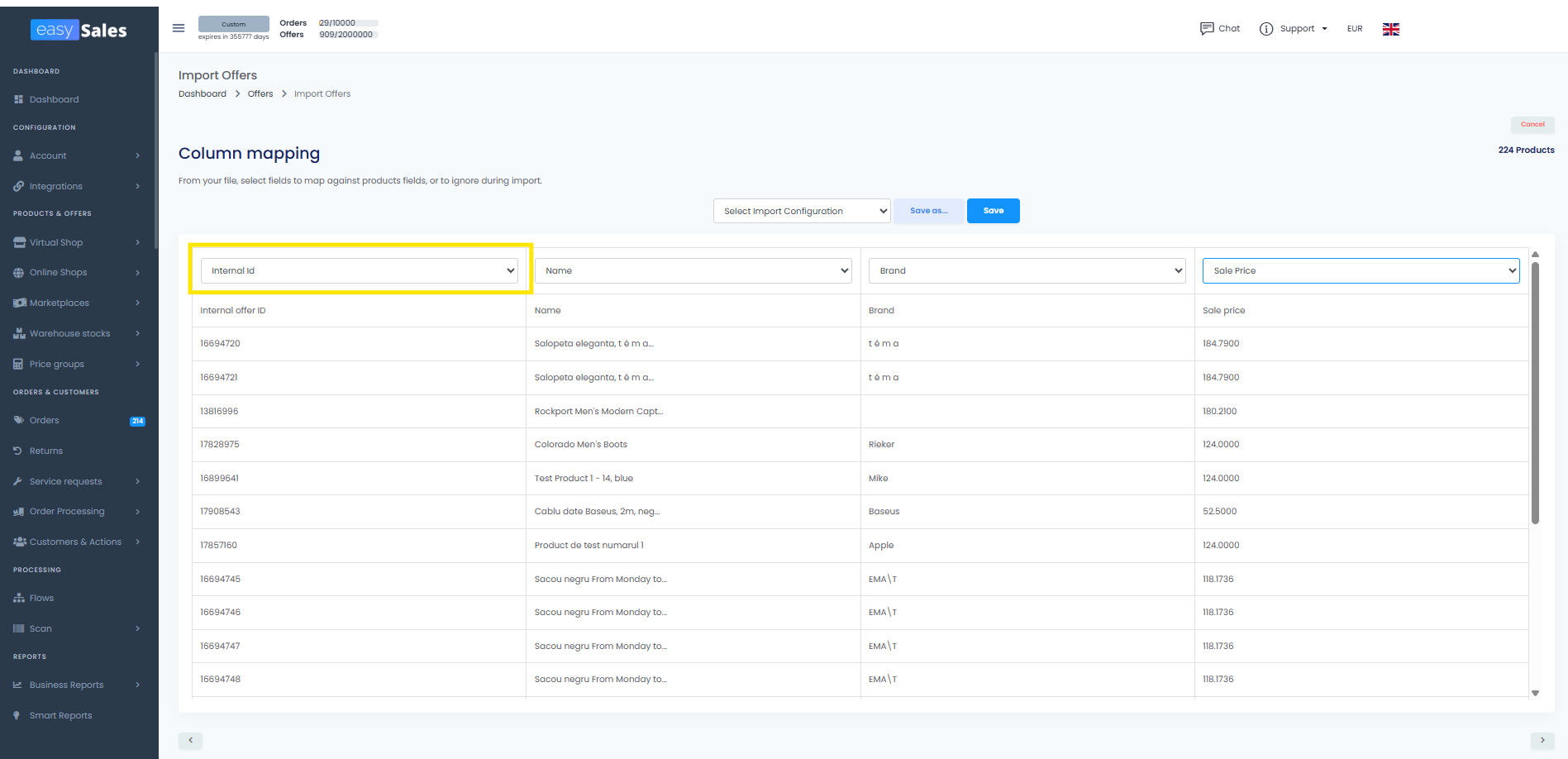
The key to updating existing offers is the Internal offer ID. easySales uses it to match each spreadsheet row back to the right offer.
- Export first. From the offers list, export the offers you want to change. Include the Internal offer ID field, plus every column you intend to edit.
- Edit in Excel. Change the values in the exported file. Leave the Internal offer ID untouched — it's the anchor that links the row to the offer.
- Import back. Use the Import button under Marketplace → Offers, map the Internal offer ID column and each column you edited, then run the import.
easySales matches each row by Internal offer ID and updates only the columns you mapped. As with single-offer editing, importing a custom value decouples that field from the catalog.
Stop syncing without deleting: mass-unlink offers
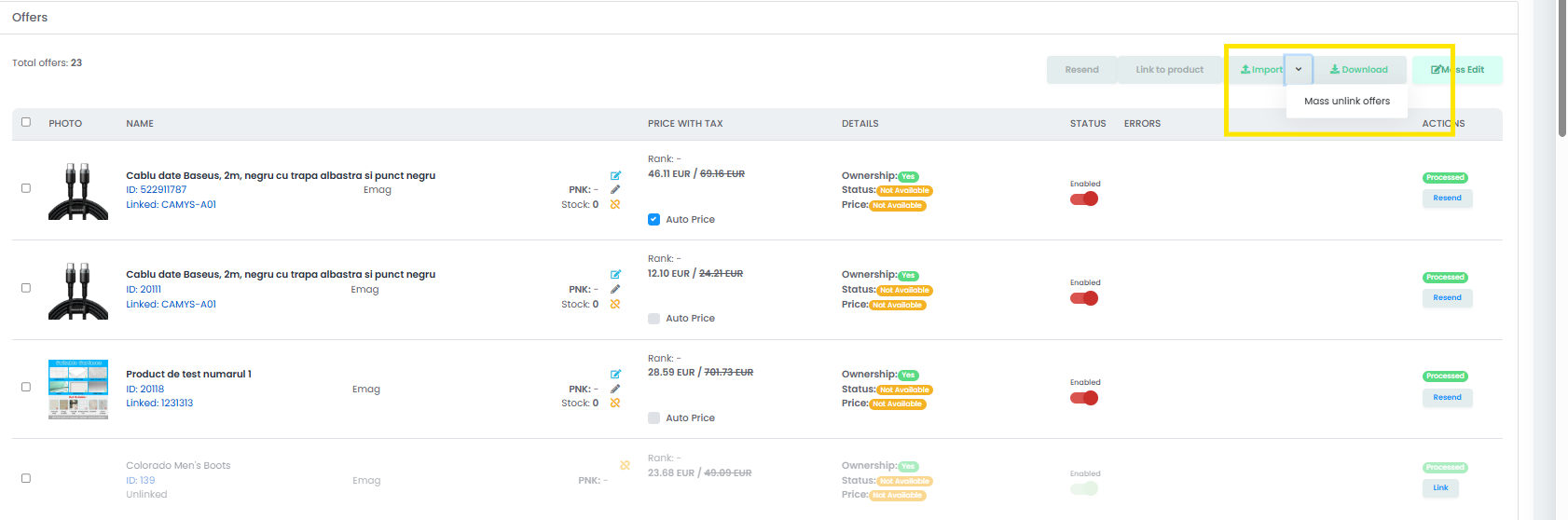
When you no longer want easySales to push updates to a set of offers — but you don't want to delete those offers from the marketplace either — use Mass unlink. It severs the link between an offer and its catalog product, so future catalog changes stop reaching the marketplace.
Where to find it
Mass unlink sits next to the Import button on Marketplace → Offers. Click the small chevron (down arrow) on the right of the Import button to open the dropdown, and pick Mass unlink from the menu.
How to run it
The input is an Excel file with one column: the Internal offer ID of each offer you want to unlink. Put one ID per row; a header row is fine — the upload screen has a "Skip first row" checkbox enabled by default. Save the file, upload it, and easySales processes the rows in batches in the background.
The easiest way to build that file is to export your offers first (Method 3 above) and keep only the Internal offer ID column for the rows you want to unlink.
What unlinking actually does
For each offer in the file, easySales:
- Detaches the offer from the catalog product (the link to the product is cleared).
- Marks the offer as not synced — easySales will not push any further updates (price, stock, fields, anything) to it.
- Turns off auto-price on the offer, if it was active.
- Leaves the offer record in easySales and keeps the listing live on the marketplace with whatever values it had at the moment of unlinking.
Important — deactivate first if you also want the listings down
Unlink only stops the sync from easySales' side. It doesn't tell the marketplace to take the listings down — they keep selling with their existing stock and price, just frozen in time.
If you also want those listings off the marketplace, disable the offers first — use Mass edit → Enable / disable (or do it per offer) — wait for the deactivation to propagate, then run Mass unlink.
If all you need is for easySales to stop touching those offers (for example, you want to manage them manually on the marketplace going forward), unlinking on its own is enough.
Re-linking later
A previously-unlinked offer can be re-linked at any point — manually from the offer, or in bulk through the autolink flow (matched by SKU, EAN, name, or website ID). Once it's linked again, you can edit it like any other offer.
Method 4 — Edit offers automatically with Flows
Flows are automation rules that run on save: build the rule once, and easySales applies it every time a matching offer is created or updated. Use them when the same edit needs to keep happening without you running mass edit every week.
A flow has three parts:
-
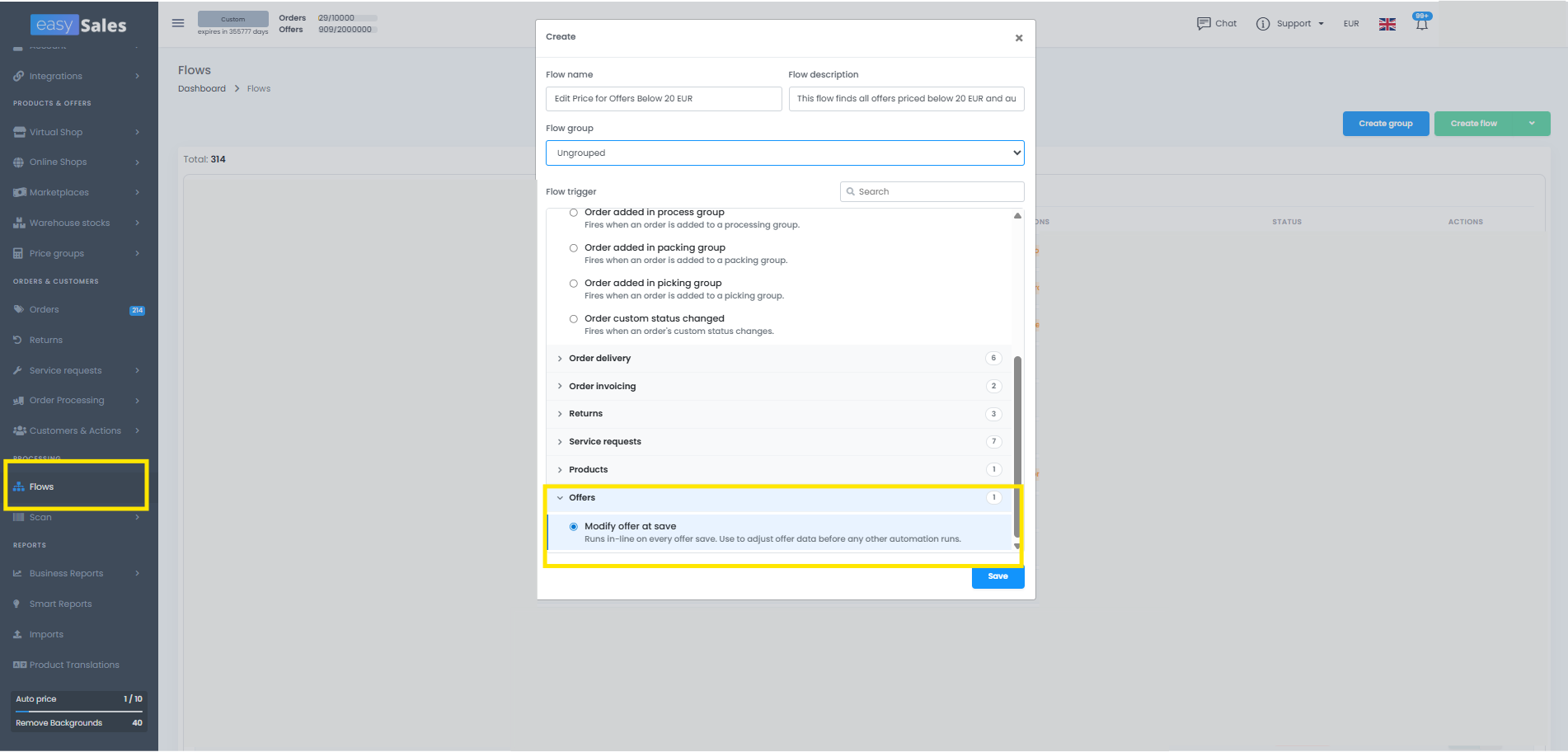
Trigger — for offers, the trigger is After offer save. It fires whenever an offer is saved (created, updated, stock-pushed, anything that persists changes) and runs synchronously, as part of that save.
-
Conditions — which offers the rule applies to. Filter by marketplace, SKU, name, EAN, status, sale or full price, category, auto-price state, plus the linked product's stock, brand, tags, category, warehouse availability, weight, and handling time. Conditions combine with AND.
-
Action — what to change. For offers, the available action is Edit offer field, with five modes:
- Simple field — set any editable field (name, brand, description, tax rate, price addition, plus marketplace-specific fields) to a value. The field is automatically decoupled, so the value sticks.
- Prices — set or compute one or more price fields (sale, full, min, max) using a math expression. Supports basic operations and
round(). - Delivery time — set the
delivery_daysvalue, from a constant or a variable. - Description — replace the offer description with a template that can pull in product variables.
- Allegro description — build the structured Allegro description (sections of text and images). Allegro only.
Variables you can use in formulas
Price and description flows are built on a small expression language. The variables resolve per offer; arithmetic, parentheses and round() are available.
From the offer
${offer.offer_sale_price}— the current sale price on the offer${offer.offer_full_price}— the current full / RRP price on the offer${offer.offer_tax_rate}— the offer's tax rate, in percent${offer.offer_price_addition}— a per-offer markup percentage. This is a field on the offer itself, designed exactly for flow formulas: change it on one offer to override the global rule without touching the flow.
From the linked catalog product
${product.product_sale_price}— catalog sale price${product.product_full_price}— catalog full / RRP price${product.product_acquisition_price}— your cost${product.product_tax_rate}— catalog tax rate${product.product_characteristic:Name}— value of any product characteristic by name (e.g.${product.product_characteristic:Preț PL}to pull a country-specific price stored on the product)${product.product_meta_field:Name}— value of any custom meta field${product.product_price_group:Name}— value from a named price group
Other
${other.currency_rate:FROM:TO}— live currency rate between any two currencies easySales tracks (e.g.${other.currency_rate:RON:EUR}). Always current.
Function
round(value)— round to the nearest integerround(value, 2)— round to N decimalsround(value, 'TRUE')— ceilround(value, 'FALSE')— floor
Formula examples
A few patterns you can adapt for your setup. Swap the variables for your own catalog fields.
Always filter price flows by marketplace. Before adding any of the price formulas below, set a condition on OfferChannel so the flow runs only on offers from the marketplace you actually want to update. Price rules normally differ per channel — different currency, different shipping compensation, different VAT band — so without that filter the same formula would hit every channel at once, which is almost never what you want. Build one flow per marketplace and keep its filter scoped to that one channel.
1. Local marketplace: catalog price + per-offer markup + flat shipping comp
Apply a per-offer markup percentage (offer_price_addition) on top of the catalog price, then add a flat shipping compensation:
${product.product_sale_price} * (100 + ${offer.offer_price_addition}) / 100 + 2.4
Why it works: you set the global rule once in the flow, and tune individual offers through their offer_price_addition field — no need to keep editing the flow.
2. Cross-border: same catalog, different currency
Take the local catalog price, apply the markup and shipping fee, then convert to the target marketplace's currency. For a RON catalog selling on eMAG BG (EUR):
((${product.product_sale_price} * (100 + ${offer.offer_price_addition}) / 100) + 2.4) * ${other.currency_rate:RON:EUR}
For a RON catalog selling on eMAG HU (HUF):
((${product.product_full_price} * (100 + ${offer.offer_price_addition}) / 100) + 8) * ${other.currency_rate:RON:HUF}
For a HUF catalog selling on eMAG BG (EUR):
((${product.product_full_price} * ${other.currency_rate:HUF:EUR}) * (1 + (${offer.offer_price_addition} / 100))) + 2
3. Tiered shipping compensation by price band
Split your catalog into price bands and add a different fee to each — useful when shipping cost on the marketplace's side isn't flat. Use multiple flows with the same After-offer-save trigger and different filter conditions on OfferProductSalePrice:
- Band 3200–4000 HUF — filter
OfferProductSalePrice between 3200 and 4000, additive+ 720 - Band 4000–6000 HUF — filter
OfferProductSalePrice between 4000 and 6000, additive+ 800 - Band 6000+ HUF — filter
OfferProductSalePrice > 6000, additive+ 1040
Each flow's formula:
((${product.product_full_price}) * (1 + (${offer.offer_price_addition} / 100))) + <band addition>
4. Round to .99 (psychological pricing)
Cost × markup, then round down to a .99 ending:
round(${product.product_acquisition_price} * 1.35) - 0.01
For two-decimal precision:
round(${product.product_sale_price} * 1.20, 2)
5. Country-specific price stored as a product characteristic
If your catalog has separate prices per country saved as product characteristics (e.g. a characteristic called Preț PL for Poland), the flow pulls it directly — no FX needed:
${product.product_characteristic:Preț PL} * (100 + ${offer.offer_price_addition}) / 100
6. Set price with tax (gross input, net stored)
If it's easier for you to think in tax-inclusive prices, target the _with_tax price field. easySales splits the VAT before storing the value:
Target column: offer_sale_price_with_tax
Formula:       ${product.product_full_price} * 1.20
The price you write here is treated as gross; the stored offer_sale_price becomes value / (1 + tax_rate / 100).
7. Auto-fill EU GPSR compliance fields
Create one Simple-field flow per GPSR field, with no condition (so it applies to every offer), and your compliance details are written automatically on every save:
gpsr_manufacturer_name→ your legal company namegpsr_manufacturer_address→ your registered address (street, postcode, city, country)gpsr_manufacturer_email→ your compliance contact emailgpsr_eu_representative_name→ your EU representative's legal namegpsr_eu_representative_address→ your EU representative's addressgpsr_eu_representative_email→ your EU representative's contact emailgpsr_safety_information→ a short, product-relevant safety warning
For Temu specifically, add manufacturers and responsible_persons as well (multi-select IDs picked from the dropdown).
8. Stock-based delivery time
Three flows, all on After-offer-save, with different stock filters:
OfferProductStock > 100→ setdelivery_daysto 2 (ship from stock)OfferProductStock between 1 and 100→ setdelivery_daysto 5OfferProductStock = 0→ setdelivery_daysto 14 (backorder) or use Disable instead
9. Channel-specific name prefix
Always prepend the brand to titles on Allegro (using the simple-field name template with offer + product variables):
${product_brand} - ${original_name}
Or include a characteristic value, like size:
${product_brand} ${characteristic:size_id} - ${original_name}
10. Standardise tax rate per channel
Different marketplaces / countries can require a specific VAT rate. Filter by OfferChannel and write the rate as a Simple field:
- Filter:
OfferChannel = EmagBG→tax_rate = 20 - Filter:
OfferChannel = EmagHU→tax_rate = 27
11. Repricing safety net — never sell below cost, never above retail
If you run repricing on eMAG or Fashion Days, set a price floor and ceiling so the repricer can't drift too low or too high. One flow can write both offer_min_price and offer_max_price from your acquisition cost and catalog full price:
Target column: offer_min_price
Formula:       ${product.product_acquisition_price} * 1.15
Target column: offer_max_price
Formula:       ${product.product_full_price} * 0.95
The floor holds you at a 15% margin above cost; the ceiling stays 5% below your catalog full price. Repricing rules then only operate inside this band.
offer_min_price and offer_max_price are only exposed on eMAG (RO/HU/BG/PL) and Fashion Days (RO/HU/BG); on other channels, drop this one.
12. Per-brand markup tiers
Different brands deserve different margins — high-turnover brands carry thinner markups, niche ones carry more. Set up one flow per brand with a filter on OfferProductBrand:
- Filter
OfferProductBrand = Apple→ formula${product.product_sale_price} * 1.08(thin margin, high turnover) - Filter
OfferProductBrand = Samsung→ formula${product.product_sale_price} * 1.12 - Filter
OfferProductBrand = Bosch→ formula${product.product_sale_price} * 1.18
Brand filters are mutually exclusive, so each offer hits at most one of them. You can tune one brand at a time without touching the rest of the catalog.
Where to find it
Open the Flows section from your easySales menu. The list shows your existing flows; you can group them in folders. Hit Create flow, name it, pick After offer save as the trigger, drop in your conditions, and add an Edit offer field action. New flows start in Draft — switch them to Enabled when you're ready for them to run. The execution log under Flows → Jobs shows every run, the offer it touched, and the action it took.
Applying a flow to existing offers (bulk resend)
A new flow only fires on the next save of each offer — it does not run retroactively. To apply a flow you just enabled to the offers you already have on a marketplace, you need to trigger a save on those offers. The fastest way for a whole channel is the Resend All button.
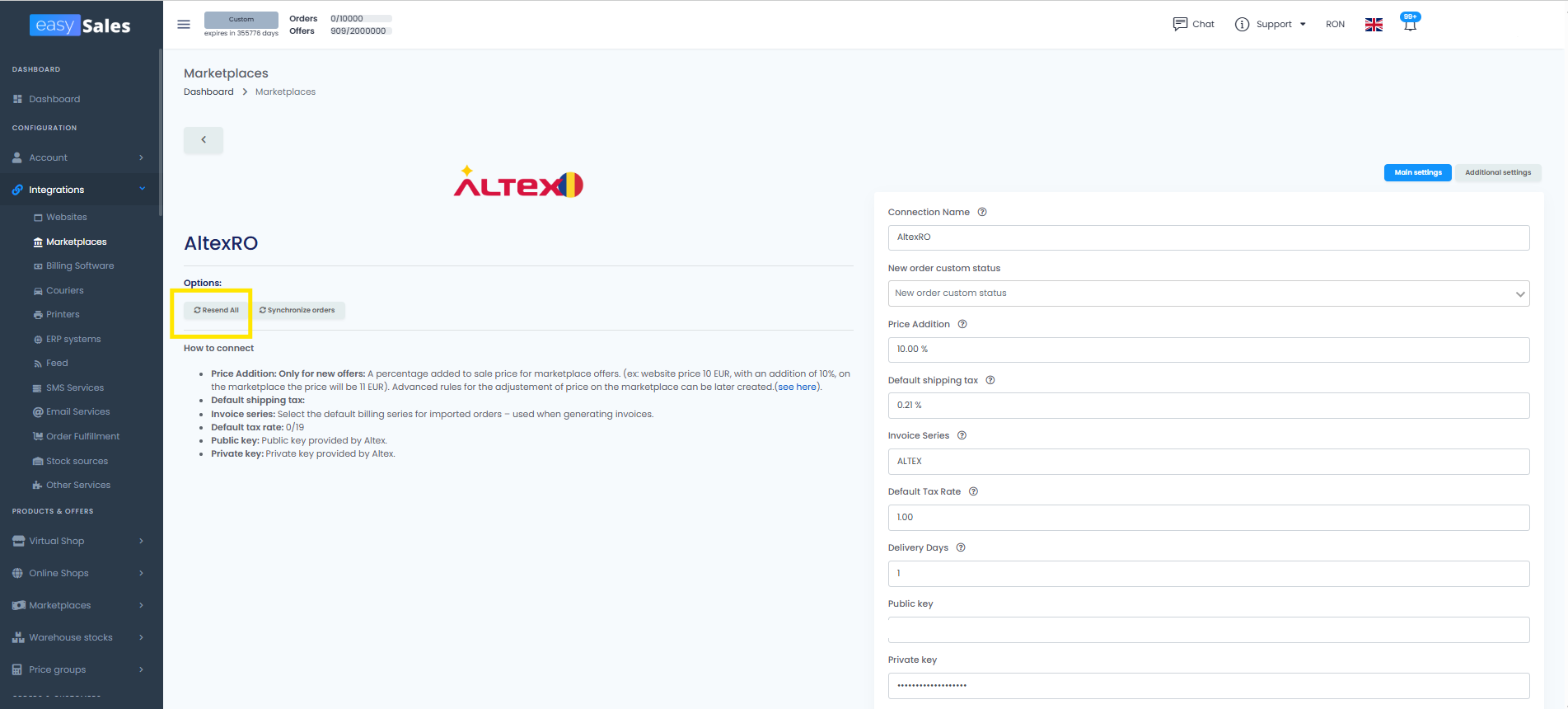
- Go to your Marketplaces list and open the marketplace integration you want the flow to run on.
- In the right-side details panel for that account, click Resend All.
- easySales queues up every linked, active offer on that marketplace and re-saves it in the background — the After offer save trigger fires on each one, so your flow runs.
A few things to know about Resend All:
- It only re-saves linked, active offers. Unlinked offers and disabled offers are skipped.
- It runs per marketplace account, so if you have multiple accounts for the same channel, run it on each one separately.
- It is queued, so it does not block the UI. Track progress in the synchronizations panel on the same screen.
- The same account is locked for 30 minutes after you start a resend — you can't kick off a second one for the same account until the first finishes (or the lock expires).
If you only need to re-save a subset (not the whole channel), use any of the editing methods above. A single edit, a mass edit, or an Excel import all save the offers they touch, and the flow runs as part of that save.
Check what happened: the offer's request history
Every offer in easySales keeps a log of the API calls it sends to its marketplace. Open any offer for editing under Marketplace → Offers, switch to the History tab, and you'll see every request the marketplace received for that offer — documentation updates (full offer pushes), stock updates, price updates, and other calls — together with the marketplace's response.
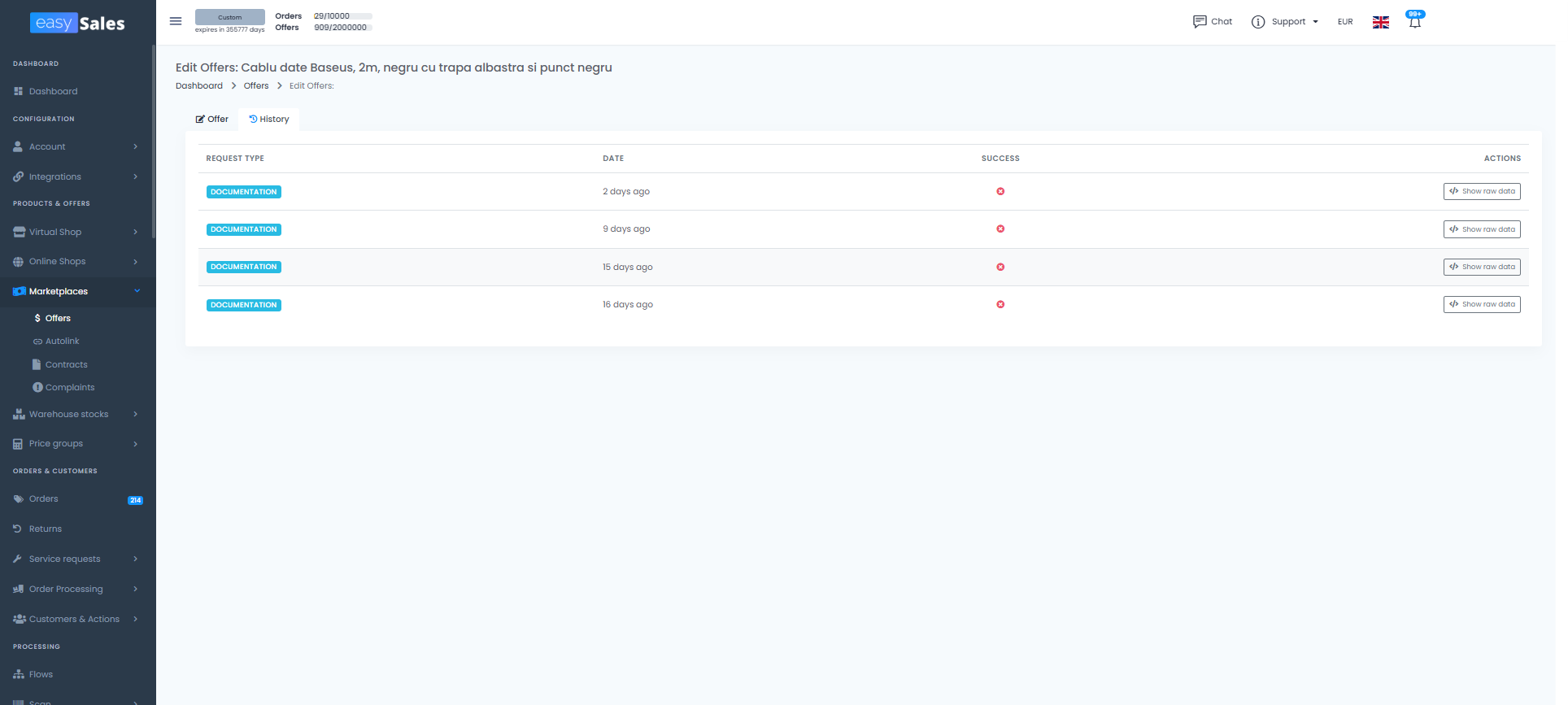
Each row shows:
- The type of request — documentation, stock, price, or other.
- The timestamp and how long the marketplace took to respond.
- The HTTP status and any error message the marketplace returned.
- A Show Raw toggle that opens the exact payload sent and the full response received.
The History tab is the same regardless of how you edited the offer — single, mass edit, Excel import, or a Flow. Mass-edited and flow-edited offers each get their own request rows, so you can audit a bulk run or a flow execution after the fact and see exactly which offer the marketplace pushed back on.
This is the fastest answer to questions like "Did my edit actually reach Temu?", "Why is eMAG still showing the old price?", or "What's wrong with this offer?" — instead of guessing, you read the marketplace's own response.
A note on scope: History tracks the API conversation with the marketplace, not a field-by-field change log inside easySales. To compare "old value vs new value" on a specific field, keep the Excel export you ran before importing — that's your before snapshot.
Which method should you use?
Single offer
One offer, full control. Best when you are fine-tuning the fields of a single listing.
Mass edit
Same change, many offers. Filter, select, apply — ideal for a brand-wide price or field update.
Excel import
Many offers, different values. Export, edit in a spreadsheet, re-import by Internal offer ID.
Flows
Same rule, every save. Set conditions once and let easySales apply the edit automatically.
Whichever method you choose, the coupling rule stays the same: coupled fields follow your catalog, decoupled fields keep the offer's own value.
Manage all your marketplace offers in one place
Connect your marketplaces and edit every offer — one by one, in bulk, by Excel import, or with automated Flows — from a single dashboard.