How to use the products list in easySales: filter, check offers and list products in bulk

Find products in your online shops, see their offers on every marketplace, and create offers for one product or hundreds at once.
The products list in short
The products list shows the products easySales reads from your online shops, one shop at a time. From here you find products, see which marketplaces they are already listed on, and create offers for them, one by one or hundreds at once.
Open it from Products → Online Shops → Products. Products you create in easySales itself live in the Virtual Shop, under Products → Virtual Shop → Products, which works the same way and has its own guide.
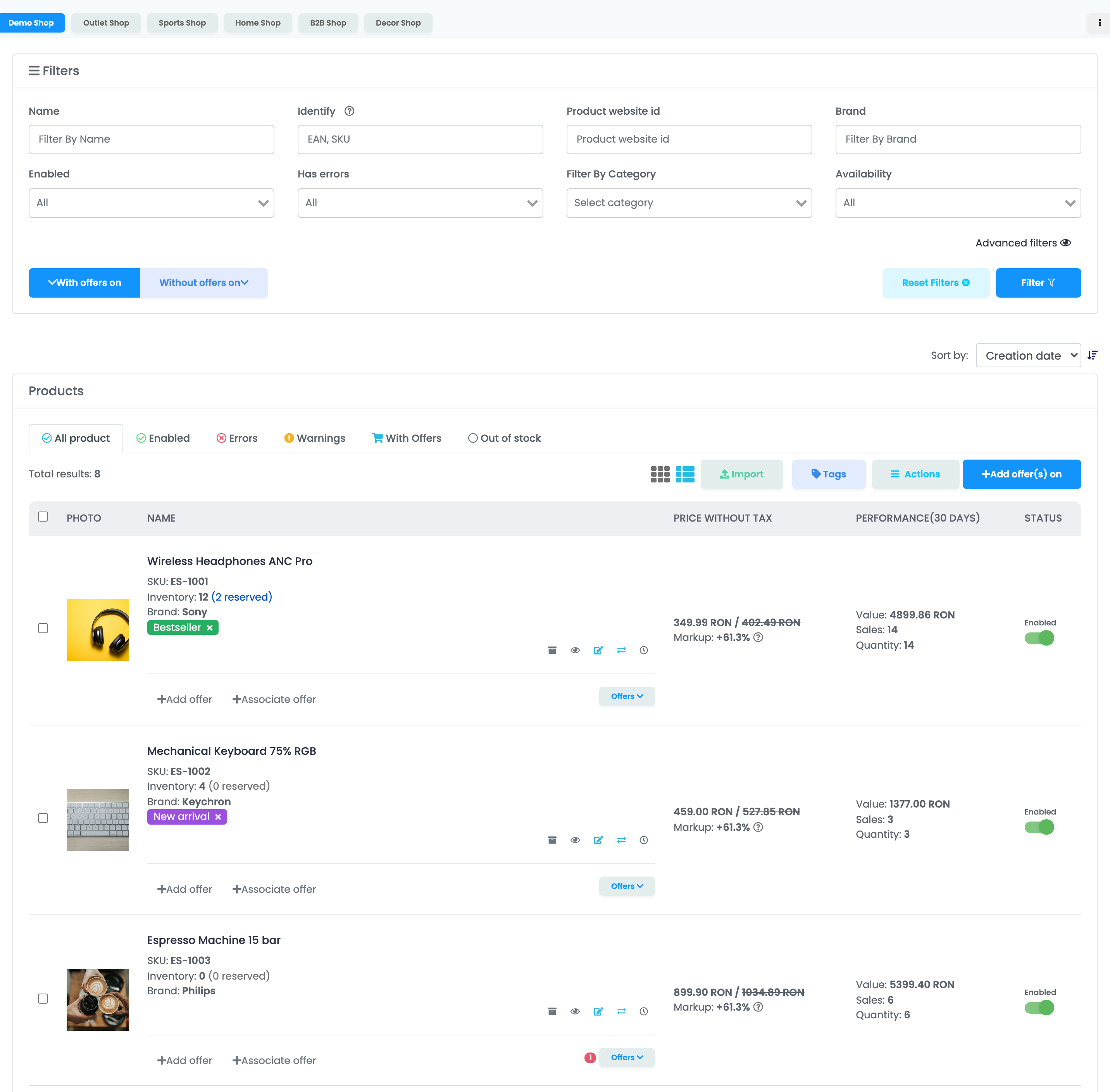
Find
Filter by name, code, brand, category, stock, errors, tags and the marketplaces a product is or is not listed on.
Check
See each product's stock, prices, markup, sales of the last 30 days and its offers on every marketplace.
List
Create offers for one product or for every product that matches a filter, on the marketplace and account you choose.
Act in bulk
Tag, export, print labels or archive the products you select.
One shop at a time
The tabs above the filters are your connected online shops. The list always shows the products of the active tab, and every filter works inside that shop. The same product sold in two shops appears once in each shop.
The menu at the right of the tabs lets you put the shops in another order or hide the ones you do not use. The order is kept in your browser.
Find products
The Filters card narrows the list. Press Filter (or Enter) to apply it, and Reset Filters to start again.
| Filter | What it finds |
|---|---|
| Name | Products whose name contains the text. |
| Identify | A product by SKU (the beginning of the code is enough), supplier SKU or exact EAN. |
| Product website id | The product's ID in your online shop. |
| Brand | Products of that exact brand. |
| Enabled | Products turned on or off in easySales. |
| Has errors | Products with or without offers in error. |
| Filter By Category | Products in a category of your shop. |
| Availability | In stock, limited stock (1 to 5) or out of stock. |
| With offers on / Without offers on | Products that do or do not have an offer on a marketplace, or on one account of it. |
Advanced filters opens more fields: blocked and duplicate products, empty fields (no EAN, no brand, no images), products not sold since a date, warehouse location, price, inventory and weight ranges, tags, bundles and reserved products.
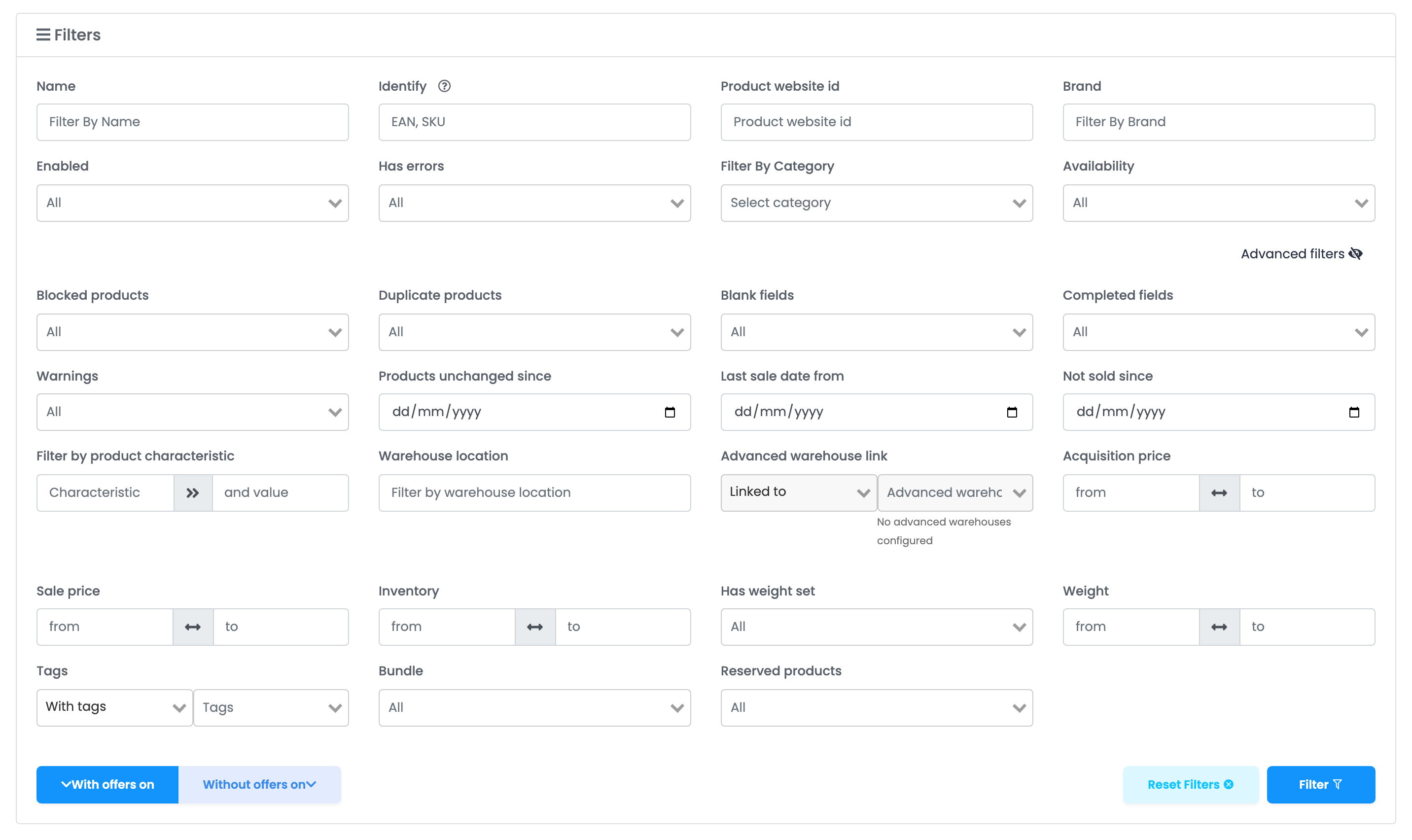
The tabs above the table are quick filters: Enabled, Errors (products with offers in error), Warnings, With Offers and Out of stock.
Read a product row
| Column | What it shows |
|---|---|
| Name | Name, SKU, inventory and reserved quantity, brand, tags, then Add offer, Associate offer and Offers. |
| Price | Sale price and full price, and the markup over the acquisition price. |
| Performance(30 days) | Value, number of sales and quantity of the completed orders of the last 30 days, updated once a day. |
| Status | The switch that turns the product on or off in easySales. |
- The product name opens the product page in a new tab. Name, prices, stock and the other shop data are changed in your shop, or on the product page for the fields easySales lets you edit.
- Inventory shows the stock, and the reserved quantity links to the open orders that hold it.
- The icons under the name archive the product, open it on your website, edit it, move its offers to another product and show when the shop last updated it.
- Which details appear in the name and price cells is set in the list settings (the cog at the top right).
See the offers of a product
Offers at the bottom of a row opens the product's offers on every marketplace: the account, the offer ID, its status, its errors and its price. Each offer has its own status switch and a Resend button that sends the product's current data to that offer again. Turned-off offers are hidden until you press Show Disabled.
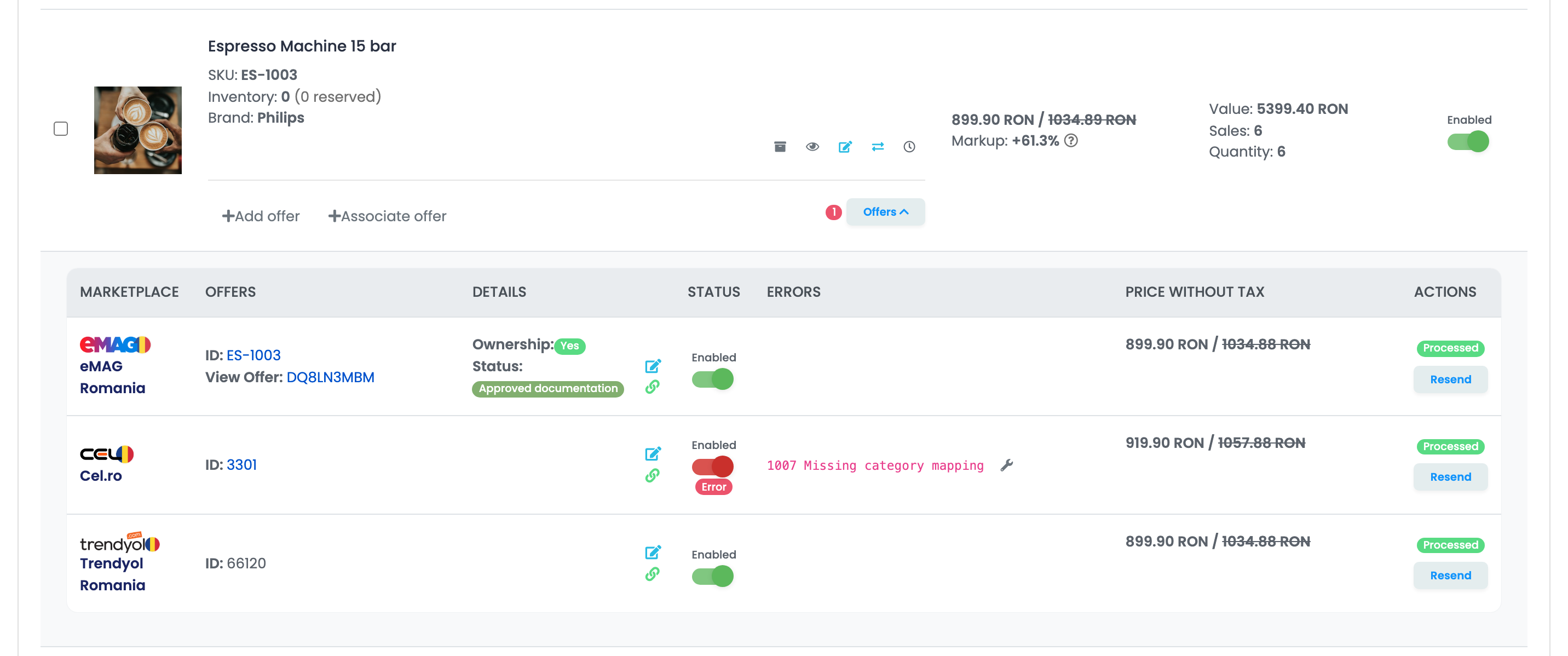
A red number next to Offers counts the offers in error. The Errors tab and the Has errors filter find all of them.
Turn a product off
The switch in the Status column turns the product on or off in easySales.
Create offers from the list
Add offer on a row creates an offer for that product on the marketplace and account you choose. To create many at once:
- Choose Without offers on and the marketplace, then press Filter.
- Tick the products, or tick one and press Select All? to take every product that matches the filter, on all pages.
- Press Add offer(s) on and choose the marketplace, then the account.
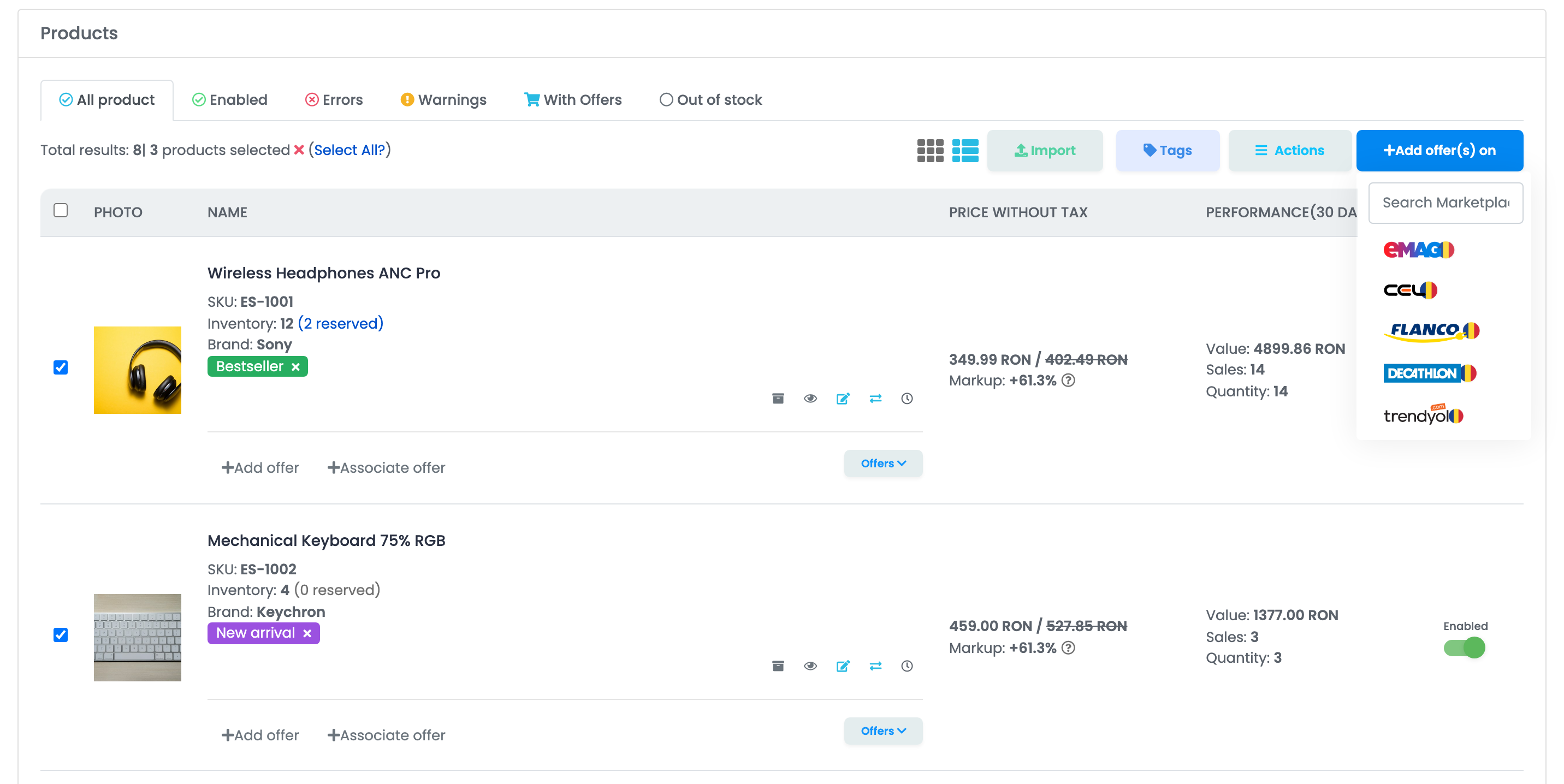
easySales answers Offers sent for processing. and creates the offers in the background, within a few minutes. Then:
- Each new offer is sent to the marketplace and goes live, with your product's data and the account's offer settings.
- A product that already has an offer on that account, in any state, is skipped. To allow a second offer for the same product, turn on Allow duplicate offers on the Offers Settings tab of your account Settings.
- When the marketplace uses another language than your shop, the product is translated first and the offer waits for the translation.
Check the result in the product's Offers, or with With offers on for that marketplace.
Associate an offer
Associate offer is different: it attaches your product to a product that already exists in the marketplace's catalogue, so your offer is added to that product page instead of creating a new one. It is available for eMAG, Allegro, Amazon, eBay, Cel and Fashion Days. You search the catalogue (by name, code or EAN, depending on the marketplace) and choose the product.
It does not link an offer you already have on the marketplace to your product. That is what auto-link does.
Work on many products
Tick products, or use Select All?, then:
- Tags adds a tag to the selected products. The × on a tag removes it from that product.
- Actions → Download exports the selected products, all products, or the duplicates (Export duplicated) to Excel. You choose the columns, and the file arrives by e-mail as a link.
- Actions → Print labels prints product labels.
- Actions → Mass Archiving archives the selected products.
- Actions → Remove bundle components removes the components of the selected bundles.
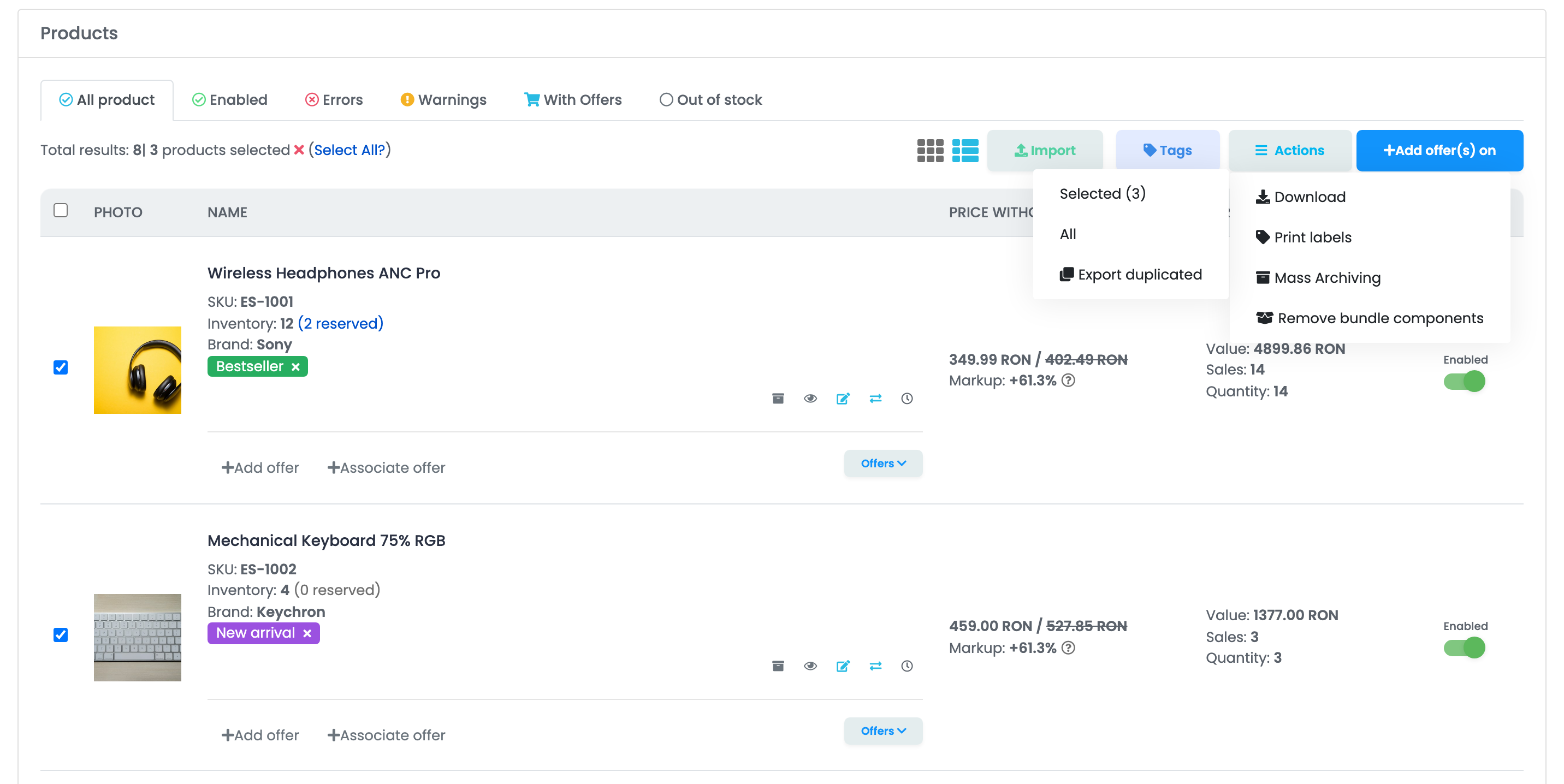
Import updates the products of this shop from an Excel file.
Large catalogues
The list shows 50 products per page by default; On page at the bottom switches between 10, 25, 50 and 100. For very large catalogues, counting every product can take too long: the total then reads "50 of many" and you move with the page arrows. The filters work the same.
When something does not look right
| Symptom | What to do |
|---|---|
| I pressed Add offer(s) on and no offer appeared | Give it a few minutes, then open the product's Offers. A product that already has an offer on that account is skipped. |
| The search finds No products | Remove spaces before or after the text, type the whole brand name, and check that the right shop tab is open. |
| Without offers on shows the same products as before | Press Filter after choosing the marketplace. Products whose offer is turned off still count as having an offer. |
| The total reads "of many" | The catalogue is too large to count quickly. Use the page arrows or narrow the list with filters. |
| I cannot change the name, price or stock here | They come from your online shop. Change them there, or on the product page for the fields easySales lets you edit. |
| My offers were turned off | Check the product's Status: a disabled product turns off all its offers. |