How to archive and restore products in easySales

Archive products you no longer sell, one by one, in bulk or from an Excel list of SKUs: what happens to their marketplace offers, restoring them with Unzip within a month, and handling a changed SKU.
What archiving a product does
Archiving takes a product out of your catalogue in easySales. Use it for products you no longer sell, duplicates, or an old SKU that a new one has replaced. You can archive one product, a selection, or a whole list of SKUs from an Excel file.
Two things to know before you archive:
- Archiving closes the product's marketplace offers. easySales asks each marketplace to turn the product's offers off, and unlinks them from the product. If you want to keep selling on those offers under another product, move them first — see Changing a product's SKU below.
- An archived product can be restored for one month. It waits in Archived Products, where you can restore it with Unzip. One month after it was archived, it is deleted for good.
It leaves your catalogue
It no longer shows in the products list and no longer syncs.
Its offers are closed and unlinked
easySales asks each marketplace to turn the offers off.
It waits one month in Archived Products
Restore it with Unzip before then; after a month it is deleted for good.
Archive a product
On the products list of your shop, press the archive icon on the product's row, then Continue to confirm Do you want to archive product?. On the product page, the Archive product button does the same.
To archive several products at once, tick them, open Actions and choose Mass Archiving. To take every product that matches your filters, press Select All? after ticking the first one.
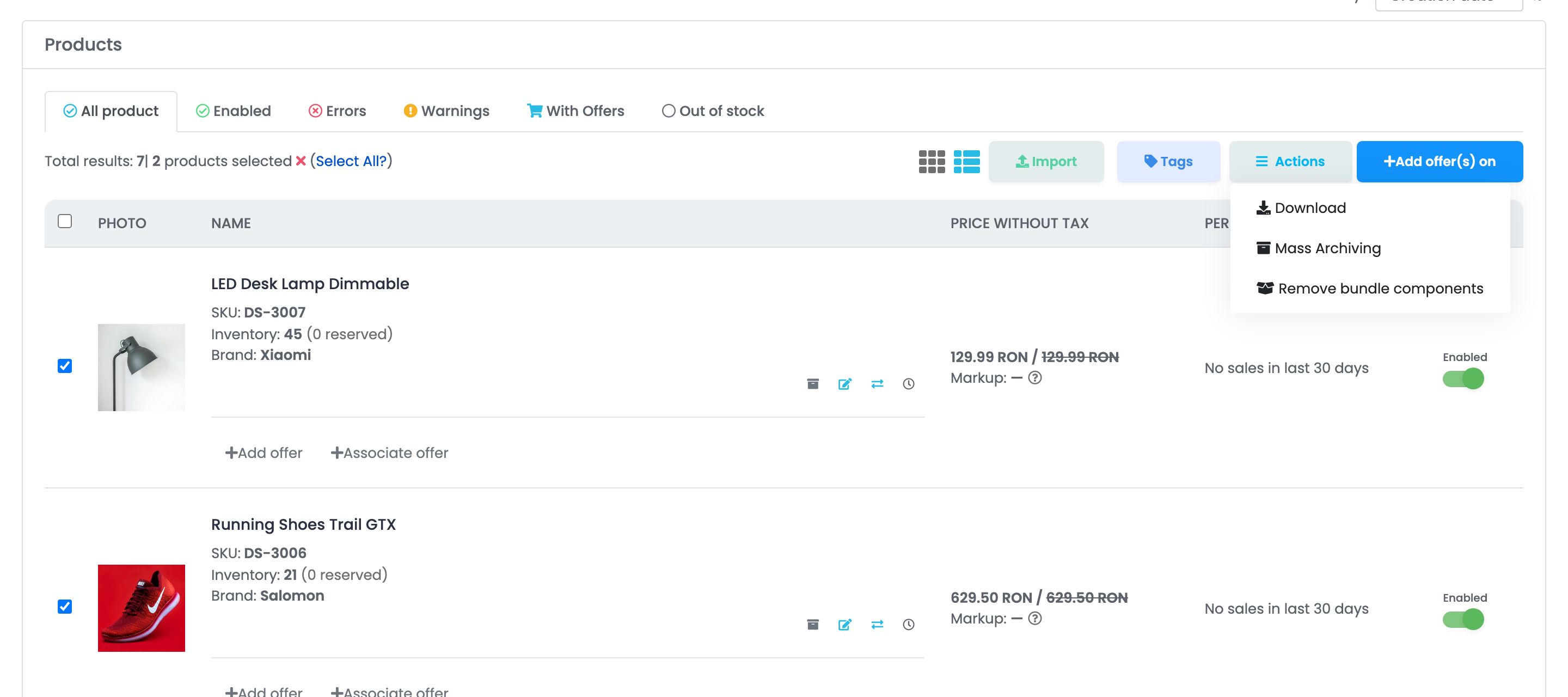
A product that is on an order not yet finished — neither completed, cancelled nor returned — cannot be archived. Archiving one by one, you see This product can not be archived, because it has active orders.; in a mass archive, such products are left in the catalogue. Finish or cancel the order first.
Archived Products
Archived products are listed under Products → Online Shops → Archived Products, with one tab per connected shop. Virtual Shop products have their own list, under Products → Virtual Shop → Archived Products.
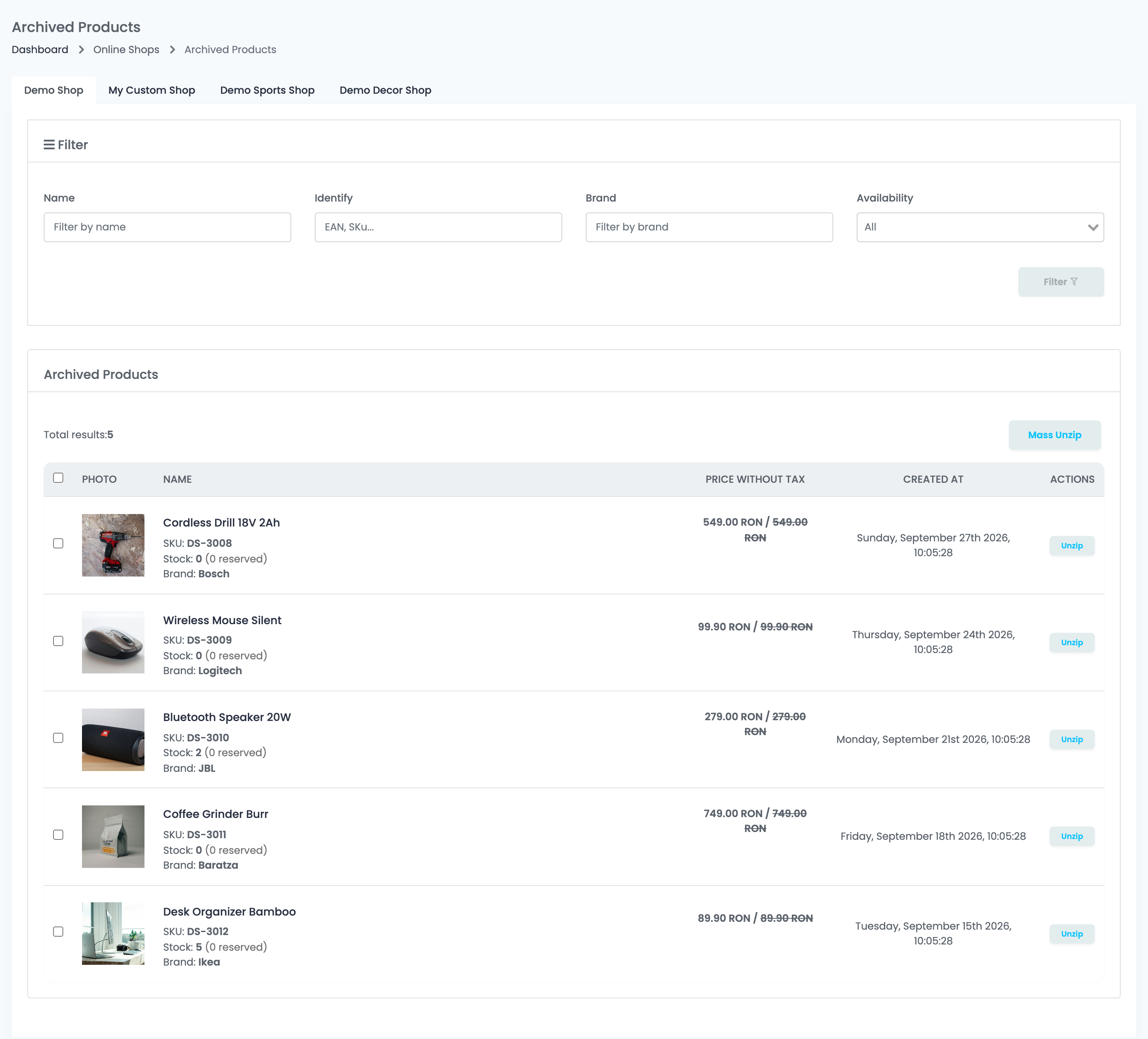
Filter by Name, Identify (EAN or SKU), Brand or Availability. Created at is the date the product was archived: one month later, the product is deleted from the list for good.
Restore a product with Unzip
Press Unzip on the product's row to bring it back into the catalogue. To restore several, tick them and press Mass Unzip: the header checkbox ticks the products on the page, and Select all then takes every archived product of that shop.
The restored product comes back with its main details — but not with everything:
| Comes back | Does not come back |
|---|---|
| SKU, name, description, brand, EAN and images | The links to the marketplace offers |
| Prices and VAT rate | Acquisition price, handling time and package dimensions |
| Stock and warehouse stock, as they were when archived | Translations and attached documents |
| Categories and characteristics that still exist | Membership of a bundle |
The marketplace offers stay unlinked after Unzip. Link each offer to the product again, one by one or with Autolink, and turn the offers back on.
If a product with the same SKU exists again in the shop, Unzip is refused with A product with this SKU already exists. This is typical after your website sent the product again: keep the new product and link its offers.
A product still live on your website comes back
easySales imports your website's products by SKU. If you archive a product that is still active in your shop, the next sync imports it again — as a new product, with no offers linked.
So remove or disable the product in your shop first, then archive it in easySales. Virtual Shop products do not come back, because they have no website behind them.
Archive a list of SKUs from Excel
For many products, archive them from a file:
- On the products list of the shop, press Import and choose Mass Archive.
- Download the Model file. It has one column, SKU.
- Fill in the SKUs you want to archive, exactly as they appear in easySales for that shop.
- Upload the file, map its column to SKU and start the import.
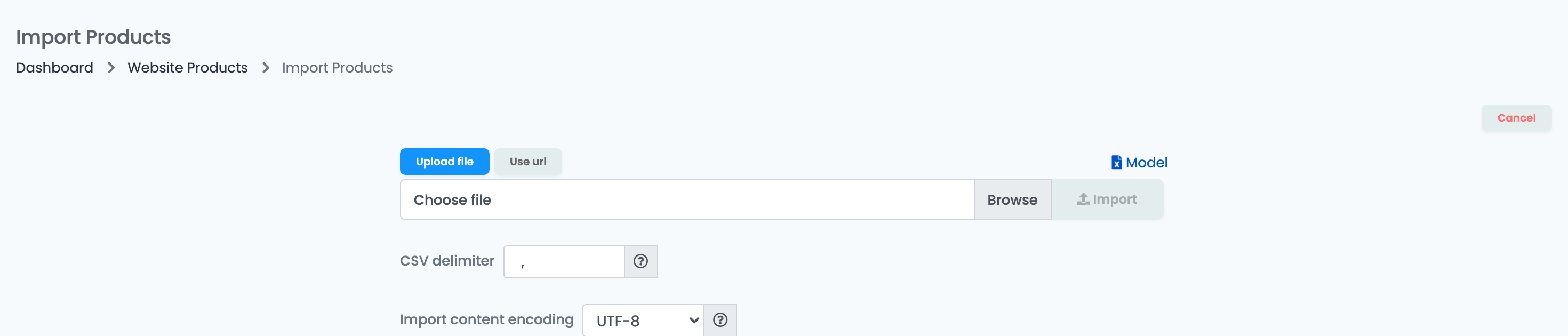
Only the SKUs in the file are archived, and only in the shop you imported into. When the import finishes, its report lists every SKU that was not archived, with the reason:
| Message | What to do |
|---|---|
| Sku not found | No product in that shop has this SKU. Check the spelling, and that you imported into the right shop. |
| This product can not be archived, because it has active orders. | The product is on an order that is not yet finished. Finish or cancel the order, then archive the product. |
| The import was interrupted and did not complete. Remaining products were not archived. | Import the file again: the SKUs already archived come back as "Sku not found", the rest are archived. |
Changing a product's SKU
easySales recognises your website's products by SKU. When you change a SKU in your shop, easySales imports the product as a new one, and the product with the old SKU stays behind, with its marketplace offers.
Let easySales do it. In the shop's connection, on the Preferences tab, turn on Auto-archive superseded products: when a new SKU takes over the same website product, the old product is archived automatically at that moment, if it has no stock and no active orders then. Otherwise it stays, and you archive it yourself. Turn on Move the old product's offers to the new SKU as well, and the old product's marketplace offers move to the new SKU straight away.
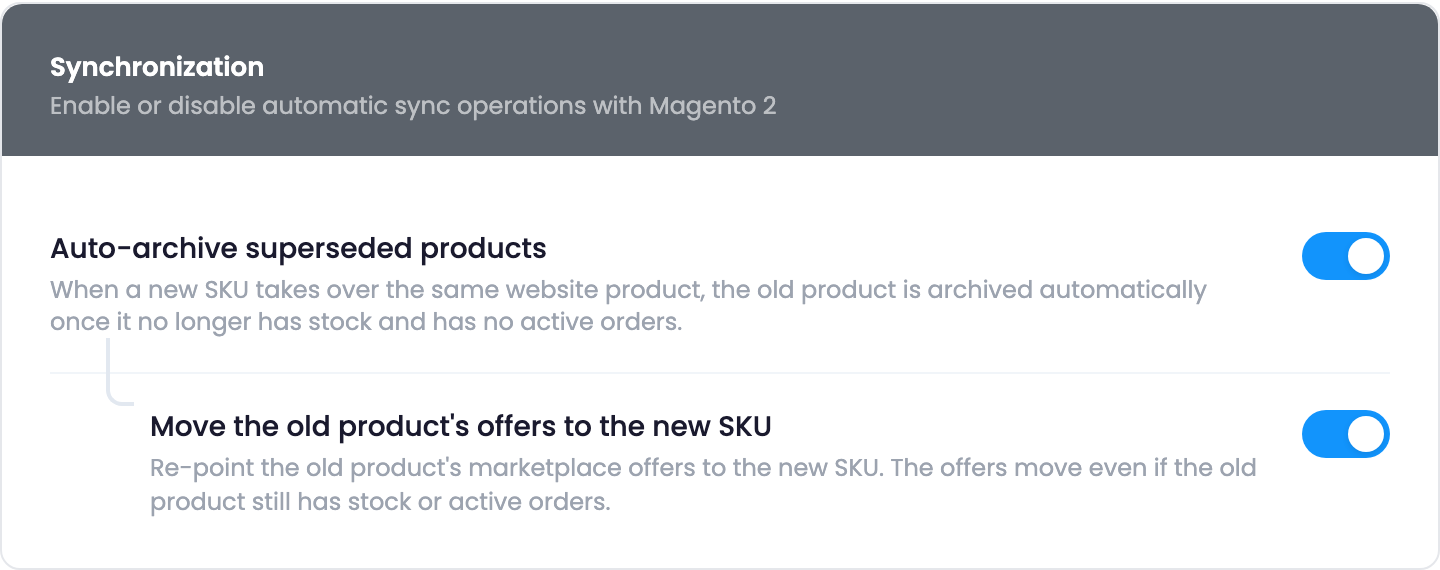
Or do it by hand, in one of two ways:
- Move the offers, then archive. Move the offers from the old product to the new one with the move offers function, then archive the old product.
- Unlink, archive, link again. On the old product's page, unlink its offers: they stay active on the marketplace. Archive the old product, then link the offers to the new product, by hand or with Autolink.
If you archive the old product without moving or unlinking its offers first, they are turned off with it.