How to edit an online shop product in easySales
What you can change on an online-shop product in easySales and what comes from your shop: EAN, warehouse location, VAT override, purchase price, dimensions, internal categories and characteristics.
What you can change on an online-shop product
Every product your online shop sends to easySales has its own page. Open it from Products → Online Shops → Products: press the edit icon on the product's row, or its name.
The page mixes two kinds of fields:
- Grey fields come from your shop — name, SKU, brand, prices, stock, weight, description and the shop's categories and characteristics. You cannot change them here: change them in your shop, and the next sync brings them in.
- White fields are yours to fill in — EAN, warehouse location, stock code, purchase price, dimensions, VAT override, internal categories and characteristics. easySales uses them for your marketplace offers, AWBs, invoices and reports.
Two things to know before you edit:
- Save changes easySales only. It never writes to your shop. It updates the marketplace offers linked to the product, when something they use has changed.
- Your shop can overwrite a white field. If your shop sends the same field with a value — some platforms send the EAN, the warehouse location or the dimensions — the next sync replaces what you typed. To keep your own value, leave that field empty in your shop.
The General tab
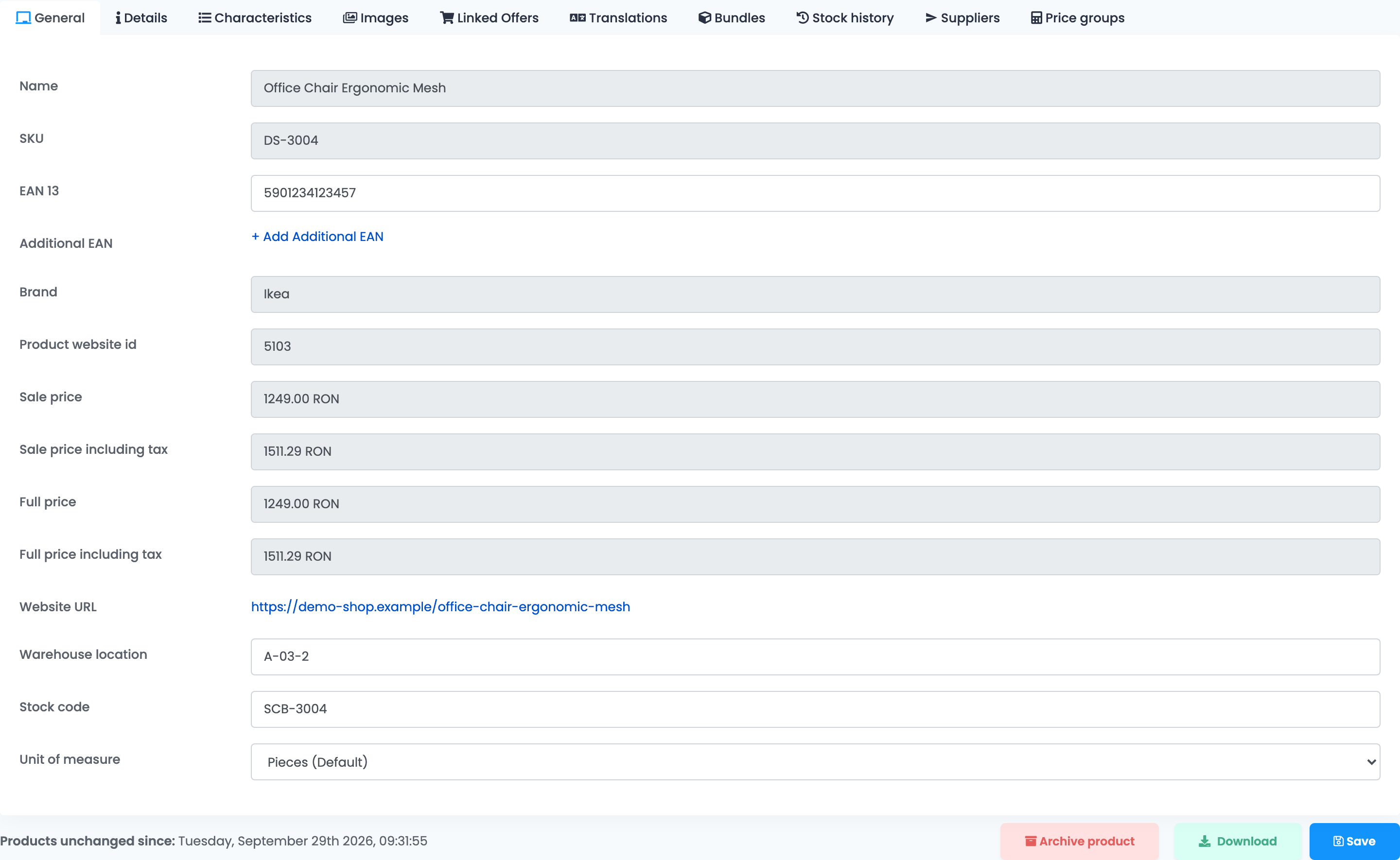
- EAN 13 and Additional EAN — the barcodes marketplaces ask for. Additional EANs must differ from each other and from the main EAN.
- Warehouse location — where the product sits in your warehouse, shown with the product on your orders.
- Stock code — the code your billing or stock software knows the product by.
- Unit of measure — pieces by default, or grams, kilograms or square metres, as it goes on the invoice.
The Details tab
At the top are the product's categories: those from your shop, and your own internal ones.

Further down are the fields that feed prices, shipping and invoices:
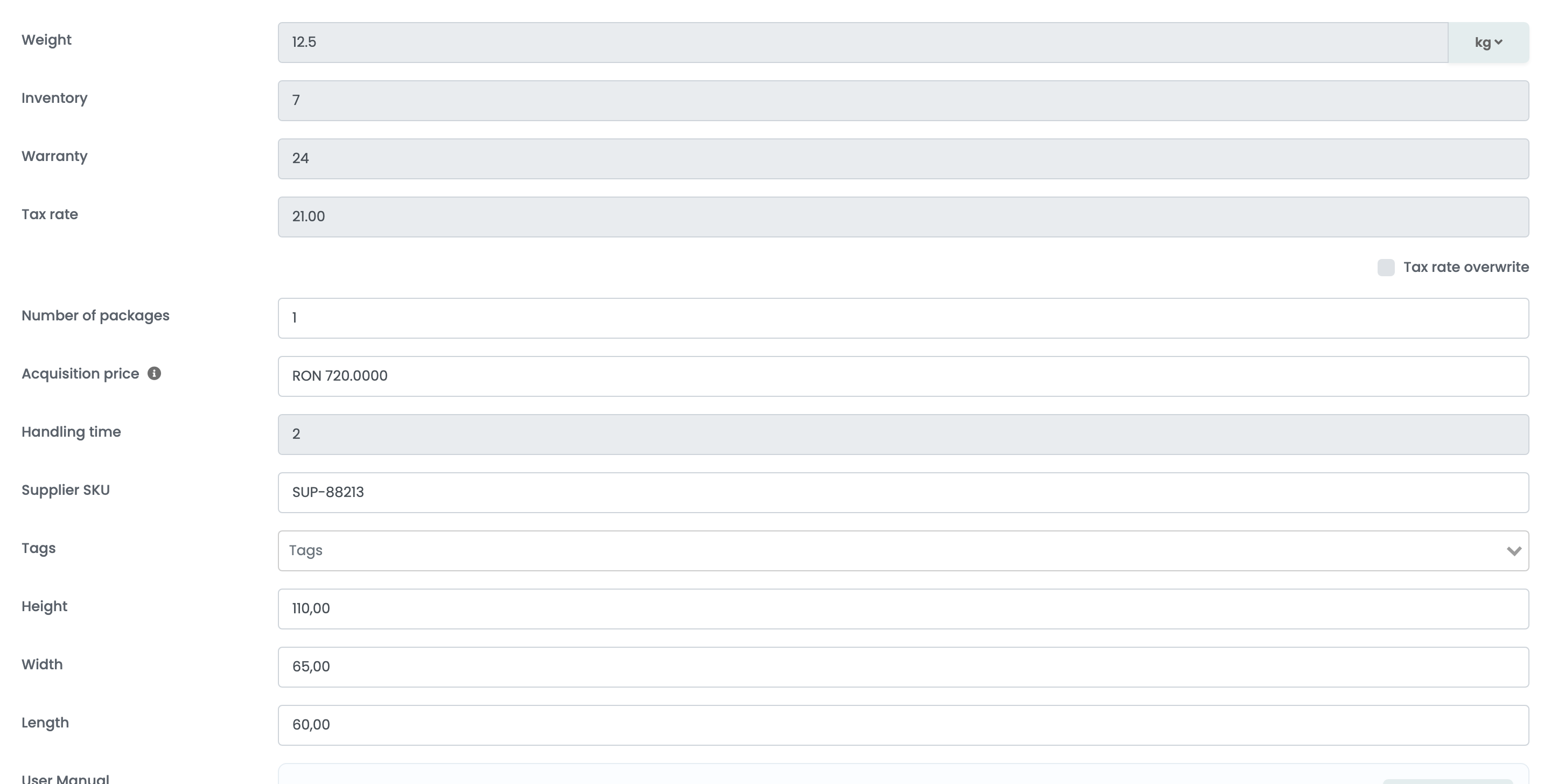
| Field | What it is used for |
|---|---|
| Tax rate overwrite | A VAT rate other than your shop's. Used for your marketplace offers in the shop's country, their orders and invoices, and your product feeds. |
| Number of packages | How many parcels the product ships in, for the AWB — when your courier connection uses it. |
| Acquisition price | What the product costs you, without VAT. Shown as markup on your products and offers. Receiving stock from a supplier order updates it to the average cost. |
| Supplier SKU | The product's code at your supplier. |
| Tags | Your own labels, to group and filter products. |
| Height, Width, Length | In centimetres. With the weight, they let easySales choose a packing box for the order. |
Internal categories and characteristics
When your shop's categories or characteristics do not describe a product the way a marketplace needs, add your own. They stay on the product at every sync, and you map them to marketplace categories like any other.
- Create them first, under Products → Online Shops → Categories or Characteristics.
- On the product, press + next to Categories internal — on the Details tab — or Characteristics internal, on the Characteristics tab, and choose them.
- Give each internal characteristic its value, and press Save.
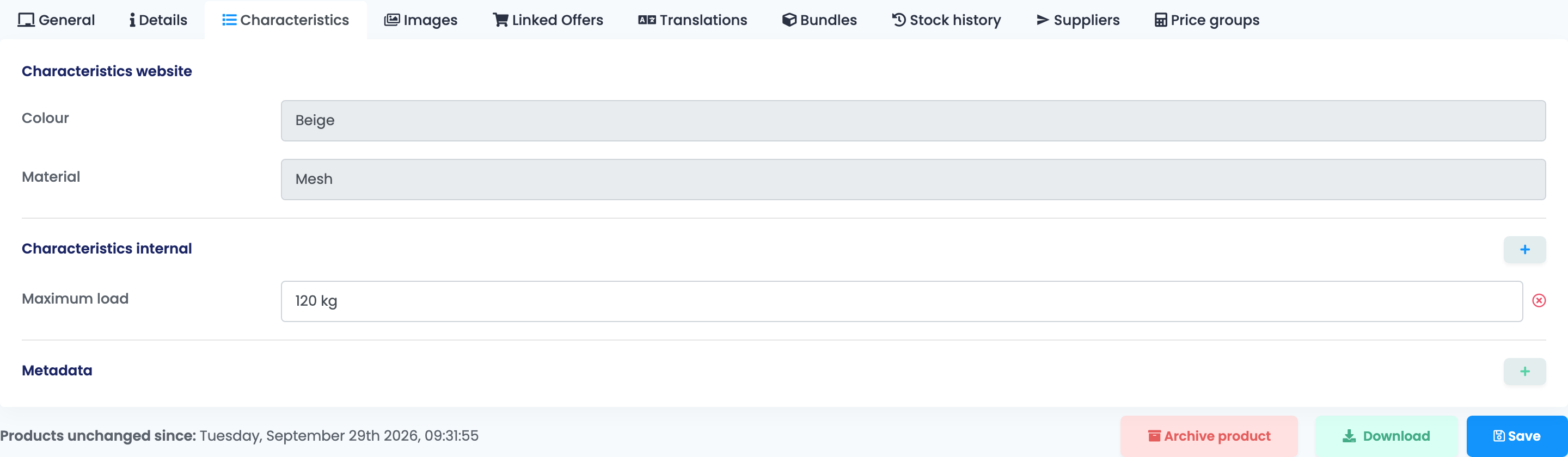
Metadata, on the same tab, stores your own key and value pairs on the product. It is saved as soon as you add it.
Changing many products at once
To set EANs, internal categories, characteristics, purchase prices, dimensions or warehouse locations for many products, use an Excel file instead of the product page:
- In Products → Online Shops → Products, download your products with Actions → Download.
- Fill in the columns you need. Keep the SKU column: it is how each row finds its product.
- Import the file with Import → Dynamic import and match each column to its field.
Only products that already exist are updated. Internal categories named in the file are created if they do not exist yet.
The other tabs
| Tab | What it shows |
|---|---|
| Images | The product's pictures from your shop. Remove Backgrounds makes a white-background copy for your offers. |
| Linked Offers | The marketplace offers linked to the product, which you can unlink. |
| Translations | The product's name and description in other languages. |
| Bundles | The products that make up this one, if it is sold as a bundle. |
| Stock history | Every change to the product's stock, and where it came from. |
| Suppliers | The supplier products linked to it. |
| Price groups | The product's price in each of your price groups. |