How to use the Feeds page in easySales: feed links, updates, custom feeds and rules
Connect product feeds per shop, find each feed's link, understand when the file is updated, build your own feeds and change them with feed rules.
The Feeds page in short
The Feed page is where you connect your shop's products to comparison sites, Google Merchant Center and other channels that read a product file, and where you build your own product files. Each feed gets a link that the channel downloads.
Open it from Products → Online Shops → Feed.
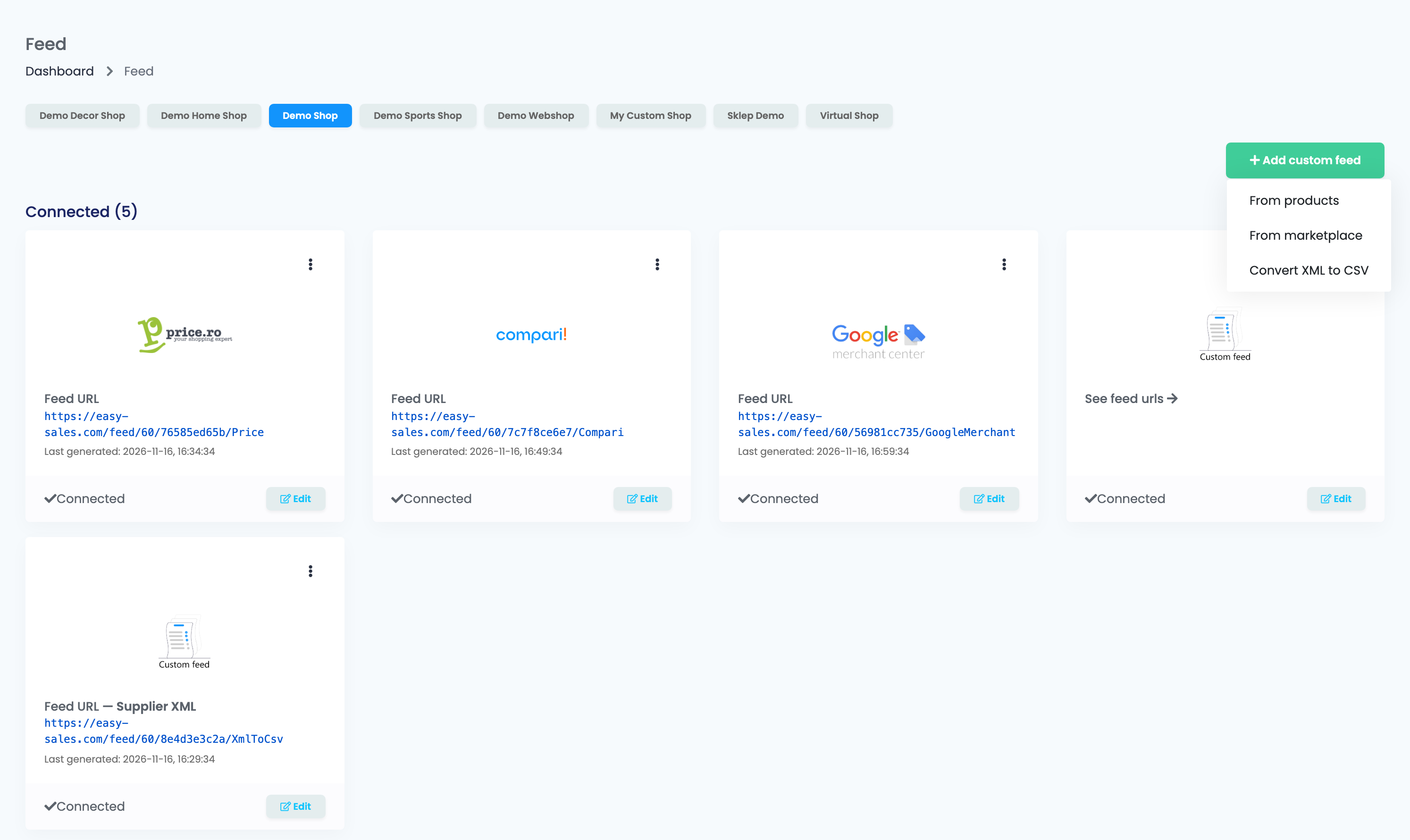
- The tabs at the top are your shops. A feed belongs to one shop: pick the shop first. The cards below show the feeds of the selected shop.
- Connected lists the feeds set up on this shop, Not connected the channels you can still connect.
- Add custom feed builds your own file: From products, From marketplace or Convert XML to CSV.
What a feed card shows
- Feed URL: the link to give the channel. It stays the same every time you save, so the channel never needs a new one. If you delete the feed and connect it again, the link changes.
- Last generated: when the file was last built. This is the version the channel gets on its next download.
- Edit opens the feed's settings; Connect sets up a channel that is not connected yet.
- The ⋮ menu has Add feed, for a second feed of the same channel on the same shop, with its own link: for example one for each Google Merchant Center country. With two or more feeds, the card shows See feed urls.
- A Convert XML to CSV feed shows a red Errors badge when the supplier's file could not be read. Open it to see why.
When the file is updated
| Situation | What happens |
|---|---|
| The channel downloads the feed every hour or more often | A new file is built every hour, after each download. |
| The channel downloads the feed once a day | The channel gets the file built after its previous download, so data up to a day old. |
| Nobody opens the link | The file is still rebuilt once a day. |
| You change the feed's settings or rules | Nothing changes until the next build. Use Regenerate where the form has it. |
To update a feed right away:
- Custom feeds, Convert XML to CSV and Erli have a Regenerate button in their form, which builds the file at once.
- For the other channels, open the feed's link once in your browser, then wait for the next hourly update.
Before the first build, the link answers "Feed generation in progress...". It works within the hour after you save the feed.
Which products go in
| Feed | Products |
|---|---|
| Comparison sites and affiliate networks | The shop's active products. Most of them also leave out products without stock. |
| Google Merchant Center, GLAMI, FAVI | The shop's active products. Exclude products without stock decides about stock 0. |
| Custom feed From products | Every product of the shop, inactive and without stock included. Leave products out with a feed rule. |
| Custom feed From marketplace | The offers of the chosen account, as set in Offers included. |
- Exclude categories does not remove products. It only changes which category name is printed for them.
- A feed of a disabled shop is no longer updated, but its link keeps serving the last file.
- While your easySales account is inactive, every feed link stops answering.
Build your own feed
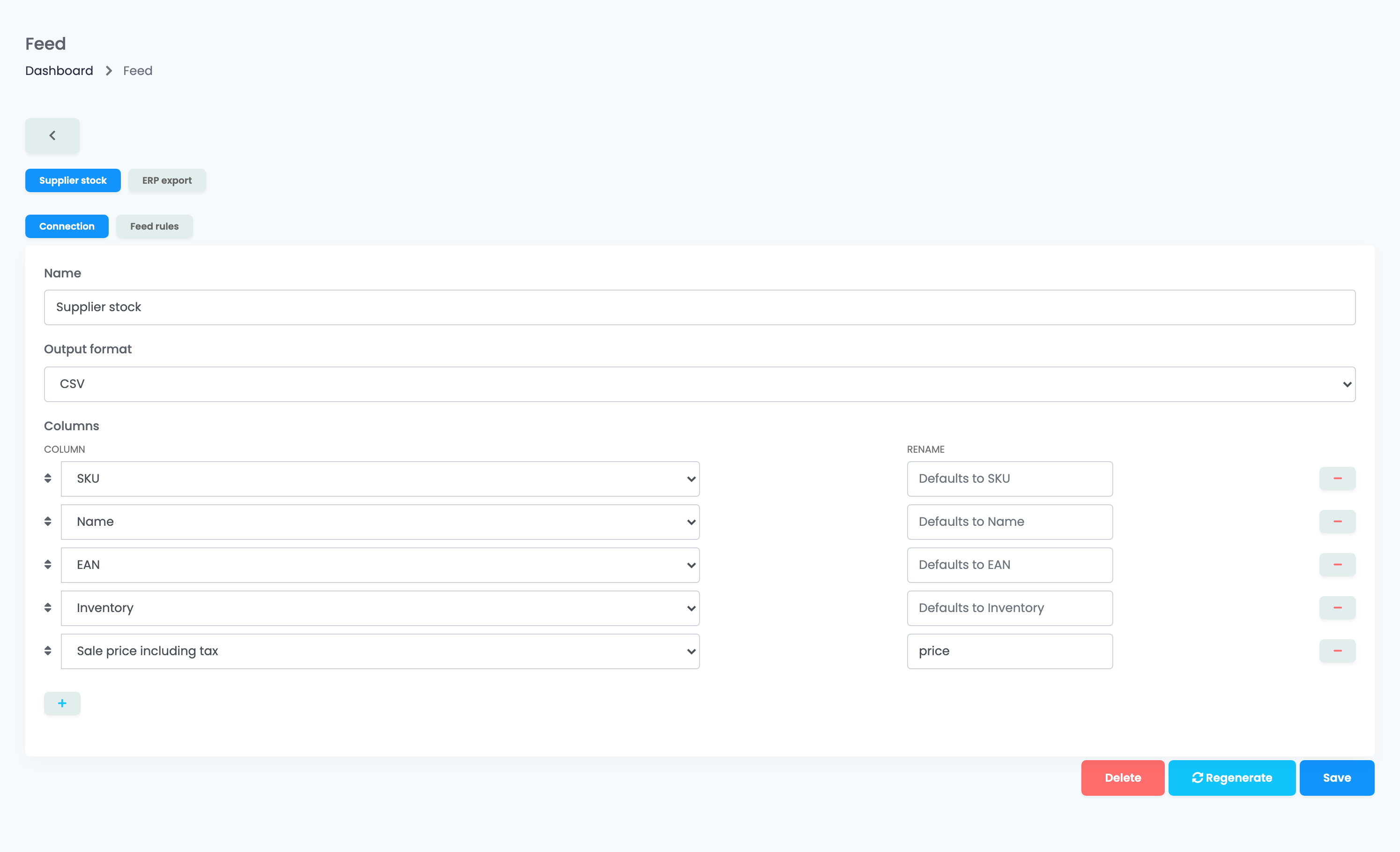
From products exports your shop's products in the columns you choose:
- Give the feed a Name.
- Choose the Output format: CSV, JSON or XML.
- Under Columns, add the columns with +, put them in order by dragging, and give a column another name in the file with Rename. You can export the SKU, name, EAN, description, stock, warehouse stock, prices with or without VAT, images, categories, characteristics and more.
- Press Save.
From marketplace exports your offers from one marketplace account instead: choose the Marketplace, the Account and the Offers included (linked, not linked, or both), then the columns.
Convert XML to CSV turns a supplier's XML file into a CSV file. It has its own guide.
If the data you need is not in the list, open a ticket and ask for a custom feed.
Feed rules
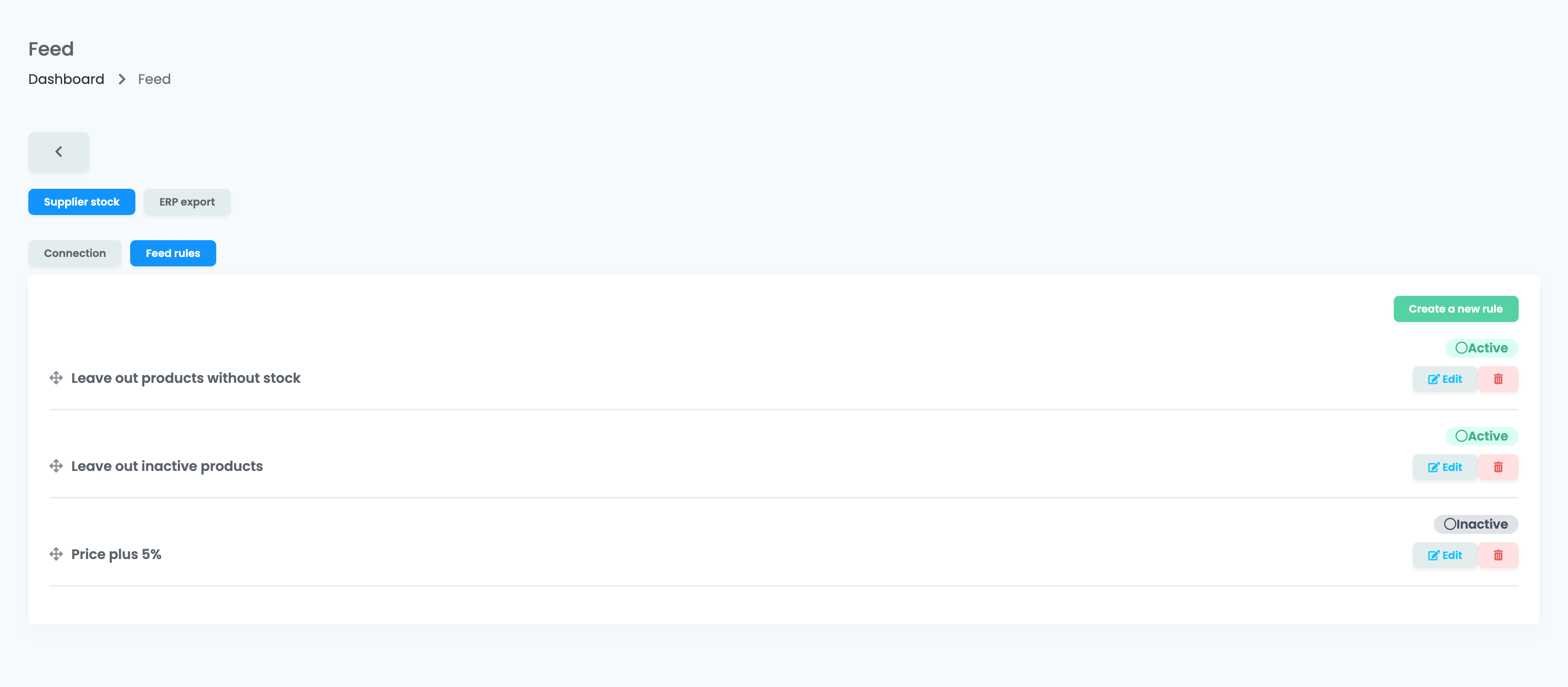
The Feed rules tab changes what goes into one feed, without changing your products: change a price or a name for this channel only, or leave products out. Use it, for example, to leave out products without stock in a custom feed.
- The tab works once the feed is saved.
- Rules run from top to bottom. Drag them to change the order, and turn a rule off without deleting it.
- A rule changes values or excludes products. It cannot add a new field to the file.
- A rule changes the file at its next update, as above.
When something does not look right
| Symptom | What to do |
|---|---|
| The link answers "Feed generation in progress..." | The first file is not built yet. Wait for the next hourly update. |
| My change does not show in the feed | The file is rebuilt after the next download. Use Regenerate, or open the link and wait for the next hour. |
| Products are missing | Check the shop tab, whether the products are active and in stock, and the feed's rules. |
| Inactive products appear in my custom feed | A From products feed exports every product. Add a rule that leaves them out. |
| The channel says the link changed | The feed was deleted and connected again. Give the channel the new Feed URL. |