How to convert a supplier's XML feed to CSV in easySales
Turn your supplier's XML feed into a CSV that easySales imports can read: the product tag, variants, images, the Feed URL, updates and errors.
What the XML to CSV feed does
Many suppliers share their catalogue, prices and stock as an XML file at a web address. The easySales imports read CSV and Excel files, not XML. The Convert XML to CSV feed closes that gap: easySales downloads your supplier's XML, writes one CSV row for each product and publishes the CSV at its own address, which you then use in an import.
Three things to know before you begin:
- It converts, it does not change anything. Values are copied as they are in the XML. Your products, prices and stock change only when an import reads the CSV.
- One field decides whether it works: Product XML tag. It is the name of the XML element that wraps one product. Set it yourself — see Step 2.
- Save, then Regenerate. When you change an existing feed, press Save first; Regenerate rebuilds the CSV from the saved settings.
Before you start
Your supplier's XML link
One that opens the XML file directly in a browser.
The name of the product tag
The XML element that wraps one product. You find it by opening the link.
A shop tab for the feed
Usually your Virtual Shop. The shop must stay enabled.
An import that reads CSV
A Scheduled Import or an Advanced warehouses source, set up after the feed.
Step 1 — Add the feed
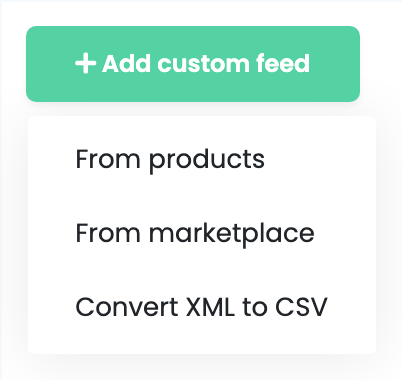
Go to Products → Online Shops → Feed and choose the tab of the shop the CSV is for — usually Virtual Shop, where scheduled imports live. Press Add custom feed and choose Convert XML to CSV.
Step 2 — Fill in the form
| Field | What goes in it |
|---|---|
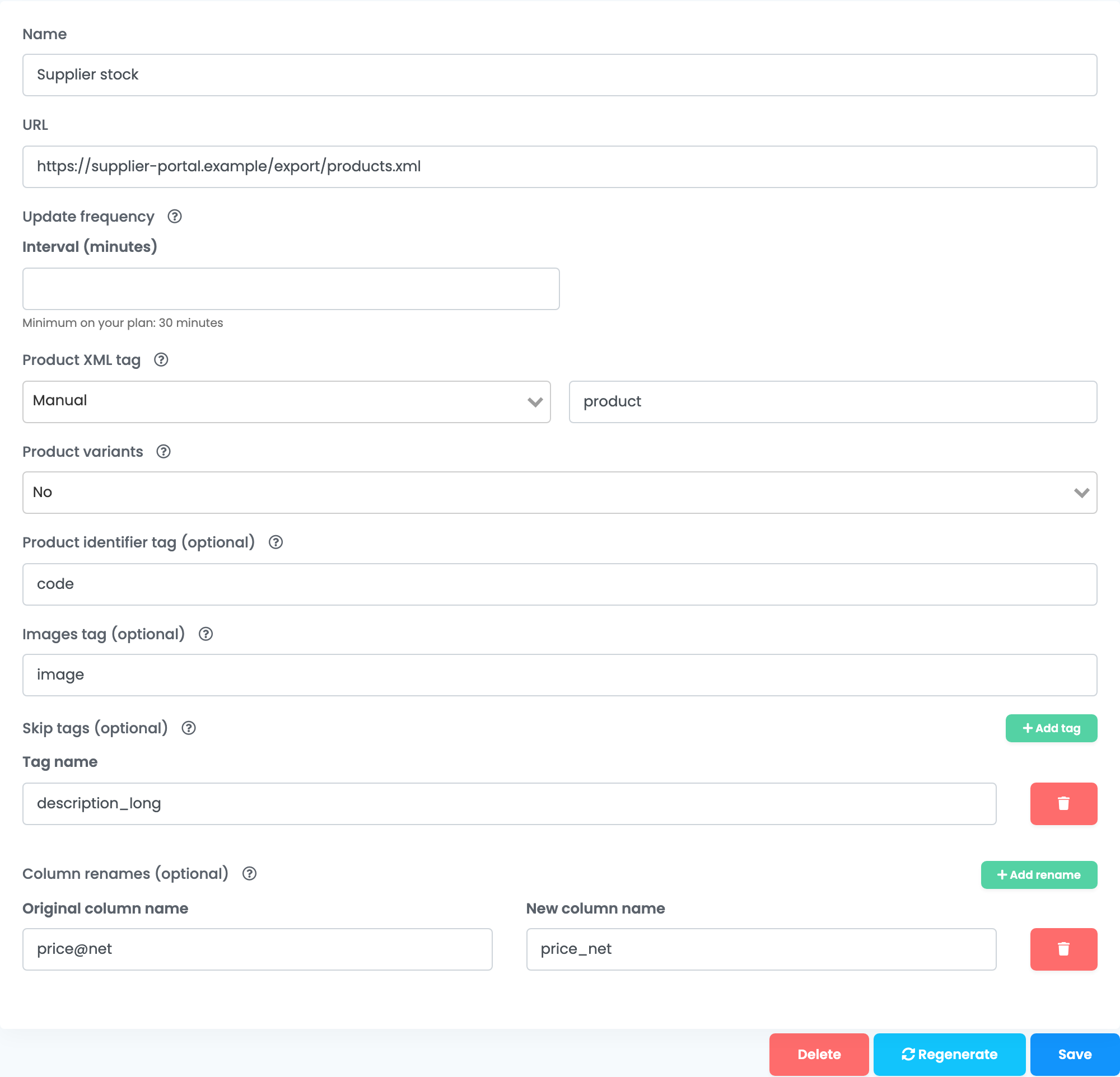
| Name | A name you will recognise, for example the supplier's name. It is shown on the card next to the Feed URL. |
| URL | Your supplier's XML link. It must open the XML file directly in a browser — not a login page, a spreadsheet or a zip file. A link that carries its access key in the address works. |
| Update frequency | Optional. Interval (minutes) and Start update at — see Keeping the CSV up to date. |
| Product XML tag |
Manual, and the name of the tag that wraps one product, for example product or item.
|
| Product variants |
Yes if each product lists its sizes or colours as repeated tags inside it. Type the variant tag's name, for example wariant: each variant becomes its own row, with the product's columns repeated. Otherwise No.
|
| Product identifier tag (optional) |
A tag whose value goes into a first column called Identifier, for example code or ean. For an attribute of the product tag, type it with @, for example @code.
|
| Variant identifier tag (optional) | Shown with variants on. The same, for each variant. |
| Images tag (optional) |
The name of the image tag, for example image. All images of a product go into one column, separated by commas — the format the product import expects.
|
| Skip tags (optional) | Tags to leave out of the CSV, with everything inside them, for example long descriptions. Add tag adds a row. |
| Column renames (optional) | Original column name as it appears in the CSV, and the New column name you want. Add rename adds a row. |
To find the product tag, open your supplier's link in a browser and look at the first product. The tag that opens before it and closes after it — for example <product> … </product> — is the one you need. Type its name without < >, exactly as it is written: SHOPITEM and shopitem are different tags.
Step 3 — Save and copy the Feed URL
Press Save. easySales creates the first CSV a few minutes later. Back on the Feed page, the card shows the Feed URL and, once the file is ready, Last generated with its date and time.
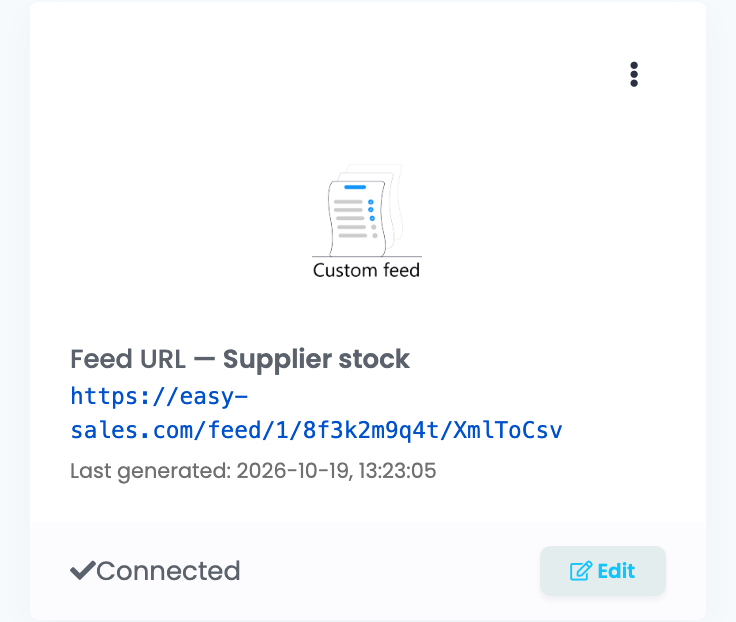
Wait for Last generated before you use the link. A file larger than 20 MB is split into parts: the card then lists one link for each part, and each part needs its own import.
Step 4 — Use the CSV in an import
Copy the Feed URL into the import that should read it:
- Products and prices — in your Virtual Shop, open Products, press Import and create a Scheduled Import with the Feed URL. Tick Create new products for unrecognized SKUs if new products should be added too.
- Supplier stock — create an Advanced warehouses source that reads the Feed URL.
Then map the CSV columns to easySales fields. Each column is named after its place in the XML:
| In the XML | Column in the CSV |
|---|---|
<name> inside the product
|
name
|
<quantity> inside <stock>
|
stock.quantity
|
An attribute, such as <price net="…">
|
price@net
|
A tag that repeats, such as two <category>
|
category[0], category[1]
|
A tag with a prefix, such as <g:price>
|
g:price
|
Columns are listed in alphabetical order, after Identifier when you set a product identifier tag. To give a column a friendlier name, copy its name from the first row of the CSV into Column renames, then save and regenerate.
Keeping the CSV up to date
easySales updates the CSV every hour while something reads it, and at least once a day. The shop whose tab holds the feed must stay enabled; on a disabled shop the CSV is no longer updated.
Leave Update frequency empty unless your supplier limits how often its link may be read. An Interval (minutes) makes easySales update the CSV at most once in that many minutes — never more often than the minimum your plan allows, which the form shows under the field. Start update at keeps the first update of the day from starting before that hour.
When something goes wrong
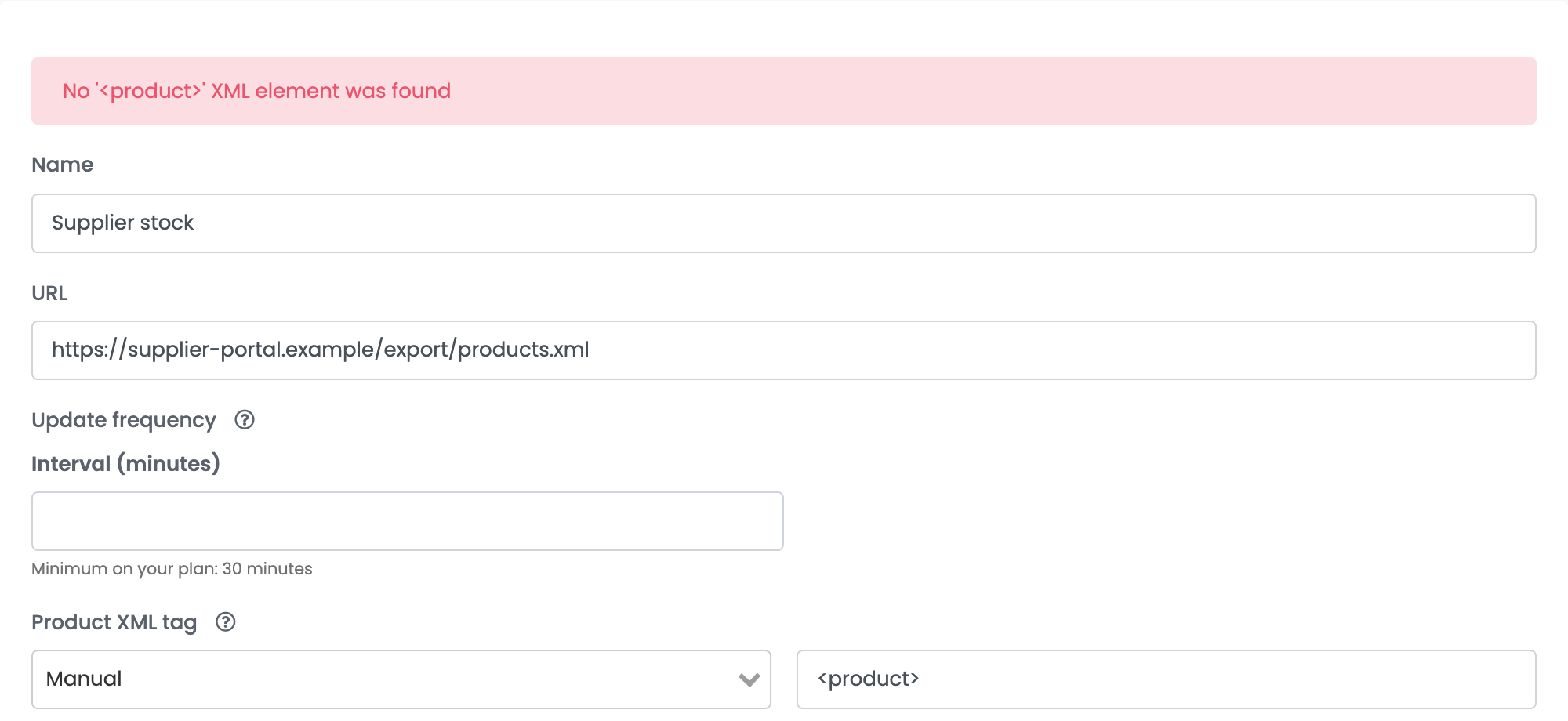
When an update fails, the link keeps serving the last CSV that worked, and the card shows a red Errors badge. Click it to read the message; the form shows it at the top too.
| Message or symptom | What to do |
|---|---|
| No '<product>' XML element was found |
The product tag name does not match. Type it without < >, with the same capital and small letters as in the XML, then Save and Regenerate.
|
| Failed to open XML file. | easySales could not download the link. Open it in a private browser window: it must show the XML without asking you to log in. Ask your supplier for a direct link if it does not. |
| Document is empty | The link returned an empty page or something that is not XML — a spreadsheet link, a web page or a CSV. Use the supplier's XML link. |
| Could not detect a repeating tag. Please provide one as an argument. | Choose Manual and type the product tag. |
| The CSV has one or two columns, or one row per image | Product XML tag is on Auto and picked a tag inside the product. Choose Manual. |
| The Identifier column is empty |
The identifier tag's name does not match the XML. For an attribute of the product tag, start it with @.
|
| The Feed URL does not open yet | The first CSV is not ready. Wait until Last generated appears on the card. |