How to connect Google Merchant Center with easySales: product feed setup
Send your online shop's products to Google Merchant Center with an easySales feed: shipping settings, the feed URL, adding it in Merchant Center, what goes into the feed and feed rules.
What the Google Merchant feed gives you
easySales builds a product feed from your online shop's catalogue — a file with every product, its price, stock, pictures and link — at an address of its own. You add that address once in Google Merchant Center, and Google reads your products from it for Google Shopping and its other services. Prices and stock follow your shop without you uploading anything.
Three things to know before you begin:
- One feed covers one shop, one country and one currency. The shipping country, price and currency you set apply to every product in it. To show your products in another country, add a second feed to the same shop.
- Use the feed of your online shop. Google needs a link to each product on your website, and only online-shop products have one — a feed built from the Virtual Shop is refused by Google.
- To leave products out, use a feed rule. Every active product of the shop is sent, except those a rule leaves out and — if you choose — those without stock.
Before you start
A Google Merchant Center account
With your website verified in it.
Your online shop connected in easySales
The shop connection must stay switched on: while it is off, the feed is not updated.
Complete products
Each with a name, price, picture, link, brand and — where it has one — EAN.
Step 1 — Connect the feed in easySales
Go to Products → Online Shops → Feed, choose the tab of your shop, and press Connect on the Google Merchant card.
Fill in the shipping details and press Save:
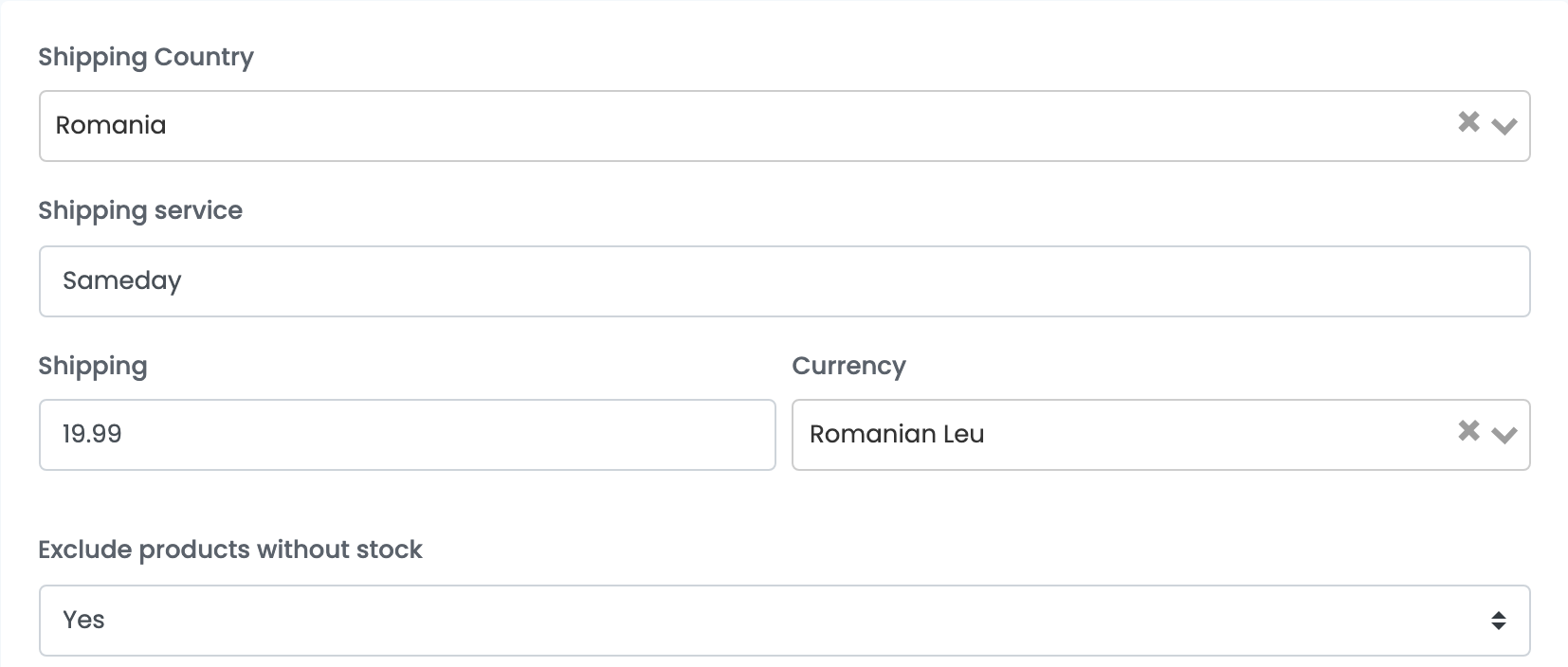
| Field | What goes in it |
|---|---|
| Shipping Country | The country your products are shown and delivered to. |
| Shipping service | The name of the delivery service, for example your courier. |
| Shipping |
The shipping price, as a number — for example 19.99.
|
| Currency | The currency of the shipping price. |
| Exclude products without stock | Yes (the default) leaves out products with stock 0. No sends them as out of stock. |
Step 2 — Copy the feed URL
Back on the Feed page, the card shows the Feed URL of your feed and, once the file is ready, Last generated with its date and time. The first file is ready within the hour after you save.
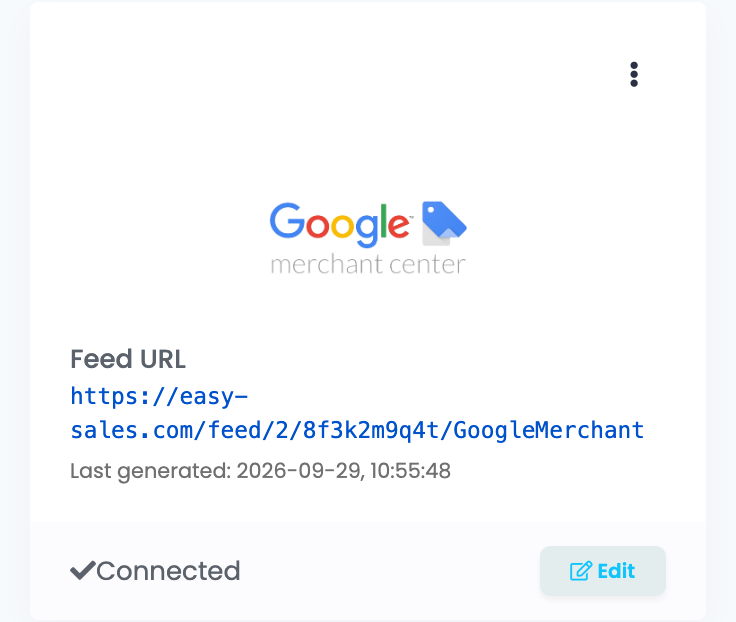
The link stays the same when you change the settings later, so you only add it to Google once.
Step 3 — Add the feed in Google Merchant Center
- In Google Merchant Center, open Settings → Data sources.
- Choose Add product source, then Add products from a file.
- Choose Enter a link to your file, paste the Feed URL and press Continue.
Google fetches the file once a day by default; you can change the schedule in Merchant Center. After each fetch, easySales prepares a fresh file for the next one, so Google always gets your latest prices and stock.
What goes into the feed
| Google attribute | Taken from the product in easySales |
|---|---|
| id | The product's easySales ID |
| title / description | Name / description |
| link / image_link | The product's link on your website / its first picture |
| price | Sale price with VAT, in the product's currency |
| availability | In stock or out of stock, from the stock |
| gtin / mpn / brand | EAN / SKU / brand |
| condition | New |
| shipping | The shipping country, service and price from the connection |
| shipping_weight | The weight, when the product has one |
The product ID is the product's ID in easySales. A product that is archived and imported again gets a new ID, and Google treats it as a new product.
Leave products out or change what Google gets
Open the feed with Edit, then Feed rules → Create a new rule. A rule has a condition — If — and an action — Then:
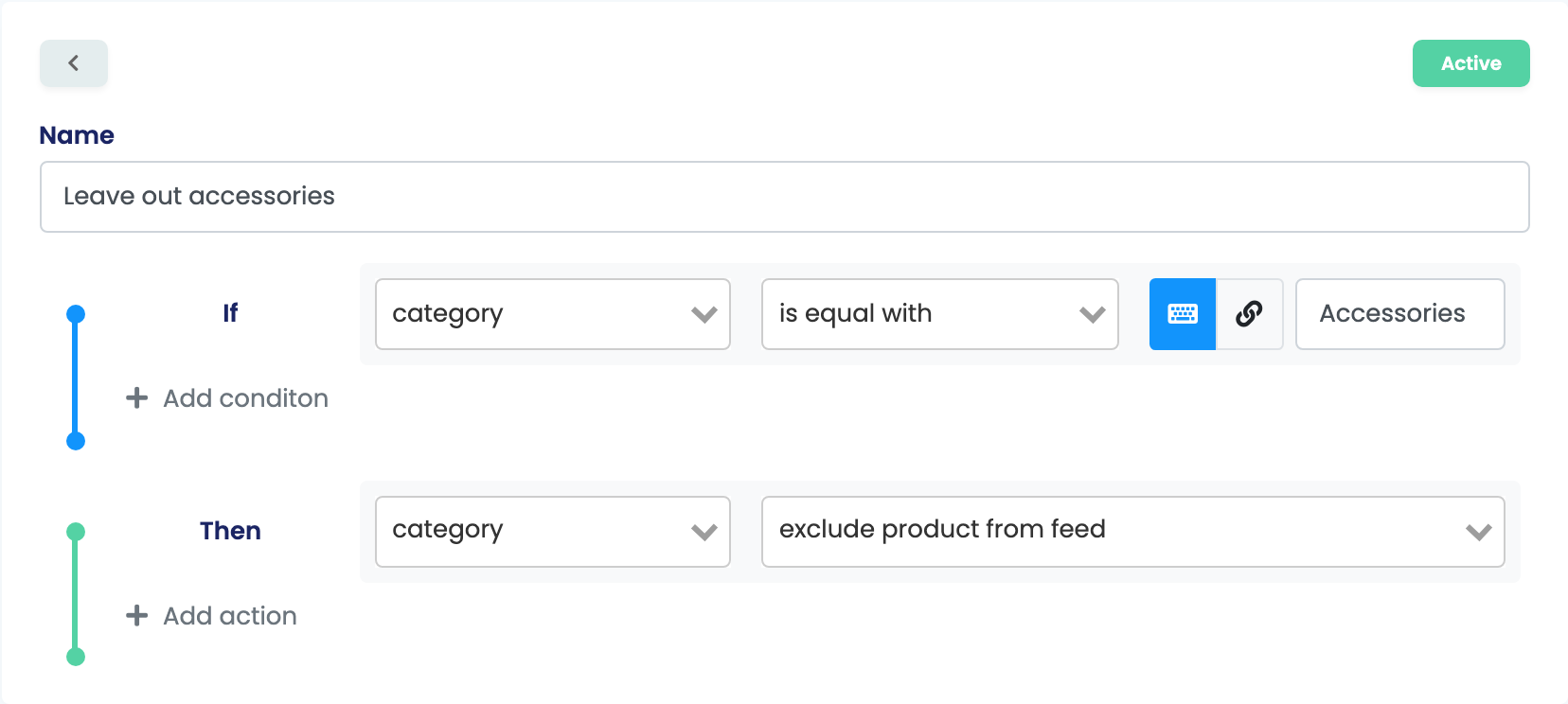
- Leave out a category: If category is equal with Accessories → exclude product from feed.
- Fill in a missing brand: If brand is empty → set it to your brand.
- Send only one category: If category is not equal with it → exclude product from feed.
Rules change the values the feed sends; they do not add fields Google does not get from easySales.
When Google refuses products
| What Google reports | What to do |
|---|---|
| Missing GTIN or brand | Add the EAN and the brand to the product in your shop — or fill the brand with a feed rule. |
| Price or availability does not match the website | Keep the price and stock the same as on your website; remove any rule that changes them. |
| Missing link or image | Check that the product has a link and a picture in your shop. Use the feed of the online shop, not of the Virtual Shop. |
| The link answers "Feed generation in progress..." | The first file is not ready yet. Wait for Last generated on the card, then fetch again. |