How to organise processing groups in easySales: series and filtering templates

Name and number your processing groups with series, and build groups of the right orders by scanning a filtering template's barcode.
Series and templates in short
Every processing group in easySales belongs to a series. The series gives the group its name and number, for example "eMAG 24", so you can tell your batches apart: by courier, by marketplace or by type of order.
A filtering template builds such a group for you: you scan its barcode and easySales picks the right orders and puts them in a new group of the series you chose.
Three things to know first:
- Each time you add orders to a series, a new group is created. Orders are never added to a group that already exists.
- A group holds at most 50 orders.
- A filtering template runs only when you scan its barcode. Nothing runs on its own.
Add orders to a series
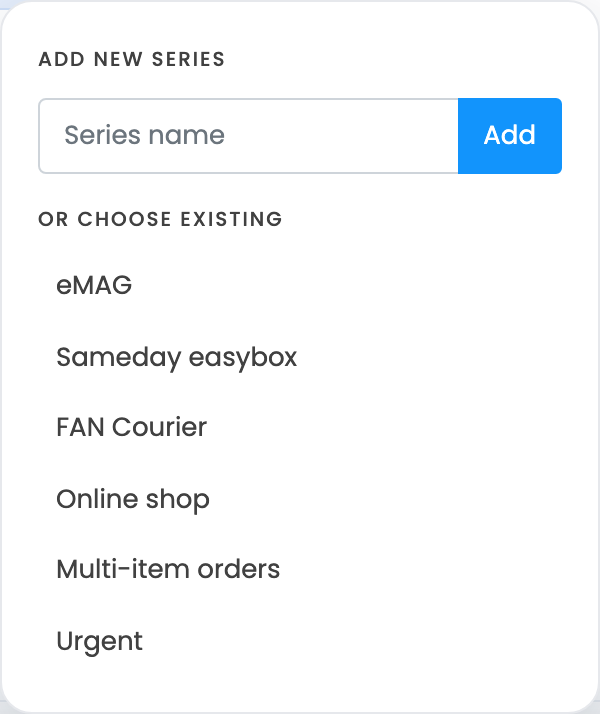
- In Orders, tick the orders you want to process together.
- Press Add to group.
- To start a new series, type its name under Add new series and press Add.
- Click the series under Or choose existing.
easySales creates the next group of that series, moves the orders to it and opens Process Groups. Orders that are already in a group are skipped.
Manage your series
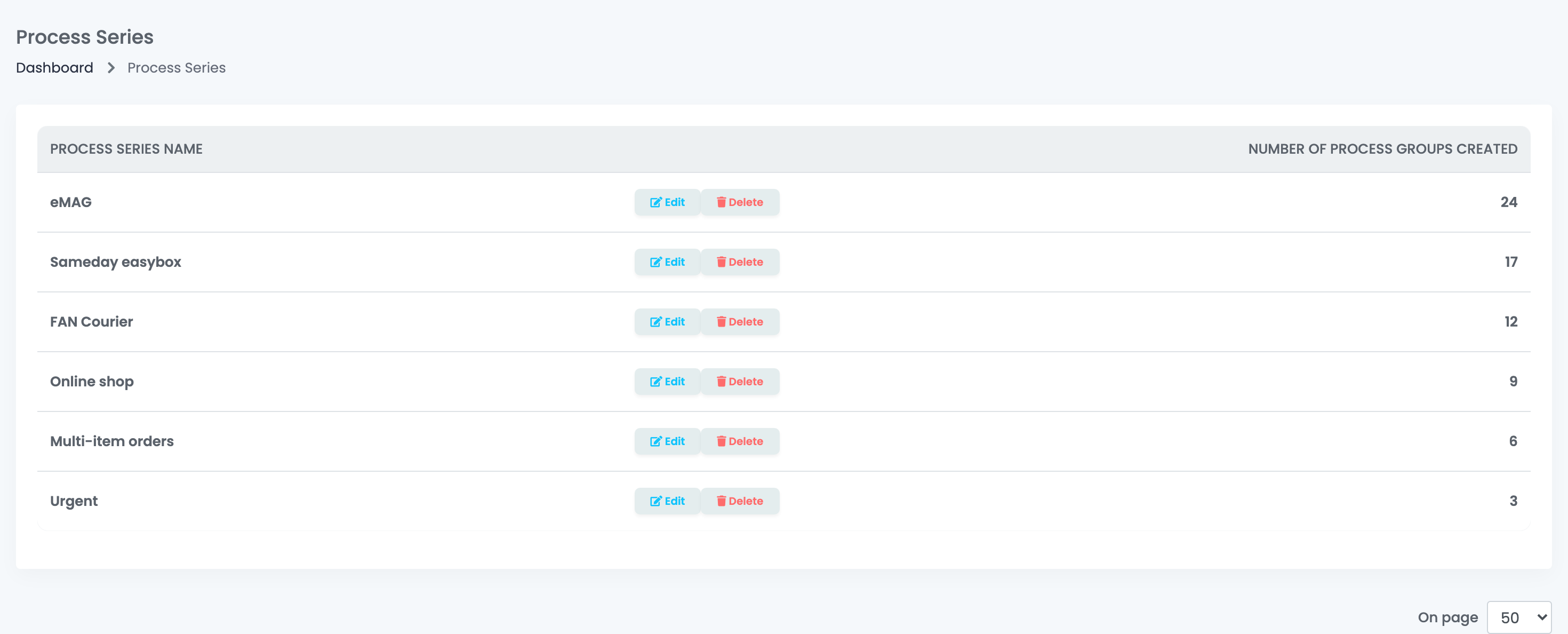
Open Process Groups and press View process series. The list shows each series and the Number of Process Groups Created in it.
- Edit renames the series. The new name also appears on all its earlier groups.
- Delete removes the series and all its groups, and cannot be undone. The orders in those groups stay in processing and can be added to a group again.
| Place | What it shows |
|---|---|
| Process Groups | Each group with its series name and number. You can filter the groups by series. |
| Picking export | The series name and group number in the header of the exported list. |
| Flows | The filter Order process series lets a flow act differently for each series, for example when an order is added to a process group. |
Create groups by barcode with filtering templates
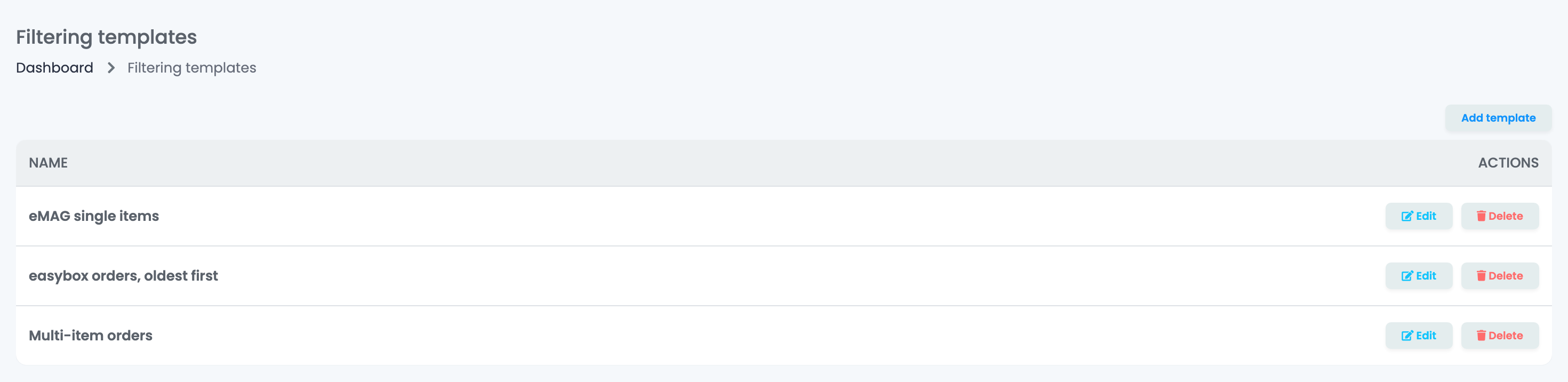
A filtering template remembers which orders go into a group and in which series. Open it from WMS System → Order Processing → Filtering templates.
Prepare the saved filter
The template uses a filter saved on the Orders list. Set the filters there, for example a marketplace, a status and the payment status, then save them with Save filters → Add a new preset.
Create the template
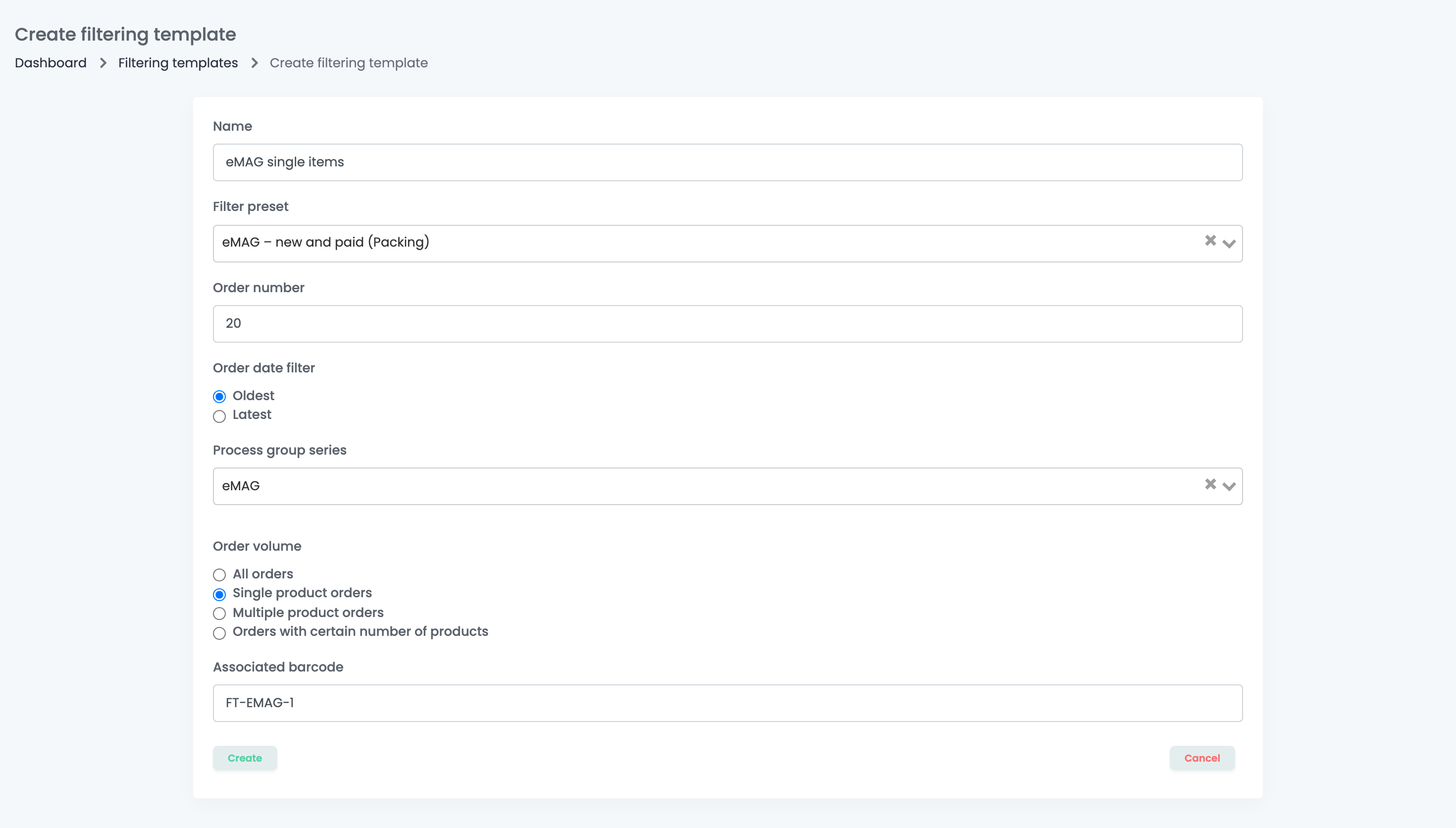
- Press Add template.
- Fill in the fields described below.
- Press Create.
| Field | What it does |
|---|---|
| Name | The name you see in the list. |
| Filter preset | The saved filter from Orders. Left empty, all orders can be taken. |
| Order number | How many orders go into one group, from 1 to 50. |
| Order date filter | Oldest or Latest orders first. |
| Process group series | The series the new groups belong to. Required. |
| Order volume | All orders, Single product orders, Multiple product orders or Orders with certain number of products. It counts the different products on the order, not the pieces. |
| Associated barcode | The code you scan to run the template. Without it the template cannot be used. |
Print the barcode yourself, for example on a label at the packing desk, so the team can scan it.
Scan it
Scan or type the template's barcode in one of these places:
- Process Groups, in Create process group by barcode: the group is created.
- Picking: the group is created and picking starts right away.
- Packing: the group is created and opens for packing.
Each scan creates one group with the orders that match and are not in a group yet. Scan again to make the next group from the orders that are left.
Your team
A team member needs View process groups to add orders to a group and manage series, and View filtering templates to create and change templates. To scan a template on Picking or Packing they also need access to that page.
When something does not look right
| Symptom | What to do |
|---|---|
| I want to add more orders to an existing group | That is not possible: every Add to group creates a new group. Choose the same series to keep the numbering. |
| "No valid orders" | All the selected orders are already in a group, or no order matches the template right now. |
| "Maximum amount of 50 orders exceeded" | Select at most 50 orders at a time. |
| A scan took fewer orders than match | A group takes at most the template's Order number. Scan again for the rest. |
| A template took completed or unpaid orders | Add the status and the payment status to the saved filter on Orders. |
| "No filtering template found for barcode: …" | Check the Associated barcode of the template, letter by letter. |
| A template disappeared | Its saved filter on Orders was deleted, which also deletes the templates that use it. |
| An older series is missing from the Add to group menu | The menu shows the 50 most recent series. Reuse a few series instead of creating a new one every day. |