How to pick orders in easySales: picking lists, carts and missing products

Pick a group of orders from one list sorted by location, with several pickers, carts and baskets, and see what happens to orders with a missing product.
What picking does
Picking gives the person walking your warehouse one list of everything to take off the shelves for a group of orders: each product once, with the total, where it is and which orders it is for. Open it from WMS System → Scan → Picking.
Three things to know first:
- Picking records what was taken, nothing else. It does not change stock, create AWBs or invoices, or pack the orders. Stock goes down later, when the invoice is created (or when the order is completed, depending on your stock settings).
- Pick before you generate the AWBs. Generating an AWB completes the order, and a group's picking list leaves completed orders out. If you work the other way round, scan the AWB on the Picking page to pick that order.
- Everyone picks the same session. Several people can open the same group; their pieces add up, and a session you leave stays open for you or a colleague to continue, on any device.
Start picking
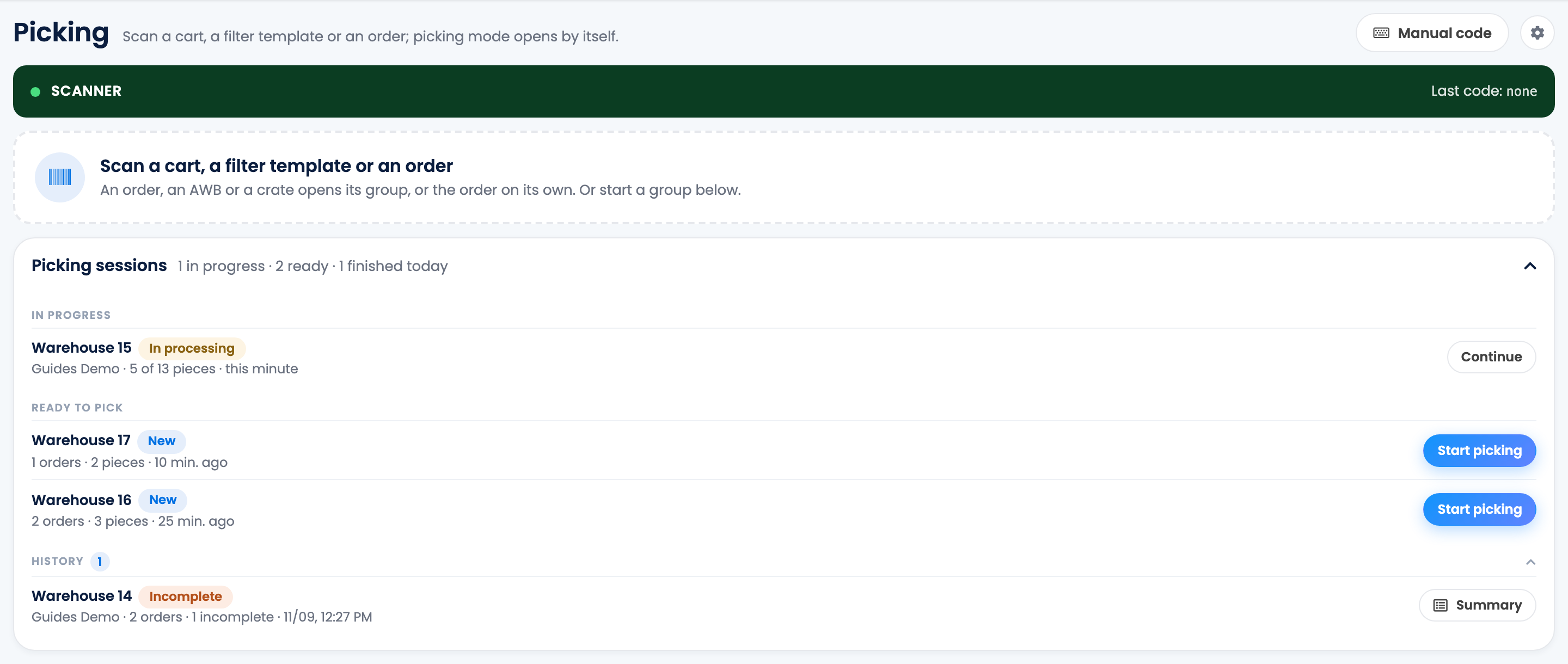
There are several ways to open a list:
- Picking sessions on the Picking page lists the groups Ready to pick (press Start picking), the sessions In progress (press Continue) and the History of finished sessions.
- Scan a code on the Picking page: a cart, a filter template, an order, an AWB or a crate. An order, an AWB or a crate opens the order's group, or the order on its own if it is not in a group. Manual code lets you type the code instead.
- In Process Groups, press Pick products on a group.
- On the orders list, Send to picking (in an order's menu or in the bulk actions) opens the chosen orders on the Picking page.
A product barcode scanned before a list is open is refused: open a group first.
The picking list
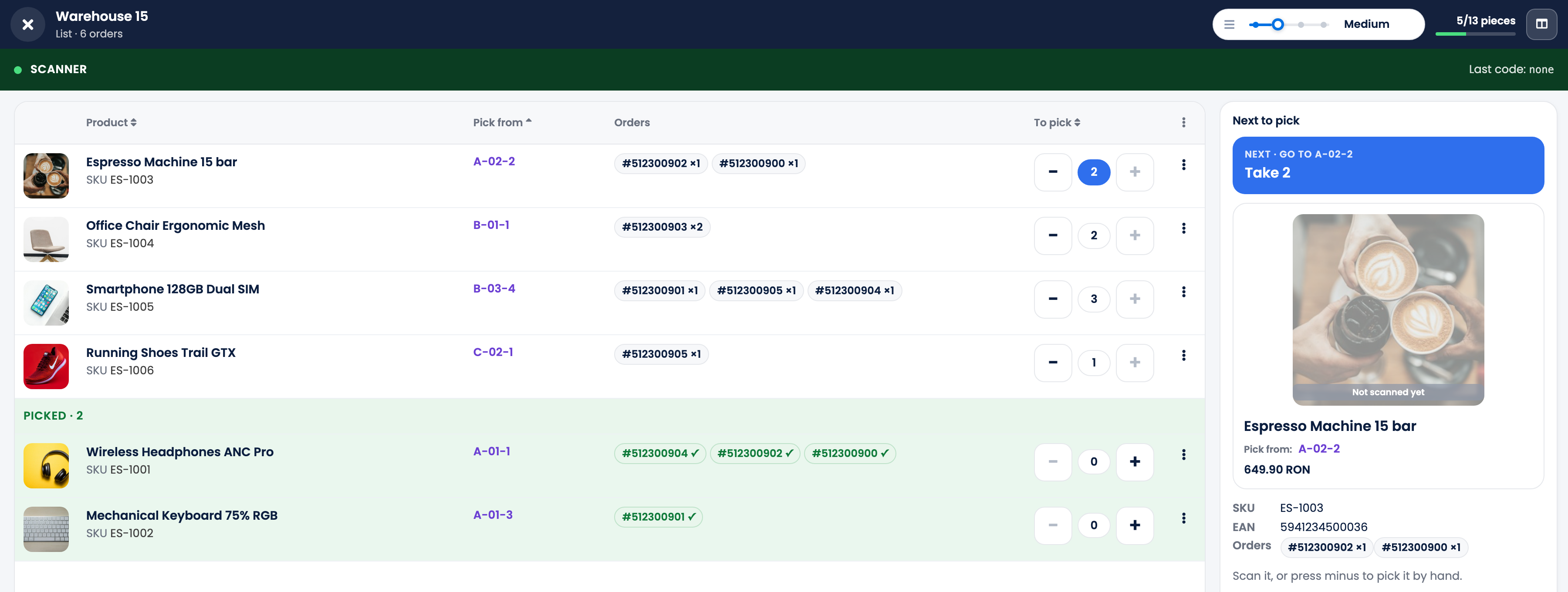
Each row is one product, with the quantity left to pick across all the orders of the list.
- Pick from is where the product is: its Warehouse location, or the location of its batches when the warehouse tracks batches. Products without a location come last.
- The list is sorted by location, A to Z, so the picker walks the aisles in order. The card Next to pick always shows the next location and how many pieces to take.
- Scan the product to pick one piece. The scan matches the SKU, the EAN, an additional EAN or the supplier SKU.
- − picks one piece by hand, without scanning, for people with the permission Mark products as picked or packed without scanning. + puts one piece back. There is no field to type a quantity: one scan or one tap is one piece.
- Picked products move to the end of the list.
- Columns adds or hides details such as the image, SKU, EAN, Pick from, the orders, the warehouse stock or the assigned user. Your columns, sort order and row size are saved for you.
- Export products downloads an Excel file with what is left to pick, one row per product.
The page works with barcode scanners that type the code, like a keyboard. On a phone or a handheld scanner it switches to a compact layout.
Finish a session
When the pieces are in the cart, press Finish. If anything was not found, easySales asks why, for every product left:
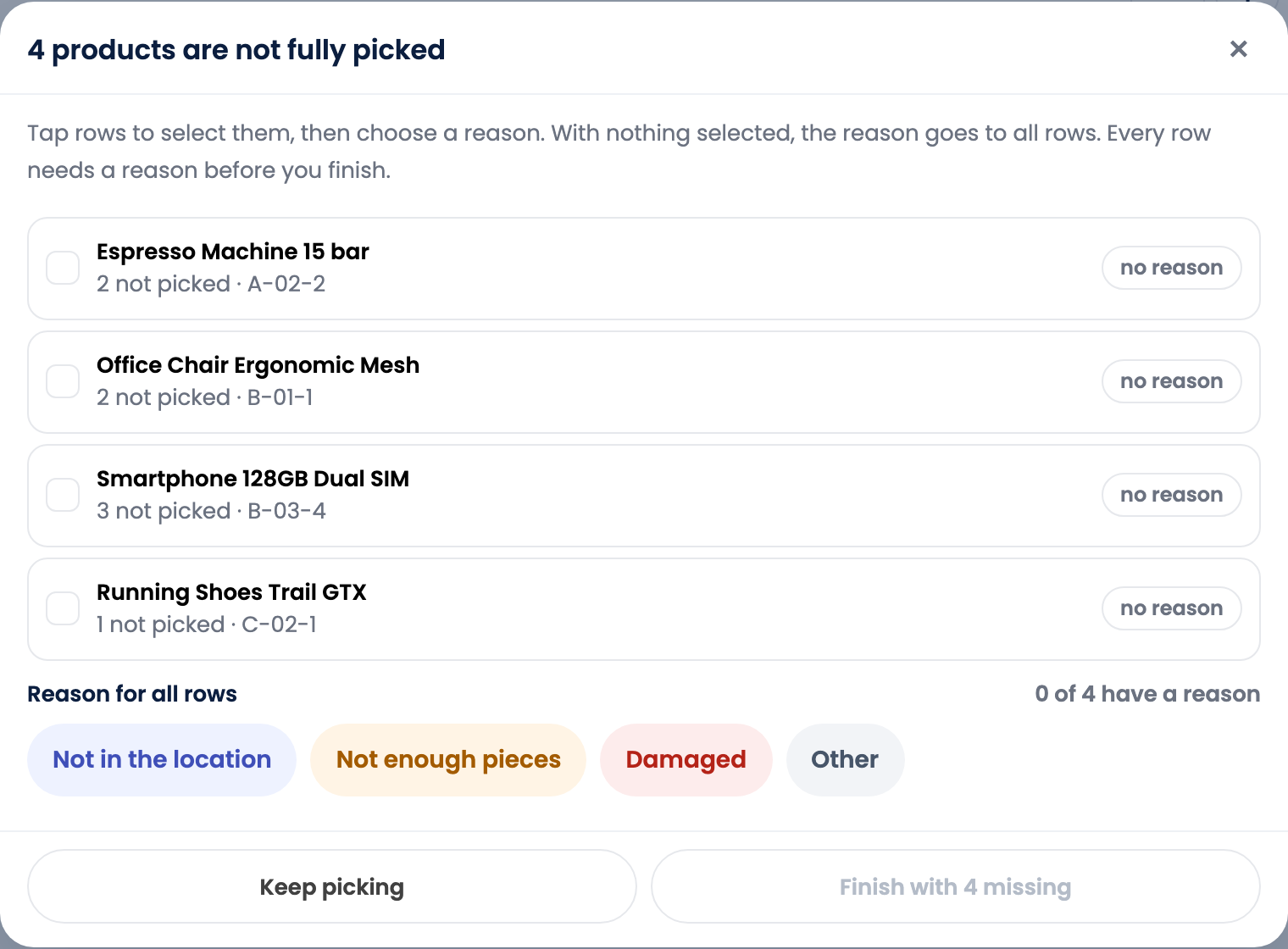
Choose Not in the location, Not enough pieces, Damaged or Other (with a note), for the selected rows or for all of them, then finish. Keep picking takes you back to the list.
| The order | What easySales does |
|---|---|
| Every piece picked | The order is marked as picked. This already happens when its last piece is picked, unless Finalize picking for the whole group at once is on. |
| A piece is missing | The order gets an internal note "Not picked: product x quantity (reason)". If it was in Processing, it moves to Incomplete. |
| The whole group is done | The group appears under Ready to pack on the Packing page. |
To stop without finishing, close the list with ×: the session stays In progress and can be continued later.
Carts and baskets
A cart lets one picker collect several orders at once, each in its own basket. Create carts in WMS System → Order Processing → Carts and baskets with Add cart, then Print labels for the cart and its baskets.
- Scan the cart on the Picking page while a group is open: the cart takes the group's next orders that are not picked yet, one per basket, oldest order first.
- Each piece goes into the basket of its order.
- At packing, scanning a basket opens its order, and scanning the cart opens all its orders.
- The cart becomes free again once its orders are packed. Release frees it by hand.
Carts work only on processing groups. A group that is being picked as a list must be finished before a cart can start on it.
Picking settings
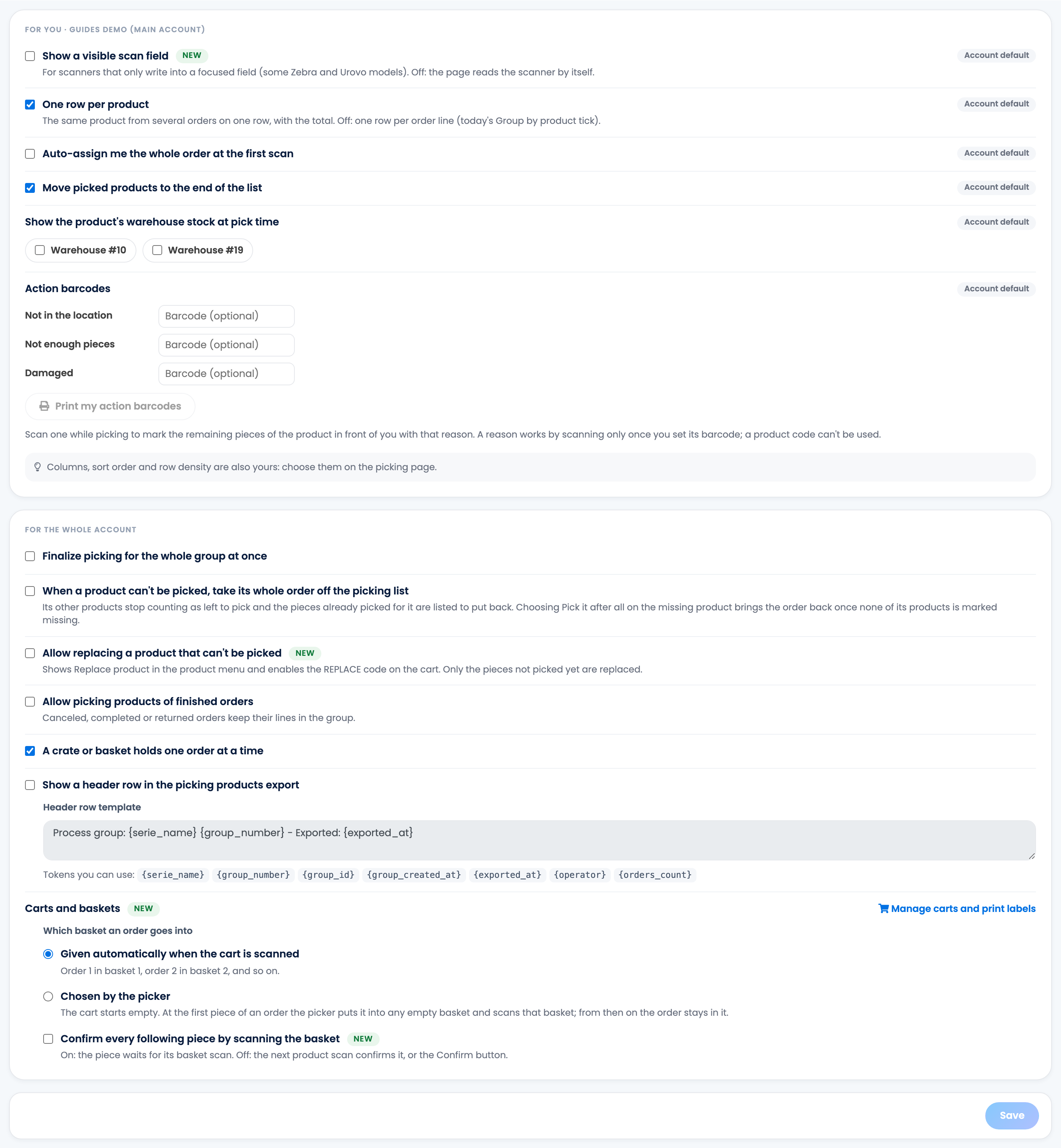
The cog on the Picking page opens Picking settings. The first part is for you only; the second part, for the whole account, can be changed by the account owner.
| Setting | What it does |
|---|---|
| One row per product | On: the same product from several orders is one row, with the total. Off: one row per order line. |
| Move picked products to the end of the list | Keeps what is left to pick at the top. |
| Auto-assign me the whole order at the first scan | The order is assigned to you as soon as you scan one of its products. |
| Action barcodes | Barcodes you scan to mark the rest of a product Not in the location, Not enough pieces or Damaged. Print my action barcodes prints them. |
| Finalize picking for the whole group at once | For the whole account: orders are marked as picked together when the group is finished, instead of each one as soon as its last piece is picked. |
| When a product can't be picked, take its whole order off the picking list | The order's other products stop counting as left to pick, and its pieces already picked are listed to put back. |
| Allow replacing a product that can't be picked | Adds Replace product to the product menu. |
| Allow picking products of finished orders | Completed, canceled or returned orders keep their lines in the group's list. |
| Carts and baskets | Whether an order's basket is given automatically or chosen by the picker. |
Automate what happens next
Three automation flow triggers follow picking: Order added in picking group, Order picking finished and Product could not be picked. Use them, for example, to change the order's status when it is picked, or to tag the orders with a missing product.
When something does not look right
| Symptom | What to do |
|---|---|
| The group is empty or missing on the Picking page | Its orders are completed, usually because their AWBs were generated. Pick before generating AWBs, scan the AWB to pick one order, or turn on Allow picking products of finished orders. |
| "… is a product. Open a group first" | A product was scanned before a list was open. Start a group, or scan a cart, a filter template, an order, an AWB or a crate. |
| There is no − button | The person picking does not have the permission Mark products as picked or packed without scanning. Scan the product, or ask the account owner for the permission. |
| Stock did not change after picking | That is expected: stock goes down when the invoice is created or the order is completed. |
| An order moved to Incomplete | A piece was finished as missing. The order's note says which product and why. |
| A cart will not start on a group | The group is being picked as a list. Finish that session first. |