How to scan AWBs and pack orders in easySales
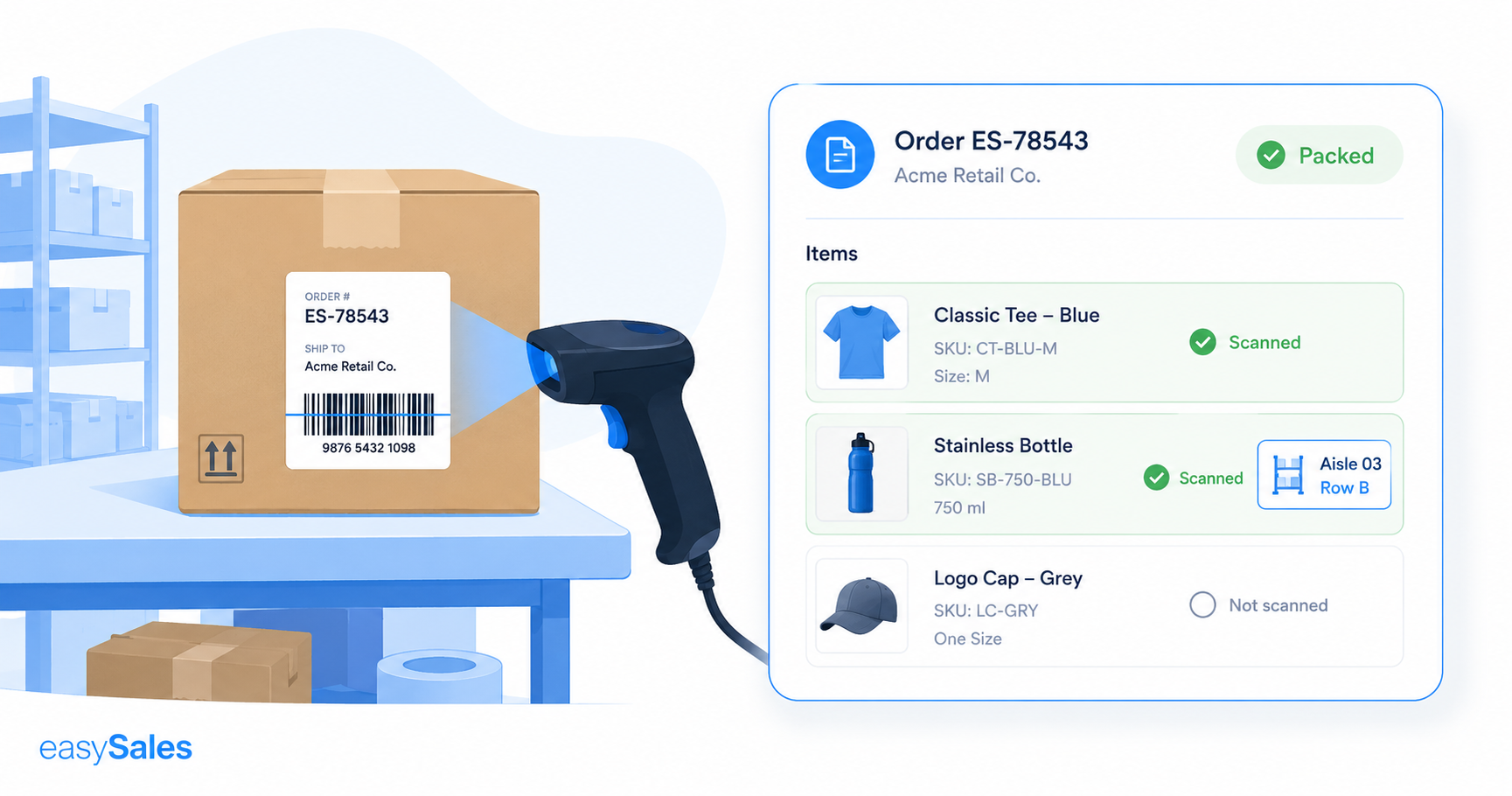
AWB scanning lets your warehouse team verify and pack orders by scanning the barcode on the shipping label. The right order opens instantly, products are checked off as you scan them, and the order is marked packed automatically. This guide covers where to find the scanner, how packing works, and how it ties into processing groups.
In a busy warehouse, the costly mistakes happen at the packing bench: the wrong item in the box, or the right box sent to the wrong customer. AWB scanning closes that gap. Your team scans the barcode on the shipping label, the matching order opens on screen, and every product is checked off as it goes into the parcel.
What AWB scanning does
Scanning the AWB barcode matches the parcel to its order and walks the packer through it. It works with standard barcode scanners and plugs straight into processing groups for high-volume dispatch.
Order–parcel match
Scanning the AWB opens the exact order for that parcel.
Fewer shipping errors
Catch wrong or missing items before the parcel leaves.
Visual confirmation
Each scanned product turns green as its quantity is counted down.
Marked packed
The order is flagged Packed once you finish scanning.
Any standard scanner
Works with off-the-shelf barcode scanners.
Built into groups
Pick and pack a whole processing group in one flow.
Where to find it
In the left-hand menu, open the Scan section (the barcode-scanner icon) and choose Packing.
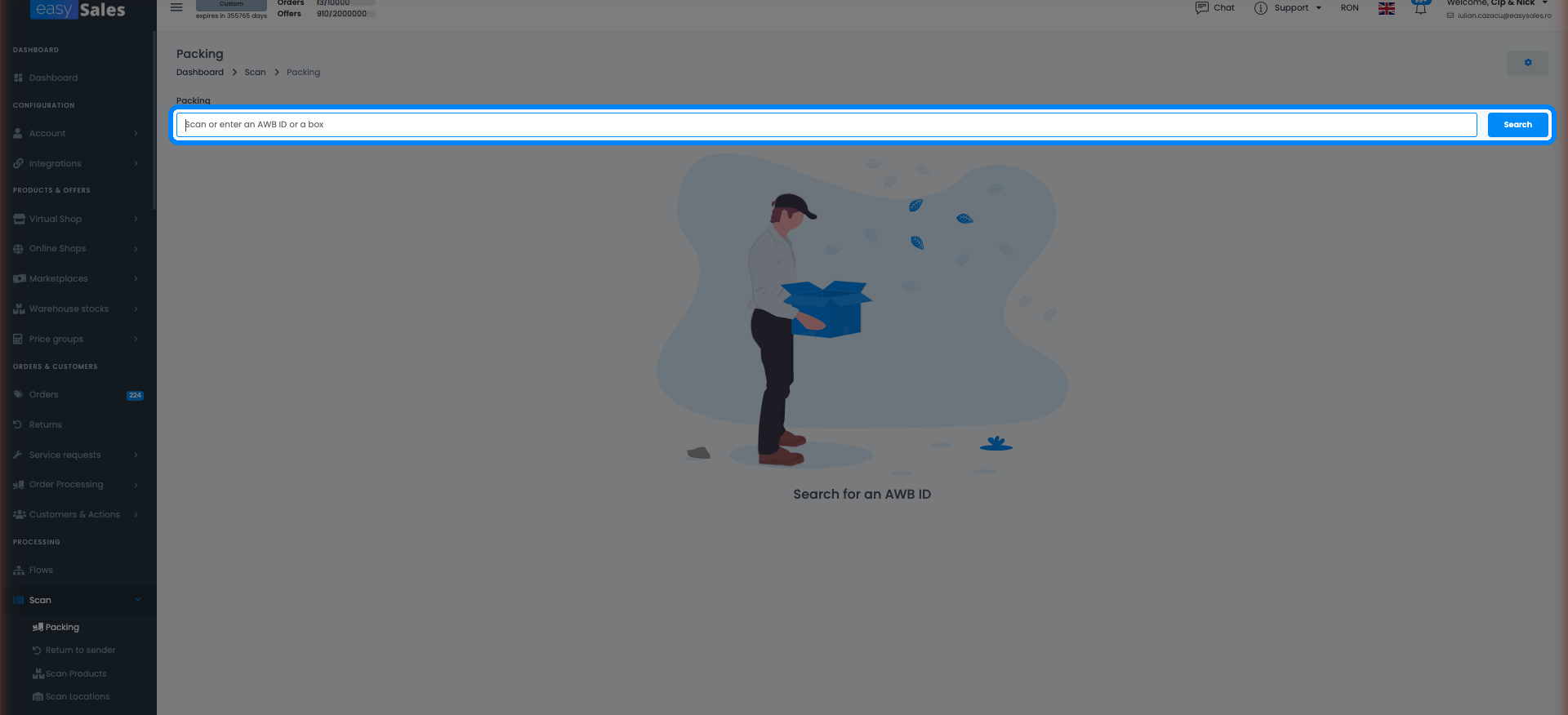
Scan, verify, pack
- Scan the AWB barcode on the shipping label — the matching order opens. easySales matches it against the AWB it stored for that order, so the right parcel always opens.
- Use the warehouse column to see the aisle and row where each product sits.
- Scan each product's EAN; the remaining quantity counts down and the line turns green when it reaches zero.
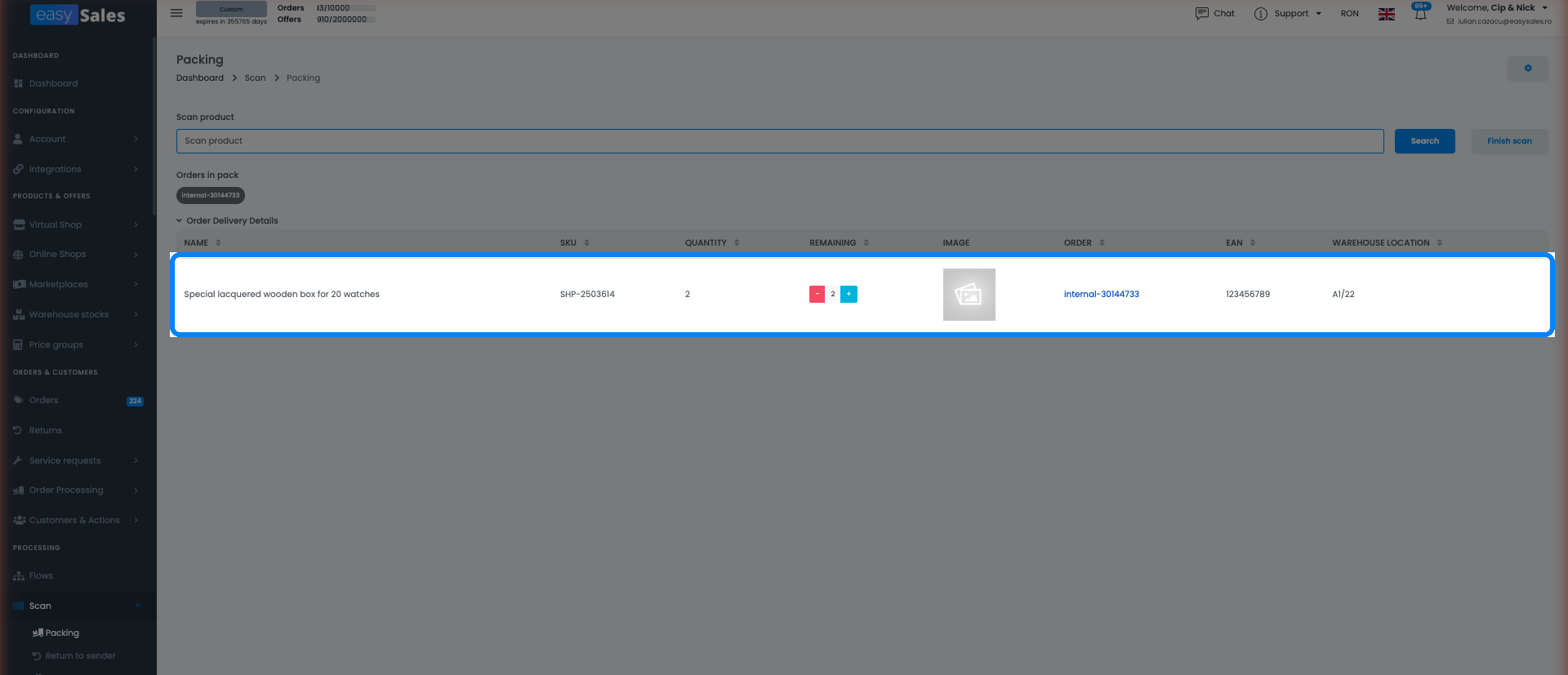
The order is marked packed
Works with processing groups
AWB scanning is built into processing groups, so you can pick and pack a whole batch of orders in one continuous flow rather than one order at a time.
Pack with confidence, ship without errors
Try easySales free for 14 days and let AWB scanning verify every parcel before it leaves the warehouse. No credit card required.