How to handle returned parcels and products not restocked in easySales
Scan parcels that came back undelivered, record what came back, put it back in stock the right way, and track returned products that were not restocked.
Returned parcels and returned products
Two screens under Returns handle goods that come back:
- Return to sender is for parcels that never reached the buyer: refused, not collected or undeliverable, sent back by the courier on the same AWB. They are not returns, so easySales does not create one.
- Returned products not restocked lists the products of completed returns that were not put back in stock, so you can decide what happens to them.
Three things to know first:
- A parcel coming back changes nothing by itself. The courier's status shows it is on its way back, but the order and the stock stay as they are until you act.
- Finish scan records what came back; it does not put it in stock. The stock comes back when you cancel the order, move it to Return or reverse its invoice, depending on your stock options, and then only the quantity you recorded.
- The two screens do not share data. A refused parcel never appears on Returned products not restocked.
Scan a parcel that came back
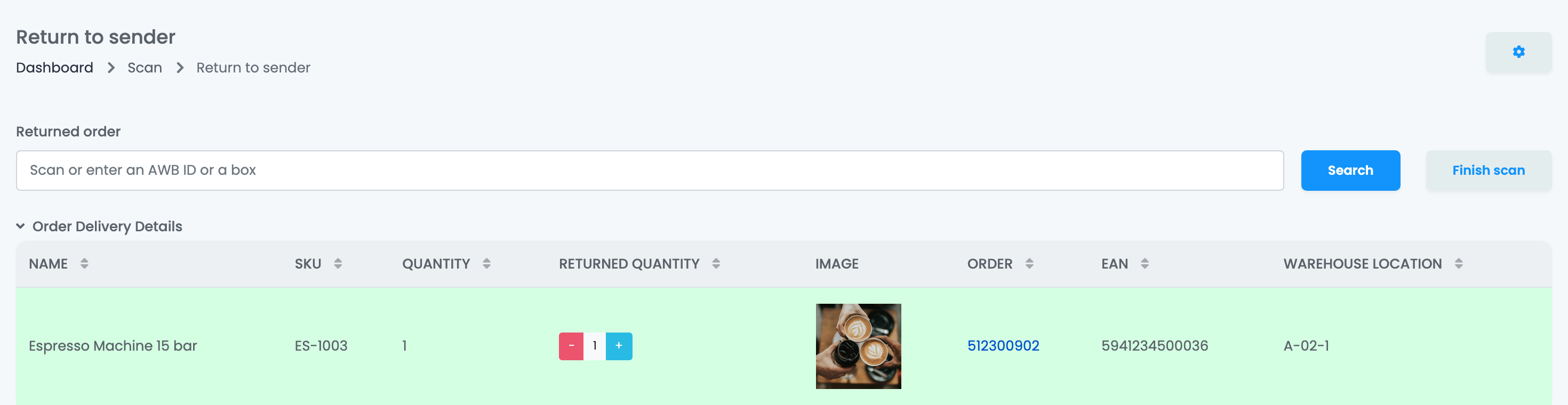
- Open Returns → Return to sender.
- Scan the AWB of the parcel, or type it and press Enter. You can also scan the order number or the code of a box.
- The order's products appear with their Returned quantity, set to the ordered quantity. Use − and + when only part of the order came back.
- Press Finish scan.
Order Delivery Details shows the order's tags, notes, payment and shipping method and delivery address, so you can check you have the right parcel. If you scan the next AWB without pressing Finish scan, the previous order is finished for you.
Count each product
To check the content of the parcel product by product, open the settings with the gear button and untick Disable product scanning. After the AWB, scan each product's EAN or SKU: Remaining goes down with each scan. With Automatic finish ticked, Finish scan is pressed for you when everything is counted.
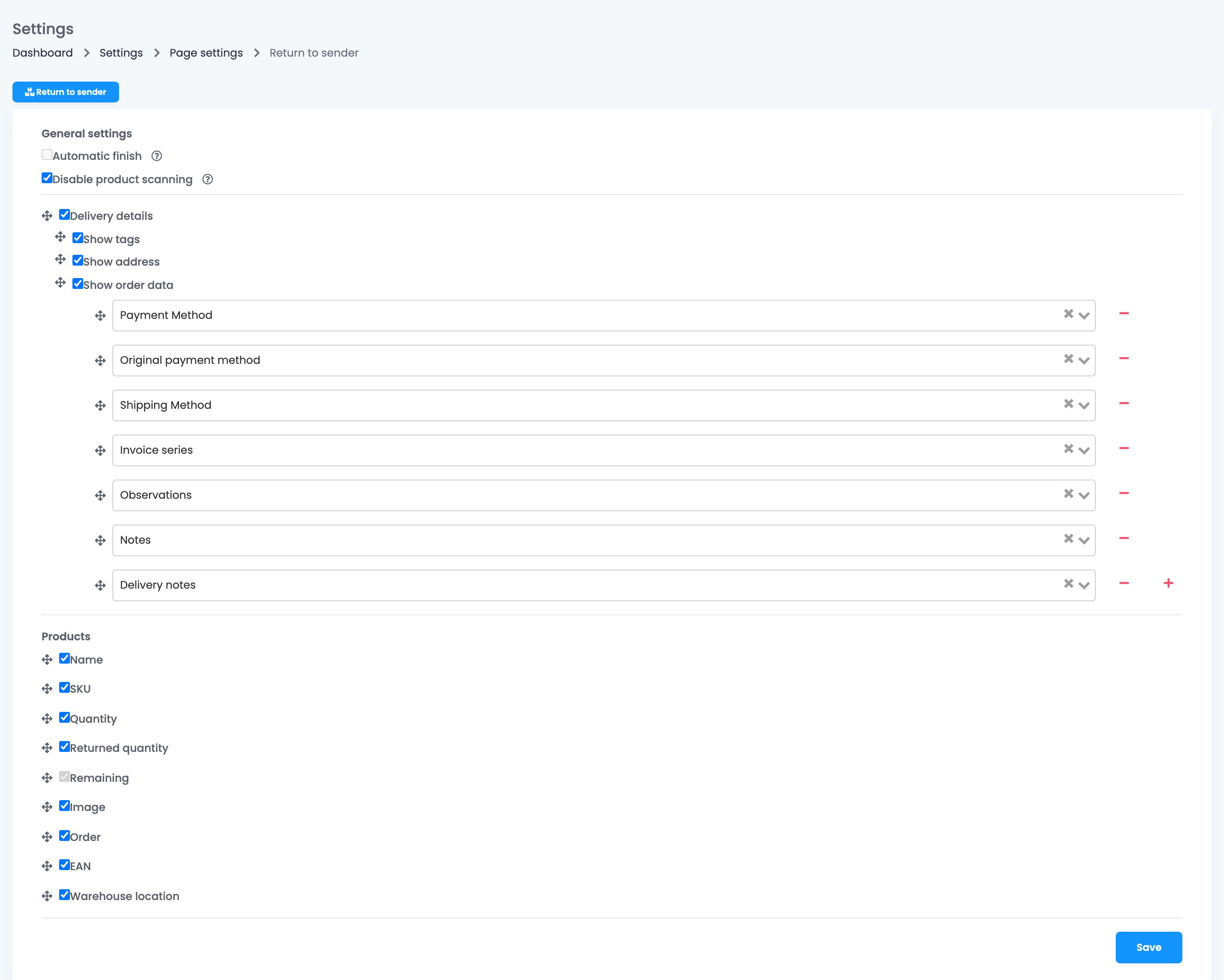
These settings, and the details and columns you choose to show, are saved in the browser of each computer or scanner.
Put the products back in stock
Finish scan only records the returned quantity. To put the products back in stock, act on the order after you finish the scan:
| When you | Stock comes back if this is on in Order settings → Stocks |
|---|---|
| Cancel the order | Increase stock when order is canceled |
| Move the order to Return | Increase stock when order is returned |
| Issue the storno, or cancel or delete the invoice | Increase stock on deleted, canceled or reversed invoice |
When the stock comes back, easySales uses the Returned quantity you recorded, not the ordered quantity. A product finished with 0 is not put back.
Automate it with a flow
Two flow triggers start from this screen: Shipment return-to-sender scanned, when you scan the parcel, and Shipment return-to-sender finished, when you press Finish scan. A flow on the finished trigger can, for example, issue the storno with Create order reverse invoice, change the order's custom status or add a tag, right after the returned quantity is recorded.
Returned products not restocked
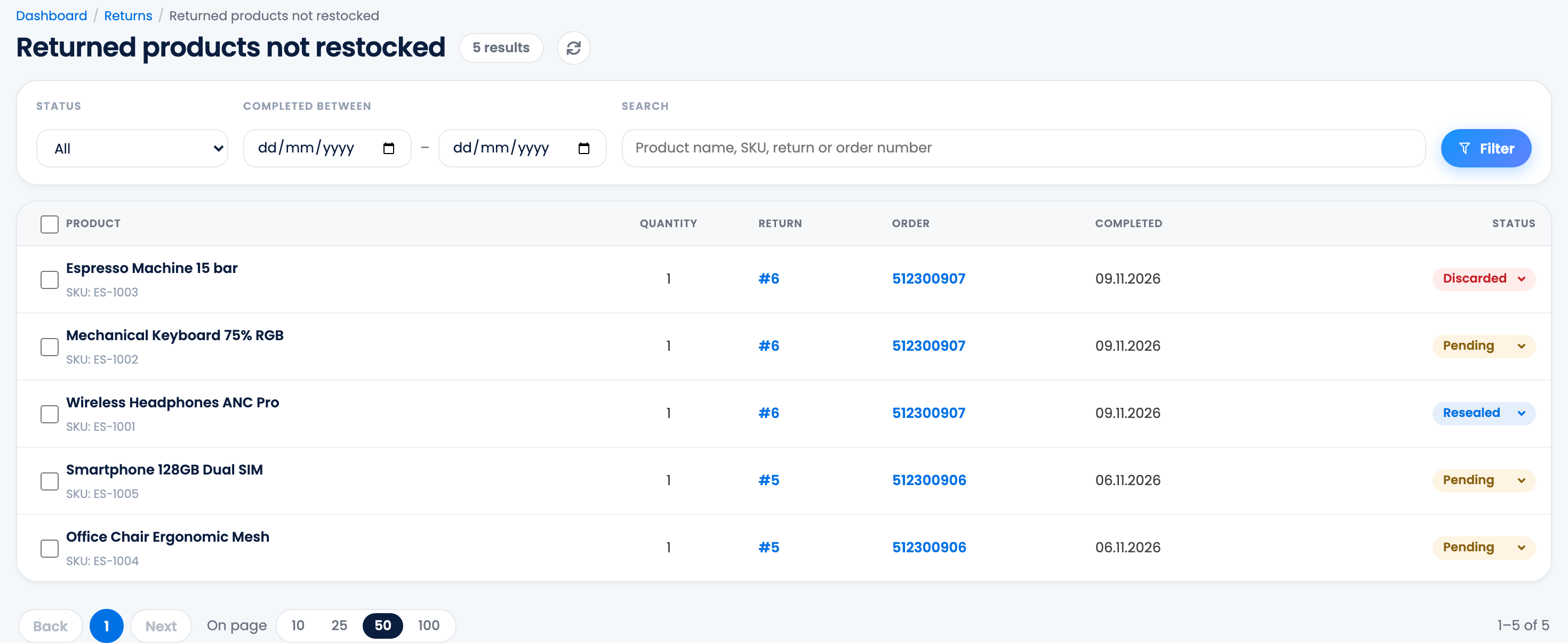
When you complete a return, Restore stock decides whether its products go back in stock. It is unticked by default. When it stays unticked, and your stock options do not put the products back either, the products are listed on Returns → Returned products not restocked.
- The list opens on the Pending products. Filter by status, by Completed between or search by product name, SKU, return or order number.
- Tick products, choose a status in Mark as and press Apply:
| Status | Use it for |
|---|---|
| Pending | Products you have not decided on yet. |
| Resealed | Products repackaged to be sold again. |
| Discarded | Products that cannot be sold again. |
| Processed | Products you dealt with in another way. |
These statuses help you keep track of the goods; they do not change the stock. To put a product back in stock, change its stock on the product or with a stock import. A product leaves the list by itself when its order's stock is put back later through your stock options.
Your team and these screens
Team members need the View Return to sender permission to open Return to sender, and View returns to see Returned products not restocked. Changing a product's status there needs Update returns.
When something does not look right
| Symptom | What to do |
|---|---|
| The courier shows the parcel returned, but the order did not change | That is expected. Scan the parcel in Return to sender, then cancel the order or reverse the invoice. |
| The whole order went back in stock, although only part came back | The order was changed before Finish scan. Correct the stock of the products that did not come back. |
| Nothing went back in stock after Finish scan | Finish scan does not change the stock. Cancel the order, move it to Return or reverse the invoice, with the matching stock option on. |
| The refused parcel is not on Returned products not restocked | That list holds only products of completed returns. Refused parcels are handled in Return to sender. |
| I marked a product Resealed but its stock did not change | The statuses do not change the stock. Update the product's stock yourself. |