How to process returns in easySales: return accounts, return AWBs and storno
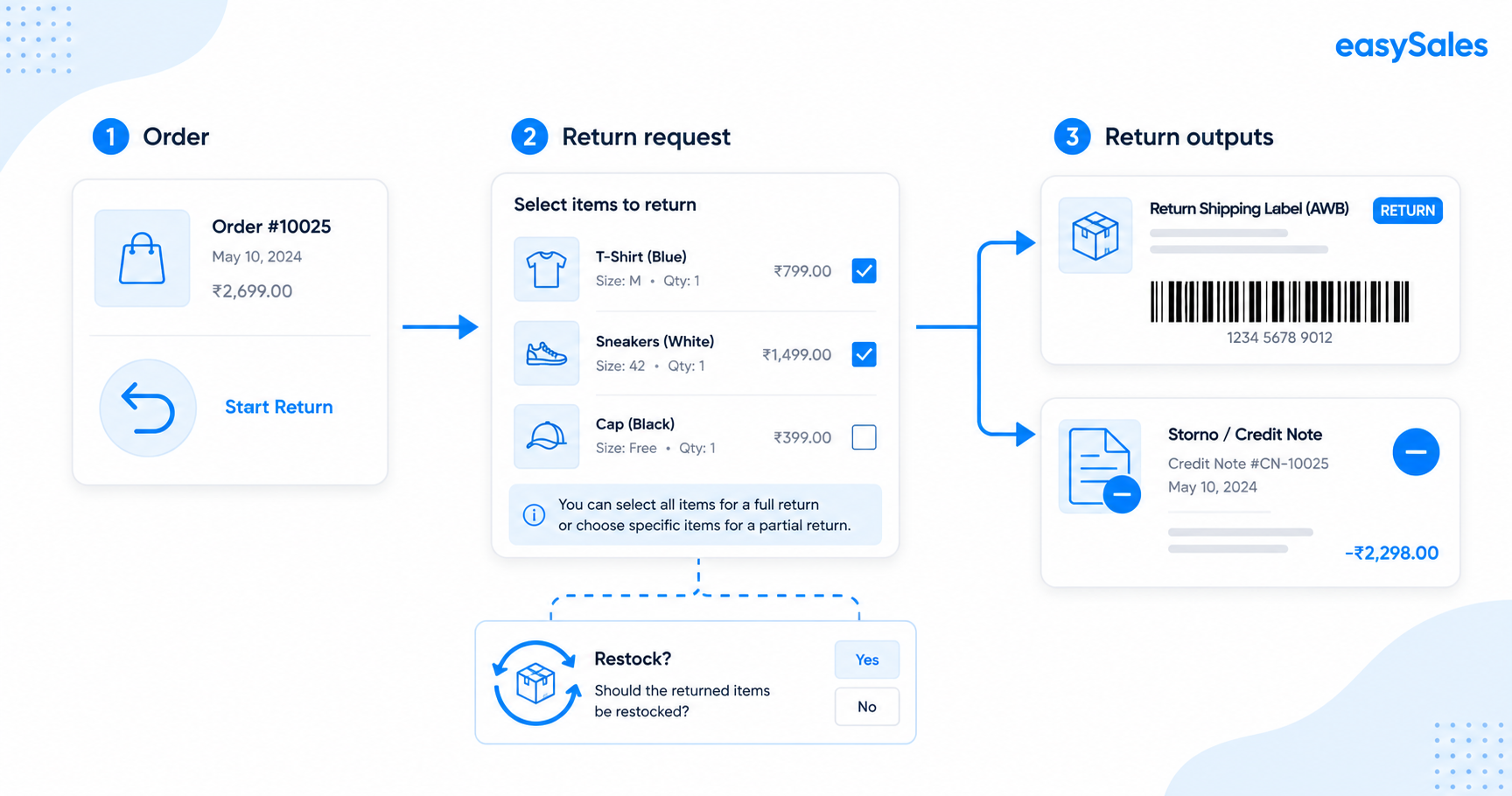
Returns are part of selling online — easySales lets you process them cleanly. Connect a return account on a supported courier, create a full or partial return against an order, generate the return AWB and storno invoice, and finalize with or without putting the stock back. This guide walks through the whole flow.
Returns are the part of e-commerce nobody enjoys, but handling them cleanly keeps customers happy and your stock accurate. easySales turns a return into a structured flow: a request against the original order, a return label from the courier, the storno invoice, and a clear decision on whether the items go back into stock.
What returns in easySales do
A return in easySales is always created against an existing order, for the products the customer is sending back — all of them or just some. From there you generate the return AWB, finalize the return (which issues the storno invoice), and choose whether the returned items go back into your stock.
Full or partial
Return an entire order or only some of its products, by quantity.
Return AWB
Generate the return label through a supported courier return account.
Storno invoice
The reverse invoice is issued automatically when you finalize the return.
By order ID
Find the order to return by its ID, from the Returns section or the order itself.
Cancel request
Cancel a return with a reason if the customer changes their mind.
Restock control
Finalize with the stock restored, or without it when goods come back unsellable.
Connect a return account first
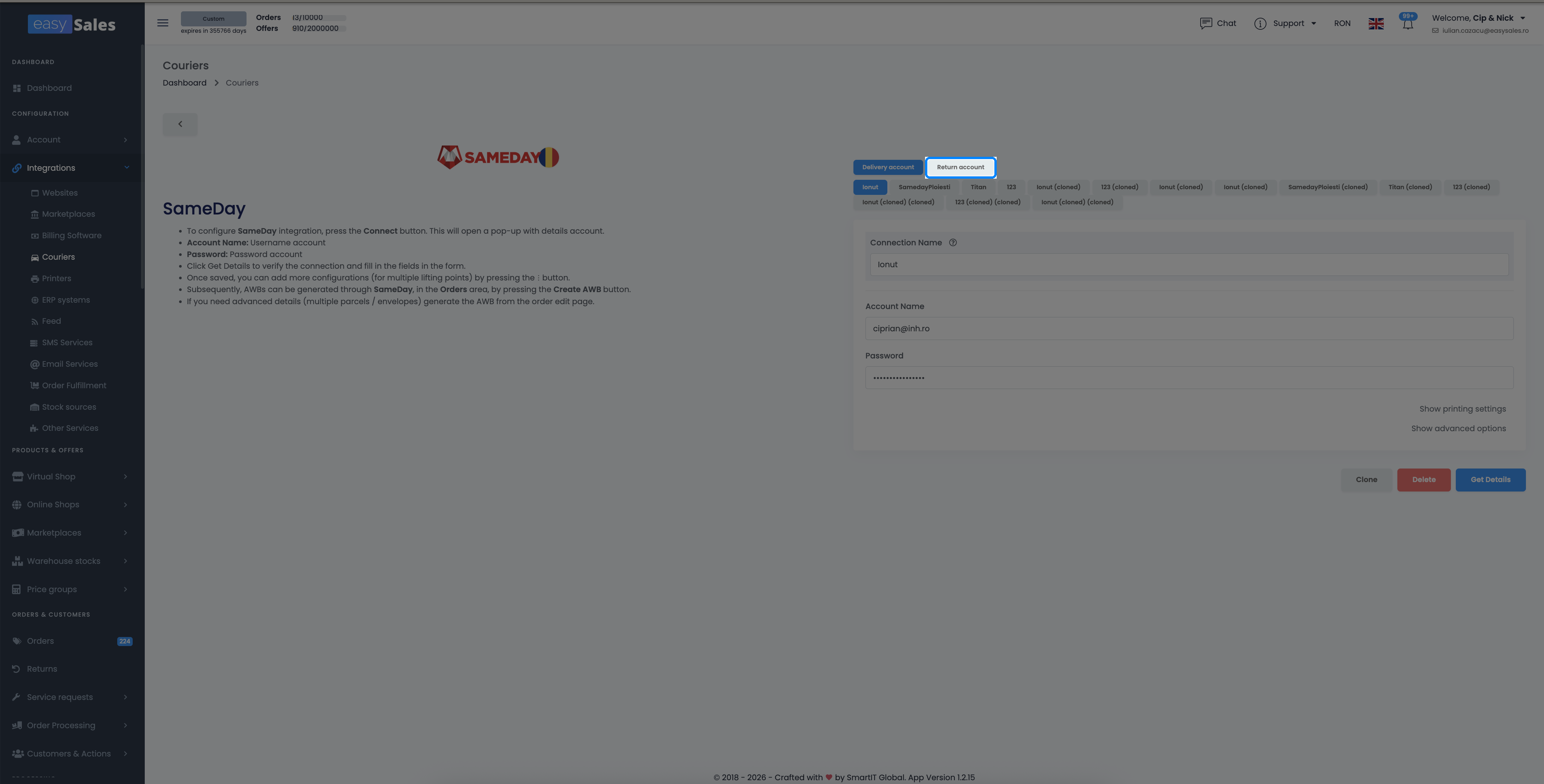
Returns run through a dedicated return account on a supported courier, set up under Integrations → Couriers.
Open the courier (for example Sameday, GLS or DPD), edit it, and enable the return account. Fill in your own return address — name, phone, street, postal code, county and city — which becomes the return's delivery address, where the courier brings the returned parcel back. (The pickup address, your customer's, comes from the order.) Press Get details to validate the connection.
Create a return
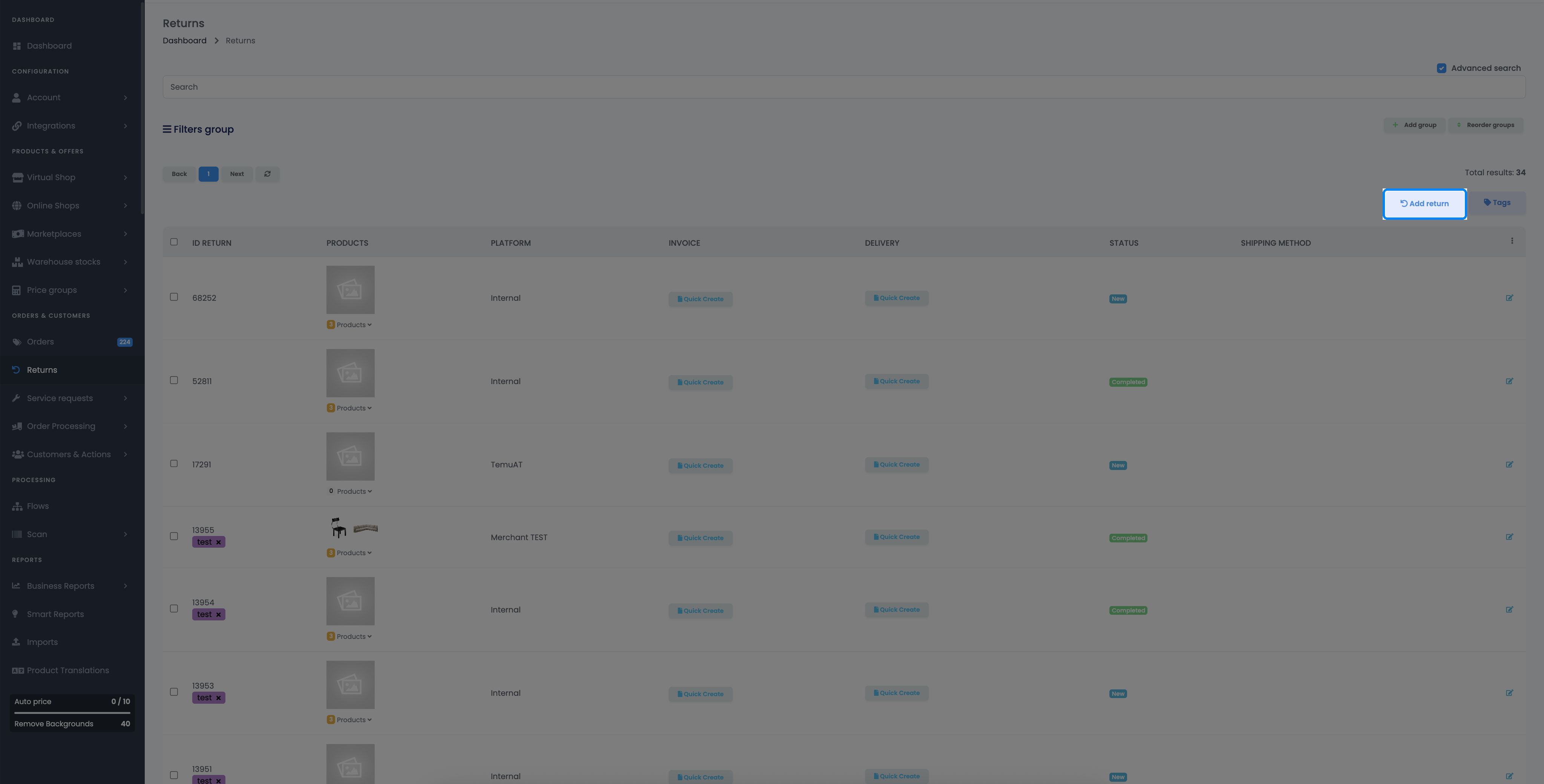
There are two ways to start a return:
- Go to the Returns section and click Add a new return. Search by order ID, then choose to return the products fully or partially.
- Or open the order and create the return straight from it (the same Returns create screen, pre-filled with that order).
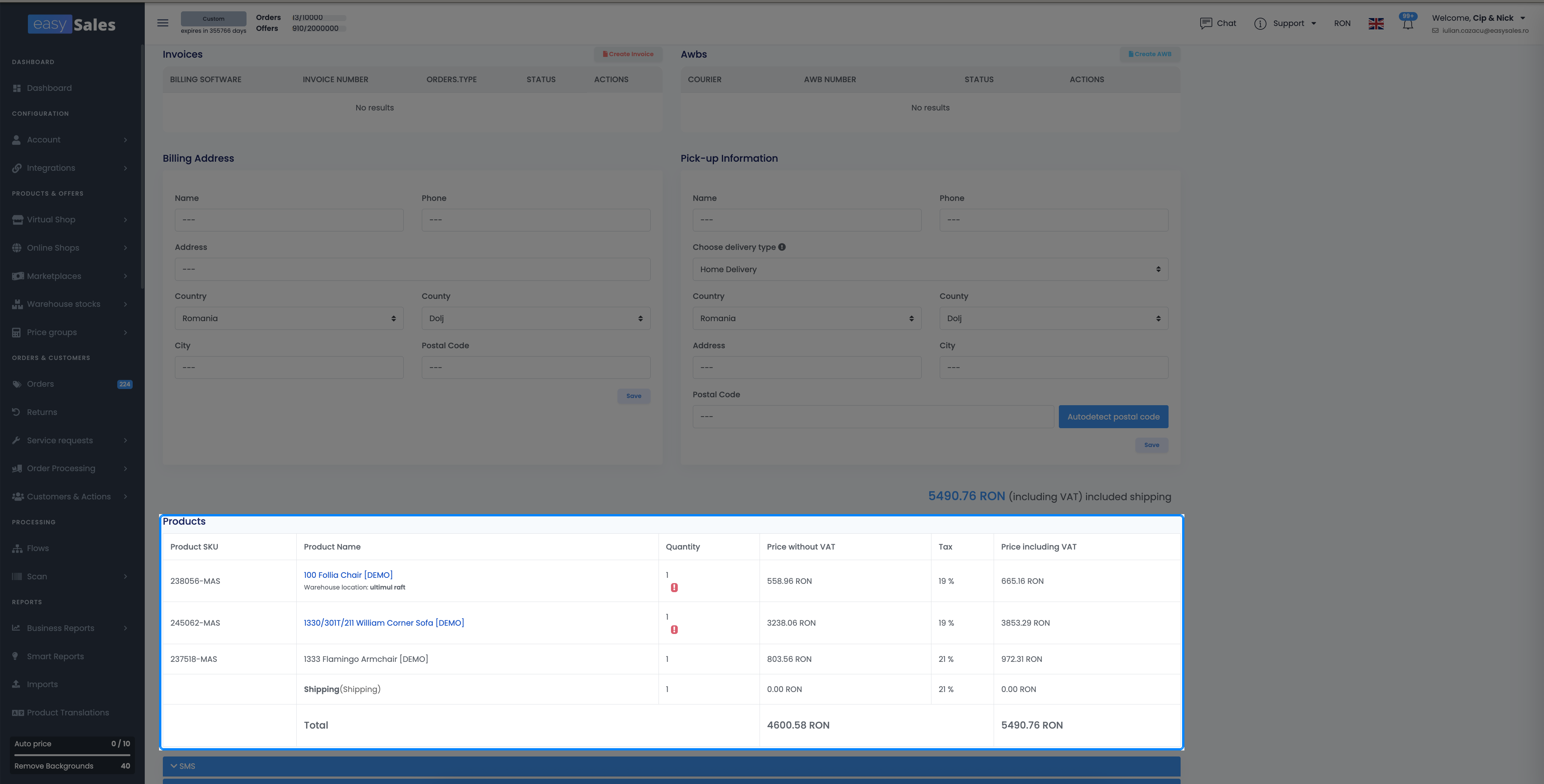
When you pick the products, set the quantity per line — return the whole order, or only the items (and amounts) the customer actually sent back.
Generate the return AWB
Once the return exists, generate the return AWB from it with one click — it uses the courier return account you connected, so the label is collected from your customer's address. No return account, or a courier we don't integrate? Upload an external return label instead (covered below).
When the storno invoice is issued
The storno (reverse) invoice for the returned products is issued when you finalize the return — easySales sends it through your billing software automatically, matched to the products and quantities on the return. You don't issue it as a separate manual step.
Cancel a return
If the customer changes their mind and no longer wants the return, cancel the return request from the return — give a reason and the request is closed without touching stock or invoices.
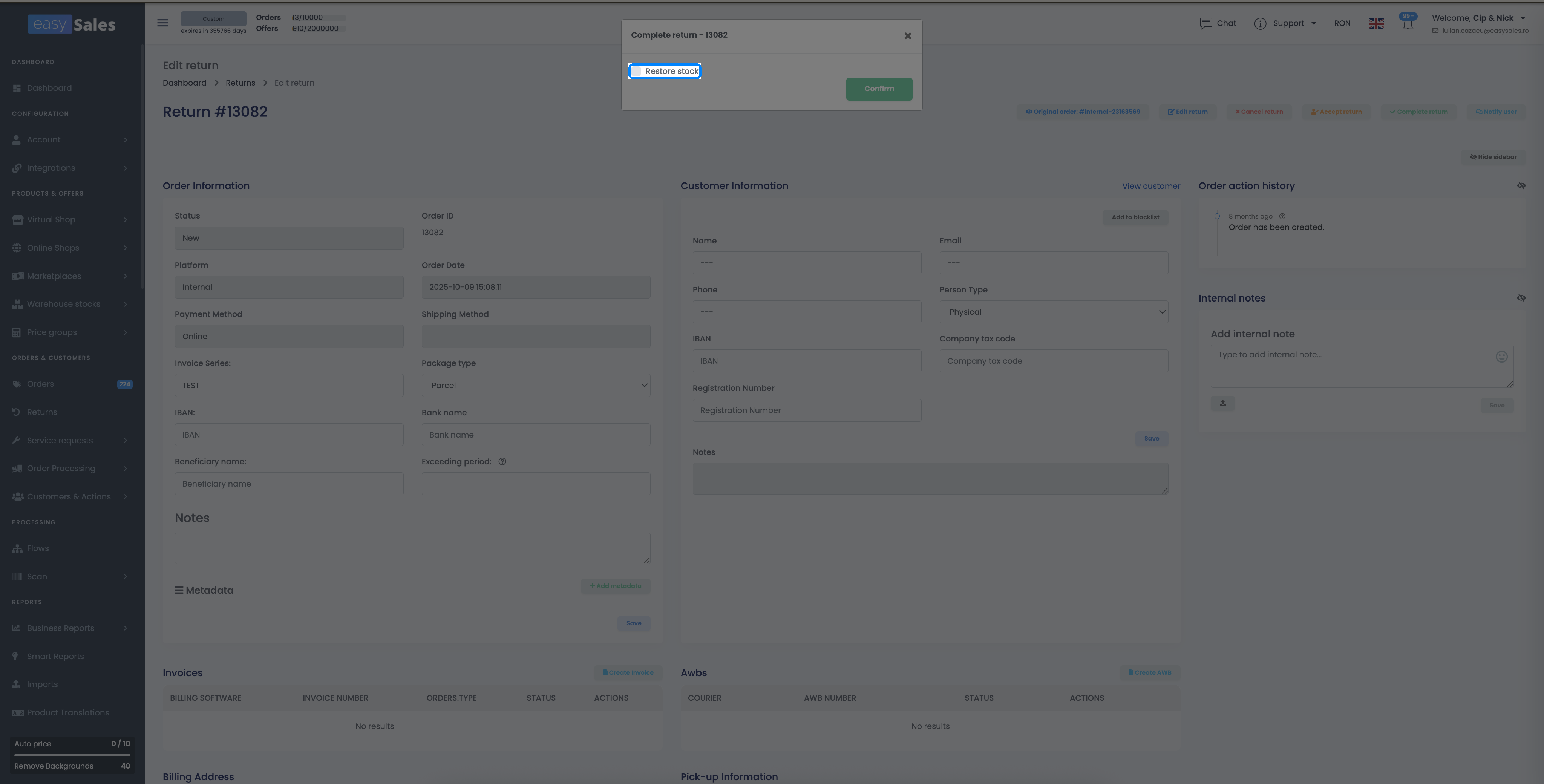
Finalize a return — with or without restocking
When the returned parcel arrives, finalize the return. In the finalize step you decide what happens to the stock:
Using a courier we don't integrate
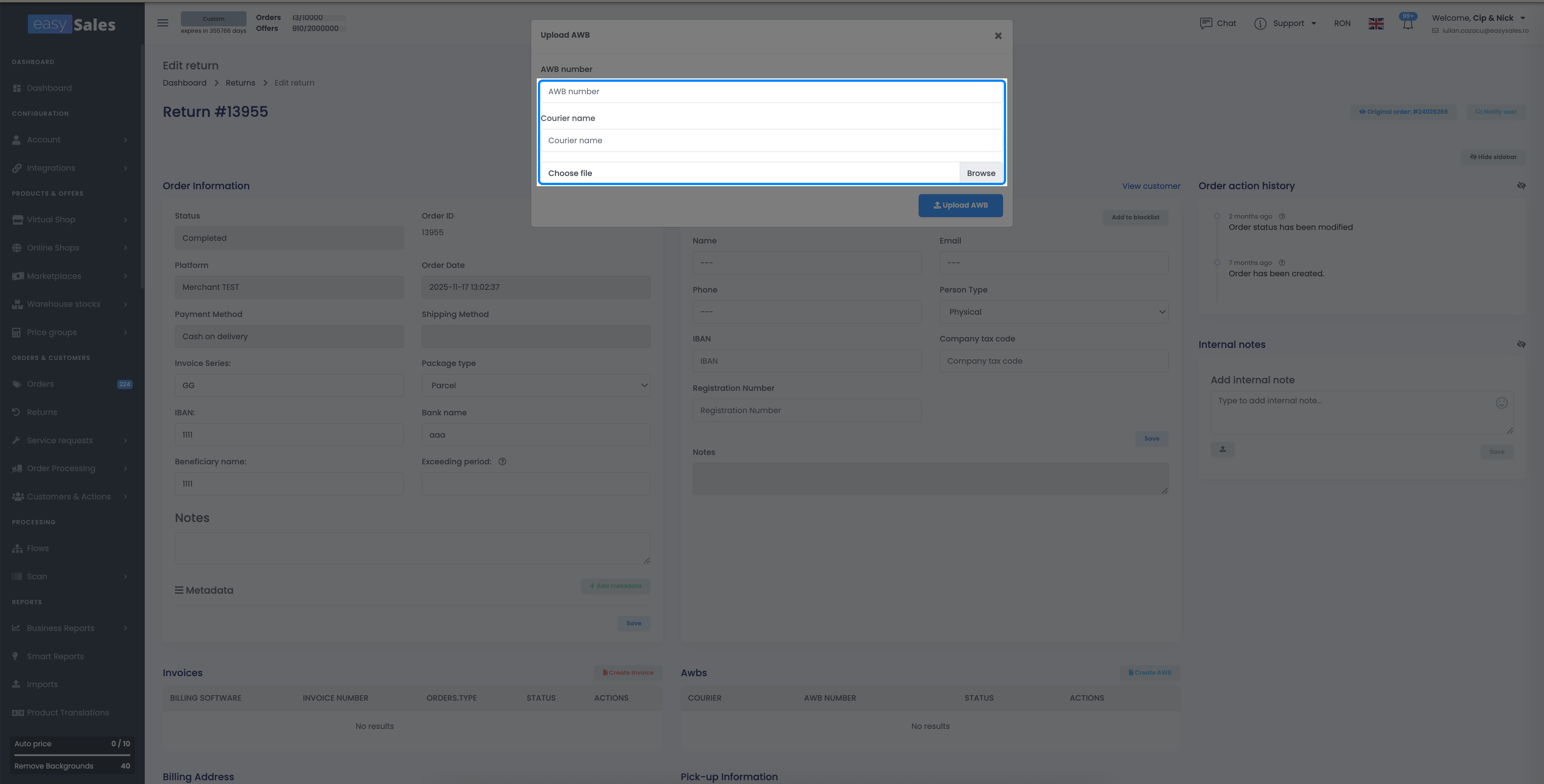
Shipping the return with a carrier that doesn't have a return account in easySales? Upload an external return label onto the return — attach the file so the document lives on the request and the rest of the flow continues as normal.
Automate returns with Flows
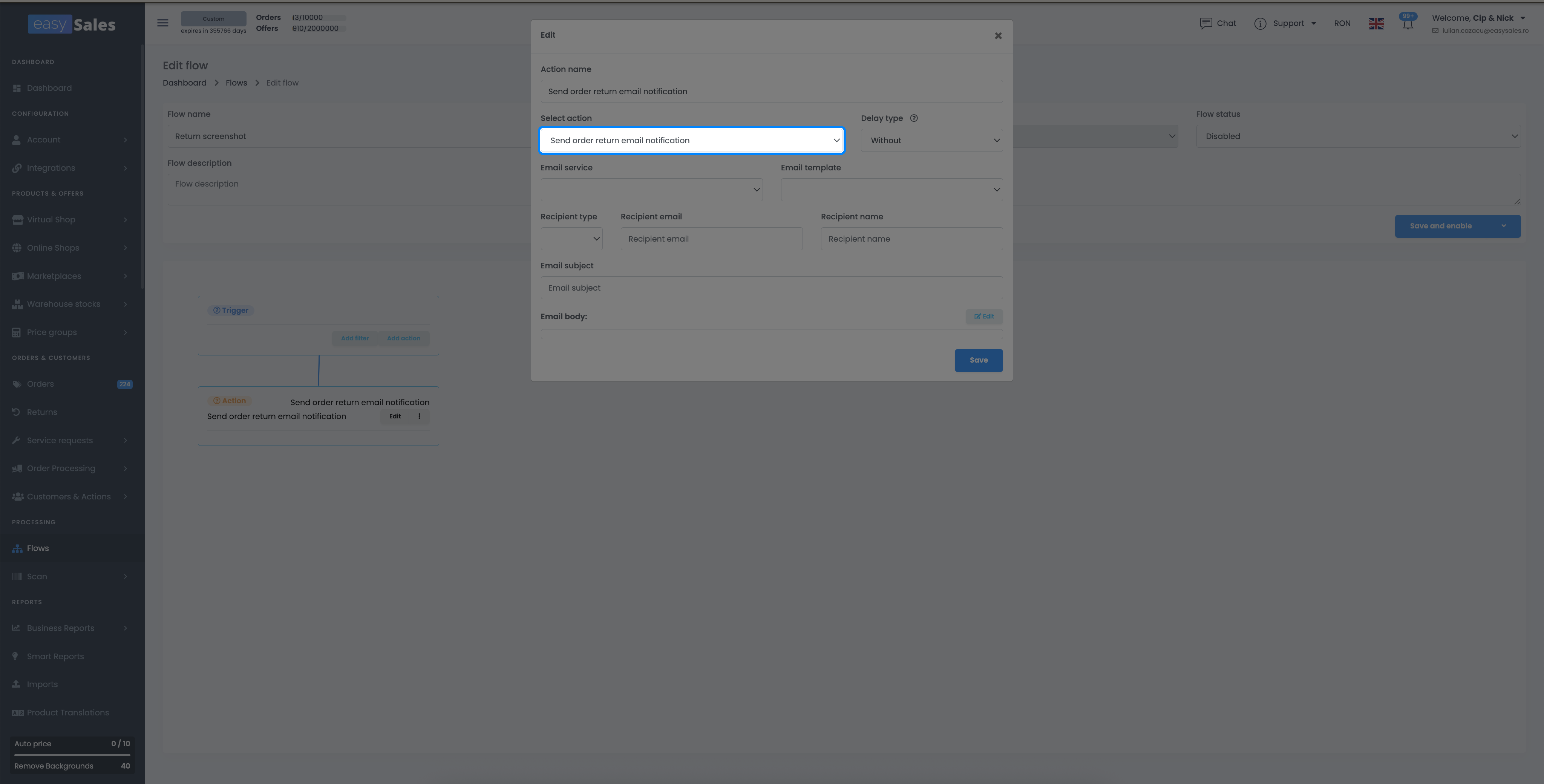
With Automation Flows you can take the repetitive admin off your plate. A return can trigger work automatically — when a return is created, finished, or its AWB is generated. A flow can generate the return AWB, issue the reverse invoice, send the customer an email or SMS notification, and attach or detach return tags for sorting and reporting.
Handle returns without the headache
Try easySales free for 14 days and process returns, return AWBs and storno invoices from one place. No credit card required.