How to use notifications in easySales: the bell, the list and e-mail alerts
See new orders, stock alerts, exports and stopped channels in the bell, and choose which events also reach you by e-mail.
What the notifications are
The bell in the top bar tells you what happened in your account while you were busy: a new order, a product that ran out of stock, an export that is ready, a channel that stopped syncing or a reply from our support team.
These notifications are for you and your team. The messages sent to your buyers are a different feature, with its own page also called Notifications under Customers → Communication.
Three things to know first:
- Only unread notifications are kept. When you open or close a notification, it disappears for good.
- Everything always reaches the bell. The notification settings decide which events also send you an e-mail.
- One setting decides more than the e-mail: with Marketplace/website deactivated switched off, you are not warned at all when a channel stops syncing.
The bell
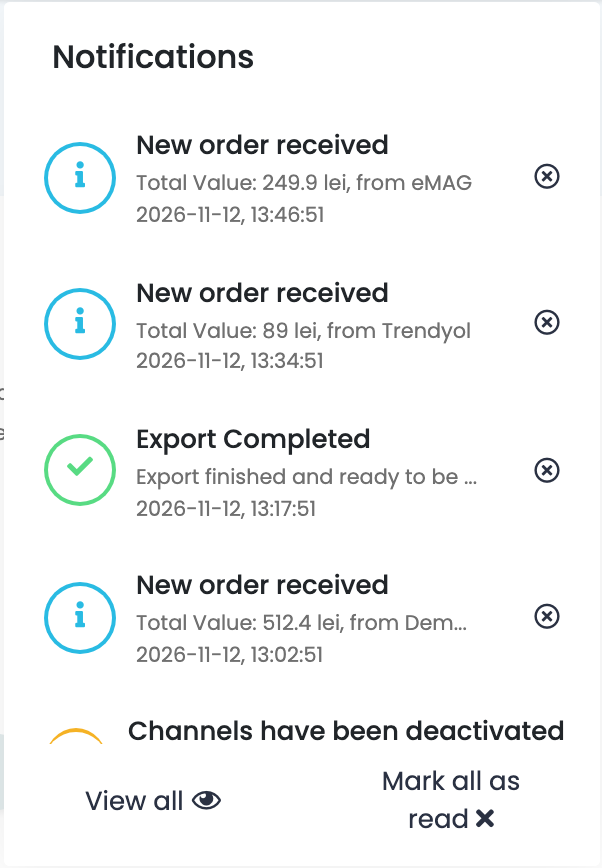
The number on the bell is how many unread notifications you have; above 99 it shows 99+. Click the bell to see the five newest:
- Click a notification to open the order, product or page it is about. It is marked as read.
- The ⓧ next to it marks it as read without opening it.
- Mark all as read clears all of them.
- View all opens the full list.
All your notifications
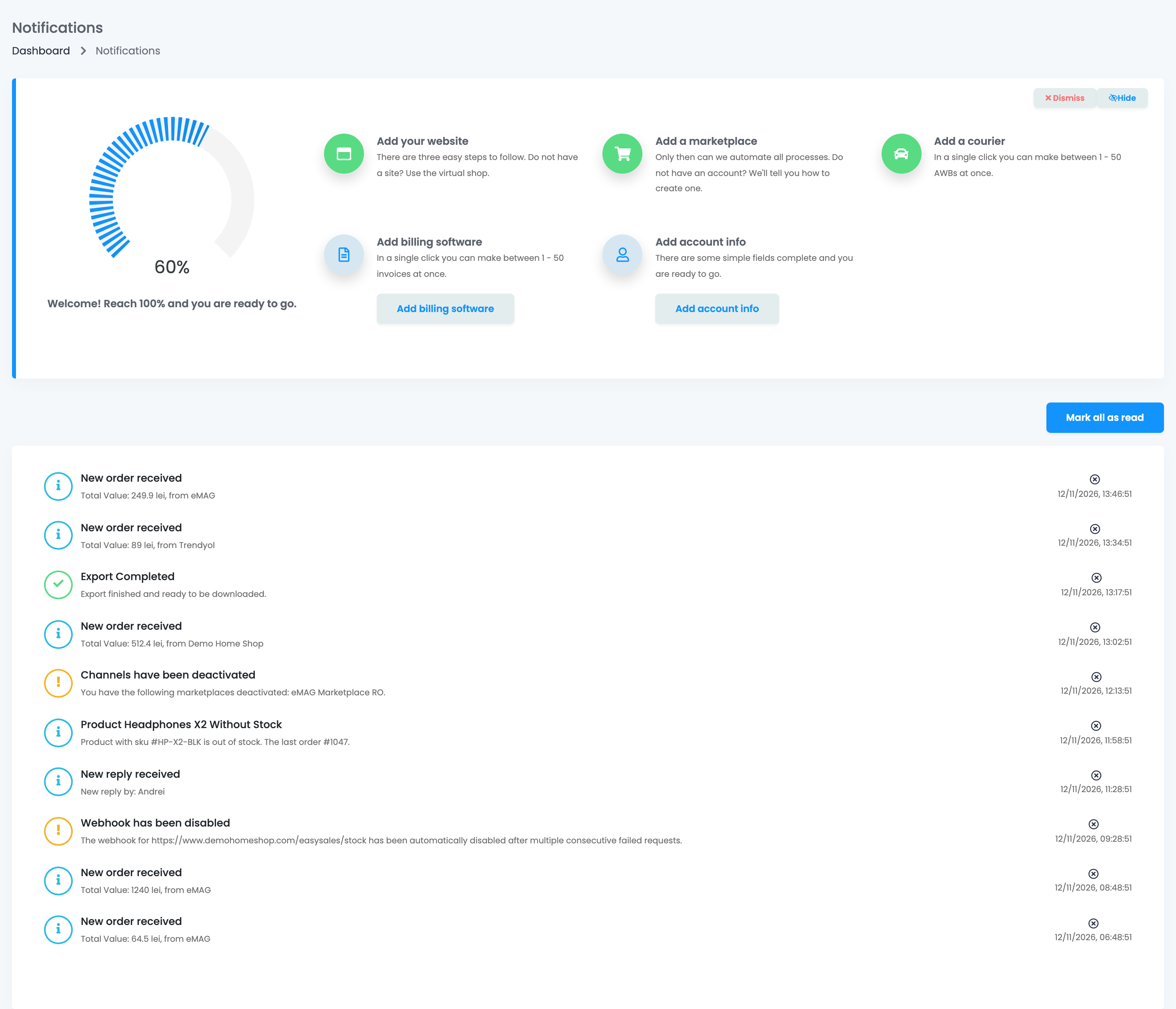
View all opens the page with all your unread notifications, the newest first, 50 per page. Each one shows its full text and the date. Mark all as read at the top clears the list.
The page has no filters and no history: what you have read is no longer shown.
What sends a notification
| Notification | When you get it |
|---|---|
| New order received | For every new order, with its value and the channel it came from. |
| Product without stock | A new order took a product's stock to zero. It names the product and the last order. |
| Channels have been deactivated | Every morning while a marketplace connection or a shop is stopped. It names them. |
| Export Completed | Your export is ready. Click it to download the file. |
| Import Finished / Import Failed | The result of an import you started. |
| New reply received | Our support team answered one of your tickets. |
| Webhook has been disabled | A webhook address kept failing and was switched off. |
| Your easySales invoice | The invoice for your subscription has been issued. |
Choose which e-mails you receive
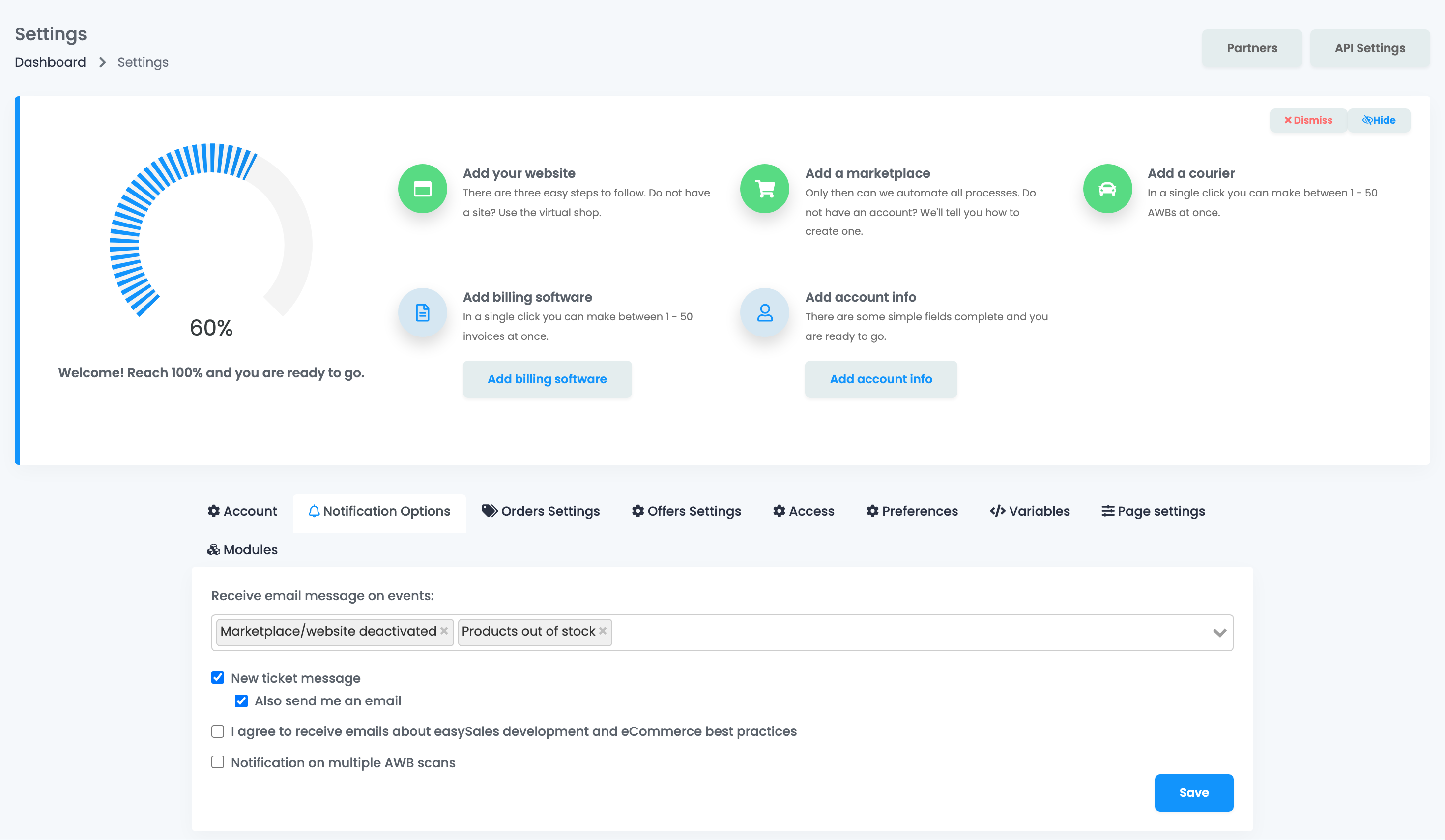
Open Settings → Settings, under Account, and choose the Notification Options tab.
- In Receive email message on events, choose the events you also want by e-mail. The event names are in English in every language.
- Tick New ticket message to be notified when a buyer writes in Customers → Tickets, and Also send me an email to get it by e-mail too.
- Press Save.
| Event | What ticking it does |
|---|---|
| New Order | An e-mail for every new order, besides the bell. |
| Failed to delete the invoice | An e-mail when an invoice could not be deleted in your invoicing software. |
| Products out of stock | One e-mail every few minutes listing the products that ran out of stock. |
| Marketplace/website deactivated | The morning alert about stopped channels, in the bell and by e-mail. Ticked when you create your account. |
| Stock corrected on marketplaces | An e-mail listing the offers whose stock on a marketplace did not match easySales and was corrected. |
Some e-mails come whatever you choose here, because they need your action: a webhook that was switched off, your easySales invoice, a failed payment, a finished or failed export and the replies of our support team.
Your team
Each person has their own notifications. When a team member reads one, it stays unread for you.
- A team member sees the bell only with the View notifications permission.
- Under Internal Notifications in their permissions you choose which shared events they receive: New order, Failed delete invoice, Product out of stock and Marketplace/Website deactivated.
- Each team member chooses their own e-mails in their own Notification Options. The e-mails go to the address they sign in with.
On your phone
The easySales mobile app sends a phone notification for every new order on the device where you are signed in. The other events are shown only in the bell and by e-mail.
When something does not look right
| Symptom | What to do |
|---|---|
| A notification disappeared | It was opened or closed, on this account. Read notifications are not kept. |
| I was not told that a channel stopped | Tick Marketplace/website deactivated in Notification Options. |
| I get too many new order e-mails | Untick New Order. The orders still appear in the bell. |
| A team member does not see the bell | Give them the View notifications permission. |
| A team member gets no new order notifications | Tick New order under Internal Notifications in their permissions. |
| A product reached zero stock and nothing was announced | Only an order that empties the stock sends the notification. A change by hand or by import does not. |