How to configure your account in easySales: personal details, company info for invoicing and password
Set up your easySales account in one place: your personal details and preferences, the company information used on your invoices, and your password. Includes the things to watch — why changing your country can affect your subscription, and why your email is fixed here.
Your account settings keep easySales pointed at the right details: who you are, the language and currency you work in, the company data that lands on your invoices, and your sign-in password. It's one screen, but a few fields ripple further than you'd expect, so it's worth a careful pass.
This guide walks the whole Account tab section by section, flags the fields you can't change here and why, and calls out the one setting that affects your billing.
Where to find account settings
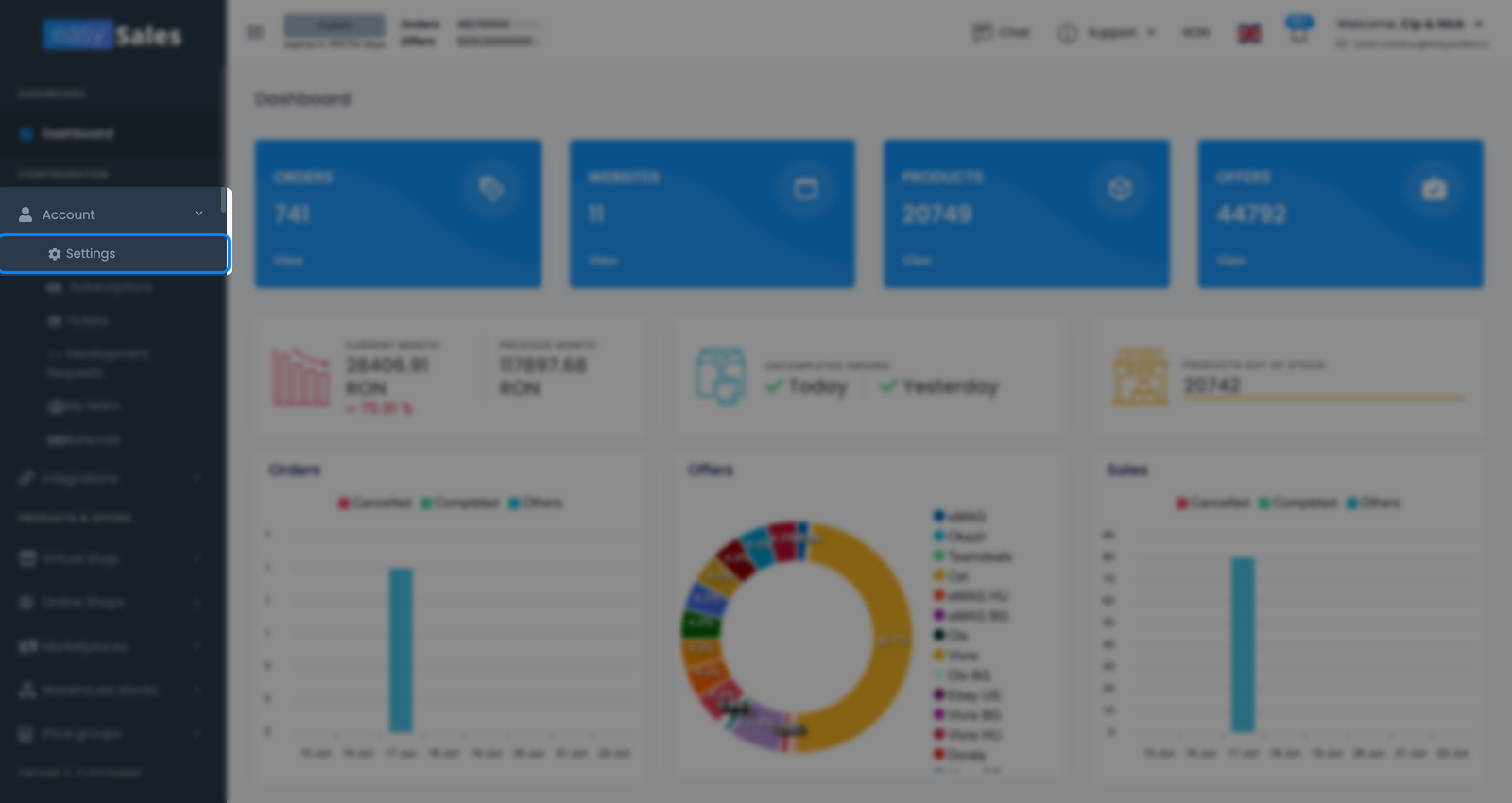
From the sidebar, open Account → Settings, then the Account tab. That tab holds everything in this guide, split into three sections — Personal, Company Info and Update Password — with a single Save button at the bottom that commits all three at once.
Personal
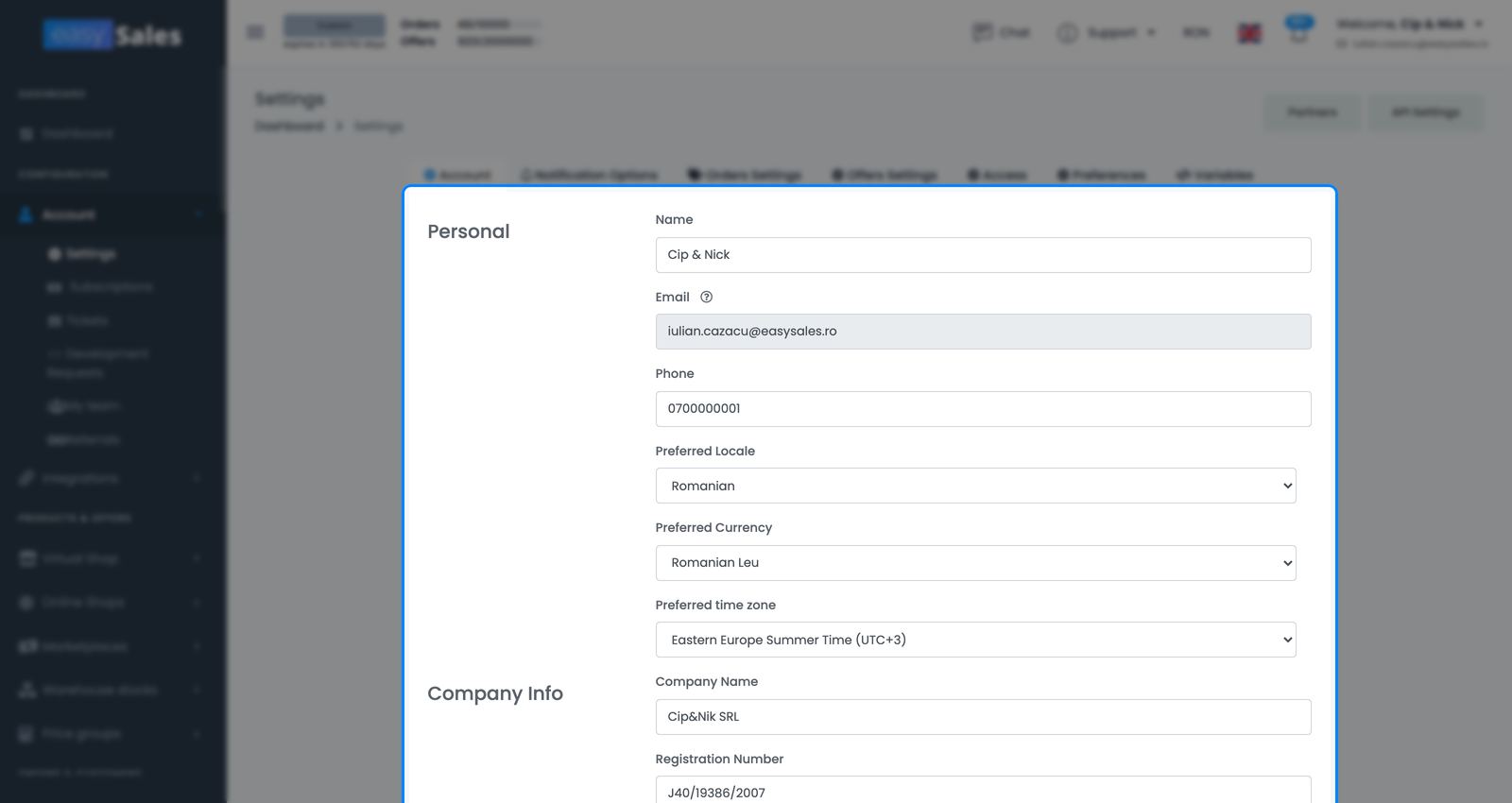
Your name, the sign-in email (read-only), phone, and your preferred locale, currency and time zone.
Company Info
Company name, registration number, VAT ID, bank account, country, county and street — the data printed on your invoices.
Update Password
Set a new sign-in password: enter your current password, then the new one twice to confirm.
One Save button covers the whole tab, so you can edit any mix of fields and save them together — no need to save each section separately.
Personal details
The Personal section holds who you are and how easySales presents itself to you.
Your name, phone and the locked email
Edit your Name and Phone freely. Your Email, by contrast, is the one field in this section you can't edit.
Language, currency and time zone
Three preferences tailor easySales to how you work:
- Preferred Locale sets the interface language.
- Preferred Currency sets the currency you see amounts in across the app.
- Preferred time zone sets the offset your times display in — the options are UTC+1, UTC+2, UTC+3 and UTC+8 — so timestamps match where you are.
These are display preferences. They change how figures and times appear to you; they don't rewrite the underlying data.
Company information for invoicing
The Company Info section is the business identity behind your account, and it matters more than it looks: this is the data easySales prints on your invoices. If it's incomplete or wrong, your billing documents will be too — so fill it in fully before you expect clean invoices.
Company name, registration number, VAT ID and bank account
Four fields describe the legal entity:
- Company Name — the registered name of your business.
- Registration Number — your trade-register or equivalent number.
- VAT ID — your VAT identification number.
- Bank Account — the account shown for payments.
One note on the VAT ID: Hungary is the only country where easySales enforces a format — it must be 8 digits (an optional HU prefix is allowed), otherwise it's rejected. For every other country the VAT ID is stored exactly as you enter it, with no format check.
Country, county and street — and why country affects your billing
The remaining fields are your address: Country, County and Street. They read like ordinary contact details, but Country is the most consequential field on this screen.
Here's why. Your country sets the currency your subscription is billed in, and that currency is tied to your saved payment method, which is why changing it while you have an active subscription has knock-on effects on your billing.
County and Street carry no such consequences — they're address detail for your documents, and you can edit them freely.
Changing your password
The Update Password section is where you set a new sign-in password, using three fields: Current Password, New Password and Confirm New Password.
The first field is the key one: you must enter your current password to set a new one. It's a safety check that confirms it's really you, not someone on an open session. Type your existing password, then your new password twice (to catch typos), and save.
If you've forgotten your current password and can't clear this check, use the password-reset flow from the sign-in screen instead.
Saving your changes
When you're done, click the single Save button at the bottom. It commits every section you touched — personal details, company info and password — in one go. Ordinary fields need no extra confirmation.
The one exception is Country: if you changed it while on an active subscription, expect the prompt described above, and continue only when you're ready to add a new payment method.
That's the whole Account tab. Two things people look for here but won't find: this tab covers your account identity and preferences only. It doesn't hold your logo, and it isn't where developer or integration tokens live — those are configured elsewhere in easySales.