How to track your team's activity in easySales
See how many orders each person on your team picked, packed, invoiced and shipped, open the orders behind every number, and export the figures.
What the team activity report shows
Team Activity counts the work each person on your account does in easySales: orders picked and packed, AWBs and invoices created, processing groups, documents opened and printed, and products scanned. Open it from Reports → Business Reports → Team Activity.
Three things to know first:
- It counts orders, not clicks. An order opened five times counts once. An order two people worked on counts once for each of them and once for the team, so the rows do not add up to Team total.
- It counts only work done in easySales. Work done on a marketplace or in another program does not appear.
- It measures volume, not time. It shows how many orders each person handled, not how long they took.
Read the report
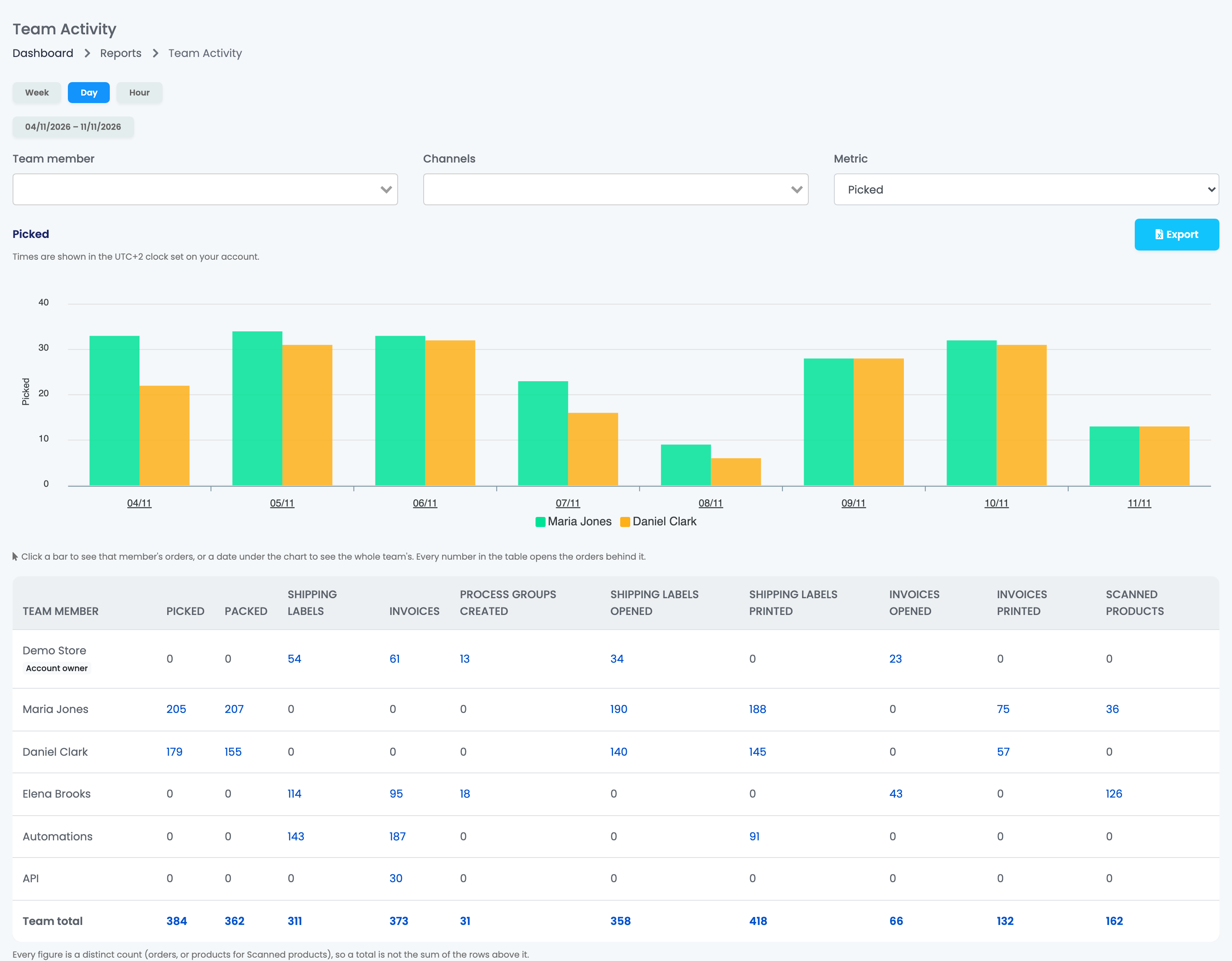
- Choose how to group the figures: Week, Day or Hour. Day is selected when the page opens.
- Pick the period with the date button. The report opens on the last 7 days.
- Narrow it down with Team member and Channels, if you need to.
- Choose the Metric shown in the chart. The table below always shows all of them.
The chart has one bar per person for each day, week or hour. The table has one row per person and a Team total row in bold. The owner's row carries the Account owner badge.
| Metric | Counts |
|---|---|
| Picked | Orders picked on the Picking screen, on their own or in a processing group. |
| Packed | Orders packed on the Packing screen. |
| Shipping labels | Orders whose AWB was created in easySales. |
| Invoices | Orders whose invoice was created in easySales. |
| Process groups created | Processing groups created. |
| Shipping labels opened | Orders whose AWB was opened, including a browser print. |
| Shipping labels printed | Orders whose AWB was printed through the easySales printer app. |
| Invoices opened | Orders whose invoice was opened. |
| Invoices printed | Orders whose invoice was printed through the easySales printer app. |
| Scanned products | Products scanned or changed on Scan Products and Scan Locations. |
Who gets the credit
| The action was done by | It is credited to |
|---|---|
| A person logged in to easySales | That person: the account owner or a team member. |
| A flow started by someone's action | The person whose action started the flow. |
| A flow nobody started | Automations. |
| Your own integration, through the easySales API | API. |
See the orders behind a number
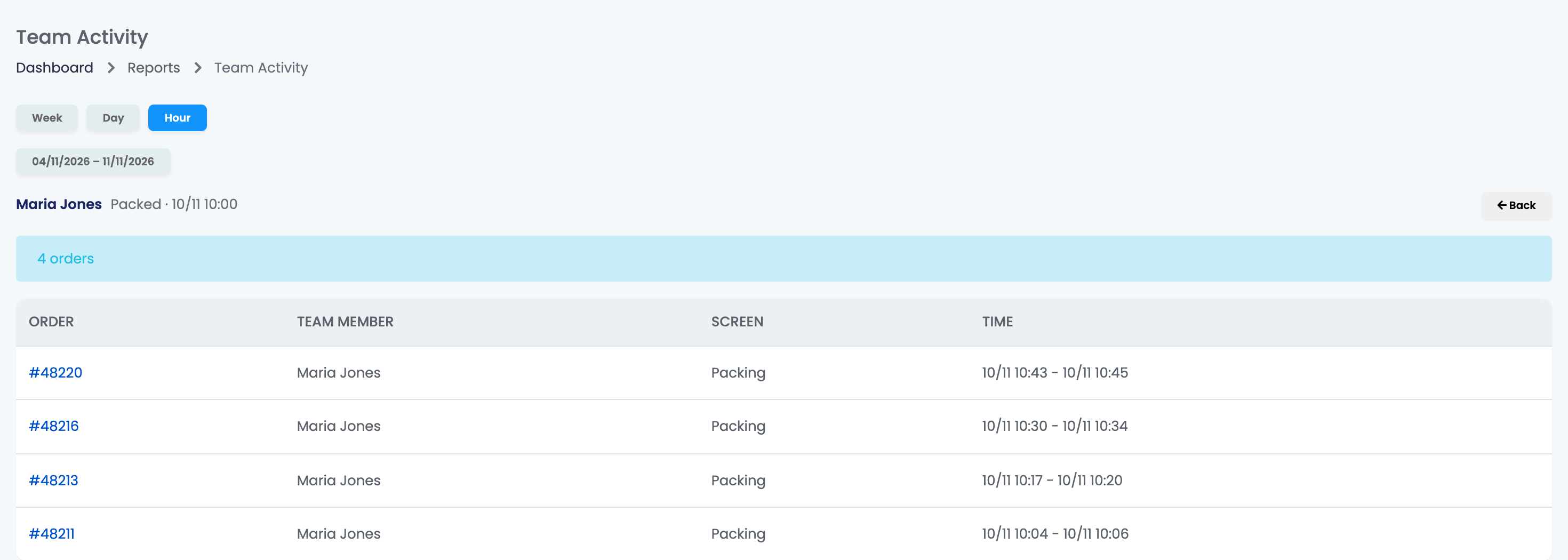
Every number opens the orders it counts:
- Click a number in the table to see that person's orders for the whole period, or a number in Team total to see the team's.
- Click a bar to see one person's orders for that day, week or hour.
- Click a date under the chart to see the whole team's orders for it.
The list shows the order, the team member, the Screen the work was done on (for example Picking, Packing, Orders list or Flow, automatic) and the time. Click the order number to open the order. Back returns to the report. For Scanned products, the list shows the products, the operation and what changed. A list shows up to 500 rows; pick a shorter period to see the rest.
Look at one day hour by hour
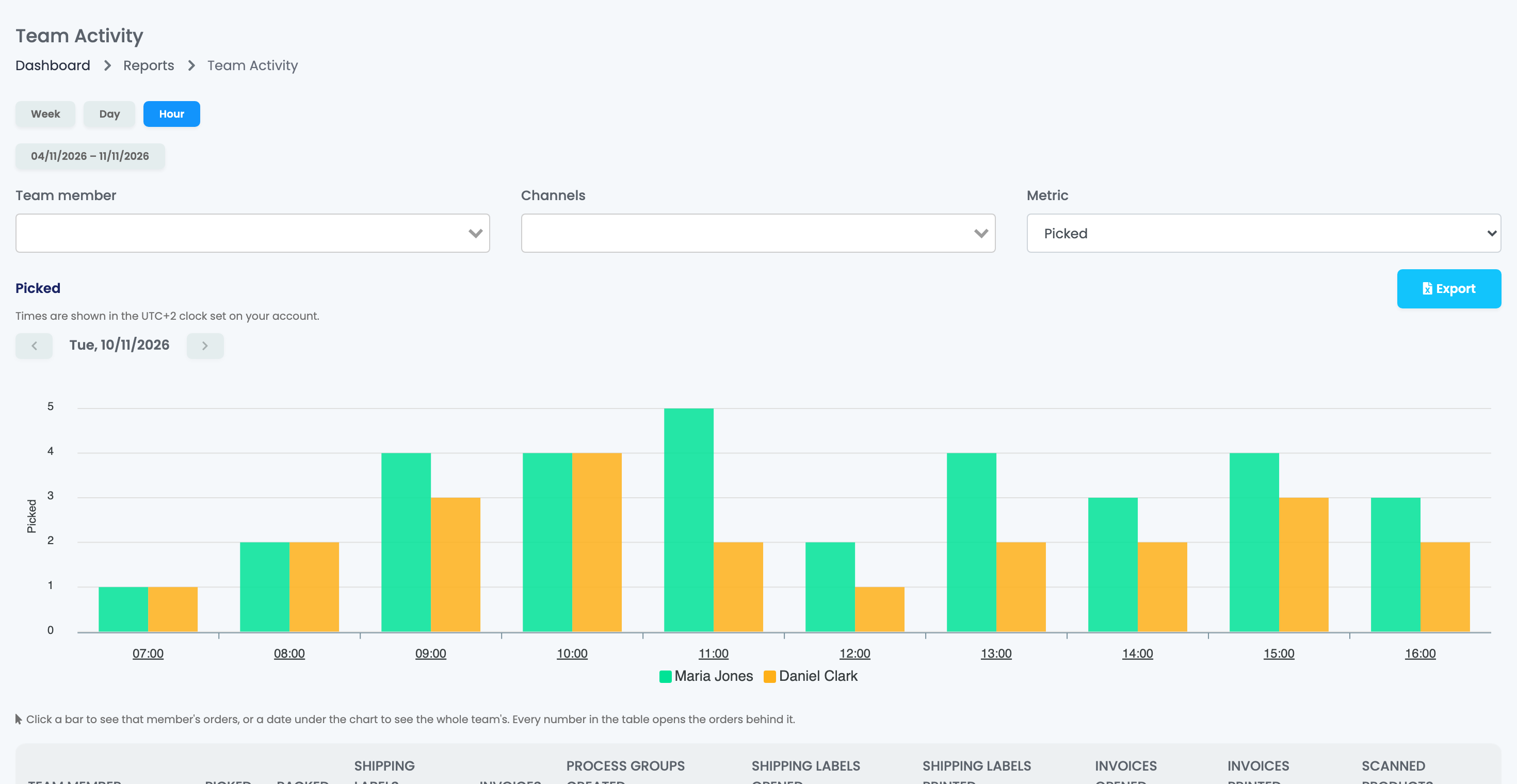
On the Hour tab, the chart shows one day at a time. Move between days with the arrows next to the date. The hours are those of the time zone set on your account, in Settings → Account → Time zone, and the page names it under the chart title. The Hour tab covers at most the last 31 days of the period you picked.
Export the report
Export downloads an Excel file with the tab, period and filters you have on screen:
- Standard export: the figures of each person, for the whole period and for each day, week or hour.
- Packed orders per courier: the packed orders of each person, split by the courier of the order's latest AWB.
- Shipping labels per courier: the AWBs of each person, split by courier.
Let a team member see the report
The account owner always sees Team Activity. A team member needs the View order processing activity permission, which the owner ticks in My team. Without it, the report is not in the member's menu.
When something does not look right
| Symptom | What to do |
|---|---|
| The rows do not add up to Team total | That is expected. An order handled by two people counts once for each of them and once for the team. |
| Shipping labels shows 0, but my team ships every day | The AWBs are supplied by the marketplace. Look at Shipping labels opened and Shipping labels printed. |
| Shipping labels printed shows 0, but we print every label | Only prints sent through the easySales printer app count. A print from the browser counts under Shipping labels opened. |
| Process groups created and Scanned products show 0 when I pick a channel | Processing groups and scanned products do not belong to a channel. Clear Channels to see them. |
| There is no data before a certain date | Team activity is recorded from 17 September 2026, and the report goes back at most 13 months. |
| A team member cannot find the report | Tick View order processing activity for that member in My team. |
| The hours are shifted | Check the Time zone in Settings → Account. |