How to receive supplier goods in easySales: supplier receptions step by step

Prepare receptions from supplier orders or files, scan and confirm each delivery into stock, and complete the reception with any differences recorded.
What a supplier reception is
A reception records the goods a supplier delivers and puts them into your stock. You can prepare it before the goods arrive, from a supplier order or a file, or simply scan what arrives.
Open it from Suppliers → Supplier Reception. On a supplier order you can also press Create reception.
Three things to know first:
- Stock goes in with each confirmed delivery. When you confirm a delivery, its pieces are in stock straight away; you do not wait for the whole reception.
- Receptions go into a Manual warehouse. The warehouse must be in the shop's warehouse rules.
- The products must already exist in the shop. A reception does not create new products.
Your receptions at a glance
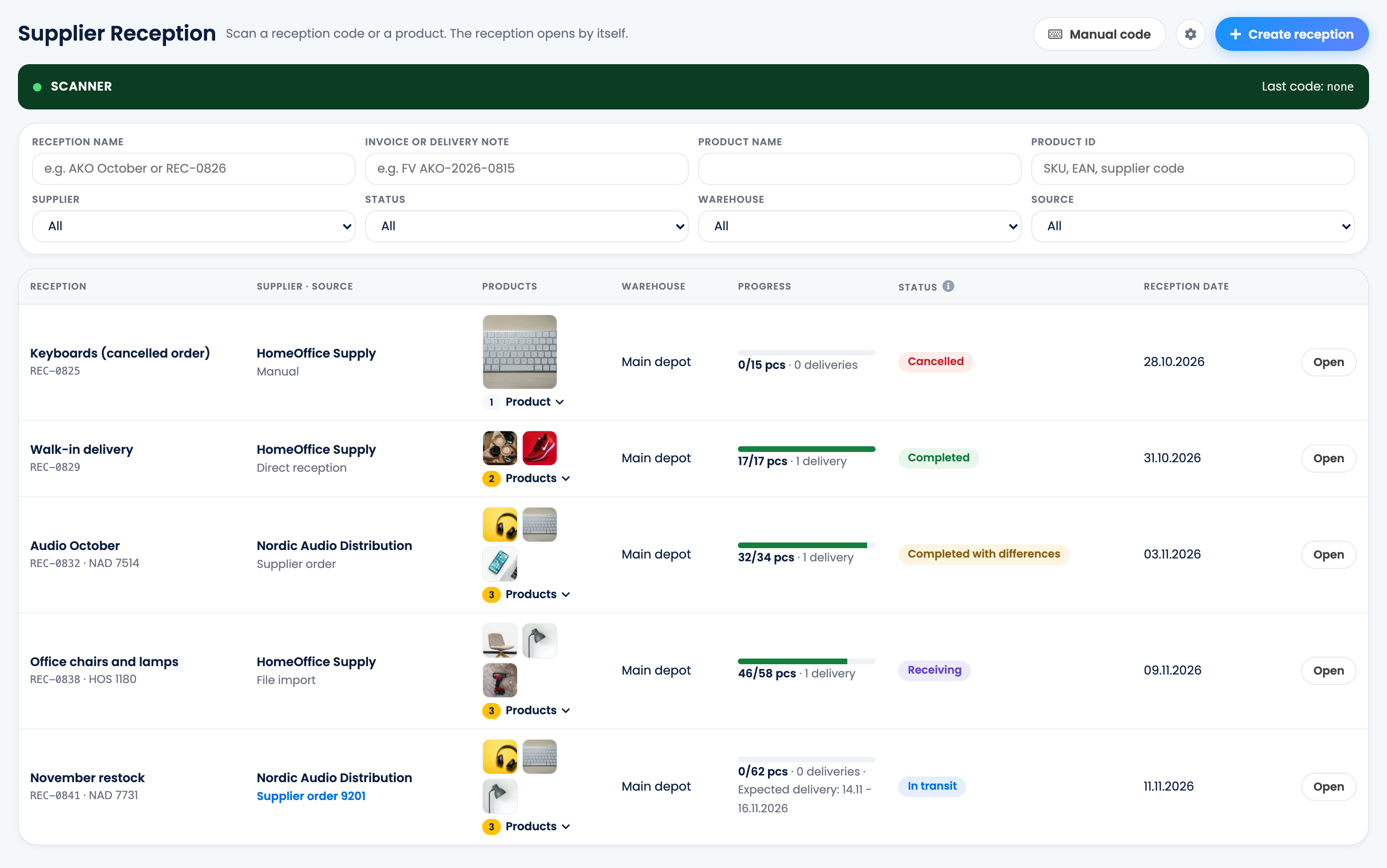
The list shows each reception with its supplier and source, its products, the warehouse, how many pieces arrived and its status. Use the filters to find a reception by name, invoice or delivery note, product, supplier, status, warehouse or source.
You can also scan a reception code or a product on this page: the matching reception opens by itself.
| Status | Meaning |
|---|---|
| New | A direct reception being scanned. Its stock goes in when you complete it. |
| In transit | A prepared reception: the goods are expected and nothing has arrived yet. |
| Receiving | At least one delivery was confirmed and goods are still expected. |
| Completed | Everything arrived as expected. |
| Completed with differences | The reception was completed with missing or surplus products. |
| Cancelled | The reception was cancelled before any delivery. |
Create a reception
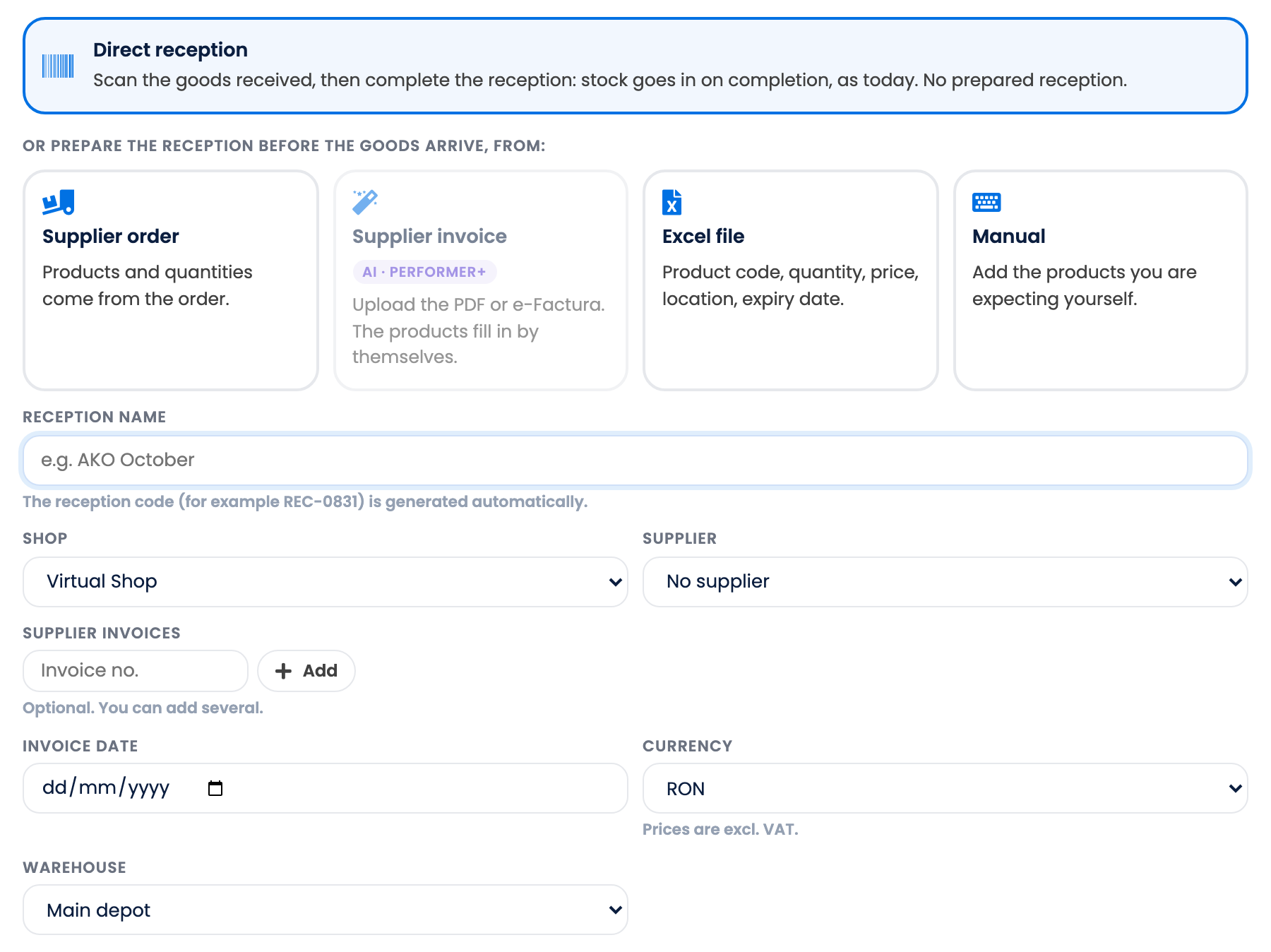
Press Create reception and choose where the products come from:
- Direct reception: scan the goods as they arrive, then complete the reception. The stock goes in when you complete it.
- Supplier order: the products and quantities come from the order.
- Excel file: one line per product with its code, quantity, price, location and expiry date.
- Manual: add the products you are expecting yourself.
Then fill in the Reception name, the Shop, the Supplier, the Supplier invoices if you have them, the Currency and the Warehouse. The reception code, for example REC-0841, is generated automatically. Prices are without VAT.
For a supplier order or a file, press See the products before you create the reception. Every line must be matched to a product of the shop; choose the product or leave the line out.
| Column | Content |
|---|---|
| A | Product code: SKU, EAN, additional EAN or supplier code. |
| B | Quantity. |
| C | Price without VAT. |
| D | Location, for warehouses that use batches. |
| E | Expiry date, for warehouses that track expiry dates. |
Receive the goods
- Open the reception and press Scan products.
- Scan each piece. You can also change the quantity by hand.
- A product that is not on the reception asks you to Do not receive it or Add to reception.
- Press Confirm delivery. The pieces of this delivery are now in stock.
Goods can come in several deliveries: scan and confirm each one. If everything arrived as planned, Receive everything without scanning in the menu receives the remaining quantities in one step.
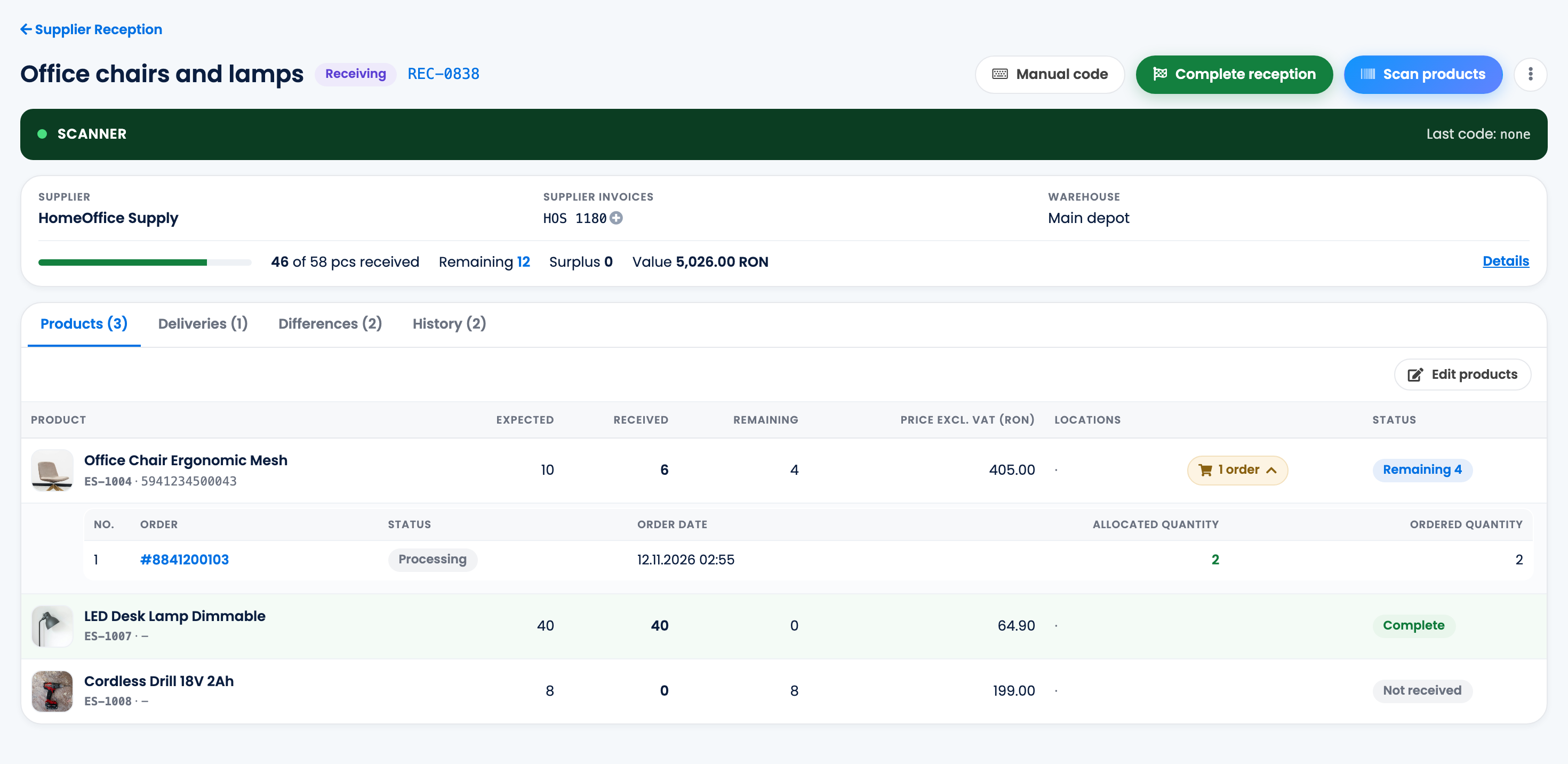
Under each product you see the orders waiting for it, oldest first, so you know what to prepare first. Receiving does not reserve stock for these orders.
Complete the reception
When the goods have arrived, press Complete reception.
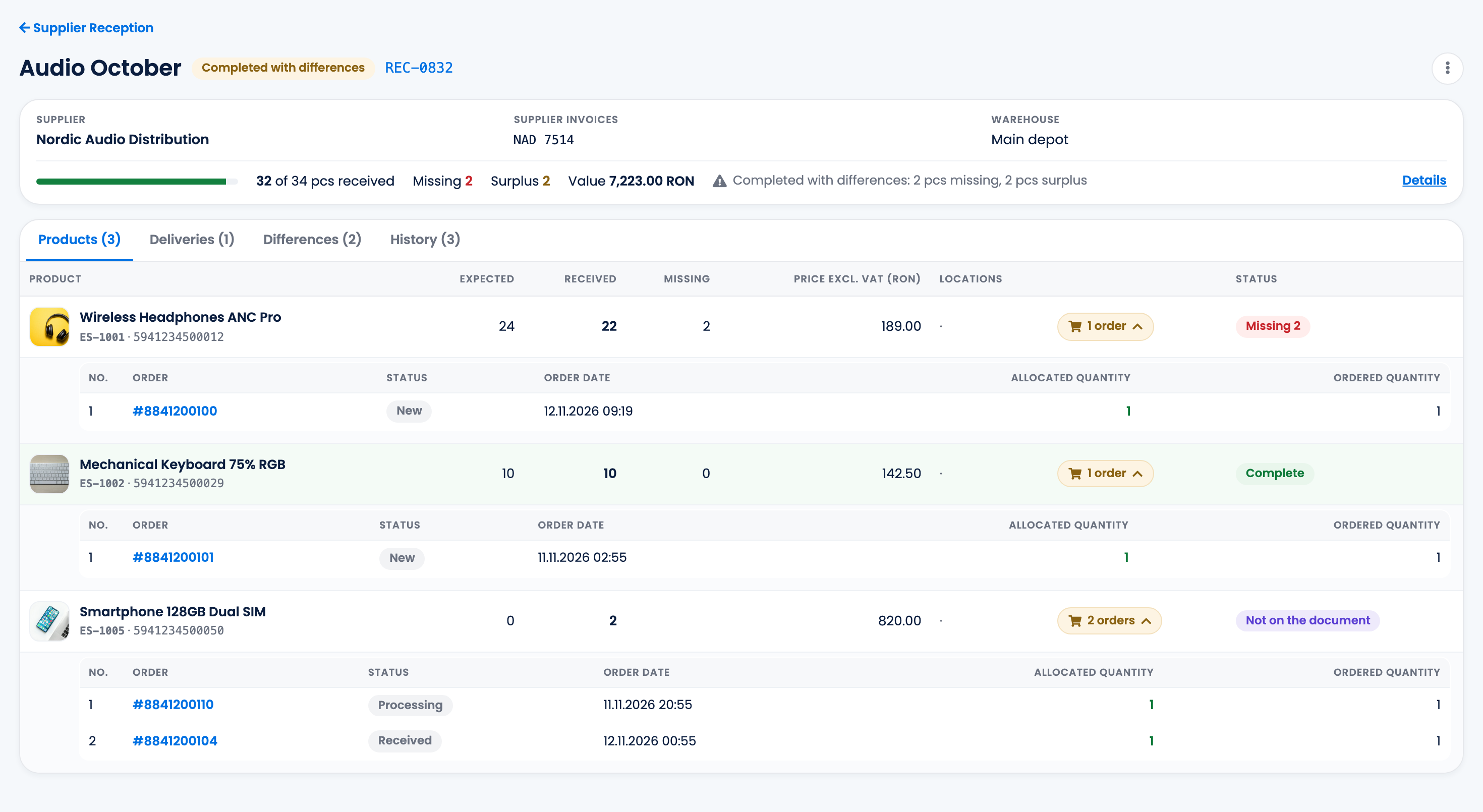
- If every product arrived in the expected quantity, the reception becomes Completed.
- If something is missing or extra, it becomes Completed with differences. The Differences tab and the Differences report (Excel) show what is missing and what came in surplus.
- Also close supplier order closes the supplier order of the reception too. It is ticked by default; untick it if you still expect the missing goods on that order.
| What happens | |
|---|---|
| Stock | Each confirmed delivery adds its pieces to the reception's warehouse. |
| Purchase price | On a warehouse without batches, the product's purchase price becomes the average of the stock you had and the new pieces. A line without a price leaves it unchanged. |
| Locations and expiry dates | On a warehouse that uses batches, each delivery line goes to its location as a batch, with its expiry date when the warehouse tracks it. |
| Supplier order | Closed when you complete the reception with Also close supplier order ticked, or automatically when every product of the order arrived in full. |
Settings
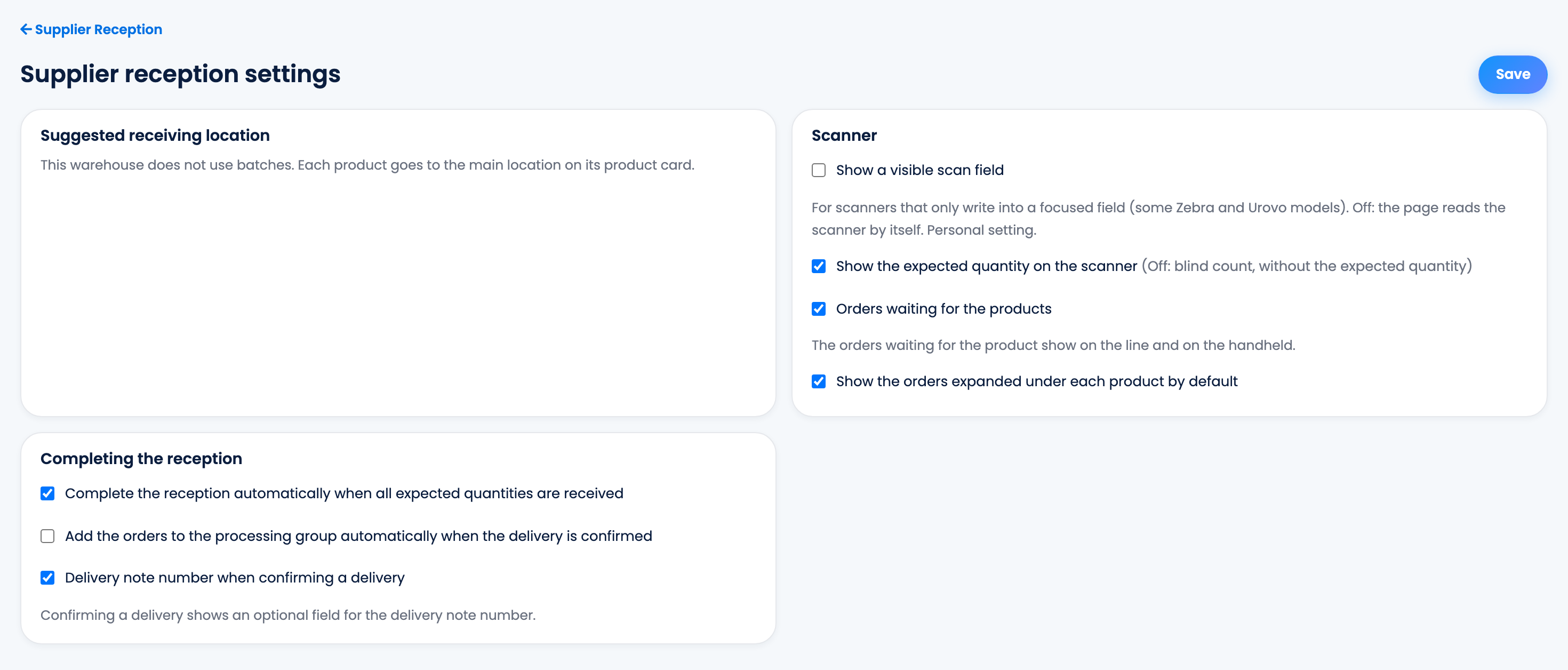
The gear button on Supplier Reception opens the settings. Only the account owner can change them.
- Complete the reception automatically when all expected quantities are received, on by default.
- Add the orders to the processing group automatically when the delivery is confirmed: an order goes to the chosen series when all its products arrived in that delivery and it is not in a group yet.
- Delivery note number when confirming a delivery: an optional field for the delivery note number.
- Scanner: whether the expected quantity is shown while scanning, and whether the waiting orders are shown.
Your team
| Permission | Allows |
|---|---|
| View supplier receptions | Opening receptions, exports and labels. |
| Receive goods (scan and confirm deliveries) | Creating and changing receptions, scanning and confirming deliveries. |
| Complete supplier receptions | Completing receptions and receiving everything without scanning. |
| Delete or cancel supplier receptions | Deleting or cancelling receptions. |
When something does not look right
| Symptom | What to do |
|---|---|
| The warehouse I want is not offered | Only Manual warehouses in the shop's warehouse rules can receive. Add the warehouse to the rules. |
| A line in the file is not recognised | The product must already exist in the shop with that SKU, EAN or supplier code. Choose the product or leave the line out. |
| My scans disappeared | Scans are kept only until you confirm the delivery. Scan again and press Confirm delivery. |
| I cannot cancel the reception | Only a reception in transit with no confirmed delivery can be cancelled. Complete it instead. |
| The stock went back to the old quantity | The shop's stock is synced from another system. Receive into a Manual warehouse in the shop's warehouse rules. |
| The supplier order stayed open | Also close supplier order was not ticked. Close the order from Supplier Orders. |