How advanced warehouses work in easySales: multiple stock locations, rules and transfers
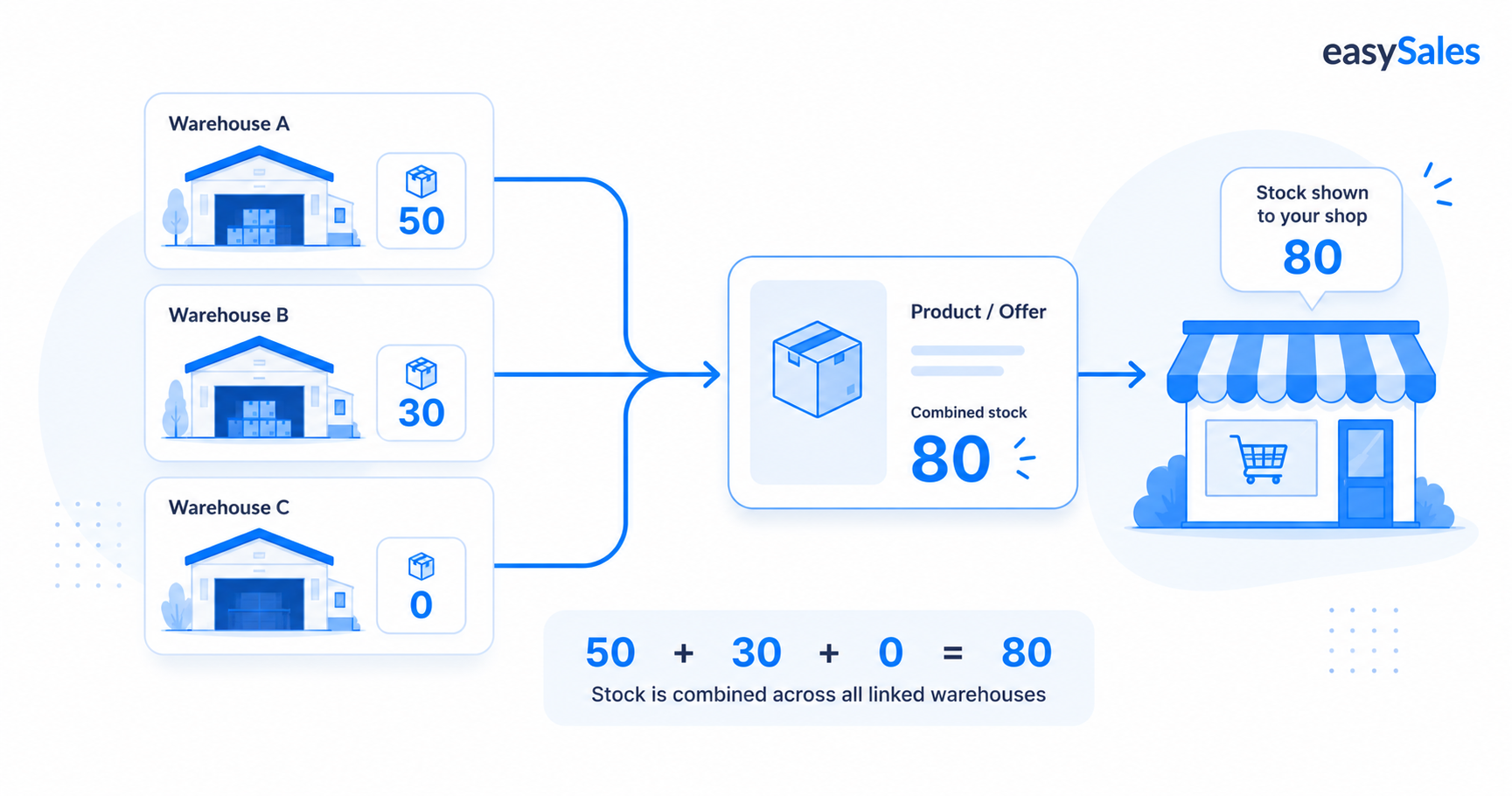
Run more than one stock location in easySales. Advanced warehouses let each location hold its own inventory, fed manually, by feed, by integration or from a supplier — then combine them per online shop with priority and handling-time rules.
If all your stock sits in one place, easySales' basic single-stock model is enough. But the moment you keep inventory in more than one location — a second depot, a dropship supplier, a feed from an ERP — you need each location tracked on its own, then combined into the number your marketplaces see. That's what advanced warehouses do.
This guide walks through everything: what an advanced warehouse is, how you turn it on for an online shop, the four ways a warehouse gets its stock, how those quantities are combined and pushed to your offers, the rules that decide which warehouse ships an order, how transfers move stock between locations, and the gotchas worth knowing before you start.
Basic stock vs advanced warehouses
In the basic model a product has a single stock number, wherever that number comes from. Advanced warehouses break that apart: each location keeps its own quantity per SKU, and easySales recombines them for each online shop. Here's the difference at a glance.
| Basic stock | Advanced warehouses | |
|---|---|---|
| Stock locations | One | Many, each tracked separately |
| Stock per SKU | A single number | A quantity per warehouse, combined per shop |
| How it's fed | Import / billing software / manual | Per warehouse: manual, feed, integration or supplier |
| Fulfilment order | Not applicable | Priority + conditional rules per shop |
| Handling time | One value | Can differ per warehouse |
| Turned on | Always | Opt-in, per online shop |
You don't lose anything by staying on the basic model — advanced warehouses are opt-in, per online shop. Turn them on only for the shops that actually draw from more than one location.
What an advanced warehouse is
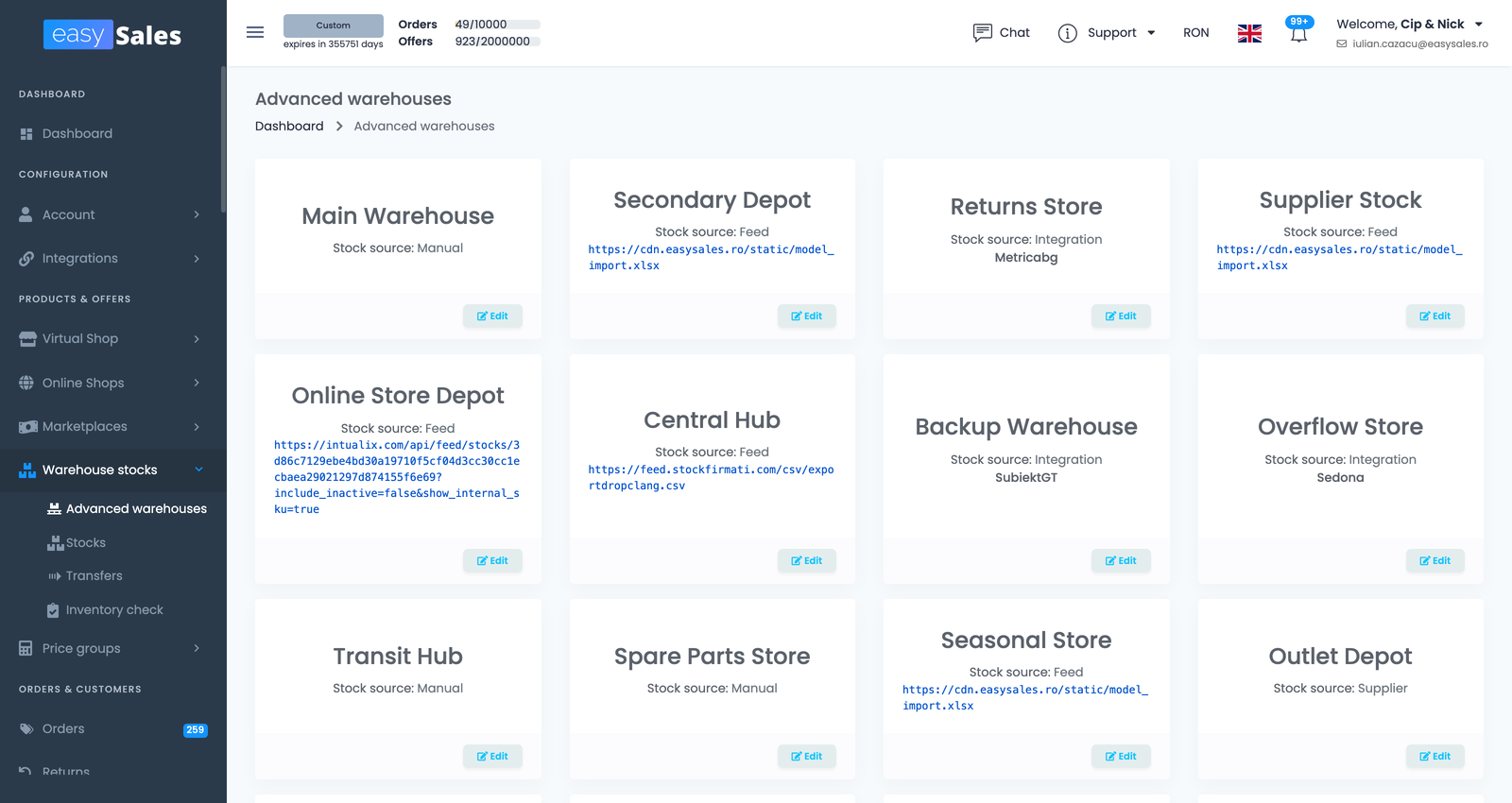
An advanced warehouse is a named stock location with its own inventory — its own quantity per SKU, kept completely separate from every other warehouse. You give it a name (an alias), choose how it's fed, and it appears as a card on the Advanced Warehouses page — open it from the sidebar under Warehouse stocks → Advanced warehouses, where the Connect card adds a new warehouse. You can create as many as you need; there's no fixed limit.
A warehouse on its own doesn't change anything your customers see. It starts mattering once you link it to an online shop and switch that shop's Stock source to advanced warehouses — from then on, the shop's offers draw their stock from the warehouses you linked instead of the single stock field. Because the same warehouse can feed more than one shop, linking it to two shops — two online shops, or one online shop and one virtual shop — keeps the same physical stock in lockstep across both.
Turn on advanced warehouses for an online shop
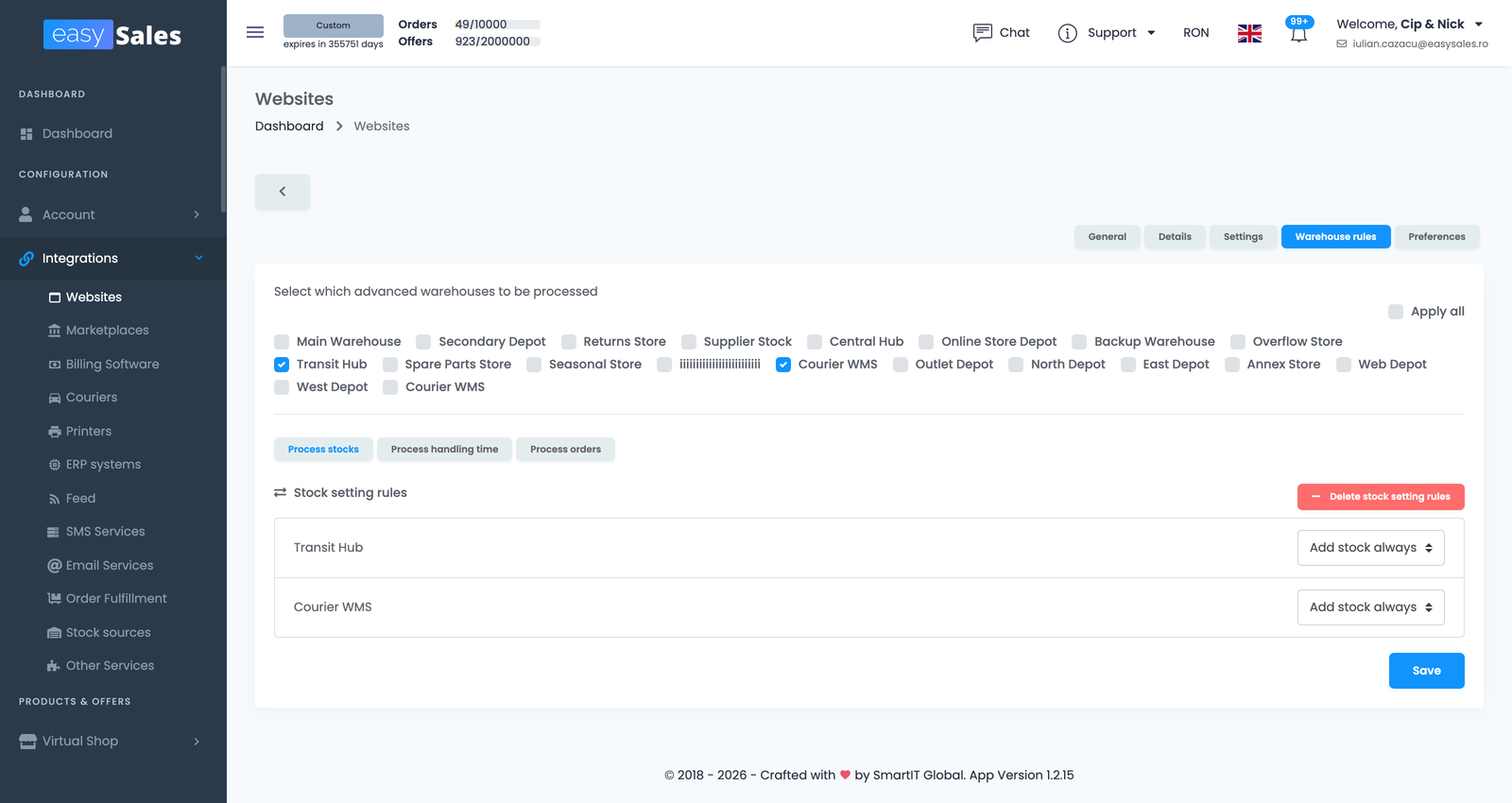
Advanced warehouses are decided per online shop, not globally. Go to Integrations → Websites in the sidebar and open the shop you want (its edit icon). Set the shop's Stock source to advanced warehouses, then open its Warehouse rules tab and tick which warehouses feed that shop (there's an Apply all option to select every warehouse at once). Shops you leave on the default stock source keep using the single stock field and ignore your warehouses entirely.
Once a shop is on advanced warehouses, the rest of this guide — how stock is combined, priority, handling time — applies to it.
Four ways a warehouse gets its stock
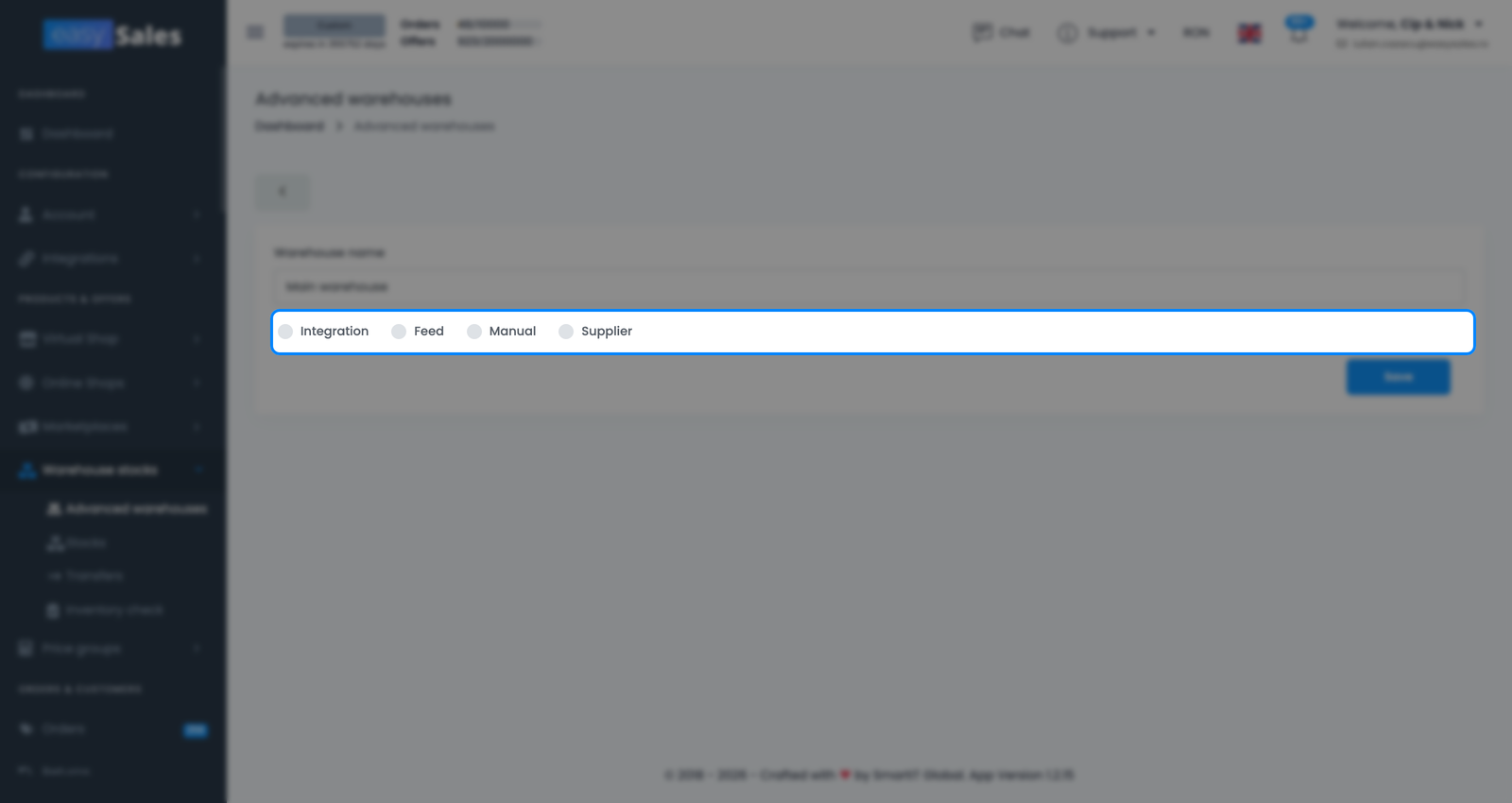
When you add a warehouse you choose its type — how it's fed. The type is set per warehouse, so you can mix them: a manual depot, a feed-driven location, an ERP integration and a dropship supplier, all at once.
Manual
You enter and edit the inventory yourself on the Warehouse stocks page. Best for a location you count and update by hand.
Feed
easySales reads stock from a CSV (or XLSX) file at a URL you provide, mapping its columns to SKU and quantity. Good for a warehouse that publishes a stock file.
Integration
Stock is pulled from a connected stock-management/ERP system through its integration, so the warehouse mirrors that system.
Supplier
The warehouse is tied to a supplier and reflects that supplier's stock — useful for dropship-style locations you don't hold yourself.
Manual
You enter and edit the inventory yourself on the Warehouse stocks page — quantity and warehouse location per SKU. Best for a small location you count and update by hand, or for stock that doesn't come from any system.
Feed
easySales reads stock from a CSV (or XLSX spreadsheet) file at a URL you provide. When you set it up you map the file's columns to the fields easySales needs (the SKU to match on, the quantity, optionally a location), and you can set the column separator, character encoding and file extension so the file is parsed correctly. easySales re-reads the feed on a schedule, so the warehouse keeps mirroring the file without you touching it. Ideal for a warehouse or 3PL that publishes a stock export.
Integration
Stock is pulled from a connected stock-management / ERP system through its integration, so the warehouse mirrors whatever that system reports. You pick which connection feeds the warehouse. Use this when your authoritative stock lives in an external system.
Supplier
The warehouse is tied to a supplier and reflects that supplier's stock — useful for dropship-style locations where you don't physically hold the goods but still want to sell what the supplier has available.
Manage inventory in Warehouse stocks
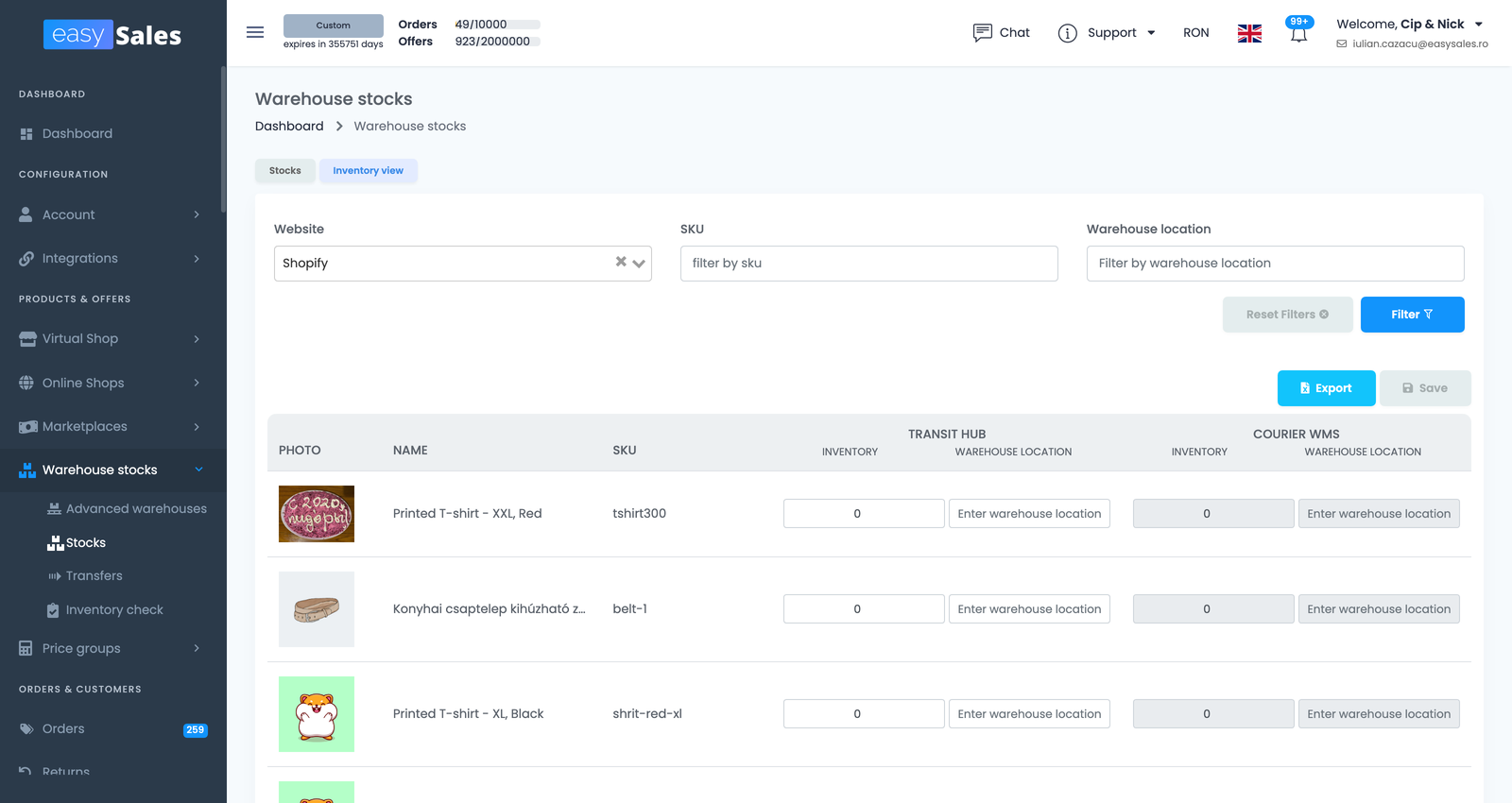
The Warehouse stocks page — in the sidebar under Warehouse stocks → Stocks — is where you see and work with the inventory in your advanced warehouses. Manual warehouses are edited here directly — change a quantity, set a warehouse location, or delete a line. Feed, integration and supplier warehouses are filled automatically by their source, but you can still inspect them here, filter by SKU or location, and import or export lines.
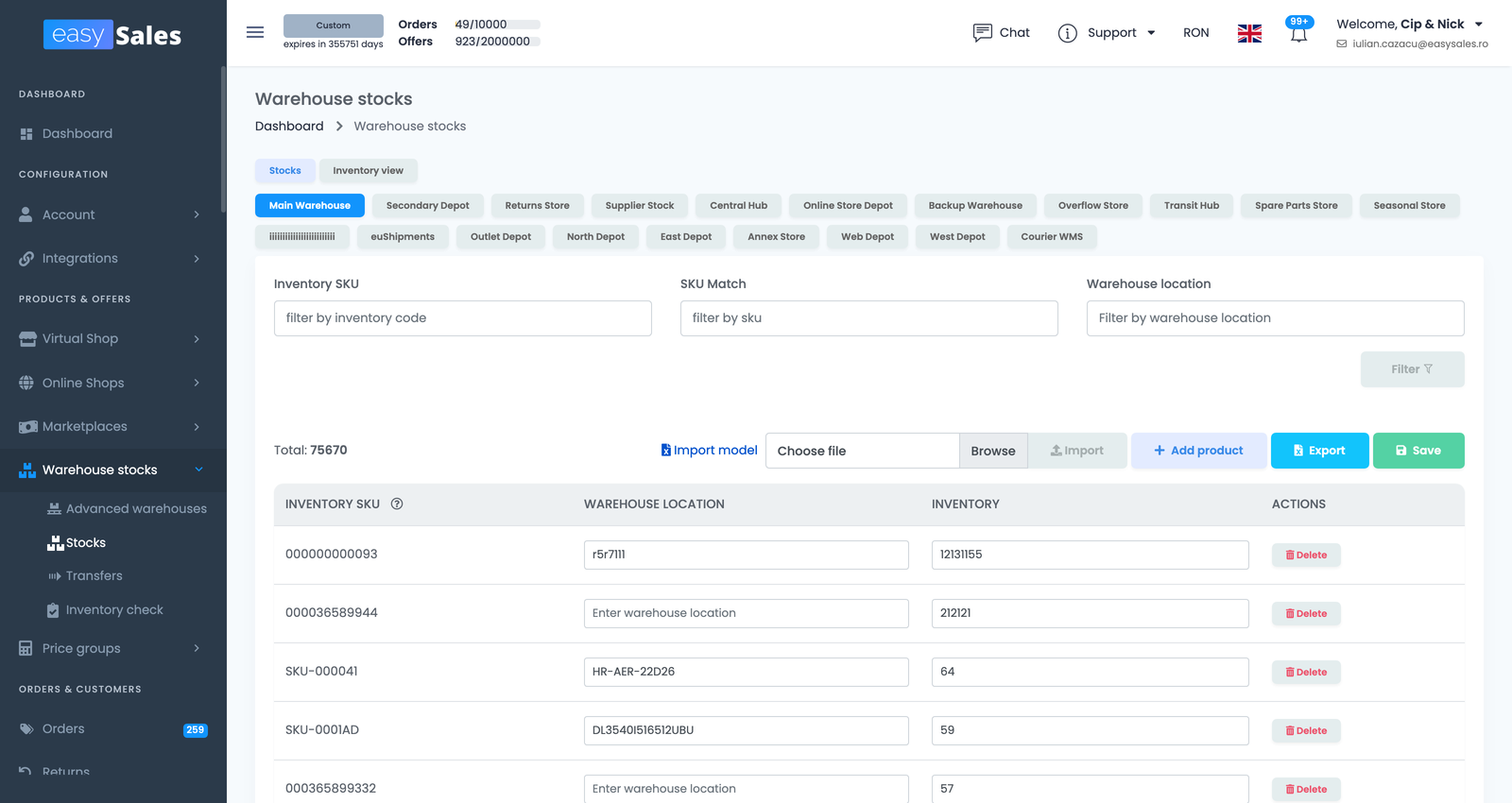
It has two views, switched with the tabs at the top. The Stocks tab works one warehouse at a time — pick a warehouse and browse or edit its inventory. The Inventory view tab is the cross-warehouse picture: one row per product with a column per warehouse, so you can see at a glance where a SKU is held and how the quantities split across locations.
How stock reaches your marketplaces
This is the part to get right, because it surprises people. For an online shop set to advanced warehouses, easySales takes a product's stock from all the warehouses linked to that shop and adds them up into one number. That single total becomes the product's stock and is what every offer on that shop shows.
So if a SKU has 50 units in Warehouse A and 30 in Warehouse B, both linked to the shop, every offer on that shop shows 80 — not two separate figures, and not a different number per marketplace. When stock changes in any linked warehouse — a feed refresh, a manual edit, an order reservation — easySales recalculates the combined total and pushes the new number out.
Warehouse rules: which warehouse, in what order
Linking warehouses to a shop is only half of it. Back on the shop's edit page (Integrations → Websites, open the shop), the Warehouse rules tab is where you control how those warehouses behave, split across three sub-tabs.
Process stocks
Here you decide how each warehouse contributes to the combined stock. A rule can add a warehouse's stock always, or make it conditional — only count it when a condition is met (for example, the warehouse's own stock is above a threshold, using operators like greater than). Conditional rules let you, say, only lean on a supplier warehouse once your own depot runs low.
Process handling time
Give each warehouse its own handling time in days. The delivery estimate then reflects which location actually ships the order — handy when a fallback warehouse or a supplier dispatches more slowly than your main depot.
Process orders
Set the priority — the order in which warehouses are used to fulfil an order, with a minimum-stock value per warehouse. This is what drives order allocation, covered next.
| Rules sub-tab | What it controls |
|---|---|
| Process stocks | Whether each warehouse always counts toward the combined stock, or only under a condition (e.g. its stock is above a threshold) |
| Process handling time | A dispatch time in days per warehouse, which feeds the delivery estimate |
| Process orders | The priority order (with a minimum stock per warehouse) used to allocate incoming orders |
How an order picks a warehouse
When an order comes in for a shop on advanced warehouses, easySales walks the priority list and draws stock from the warehouses in order, respecting each warehouse's minimum-stock setting. If the first warehouse can't fully cover the order, it continues to the next in priority — so a single order can be fulfilled from more than one warehouse. Drawing from a warehouse lowers that warehouse's available stock, which in turn recalculates the product's combined total and updates the offers.
Move stock between warehouses
When goods physically move from one location to another, record it with a transfer so your inventory stays honest without re-importing anything. Open Warehouse stocks → Transfers in the sidebar and use Add new transfer: pick a source and a target warehouse, list the quantities to move, and finish the transfer to apply the change — the source warehouse goes down, the target goes up.
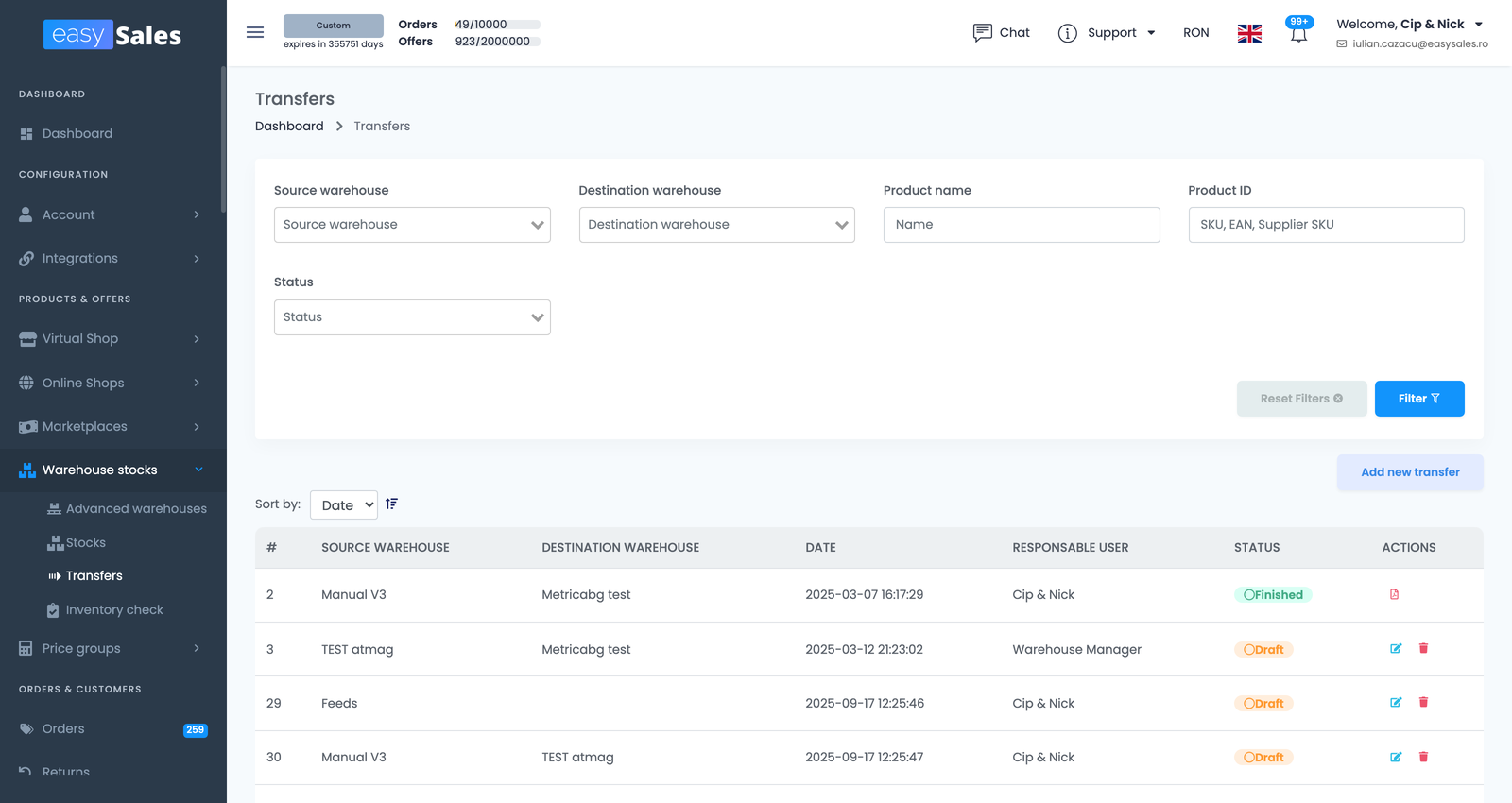
A transfer starts as a draft you can prepare and review, and only applies once you finish it. Note that a warehouse referenced by a transfer can't be deleted until that transfer is gone.
Good to know before you start
A few things that trip people up: