How supplier orders and receptions work in easySales: restock from suppliers and receive into stock
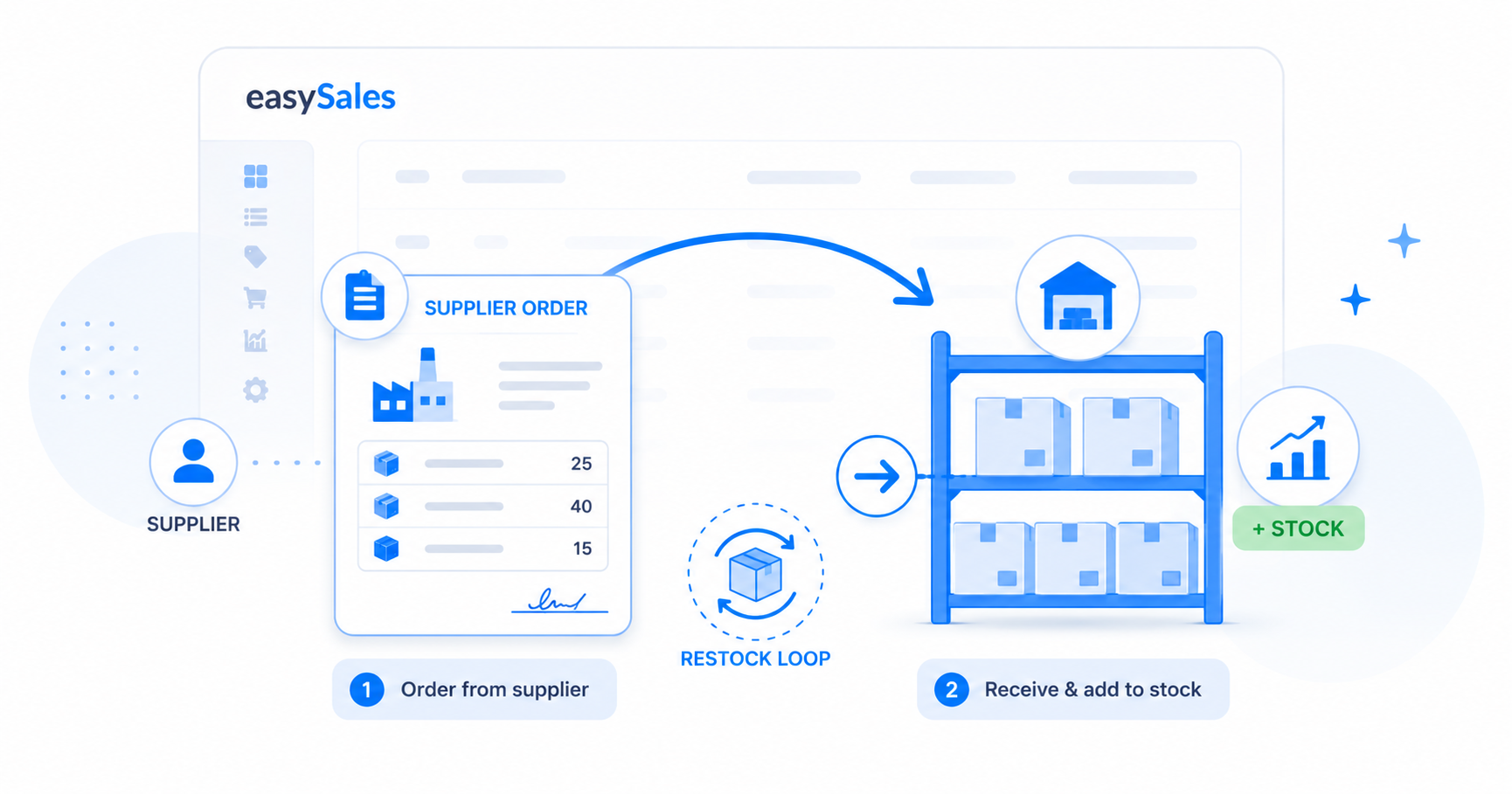
Manage the restock loop in easySales — raise purchase orders to your suppliers, then receive the goods with a reception that adds them to your stock. Here's how both sides work.
Keeping stock on the shelf has two halves: telling a supplier what to send you, and recording it when it arrives. easySales handles both — supplier orders are the purchase orders you raise to restock, and receptions are how you receive those goods into your inventory. Together they keep your stock numbers honest without a spreadsheet on the side.
This guide walks through setting up suppliers, raising a supplier order, sending it, and receiving the goods so your stock goes up.
The two halves of restocking
| Supplier order | Reception |
|---|---|
| A purchase order you raise to a supplier | A goods receipt for what physically arrived |
| Lists products, quantities and prices to buy | Lists products and the quantities you received |
| Does NOT change your stock | Adds units to your stock when finalized |
| Statuses: In progress → Ready → Sent → Closed | Statuses: New → Completed (finalized) |
The key thing to know up front: a supplier order is a request — it doesn't change your stock. A reception is the arrival — finalizing it is what actually adds units to your inventory.
Set up your suppliers first
Before you can raise an order, the supplier has to exist. Open Online Shops → Suppliers and add each supplier you buy from — name, currency, and ordering details like how often you reorder and the lead time. You can also build a supplier's product catalogue, mapping the supplier's SKU and acquisition price to your products.
Create a supplier order
Open Order Processing → Supplier Orders and create a new one. Pick the supplier, set the order date and currency, give it a name, then add the products you want to buy. Each line carries a quantity and an acquisition price.
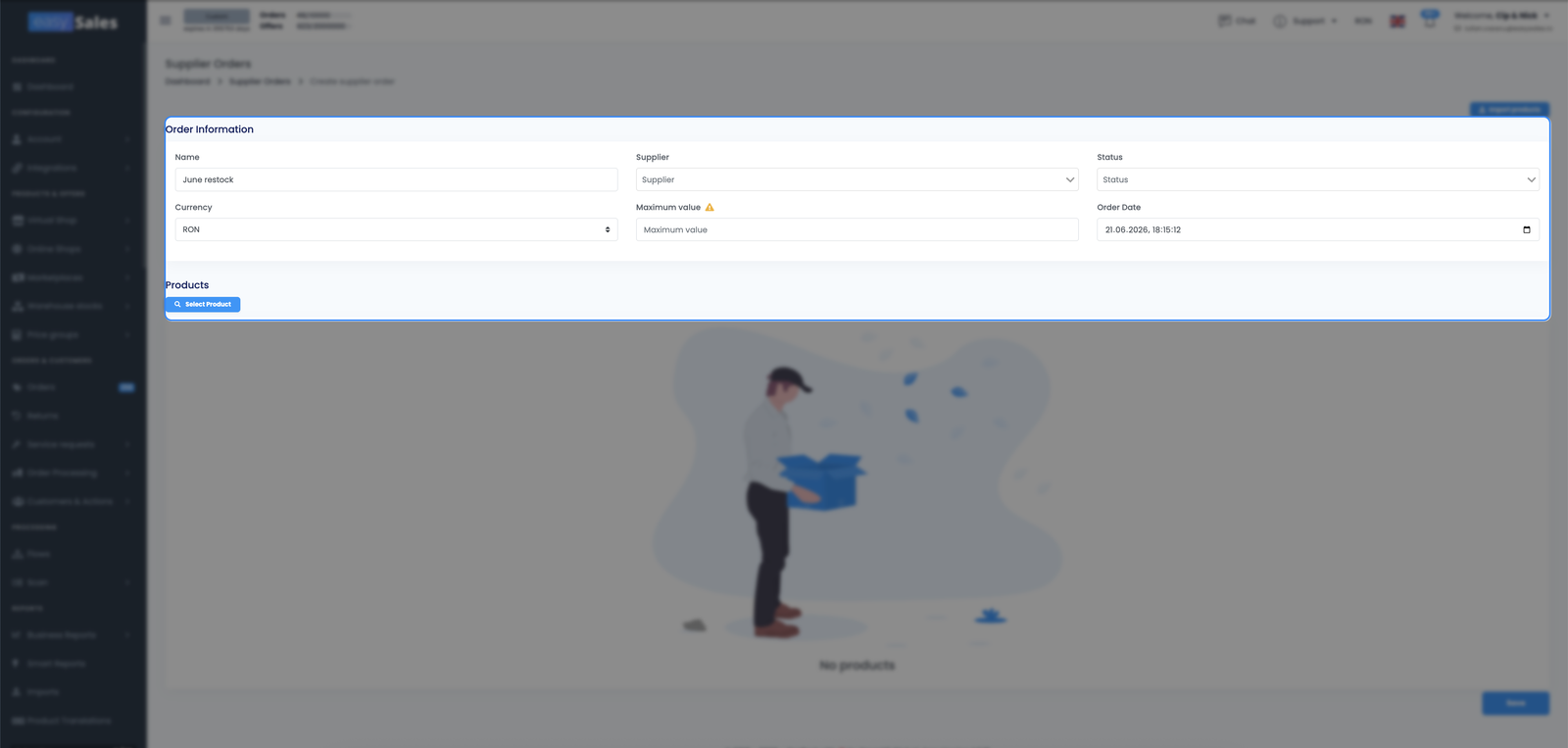
A supplier order moves through clear statuses as you work it: In progress while you're still building it, Ready when it's complete, Sent once it's gone to the supplier, and Closed when it's done. You can set a maximum order value, and easySales marks the order Ready automatically once the products reach that amount.
Add products to the order
There's more than one way to fill an order, so you don't have to type every line:
Manually
Search your catalogue and add products and quantities by hand — best for a quick, small order.
From customer orders
Pull the products your customers have ordered into a supplier order, so you buy exactly what you need to fulfil them.
From low stock, via Flows
An automation flow can build or top up a supplier order when products run low, so reordering happens without you watching stock levels.
By import
Upload a file of products and quantities to fill a large order in one go.
Send or export the order to your supplier
When the order is ready, export it to an Excel file you can send to your supplier — with the columns they need (SKU, quantity, price). Mark it Sent to record that it's gone out, and easySales stamps the send date for you.
Receive stock with a reception
When the goods arrive, record them with a reception (Order Processing → Supplier Reception). Create a new reception, pick the website the stock belongs to, set the date, then — if that website uses advanced warehouses — choose the warehouse it's coming into. Add the products and the quantities you actually received. You can scan product barcodes to add them quickly.
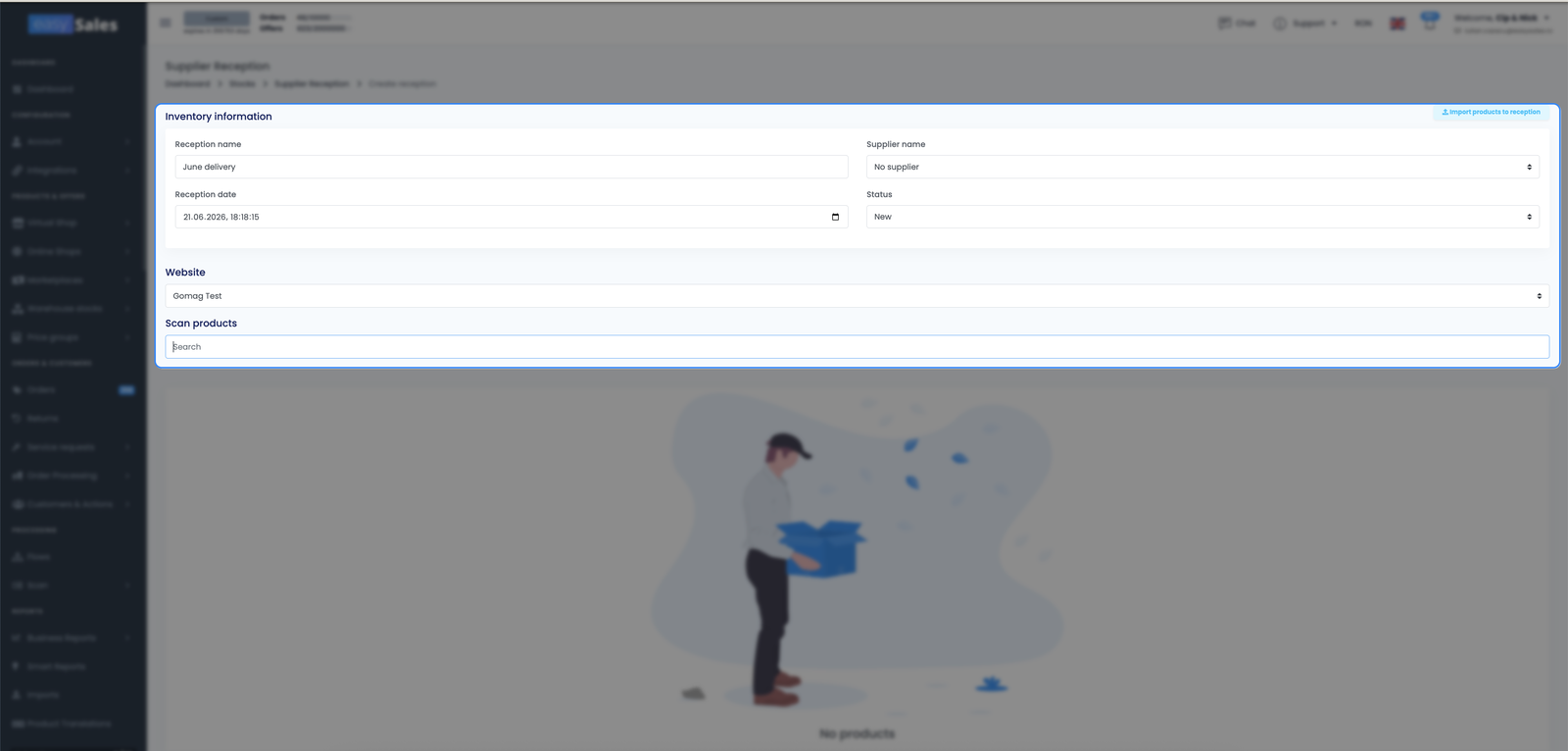
While a reception is still New, you can edit it — adjust quantities, add or remove lines. Nothing touches your stock yet. When everything matches what physically arrived, finalize it: that's the moment easySales adds the received quantities to your stock.
How orders and receptions fit together
Supplier orders and receptions are two independent steps, not one linked flow. You raise an order to tell the supplier what to send; you create a reception to record what arrives. They're deliberately separate, because what arrives doesn't always match what you ordered — split deliveries, back-orders, or extras all happen. Recording the reception against what physically turned up keeps your stock accurate regardless of how the order was fulfilled.