How to answer customer messages in easySales: Allegro claims and WhatsApp
Answer Allegro disputes and claims and WhatsApp chats from one inbox, share the work with your team and reply in your buyers' language.
What the Tickets inbox is for
Tickets gathers the conversations with your buyers in one place, so you and your team can answer them without leaving easySales. Open it from Customers → Tickets.
Two channels can bring conversations into it:
- Allegro: the disputes and claims your buyers open from their Allegro orders, the ones you find under "Discussions and claims" in your Allegro account.
- WhatsApp: the chats your customers start with your WhatsApp Business number connected to easySales. This channel is marked Beta.
Three things to know first:
- No other marketplace sends messages into Tickets. Questions from eMAG, Kaufland, Amazon and the other marketplaces stay on their own platforms, and so do the Allegro Message Center questions.
- You answer conversations, you do not start them. A ticket appears when the buyer writes first.
- A team member can reply only to the tickets assigned to them. The account owner assigns them.
Connect a channel
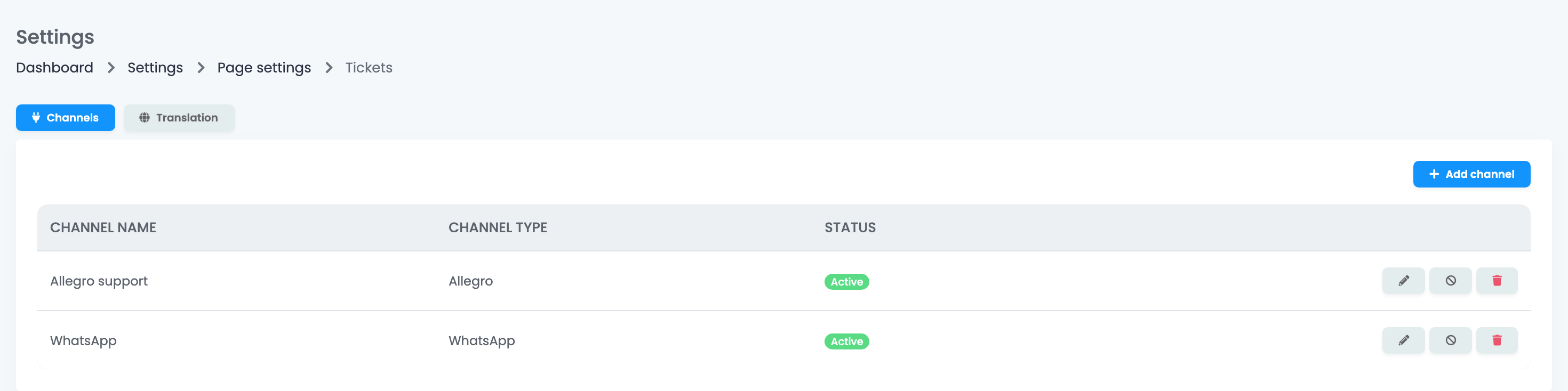
- In Tickets, press the gear button at the top right, then Add channel on the Channels tab.
- Choose the Channel type: Allegro or WhatsApp.
- Give the channel a name and choose the Allegro account or the WhatsApp number it uses.
- Optionally, choose a Default agent: the team member who gets the new conversations of this channel.
- Press Save.
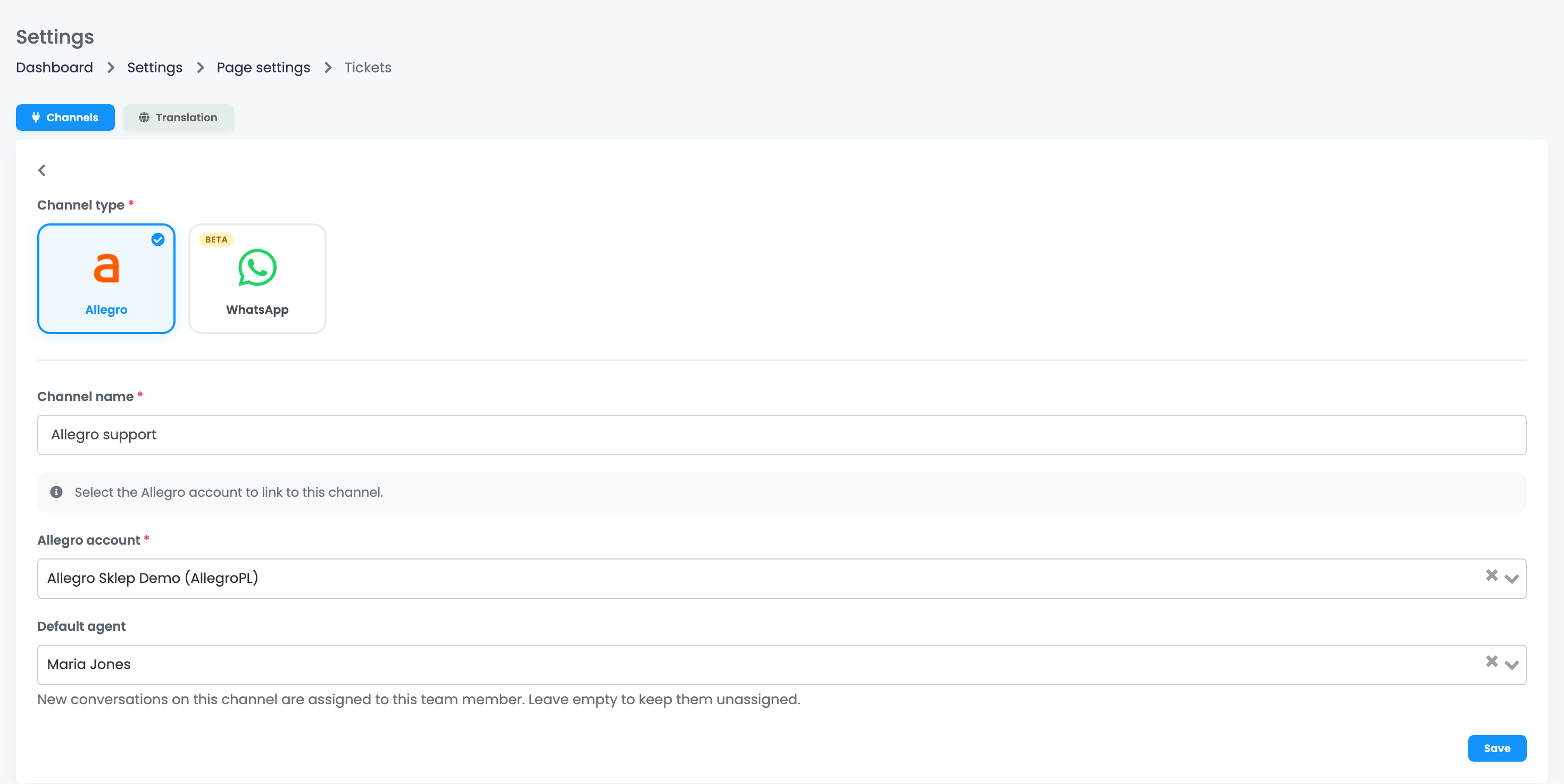
The Allegro account or the WhatsApp number must already be connected to easySales; the list shows only connected ones. On the Channels tab you can edit a channel, deactivate it or delete it.
Work through the inbox
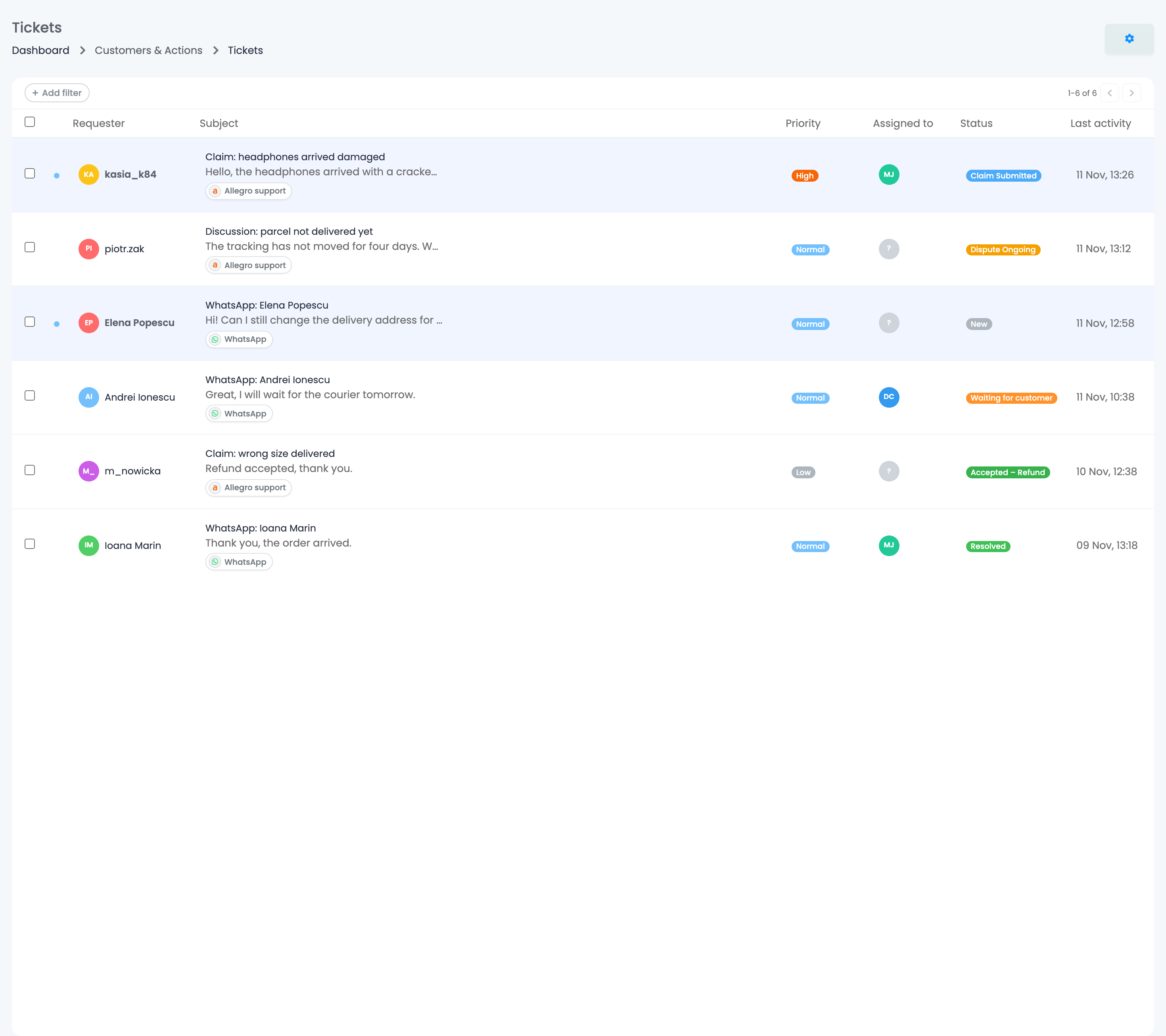
The list shows the newest activity first. A blue dot marks unread tickets. Each row shows the buyer, the subject with the start of the conversation and the channel, the Priority, who it is Assigned to, the Status and the Last activity.
- Add filter narrows the list by Priority, Channel or Date.
- Tick several tickets to Mark as read, Mark as unread, Set status, Set priority or Assign agent at once.
Answer a ticket
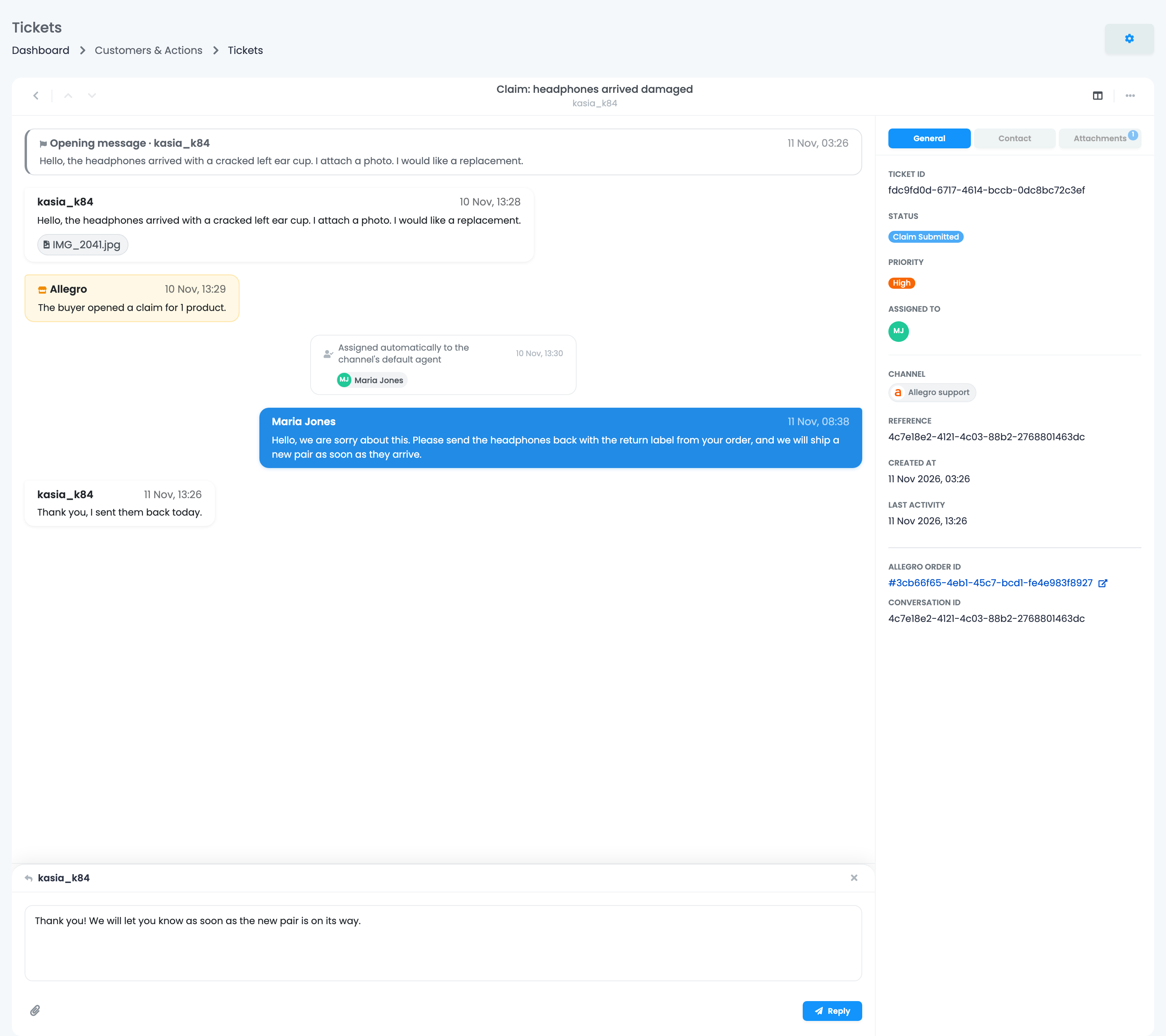
Click a ticket to open the conversation. You see the buyer's messages, your replies, the entries Allegro adds to the case, and changes such as a new assignee. Opening a ticket marks it as read.
- Press Reply at the bottom, write your answer and send it.
- On Allegro, attach photos or documents with the paper clip, up to 10 MB each.
- Set the Status and Priority in the panel on the right, and assign the ticket if needed.
The panel on the right also shows the ticket's details and, for Allegro, the Allegro order, which opens in Allegro.
| Status | Where it applies |
|---|---|
| New, In progress, Waiting for customer, Resolved, Closed | Only in easySales, to keep track of your work. The buyer does not see them. |
| Accepted – Repair, Accepted – Refund, Accepted – Exchange, Accepted – Partial Refund and the Rejected – … statuses | Allegro tickets only. Your decision is sent to Allegro. |
| Dispute Ongoing, Dispute Closed, Claim Submitted, Claim Accepted and the other Allegro case states | Come from Allegro and show where the case stands there. You cannot choose them. |
| Allegro | ||
|---|---|---|
| Text | Up to 10,000 characters | Up to 10,000 characters |
| Attachments | Yes, up to 10 MB each | No |
| When you can reply | No 24-hour limit | Within 24 hours of the customer's last message |
| Decision sent to the marketplace | Yes, with the Accepted and Rejected statuses | No |
Read and answer in your own language
If your buyers write in another language, turn on Translate conversations on the Translation tab of the settings. Choose your Conversation language and the Translation provider: easySales, which is free, or a translation service you have connected yourself.
Buyer messages are then shown in your language, with Show original to see what the buyer wrote. On Allegro, press Translate before you send: the reply goes out in the buyer's language.
Your team and Tickets
| Account owner | Team member | |
|---|---|---|
| See all tickets | Yes | Yes |
| Reply, change the status or priority | Yes | Only on tickets assigned to them |
| Assign tickets | Yes | No |
| Add or change channels | Yes | No |
To be told about new messages, each person turns on New ticket message in Settings → Notification Options, and Also send me an email for an e-mail too.
Automate it with a flow
The flow trigger Customer replied in Tickets starts a flow when a buyer writes in a conversation linked to an order, for example to add a tag to the order.
When something does not look right
| Symptom | What to do |
|---|---|
| Questions from eMAG, Kaufland or another marketplace are missing | That is expected. Only Allegro disputes and claims and WhatsApp chats come into Tickets. |
| An Allegro question about an offer is missing | Questions from the Allegro Message Center do not come into Tickets. Answer them on Allegro. |
| A team member cannot reply | Assign the ticket to that team member. |
| The WhatsApp reply box is gone | 24 hours have passed since the customer's last message. You can reply again after the customer writes. |
| A new Allegro channel shows only a few conversations | Only recent conversations are brought in. New messages arrive about every 10 minutes. |
| I do not get a notification for new messages | Turn on New ticket message in Settings → Notification Options. |