How to connect Allegro with easySales: a complete integration guide
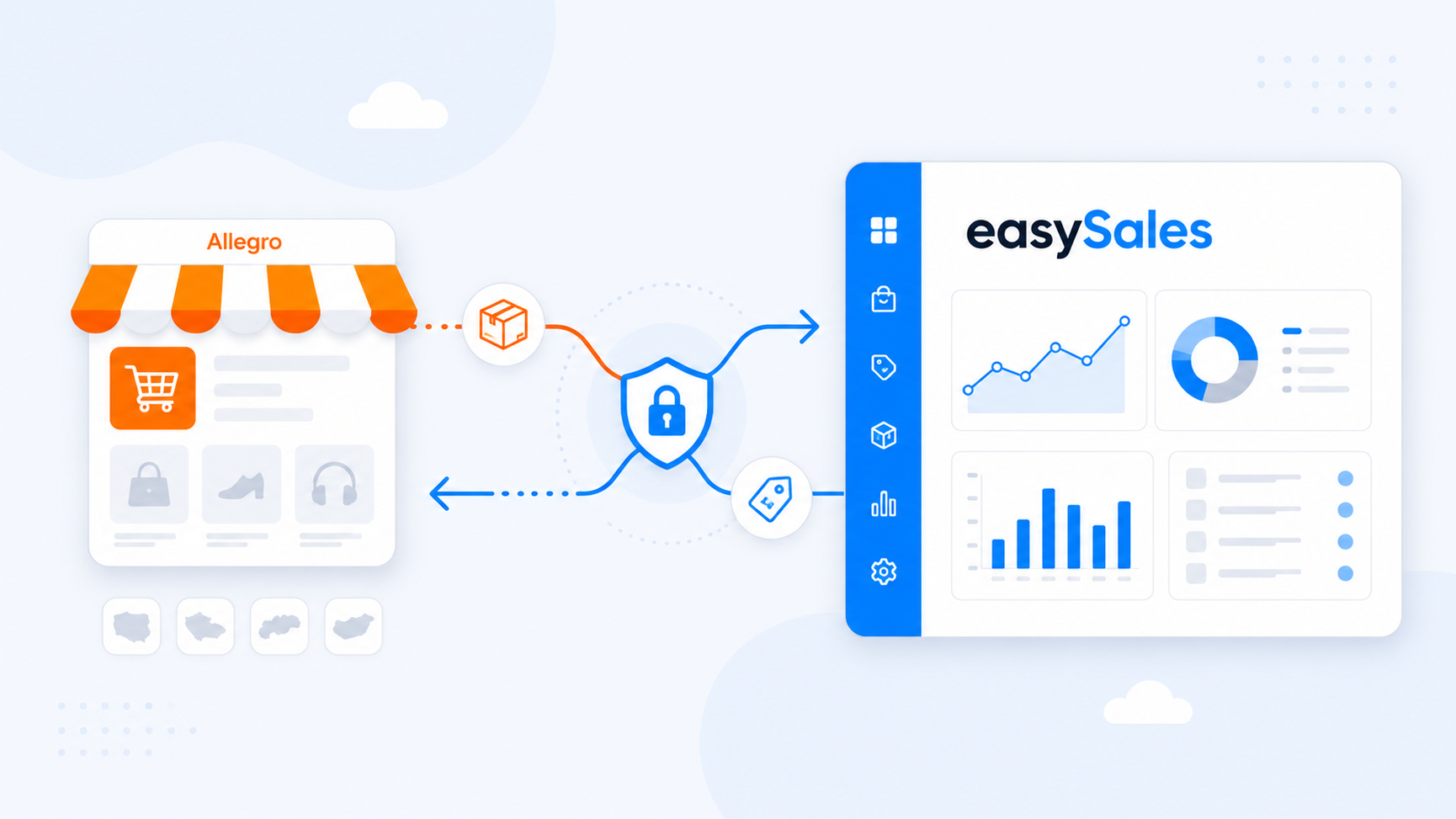
Connect your Allegro seller account with easySales in a few clicks — open the Allegro card, authorize easySales on Allegro, and configure the connection. No API keys and no developer needed. Centralize Allegro orders, generate invoices and AWBs, and publish your catalog as Allegro offers with stock and prices kept in sync.
Why connect Allegro with easySales
Sell on Allegro and want one place to manage orders, generate invoices, push AWBs to couriers, and keep your listings in sync? easySales handles all of it from a single dashboard.
Once connected, Allegro orders flow into easySales automatically. From there you generate invoices, create AWBs with any supported courier, and run automation flows. Your catalog goes the other way: easySales publishes your products as Allegro offers and keeps stock and prices updated, so you manage one catalog instead of editing each listing by hand.
You connect by authorizing easySales from your Allegro account — no API keys to copy and no developer access needed.
How the Allegro connector works
easySales connects to Allegro through Allegro's official authorization (OAuth). Instead of pasting credentials, you grant easySales permission from inside your own Allegro account, and Allegro hands easySales a secure token it uses to read your orders and manage your offers.
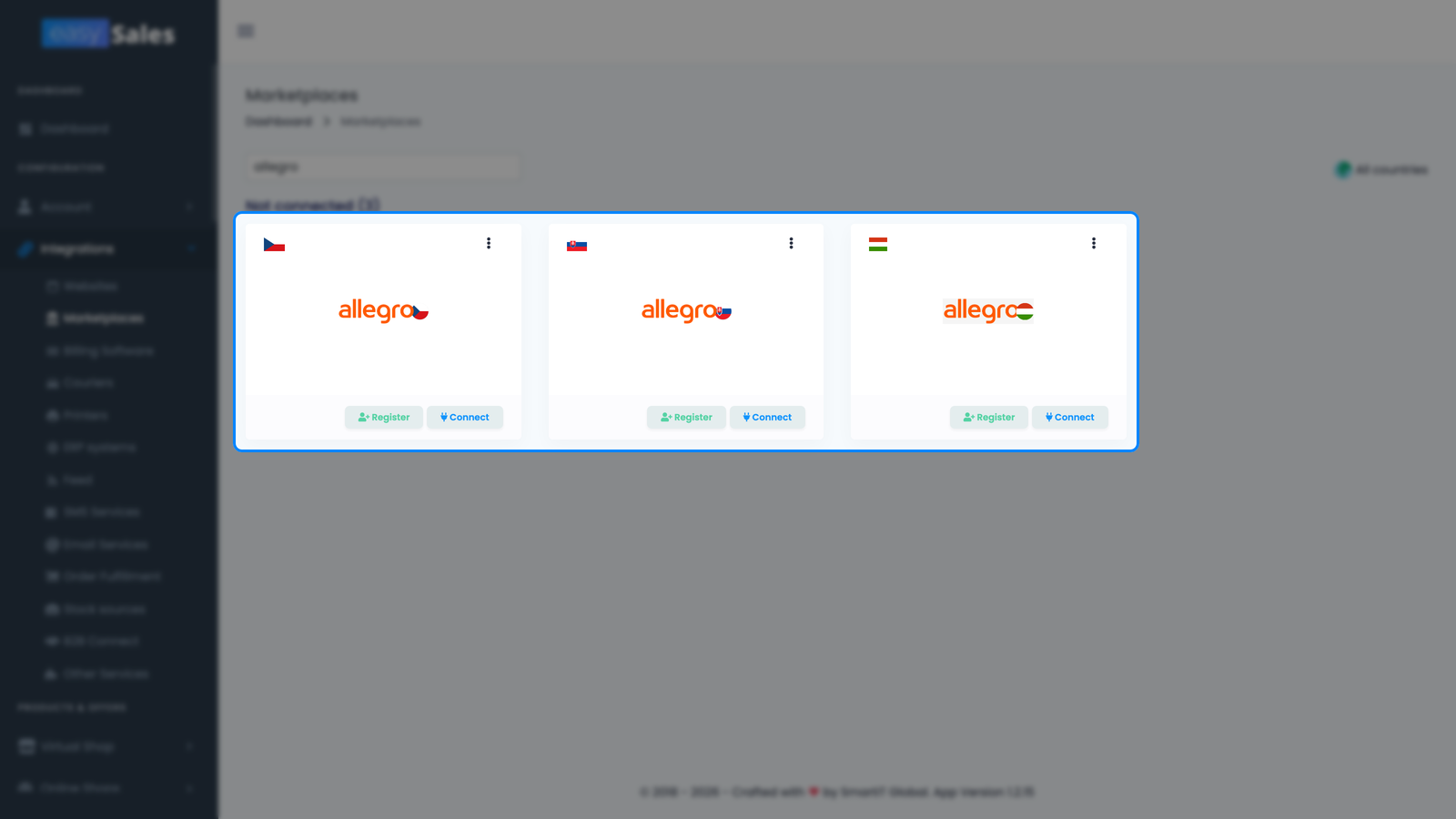
It works across all of Allegro's markets — Poland, plus Czechia, Slovakia, and Hungary.
The sync splits cleanly, and it's worth understanding before you start:
- Orders come in. Allegro notifies easySales of new and updated orders in near real time, so they land in your Orders screen ready for invoicing, AWBs, and flows.
- Offers, stock, and prices go out — but not automatically. easySales is the source of truth for your listings, but they don't sync the moment you connect: there's a linking and mapping step first, covered in "Getting your catalog onto Allegro" below.
Prerequisites — what to prepare before you start
A few requirements keep the connection and your first offers from failing.
An active Allegro seller account
You need a live Allegro seller account you can log in to. The connection is authorized from inside that account.
Publishing enabled for the market language
Your Allegro account must be allowed to publish in the target market's language. A Polish account that isn't set up for cross-border selling can't publish Czech, Slovak, or Hungarian offers.
Clean product identifiers
easySales tracks products by SKU and matches offers to Allegro by product link. De-duplicate and verify identifiers before publishing offers.
Return and shipping policies ready
Allegro requires a return policy, complaint terms, and a shipping rate on every live offer. Have these set up in your Allegro account so you can assign them as defaults during setup.
Step 1 — Open the Allegro card and click Connect
In easySales, go to Integrations → Marketplaces. Find the Allegro card for the market you're connecting and click Connect.
Step 2 — Authenticate with Allegro
The Allegro settings open with an Authenticate with Allegro button. Click it and you're taken to Allegro's own login page. Sign in to your Allegro seller account and approve the access request — Allegro then sends you straight back to easySales, connected.
Step 3 — Configure the connection
Once you're back in easySales, the Main settings tab shows the configuration easySales needs to drive the integration.
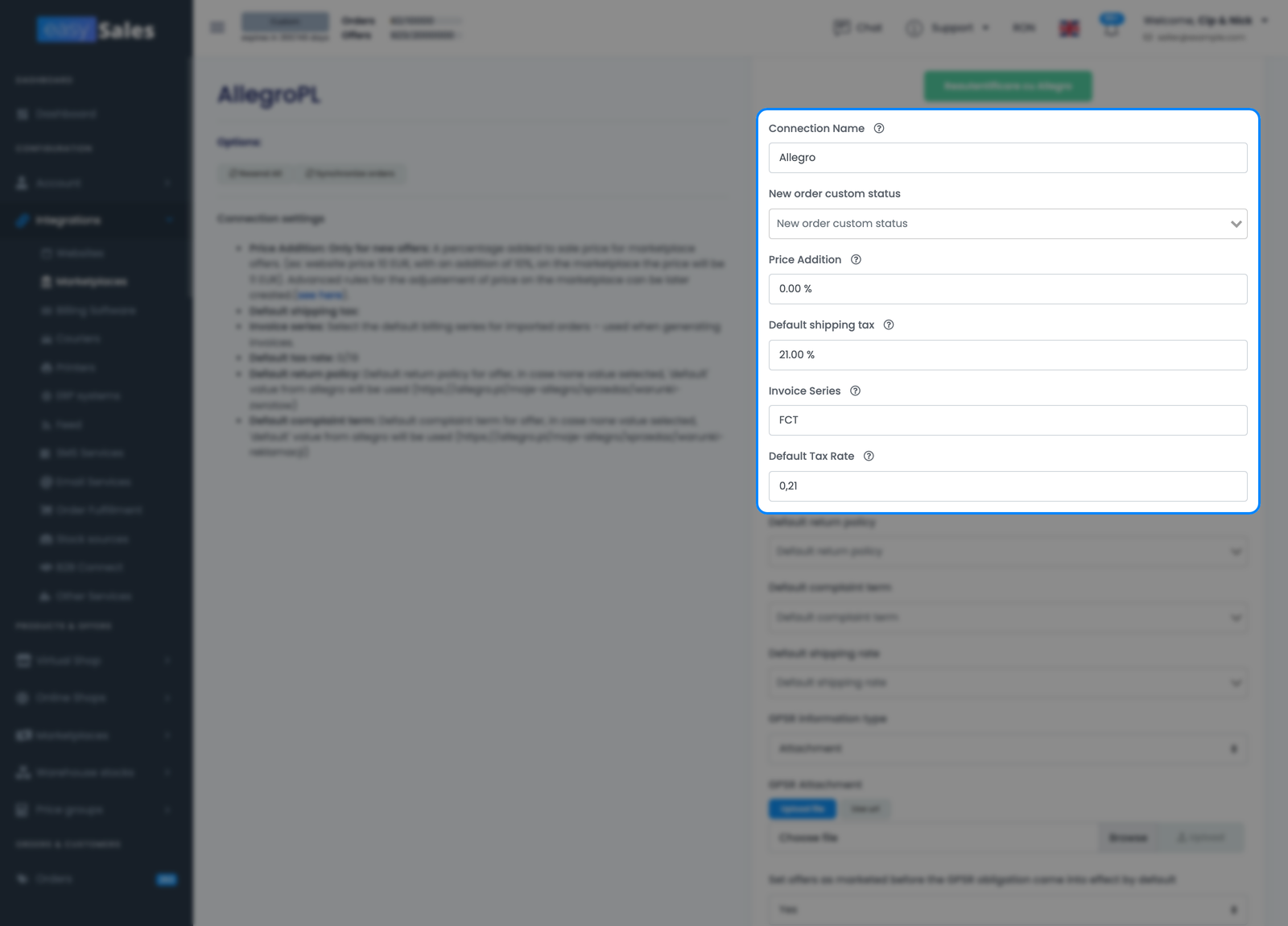
The fields that matter most:
- Connection Name — a label you choose (for example "Allegro PL"). Only visible inside easySales, handy when you run several Allegro connections.
- Invoice Series — the default billing series imported Allegro orders are assigned, matching the series you use in your invoicing software.
- Default Tax Rate and Default shipping tax — the VAT rates applied to your offers and to shipping.
- Price Addition — an optional percentage added on top of your product price when publishing offers to Allegro.
- Default return policy, Default complaint term, and Default shipping rate — the Allegro policies applied to new offers. Allegro requires these before an offer can go live.
- GPSR information — the EU product-safety details (responsible producer and person) Allegro requires for certain product categories.
Click Save to store your settings.
What happens automatically after you connect
Once the connection is authorized, orders start arriving on their own — no manual import. As you process each order, easySales also pushes the status back to Allegro, for example marking it shipped when you generate the AWB.
| From Allegro → easySales | From easySales → Allegro |
|---|---|
| Orders (new and updated) | Offers / listings |
| Order status changes from Allegro | Stock levels |
| Offer status changes from Allegro (e.g. active, ended) | Prices |
| Buyer messages (into Customer Tickets) | Invoices and AWB / tracking |
| — | Order status (e.g. shipped, cancelled) |
Getting your catalog onto Allegro
Connecting doesn't publish anything by itself. Offers are a deliberate second step:
- Link your offers to your catalog. Any offers you already sell on Allegro are matched to your easySales products; offers without a product link don't sync.
- Map categories and characteristics. Allegro won't publish an offer until it's in the right category with the required parameters, a return and complaint policy, a shipping rate, and — for new products in many categories — GPSR responsible-producer details.
Once an offer is linked and mapped, easySales keeps its stock and price updated from then on.
Fine-tuning your Allegro connection
The Additional settings tab controls how easySales syncs with Allegro after the connection is live.
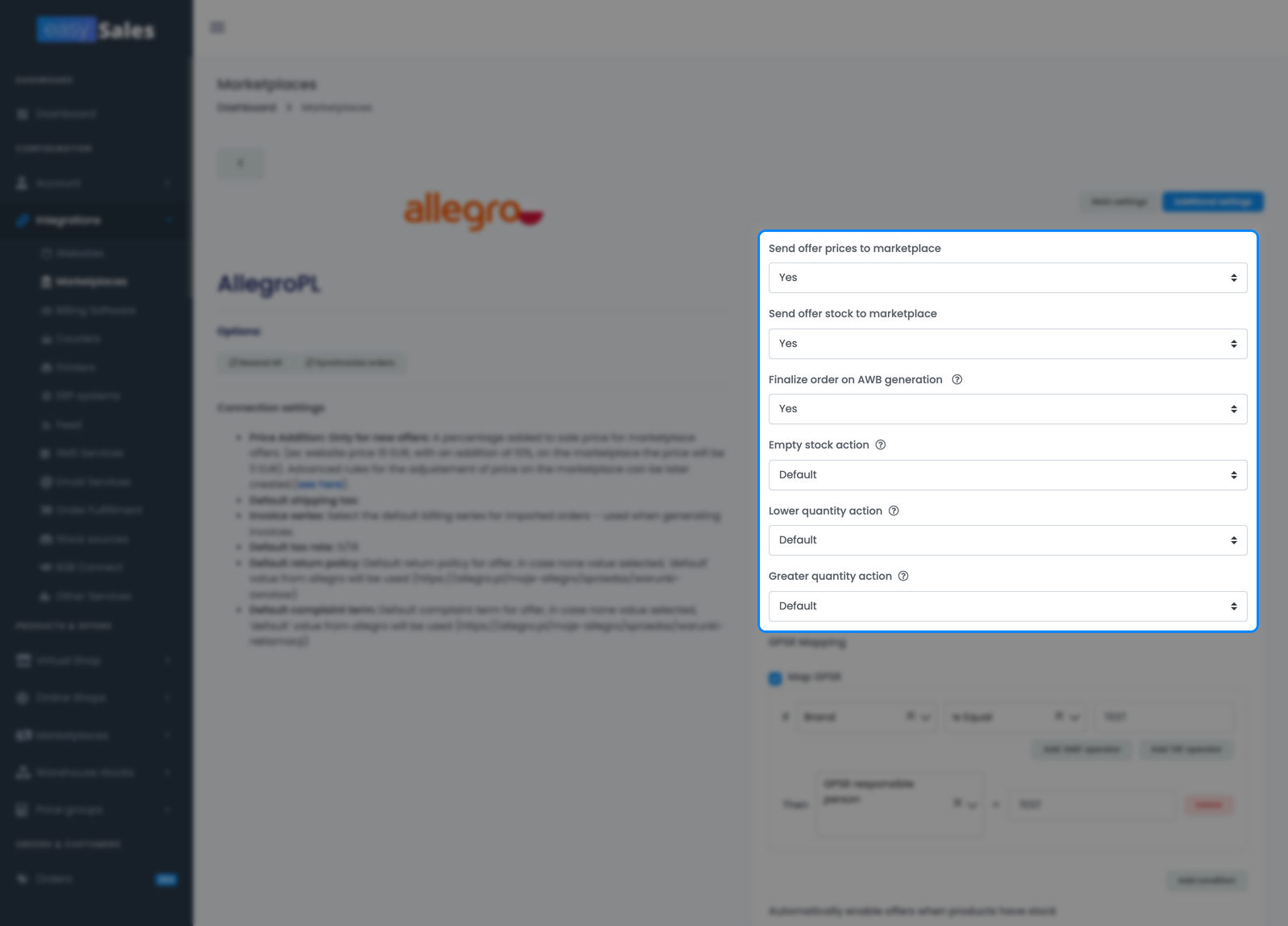
The options that matter most day-to-day:
- Send offer prices to marketplace — push price changes from easySales to your Allegro offers. Turn off if you manage prices directly on Allegro.
- Send offer stock to marketplace — push stock levels to Allegro. Turn off if Allegro isn't reading stock from easySales.
- Empty stock action, Lower quantity action, Greater quantity action — how easySales reacts when live stock hits zero or moves up or down.
- Automatically enable offers when products have stock — re-activate offers as soon as their product is back in stock.
- GPSR Mapping — map the product-safety information Allegro requires onto your offers in bulk.
Token expiry and reconnecting
Allegro access is granted with a token that expires periodically. easySales refreshes it automatically in the background, so you normally never notice.
Allegro PL, CZ, SK, HU and multiple accounts
To add another market or another account, repeat the whole process — open the right Allegro card and authorize — once per connection.
You're connected — what's next
With orders arriving, the next step is automation: set up flows to generate invoices, create AWBs, and notify customers. And once your offers are linked and mapped, easySales keeps them selling on Allegro.
Connect your Allegro account in minutes
Try easySales free for 14 days. No API keys, no credit card, no code.