How price groups work in easySales: price lists for marketplaces, orders and feeds
Keep separate price lists from Excel, a feed, a supplier or your ERP, and use them as marketplace sale prices, in flows, feeds and manual orders.
Price groups in short
A price group is a separate price list: one price per product code, in one currency. Use it for wholesale prices, a price per channel, or the prices a supplier or your ERP sends you.
A price group changes no price on its own. Your products keep their own price, and the group's prices are used only where you choose them: on a marketplace connection, in a flow, in a feed rule or on a manual order.
You find price groups in Stocks & warehouses → Price groups: Price groups holds the groups, Prices holds the prices inside them.
Where a price group is used
Marketplace sale price
A marketplace connection can take its offers' sale price from a price group instead of the product's price.
Flows
Flow actions that update offer prices can use a product's price from a group.
Product feeds
A feed rule can replace the price in a feed with the price from a group.
Manual orders
Choose a Price group on the order, or give a customer a default group, and the order lines take its prices.
B2B Connect
Pairing with a supplier on B2B Connect can create a supplier price group for you.
The four types
| Type | Where the prices come from | How they change |
|---|---|---|
| Manual | You type them or import an Excel or CSV file. | Only when you edit or import. |
| Feed | A CSV, XLSX or XLS file at a web address. | Synced every 10 minutes. |
| Supplier | The prices of one of your suppliers in easySales. | Synced every 10 minutes. |
| Integration | A price list of your Subiekt nexo PRO or WAPRO Mag connection. | Read from the connection. |
The type cannot be changed after the group is saved. To switch, create a new group.
Create a price group
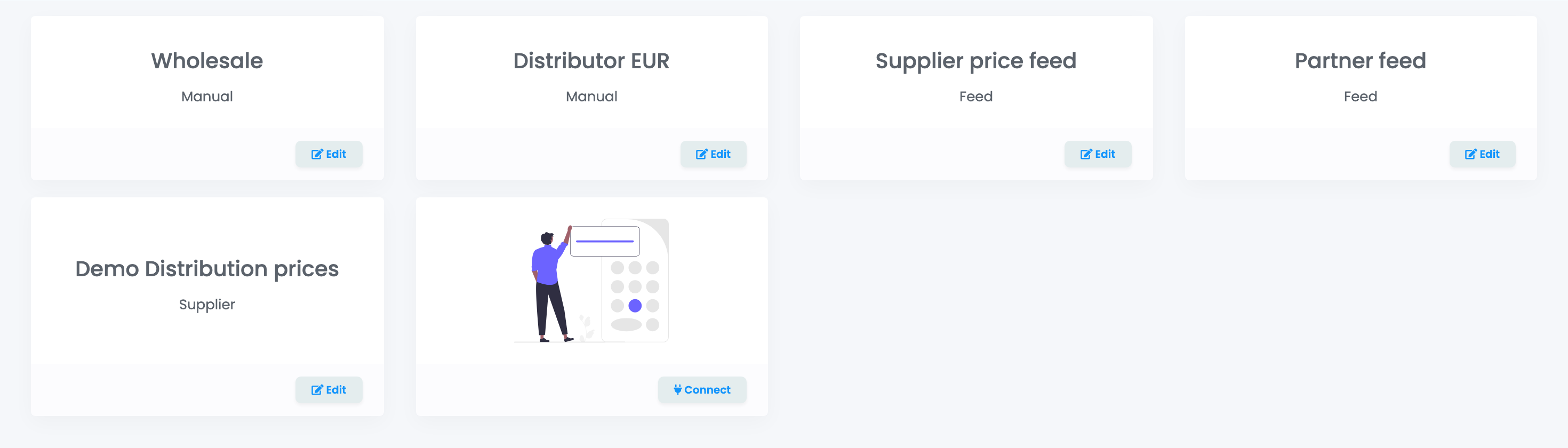
- Open Price groups and press Connect on the last card.
- Give the group an Alias and choose the Type.
- Choose the Currency of the prices.
- Tick Prices in this group include VAT if the prices you enter already contain VAT.
- Press Save.
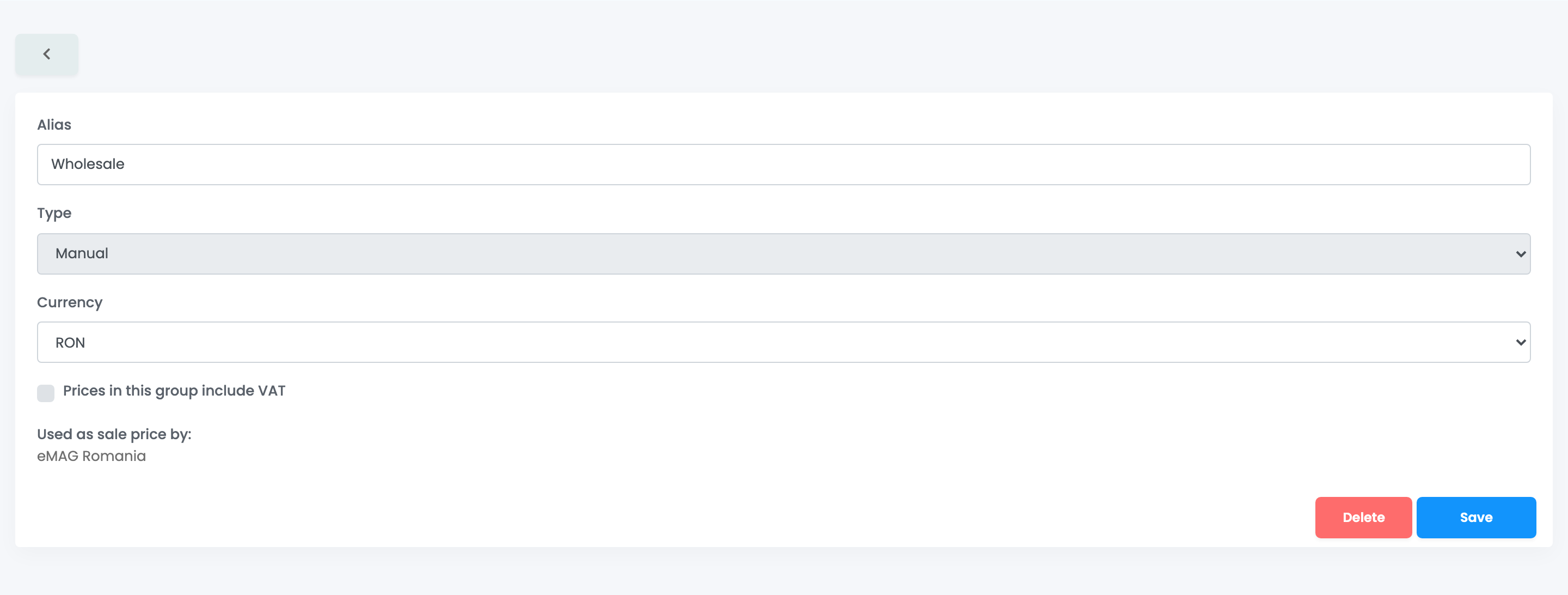
Edit on a group's card opens the same form. When a marketplace connection takes its sale price from the group, the form lists it under Used as sale price by:.
Manual groups: enter or import the prices
On the Prices page, choose the group with its button.
- Add price adds a row: type the product's SKU and the Price, then press Save.
- Import reads a CSV or XLSX file: column A is the SKU, column B the price, and the first row is skipped as a header. Import model downloads an example. An import adds new rows and overwrites existing ones; it never removes a row.
- Delete on a row removes that price.
- Export prepares an Excel file with the group's prices; you are notified when it is ready.
Feed groups: prices from a file at a web address
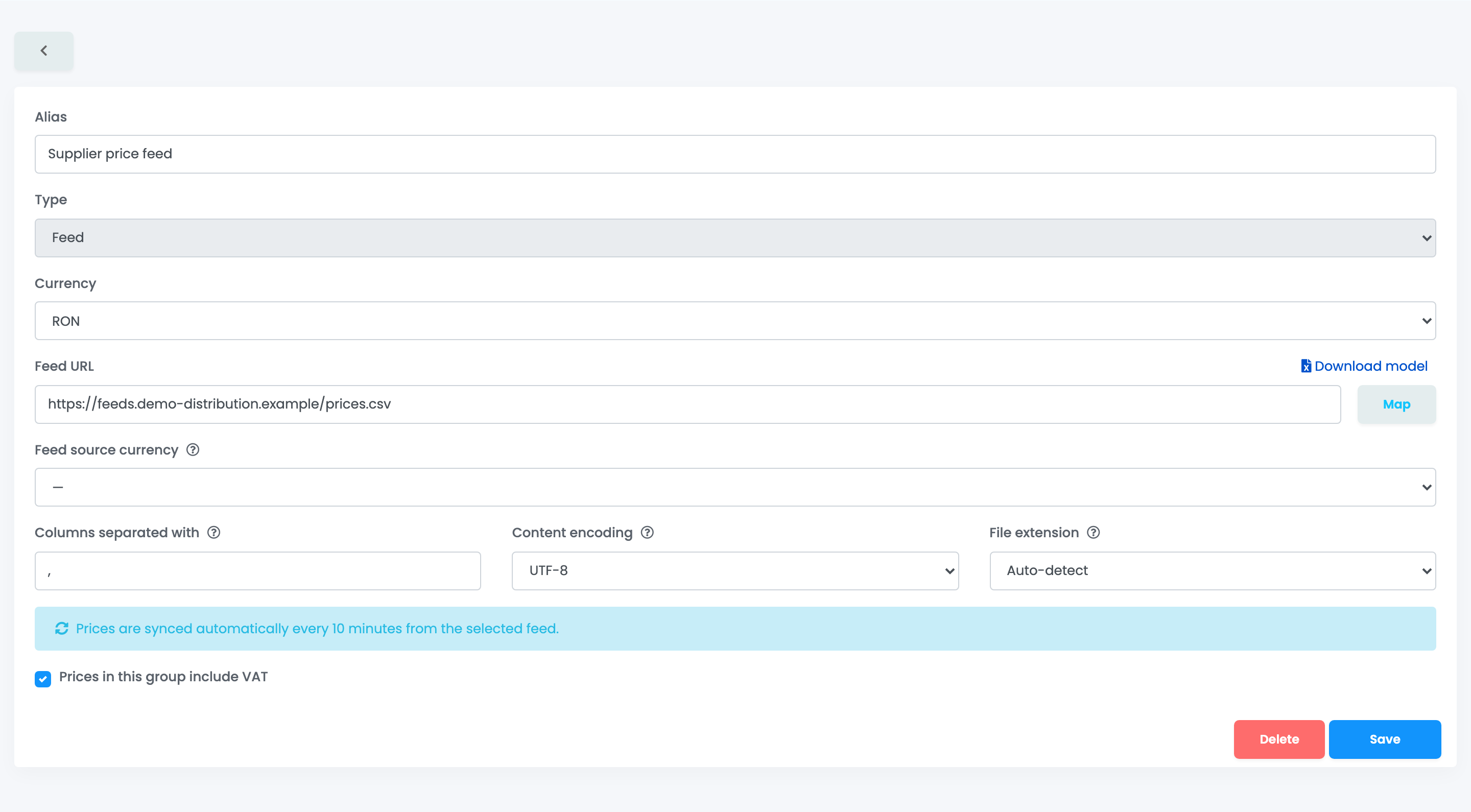
- Enter the Feed URL: a CSV, XLSX or XLS file that easySales can download. Download model shows the expected layout.
- Press Map and choose, for each column, Group SKU, Price or Ignore column. Both Group SKU and Price must be mapped.
- Set Columns separated with, Content encoding and File extension if the file needs them, and Feed source currency if the file's prices are in another currency than the group.
- Press Save.
The prices are synced automatically every 10 minutes.
Supplier groups: prices from your suppliers
A Supplier group copies the prices of a supplier you keep in easySales. Choose the supplier with Select supplier, the price to copy in Source price field (sale price or full price, with or without tax) and, if needed, the Source currency. The prices are synced every 10 minutes, and a supplier group is switched off after repeated failures in the same way as a feed.
Integration groups: price lists from your ERP
An Integration group reads a price list from your Subiekt nexo PRO or WAPRO Mag connection. Choose the Integration, the Connection and the Price list; Refresh data reads the lists again. The prices of an integration group are shown, not edited.
Match the codes: SKU and SKU Match
A manual group is keyed by your own SKU. Feed and supplier groups are keyed by the supplier's code, shown as Group SKU.
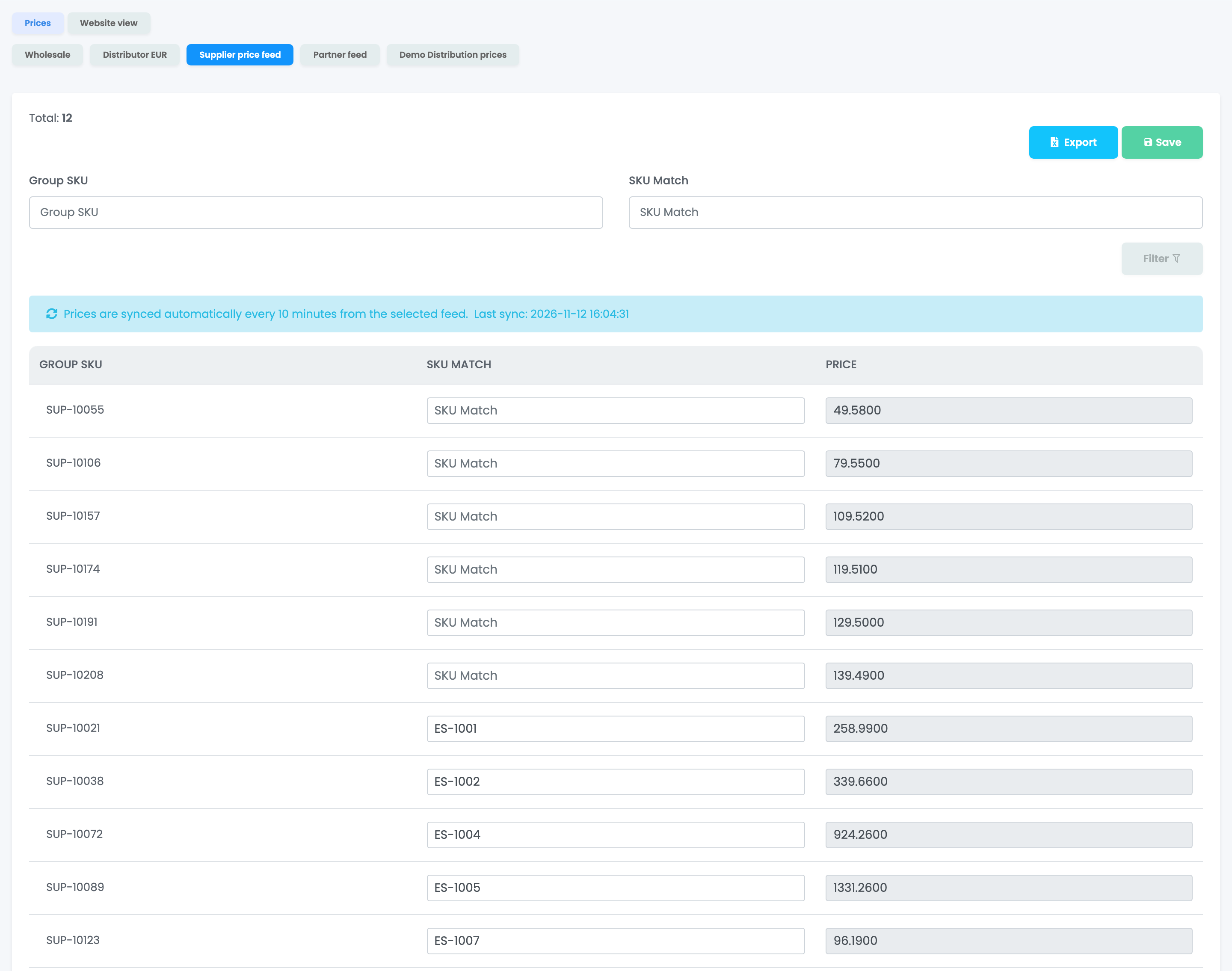
When the supplier uses your codes, nothing else is needed for offers and orders. When their codes differ, type your product's SKU in SKU Match and press Save. A sync never overwrites what you typed. Each SKU Match can be used only once in a group.
Compare the prices
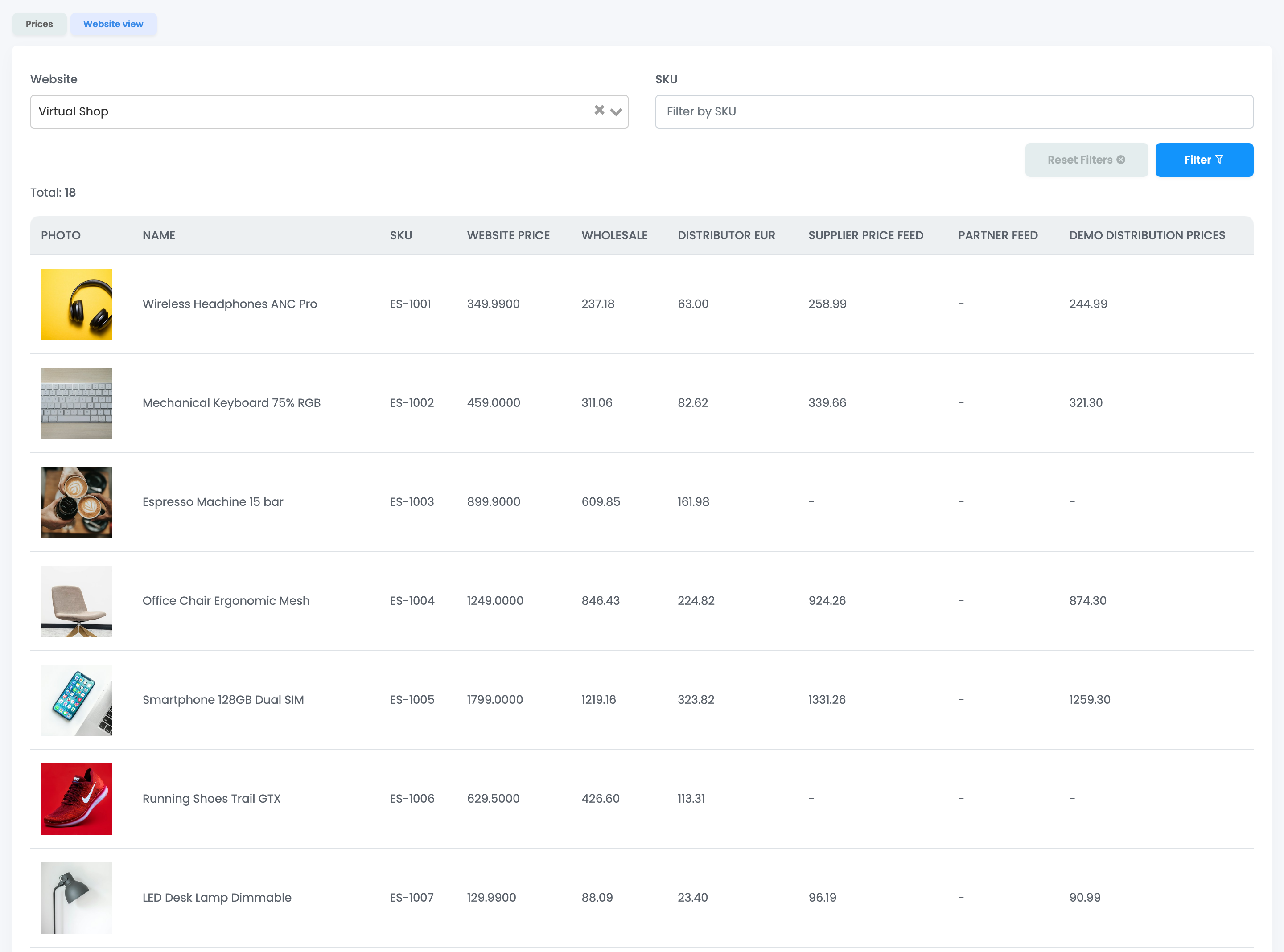
The Website view tab on the Prices page lists the products of one online shop with their Website price and, next to it, their price in each group. A dash means the product has no price in that group.
Use a price group as the marketplace sale price
In the settings of a marketplace connection, Sale price source chooses where the offers' sale price comes from: Catalog price or one of your price groups.
- Only the sale price is taken from the group. The other prices of the offer still come from the product.
- VAT and currency are converted for the marketplace.
- When a price in the group changes, easySales sends it to the offers that are active, synchronized and still take their sale price from the product.
- A group used this way cannot be deleted until the connection uses another source.
Your team
Team members need View price groups to see the pages and Update price groups to create groups and change prices.
When something does not look right
| Symptom | What to do |
|---|---|
| The prices are in the group but nothing changed on the marketplace | A group is used only where you choose it. Set it as Sale price source on the connection, or use it in a flow or feed rule. |
| An offer does not take the group's price | The offer must be active and synchronized, take its sale price from the product, and not be on Auto Price. The product's SKU must have a price in the group. |
| A feed group shows a red message | The feed failed 3 times in a row and was switched off. Check the Feed URL, then press Re-enable. |
| A feed rule does not find the group's price | Fill in SKU Match for those products. |
| Save fails on the Prices page | Each SKU Match can be used only once in a group. Remove the duplicate. |
| A product's old price stays in a feed group | A sync never removes a row. Prices of codes that left the feed stay at their last value. |