How to set up Auto Price in easySales: automated repricing for eMAG
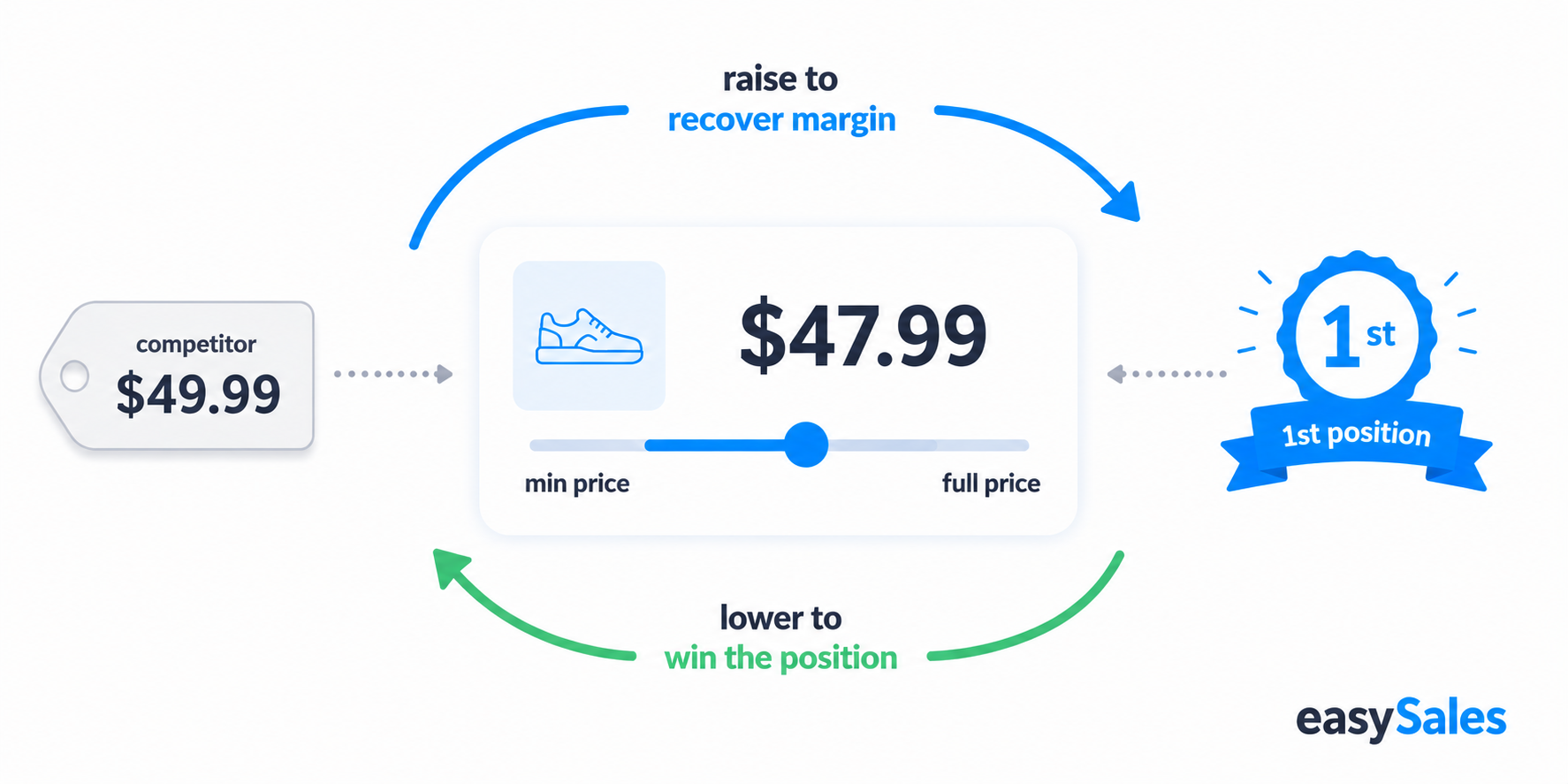
Auto Price is the easySales automated repricer for eMAG RO, BG, and HU. Set a minimum and maximum price on each offer, turn on the toggle, and easySales adjusts the live price around the clock — dropping to win the first position and rising again to recover margin, without ever selling below your floor.
On eMAG, several sellers list the same product on the same page — and whoever holds the best price wins the first position and most of the sales. Adjusting your price by hand every time a competitor undercuts you is a full-time job. Auto Price does it for you, around the clock, between limits you set.
What Auto Price does
Auto Price is the easySales automated repricer. You define a minimum price (your floor) and a maximum price (your ceiling) for each offer, switch it on, and easySales adjusts the live price in small, configurable steps:
- When you are not in first position — it lowers the price toward your minimum until you win the spot.
- Once you are in first position — it raises the price back toward your full price to recover margin while keeping the position.
Auto Price never crosses the limits you set. Your minimum is a hard stop-loss — easySales never sells below it.
Where Auto Price works
Auto Price runs on the eMAG family: eMAG RO, eMAG BG, and eMAG HU (including FBE).
What each offer needs before you enable Auto Price
Auto Price only acts on offers that are fully configured. Make sure each offer has the following:
Sale and full price
Both prices must be filled in on the offer.
Minimum price
Your floor. Auto Price never sells below it.
Maximum price
The upper bound of the repricing range.
Synced, no error
The offer must be live on the marketplace with no active error.
In stock
The product must have stock greater than zero.
An Auto Price token
One token must be assigned to the offer.
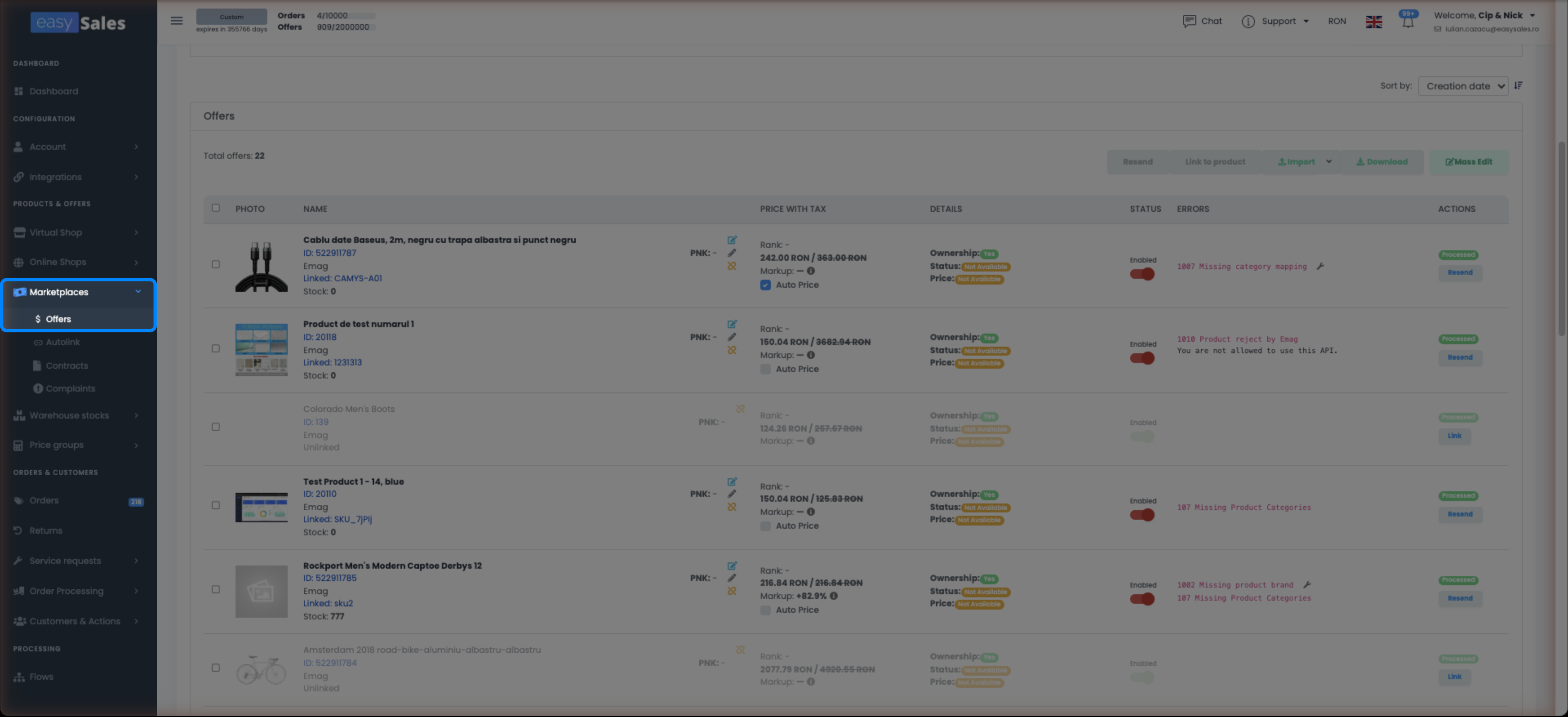
Step 1 — Open Marketplaces → Offers
Go to Marketplaces → Offers in the left sidebar. This is where all your marketplace offers are listed. You can filter by marketplace, status, or use the search bar to find specific products.
Step 2 — Set a sale price and a full price on the offer
Click the Edit button on the offer you want to reprice. On the offer edit page, fill in the Sale price and Full price fields. Auto Price needs both — the full price is the ceiling it will try to recover after winning the position; the sale price is what gets pushed to the marketplace.
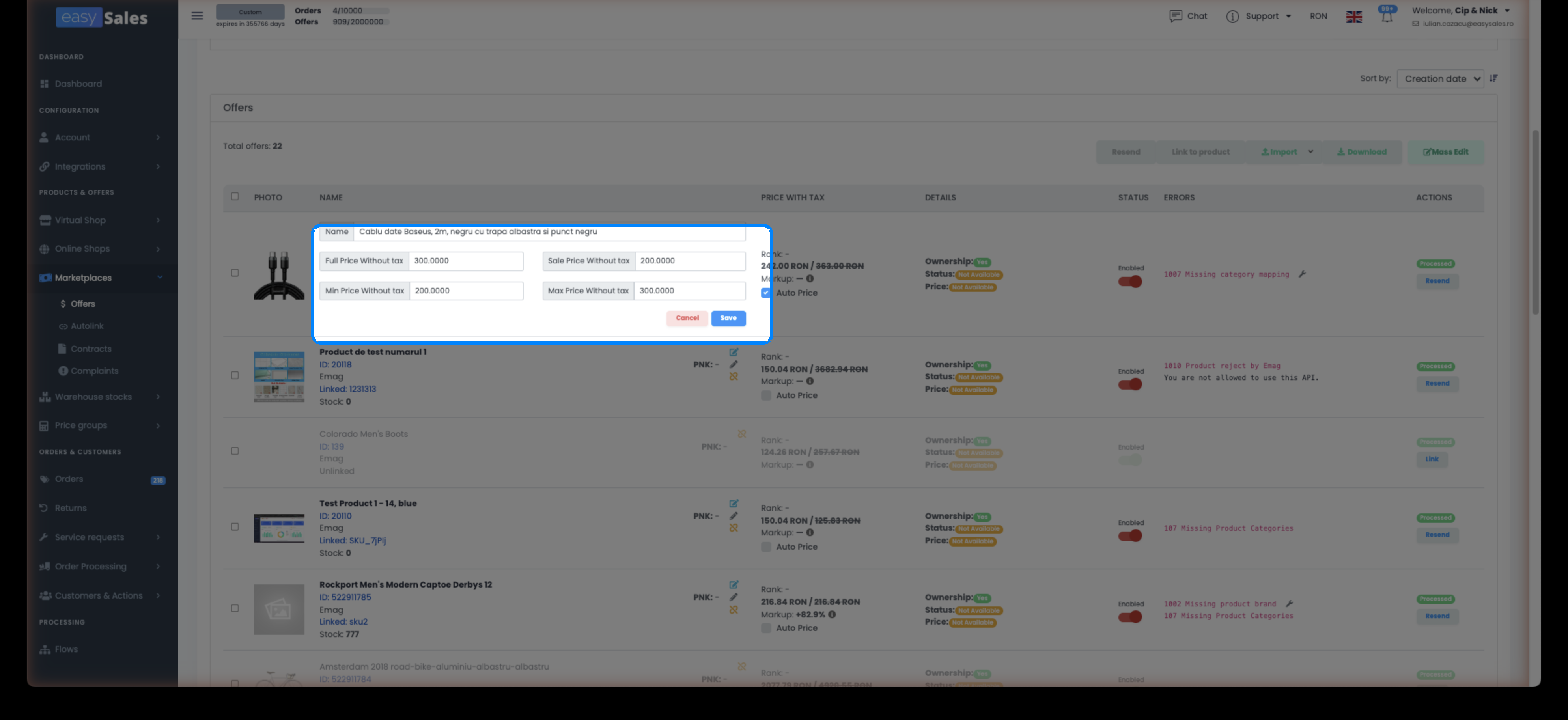
Step 3 — Set the minimum and maximum price
The minimum price is the lowest price Auto Price will ever use. The maximum price is the upper bound of the repricing range.
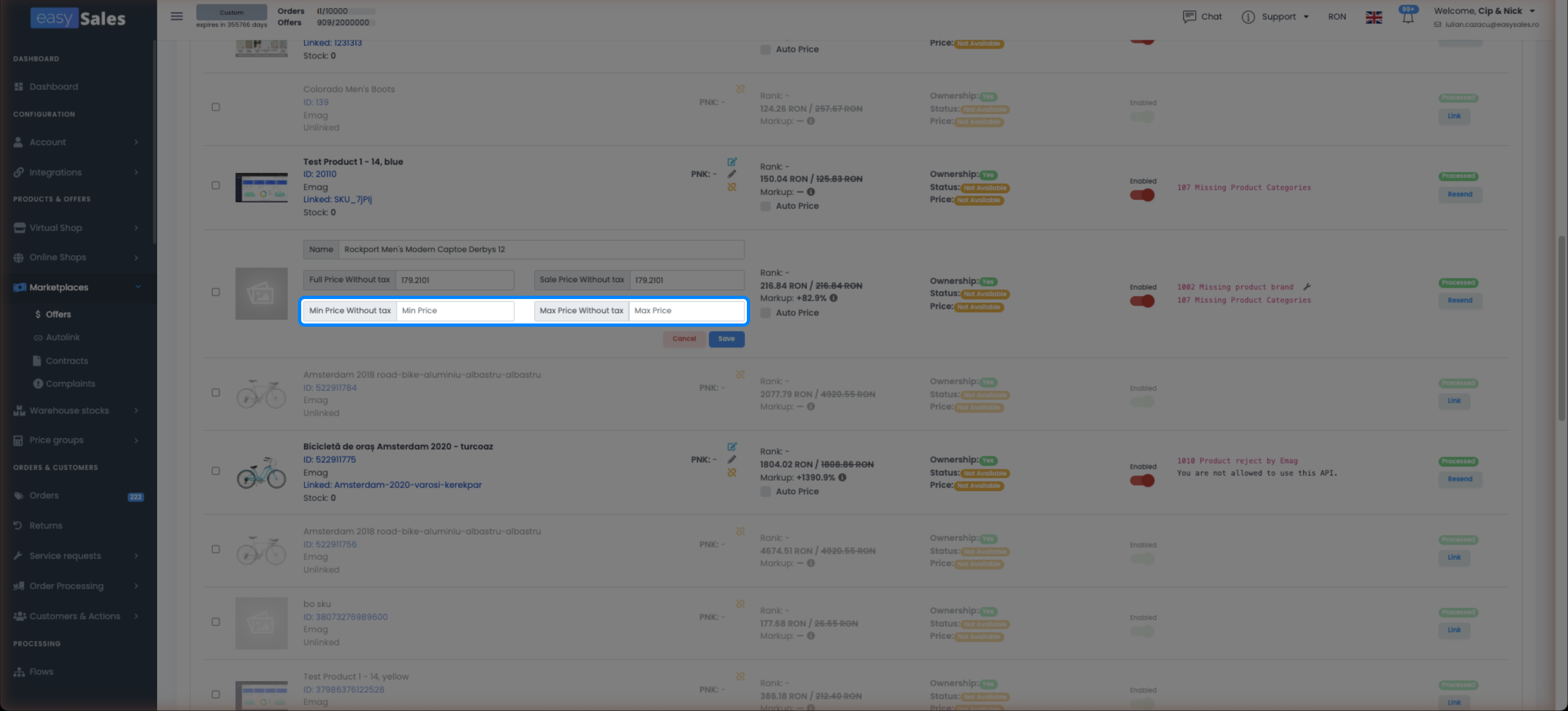
For a single offer
On the offer edit page, scroll to the Auto Price section and fill in the Minimum price and Maximum price fields directly. You can also use the Quick Coupled button on the offers list row — it opens a small panel where you set both thresholds without opening the full edit page.
For many offers at once
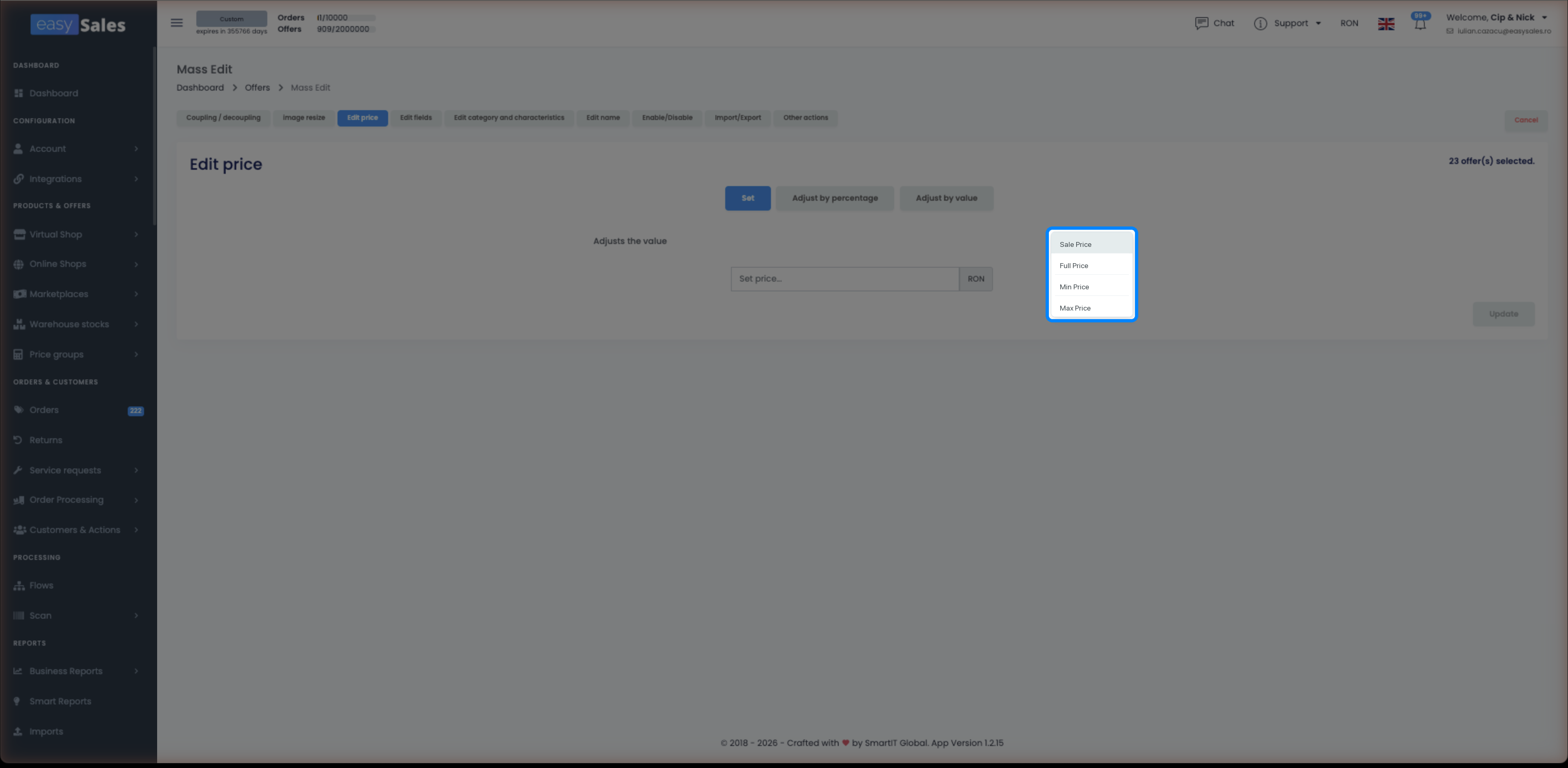
Select the offers you want to update using the checkboxes, then click Mass Edit. In the mass edit panel, set Minimum price and Maximum price in bulk across all selected offers.
Step 4 — Turn on the Auto Price toggle
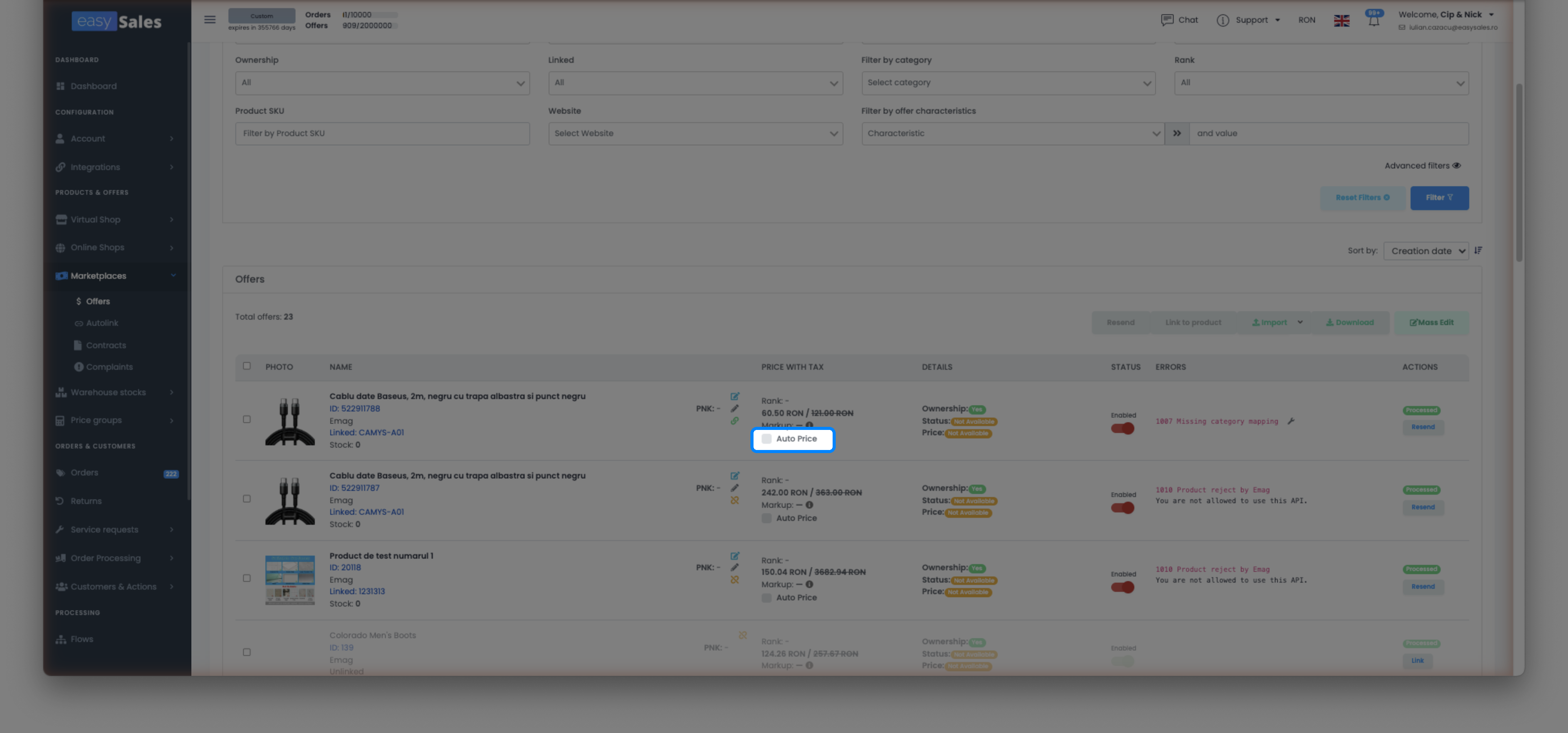
On the offer — either in the edit page or directly from the offers list — tick the Auto Price toggle. Once enabled, Auto Price picks the offer up on its next scheduled run.
Fine-tuning: frequency and percentage settings
By default, Auto Price uses built-in step sizes and intervals. You can override these inside the eMAG RO / BG / HU integration settings:
- Decrease frequency — how many minutes must pass between each price drop.
- Increase frequency — how many minutes must pass between each price rise.
- Decrease percentage — how much the price drops per step (number only, no % sign).
- Increase percentage — how much the price rises per step.
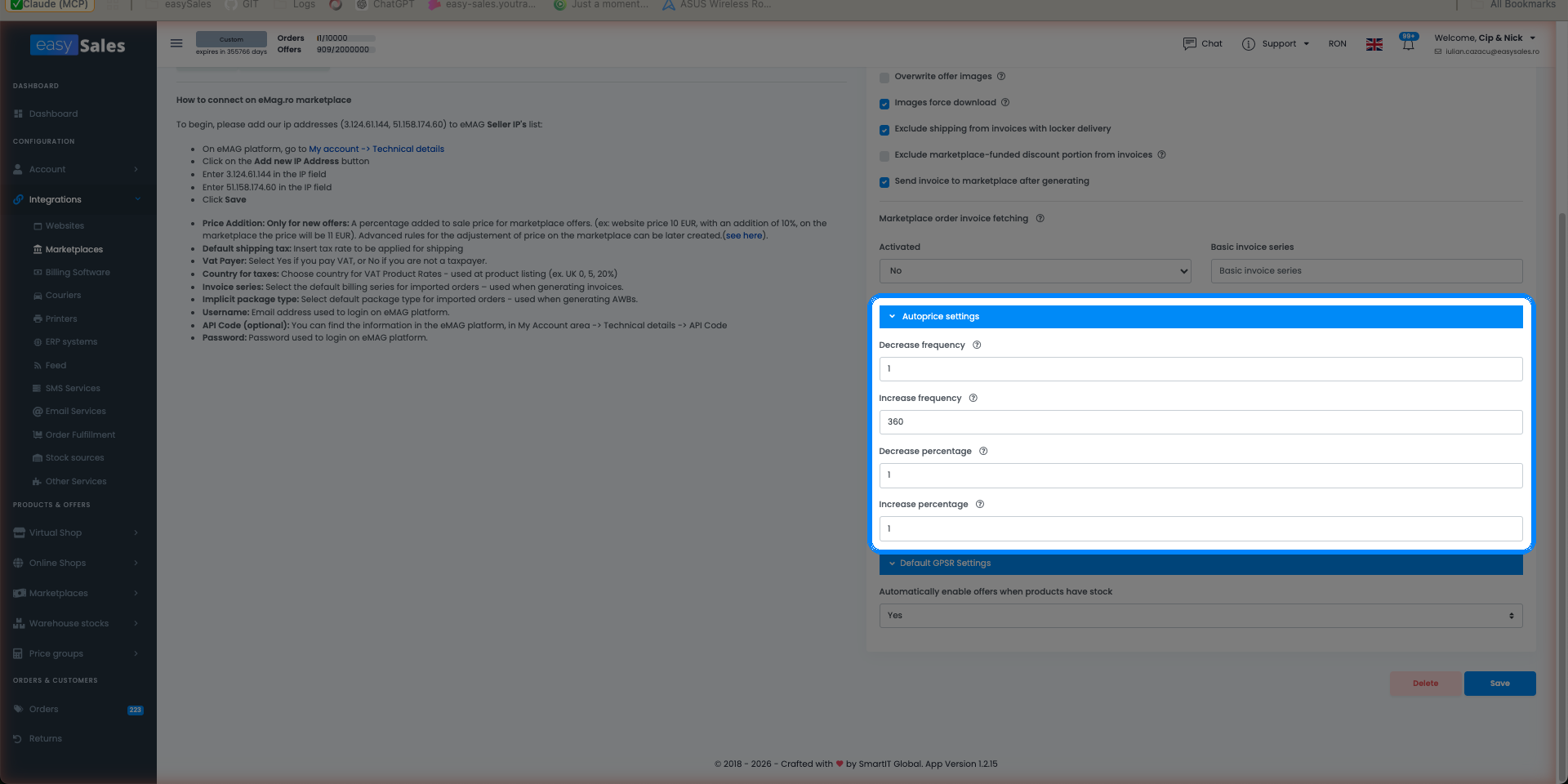
Smaller percentages and longer frequencies produce calmer, more conservative repricing. Larger values react faster but move the price in bigger jumps. Leave the fields empty to use the defaults.
Auto Price tokens
Auto Price runs on tokens. One token covers one offer. You receive a number of free tokens to test the feature. To buy additional tokens, go to Account → Subscriptions and scroll to the bottom of the page.
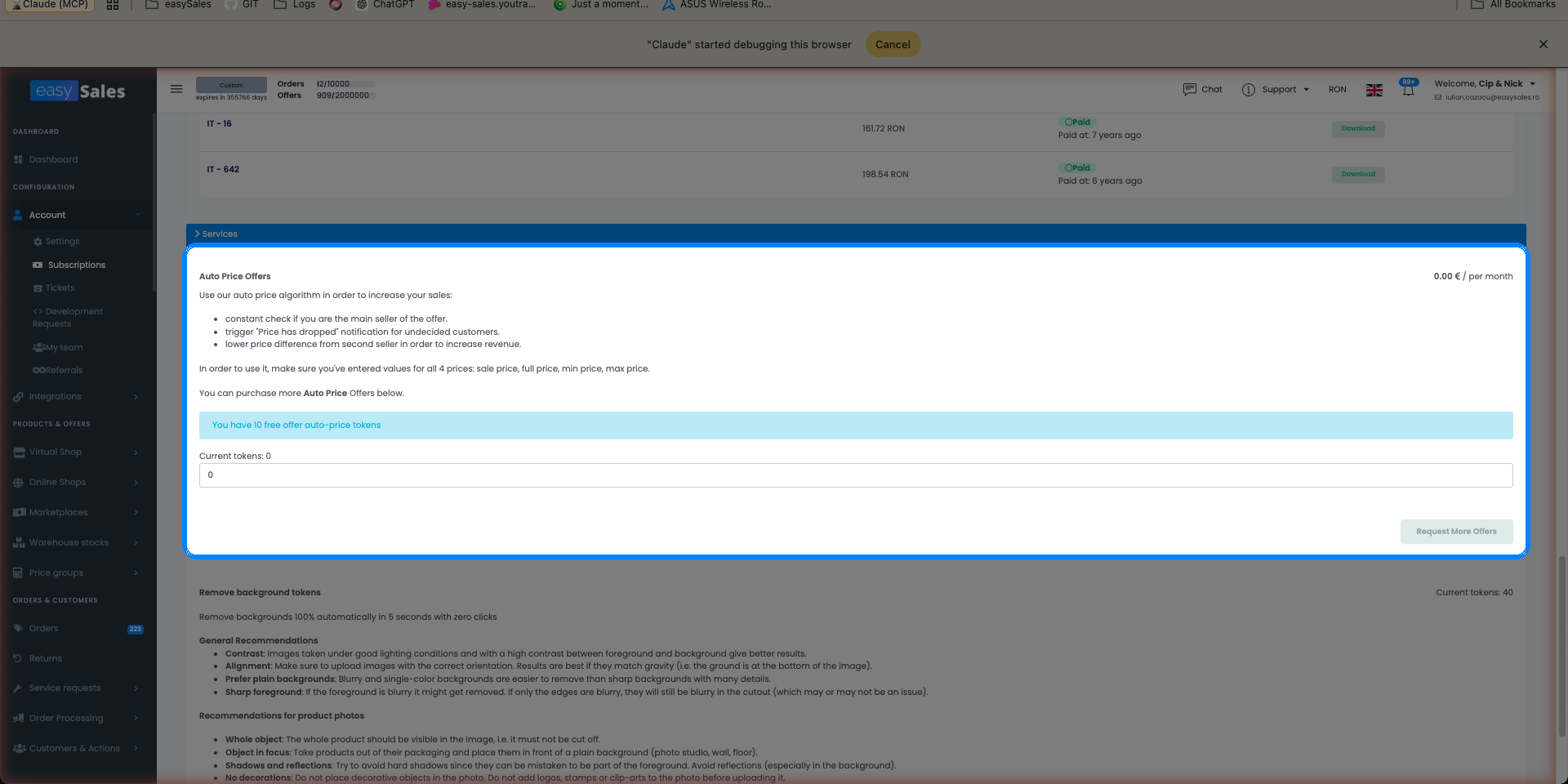
If you stop using Auto Price on an offer, untick the toggle and the token is released for another offer.
When Auto Price will not run
Auto Price silently skips an offer when any of these conditions is true:
- The offer has an error — resolve the error first, then Auto Price resumes automatically.
- The offer is not yet synced with the marketplace.
- The product is out of stock.
- The minimum or maximum price is missing.
- The frequency window has not elapsed since the last price change.
- The offer is inactive.
If repricing appears stuck, check these in order. A missing minimum or maximum price and an offer in error are by far the most common causes.
Auto Price and Automation Flows
If you run Automation Flows that also modify prices, add the "Auto-Price activated" filter on those flows. This tells the flow to skip offers that Auto Price already manages, so the two systems do not overwrite each other on the same offer.
Win the first position on autopilot
Try easySales free for 14 days and let Auto Price reprice your eMAG offers for you. No credit card required.