What is B2B Connect? Wholesale sourcing and supply between easySales stores
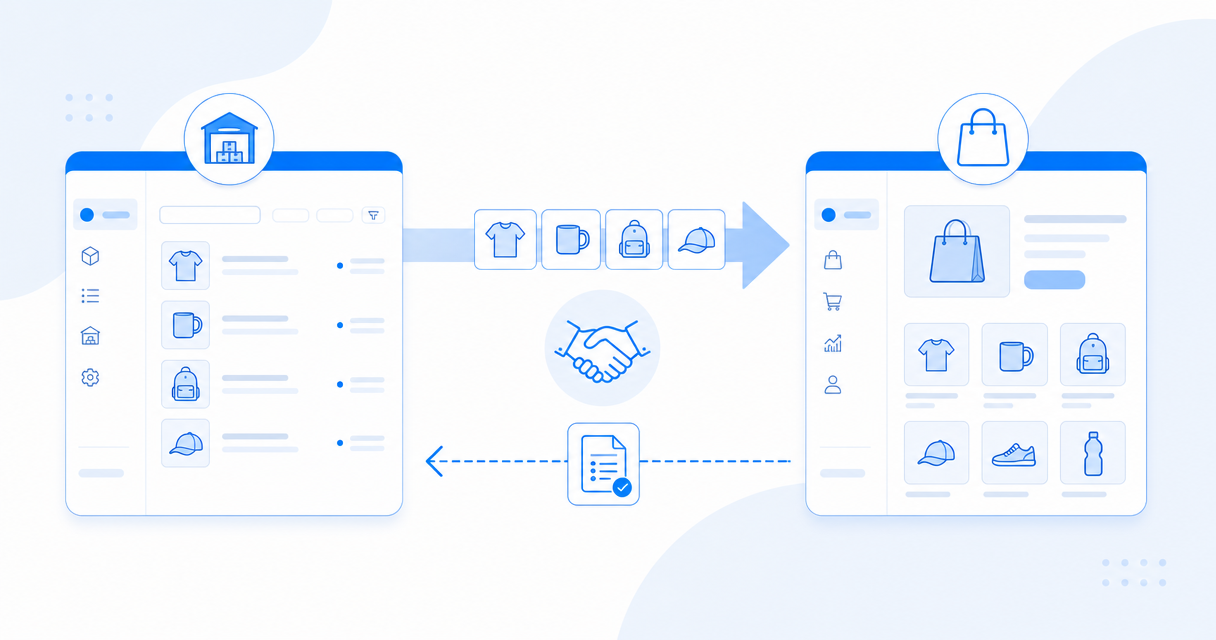
B2B Connect links two easySales accounts — a supplier publishes a catalog, a buyer imports it into a Virtual Shop with synced stock and prices, and orders forward back to the supplier to fulfil.
What is B2B Connect?
B2B Connect is a marketplace built into easySales that links two easySales accounts. One account — the supplier — publishes a product catalog. The other — the buyer — connects to that catalog and imports the products into its own store, with stock and prices kept in sync. The buyer can then forward incoming orders back to the supplier to fulfil.
It turns a supplier relationship you already have into an automated one. Instead of emailing spreadsheets, re-keying products, and manually checking whether an item is still in stock, both sides work from the same live catalog inside easySales. A supplier maintains one catalog; every buyer connected to it stays current automatically.
You reach it from the left menu under Integrations → B2B Connect. Whether you show up as a buyer, a supplier, or both depends on how you set it up — the two sides are covered in their own chapters, linked at the end of this guide.
How does B2B Connect work?
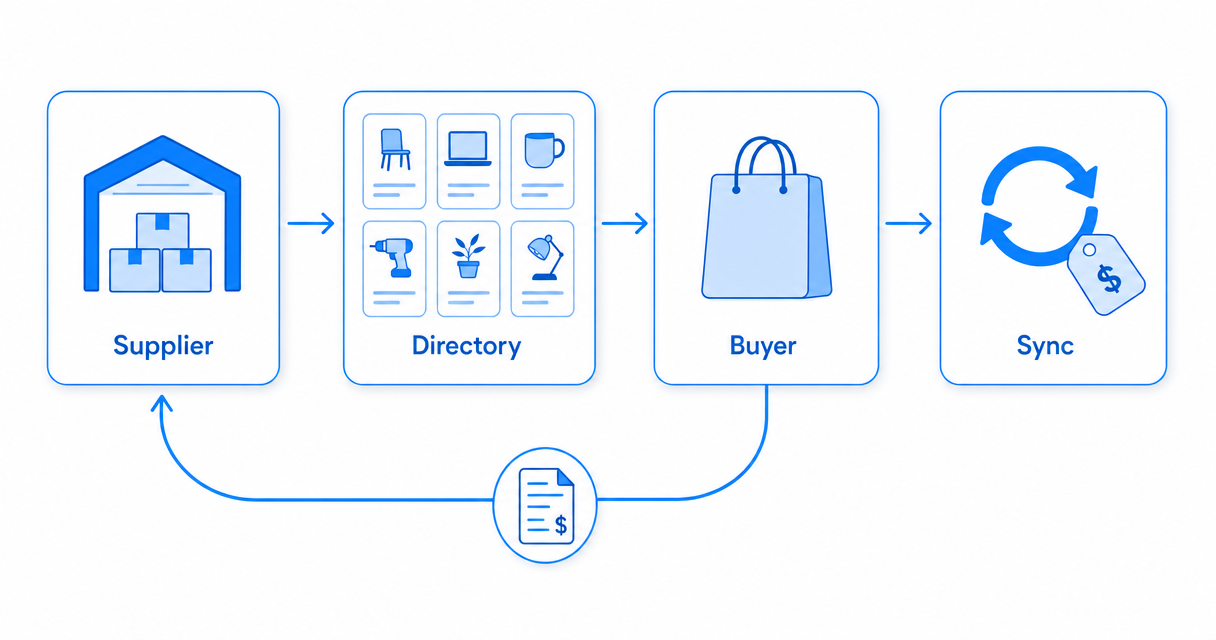
The whole model is a short, one-directional pipeline with a return path for orders. It helps to picture it end to end before you set up either side.
- The supplier publishes a catalog. A supplier account configures a catalog — a name, a description, a currency, and a language — and chooses whether it's public or private. Once published, it appears as a card in the buyer-facing directory.
- A buyer discovers it in the directory. Buyers browse the B2B Connect directory, search by supplier or catalog name, and preview the products in a public catalog before committing to anything.
- The buyer connects. Connecting pairs the two accounts. Importantly, it only adds the supplier to the buyer's account — it does not pull in any products yet.
- The buyer imports the catalog. A separate guided import wizard brings the products into the buyer's Virtual Shop, with the buyer's own stock source, pricing markup, and rules for handling duplicate SKUs.
- Stock and prices stay in sync. Imported products draw stock from a supplier warehouse the import sets up, and — if the buyer opts in — prices update automatically whenever the supplier changes them.
- Orders forward back to the supplier. When a buyer sells one of the imported products, the order can be forwarded to the supplier to fulfil, using an automation flow.
The two roles: buyer and supplier
Every B2B Connect relationship has two sides, and one easySales account can play either — or both.
The supplier is the account that owns the products. Suppliers publish a catalog so other easySales merchants can resell it, upload a logo so their listing stands out in the directory, decide who can connect, and see the list of buyers they're connected to. Suppliers don't manage anyone else's store — they maintain one catalog and let it propagate.
The buyer is the account that resells. Buyers find suppliers in the directory, connect, and import the catalog into a Virtual Shop, setting a pricing markup and choosing how much to automate. From then on the buyer sells those products on its own sales channels and forwards the resulting orders back to the supplier.
If you both sell your own products and resell someone else's, you can be a supplier to your buyers and a buyer of another supplier's catalog at the same time — the two roles are independent.
What gets created when you connect and import?
Connecting and importing are different actions, and the difference matters.
Connecting adds the supplier to your account and nothing more. The real setup happens when you run the import wizard. Depending on the options you choose, the import sets up the pieces below — each one a standard easySales object you can open and manage on its own afterwards.
A supplier
The supplier is added to your account when you connect — this is the only thing connecting creates on its own.
Virtual Shop products
The supplier's products are created in your Virtual Shop, ready to sell on your own channels.
An advanced warehouse
If you connect stock, a supplier warehouse is added as an extra stock source, so availability reflects what the supplier holds.
A supplier price group
Supplier prices land in a dedicated Price Group, with your markup percentage applied on import.
A price-sync flow
If you keep prices synced, easySales creates and manages an Automation Flow that re-prices your linked products whenever the supplier changes a price.
Because every one of these is a normal easySales entity, nothing about B2B Connect is a black box. The imported products live in your Virtual Shop like any other products, the stock source is an ordinary Advanced Warehouse, the pricing lives in a Price Group, and the sync is a visible, editable Automation Flow.
Keeping stock and prices in sync
The point of B2B Connect is that you set it up once and it stays current. Stock and prices are handled separately.
Stock comes from a supplier warehouse that the import can create as an additional stock source for your Virtual Shop. It never replaces the stock you already have — it's layered in as an extra source, so a product's availability reflects what the supplier holds. If you'd rather manage availability yourself, you can skip connecting stock and import the products at zero stock instead.
Prices are handled through a supplier Price Group plus your markup. At import time, the supplier's prices are brought in and your markup percentage is applied. If you turn on Keep prices synced, easySales creates and manages an Automation Flow that re-prices the linked products by your markup every time the supplier changes a price — so your margin holds without you touching anything. Turn that option off and the managed flow is removed; prices then stay at whatever they were at import.
Forwarding orders to your supplier
Selling an imported product is only half the job — someone still has to ship it. B2B Connect lets you forward the order to the supplier so they can fulfil it.
Forwarding runs through easySales Automation Flows. You build a flow with the standard send order action, point it at your B2B Connect supplier connection, and it forwards qualifying orders automatically. The flow is smart about mixed orders: if none of the items in an order come from that supplier, it skips the order rather than sending an empty request. There's also a manual, per-order option when you'd rather forward something by hand.
What contact details the supplier receives — the end customer's, or a fixed contact you define — is controlled by the connection's own settings, so you decide up front how much customer information leaves your account.
Every forwarded order is tracked on the buyer side as an order submission that shows the supplier's order id and its status. When the supplier ships or completes the order, the courier, tracking number, and status flow back to the buyer automatically — so neither side has to chase the other for an update.
Public vs private catalogs
Suppliers choose who can find and connect to their catalog.
A public catalog is listed in the directory for every buyer to see; buyers can preview its products and connect directly. A private catalog is invitation-only: it's hidden from open discovery, and a buyer needs the supplier's connect code to pair with it. Suppliers can rotate that code at any time without disconnecting the buyers who already joined. Private catalogs suit exclusive or negotiated supply arrangements; public ones suit suppliers who want as many resellers as possible.
Getting started
Which chapter you need depends on your side of the relationship.
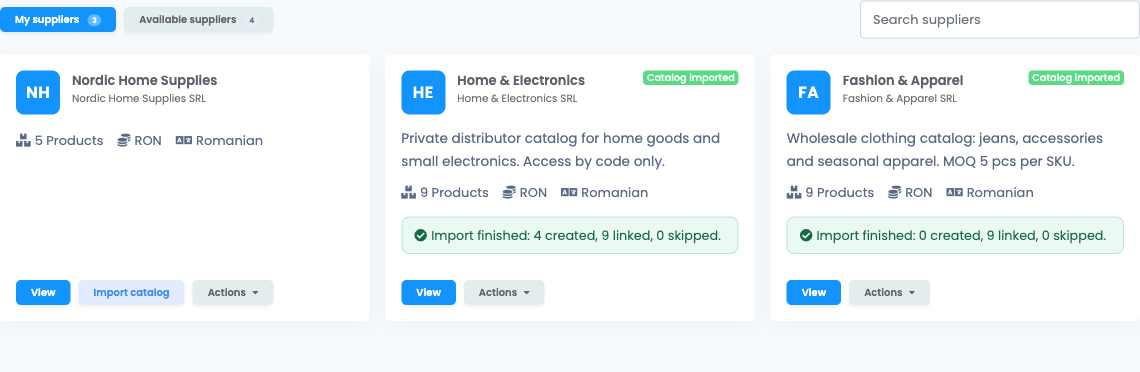
If you want to resell another merchant's products, start with the buyer chapter — it walks through finding a supplier, connecting, the import wizard, price sync, and order forwarding, including the requirements your store has to meet first.
If you want to let other merchants resell your products, start with the supplier chapter — it covers publishing your catalog, choosing public or private, uploading your logo, and managing your connected buyers.
Turn your supplier relationships into automated ones
Try easySales free for 14 days. No credit card required.