How to write message templates in easySales: e-mail, SMS and WhatsApp
Write the e-mails, SMS and WhatsApp messages your buyers receive, with order variables, product lists and attachments.
What a template is
A template is the text of a message you send to your buyers: an e-mail, an SMS or a WhatsApp message. You write it once, with variables such as the order number or the tracking link, and easySales fills them in for each order.
Templates are used by:
- the notifications that send messages automatically, for example when an AWB is created;
- the Notify user button on an order, a return or a service request;
- the automatic flows that send an e-mail or an SMS.
Open them from Customers → Communication → Templates.
Two things to know first:
- A template is shared. When you change it, every notification that uses it sends the new text from that moment on. Copy it first if you want the change in one place only.
- Each template belongs to one area: orders, order returns or service requests. You choose it when you create the template and cannot change it later.
Your templates at a glance
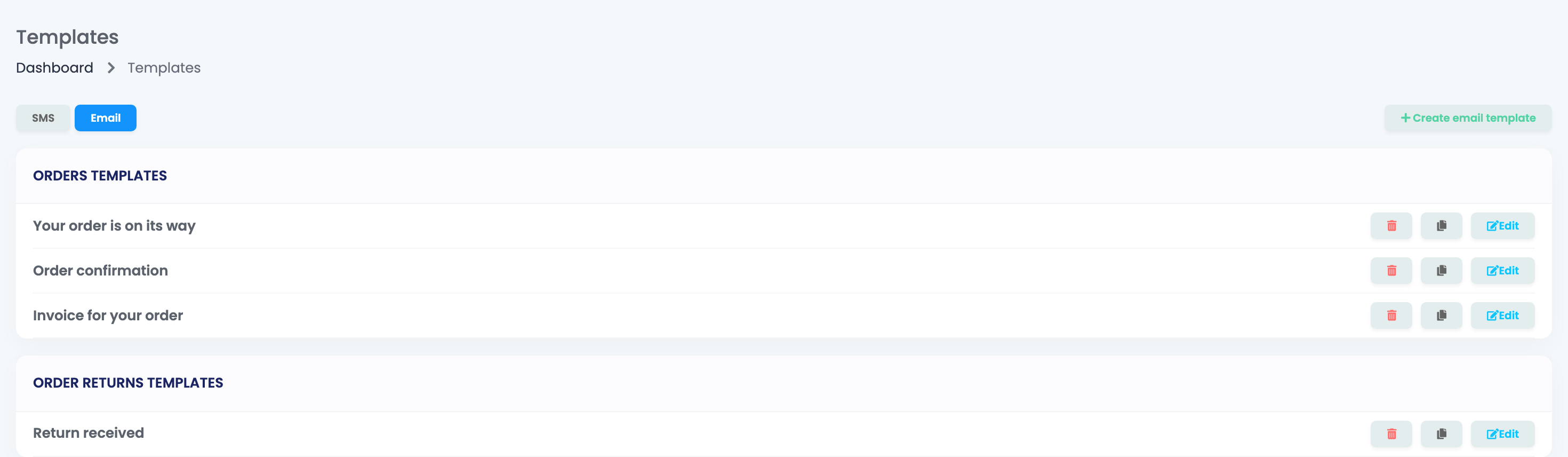
The page has two tabs, SMS and Email, and the SMS tab opens first. Under each tab the templates are grouped in Orders templates, Order returns templates and, if you use service requests, Service requests templates.
Each template has three buttons:
- the bin deletes it;
- the copy button makes a copy named "(Copy)", which you can then rename and change;
- Edit opens it.
Create a template
- Choose the SMS or Email tab.
- Press Create sms template or Create email template.
- Choose Orders, Order returns or Service requests. The area decides which variables and attachments you can use.
- Fill in the Template name. Your buyers do not see it; it is how you find the template in the lists.
- Write the message, clicking the variables you need.
- Press Create.
Variables
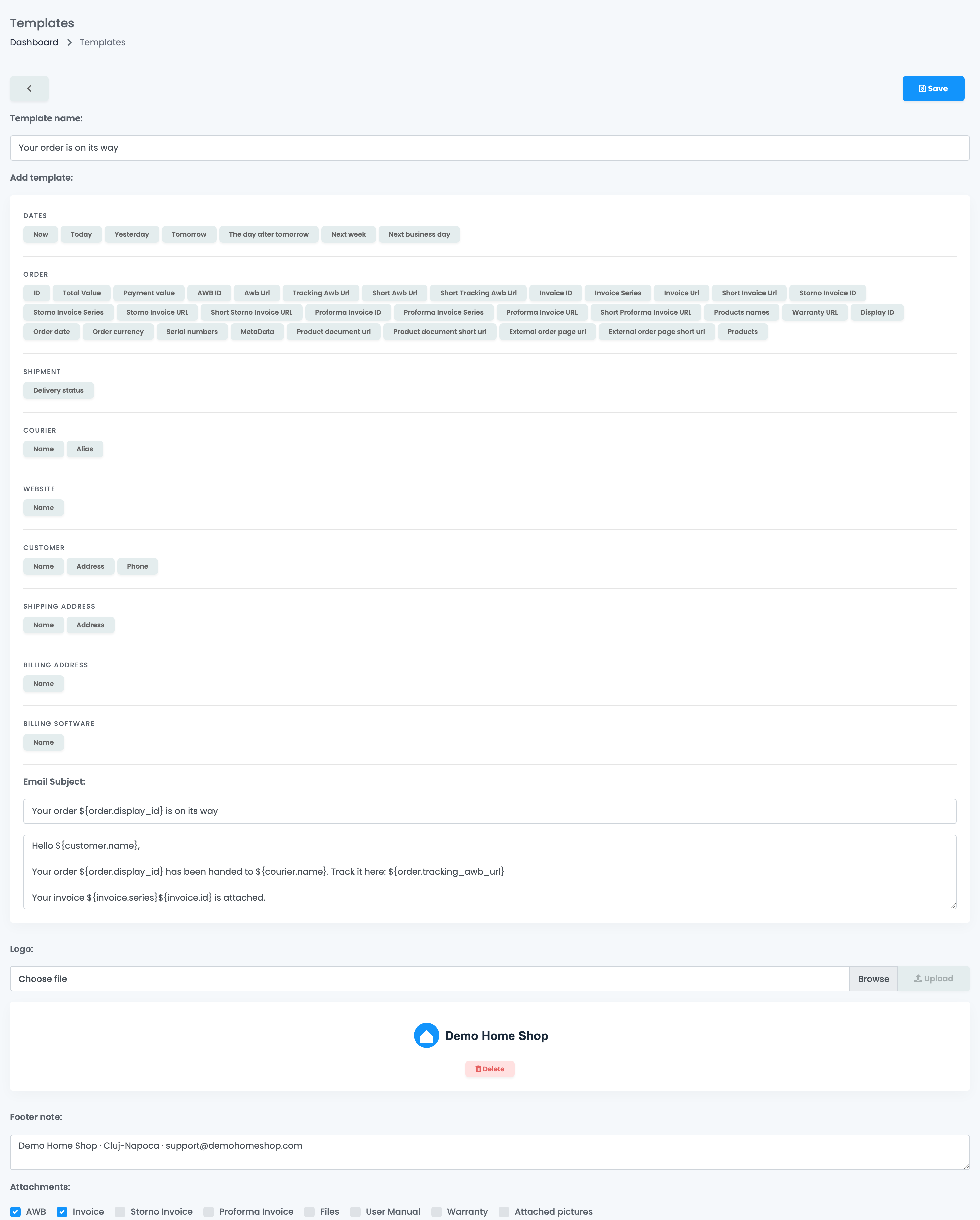
Under Add template you see the variables, grouped by what they describe: dates, the order, the shipment, the courier, the website, the customer, the addresses and the invoicing software. Click one and it is added where your cursor is, as text like ${order.display_id}.
When the message is sent, each variable is replaced with the value of that order. A value the order does not have yet comes out empty: an AWB link in a message sent when the order is created, for example. Use each variable in a message sent at a moment when that value exists.
| Variable | What the buyer sees |
|---|---|
| Display ID | The order number, as the buyer knows it. |
| Total Value, Order currency | The order total and its currency. |
| Tracking Awb Url, Short Tracking Awb Url | The link where the buyer follows the parcel. |
| Invoice Url, Short Invoice Url | The link to the invoice. |
| Courier Name | The courier that delivers the parcel. |
| Customer Name | The buyer's name. |
| Next business day | A date, for example the expected delivery day. |
Two variables ask for one more detail:
- MetaData asks for the name of the metadata field you want to show.
- Product document url asks for the name of the document type.
List the products of the order
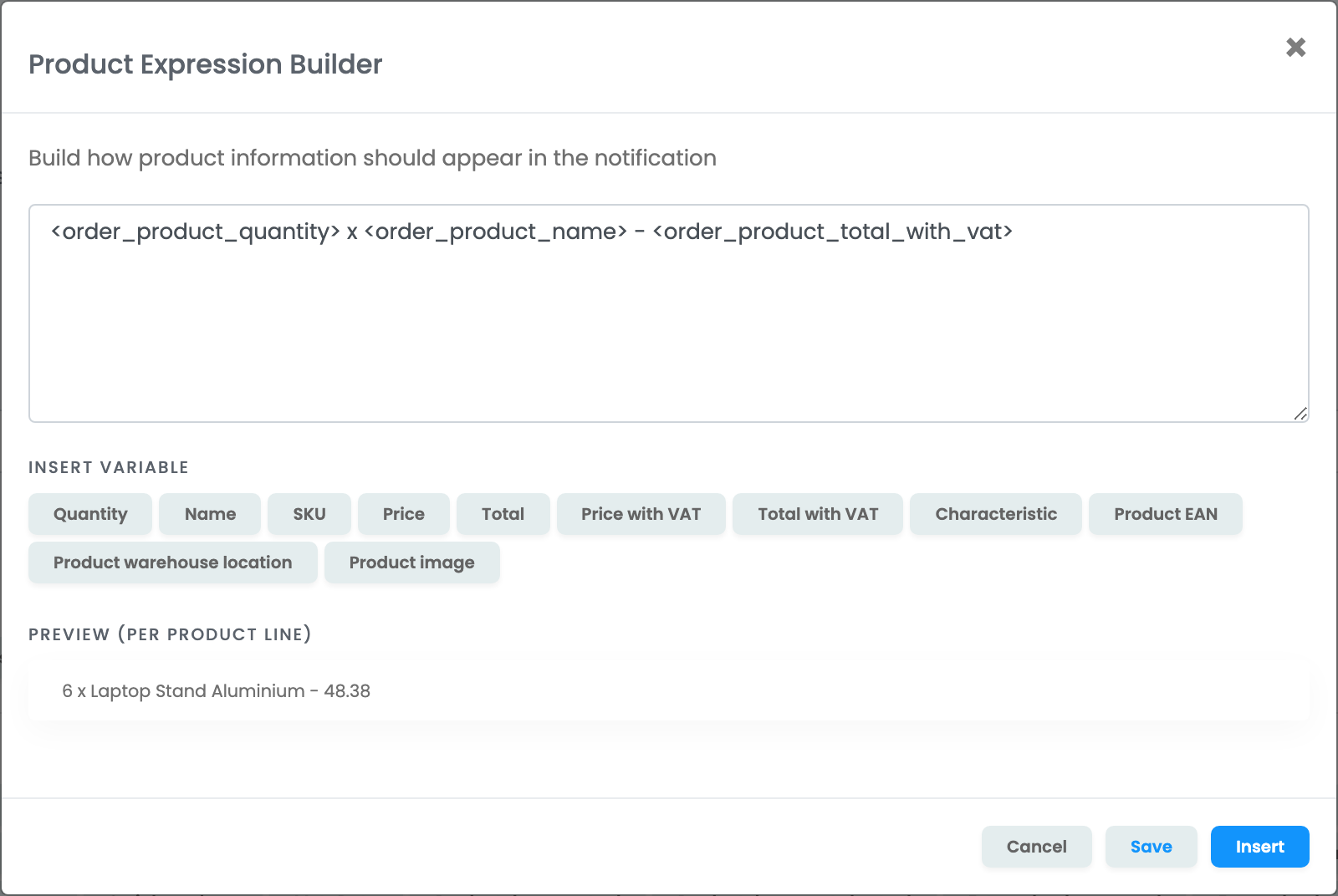
On order templates the Products variable opens the Product Expression Builder. There you write how one product line looks, for example the quantity, the name and the total with VAT, and easySales repeats it for every product of the order.
- Click the variables under Insert variable to build the line, and check it under Preview (per product line).
- Press Insert. To change it later, click Edit products expression.
- A template has one product list, and it goes in the body of the message, not in the subject.
- Product image is offered in e-mails only.
E-mail templates
An e-mail template has more fields than an SMS:
- Email Subject, required. You can use variables in it too.
- The body of the message.
- Logo: a jpg, png or svg image shown above the message. Choose the file and press Upload.
- Footer note: a short text shown under the message, for example your shop's address.
- Attachments: the documents sent with the e-mail.
| Attachment | What is sent |
|---|---|
| AWB | The shipping label of the order. |
| Invoice, Storno Invoice, Proforma Invoice | The invoice of the order of that kind. |
| Files | PDF files you upload to the template, for example your terms and conditions. Sent with every message. |
| User Manual | The product documents of the type you choose, for each product of the order. |
| Warranty | The warranty certificate of the order. |
| Attached pictures | The pictures attached to the order. |
SMS templates
An SMS template has only the text. Keep it short:
- One SMS holds 160 characters without diacritics. With diacritics or emoji it holds 70, and a longer text is sent and charged as several messages.
- The text is sent exactly as you write it. Write without diacritics if you want to keep the message short.
- Use the short link variables, such as Short Tracking Awb Url, instead of the long ones.
- An SMS cannot carry attachments: send the link to the invoice or the AWB instead.
WhatsApp templates
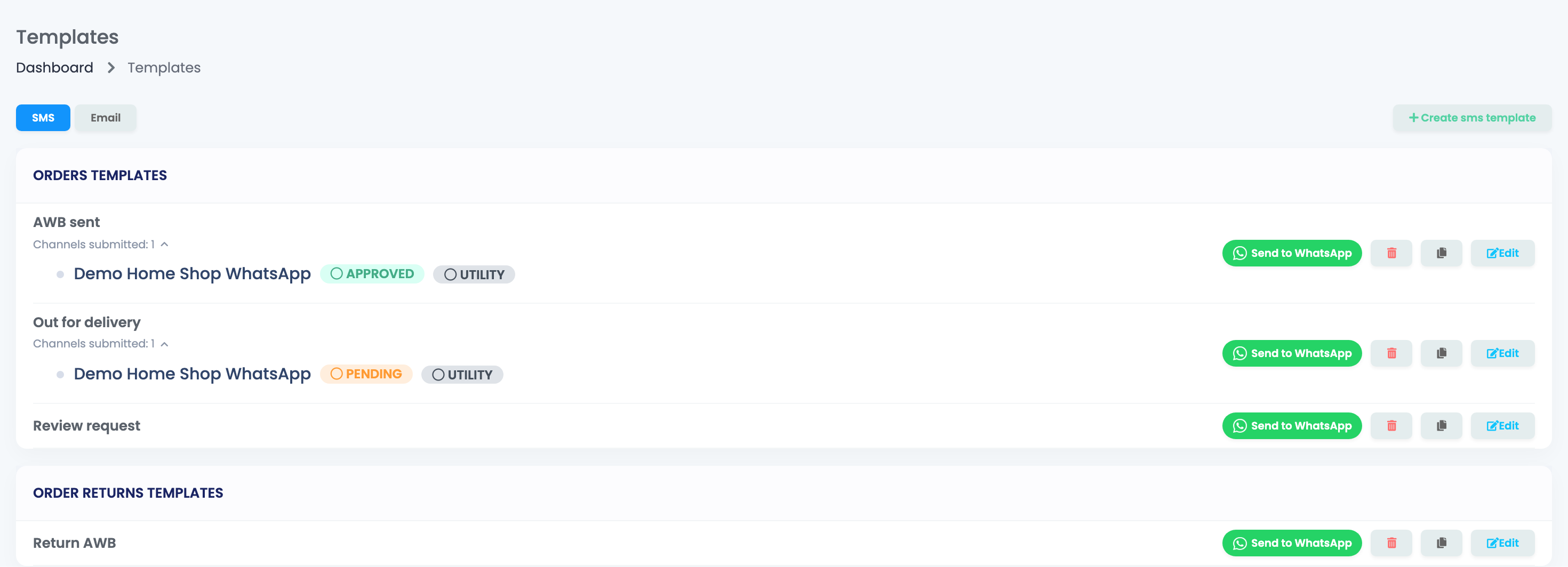
WhatsApp accepts only messages from templates it has approved. You write them as SMS templates and send them to WhatsApp for approval. You need a WhatsApp connection first.
- Open the SMS tab.
- Press Send to WhatsApp next to the template. If you have several WhatsApp connections, choose one.
- Under the template you see Channels submitted. Click it to see the status for each connection: PENDING while WhatsApp reviews it, then APPROVED or REJECTED. easySales refreshes the status by itself.
Once the template is sent, its name cannot be changed. A WhatsApp notification can only use an APPROVED template.
Change, copy or delete a template
- Edit changes the template for every notification and flow that uses it, from the next message on.
- To try a new version without touching the messages that already go out, copy the template, change the copy and switch one notification to it.
- Delete asks you to confirm. If an active notification uses the template, easySales lists it and does not let you delete the template: switch that notification to another template or turn it off first.
When something does not look right
| Symptom | What to do |
|---|---|
| A variable comes out empty | The order did not have that value yet when the message was sent. Use the variable in a notification sent later, for example after the AWB is created. |
| The e-mail arrived without the invoice | The invoice did not exist yet when the e-mail was sent. Use the template on the invoice notification. |
| I changed a template and an old notification changed too | Templates are shared. Copy the template and use the copy where you want the different text. |
| I cannot delete a template | An active notification uses it. Switch that notification to another template or turn it off. |
| I cannot change a WhatsApp template's name | The name is fixed once the template is sent to WhatsApp. Copy it to use another name. |
| WhatsApp messages stopped after I changed the text | Press Send to WhatsApp again and wait until the status is APPROVED. |
| The template is not offered for a return | It was created under Orders. Create it again under Order returns. |