How to use online shop characteristics in easySales: shop and internal characteristics
See your shop's characteristics, create internal ones for what your shop is missing, give them values in bulk and map them to marketplaces.
What online shop characteristics are
Characteristics describe your products: colour, size, material, warranty. Marketplaces and comparison sites ask for them, and easySales sends the ones you map. The Characteristics screen lists the characteristics of each online shop you connected. Open it from Products → Online Shops → Characteristics.
Three things to know first:
- There are two kinds. Your shop's characteristics come from the shop and change only in the shop. Internal characteristics are created in easySales, for what your shop does not have or does not describe the way a marketplace needs.
- Internal characteristics stay on your products at every sync. easySales keeps them when the shop sends the product again, and never sends them back to your shop.
- A characteristic reaches a marketplace only when it is mapped. Having the value on the product is not enough: map it to the marketplace characteristic in Categories.
Shop and internal characteristics
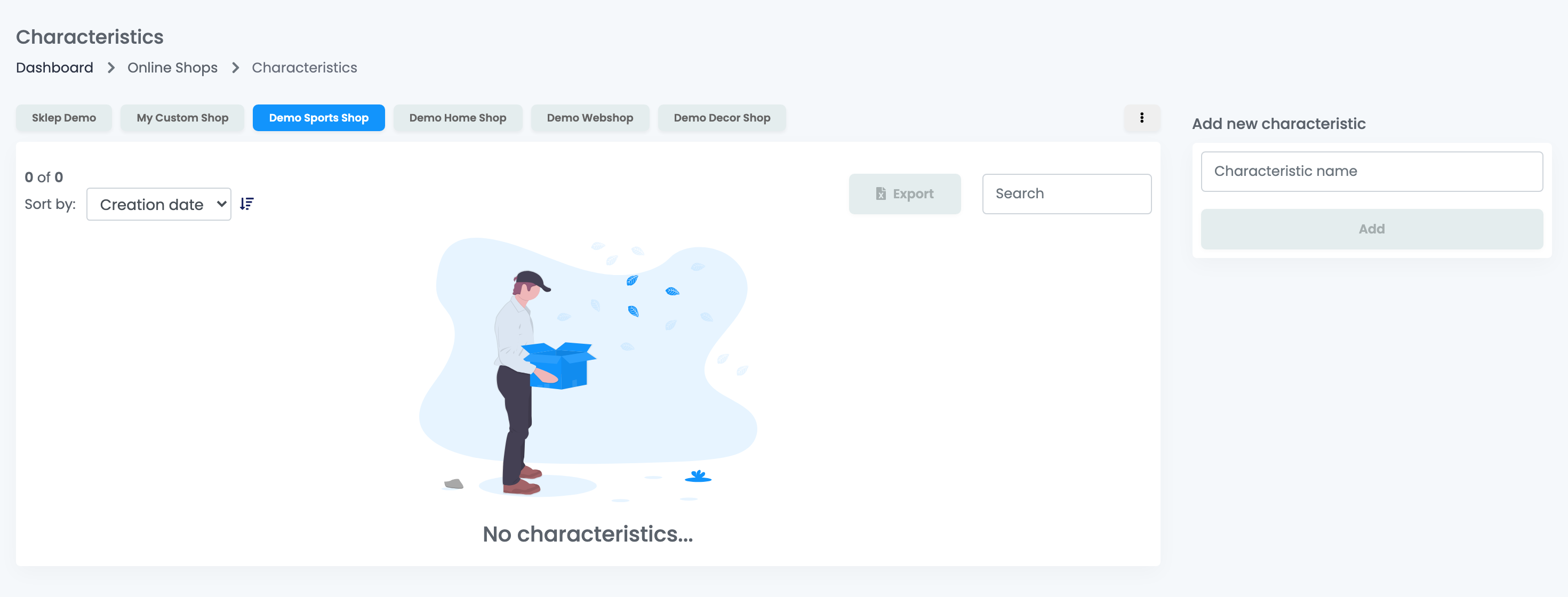
Press the button of a shop to see its characteristics. The Website Id column tells them apart:
| Shop characteristic | Internal characteristic | |
|---|---|---|
| Website Id | The id from your shop, for example 101 | easy-sales-ch followed by a number |
| Created by | The shop sync | You, an import or a flow |
| Value on the product | Comes from the shop at every sync | Set in easySales, kept at every sync |
| Edit and Remove | Not available | Available |
| Sent to your shop | — | Never |
Edit and Remove work only for internal characteristics. Search by name, sort by Creation date or Name, and press Export to download the shop's list as an Excel file.
Create an internal characteristic
- Choose the shop.
- Under Add new characteristic, type the Characteristic name and press Add.
- The characteristic appears in the list, with an id that starts with easy-sales-ch.
Creating it only adds the name. Each product gets its own value:
- Open the product and go to the Characteristics tab.
- Next to Characteristics internal, press +, choose the characteristic and add it.
- Type its value and press Save. A characteristic added to a product needs a value.
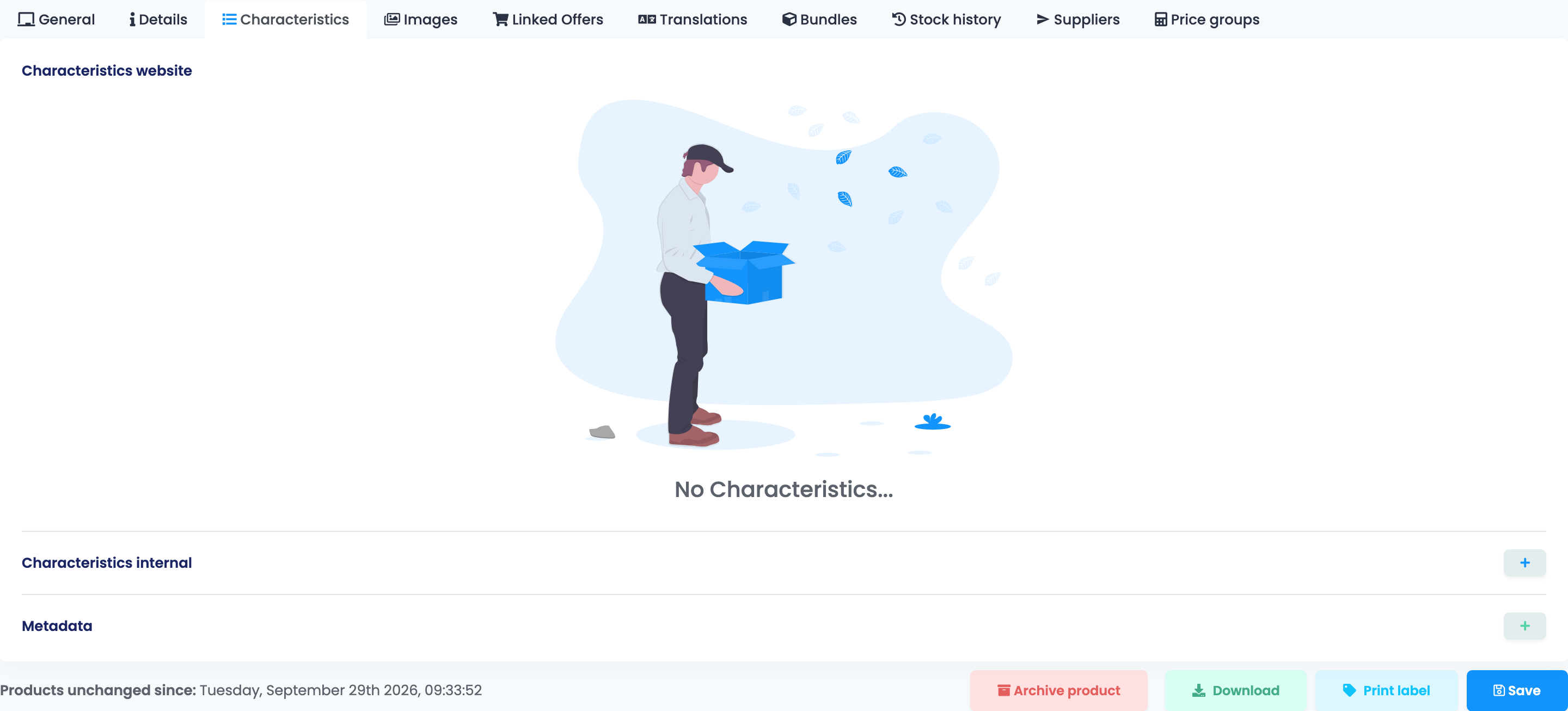
The shop's own characteristics show above, under Characteristics website, in grey: change them in your shop and the next sync brings them in.
Give values to many products at once
Use the product import of the online shop: Products → Online Shops → Products, Import, then Dynamic import. It updates the products the shop already sent, matched by SKU; it does not create products. Map the columns with characteristics in one of these ways:
| Map the column as | What the file holds |
|---|---|
| Characteristic Name and Characteristic Value | One column with the name and the next with the value. Map as many pairs as you need. |
| Characteristic Column | The column header is the name, each cell is the value. Map several columns this way. |
| Characteristic Combined | One cell with all of them: Name=Value,Name=Value. A value cannot contain a comma. |
- A characteristic with the same name among your internal ones gets the value; otherwise a new internal characteristic is created.
- By default the values are added to the product's internal characteristics. Choose Yes for Remove old internal characteristics to replace them with the ones in the file.
You can also fill them with automation flows when a product is saved: Save product fields as internal characteristic, Save product metadata as internal characteristic, and Create internal characteristics from characteristics, for example to copy the shop's size into a size in the format a marketplace asks for.
Use them on marketplaces and feeds
- Marketplaces: in Categories, map the marketplace characteristic to your internal one, the same way as a shop characteristic. Then the value goes out with the offer.
- Feeds: the custom and dynamic feeds can include a product's characteristic by its name.
Rename or remove an internal characteristic
- Edit renames it. Its values and its mappings stay.
- Remove deletes it with its value on every product and its mappings to marketplace characteristics. When products use it, easySales asks you to confirm. The marketplaces that had it mapped no longer receive it at the next offer update.
Your team and characteristics
Team members need the View characteristics permission to open the screen, Add characteristics to create one and Update characteristics to rename it.
When something does not look right
| Symptom | What to do |
|---|---|
| Edit and Remove are greyed out | It is a shop characteristic. Change it in your shop, or create an internal one. |
| The product has the value but the marketplace does not receive it | Map the marketplace characteristic to it in Categories. |
| I see two characteristics with the same name | One comes from the shop, the other is internal. Check the Website Id column and map the one you fill in. |
| The import says "Product not found" | The online shop import updates existing products only. Check the SKU, or wait for the shop sync to bring the product. |
| My shop is not in the list of buttons | The Virtual Shop has its own characteristics screen, under Virtual Shop. |