How category mapping works in easySales: categories and characteristics for marketplaces
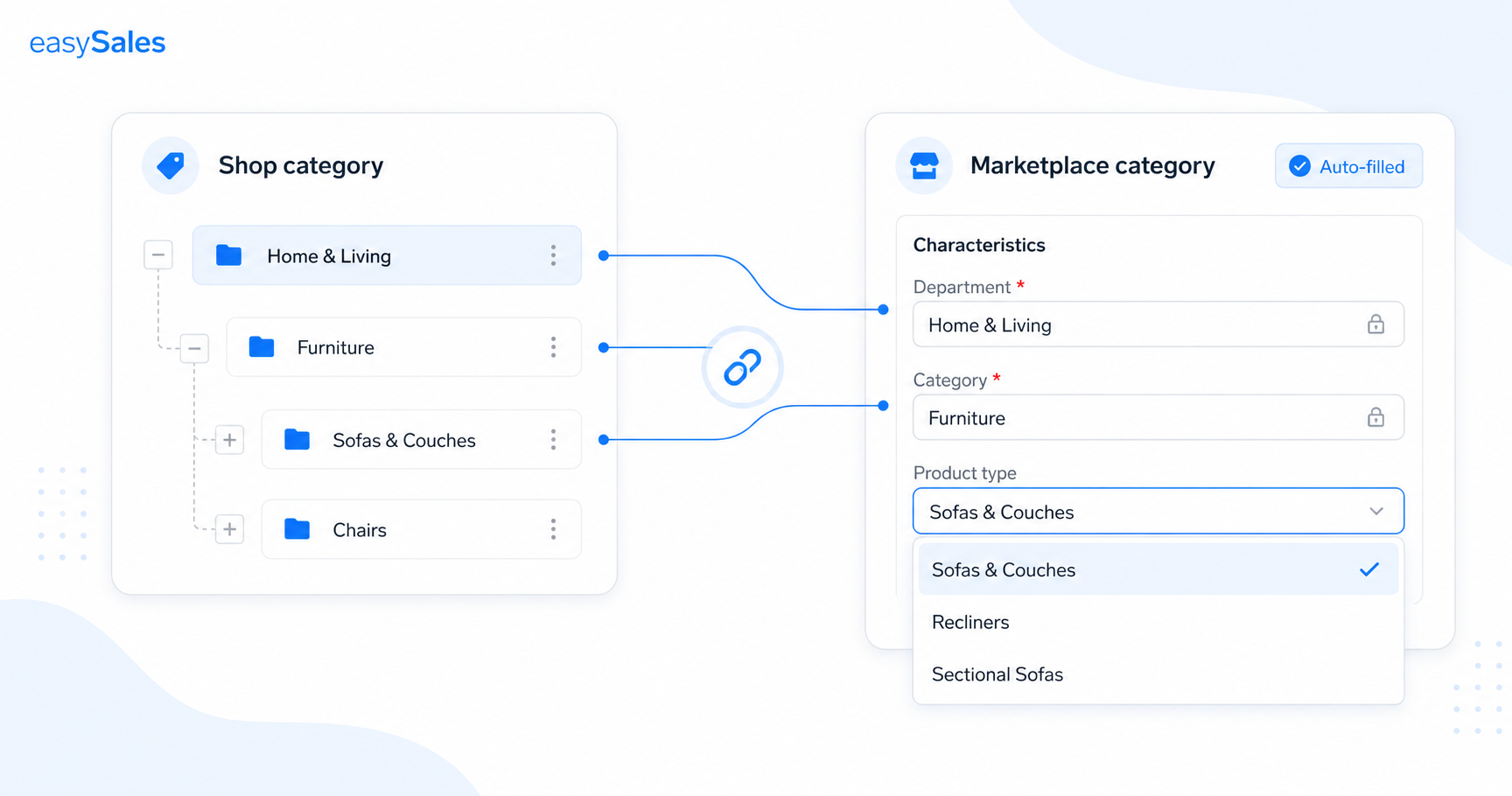
Every marketplace listing needs a category and the characteristics that category requires. Category mapping links your shop categories and characteristics to each marketplace's, so new offers are filled in automatically. This guide covers where to map, what the required-field marker means, how to download allowed values, bulk-filling via Excel, and completing characteristics on the offer itself.
When you list a product on a marketplace, you have to tell it which category the product belongs to — and each category demands its own set of product characteristics. Filling those in by hand on every offer is slow and error-prone. Category mapping does it once, then applies automatically to every new offer.
What category mapping does
Category mapping creates a correspondence between the categories and characteristics in your shop and the categories and characteristics on the marketplace. Once the link exists, generating a new offer pulls that information across automatically — no re-typing per product.
Category match
Link each shop category to its marketplace counterpart.
Characteristic match
Map the characteristics a marketplace category requires.
Auto-filled offers
New offers pull the mapped category and characteristics automatically.
Required marker
Mandatory characteristics are flagged with a red asterisk (*).
Allowed values
For many marketplaces, download the list of accepted values per characteristic.
Bulk via Excel
Export, fill and re-import characteristics by SKU for many products at once.
Why marketplaces need it
A marketplace won't accept an offer without its required category and characteristics filled in correctly. Mapping is what lets easySales satisfy that requirement for you instead of you doing it offer by offer.
Where to map
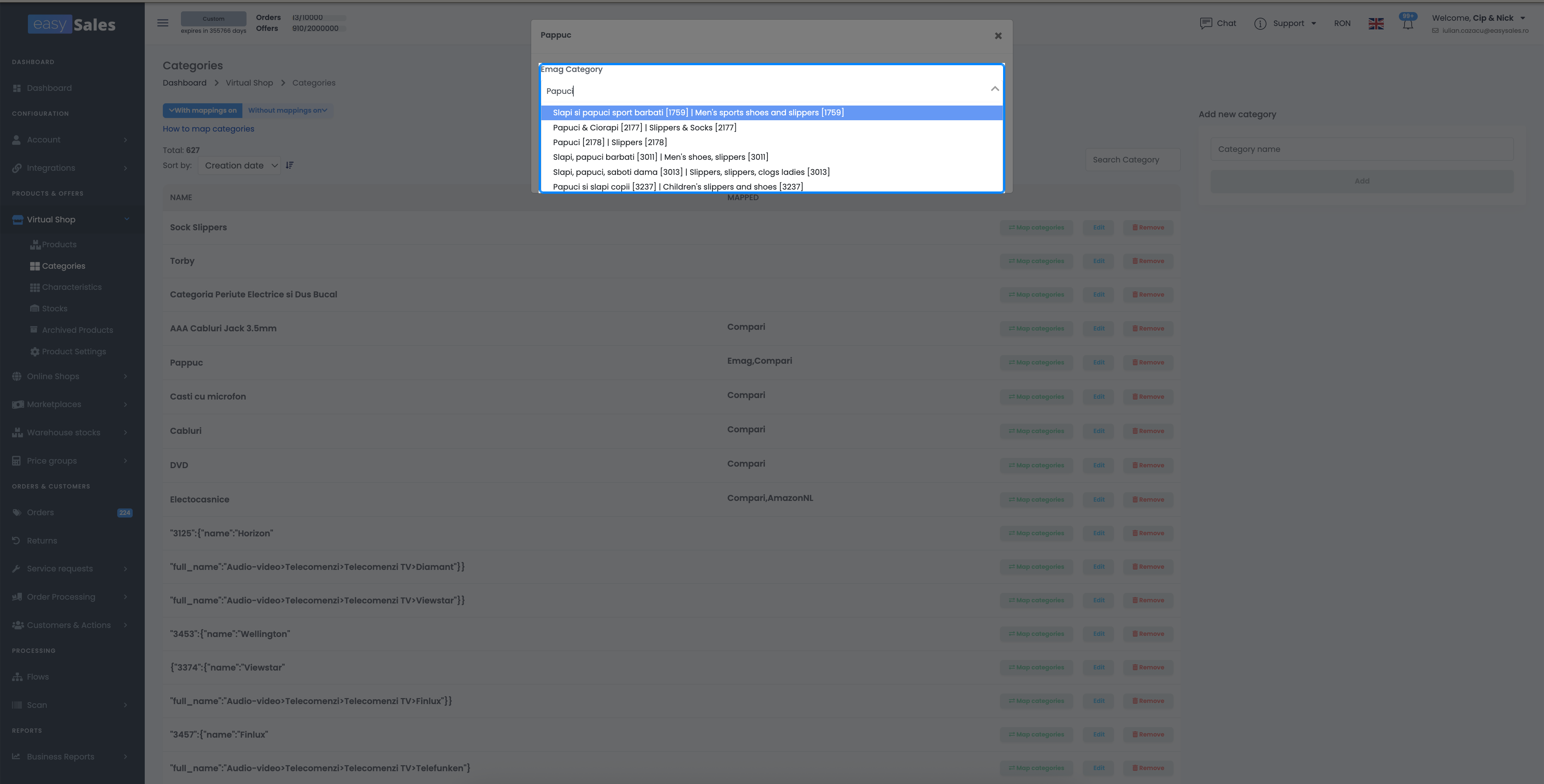
Do the mapping from Online Shop / Virtual Shop → Categories. Pick the marketplace at the top, then for each of your shop categories click Map categories to choose its marketplace counterpart.
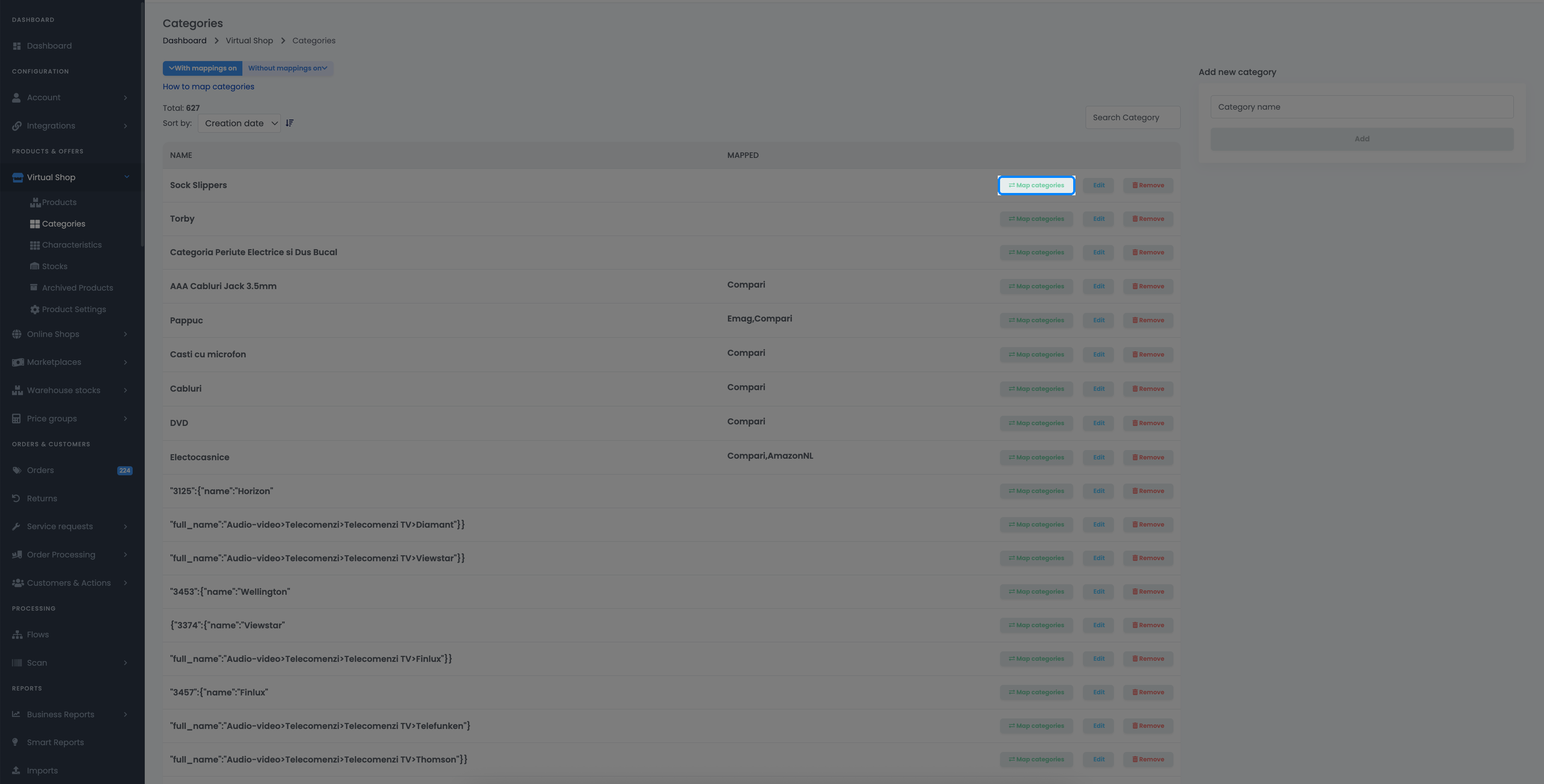
Map the category and its characteristics
Inside the mapping screen you select the marketplace category, then match each characteristic the marketplace category expects to one of yours. Mandatory characteristics are flagged with a red asterisk (*). For many marketplaces you can press Download available values to get the list of values the marketplace accepts for each characteristic, so you map to values it will take rather than guessing.
Fill characteristics in bulk via Excel
When many products share a category, fill their characteristics in one go with an Excel round-trip: export the mapped characteristics, fill the values in the spreadsheet, and re-import — easySales matches each row back to the product by SKU.
Or add characteristics on the offer
If you'd rather not add the marketplace-required characteristics on the shop side, add them directly on the generated offer, from the offer's Category & characteristics screen. Characteristics with a fixed list show a dropdown of the accepted values; for many marketplaces the others give you auto-complete suggestions as you type.
List on every marketplace without the busywork
Try easySales free for 14 days — map your categories once and let new offers fill themselves in. No credit card required.