How to manage your connections in easySales: marketplaces, shops, couriers and invoicing
Connect, set up, restart and delete your marketplaces, online shops, couriers and invoicing software, and know what each action changes.
Where your connections are
Everything easySales connects to is under Integrations in the menu:
- Sales channels: Websites (your online shops) and Marketplaces.
- Delivery: Couriers, Printers and, where available, Order Fulfillment.
- Billing & systems: Billing Software, ERP systems and Stock sources.
- Messaging: the SMS and e-mail services you send messages with.
Each integration has its own guide for the first connection. This guide explains what is the same everywhere: the pages, the settings, what to do when a connection stops, and what deleting one does.
The connection pages
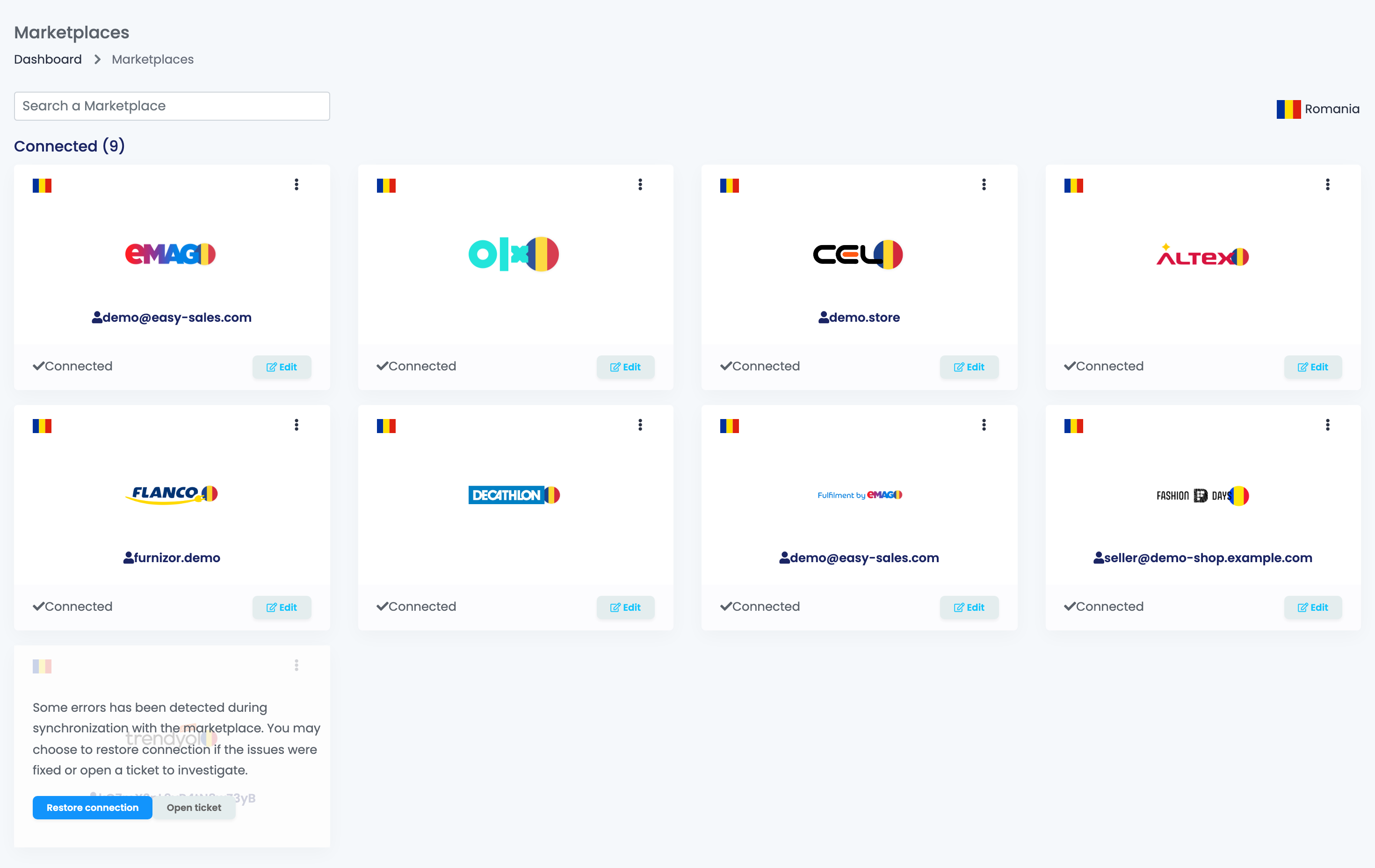
Marketplaces, Couriers, Billing Software and ERP systems look the same:
- Search by name and choose a country to see the integrations of that market.
- Connected lists what you use, Not connected everything else.
- Register opens the integration's sign-up page, Connect starts the connection and Edit opens the settings of a connected one.
- The ⋮ menu has Add account for a second account on the same marketplace (couriers and invoicing software have Connect another courier account or similar), and Regenerate URL for channels that read a feed.
Several accounts on one channel
You can connect the same marketplace, courier or invoicing software more than once, for example two eMAG accounts or two courier contracts. Give each one a Connection Name so you can tell them apart in orders, AWBs and alerts. In Edit, a button for each account switches between them.
Settings every marketplace shares
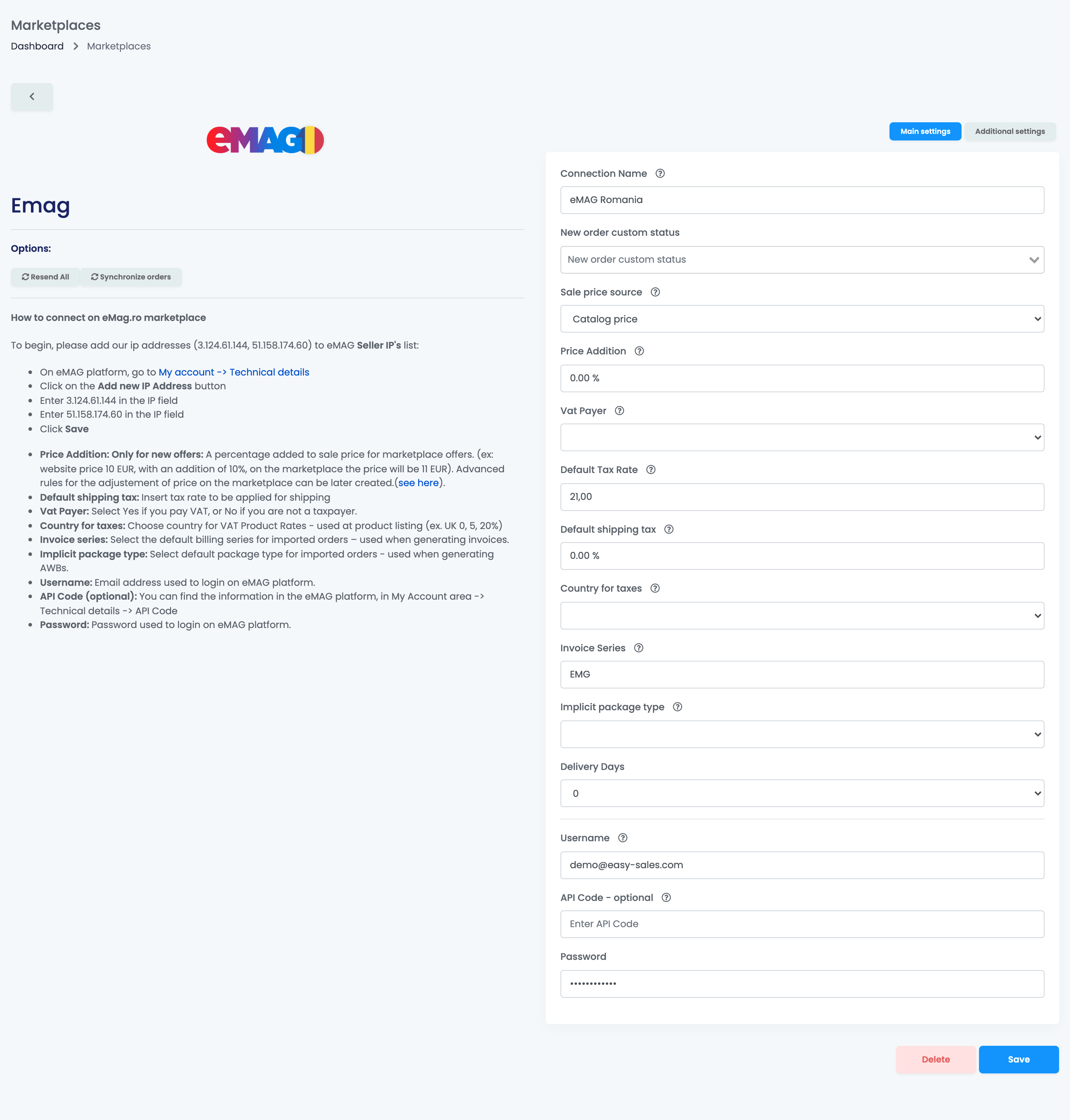
Most marketplace connections have these settings besides their own credentials. Some of them are under Additional settings, next to Main settings.
| Setting | What it does |
|---|---|
| Connection Name | The name of this account in easySales. |
| Price Addition | A percentage added to the sale price of new offers on this marketplace. |
| Default Tax Rate | Your VAT percentage on this marketplace. Set 0 if you are not a VAT payer. |
| Default shipping tax | The VAT percentage of the shipping cost on this marketplace's orders. |
| Invoice Series (optional) | The invoice series for this marketplace's orders. |
| New order custom status | The custom status given to new orders from this marketplace. |
| Send offer prices to marketplace | Sends your prices to the marketplace. On by default. |
| Send offer stock to marketplace | Sends your stock to the marketplace. On by default. |
| Automatically enable offers when products have stock | Turns offers back on when the product has stock again. Off by default. |
| Send invoice to marketplace after generating | Uploads each invoice to the marketplace as soon as you issue it. |
When you save, easySales sends your offers to the marketplace again so they follow the new settings.
Under Options you also find:
- Resend All: sends all the offers of this connection again. You can use it again after 30 minutes.
- Synchronize orders: fetches the orders of a period again, at most 30 days at a time. You can use it again after one hour.
When a connection stops
When a connection keeps failing, easySales stops it: the card turns grey and says that errors were detected during synchronization. From then on nothing is synchronized on that connection: no orders, no offers, no stock and no prices. easySales tells you every morning in the notifications and by e-mail, as long as Marketplace/website deactivated is ticked in your notification settings.
To start it again:
- Find the cause, usually an expired token, a changed password or a missing permission in the marketplace account.
- Press Restore connection on the card.
- Press Edit, correct the credentials or connect again, and Save.
If the cause is not fixed, the connection stops again after the next failures. Open ticket sends the problem to our support team.
Your online shops
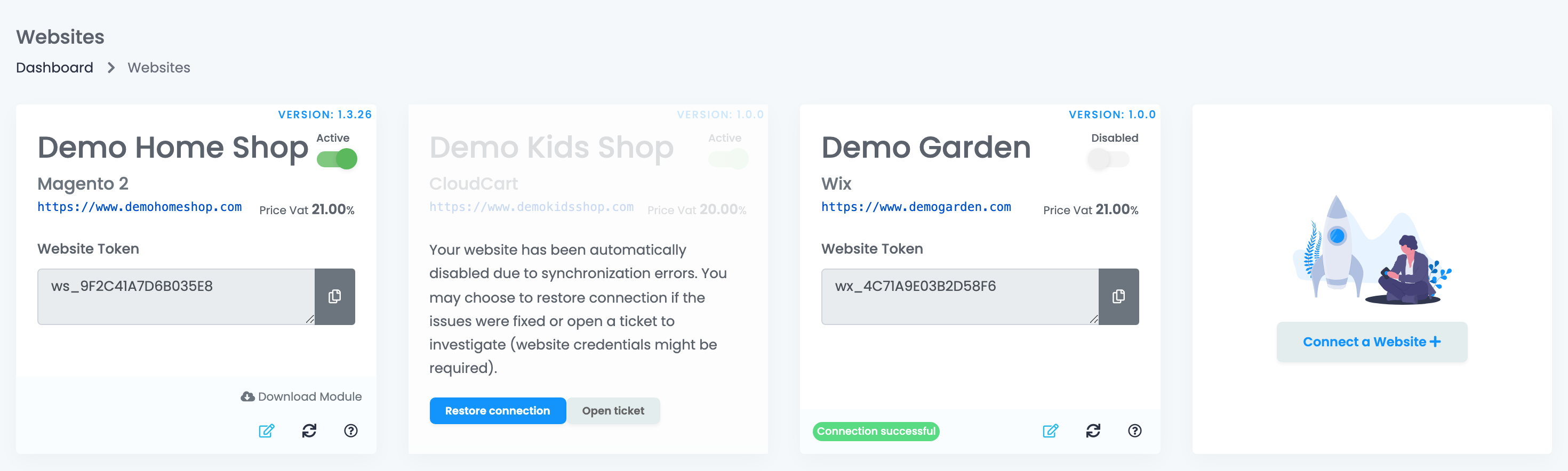
On Websites each shop has its own card:
- The Active / Disabled switch pauses the shop: no orders, products or stock are exchanged while it is off. When you turn it back on, easySales sends your whole stock to the shop.
- The edit icon opens the shop's settings. The arrows icon sends your whole stock to the shop again; you can use it again after six hours.
- Update Required means a newer version of the easySales module is available for your shop. Download Module gets it.
- A shop that keeps failing is stopped like a marketplace connection, with Restore connection and Open ticket. Restoring also sends your whole stock to the shop.
Connect a Website adds a new shop.
Delete a connection
Deleting cannot be undone, so pause or stop selling first if you only need a break.
| Connection | Where to delete it | What is removed |
|---|---|---|
| Marketplace | At the bottom of Edit. | The connection, its offers and its orders with their invoices and AWBs. Your products stay. Connecting again later does not bring the deleted orders back. |
| Online shop | In the shop's settings. | The shop with its products and orders. Marketplace offers of those products stay, unlinked. |
| Courier, invoicing software, ERP | In Edit. | The account, at once. |
A deletion runs in the background, so a large account can stay in the list for a while after you confirm.
Your team
A team member sees each page only with its view permission, for example the marketplaces permission for Marketplaces. Connecting, editing and deleting need the matching update permission.
When something does not look right
| Symptom | What to do |
|---|---|
| The card is grey and Edit is missing | The connection is stopped. Press Restore connection, then Edit and correct the credentials. |
| I entered a new token and nothing syncs | Press Restore connection first; saving the new token alone does not start the connection again. |
| The connection stopped again after I restored it | The cause is still there. Check the credentials and the permissions in the marketplace account, or press Open ticket. |
| My shop stopped after I renewed my subscription | Set it back to Active on the Websites page. |
| I deleted a connection and it still shows | The deletion is still running. Reload the page later. |
| I want to stop selling on a marketplace for a while | Deactivate your offers instead of deleting the connection. |