How to import products, orders and offers from Excel in easySales

Update products, create orders and change offers from an Excel or CSV file, map the columns, and read the import report.
What Excel imports do
With an Excel or CSV file you can change many products, orders or offers at once instead of opening them one by one. Each list has its own import:
- Products: on the online shop products list, Import, then Dynamic import.
- Orders: on the orders list, Import orders.
- Offers: on a marketplace's offers tab, Import.
Every import ends in Reports → Activity reports → Imports, where you see what was changed and which rows failed.
Three things to know first:
- Each import matches the rows in its own way. Products of an online shop by SKU, offers by their Internal ID, orders by their Order ID. A row that matches nothing is reported as an error.
- An online shop import only updates. It adds details to the products your shop sent; it never creates a product.
- An offers file without a Status column turns every offer in it on. Map the Status column whenever your file holds offers you keep disabled.

Upload and map the file
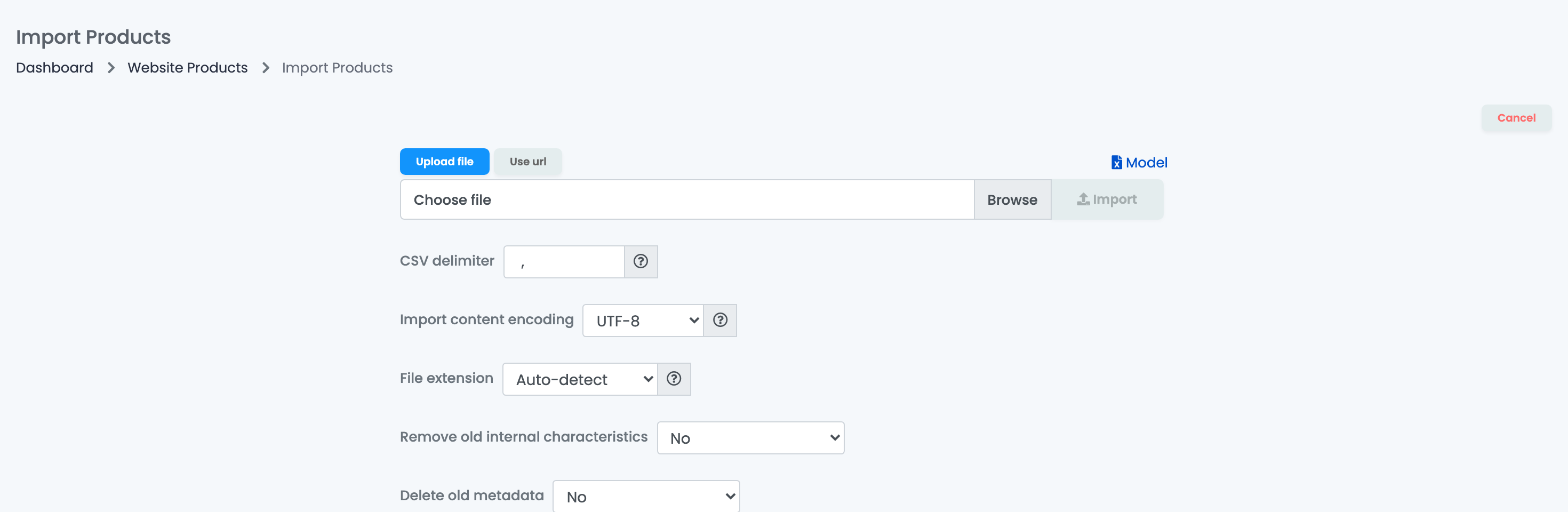
- Choose Upload file and pick the file, or Use url and paste a link to it. CSV and Excel files up to 50 MB work. Model downloads an example file.
- For a CSV file, check the CSV delimiter and the Import content encoding. Press Import.
- On Column mapping, choose for each column of your file the easySales field it fills, or Ignore Column. Leave Ignore first row ticked when the first row holds the column names.
- Press Run the importer.
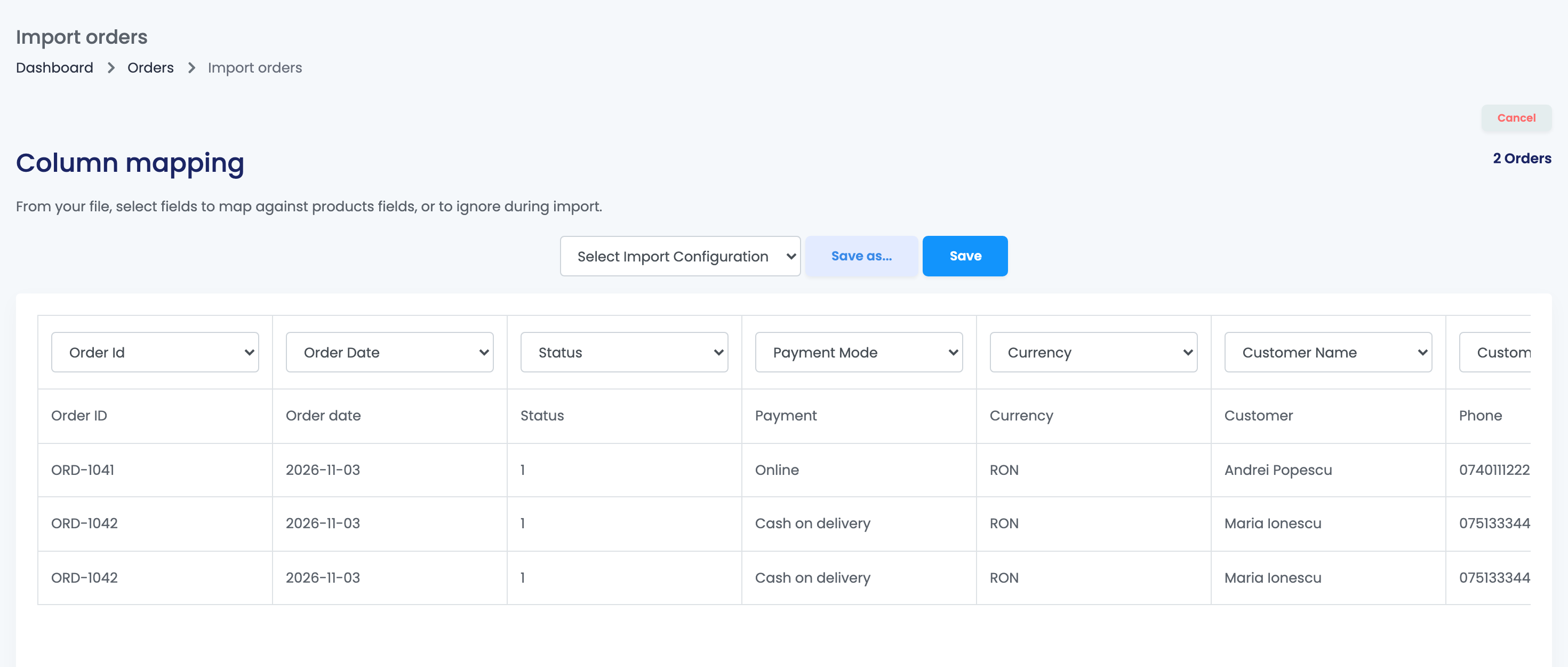
If you import the same kind of file often, save the mapping: Save as... stores it under a name, and next time you choose it from Select Import Configuration. Save only stores the mapping; the file is imported when you press Run the importer.
What each import changes
| Import | Matched by | Creates new ones? | When nothing matches |
|---|---|---|---|
| Online shop products | SKU, in that shop | No | "Product not found" |
| Virtual Shop products | SKU | Yes | A new product is created |
| Orders | Order ID, among imported orders | Yes | A new order is created |
| Offers | Internal ID of the offer | No | "Invalid Offer ID" |
Products of an online shop
Use it for what your shop does not send: EAN, warehouse location, stock code, purchase price, dimensions, number of packages, internal categories and characteristics, metadata, product safety details and tags. Name, price and stock come from your shop and are not in the list of fields.
- An empty cell in a mapped column clears the value for EAN, number of packages, dimensions, VAT override, supplier SKU, stock code, warehouse location and warranty. Map only the columns you want to change.
- Remove old internal characteristics and Delete old metadata, set to Yes, replace the product's internal characteristics or metadata with the ones in the file instead of adding to them.
Products of the Virtual Shop
The Virtual Shop import creates the products that are new and updates the others, by SKU. A new product needs a name and a sale price.
- Skip already imported products is ticked by default: existing SKUs are left as they are. Untick it when you want to update them.
- Overwrite mapped columns with empty cells from the file is off by default, so empty cells change nothing.
Orders
The orders import creates orders from your file, for example orders you received by phone or from a B2B partner.
- Write one row per product. When an order has two products, its order details repeat on both rows.
- Each row needs the order ID, the order date and the delivery and billing country (a two-letter code such as RO, or the country's name).
- Payment mode must be exactly Online, Cash on delivery or Bank transfer, and the currency a code such as RON or EUR.
- Status is a number: 0 Canceled, 1 New, 2 Received, 3 Completed, 4 Processing, 5 Incomplete, 6 Return.
- Products are linked to your catalogue by SKU.
- Importing an order ID again updates that order and replaces its products and charges with the ones in the file.
Offers
The offers import changes the offers already on a marketplace, matched by their Internal ID: export the offers first, edit the file, then import it. Only offers linked to a product can be updated; any other row gets "Invalid Offer ID".
- Status: 1 turns the offer on and 0 turns it off. A row with 0 only turns the offer off; its other columns are not applied. When Status is not mapped, every offer in the file is turned on.
- Every column you map, such as the name, description or price, stops following the product for that offer: later changes to the product no longer update it.
After you run the import
The import runs in the background, and you can keep working. Product imports show their progress on the screen; orders and offers return you to the upload step.
When it ends, you get a notification in easySales and an e-mail. If some rows failed, the e-mail has the error file attached. Only one product import runs at a time: while one is in progress, the screen shows how many are running.
The import report
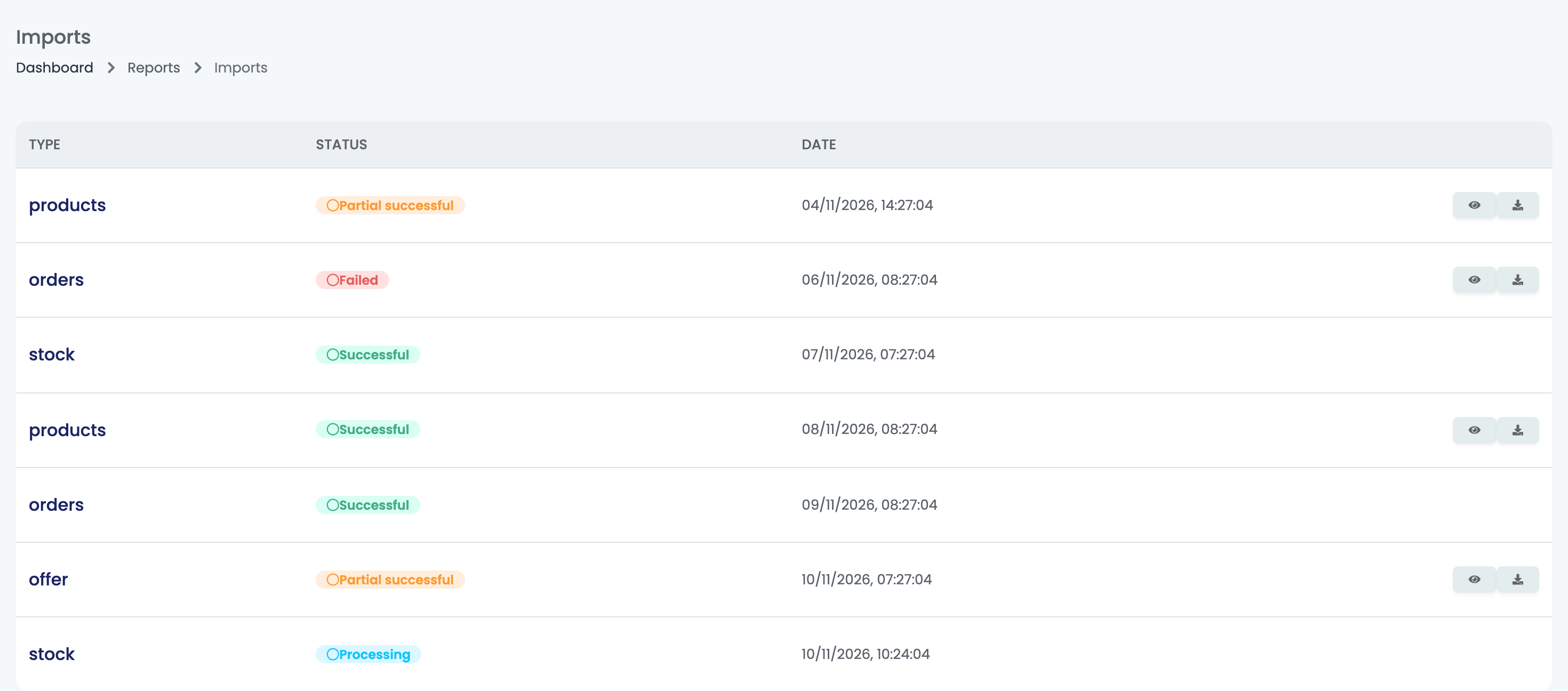
Reports → Activity reports → Imports lists your imports of the last month, with their type, status and date:
| Status | What it means |
|---|---|
| Pending | Waiting to start. |
| Processing | The rows are being imported. An import still processing after a day is marked Failed. |
| Successful | Every row was imported. |
| Partial successful | Some rows were imported, others have errors. |
| Failed | The import did not complete. |
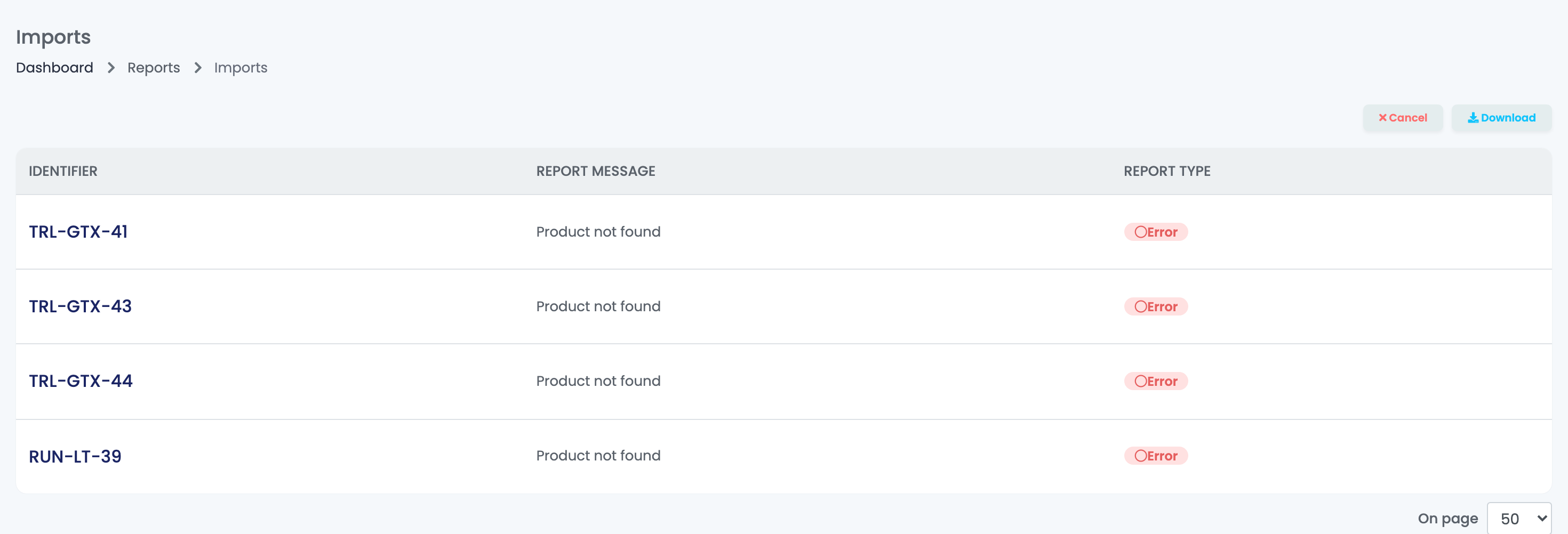
When an import has errors or warnings, the eye button opens the rows with their message, and the download button saves them as an Excel file. Correct those rows and import them again.
When something does not look right
| Symptom | What to do |
|---|---|
| "Product not found" in an online shop import | The SKU does not exist in that shop. The import does not create products; check the SKU or wait for the shop sync. |
| "Invalid Offer ID" | Use the Internal ID from the offers export, for offers linked to a product. |
| The import finished but nothing changed | The column was not mapped, or Save was pressed instead of Run the importer. In the Virtual Shop, untick Skip already imported products. |
| Disabled offers became active | The file had no Status column mapped. Import them again with Status 0. |
| Values disappeared after an online shop import | Empty cells in a mapped column clear the value. Map only the columns you change. |
| An order row fails with an address error | Fill in the delivery and billing country with a two-letter code or the country's name. |
| The import stays at Processing | Imports wait their turn. If it is still processing after a day, it is marked Failed: import the file again. |