How the Virtual Shop works in easySales: your in-platform product catalog
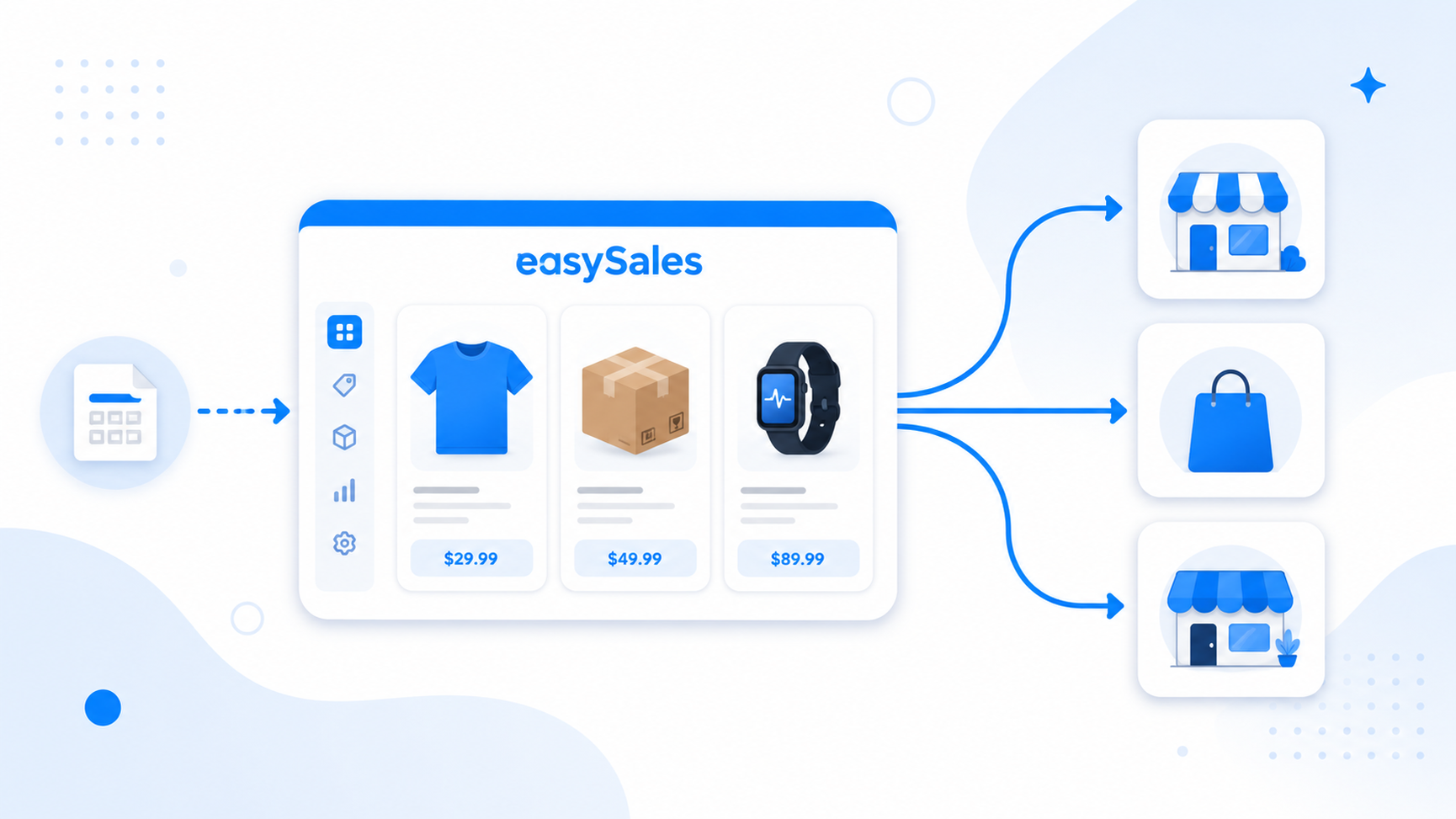
The Virtual Shop is a product catalog you build inside easySales itself, with no external store connected. Create and edit products here, then feed them to product feeds, marketplace listings and your other shops.
Most shops in easySales mirror an external store — a marketplace or a website on the other end, with orders flowing in and stock flowing back out. The Virtual Shop is different. It is a product catalog you build inside easySales itself, with nothing connected on the other side — the place where your products live when they don't come from anywhere else.
This guide covers the whole picture: what the Virtual Shop is (and what it is not), how to create one, the three ways to fill its catalog, how to edit a product, the quick actions on the product list, how to organize the catalog with categories and characteristics, and how the products you build here feed your feeds, your marketplaces and your other shops.
What the Virtual Shop is (and what it is not)
A Virtual Shop is a store record with no external connector. There is no marketplace and no website behind it — it exists only so you have somewhere inside easySales to create and hold products. That makes it your in-platform product source-of-truth: the products you build here can then feed product feeds, marketplace listings and your other shops.
It is most useful when you don't run an online store of your own: offline merchants with a physical shop, entrepreneurs just starting out, or anyone who wants to list only certain products on a marketplace. It lets you test demand, order volume and the stock you'll need before investing in a dedicated online store.
It is not a point of sale, not a buyer-facing storefront and not a manual order-entry shop. It is purely about products and their inventory — not about an order lifecycle.
Because nothing is connected on the other end, a Virtual Shop is simpler than a connector shop: it has no Preferences tab, no Order Behavior settings and no Synchronization settings — those describe how easySales talks to an external store and syncs orders back and forth, and there is no external store here to talk to.
Creating your Virtual Shop
You create a Virtual Shop from the Integrations → Websites page in the sidebar, using the Add Virtual Shop action. A short form asks for the basics, and once you save it the shop gets its own top-level Virtual Shop group in the sidebar.
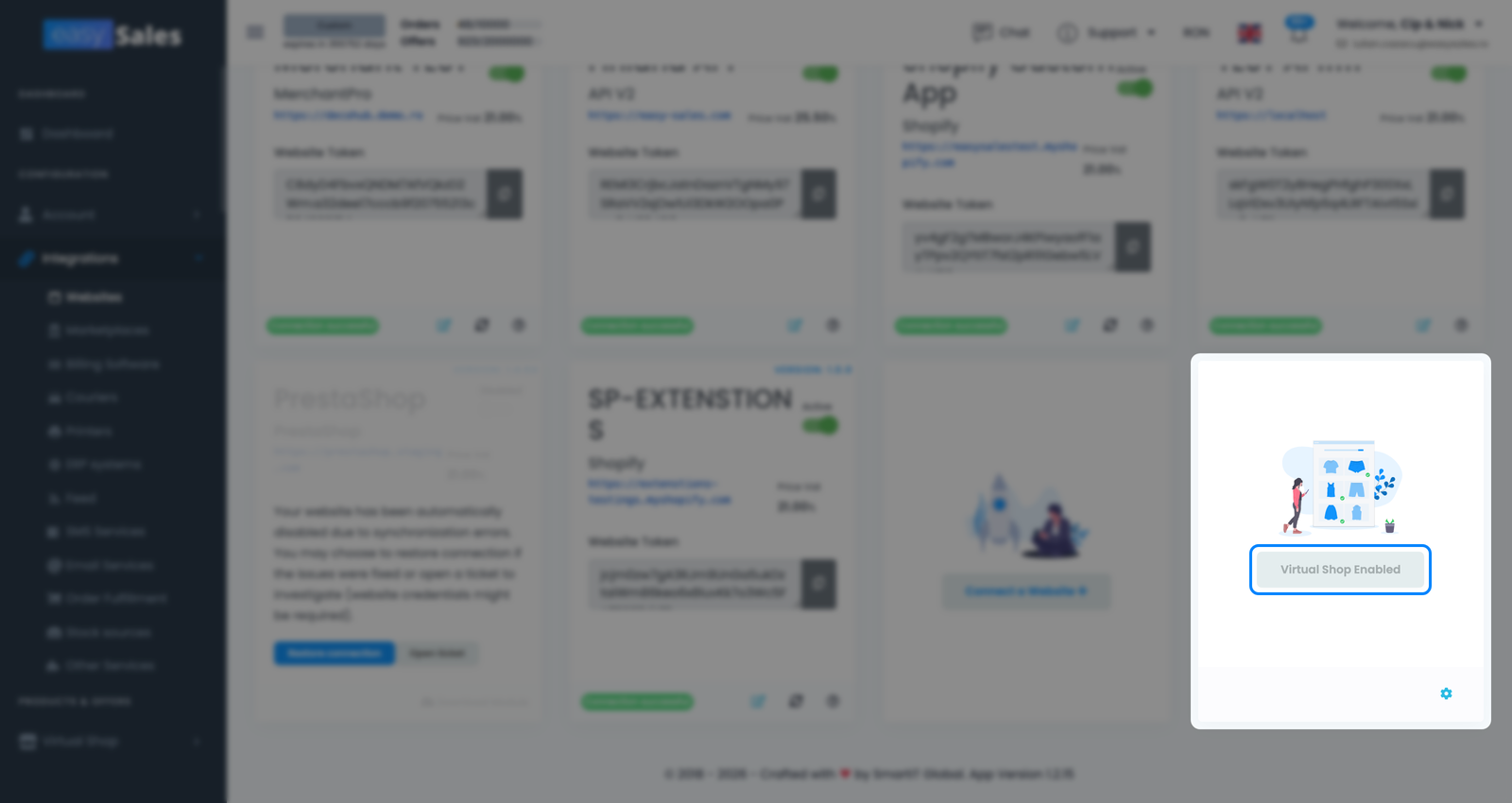
Language, currency, country and VAT
In the creation form you set the shop's name, language, currency and country. Each Virtual Shop has a single language, country and currency — you can't mix products in different currencies. This also matters on import: to import products from a marketplace in a given country (for example eMAG BG), the shop must be set to the matching currency and language.
The country matters because it determines the taxes available to your products: a Virtual Shop starts with a default VAT of 21%, which you can change per product later from the tax rates of the shop's country.
Stock source — default vs advanced warehouses
You also choose the shop's stock source, the same toggle every other shop has. The default keeps a single inventory number per product, which you edit directly on the product. Set the shop to advanced warehouses instead, and a product's inventory is driven by the warehouses linked to the shop rather than an editable field. If you are unsure, the default is the right starting point — see the stock sources and advanced warehouses guides linked below.
Filling the catalog
Once the shop exists, it gets its own top-level Virtual Shop group in the sidebar, holding Products, Categories, Characteristics, Stocks, Archived products and Product settings — so the product list lives under Virtual Shop → Products. Import and Export aren't sidebar entries of their own; they are action buttons on the Products page. An empty catalog is no use, so there are three ways to put products into it.
Add manually
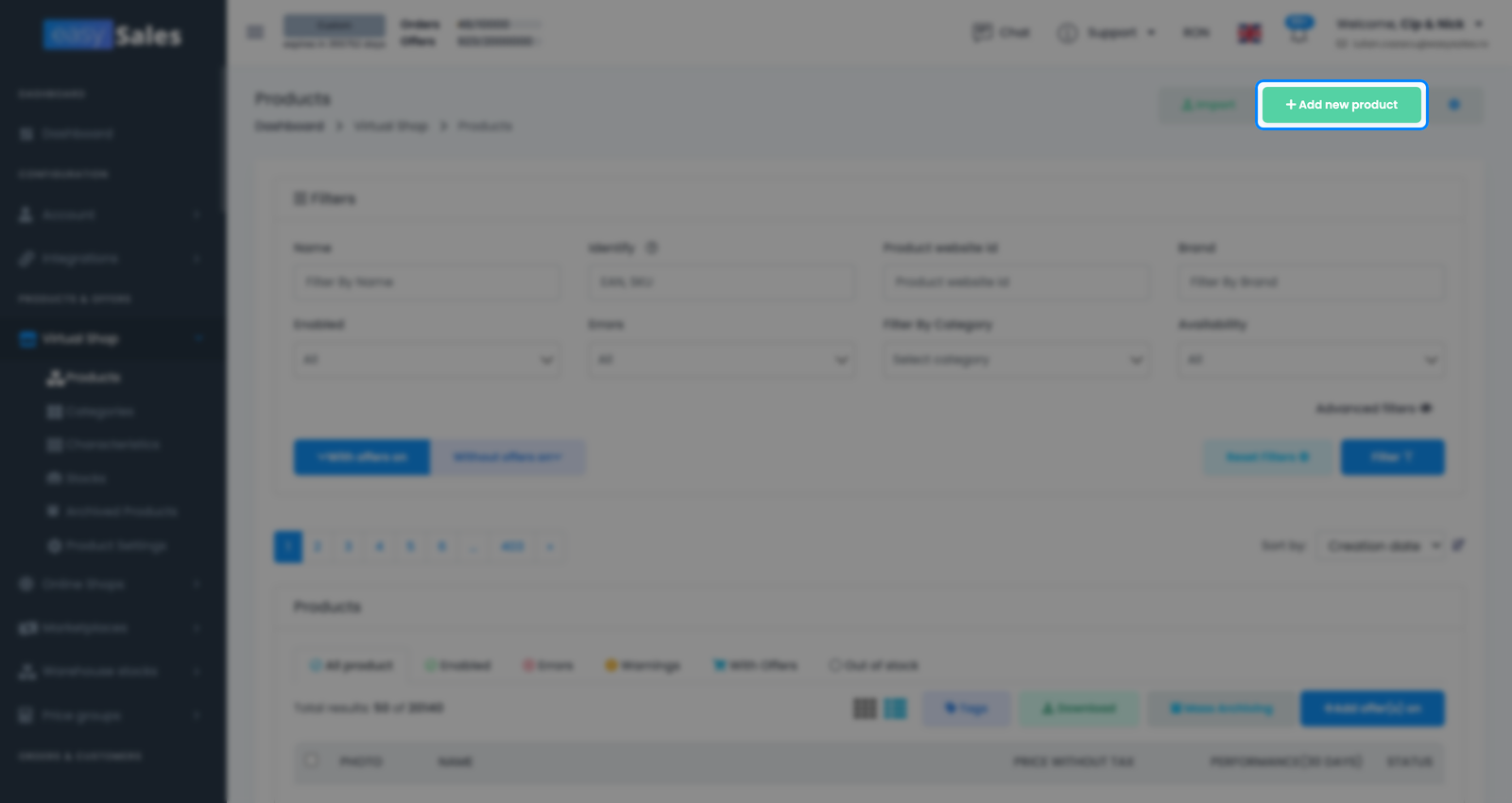
Use the Add new product form — at minimum a name and SKU — and save. Best for a handful of products or anything that doesn't exist elsewhere yet.
Duplicate
Clone an existing product into a new one and tweak it. A fast way to build variants or a family of similar items.
Import
Run a dynamic feed import, set up a scheduled import, or import from your existing Emag / Kaufland / Allegro / Trendyol listings — mapping the source fields to the product fields on the way in.
Adding products manually
The most direct route is the Add new product form. Fill in the product's details — at minimum a name and an SKU — and save. This is ideal for a handful of products, or for anything that doesn't exist anywhere else yet. The full set of fields is covered in the next section.
Duplicating a product
If a new product is much like one you already have, duplicate it instead of starting from scratch. Cloning copies an existing product's details into a new one, which you then tweak — a fast way to build variants or a family of similar items.
Importing — feed, scheduled, from marketplace listings
For larger catalogs, import. You can run a dynamic feed import (pull products from a feed file), set up a scheduled import that keeps re-reading a source on a timer, or import from your existing marketplace listings — pull the products you already sell on Emag, Kaufland, Allegro or Trendyol straight into the Virtual Shop. On import you map the source's fields to the product fields easySales uses, so the right values land in the right place.
Editing a product
Opening a product takes you to its edit form — the same form whether you created the product manually, by duplicating or by import, and where almost everything about a product lives.
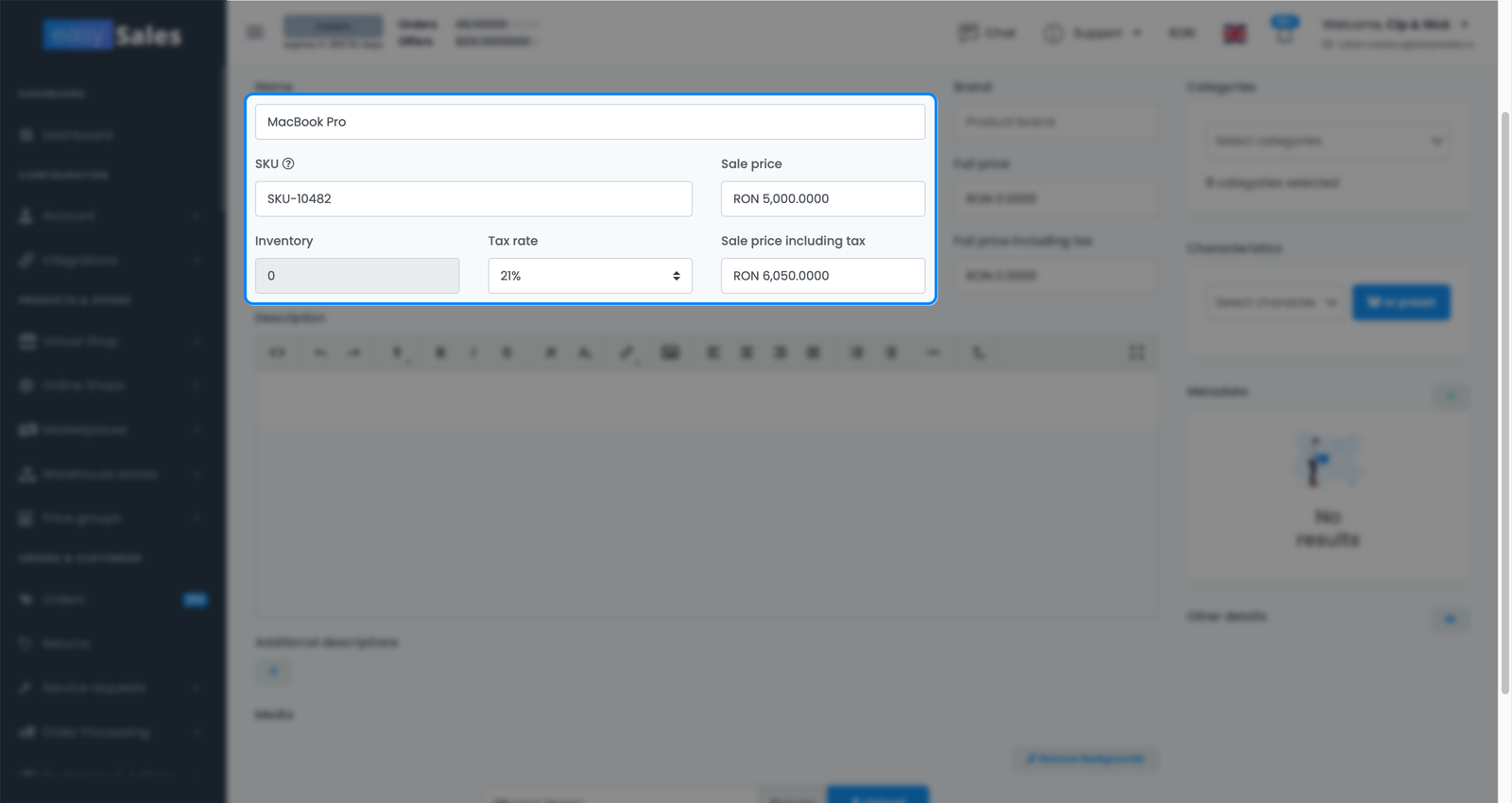
Main details — name, SKU, brand, prices, inventory, tax
The main panel holds the essentials: Name, Brand, SKU, Sale price, Full price and Inventory. Prices are calculated automatically with and without tax, in both directions, using the Tax rate you pick from the shop country's taxes — so you can type either the price including tax or the price without it and let easySales fill in the other.
The Inventory field is editable only when the shop's stock source is the default. When the shop is on advanced warehouses, the field is read-only — the number comes from the warehouses, not from here.
Description & images
Below the essentials you write the product's description in a rich editor, and you can add additional descriptions alongside it. You also manage the product's media here — upload new images, delete existing ones, and use the background removal tool to clean up an image's background.
Categories & characteristics
In the sidebar of the edit form you assign the product to categories and set its characteristics. There is also a metadata area for free key/value pairs — note that metadata can only be added after the product has been saved, so save the product first if you don't see it yet.
Other details — EANs, dimensions, weight, metadata
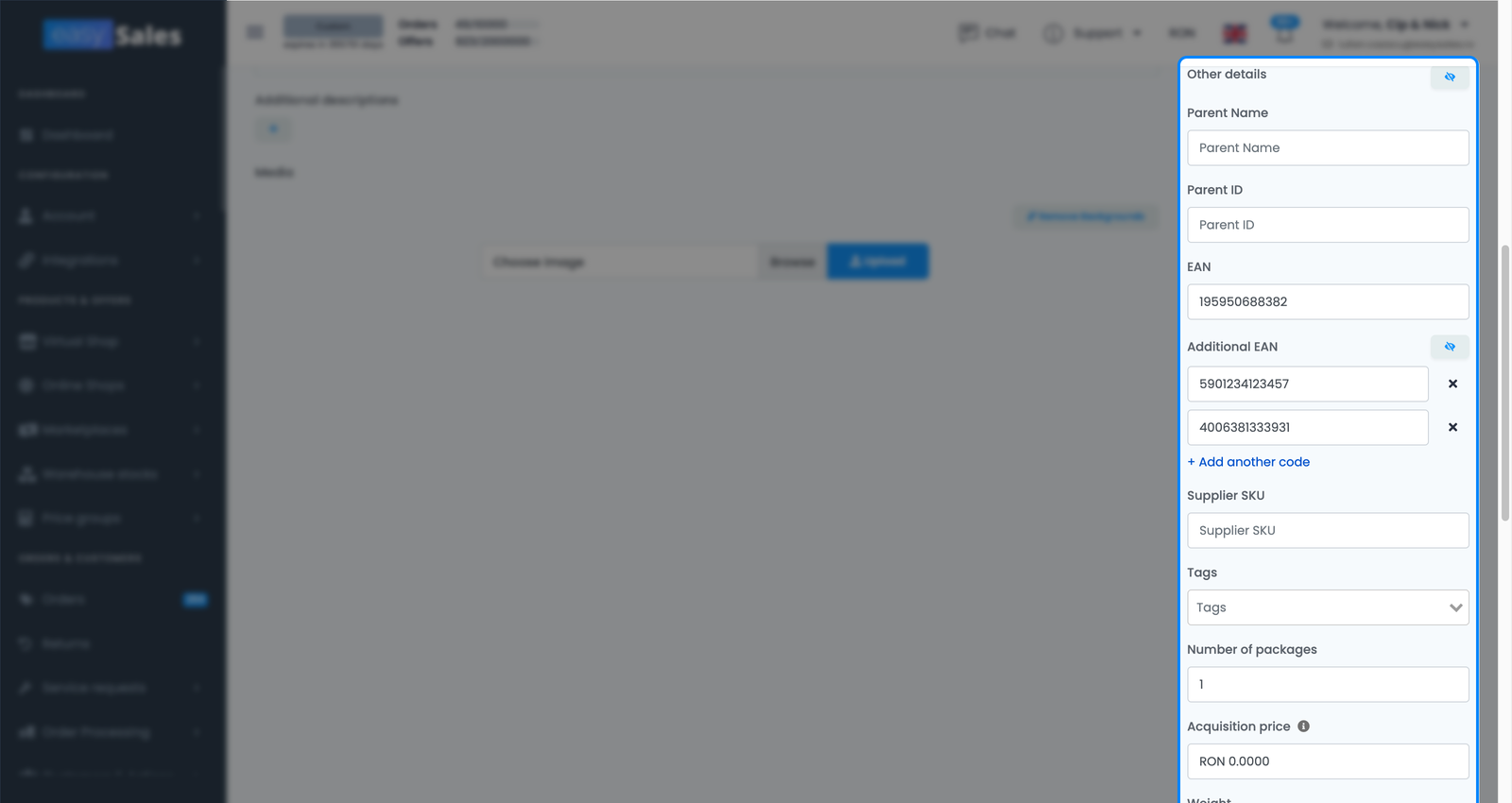
A collapsed Other details section holds everything else: parent name/id, EAN plus additional EANs, supplier SKU, tags, number of packages, acquisition price, weight (with a kg / g / lb unit selector), height / width / length, warranty, stock code, warehouse location, handling time and unit of measure. Expand it when you need the logistics and identifier fields.
Quick actions
You don't always need the full edit form. On the products list, quick edit changes a product inline without opening it — but only the four fields you change most often: name, inventory, sale price and full price.
From the edit form's header you also get Duplicate product, Archive product and Print. The form is split into tabs — Product (the main details), Offers, Bundles, Suppliers, Price Groups, Translations and Stock history — each a different facet of the same product.
Organizing the catalog: categories & characteristics
A flat list of products gets unwieldy fast, so the Virtual Shop gives you Categories and Characteristics to structure it. Categories group products into a tree; characteristics are the attributes (colour, size, material and so on) that describe them. Characteristics also support presets, so you can reuse a common set of attributes instead of redefining them each time. Both have their own pages in the sidebar, and both are assigned from a product's edit form.
Using Virtual Shop products downstream
The point of a Virtual Shop is what happens next. The products you build here behave like any other product in easySales: include them in product feeds, push them as listings to your marketplaces, and reuse them across your other shops. The Virtual Shop is simply the clean, self-owned source those downstream uses draw from, rather than depending on an external store to originate your products.
Stock, archived products & export
The shop's Stocks page is where you see and adjust inventory across the catalog. Products you no longer sell don't have to be deleted — Archive moves them out of the active list into Archived products, where they stay available should you need them back. Export pulls the catalog out as a file, for a backup or to work with the data elsewhere.