How to connect SelectSoft with easySales: invoicing setup guide
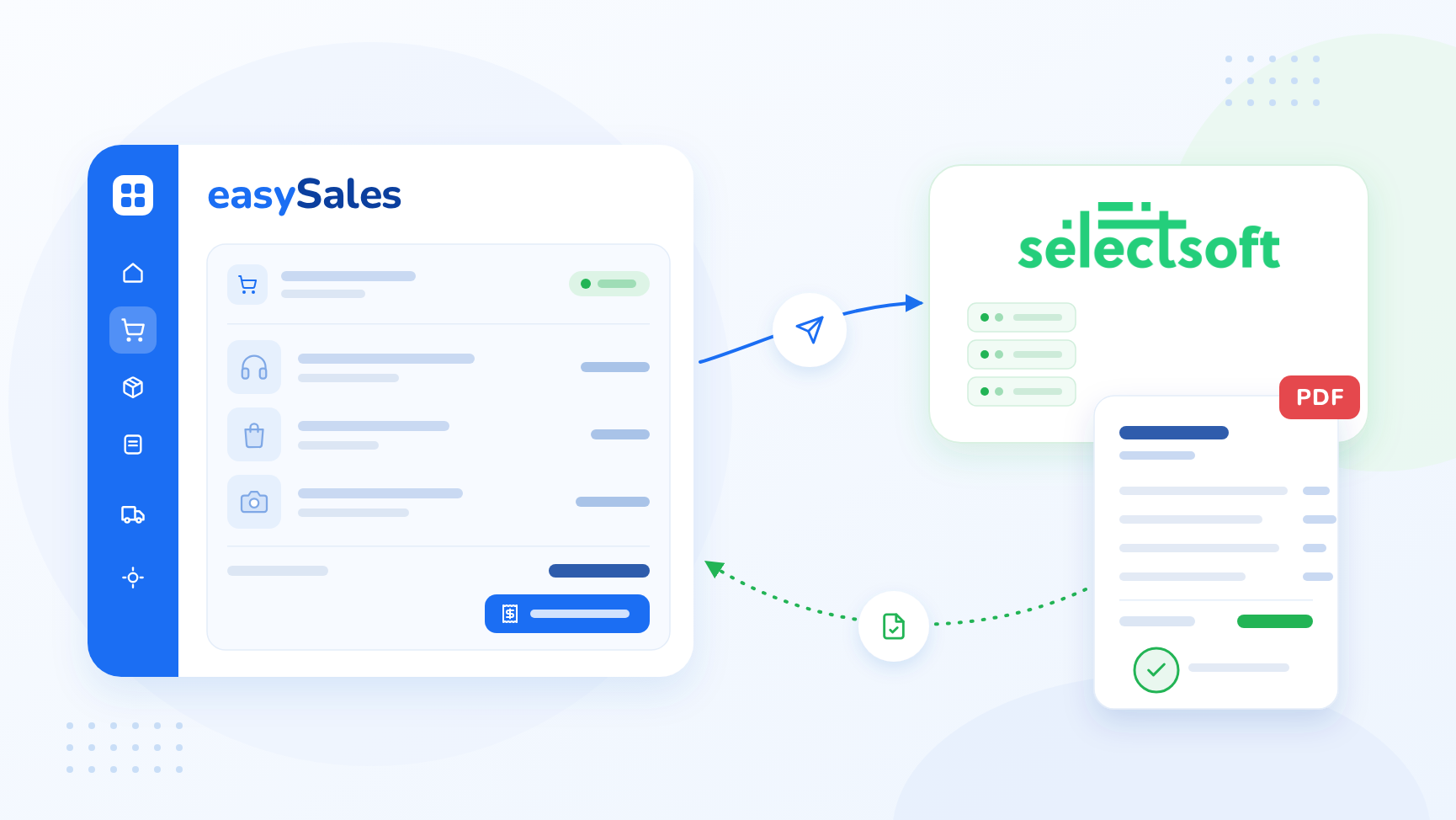
Connect SelectSoft to easySales: the server address, port and token, the article codes for shipping and discounts, online invoicing, what goes on the invoice and the refusals you may see.
What connecting SelectSoft gives you
SelectSoft is a Romanian ERP for invoicing, stock and commercial operations. With SelectSoft connected as billing software, easySales sends every order you invoice to your SelectSoft server. SelectSoft registers the order, takes the products out of its stock and issues the invoice in its own numbering. The invoice number, and the PDF when your server keeps one, come back onto the order.
Three things to know before you begin:
- SelectSoft must issue invoices online. SelectSoft can either issue the invoice the moment the order arrives, or keep the order waiting for someone to invoice it by hand. easySales works with the first setup. Ask SelectSoft to enable online invoicing for your account before you connect.
- SelectSoft numbers the invoices. easySales sends no series and no number, so the invoice series on your sales channels is not used for SelectSoft invoices.
- Every invoice line must be an article in SelectSoft. Products are sent with their EAN, or their SKU when they have no EAN. Shipping and discounts travel under two article codes you choose on the connection.
Before you start
Your SelectSoft server's address and port
Provided by SelectSoft. The server must be reachable from the internet, so easySales can send orders to it.
Your API token
Issued by SelectSoft for your account.
Online invoicing enabled
Set by SelectSoft on your account, so the invoice is issued as soon as the order arrives.
Articles for shipping and discounts
Two articles in your SelectSoft catalogue: one for the shipping line, one for discounts.
Matching product codes
Each product's code in SelectSoft equals its EAN in easySales, or its SKU when it has no EAN.
Step 1 — Get the connection details from SelectSoft
Ask SelectSoft for the address (IP) of your SelectSoft server, the port its API listens on and your API token. Ask whether the API is reached over HTTP or HTTPS, and confirm that online invoicing is enabled on your account.
Then note the codes of the two SelectSoft articles you invoice shipping and discounts under. If they do not exist yet, create them in SelectSoft first.
Step 2 — Connect SelectSoft in easySales
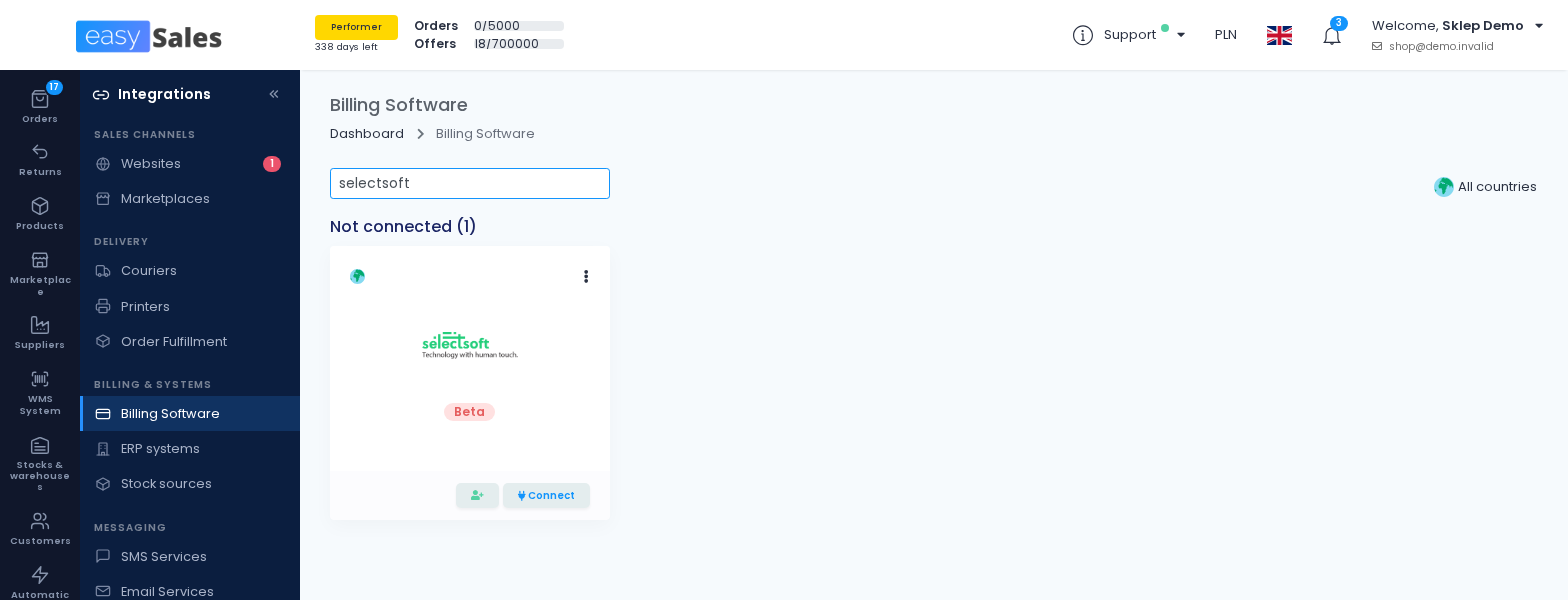
Go to Integrations → Billing Software, search for selectsoft and press Connect on the SelectSoft card — or Edit, if you have connected it before.
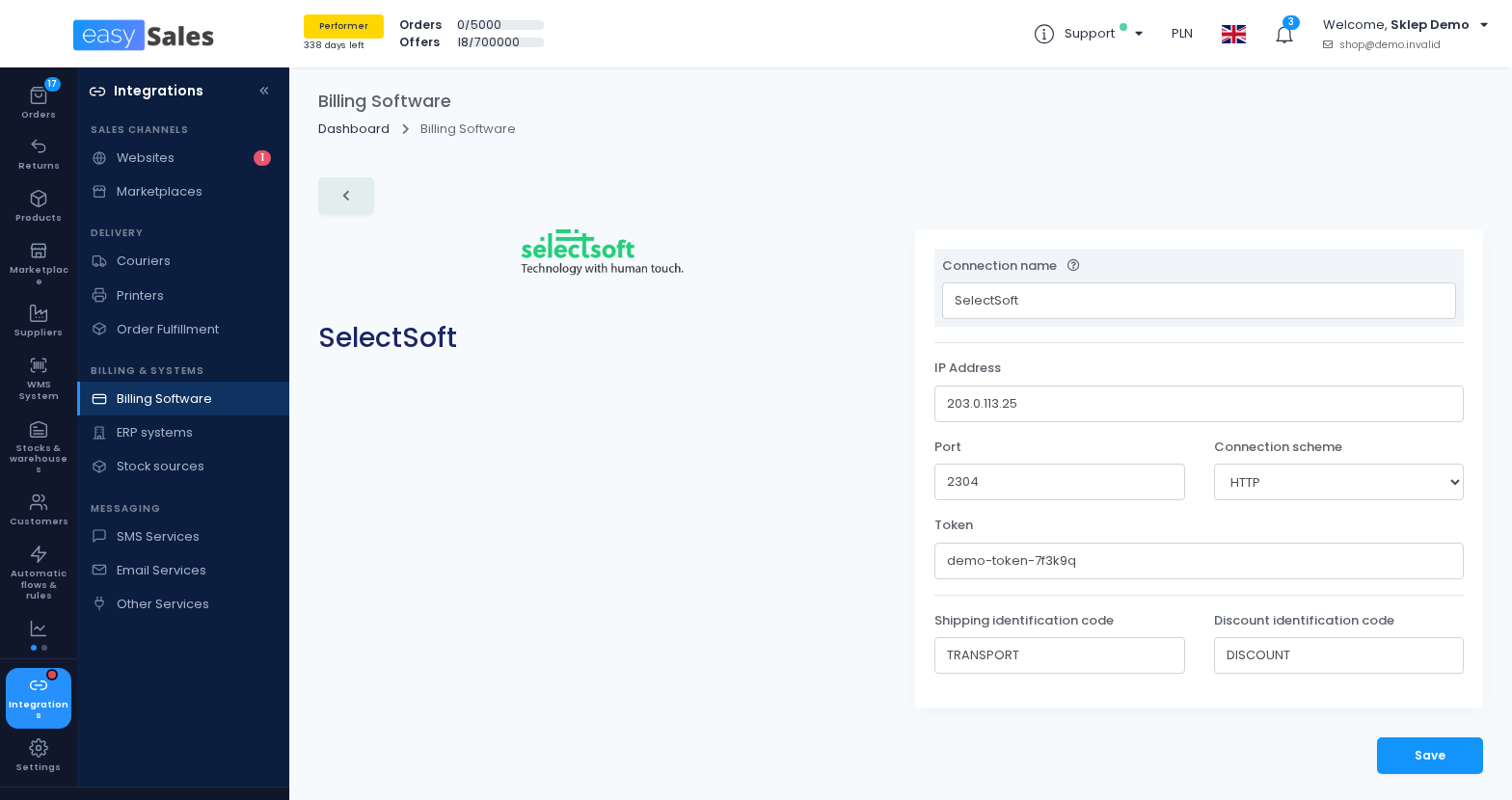
| Field | What goes in it |
|---|---|
| Connection name | A name for this connection, used only inside easySales. |
| IP Address |
The address of your SelectSoft server, without http:// and without the port.
|
| Port | The port of the SelectSoft API. |
| Connection scheme | HTTP or HTTPS, as SelectSoft tells you. HTTP is the default. |
| Token | The API token from SelectSoft. |
| Shipping identification code | The code of the SelectSoft article the shipping line is invoiced under. |
| Discount identification code | The code of the SelectSoft article discounts are invoiced under. |
Press Save. easySales does not test the connection when you save: a wrong address, port or token shows only when the first invoice fails. Issue one test invoice right after connecting.
To invoice for a second company, open the connection and press Clone. easySales saves a copy with "(cloned)" after its name; open it, rename it, change what differs and save.
Step 3 — Issue invoices
Issue invoices from the order page, in bulk from the orders list, or automatically with an automation flow — the same way as with any billing software in easySales. When SelectSoft accepts the order, the invoice appears on the order with SelectSoft's series and number.
What goes on the invoice
- Customer: for a company, its name, CUI, registration number and whether it pays VAT, with the billing address, email, phone and the delivery address. For a private customer, the billing name, address, email and phone. SelectSoft takes the customer from the order, so you do not create it beforehand.
- County: SelectSoft needs the county on the address, for private customers too.
- Products: every product with its name, quantity, VAT rate and price including VAT, identified by its EAN — or its SKU when it has no EAN.
- Shipping: one line under the shipping article code. Free shipping is left off the invoice, unless you have chosen in your account settings to show it.
- Discounts: one line under the discount article code.
- Payment: card for orders paid online, cash for everything else.
- Order reference: the order number, cut to its first 16 characters — the most SelectSoft accepts.
Stock comes out of SelectSoft the way your SelectSoft account is set up.
Storno, cancel, delete, payments and the PDF
- Storno, cancel and delete: SelectSoft does not accept these from outside, so easySales cannot do them for SelectSoft invoices. Do them directly in SelectSoft.
- Marking as paid: easySales cannot mark SelectSoft invoices as paid. Record the payments in SelectSoft.
- PDF: when your SelectSoft server keeps invoice files, easySales copies the PDF onto the order. Without it, the order carries the invoice number only.
- e-Factura: if SelectSoft already sends your invoices to e-Factura, do not send them through easySales' e-Factura connection as well — ANAF refuses the second copy.
When an invoice is refused
The reason is shown on the order:
| Message | What to do |
|---|---|
| The order was registered in SelectSoft, but the ERP did not issue an invoice for it. Ask SelectSoft to enable online invoicing for your account. | Your SelectSoft account waits for invoices to be issued by hand. Ask SelectSoft to enable online invoicing. The order is already in SelectSoft, so check it there before you invoice again. |
| SelectSoft only accepts invoice lines that exist in its own catalogue. Map an article code for: … | The order carries a fee that has no article code. Invoice it in SelectSoft and upload the invoice to the order. |
| Connection error | easySales could not reach your server. Check the IP address, the port and the connection scheme, and that the server is reachable from the internet. |
| Token invalid | The token is wrong or no longer valid. Copy it again from SelectSoft into the connection. |
| Any other message | SelectSoft's own answer — for example when your account is set to refuse orders with insufficient stock. Check the order in SelectSoft. |