How to upload your own invoice to an order in easySales

Attach invoices issued outside easySales to their orders: the upload window, the series, which marketplaces receive the PDF, storno, deleting and the refusals you may see.
What uploading your own invoice does
If you issue invoices outside easySales — in an invoicing program you have not connected, in your ERP, or by hand — you can still attach each one to its order. You upload the PDF and type its number. The invoice then belongs to the order like any other: it is listed on the order, you can download and print it, and easySales sends it to the marketplace the order came from.
Three things to know before you begin:
- Uploading sends the invoice to the marketplace straight away. On eMAG, Fashion Days, Allegro, Kaufland and the other marketplaces that accept invoices, the PDF goes to the marketplace the moment you press Upload Invoice. Check that it is the right file for the right order first: on eMAG an invoice sent this way cannot be taken back, and uploading a corrected PDF adds a second document next to the first.
- The series comes from the order, so type only the number. The upload form has no series field. easySales uses the order's invoice series, which comes from the Invoice Series of the sales channel the order came from. An order without a series cannot get an invoice.
- An order holds one invoice. Once an order has an invoice, a second upload is refused, unless you allow several invoices per order in your settings.
Before you start
The invoice as a PDF
One file per order, at most 10 MB.
Its number
As printed on the invoice, without the series.
An invoice series on the order
Set by the Invoice Series of the marketplace or shop connection the order came from.
Step 1 — Open the order and choose Upload
Open the order from Orders. In its Invoices section, press Create Invoice and choose Upload, at the bottom of the list, under your connected invoicing programs.
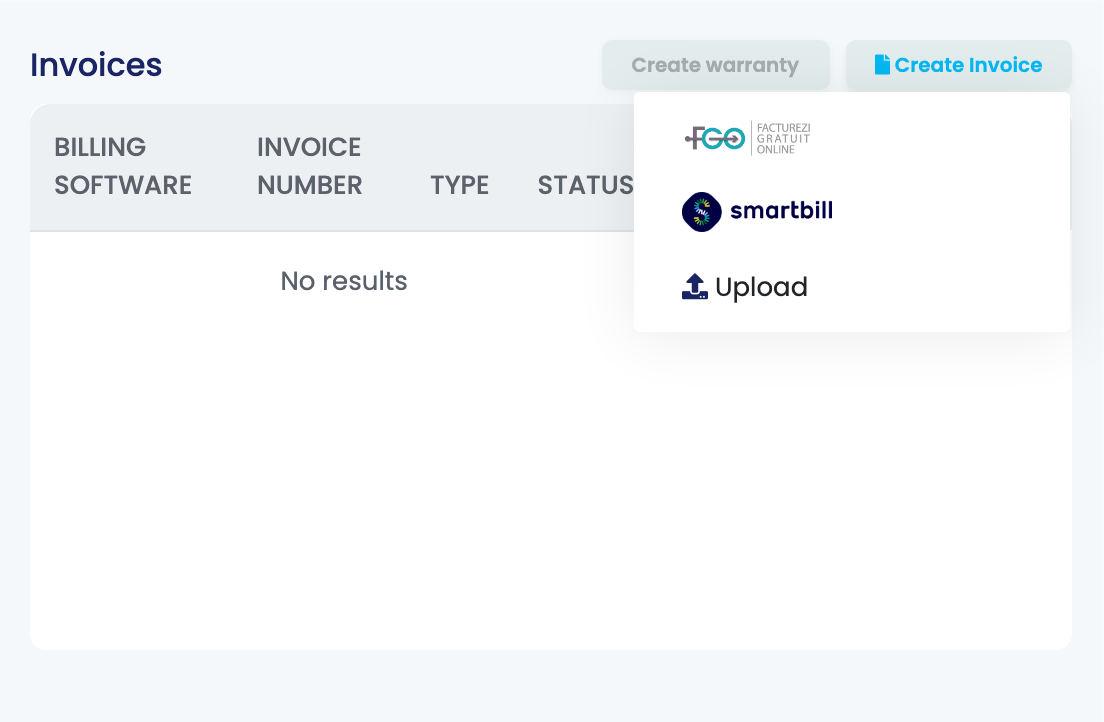
The same Upload option is at the bottom of the Quick Create list in the invoice column of the orders list, for orders that have no invoice yet.
Step 2 — Type the number and choose the PDF
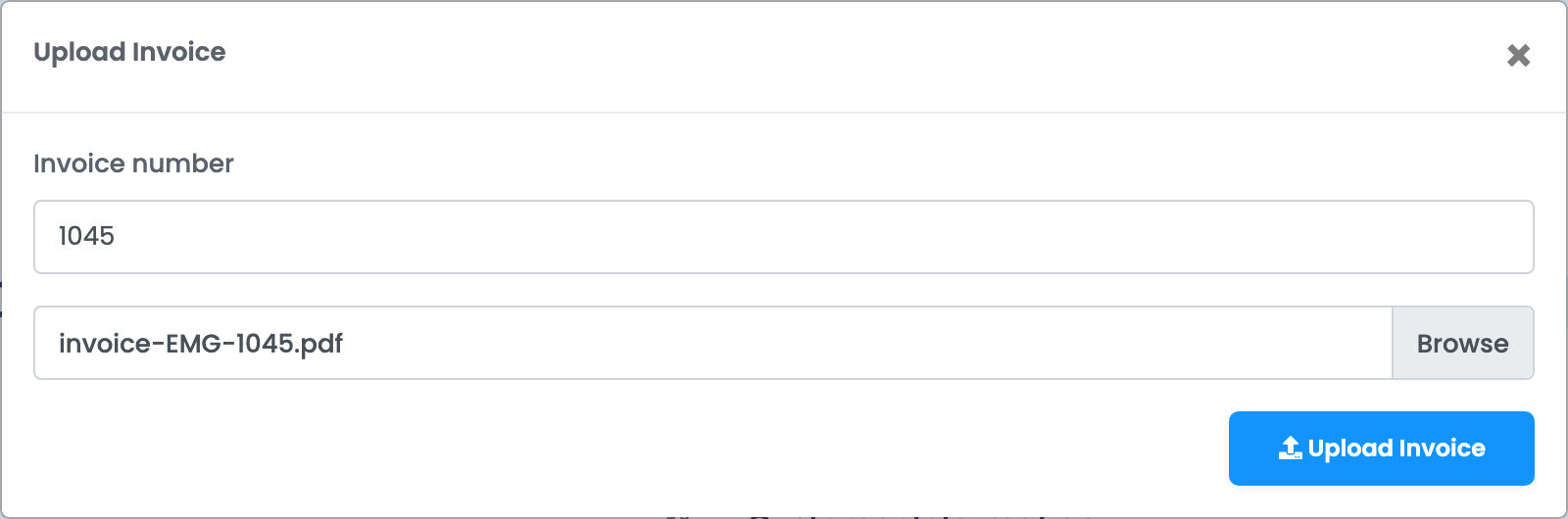
| Field | What goes in it |
|---|---|
| Invoice number |
The invoice's number, without the series — for example 1045. easySales puts the order's series in front of it.
|
| Choose file | The invoice as a PDF, at most 10 MB. |
Press Upload Invoice. The window closes and the invoice appears on the order.
Step 3 — Check the invoice on the order
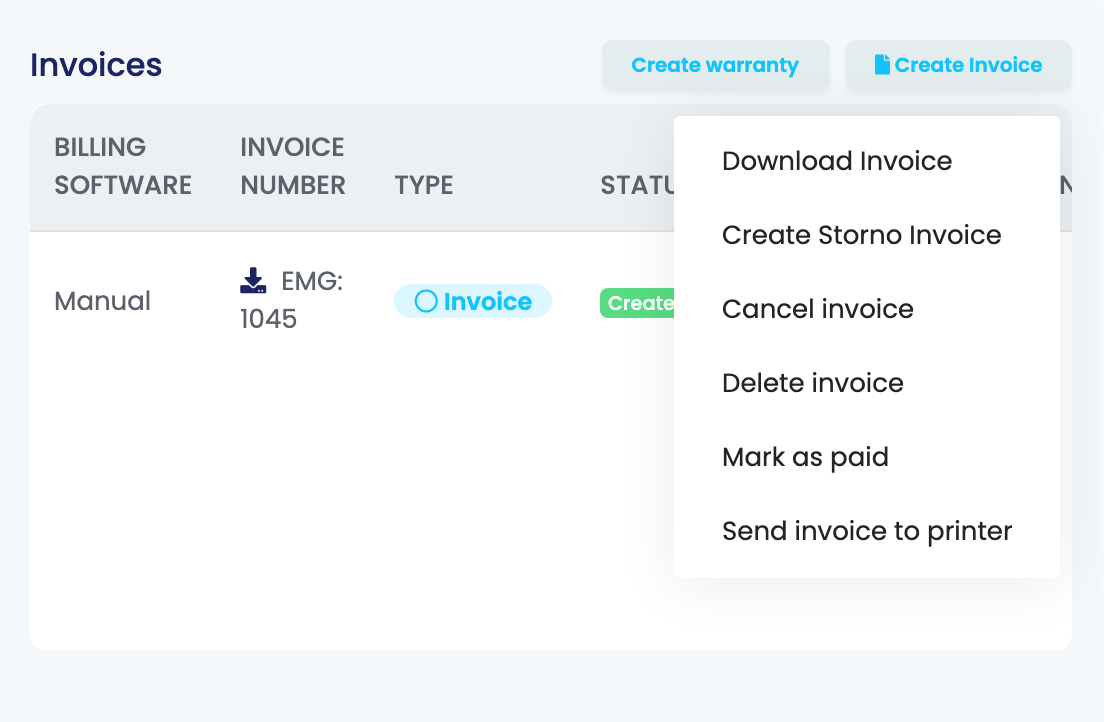
The invoice is listed in the order's Invoices section with Manual as its billing software and the order's series before the number. Its ⋮ menu has Download Invoice, Create Storno Invoice, Delete invoice and Send invoice to printer.
Uploading counts as issuing the invoice everywhere else in easySales too:
- Stock: when Decrease stock on new invoice is on, in the Orders settings on the Stocks tab, the ordered products are taken out of stock, as they are for any other invoice.
- Your customer: if you send customers a notification when an invoice is issued, it goes out for an uploaded invoice too.
The order's status does not change when you upload an invoice.
Which marketplaces receive the invoice
| Marketplace | What happens |
|---|---|
| eMAG (Romania, Bulgaria, Hungary), Fashion Days, Altex, Allegro, Kaufland, Trendyol, Decathlon, Empik, Skroutz, Vivre, Okazii | The invoice is sent to the marketplace and attached to the order there. |
| Temu, Pepita, About You, Shein, OTTO | These marketplaces do not accept invoices from easySales. The invoice stays on the order in easySales, and the order notes that the marketplace did not receive it. |
Every marketplace connection has the option Send invoice to marketplace after generating, which is on by default. Turn it off on a connection and the invoices you upload for its orders stay in easySales only.
If the marketplace refuses the invoice, the order shows the reason in its errors, starting with "Unable to upload invoice:". easySales tries to send it again by itself, and the error clears once the marketplace accepts it.
Storno, delete and a corrected invoice
- Storno: on an order whose invoice you uploaded, Create Storno Invoice opens the same upload window. Upload the storno PDF you issued, with its number. easySales sets the order to Returned. On eMAG and Fashion Days the storno is sent to the marketplace, which marks the order as returned there too.
- Delete invoice and Cancel invoice remove the invoice from easySales only. Nothing is withdrawn from the marketplace.
- A wrong invoice: delete it from the order, then upload the right one. On marketplaces that already received the wrong PDF, the new one arrives as an additional document — on eMAG, ask eMAG to remove the wrong one.
When an upload is refused
| Message | What to do |
|---|---|
| Could not add invoice, invoice series is required | The order has no invoice series. Fill in Invoice Series on the order's marketplace or shop connection; orders that arrive from then on carry it. |
| Duplication of invoices is not possible | The order already has an invoice. Delete it first, or turn on Allow multiple invoices per order in Settings → Orders Settings. |
| The file must be a file of type: application/pdf. | Upload the invoice as a PDF. |
| Unable to upload invoice: ERROR: Attachment url for order … is unreachable. | eMAG could not download the invoice from the link it was given. When you attach invoices through the API, use a link that opens without a login. |
| Unable to upload invoice: ERROR: You can only reverse (storno) finalized orders (in status 4). | eMAG accepts a storno only for an order that is finalized on eMAG. |