KSeF integration: filing structured e-invoices automatically
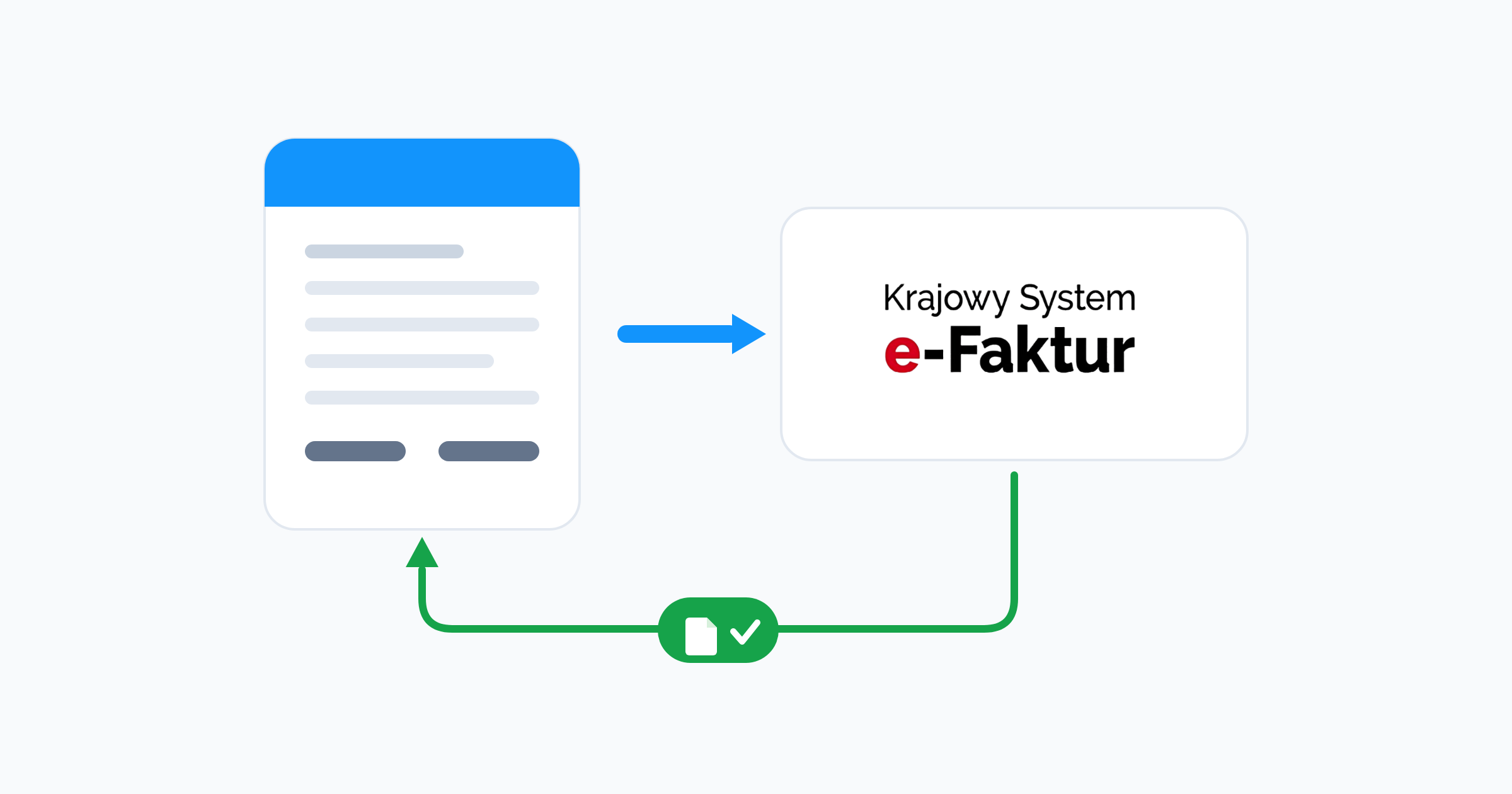
KSeF takes your invoice as a structured document, not a PDF. easySales builds that document from the invoice on the order, files it, follows it to a verdict, and stores the KSeF number and the UPO confirmation back on the order.
Poland's tax administration does not take your invoice as a PDF. It takes it as a structured document, filed to a national system that validates it, registers it and gives it a number. easySales does that filing for you: the invoice your program issues is converted, submitted, followed until there is a verdict, and the confirmation is stored back on the order it belongs to.
This guide covers the whole chain — what changes for you, what easySales handles, what the connection needs, what appears on the order afterwards, how corrections are submitted, and what to do when KSeF refuses a document.
What KSeF is, and what changes for you
KSeF — Krajowy System e-Faktur — is Poland's national e-invoicing system, run by the Ministry of Finance. Instead of sending your buyer a PDF, you file the invoice to KSeF as a structured XML document. KSeF validates it against a fixed schema, registers it, assigns it a KSeF number, and returns an official confirmation of receipt known as a UPO.
Three things change in practice.
- The format. A structured invoice — faktura ustrukturyzowana — is data in a defined schema, not a page layout. Every field has a place, and a value in the wrong shape is a rejection rather than a cosmetic problem.
- The moment it becomes official. The invoice counts when KSeF registers it, not when you email it.
- The proof. Your evidence that an invoice exists is its KSeF number and its UPO, not a sent-mail folder.
The PDF does not disappear. You still issue one, still attach it to the order, still print it for the parcel. It stops being the legally decisive copy.
What easySales does with your invoices
easySales sits between the program that issues your invoice and KSeF. It does not replace your invoicing — it takes the invoice that already exists on an order and files it.
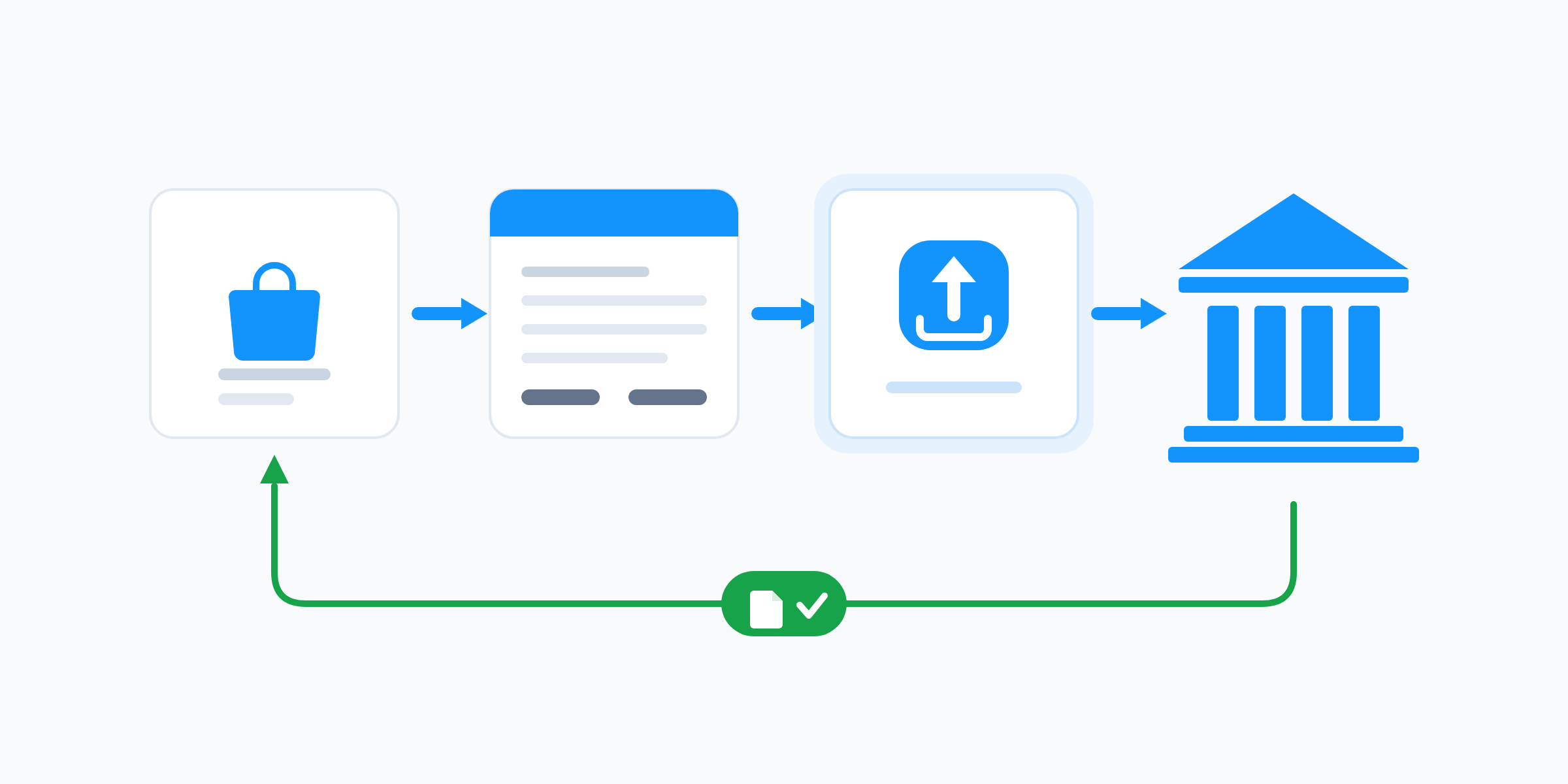
Once an invoice is on the order, easySales builds the structured document from it, opens a session with KSeF, submits it, and then follows that submission until KSeF answers — which is rarely instant. While it waits, the submission sits at Pending. When KSeF accepts, easySales records the KSeF number and fetches the UPO. When KSeF refuses, it records the message KSeF returned, word for word, so you are reading the tax authority's reason rather than a translation of it.
Structured document
Builds the invoice in the structured format KSeF requires, from the invoice on the order.
Filing and tracking
Opens the session, submits, and follows the submission until KSeF returns a verdict.
KSeF number
Records the number KSeF assigns to the registered invoice, on the order.
UPO stored for you
Downloads the official confirmation of receipt and keeps it with the submission.
Corrections
Files correction documents as their own document type, referring to the invoice they correct.
Retries and resend
Retries while KSeF has not answered, and gives you a Resend action once you have fixed the data.
A submission that never gets a final answer is not left in limbo forever: easySales checks up to five times, then marks it Failed so it surfaces as something to act on instead of sitting quietly in progress.
Before you connect: what you need
Four things, and none of them come from easySales:
- A KSeF authorisation token for your company.
- Your NIP — the tax identification number the token was issued for.
- Your registered address and city. These become the seller's details on every document filed through this connection, so use what is on file for the company, not a warehouse address.
- A source of invoices — one of the invoicing programs easySales connects to, or easySales' own invoicing.
Worth doing at the same time: your bank account, if you want it printed on the e-invoice. There is more on that below, because it is the single most common surprise in KSeF setup.
Where the token comes from
You generate the token in KSeF itself, on the Ministry of Finance side, for your own NIP. easySales cannot create one for you, and no easySales credential substitutes for it. The token has to carry two rights for the company whose NIP you enter: issuing invoices and reading invoice status. easySales needs the second one because it polls KSeF for the verdict after submitting, so a token that can only issue will file the document and then never resolve the submission.
What you do not need is a certificate. easySales fetches KSeF's own public-key certificate and runs the cryptographic handshake itself, so there are no .crt or .key files for you to generate, upload or keep in sync — the token is the whole of it.
Connecting KSeF in easySales
From the sidebar, open Other Services and pick the KSeF tile.
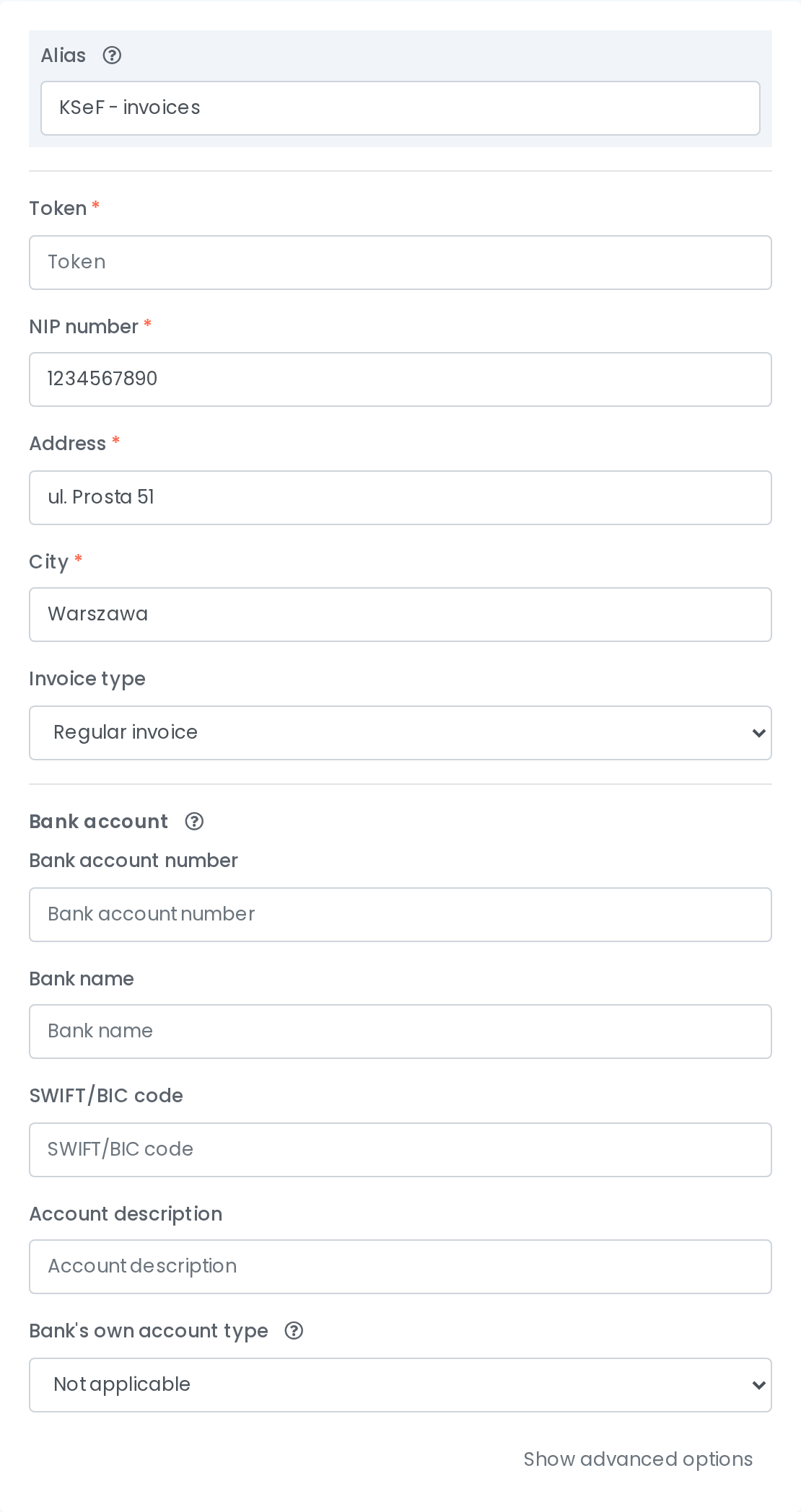
The fields are short:
- Alias — a name for this connection. It is what you pick from in Automation Flows and on the order, so name it for what it does ("KSeF – invoices"), especially if you will run more than one.
- Token — pasted from KSeF.
- NIP number, Address, City — the seller details described above. All three are required.
- Invoice type — Regular invoice or Correction invoice. Leave your main connection on Regular; the section on corrections explains what the second setting is for.
- Bank account — optional. Fill in the account number here, plus the bank name and SWIFT/BIC if you want those printed too.
Two things about that bank account section are worth stating plainly, because they cost sellers time. First, the account on your e-invoices comes from this connection, not from the general bank field under account settings — that field is never used for KSeF, not even as a fallback. Second, it applies only to invoices filed after you save it: an invoice already registered in KSeF cannot be updated afterwards.
If your marketplaces report payment methods in their own wording, the connection also carries an optional custom payment method mapping under Show advanced options, which translates those names into the payment forms KSeF recognises. Rules are checked top to bottom and can be reordered.
Once the connection exists, there are three independent ways an invoice reaches KSeF, and this catches people out later:
- An Automation Flow with a Send order action whose connection type is eInvoice and your KSeF connection selected. This is the automatic path, and it is the one to set up.
- A manual send from the order, in the Order submissions panel on that order.
- The Send to KSeF button on a specific invoice under Sales Documents.
Each works on its own. Pausing a flow stops that flow and nothing else.
Which invoicing program you use with it
KSeF does not issue your invoice — it receives it. So there are always two layers, and knowing which one you are looking at saves most of the diagnostic work.
| Your invoicing program | KSeF | |
|---|---|---|
| What it does | Issues the invoice — number, series, amounts, PDF | Receives, validates and registers the invoice |
| Where you connect it | Integrations → Billing | Other Services |
| What it gives you | The invoice document | A KSeF number and a UPO confirmation |
| Typical problem | "The invoice did not generate" | "It generated, but KSeF rejected it" |
| Can easySales do it alone | Yes — easySales issues invoices itself if you have no external program | No — KSeF is the government system, not something easySales replaces |
"My invoice didn't generate" is a layer-one question, about your invoicing program. "It generated but KSeF rejected it" is a layer-two question, about the submission. The KSeF connection pairs automatically with whichever program issued the document.
One rule matters more than the rest here: only one tool should file a given invoice to KSeF. If your accounting program files to KSeF on its own and easySales files the same document too, KSeF sees a second document under a number already registered for your NIP and refuses it as a duplicate. Pick the side that files — easySales, or your program — and leave the other to only issue. If both have to run, scope the easySales side on the Flow that does the filing: a Billing software condition, for example, files only the invoices issued through the connection you choose and leaves the rest to your program.
For sellers in Poland, easySales connects to Fakturownia, wFirma, iFirma, inFakt, Subiekt GT and Subiekt Nexo PRO. If you do not use an external program at all, easySales issues the invoices itself, with your own series and numbering, and those go to KSeF the same way.
After submission: KSeF number, UPO, QR code on the PDF
Everything a submission produces is kept on the order, in the Order submissions panel.
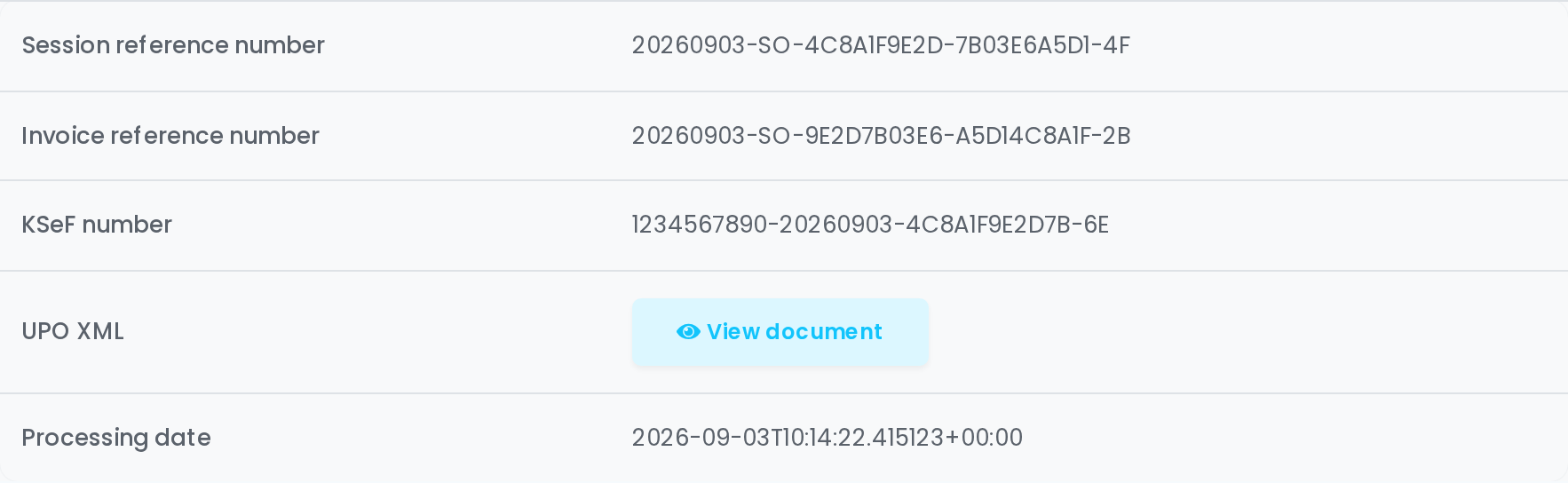
A successful submission shows:
- KSeF number — the identifier KSeF assigned to the registered invoice.
- UPO XML — the official confirmation of receipt, downloaded and stored by easySales so you are not depending on being able to fetch it again later.
- Session reference number and invoice reference number — the references of the session it was filed in, which are what support needs if a submission has to be traced.
- Processing date — when KSeF processed it, which is not necessarily when you sent it.
The same three fields are also a per-invoice column set under Sales Documents — KSeF status, KSeF number and the UPO — which is the view to use when you want to scan many invoices at once rather than open orders one by one.
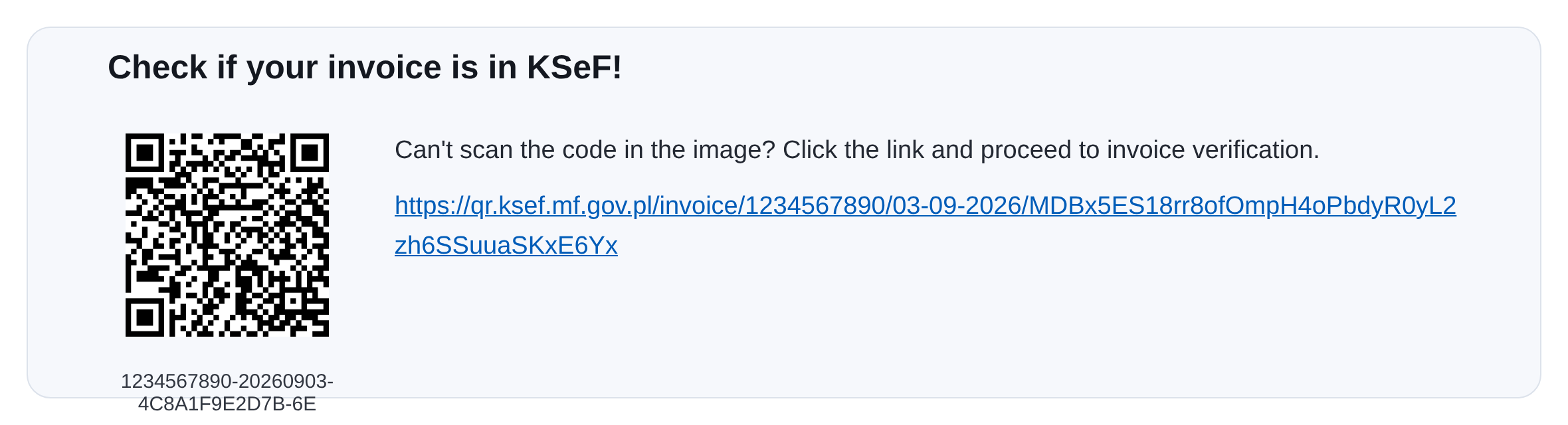
A registered structured invoice can also be verified by anyone holding the PDF, through a QR code that links to KSeF's own verification page. easySales can merge that code onto the invoice document: on an easySales invoicing connection, switch on Merge invoice with KSeF validation QR code in the advanced options. From then on, the invoice you download, print or attach carries the code and a short line explaining what it is for.
How corrections are submitted
A correction is not a corrected copy of the original. In KSeF it is its own document, referring back to the invoice it corrects, and it has to be filed as such.
In easySales that is expressed through the connection's Invoice type. A connection set to Regular invoice picks up regular invoices on the order; a connection set to Correction invoice picks up correction documents. So sellers who issue corrections keep two KSeF connections on the same token — one of each type. The connection screen has a Clone action for exactly this: duplicate the working connection, change the invoice type, rename the alias, save.
Point your correction Flow at the correction connection, and the original-invoice Flow at the regular one. A single connection set to Regular will never find the correction document, and the submission will report that there is no invoice to send — which reads like a bug and is a configuration gap.
When a submission is rejected
A rejection is KSeF's answer, not easySales' — so the message on the submission is the one the tax authority returned, and it is usually specific enough to act on. Most rejections come down to buyer identification, invoice numbering, or a value that does not fit the schema.
Fixing data and resending
There is one rule that explains almost every "I fixed it and the error came back":
Correct the data on the invoice document itself, then press Resend.
A resend rebuilds the document from the invoice's own saved data. Correcting the buyer's VAT number on the order or on the customer record changes neither, so the next submission carries the same wrong value. Open the invoice, edit the customer information there, save, and only then resend. An easySales-issued invoice can be edited in place right up until KSeF accepts it.
Waiting also does not help. Without a resend, easySales is asking KSeF for the status of the original attempt, and KSeF keeps answering with the original verdict, freshly dated — so the same error looks like it happened again today when in fact nothing was re-sent. The Resend action on the failed submission is what forces a genuinely new filing.
If two consecutive resends return an identical message, the saved invoice data did not change. Re-open the invoice and check the correction landed on the document.
What KSeF does not change
Worth being clear about the edges:
- Receipts are not invoices. A receipt cannot be filed to KSeF, and easySales refuses it rather than sending something KSeF would reject.
- Your numbering stays yours. KSeF assigns its own number in addition to yours; it does not renumber your invoices. It will, however, refuse a second document carrying a number already registered under your NIP — so if another tool also issues invoices for the same company, keep the two on separate series.
- Registration is final. Once an invoice is registered, it cannot be edited or replaced. The instrument for changing it is a correction.
- Your buyer still gets a document from you. Filing to KSeF and sending the customer their invoice are separate things, and easySales still does the second one.
File your invoices to KSeF without leaving your order screen
Try easySales free for 14 days. No credit card required.