How to import your Allegro offers into easySales
Turn your active Allegro Poland offers into easySales products in one run: SKUs from Sygnatura or generated for you, categories and characteristics created and mapped, plus optional listing linking and image download.
What does the Allegro import do?
The Allegro import turns your Allegro Poland offers into products in your easySales Virtual Shop. In one run it creates a product for every active Allegro PL offer that is not yet linked to a product, with its name, description, SKU, EAN, stock, prices, images, category and characteristics.
You start with a complete catalogue instead of typing every product in by hand. The import reads the offers easySales has already downloaded from your Allegro account rather than reading Allegro live.
What each product gets
- Name and description. The Allegro description sections are joined into one description. The text is kept, and images inside the description stay as links to Allegro.
- SKU and EAN. How the SKU is chosen is covered in Step 2.
- Stock. The listing's quantity at the moment of the import.
- Prices. The offer's sale price. If your Allegro connection adds a percentage to prices (Price Addition), the import takes it back off, so the product gets the base price. When the offer has no list price, the list price is set to the sale price.
- Images. The offer's image gallery, either as links to Allegro or as copies stored in easySales (Step 3).
- Category. A shop category named after the offer's Allegro category.
- Characteristics. Taken from the parameters of the Allegro catalogue product. EAN and Product code fill the matching product fields; every other parameter becomes a characteristic.
What the import does not bring in
- Variants. Each offer becomes its own product, with no variant grouping.
- Tags, delivery and return policies, and GPSR information.
- Brand and weight. Allegro does not return them for offers created outside easySales, so these fields are usually empty after the import.
Before you start
Allegro Poland connected
The import is available for Allegro PL. Connect your Allegro PL account to easySales first.
Your offers downloaded
easySales downloads your Allegro offers automatically once your Allegro account is connected; they appear in your Allegro offers list. The import reads those offers and takes only active ones that are not yet linked to a product.
A Virtual Shop in Polish and PLN
The products go into your Virtual Shop, whose language and currency must match Allegro PL: Polish and PLN.
Permission to add products
The Import button appears only for users allowed to add products. If you can't see it, your user doesn't have that permission.
If your Allegro account is not connected yet, start with the connection guide.
Step 1: Open Import from marketplace
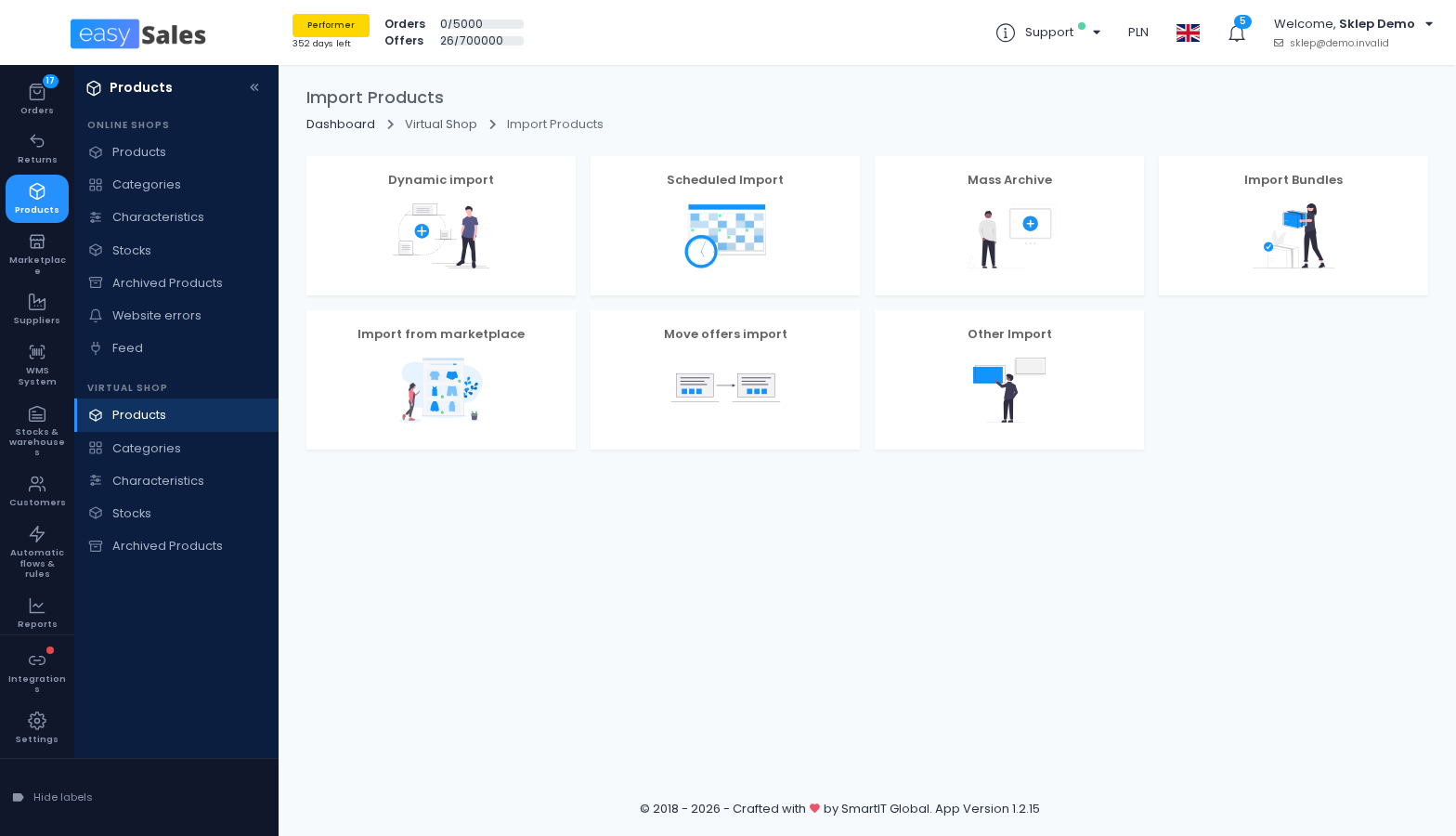
In easySales, go to Virtual Shop → Products and click Import. On the Import Products page, choose the Import from marketplace tile.
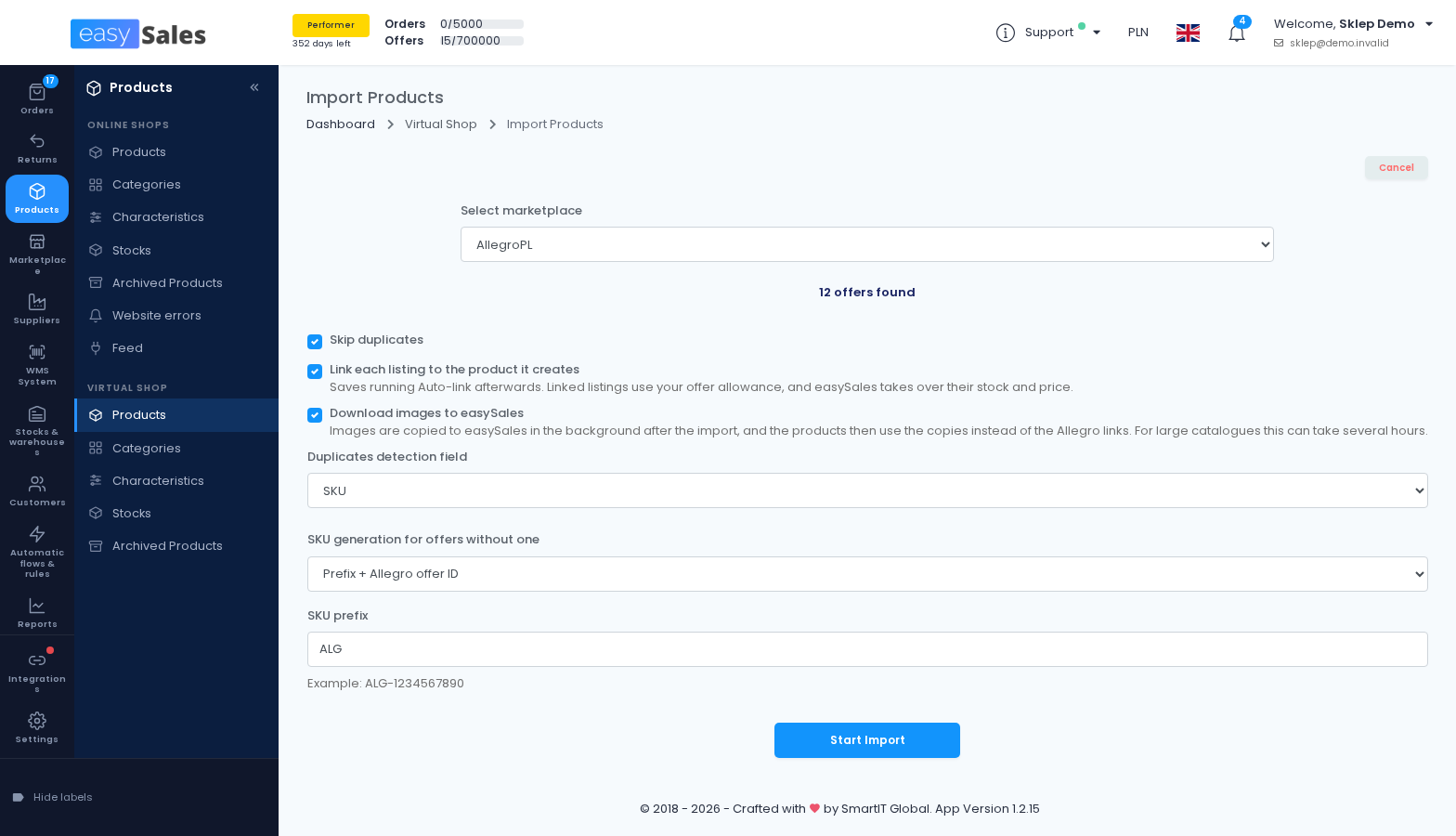
In Select marketplace, pick your Allegro account. If you run several Allegro accounts, each one is listed under its connection name. You import one account per run.
The page then shows how many offers it found, for example "1,240 offers found". These are the active offers on that account that are not yet linked to a product. If the count is 0, Start Import stays disabled.
Step 2: Choose how duplicates and SKUs are handled
These settings decide which offers become products and which SKU each product gets. They matter most if you plan to run the import more than once.
Where the SKU comes from
Allegro has no SKU field. easySales uses the offer's Sygnatura (the external ID you can set on an Allegro offer). If the Sygnatura is empty, it uses the Kod producenta (Product code) parameter. An offer with neither is an offer without a SKU, and the SKU generation setting below decides what happens to it.
Skip duplicates
Skip duplicates is on by default. Next to it, the Duplicates detection field lets you choose SKU or EAN. Any offer whose SKU or EAN already exists in your Virtual Shop is skipped, and the log shows a warning: "Skipped offer: … already exists in this shop". A blank SKU or EAN never counts as a duplicate.
When you turn Skip duplicates off, the Concatenate SKU with offer ID option appears. It builds each SKU as the SKU followed by a hyphen and the Allegro offer ID, or uses the offer ID alone when the offer has no SKU.
SKU generation for offers without one
SKU generation for offers without one has five modes:
- Report offers without a SKU (default). The offer is not imported, and the error tells you to choose how missing SKUs are generated.
- Random SKU. easySales generates a random SKU.
- Offer EAN. The offer's EAN becomes the SKU. This fails for an offer without an EAN, or one whose EAN is already used as a SKU in your shop.
- Prefix + Allegro offer ID. For example,
ALG-followed by the Allegro offer ID. - Prefix + sequential number. For example,
ALG-000001, continuing the numbering already used in your shop.
For the two prefix modes, fill in SKU prefix: letters, digits, dots, underscores and hyphens, up to 20 characters. The form shows an Example: of the SKU it will generate.
Step 3: Link listings and download images
Link each listing to the product it creates
Link each listing to the product it creates is off by default. When you turn it on, each Allegro listing is linked to the product created from it, so you don't need to run Auto-link afterwards.
Once a listing is linked, easySales keeps its stock in line with the product. Leave the option off if you only want the products in your catalogue for now.
Download images to easySales
Download images to easySales is also off by default. Without it, product images stay as links to Allegro's image servers.
With it on, easySales copies the images to easySales in the background once the import finishes, and the products then use the copies instead of the Allegro links. For large catalogues this can take several hours.
- Only the product's image gallery is copied. Images inside the description stay as links to Allegro.
- Follow the progress in Reports → Imports, under the product images type. You get a notification when it's done, marked Successful, Partial or Failed.
- An image that cannot be copied keeps its Allegro link.
Step 4: Run the import and follow its progress
Click Start Import. The import runs in the background; a large catalogue takes a while.
The Import page shows progress bars for successful offers, warnings and errors, plus a More details log with a line for each offer. When everything has been processed, the page shows Import Completed.
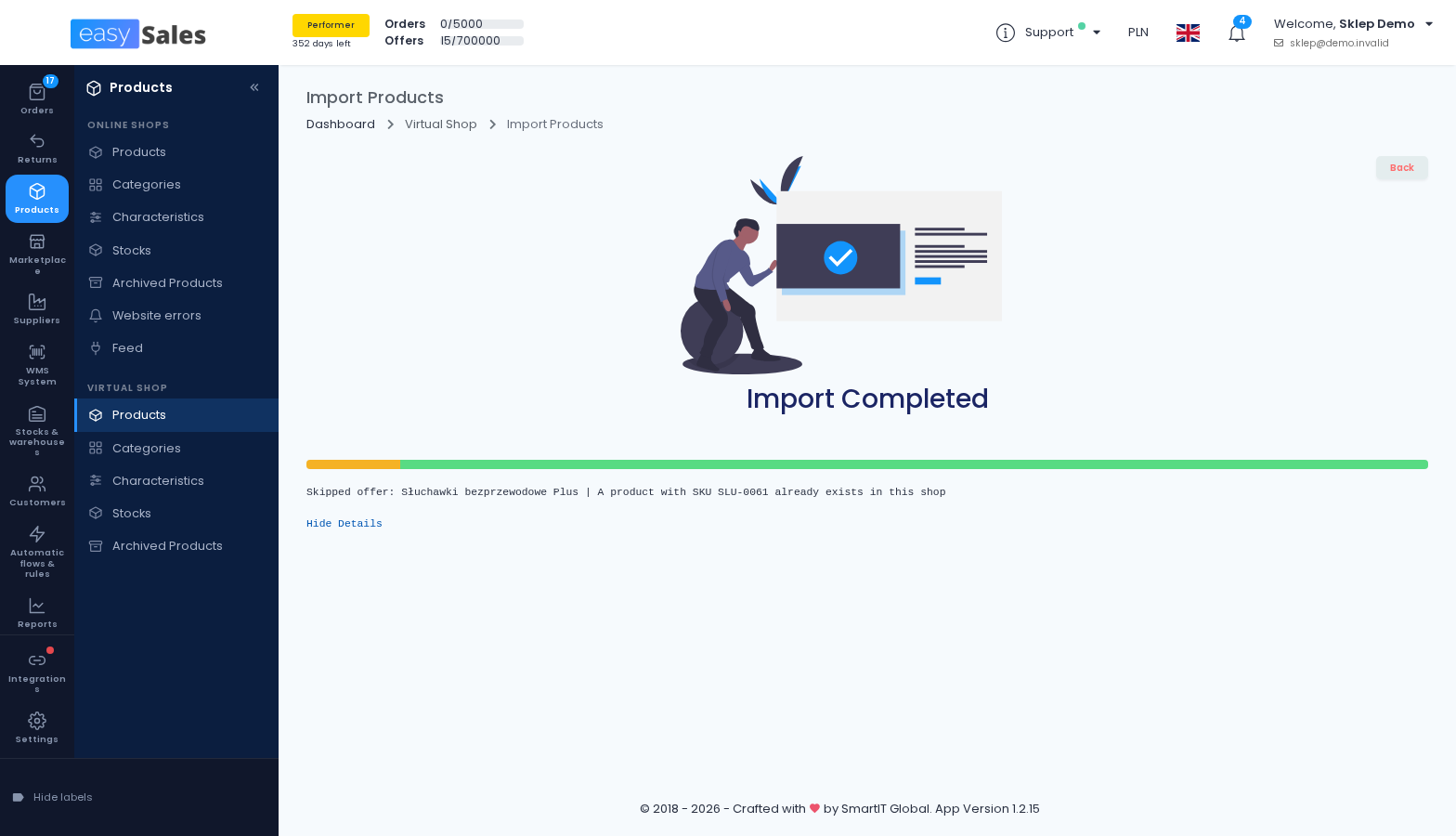
Errors appear in the log as "Unable to import offer: {name} | {reason}". The usual reasons are a missing SKU (with Report offers without a SKU selected), a missing EAN (with Offer EAN selected), or a SKU that is already used in your shop. Adjust the settings and run the import again for the offers that failed.
Running the import again
You can run the import as often as you need. It never updates products it already created, and linked listings drop out of the next run because they are no longer unlinked.
For offers you didn't link, keep Skip duplicates on so products imported earlier are skipped by SKU or EAN. Be careful with offers without a SKU: Random SKU and Prefix + sequential number give such an offer a new SKU on every run, so it becomes a second product unless duplicate detection by EAN catches it. Prefix + Allegro offer ID gives the same offer the same SKU every time, which is why we recommend it.
After the import
Products, categories and characteristics
Your new products appear in Virtual Shop → Products.
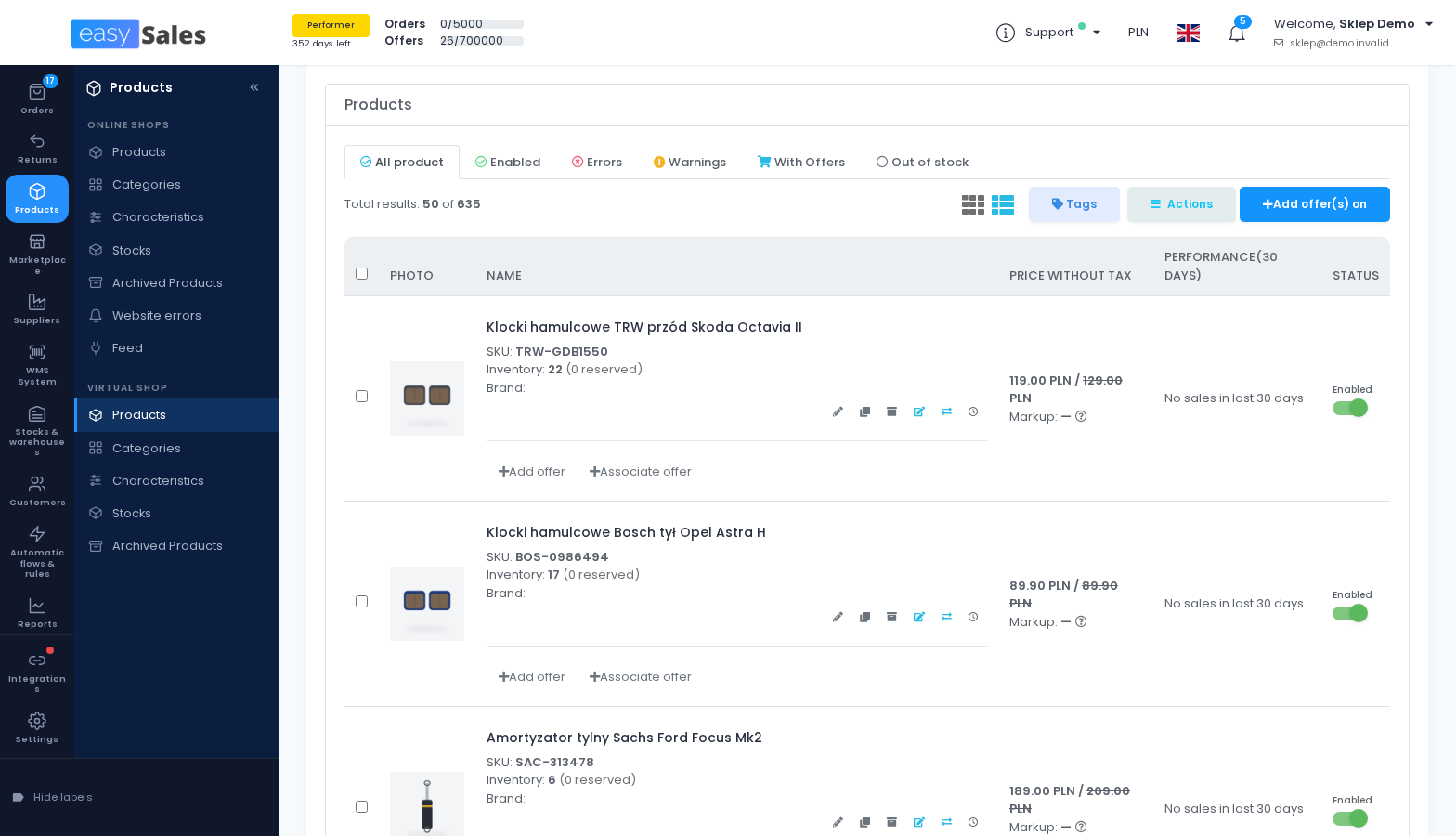
Each Allegro category becomes a shop category with the same name. Categories are created as a flat list, one per Allegro category name, and a category that already exists with that name is reused. Each one is mapped to its Allegro category, and the characteristics are mapped too. easySales uses these mappings whenever it later creates or updates Allegro offers from these products. An offer without an Allegro category is imported without a category.
Linked listings: stock and price
If you linked the listings, they now show as linked to products in your Allegro PL offers list.
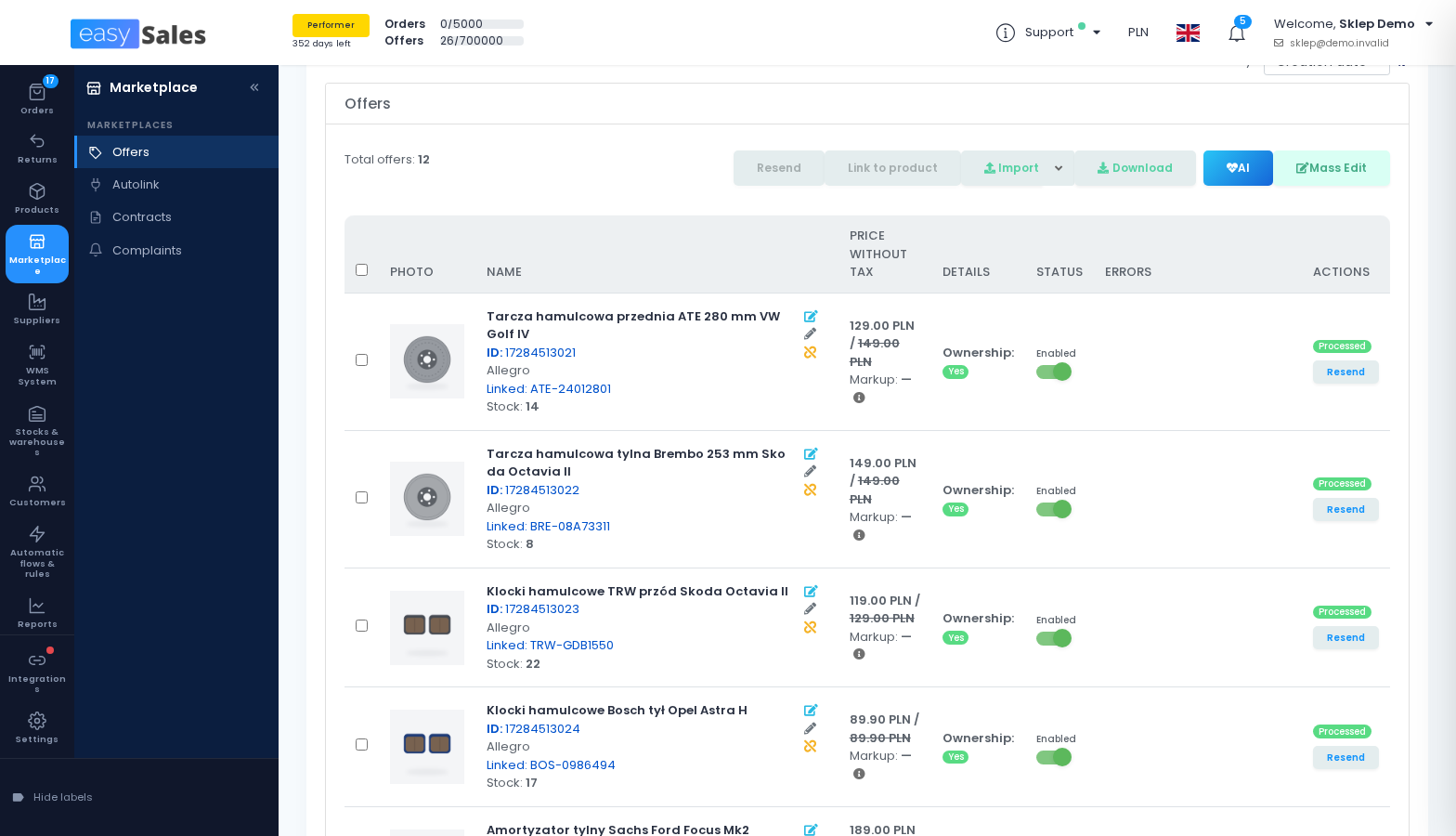
easySales keeps each linked listing's stock in line with its product: the stock sent to Allegro is the product's stock minus the quantity reserved. The price stays as it is on Allegro unless you couple the price on the offer.
What to fill in yourself
- Brand and weight, if you need them, since they usually arrive empty.
- Images, if you chose Download images to easySales: check the result in Reports → Imports. On a Partial or Failed result, the images that could not be copied keep their Allegro links.