How to update stock in easySales: the Stocks screen, Excel imports and scheduled imports

Change stock by hand, import it from Excel or update it on a schedule from a supplier's file, and see why marketplaces receive less than your inventory.
What the Stocks screen does
Stocks shows the stock of every product in one of your online shops, and lets you change it, import it from a file, or update it on a schedule from a supplier's file. Open it from Products → Online Shops → Stocks; the products of your Virtual Shop have their own list, under Products → Virtual Shop → Stocks.
Three things to know before you change anything:
- Your change stays only if easySales is the shop's Inventory source. When the shop reads its stock from somewhere else — the shop itself or your invoicing software — easySales reads that source again and puts its number back on every product the source lists.
- Marketplaces receive the Inventory minus the Reserved inventory. A product with 24 in stock and 2 reserved is sent as 22, and never below 0.
- Shops with advanced warehouses keep their stock elsewhere. Their tab is greyed out here; use Warehouse stocks instead.
The stock list
Each shop has its own tab. Filter by Name, SKU, Inventory Code or Brand, then press Filter.
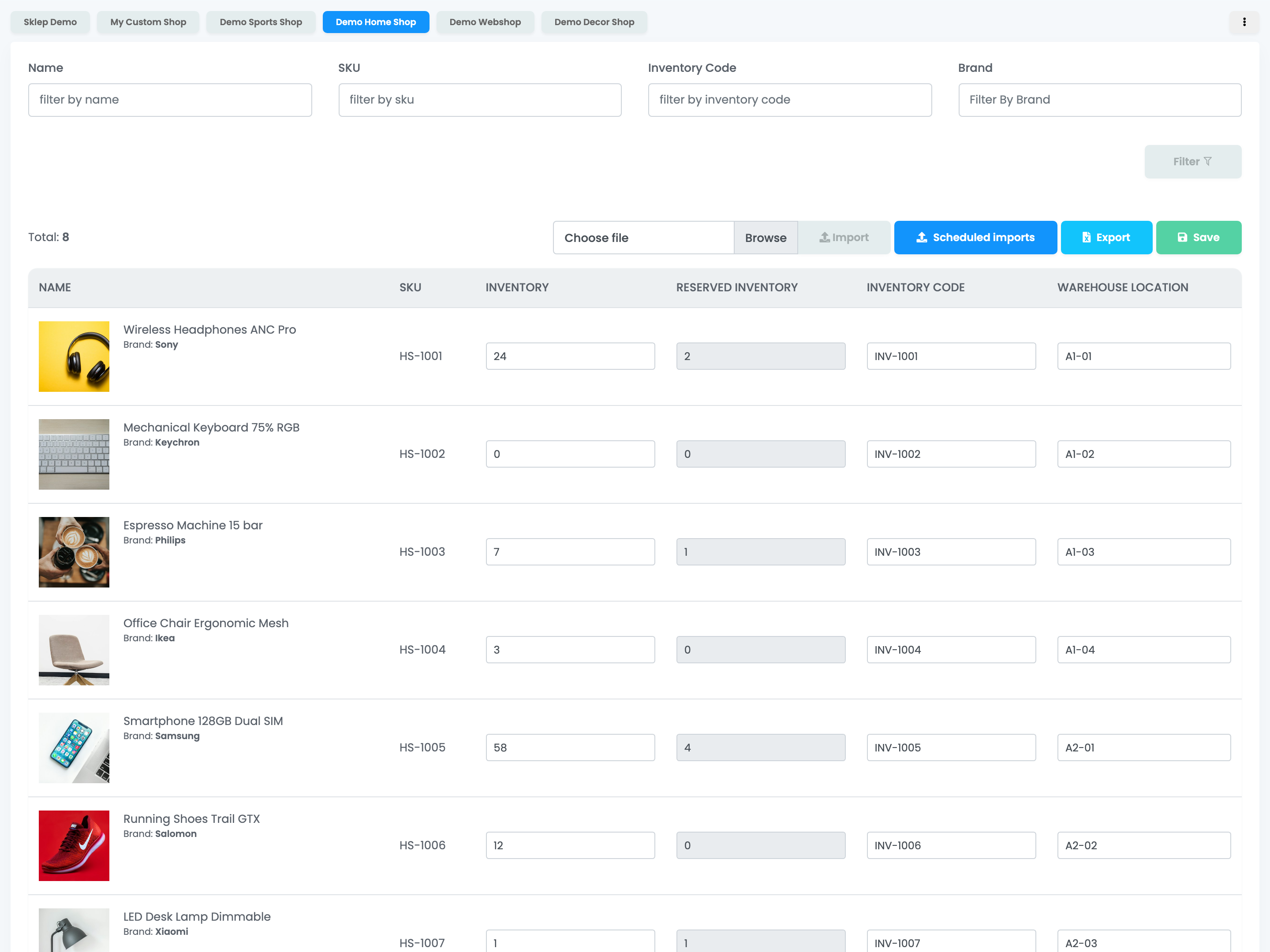
| Column | What it shows |
|---|---|
| Inventory | The product's stock in this shop. You can change it. |
| Reserved inventory | The quantity held by open orders. Read-only. |
| Inventory Code | The code your invoicing software uses for the product. When the stock comes from that software, easySales can match products by this code instead of the SKU. You can change it. |
| Warehouse location | Where the product sits in your warehouse. You can change it. |
Change stock by hand
Type the new values in Inventory, Inventory Code or Warehouse location, then press Save. Save stores every product on the page you are looking at, and easySales confirms with Products stock scheduled for updating.
After you save, easySales sends the new stock to each marketplace offer of the product, and back to your online shop when the shop platform accepts stock updates from easySales.
Reserved inventory
Reserved inventory is the quantity already promised to open orders: orders that are not invoiced yet and not completed, cancelled or returned. It cannot be edited here. It goes back down when the order is invoiced, completed or cancelled.
Only order lines linked to a product reserve stock. Reservation is on by default; you can turn it off with Enable stock reservation in Order settings.
Import stock from Excel
To update many products at once, prepare an Excel file with these five columns, in this order. The first row is a header and is not read.
| Column | What goes in it |
|---|---|
| A | The product name. Not read; it only helps you find your way in the file. |
| B | The SKU, exactly as in this shop. |
| C | The new stock. |
| D | Reserved inventory. Not read: reserved stock always comes from the orders. |
| E | The Inventory Code. Fill it in: an empty cell leaves the product without an Inventory Code. |
Press Choose file, pick the file, then Import. The import runs in the background, and you get a notification when it has finished.
- Products are matched by SKU, exactly as it is in this shop: "02170" and "2170" are different SKUs.
- Products that are not in the file keep their stock.
- An SKU that matches no product in the shop is listed in the import's report as not found.
Update stock on a schedule
A scheduled import reads a stock file from a web address at regular intervals — for example, a file your supplier or your warehouse publishes. It is available for shops whose Inventory source is easySales: press Scheduled imports.
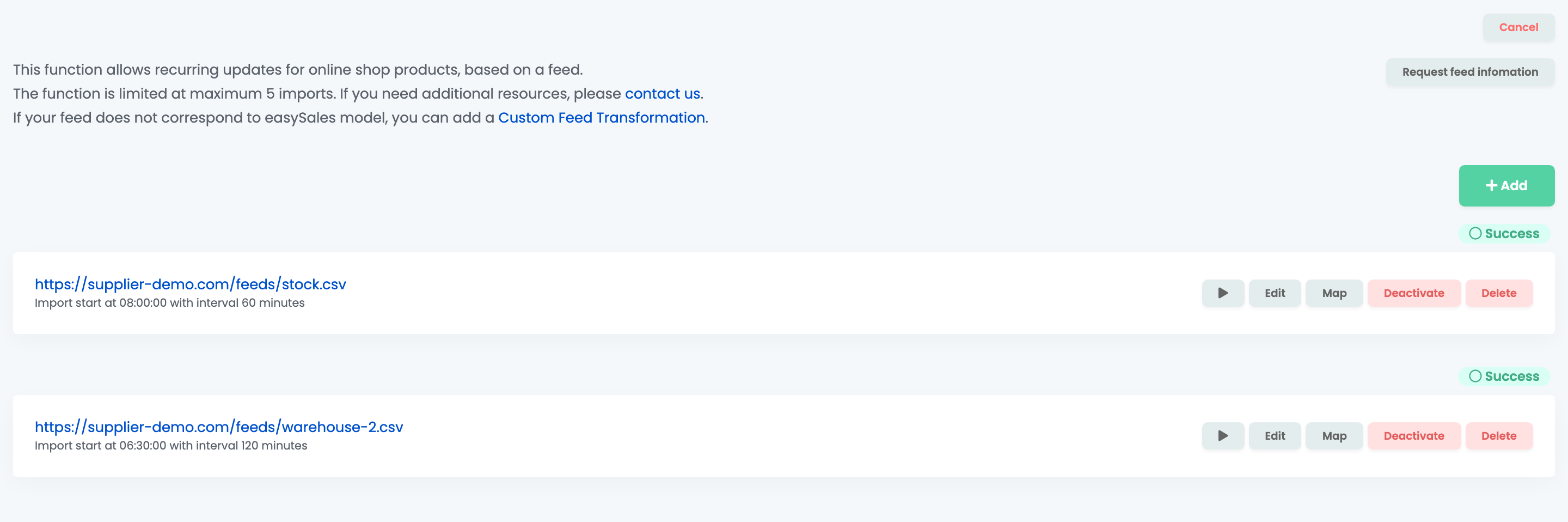
Press Add and fill in the import:
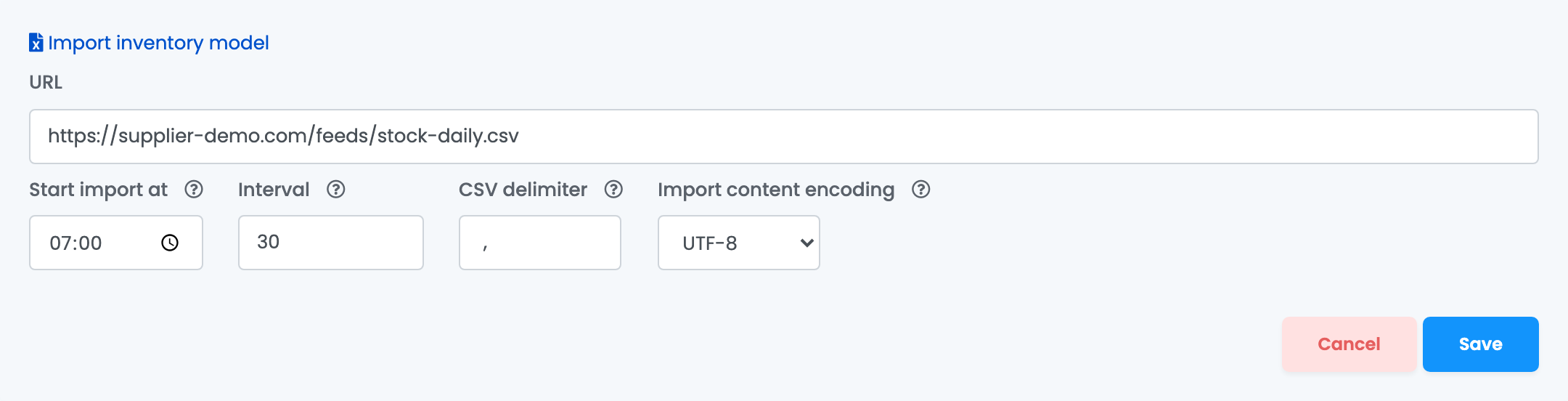
| Field | What goes in it |
|---|---|
| URL | The address of the CSV or Excel file. |
| Start import at | The time of the first run each day. |
| Interval | How many minutes between runs, from the start time on. At least 10. |
| CSV delimiter | The character between the columns of a CSV file, usually a comma. |
| Import content encoding | Leave it on UTF-8. If the file is written in Cyrillic and the names come out garbled, choose No. |
Press Save, then choose which column of the file holds the SKU and which holds the stock, and whether the first row is a header. Once the columns are mapped, the import is active. Import inventory model downloads a sample file with the two columns.
Each import in the list has a button to run it now, Edit, Map to change the columns, Deactivate / Activate and Delete. Products are matched by SKU, and products that are not in the file keep their stock. An account can have up to five scheduled imports. If an import fails several times in a row, it is switched off: fix the file or the address, then press Activate.
If your supplier's file is in a different format, Request feed infomation sends us its address so we can look at it.
Export stock
Export sends an Excel file with the shop's products and the columns you choose to your e-mail.
When something does not look right
| Symptom | What to do |
|---|---|
| The stock I typed changed back | The shop's Inventory source is not easySales, and the source put its own number back. Change the stock in the source, or change the Inventory source. |
| A marketplace shows less stock than Inventory | Part of the stock is reserved by open orders. Invoice, complete or cancel those orders. |
| Reserved inventory stays above 0 with no new orders | An older order is still not invoiced and not finished. Filter the orders by the product's SKU and invoice, complete or cancel it. |
| "Product with sku … not found" in the import report | The SKU in column B does not match any product of this shop exactly. Check spaces and leading zeros. |
| There is no Scheduled imports button | Scheduled imports are only for shops whose Inventory source is easySales. |
| The shop's tab is greyed out | The shop uses advanced warehouses. Its stock is on Warehouse stocks. |