How the Inventory source works in easySales: telling each store where to read its stock
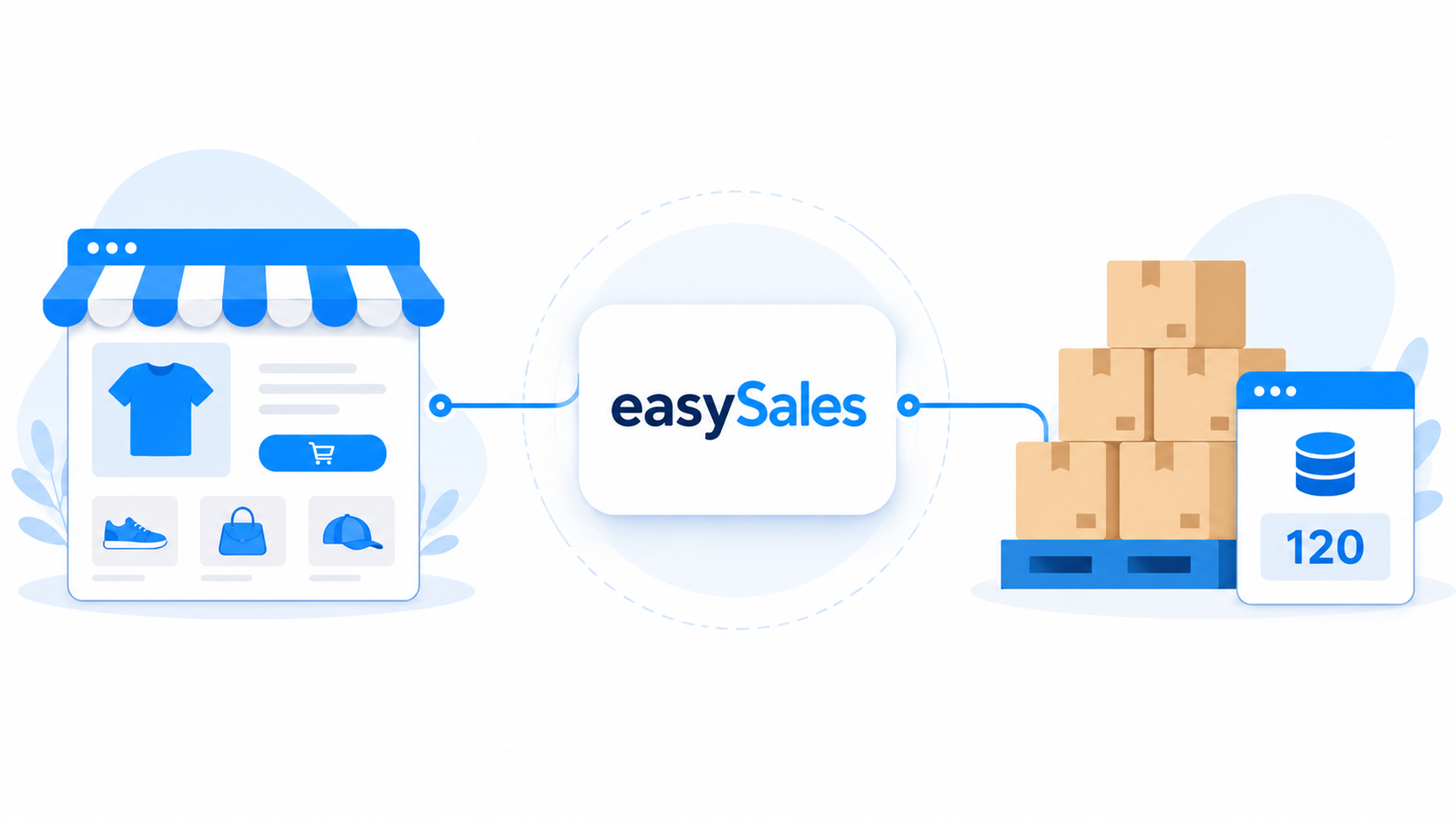
The Inventory source tells easySales where the authoritative stock for a store's products lives — your own e-shop, an ERP or accounting system, a fulfilment warehouse, a feed, manual entry or a supplier. It is set per store, and external sources are read on a schedule.
Every store you connect to easySales needs an answer to one question: where does the real stock for these products live? Your own e-shop's inventory, your accounting software, the quantities a fulfilment partner holds, or a file you upload yourself? The setting that answers this is the Inventory source, and getting it right keeps the stock on your storefront honest.
This guide covers what the Inventory source is, where you set it, the types you can choose, how often easySales reads each one, and the rules worth knowing first. It covers the standard, single-source setup — one source feeds the whole store. To combine several warehouses with priority and rules, see the linked guide at the end.
What the Inventory source is
The Inventory source is the system easySales treats as the system of truth for a store's stock. Once you choose it, that system decides the quantity easySales knows for each product in that store — and that quantity is what gets pushed out to keep your listings accurate.
The key idea: the Inventory source is a property of the store, not of an individual product and not one global setting for your whole account. Each store can read its stock from a different place — one from your accounting software, another from a fulfilment warehouse, a third straight from its own e-shop inventory.
Where you set it (per store)
You set the Inventory source on a store's own edit form. From the sidebar, go to Integrations → Websites, open the store (its edit button), and find the Inventory source selector on its edit form. Pick the system that holds the real stock for that store's products, save, and from then on easySales reads stock for that store from there.
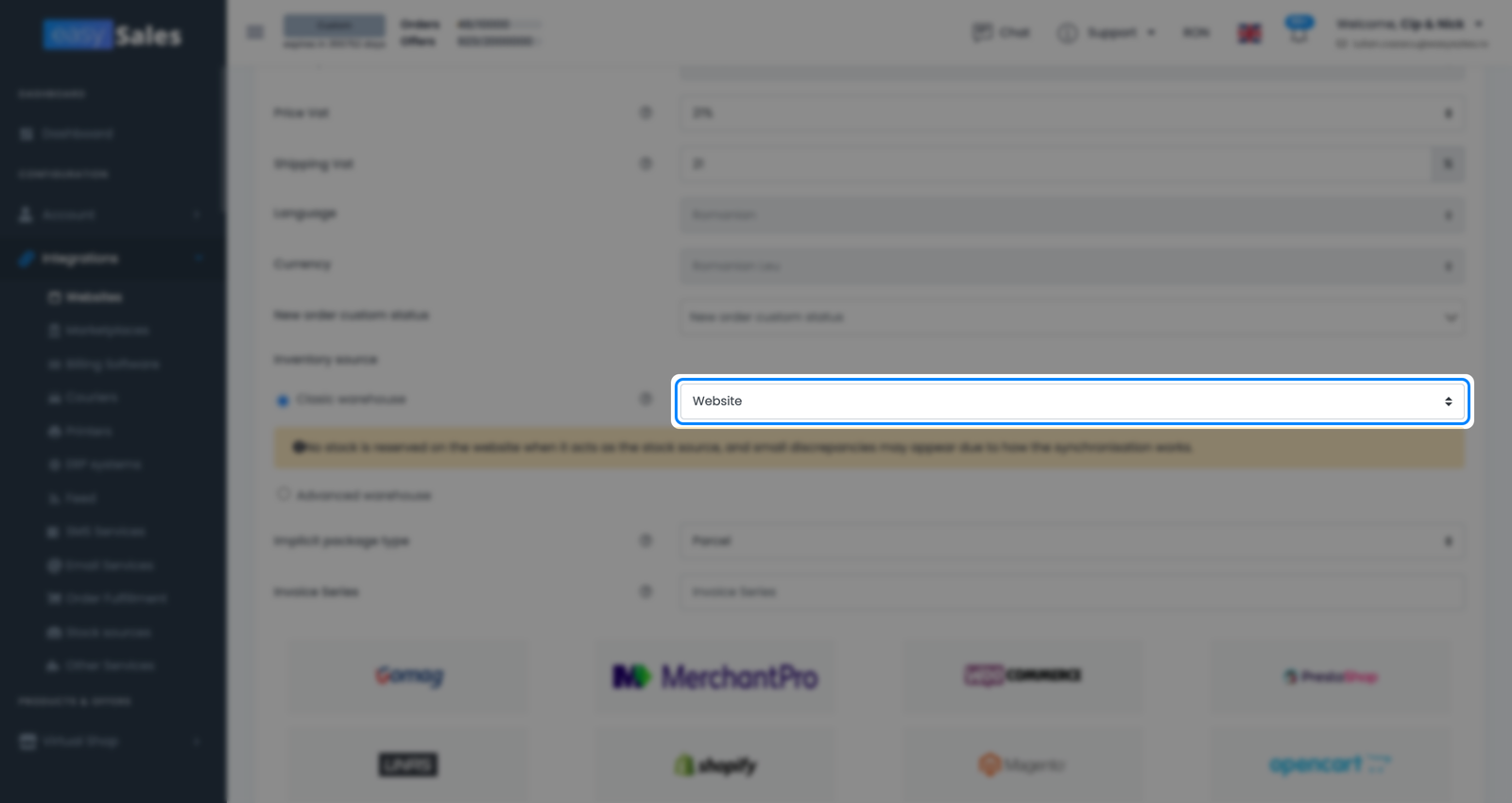
Because the choice lives on each store, you change it one store at a time. There's no account-wide Inventory source that overrides the others — if you run several stores from different inventory systems, you set each one to match.
The available source types
The Inventory source selector offers a fixed catalog of options. They fall into a few families, and the right one depends on where the real stock for that store actually lives.
| Source family | What it reads from |
|---|---|
| Store / connector | The stock already kept in that e-shop's own inventory (or the stock easySales holds) |
| ERP & accounting | Quantities reported by an ERP or invoicing/accounting system (e.g. SmartBill, Oblio, FGO) |
| Fulfilment / courier warehouse | What a fulfilment provider or courier warehouse reports as available (e.g. Linker, Huboxx, EuShipments) |
| Feed / Manual / Supplier | A stock file at a URL, numbers you enter yourself, or a supplier's availability |
Your store or easySales as the source
The simplest option is to let the store (the connector) itself be the source — the stock already kept in that e-shop's own inventory, which easySales reads and uses as-is. There's also an easySales option, which uses the stock easySales already holds for the product.
This family has one behaviour worth singling out, as the note above flags: when the store itself is the source, easySales does not reserve stock back into that same store.
ERP and accounting systems
If your real stock lives in an ERP or accounting/invoicing system, point the store at it and easySales mirrors its quantities. The catalog includes well-known billing and ERP tools — SmartBill, Oblio, FGO, Fakturownia and NeoManager, among others. Your listings follow what the software reports, with no re-keying.
Fulfilment and courier warehouses
If a fulfilment provider or a courier's warehouse-management system holds the goods, use that as the source. Examples include logistics platforms such as Linker, Huboxx and EuShipments, and courier warehouse systems such as FanCourier's. The store's stock then reflects what the partner reports as physically available.
Feed, Manual and Supplier
Three more options round out the catalog:
Feed
easySales reads stock from a file you publish at a URL, on a schedule. Good when a warehouse or partner exports its stock as a file rather than offering an integration.
Manual
You set and edit the stock numbers yourself. Best when the stock for that store doesn't come from any connected system.
Supplier
The store's stock reflects a supplier's availability — useful for selling what a supplier has on hand without holding it yourself.
These give you a fallback for anything the integrations don't cover: publish a file, manage the numbers yourself, or lean on a supplier's availability.
Clasic warehouse vs Advanced warehouse
The Inventory source section has two modes, set by a pair of radio buttons, and it's worth not confusing them.
Clasic warehouse — the mode this guide is about — means a single source feeds the whole store: you pick one system and that's where the store's stock comes from. Advanced warehouse switches the store into multi-warehouse mode, where stock is composed from several warehouses with their own rules and priority. That's a separate feature with its own guide, linked at the end. If your store reads from one place, stay on Clasic warehouse and pick a single source as above.
Account connected (multiple accounts of one system)
Some merchants connect more than one account of the same kind — two SmartBill companies, say, or two separate feeds. Then picking the source type alone isn't enough; easySales also needs to know which of your accounts should feed this store. That second choice is the Account connected picker: it lists your configured accounts (or aliases) of the chosen type so you can point the store at the right one.
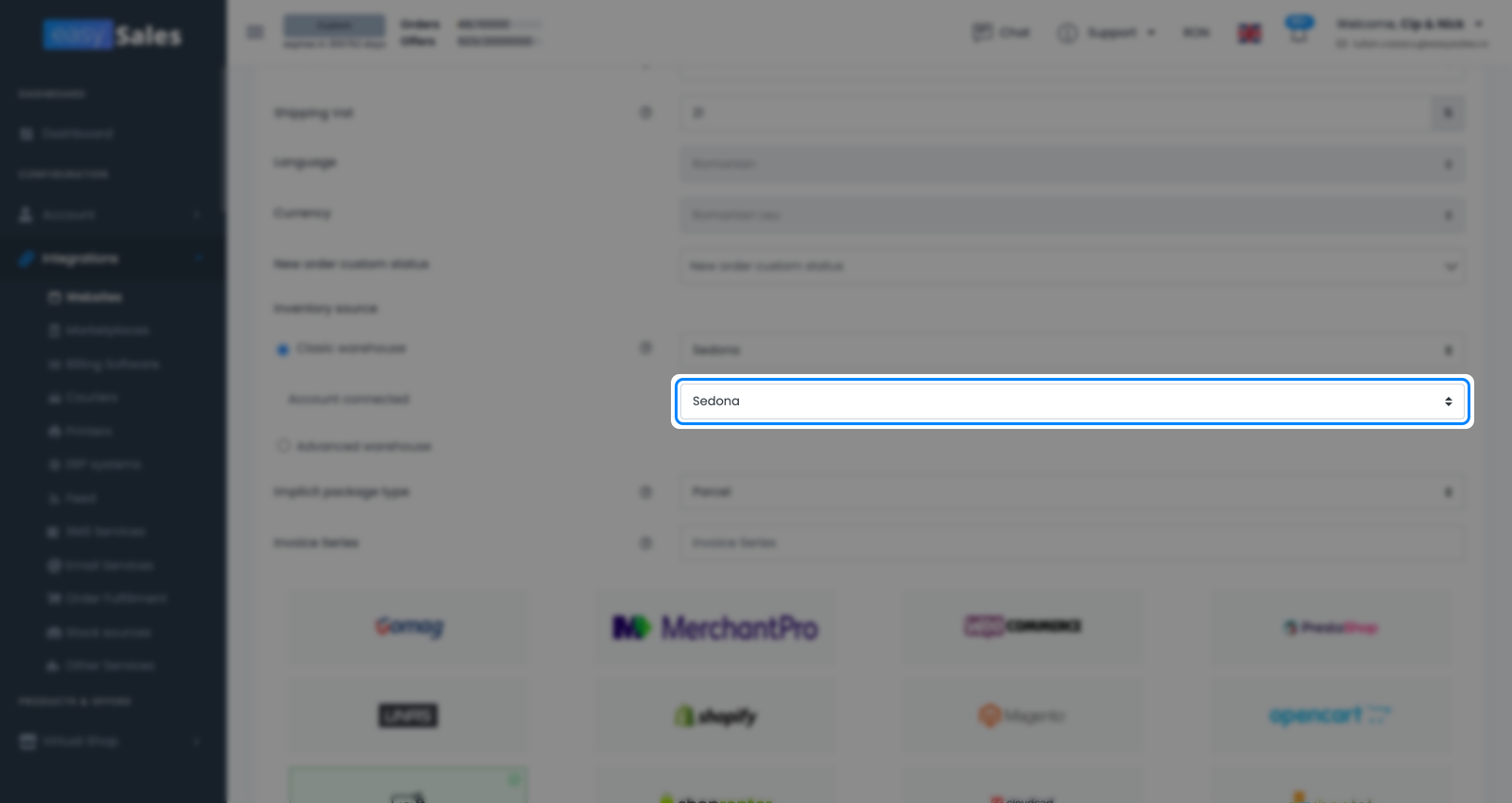
This picker only appears where it makes sense — the external systems, feeds and suppliers where you might hold several accounts. It isn't shown when the source is the store itself or easySales, because there's nothing to disambiguate.
How often stock is read (polling, not real-time)
This is the part that most often surprises people. External sources — ERP and accounting systems, fulfilment and courier warehouses, feeds and suppliers — are read on a schedule. easySales checks the source periodically and updates the store's stock from what it finds; it is not a live, instant link.
In practice, a change in your ERP or a new line in your feed shows up in easySales after the next read, not the instant you save it. The delay is usually short, but it's a delay — worth remembering whenever the numbers in easySales and in your source system don't line up for a few minutes.
What happens when you change the source
Switching a store's Inventory source isn't a quiet setting change. When you pick a different source (or a different Account connected), easySales re-syncs the store's products so their stock is recalculated from the new system of truth. Give that refresh a little time before judging whether the new numbers are right.
So if you've just moved a store from manual entry to an accounting system, expect the products to refresh against the new source rather than update one by one. Once the refresh has run and the next scheduled read has happened, the store's stock reflects the new source.