How to request a feature in easySales and vote for development requests
Send your ideas for easySales, vote for the requests you need, follow their status by e-mail, and pledge funding for a request.
What Development Requests are
Development Requests is the list of improvements planned for easySales and the ones already delivered. You can follow the ones you need, vote for them, and send your own ideas. Open it from Settings → Support → Development Requests.
Three things to know first:
- A new request is sent as a support ticket. Add Request opens the ticket form with the topic Development request. Our team reviews the requests and turns them into items on the list; there is no immediate answer.
- Subscribing is your vote. The more sellers follow a request, the higher its priority. You also get an e-mail each time its status changes.
- You are subscribed to your own request. When your idea becomes an item on the list, or matches one that already exists, you are subscribed to it, and you find it under My requests.
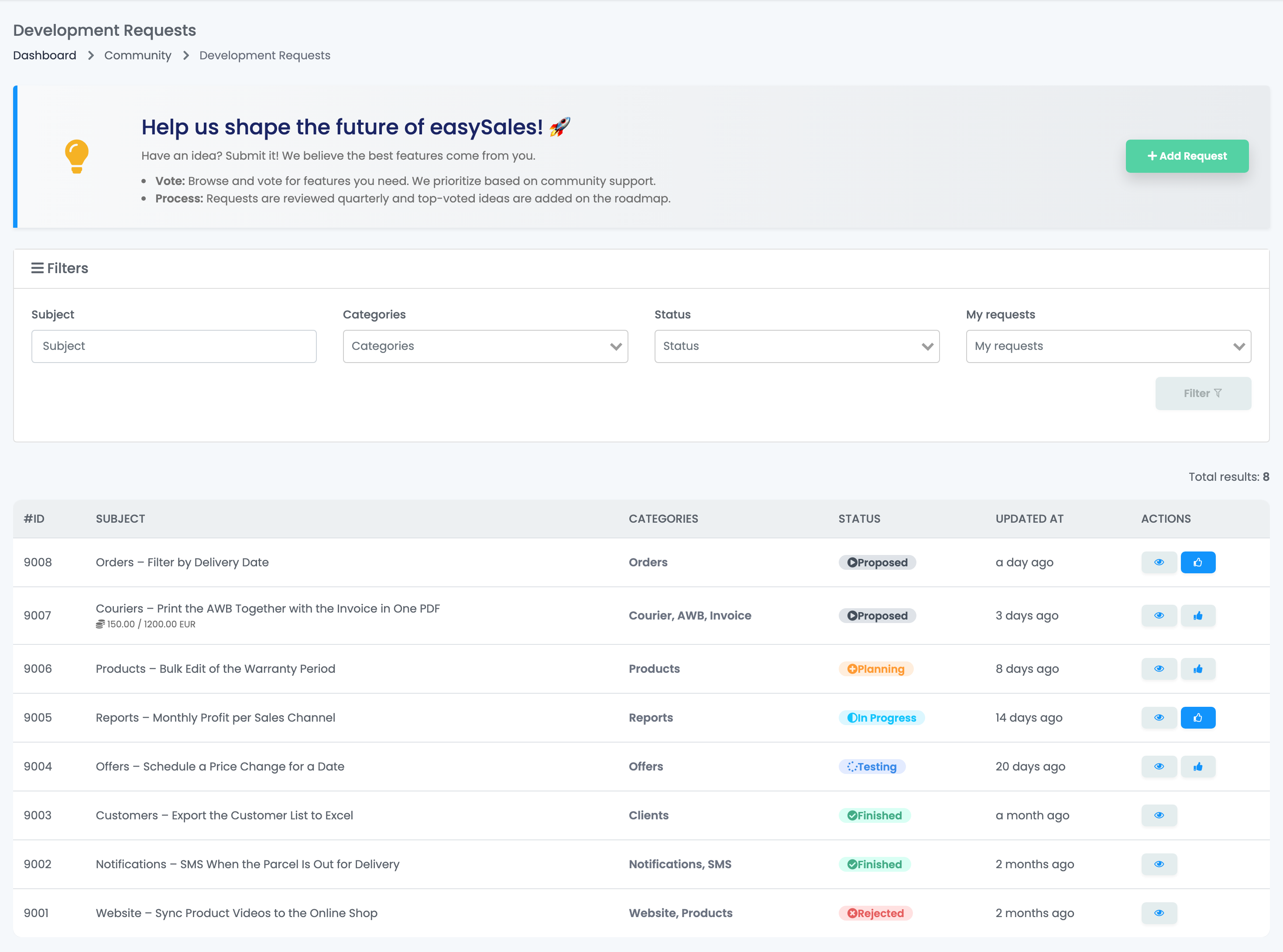
Find a request
Before you send an idea, check whether it is already on the list. Search by Subject, or filter by Categories, Status and My requests, then press Filter. The eye icon opens a request; the thumbs-up icon subscribes you to it, or unsubscribes you.
| Status | What it means |
|---|---|
| Proposed | The request is on the list and not planned yet. |
| Planning | The request is planned for development. |
| In Progress | The request is being developed. |
| Testing | The development is being tested. |
| Finished | The request is delivered. |
| Rejected | The request will not be developed. |
Send your own request
- Press Add Request.
- The form opens with the Ticket Topic Development request and the Emergency Level Minor already chosen.
- Write a short Subject and describe in Body what you need and why: what you do today, how often, and what would change for you. Add screenshots or files if they help.
- Press Save. The request is sent as a ticket, and you can follow it under Tickets.
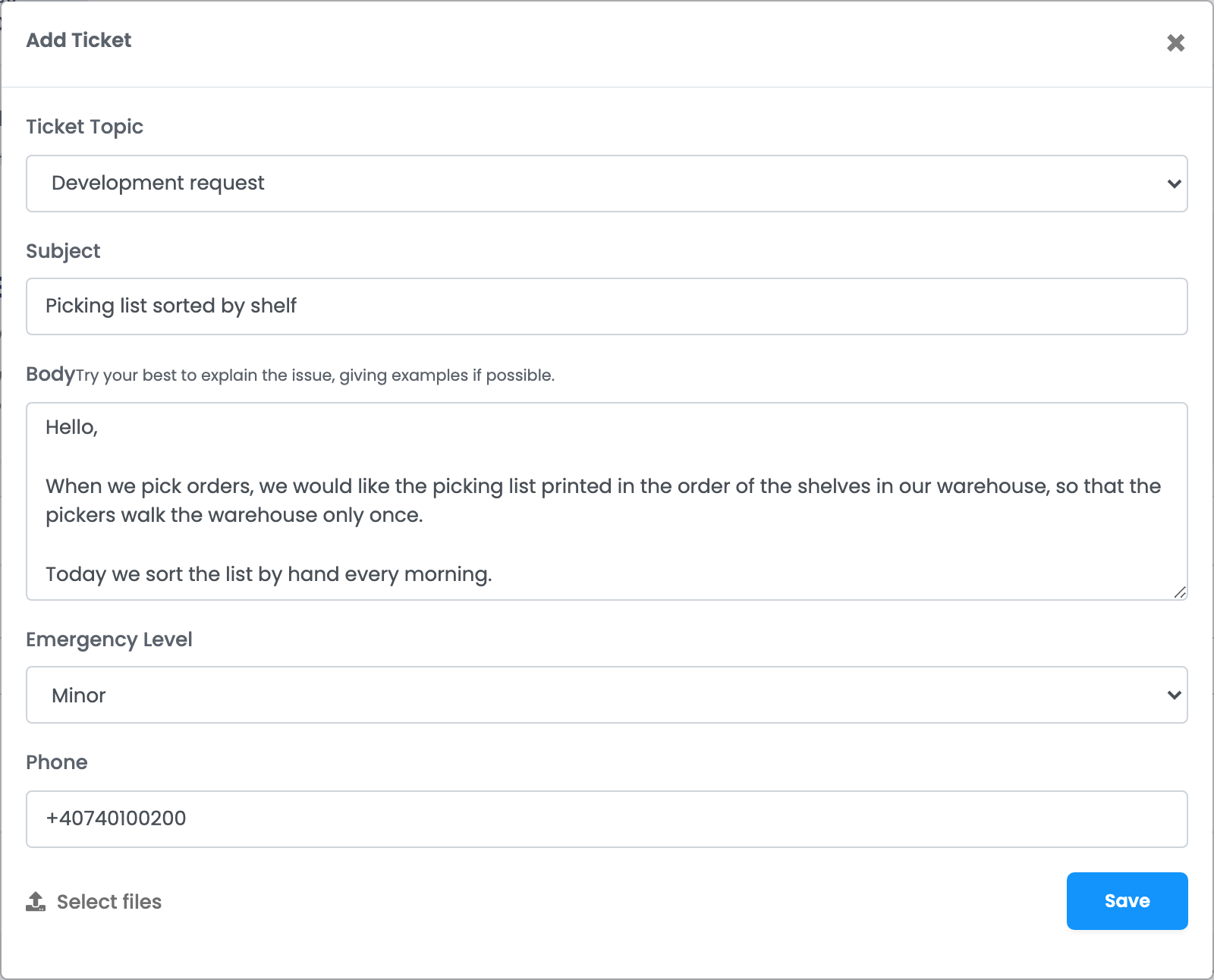
The ticket says that development requests are reviewed periodically for the roadmap, so the answer may take a while. When your idea is added to the list, you are subscribed to it.
Follow a request
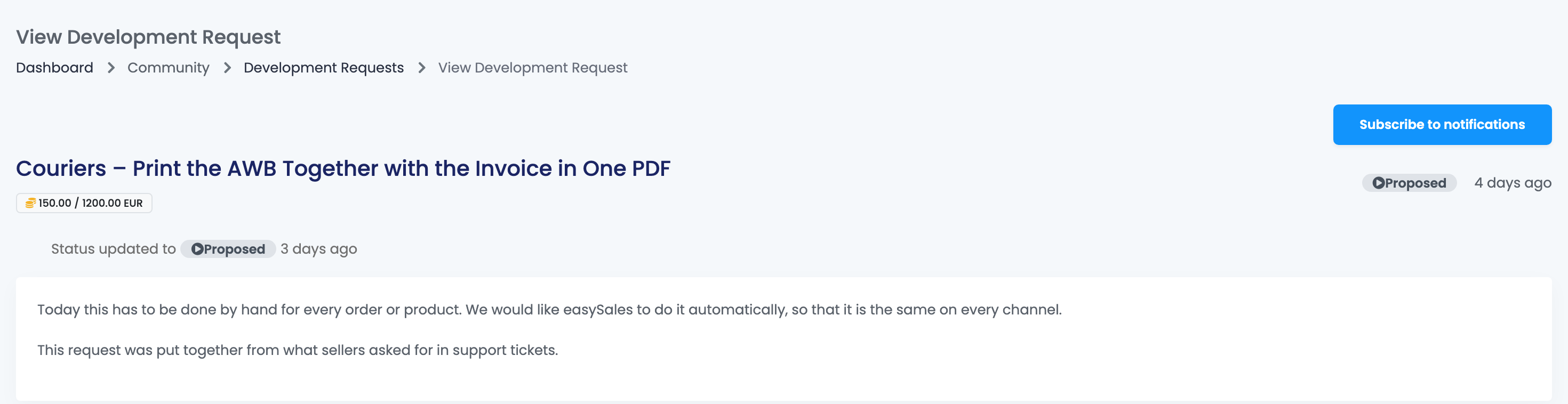
A request's page shows its description, its status and when the status last changed. Subscribe to notifications adds your vote and sends you an e-mail at each status change; Unsubscribe from notifications stops both. Requests that are Finished or Rejected can no longer be followed.
Fund a request
Some requests show a cost, with the amount already pledged by sellers. When you subscribe to one of them, easySales asks whether you want to pledge part of the cost.
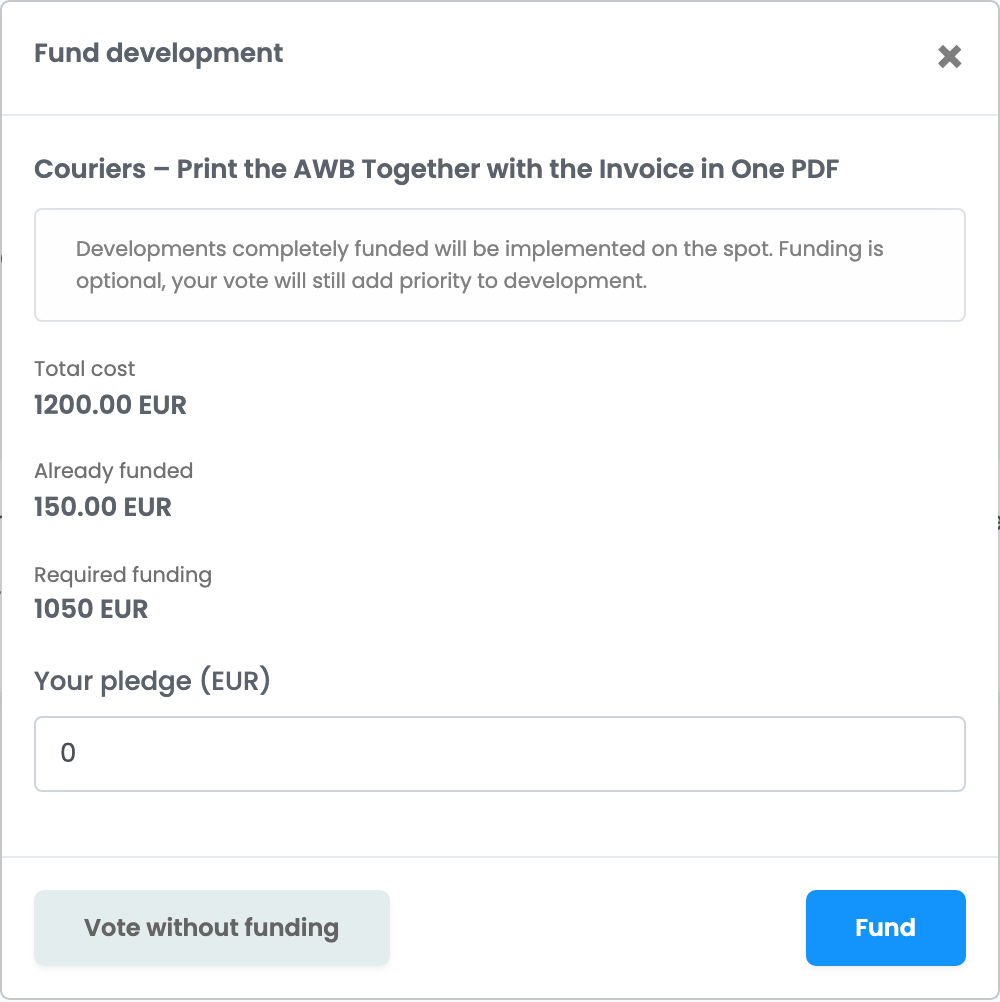
- Your pledge is in EUR, up to the funding still required. Vote without funding subscribes you without a pledge.
- A pledge is not a payment: nothing is charged when you make it.
- A new pledge replaces your previous one, and unsubscribing removes it.
Your team and requests
Team members need the View developments permission to see the list, and View tickets to send a request.
When something does not look right
| Symptom | What to do |
|---|---|
| My request is not on the list | Requests are added after our team reviews them. Follow your ticket under Tickets; when the request is on the list, you find it under My requests. |
| I cannot subscribe to a request | Requests that are Finished or Rejected cannot be followed. |
| My requests shows requests I did not send | My requests lists every request you are subscribed to, including the ones you voted for. |
| A team member cannot see Development Requests | Give them the View developments permission, and View tickets to send requests. |